

写在前面
由上一章可以看出,当我们在绘制一个复杂的图形时,我们的代码将膨胀,无论是阅读还是理解都将变得复杂。将复杂的图形分解成多个简单的基本图形组合,并是我们的目标。
一个复杂的页面由不同组件组合形成,我们将组件化的思想引入到我们引擎中来。
图元
与组件对应,下面我们将其命名为图元。下面我们设计一下图元的类结构。
export default class Node {
  constructor(canvas, style = {}) {
    this.canvas = canvas || null;                         // 画布
    this.position = style.position || new Point(0, 0);    // 图元坐标
    this.visible = style.visible || true;                 // 是否显示
    this.rotation = style.rotation || 0;                  // 旋转角度
    this.scaleX = style.scaleX || 1;                      // X方向旋转
    this.scaleY = style.scaleY || 1;                      // Y方向
    this.alpha = style.alpha || 1;                        // 透明度
    this.color = style.color || '#000000';                // 颜色
    this.shadowOffsetX = style.shadowOffsetX || '';       // X方向阴影
    this.shadowOffsetY = style.shadowOffsetY || '';       // Y方向阴影
    this.shadowBlur = style.shadowBlur || '';             // 模糊程度
    this.shadowColor = style.shadowColor || '';           // 阴影颜色
  }

  draw(painter) {
    // Node 绘制函数
  }

  paint() {
    if (this.visible) {
      const { painter } = this.canvas;
      painter.save();
      painter.globalAlpha = this.alpha;
      painter.translate(0, this.scaleY * (this.canvas.height - this.canvas.ratio * this.position.y));
      painter.rotate(this.rotation * Math.PI / 180);
      painter.scale(this.scaleX, this.scaleY);
      this.draw(painter);
      painter.restore();
      config.after && config.after(this, painter);
    }
  }
}
从上面的代码可以看出,Node类通过传入画布canvas与样式配置style来描述图元。在元素中定义了paint函数,该函数在对画笔进行设置属性后,通过自身的draw函数进行绘制当前图元。Node类提供了一个抽象函数draw用于子类的继承,这里我们可以类比React组件的render方法,该方法获得画笔参数painter进行绘制。
坐标变换
我们知道Canvas的坐标原点为左上角,如图所示:
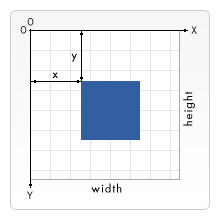
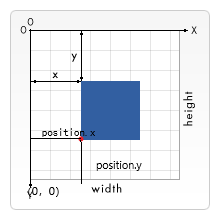
painter.translate(0, this.scaleY * (this.canvas.height - this.canvas.ratio * this.position.y));
保存与恢复
我们设置画笔样式时,通过save函数和restore函数进行画笔样式的保存与恢复,这样当我绘制完图元时,我们修改的画笔样式将不会影响其他图元的绘制,避免“交叉感染”的风险。
将图元绘制到画布上
我们已经设计好了图元,那么如何将图元绘制到画布上呢? 这里,我们修改一下上一章封装的画布类Canvas,使用画布类管理图元,并将图元绘制到实际的Canvas画布上。
class Canvas {
	constructor(config) {
		if (config.ele === undefined) {
		  throw new Error('Not found config of canvas element');
		}
		// canvas 标签的容器标签
		this.container = config.ele;
		// 设置canvas width属性与样式width 的比率
		this.ratio = config.ratio || 2;
		// 创建 canvas 标签
		this.canvas = document.createElement('canvas');
		// 图元数组
		this.childs = [];
		this.init();
	}

	/**
	* 重新定义Canvas的大小
	*/
	repaint() {
		this.container.innerHTML = '';
		this.canvas = document.createElement('canvas');
		this.init();
	}

	/**
	* 初始化Canvas系数
	*/
	init() {
		// 获取容器的样式
		const styles = getComputedStyle(this.container, null);
		// 容器的宽
		const width = parseInt(styles.width);
		// 容器的高
		const height = parseInt(styles.height);
		// 设置canvas的样式宽
		this.canvas.style.width = `${width}px`;
		// 设置canvas的样式高
		this.canvas.style.height = `${height}px`;
		// 根据比率设置相应的属性宽高
		this.canvas.width = this.ratio * width; //设置缩放比
		this.canvas.height = this.ratio * height;
		// 去除点击选中样式
		this.canvas.style.outline = 'none';
		this.canvas.onclick = (e) => { this.canvas.focus(); };
		this.container.appendChild(this.canvas);
		// 设置画笔属性
		this.painter = this.canvas.getContext('2d');
	}

	addChild() {
        for (const i in arguments) {
          if (arguments[i] instanceof Node) {
            if (this.childs.indexOf(arguments[i]) === -1) {
              arguments[i].canvas = this;
              this.childs.push(arguments[i]);
              if (arguments[i] instanceof Layer) {
                arguments[i].build();
              }
            }
          }
        }
    }

    removeChild() {
        for (const i in arguments) {
          if (arguments[i] instanceof Node) {
            if (this.childs.indexOf(arguments[i]) !== -1) {
              arguments[i].canvas = this;
              this.childs.splice(this.childs.indexOf(arguments[i]), 1);
            }
          }
        }
    }

	paint() {
        this.painter.clearRect(0, 0, this.width, this.height);
        for (let i = 0; i < this.childs.length; i++) {
          this.childs[i].paint();
        }
    }
}
上面代码,我们给Canvas类增加的paint函数,在paint函数中,我们遍历图元数组,调用图元类的paint() 方法绘制图元,从而达到整个页面的绘制。
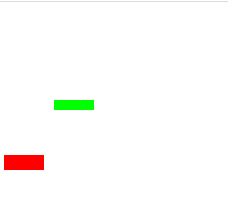
下面,我们将通过绘制给出了一个长方形图元的例子进行图元的使用。
/**
* 矩形类 定义实现
*/
class Rectangle extends Node {
  constructor(canvas, style) {
	super(canvas, style);
	this.width = style.width || 0;
	this.height = style.height || 0;
  }

  setSize(width, height) {
	this.width = width;
	this.height = height || this.height;
  }
  /**
  * 主要实现的绘制函数
  */
  draw(painter) {
	painter.fillStyle = this.color;
	painter.fillRect(this.position.x, this.position.y - this.height, this.width, this.height);
  }
}
下面利用图元绘制两个矩形
let dv = document.getElementById('canvas');
let canvas = new Canvas({
	ele: dv
});
let rect1 = new Rectangle(canvas, {
	width: 80,
	height: 30,
	color: '#FF0000'
});
let rect2 = new Rectangle(canvas, {
	width: 80,
	height: 20,
	color: '#00FF00'
});
rect1.setPosition(0, 80);
rect2.setPosition(100, 200);
canvas.addChild(rect1, rect2);
canvas.paint();
效果图
图层
对于复杂的图表,如封面的雷达图,如果我们都让Canvas 类进行管理,那么Canvas类的管理将变得非常复杂。所以我们将在图元与画布之间引入图层,将图层一层一层的叠加在画布Canvas上。
class Layer extends Node {
    constructor(canvas) {
      super(canvas);
      this.childs = [];
    }

    addChild() {
      for (const i in arguments) {
        if (arguments[i] instanceof Node) {
          if (this.childs.indexOf(arguments[i]) === -1) {
            arguments[i].canvas = this.canvas;
            this.childs.push(arguments[i]);
            if (arguments[i] instanceof Layer) {
              arguments[i].build()
            }
          }
        }
      }
    }

    removeChild(child) {
      if (this.childs.indexOf(child) !== -1) {
        this.childs.splice(this.childs.indexOf(child), 1);
      }
    }

    paint() {
      if (this.visible) {
        for (const child of this.childs) {
          child.paint();
        }
      }
      super.paint();
    }
}
有代码可以看出,图层类是一个复杂的图元,它拥有一个childs 的图元数组属性。在这里我们可以增加一个zIndex属性用于图层的层次顺序,类比css的z-index,这里就不展开说明了。
目录
【实现自己的可视化引擎01】认识Canvas
【实现自己的可视化框架引擎02】抽象图像元素
【实现自己的可视化引擎03】构建基础图元库
【实现自己的可视化引擎04】图像元素动画
【实现自己的可视化引擎05】交互与事件
【实现自己的可视化引擎06】折线图
【实现自己的可视化引擎07】柱状图
【实现自己的可视化引擎08】条形图
【实现自己的可视化引擎09】饼图
【实现自己的可视化引擎10】散点图
【实现自己的可视化引擎11】雷达图
【实现自己的可视化引擎12】K线图
【实现自己的可视化引擎13】仪表盘
【实现自己的可视化引擎14】地图
【实现自己的可视化引擎15】关系图
