文章的 TOC 太多了,看起来不方便?PC 端可以看看我的 《两个 TamperMonkey 脚本,解决掘金阅读体验的三点不爽》,可以解决一些掘金阅读体验问题。
我写的「入坑」系列文章:
- 《入坑 Mac,看这一篇就够了》
- 《入坑 iTerm + OMZ,看这一篇就够了》
- 《入坑 Firefox Developer Edition 及 Mobile 版,看这一篇就够了》
- 《入坑 WebStorm,看这一篇就够了》
- 《入坑 VSCode,看这一篇就够了》
- 《入坑 Vim,看这一篇就够了》← 本文
- 《入坑 Git,看这一篇就够了》
- 《入坑 Docusaurus,看这一篇就够了》 《入坑 Nginx,看这一篇就够了》
- 《入坑 UniApp 写小程序,一些感受》
🎼 前言
跟随本文进行操作,你将了解 Vim 的基础知识和基础操作,并且知道每一行的设置的目的是什么。 最后,你将得到一个「比较好看」和「比较好用」的 Vim 设置。
入坑 Vim,看这一篇「应该」就够了。
虽然我用 Vim 不多,但必要的设置还是必要的。
学习 Vim,主要就是了解它的模式、键盘指令、配置文件和各种命令,由于指令跟命令实在太多,全部了解完全不可能,但最常用的能够记住,就可以自称 Vim 高手了(Me Not)。
TL;DR
直接跳到文末「完整配置」,有现成完整的 .vimrc,但你会 miss 掉前文逐步详解每个设置步骤背后的原因和设置技巧。
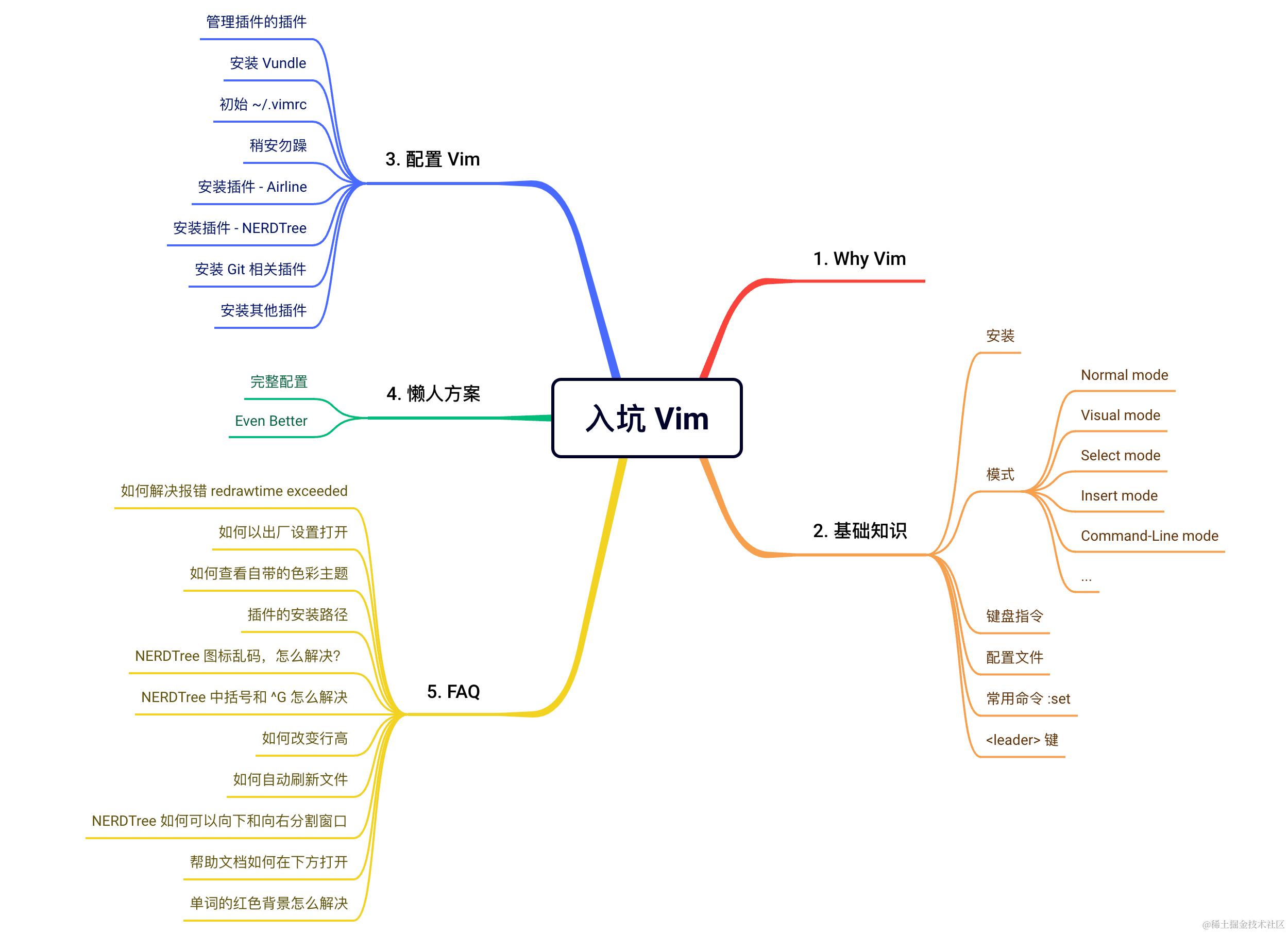
主要内容
适合读者
- Vim 不熟的同学,想把 Vim 设置得好用一些的
你将获得
- Vim 设置、使用的基础知识
- 一个配置得还不错的
.vimrc
编辑历史
| 日期 | 版本说明 |
|---|---|
| 2023/09/06 | V1 |
💋 Why Vim
Vim,最古老的编辑器之一,拥有「编辑器之神」之称。它没有 GUI,入门门槛高,却自诞生 50 多年来,一直广受 IT 从业者喜爱。
Vim 简洁高效,纯键盘操作酷极,以至于有人会调侃「不会 Vim 做什么程序员」。
为了避免被调侃,跟随本文一起入坑 Vim 吧。
本文的 Vim 为 Mac 自带的 Vim 在 iTerm 上运行,其他的系统需要按需调整。
🪵 基础知识
安装
Mac 下,Vim 不需要安装,在命令行输入 vi、vim 即可在终端打开 Vim 编辑器。在 usr/bin 下,我们可以看到,其实 vi 就是 vim:
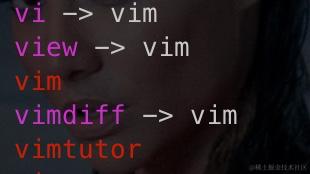
Mac 系统自带了教程,Terminal 中输入 vimtutor 进入学习。
如果你喜欢,可以安装带 GUI 壳的「真」编辑器(如 MacVim);如果不想折腾配置可以试试下面这几个,它们有很棒的预配:
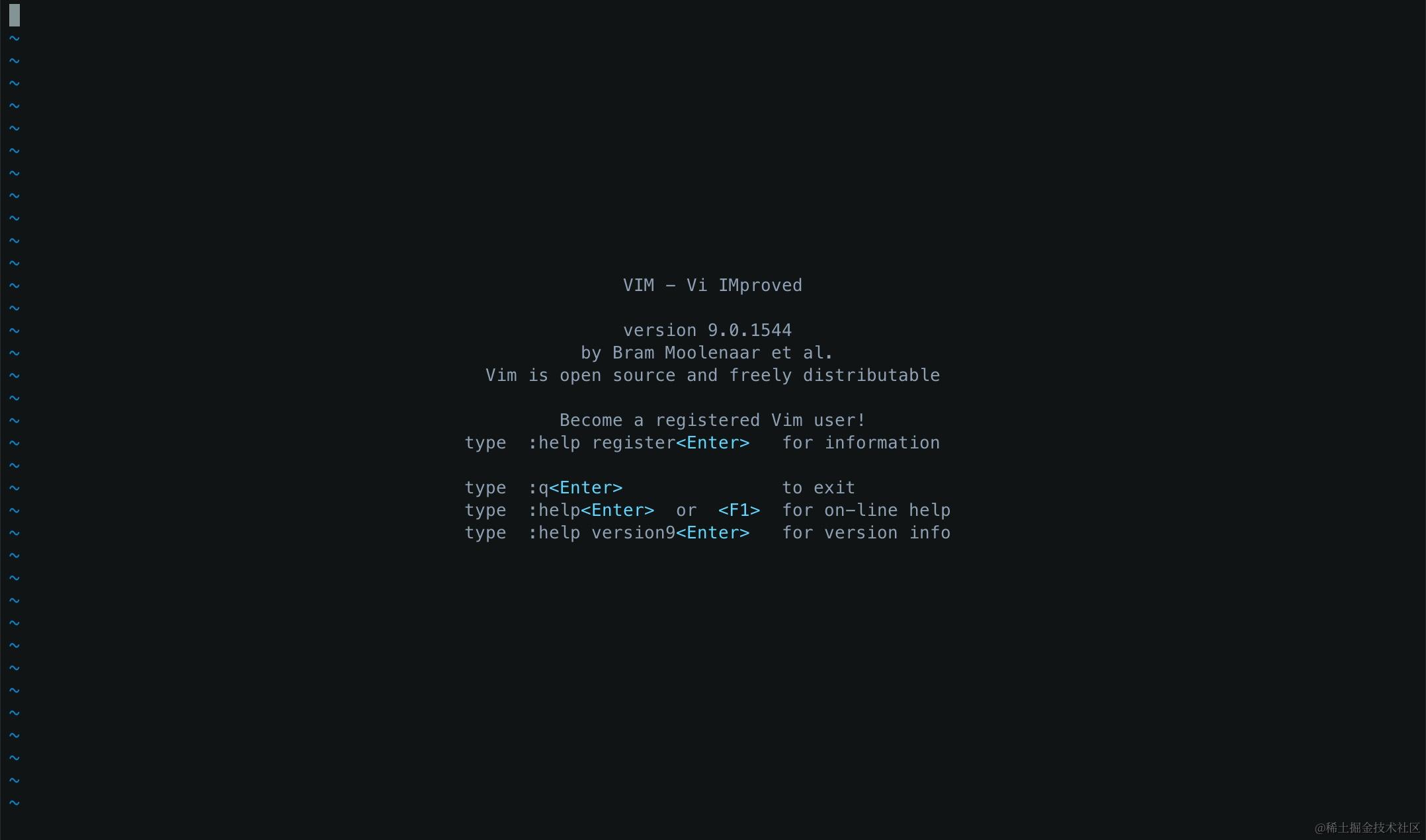
原生的 Vim 就长这样:
别人家设置过的 Vim 可能长这样:
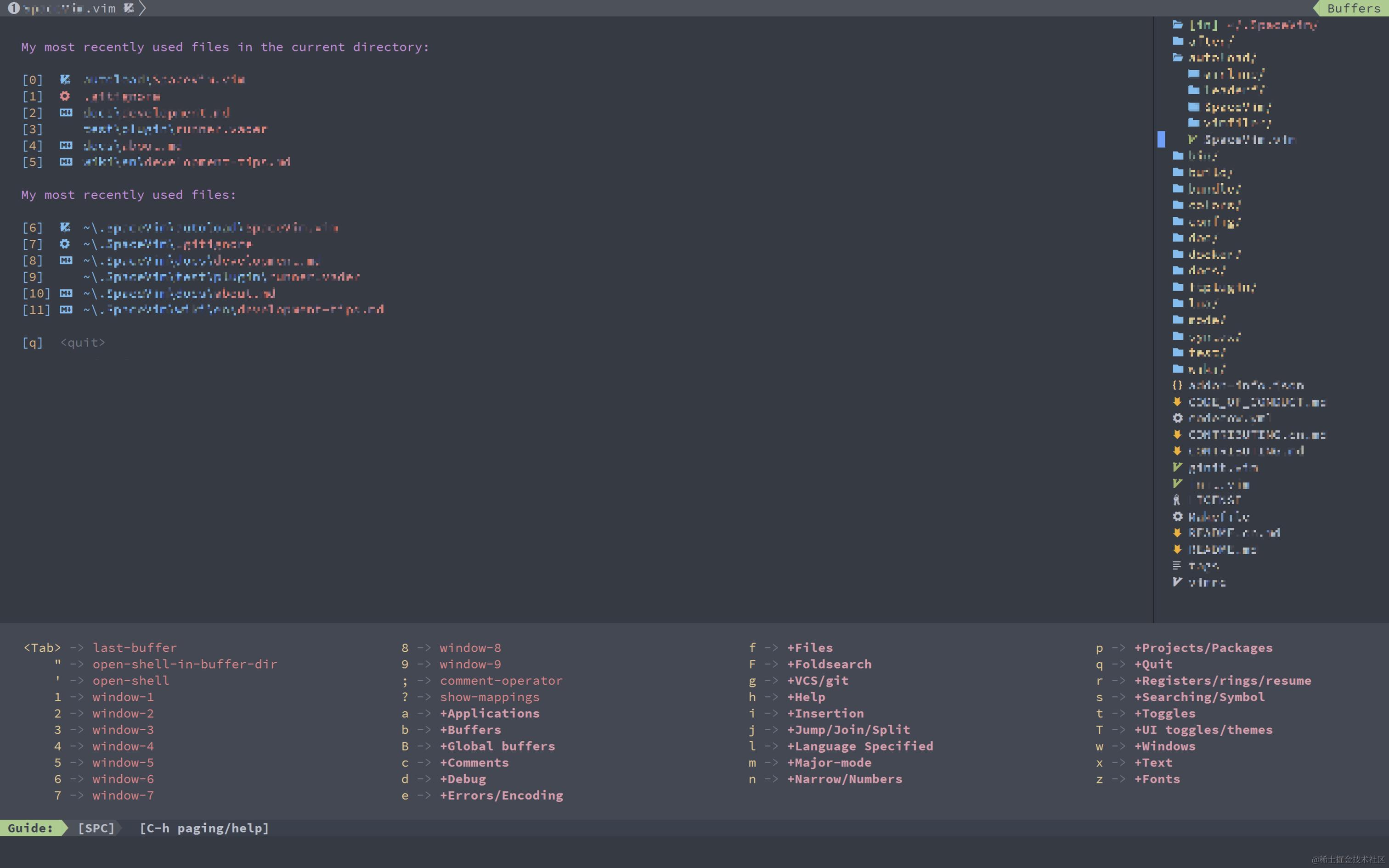
现在,我们已经有了 Vim,先不急着上手设置,先了解一些 Vim 的基础知识很有必要。
模式
对于新手小白来说,第一个问题可能是:「怎么不能输入?」。
这涉及到 Vim 的几个模式(modes),Vim 共有 7 个基础模式 + 7 个辅助模式。
这里仅列举了 6 个模式的特征和用法,其他的可以 :h vim-modes 自行学习。
Normal/Command mode
该模式下,键盘不进行内容输入,而是执行快速导航、快速删除、切换模式等指令。新手进入 Vim 后敲键盘发现「不能输入」就是这个原因。
进入
该模式是默认进入 Vim 的模式,任何其他模式按 ESC 会回到该模式。
Visual mode
该模式下,移动光标会将光标所经过的区域高亮选中,非光标移动的指令则作用于选中区域。
标识
-- VISUAL --,普通的 Visual mode-- VISUAL LINE --,以一行为单位进行选择-- VISUAL BLOCK --,纵向选择一块文字,类似 Eclipse 的块编辑
进入
| 触发 | 说明 |
|---|---|
v | -- VISUAL --,再次按 v 退出 |
V | -- VISUAL LINE --,再次按 V 退出 |
^v | -- VISUAL BLOCK --,再次按 ^v 退出 |
| 鼠标圈选 | -- VISUAL --,需设置 :set mouse=a,鼠标点击会退回至 Normal 模式 |
Select mode
和 Visual mode 很像,不同的是,在键入第一个可打印字符后,会删除选择区域并进入 Insert mode。
标识
-- SELECT ---- SELECT LINE ---- SELECT BLOCK --
进入
| 触发 | 说明 |
|---|---|
| Normal mode 下 gh | -- SELECT -- |
| Normal mode 下 gH | -- SELECT LINE -- |
| Normal mode 下 g^H | -- SELECT BLOCK -- |
| Visual mode 下 ^G | 根据原来的模式 -- SELECT --、-- SELECT LINE --、-- SELECT BLOCK -- |
Insert mode
让 Vim 跟常规编辑器一样可以接受键盘输入。
标识
-- INSERT --
进入
Select mode 下,键入第一个可打印字符即进入 Insert mode,Normal mode 下有多种进入方式。
| 触发 | 说明 |
|---|---|
a | 在光标后开始插入 |
A | 在当前行末(算空格)开始插入 |
cc | 删除当前行,开始输入 |
cw | 删除光标到词尾,开始输入 |
C | 删除光标至行尾,开始输入 |
i | 在光标前开始插入 |
I | 在当前行首(不算空格)开始插入 |
o | 在下一行插入空行,开始插入 |
O | 在上一行插入空行,开始插入 |
s | 删除光标处字符,开始输入 |
S | 删除当前行,开始输入 |
Command-Line 模式
在窗体底部输入命令。
进入
| 触发 | 说明 |
|---|---|
: | 通用命令 |
/ | 搜索 |
? | 搜索 |
Ex 模式
Command-Line mode 的「不退出」版,输入命令后,不会退出,可继续输入其他命令。
Normal mode 下按 Q 进入 Ex mode,在 Ex mode 下输入 vi / visual 命令退出该模式。
Terminal-Job mode
?不会用。
键盘指令
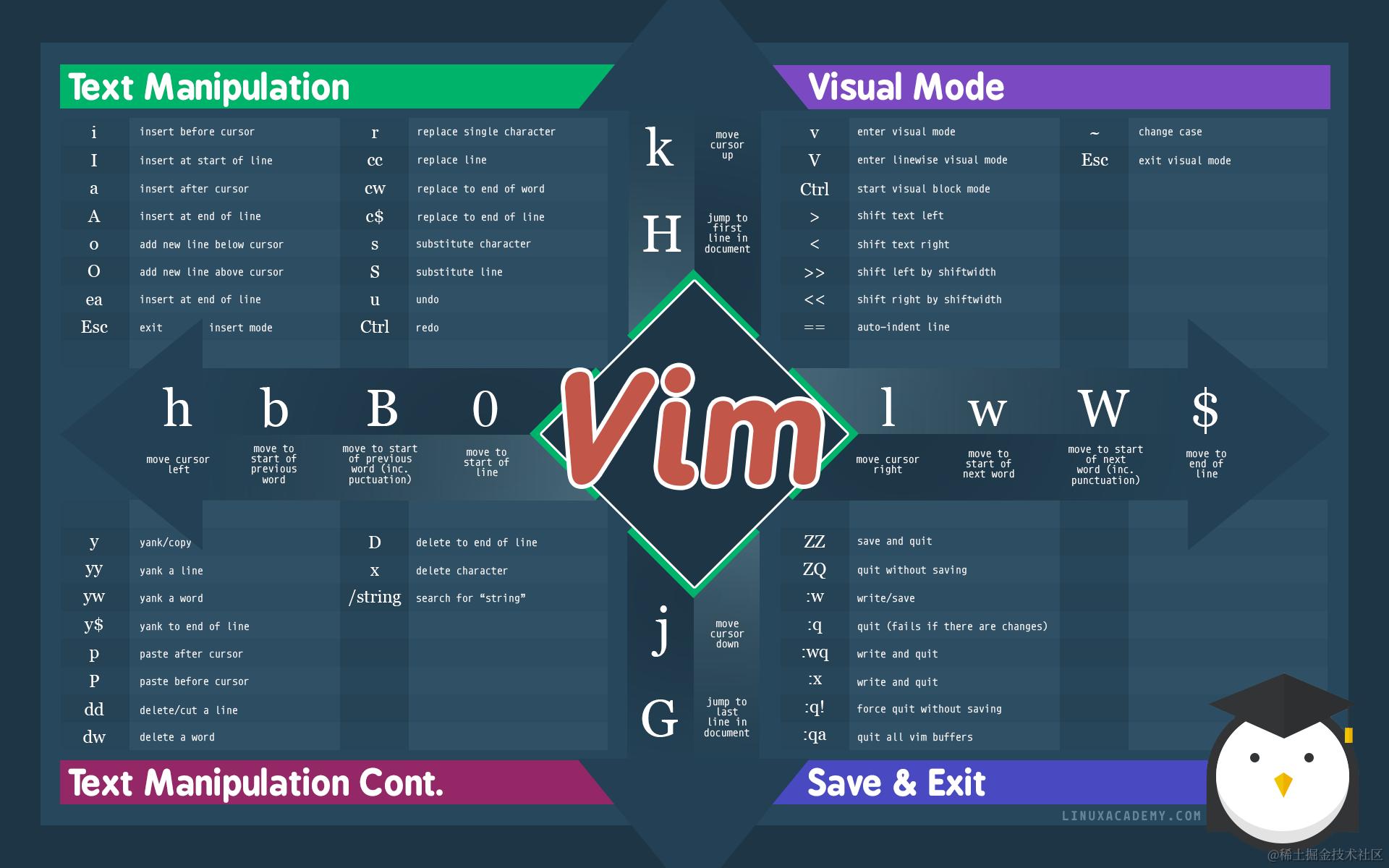
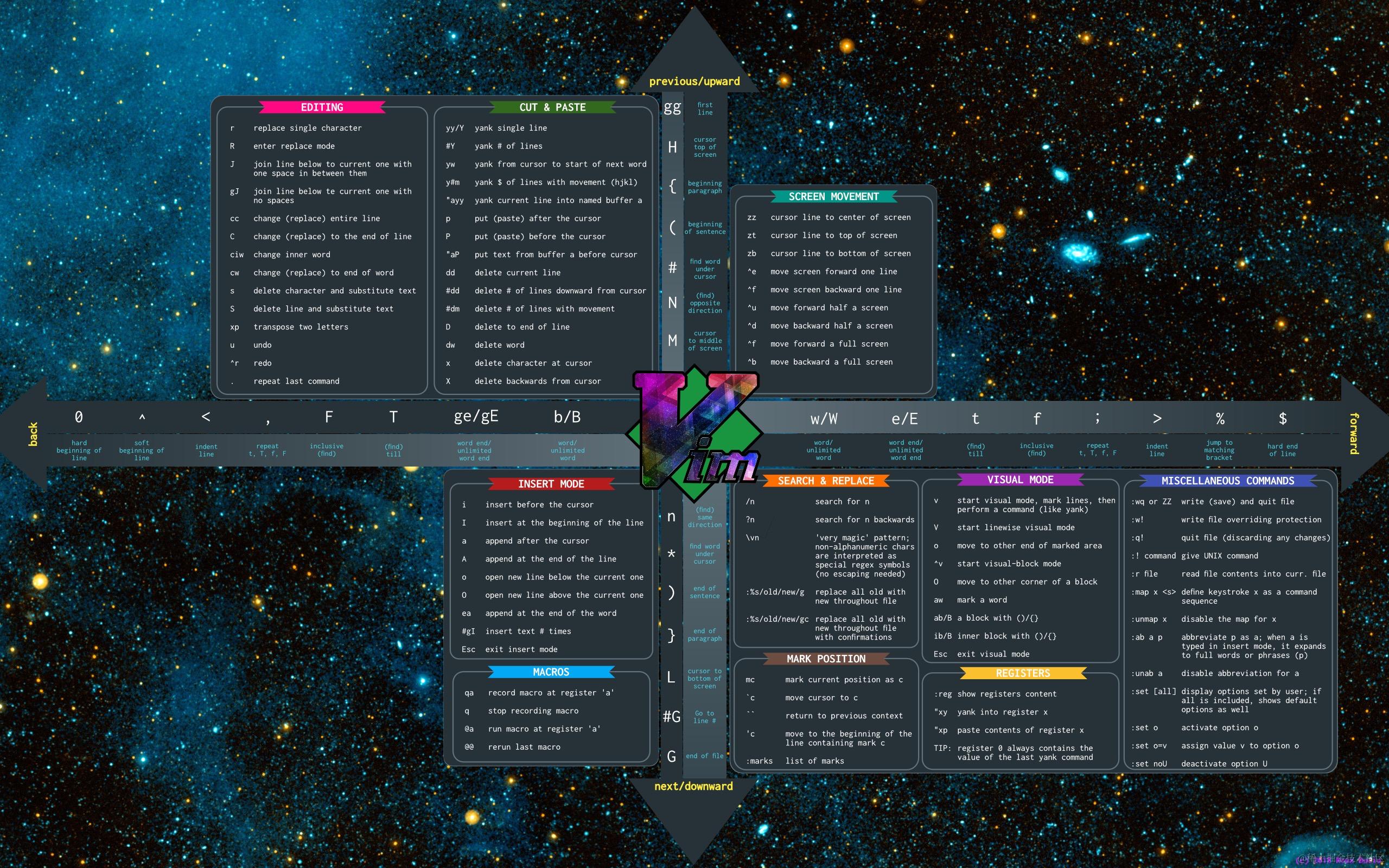
新手小白可能在键盘一顿乱敲之后,问出第二个问题:「怎么变这样了?」,因此了解常用的键盘指令非常重要。
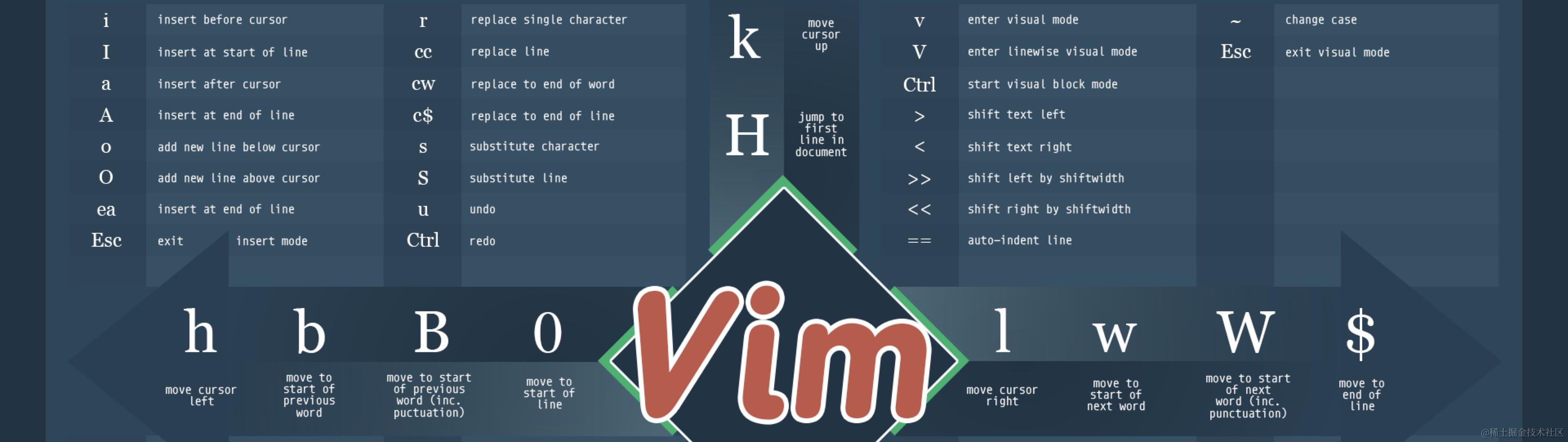
可以看后面的《使用 Vim》章节。先可以看看 文字版作弊纸,再贴两张作弊纸图:
配置文件
使用命令 :version 可以查看 Vim 的版本详情,里边有配置文件信息。
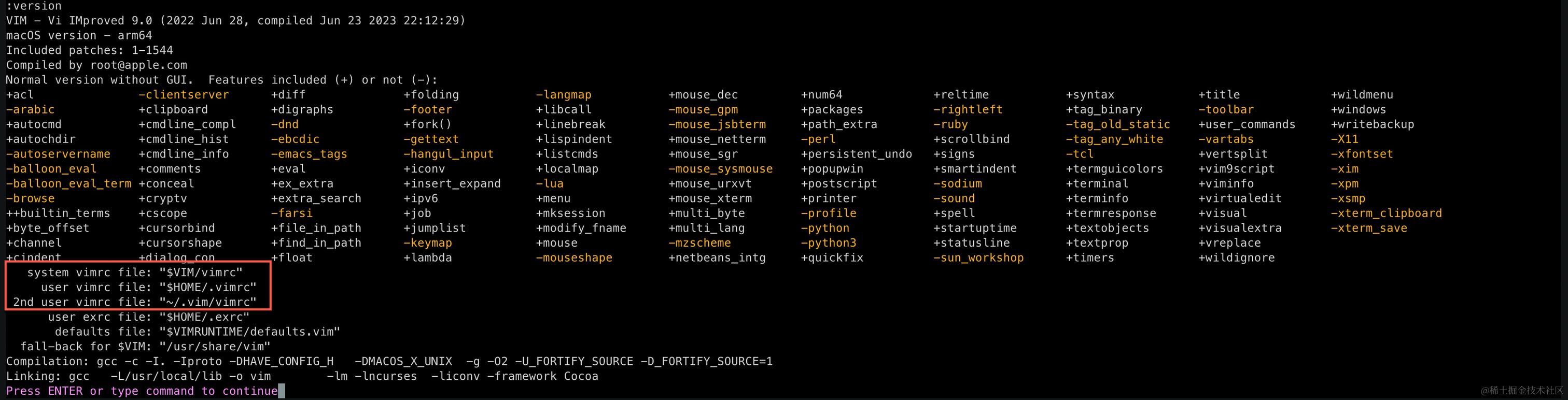
我们用来做自定义的通常是 ~/.vimrc,可以认为是 User Profile。
如果想换 Profile,怎么办呢?可以在打开 Vim 的时候,附带 -u <vimrc> 参数。
vi -u NONEvi -u NORCvi -u DEFAULTSvi -u path/to/custom/vimrc
打命令 :h -u 看详情。
常用命令 :set
在 .vimrc 用到最多的命令应该是 set,我们可以在 Command-Line 模式下直接打以查看实时效果。
set 属性名=值非开关属性,值根据属性有特定的格式要求,如set regexpengine=2、set tabstop=4set 属性名开关属性设为true,如set number、set cursorlineset no属性名开关属性设为false,如set nonumber、set nocursorlineset 属性名!开关属性设为false,如set number!、set cursorline!set 属性名&将任何属性(包括开关属性)还原为出厂设置set 属性名?查看当前值,如set number?可能显示number或nonumber,set re?显示regexpengine=1
属性名有长名和短名(不一定是缩写),为了便于理解,不建议用短名,这里列举一些:
| 属性名 | 短名 | 类型 | 作用 |
|---|---|---|---|
| number | nu | 开关 | 显示行号 |
| cursorline | cul | 开关 | 高亮当前行 |
| regexpengine | re | 0 / 1 / 2 | 正则引擎 |
| tabstop | ts | Number | Tab 占据字符数 |
<leader> 键
在 .vimrc 经常可以看到类似 map <leader>... 这样的配置,这个 <leader> 键是 Vim 提供用以创建自定义快捷键的工具,默认为 \,可以用 let mapleader="_" 修改成别的。
map <leader>h :noh<CR>
更多详细内容可以看《How to Use the Vim <leader> Key》。
⚙️ 配置 Vim
管理插件的插件
玩 Vim 必须要玩插件,而玩 Vim 插件,需要管理插件的插件。Vim 插件千千万,管理 Vim 插件的插件也不少(数据更新于 2023/09):
| 插件 | Github Star | 上次更新 | 说明 |
|---|---|---|---|
| Vundle | 23.6k | 3 weeks ago | |
| Pathogen | 12k | last year | |
| VimPlug | 7k | 2 weeks ago | |
| Dein | 3.4k | last week | 官宣停止维护不再积极维护,推荐 Dpp |
| VAM | 659 | 7 months ago | |
| apt-vim | 477 | 5 years ago | |
| Jetpack | 291 | 3 months ago | |
| VimPackager | 241 | 2 years ago | |
| Volt | 236 | 3 years ago | |
| Dpp | 69 | 2 days ago | |
| Vimogen | 37 | 3 years ago | |
| Voom | 27 | last year | |
| packer.nvim | 7k | 3 weeks ago | 官宣停止维护,推荐 lazy 和 pckr,但都是 for nvim |
| lazy.nvim | 7k | 2 weeks ago | for nvim |
| pckr.nvim | 109 | this week | for nvim |
我选择 Vundle,别的也没用过...
安装 Vundle
参考 Vundle - Quick Start 安装和配置 Vundle。
安装(就是 git clone)
git clone https://github.com/VundleVim/Vundle.vim.git ~/.vim/bundle/Vundle.vim
初始 ~/.vimrc
默认应该是没有 ~/.vimrc 的,新建一个,内容如下(根据 Vundle 文档改的):
set nocompatible              " be iMproved, required
filetype off                  " required

" set the runtime path to include Vundle and initialize
set rtp+=~/.vim/bundle/Vundle.vim
call vundle#begin()

" let Vundle manage Vundle, required
Plugin 'VundleVim/Vundle.vim'

""""""""""""""""""""""""""""""""""""""""""""""""""""""""""""
" Install plugins, supported formats:
"
" - Plugin on GitHub repo, e.g. `Plugin 'tpope/vim-fugitive'`
" - Plugin from http://vim-scripts.org/vim/scripts.html, e.g. `Plugin 'L9'`
" - Plugin hosted on other Git repos, e.g. `Plugin 'git://git.wincent.com/command-t.git'`
" - Your local git repos (i.e. your own plugin), e.g. `Plugin 'file:///path/to/plugin'`
" - The sparkup vim script is in a subdirectory of this repo called vim, pass the path to set the runtimepath properly, e.g. `Plugin 'rstacruz/sparkup', {'rtp': 'vim/'}`
" - Install L9 and avoid a Naming conflict if you've already installed a different version somewhere else, e.g. `Plugin 'ascenator/L9', {'name': 'newL9'}`
""""""""""""""""""""""""""""""""""""""""""""""""""""""""""""

" 💥 插件安装

" All of your Plugins must be added before the following line
call vundle#end()            " required
filetype plugin indent on    " required
" To ignore plugin indent changes, instead use: `filetype plugin on`
"
" Brief help
" :PluginList       - lists configured plugins
" :PluginInstall    - installs plugins; append `!` to update or just :PluginUpdate
" :PluginSearch foo - searches for foo; append `!` to refresh local cache
" :PluginClean      - confirms removal of unused plugins; append `!` to auto-approve removal
"
" see :h vundle for more details or wiki for FAQ
" Put your non-Plugin stuff after this line

""""""""""""""""""""""""""""""""""""""""""""""""""""""""""""
" Common Settings
""""""""""""""""""""""""""""""""""""""""""""""""""""""""""""

" 💥 通用设置

""""""""""""""""""""""""""""""""""""""""""""""""""""""""""""
" Plugin Settings
""""""""""""""""""""""""""""""""""""""""""""""""""""""""""""

" 💥 插件设置
注意,Vundle 不会自动安装插件,需要在添加插件记录后,重启 Vim,执行
:PluginInstall以完成安装。
稍安勿躁
先不急着装插件。
以上,.vimrc 中我留了三大块,用 💥 做了标记。
先 Vim 打开一个 TS 文件,效果是这样的:
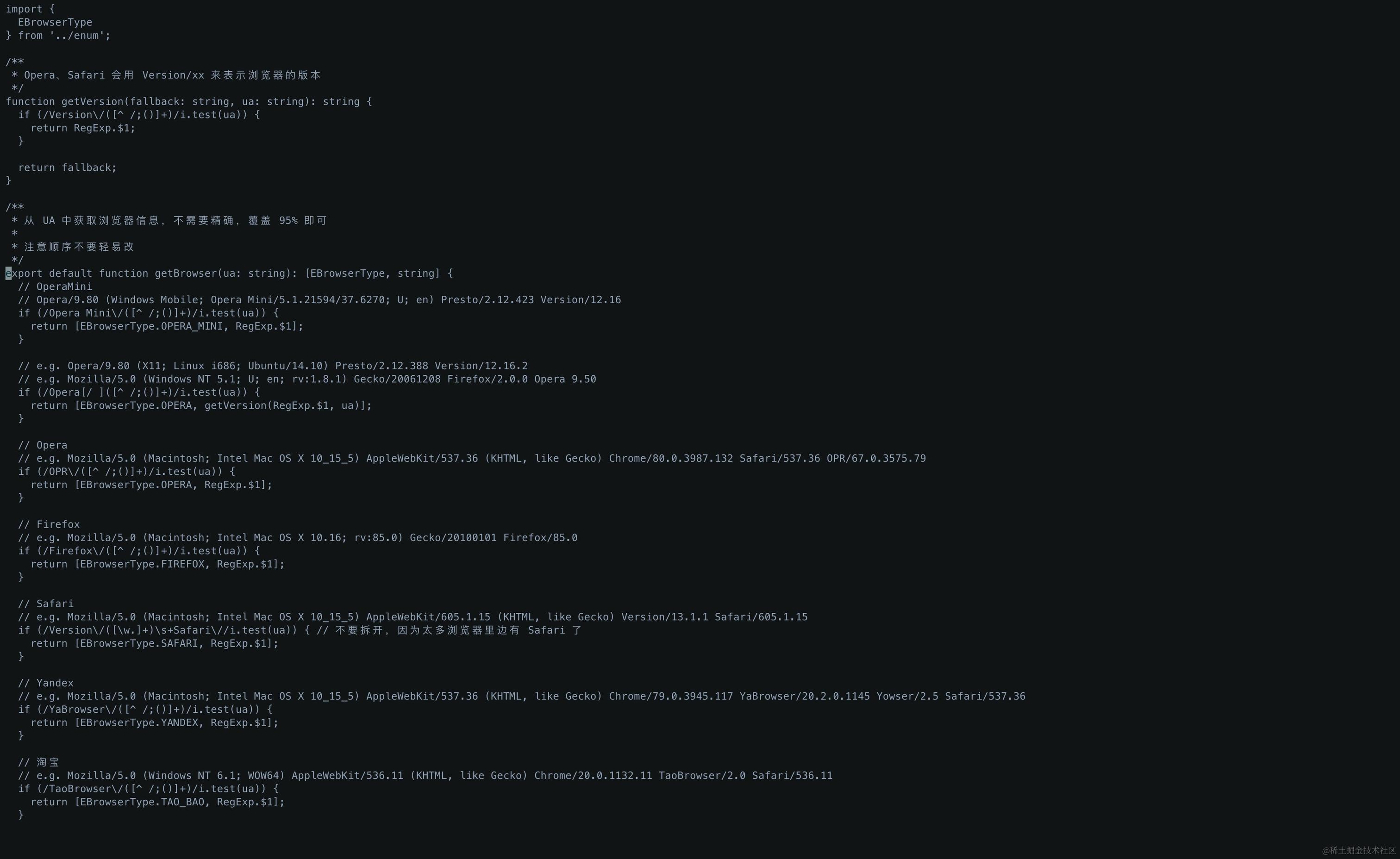
来调配一些基本设置,技巧是,先在 Command-Line mode 下执行命令看效果,然后将敲过的命令记录到 .vimrc 的「通用设置」部分。
编辑器标配功能
对于一个「代码编辑器」来说,少了些标配:
- 显示行号,敲命令
:set number - 语法高亮,敲命令
:syntax on(:syntax enable亦可),报错的话先执行:set regexpengine=2 - 当前行高亮,敲命令
:set cursorline
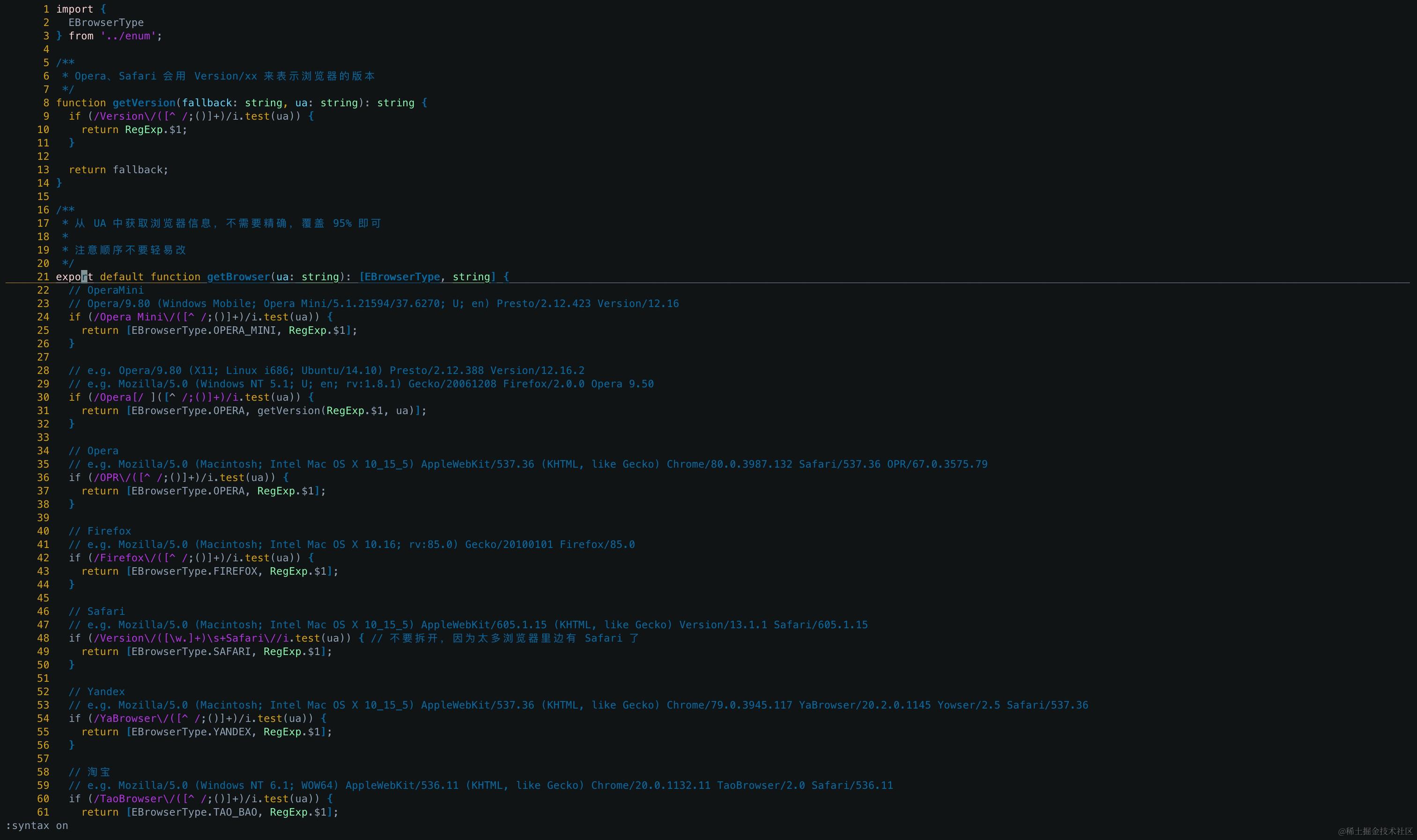
效果看起来差不多了,如果你对高亮行的效果不满意(一根线,不明显),这是 colorscheme default 的效果,可以改一个,在命令模式下敲 :colorscheme wildcharm:
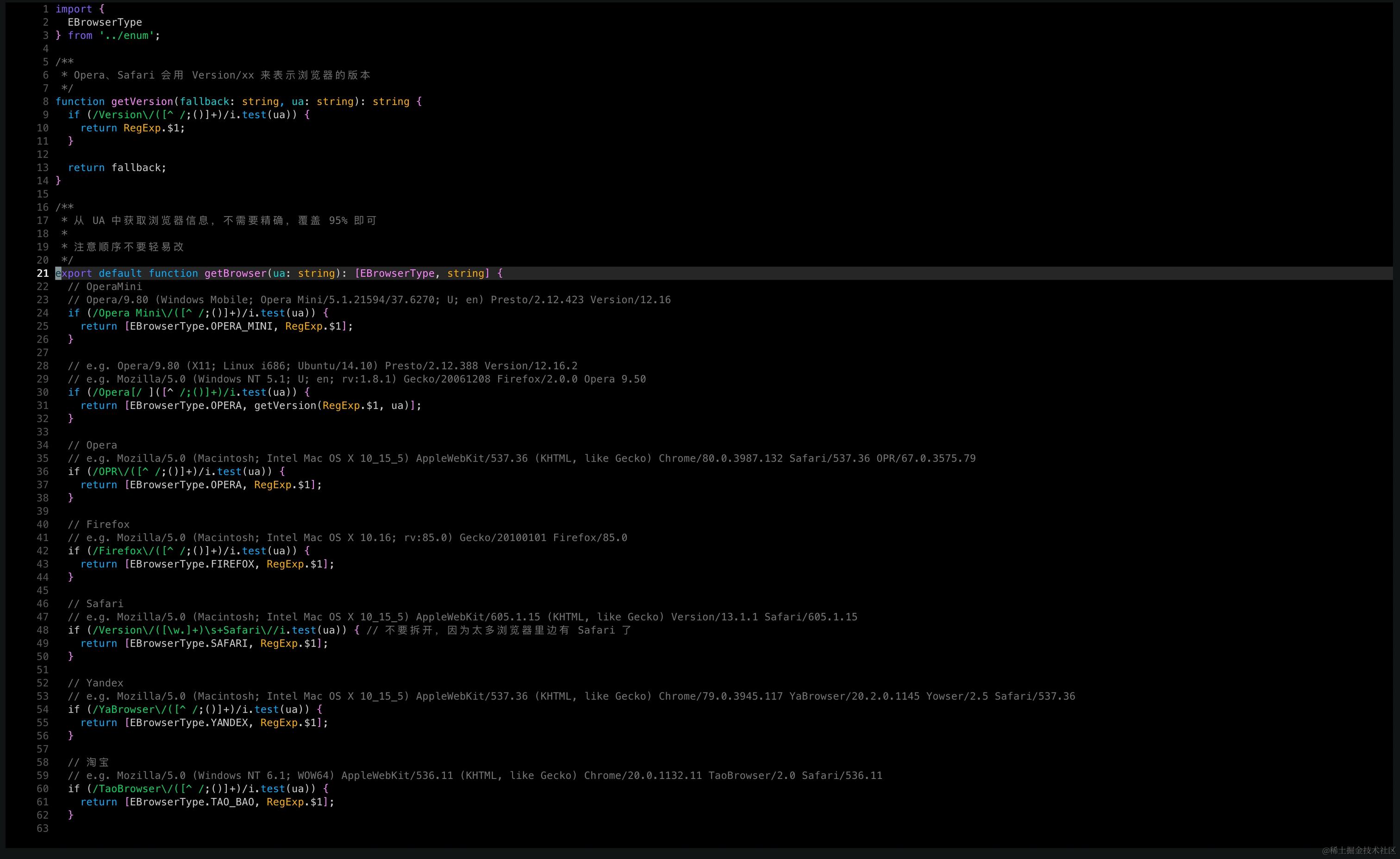
可用的主题有
blue、darkblue、default、delek、desert、elflord、evening、habamax、industry、koehler、lunaperche、morning、murphy、pablo、peachpuff、quiet、retrobox、ron、shine、slate、sorbet、torte、wildcharm、zaibatsu、zellner
如果你觉得 colorscheme default 也不错,可以改一下高亮当前行的颜色 :hi CursorLine cterm=NONE ctermbg=black。
基本上达到满意的效果了,.vimrc 「通用设置」下添加以下汇总的设置:
" --- Color Scheme
colorscheme wildcharm                       " The default colorscheme shows only a bottom line

" --- Editor Basic
set regexpengine=2                          " Prevent error `redrawtime exceeded` for syntax highlight
syntax on                                   " Syntax highlight, also make NERDTree render properly
set number                                  " Show line number in the gutter
set cursorline                              " Highlight current line
" hi CursorLine cterm=NONE ctermbg=black      " If you realy like default colorscheme
set wrap                                    " Wrap words visually
set linebreak                               " wrap only at the 'breakat' option
空白字符和缩进
自出道以来,我一直是 Tab 党,在阿里期间,被活活转成双 Space,因此现在我是一个双 Space 的内心 Tab 党。
但有一点我从来没变,就是我从来都特别鄙视 Tab 和 Space 混用的人,凡是看到这样的代码,我都会去看一下是谁的杰作,并且非常武断地做出判断:此人「码品」和「码能」不行。
为了避免自己成为被别人嘲讽的对象,我的所有编辑器 / IDE 必须做的设置就是空白字符可见。
比如有这么一段代码,在我的 WebStorm 和仅做了之前的设置的 Vim 下的展示效果:
| WebStorm | Vim |
|---|---|
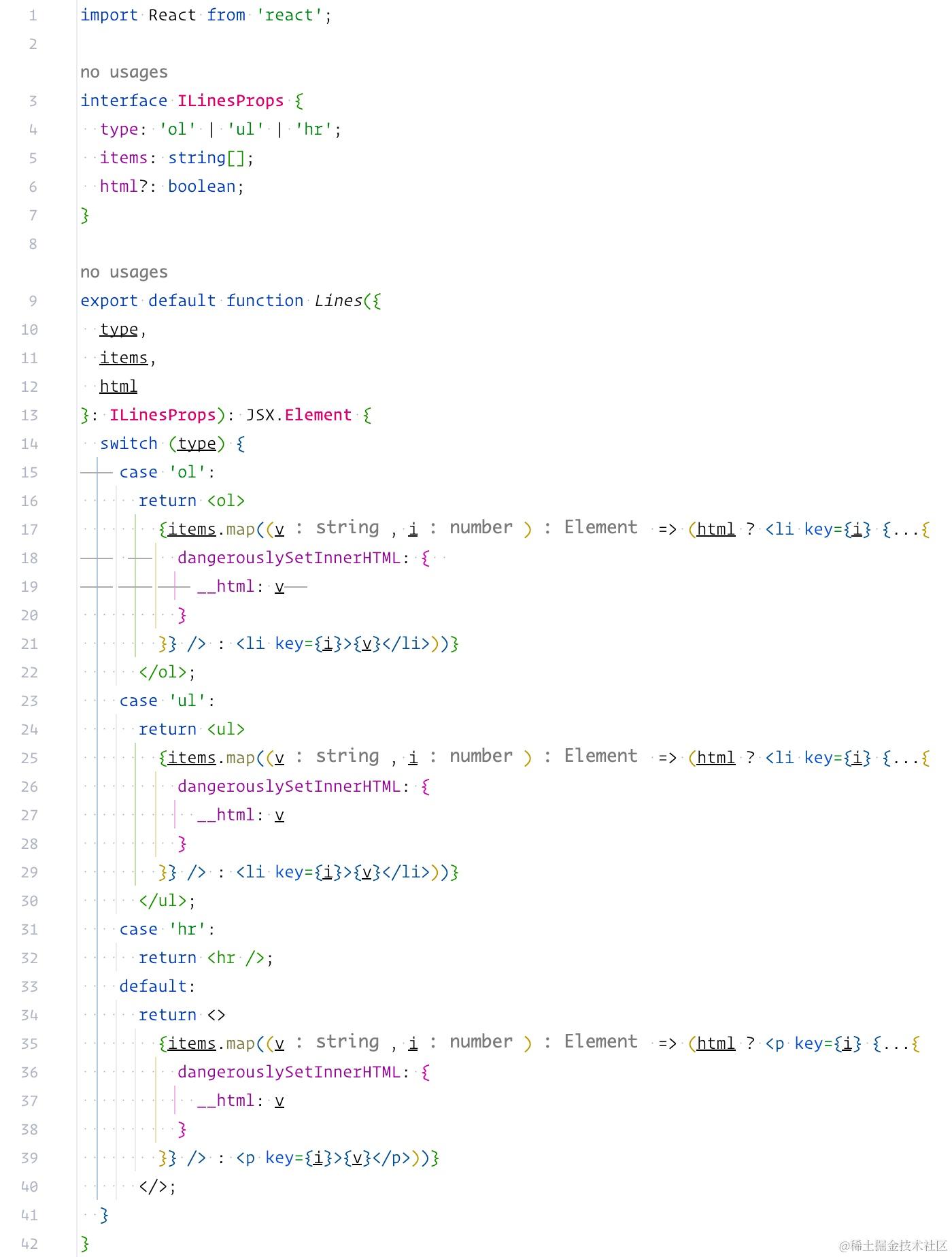 | 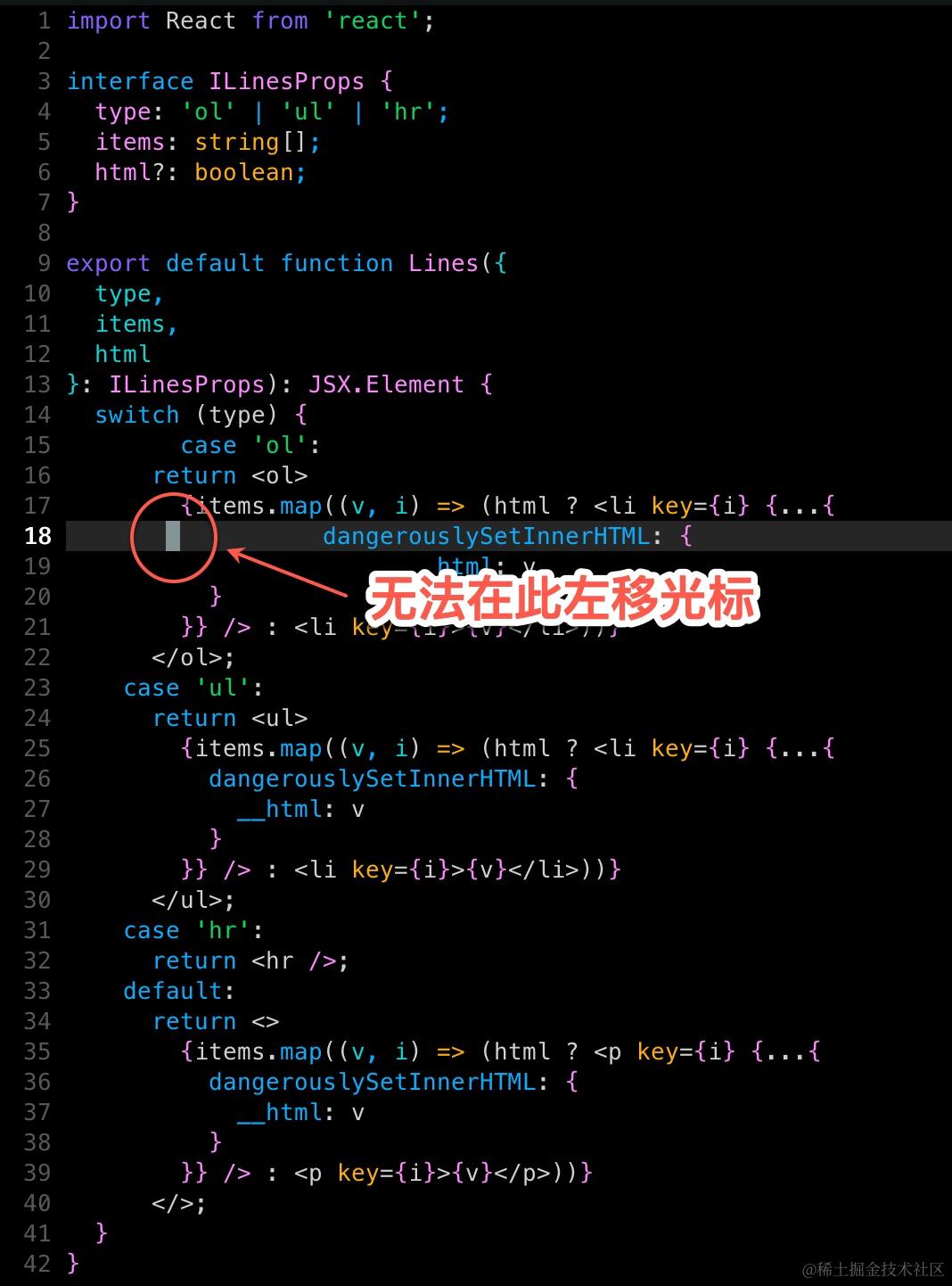 |
Vim 下的 Tab 还有特别的副作用,最左侧的 Tab 处无法向左移动光标。
第一步:真 Tab 宽度
「真」Tab 默认 8 个字符宽,还是 4 个看起来舒服,敲命令 :set tabstop=4:
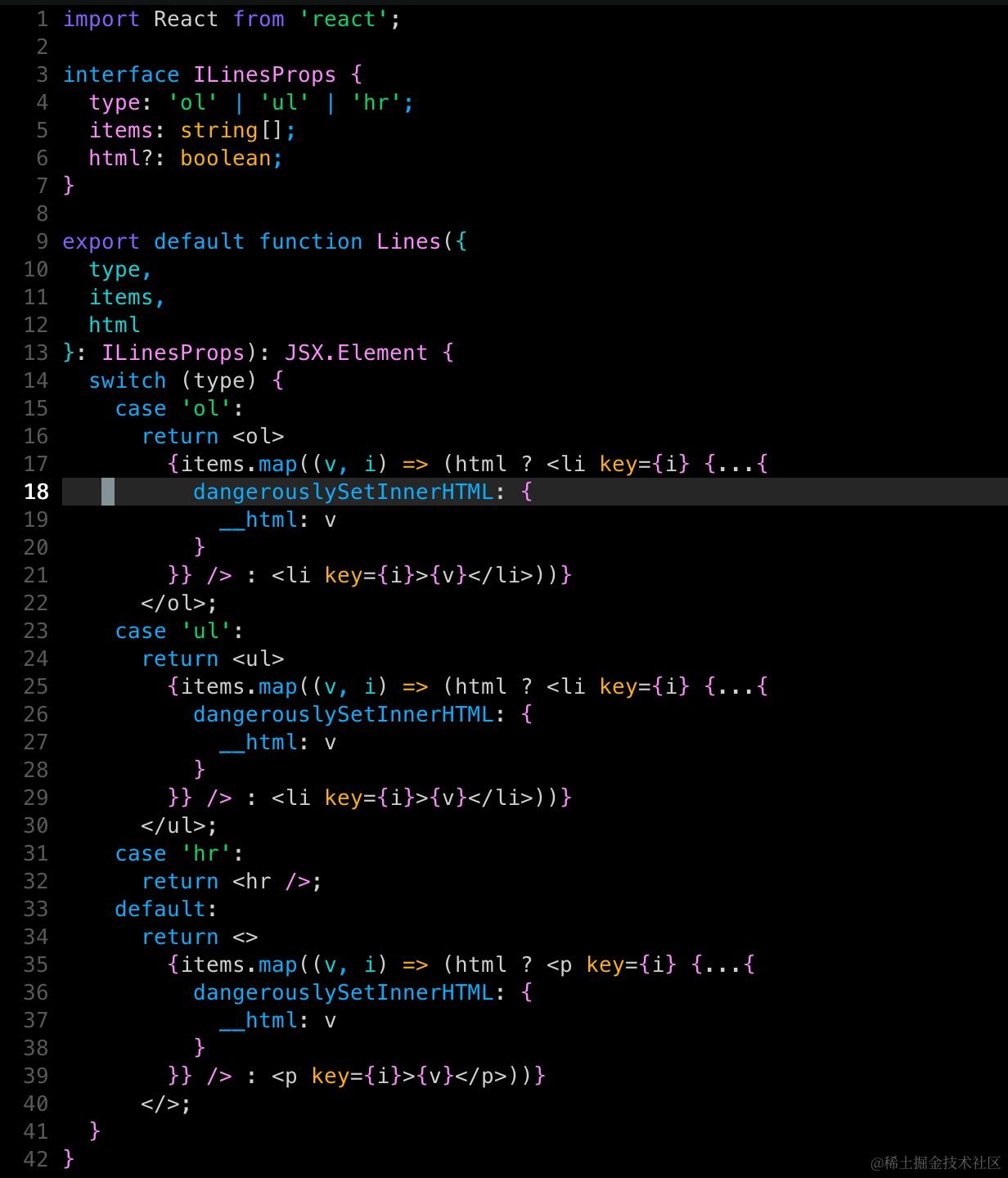
此时,代码「看着」缩进都正确,在没有 Linter 的情况下,完全无法用肉眼看出任何问题。
第二步:显示空白字符
敲命令 :set list:
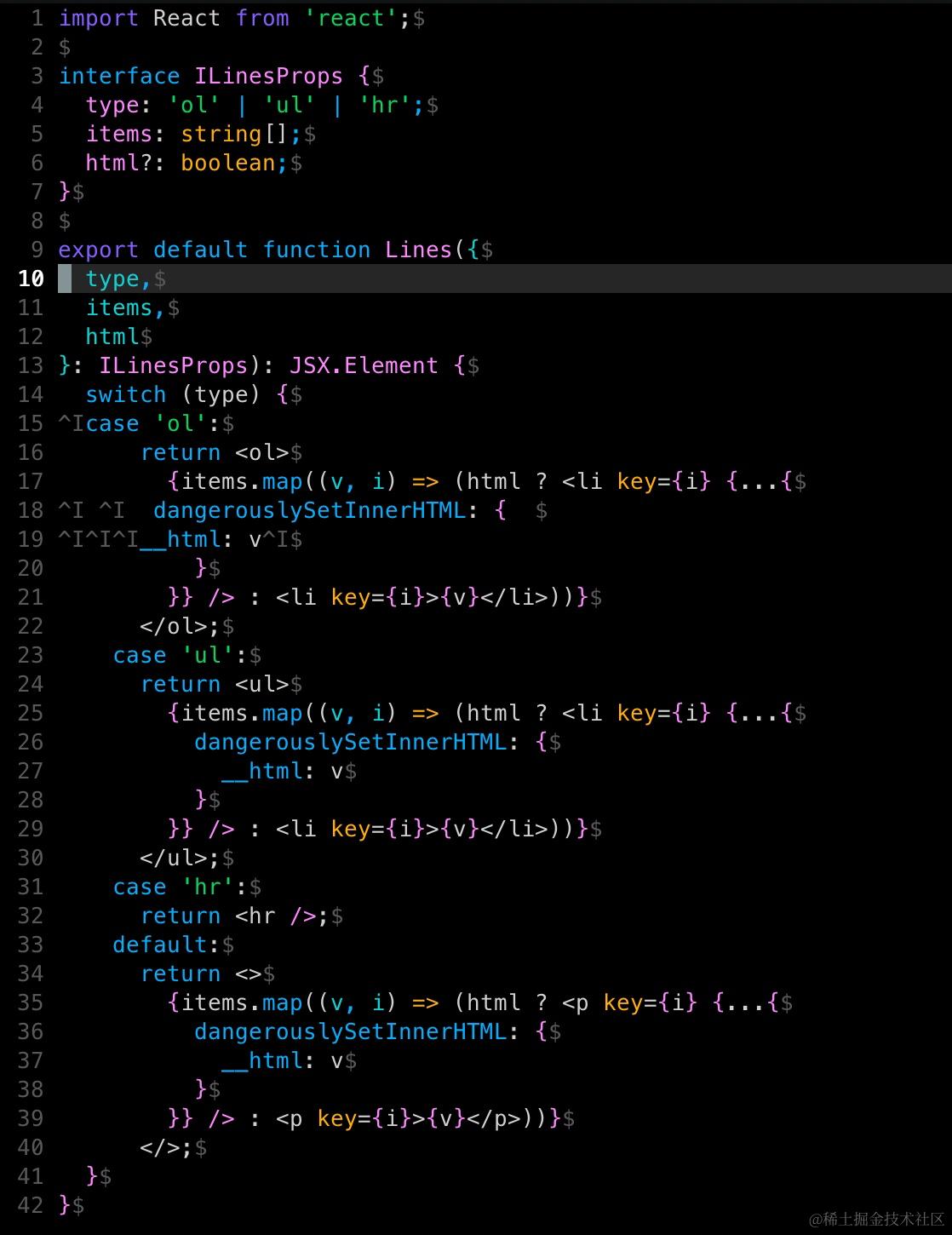
仅展示了 Tab(^I)和回车($),空格看不到,继续敲命令 set listchars=tab:»-⋮,space:·,eol:¶:
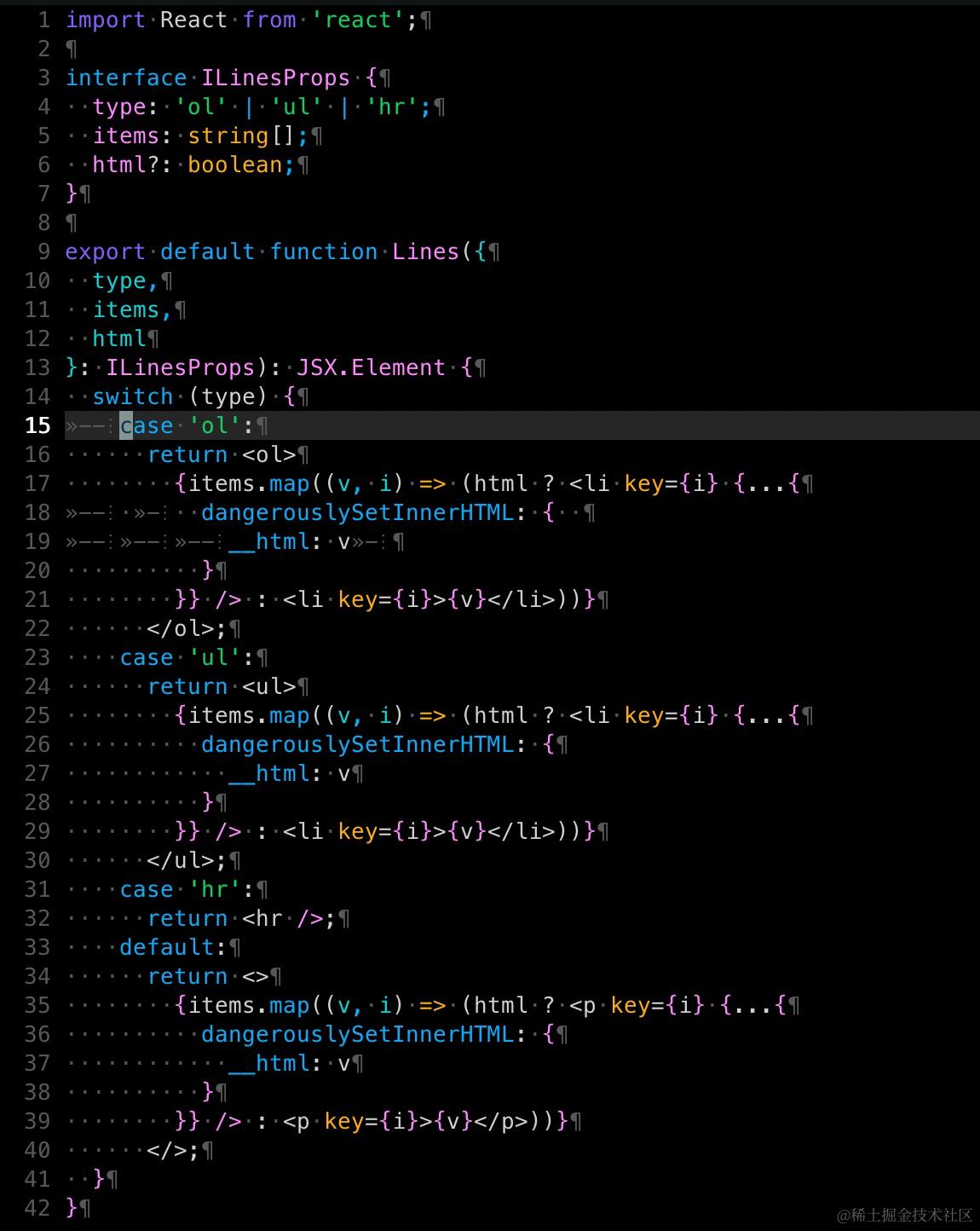
解释一下:
tab可以两种格式,xy,x永远展示,y作填充,如»-可能展示为»、»-、»--、»---等等;xyz则z永远展示,y作填充,x作头,如»-⋮可能展示为⋮、-⋮、»-⋮、»--⋮、»---⋮等等space所有的空格展示,仅允许一个字符,包括行首、中间和行尾eol行末回车,仅允许一个字符,默认为$,Eclipse 默认为¶,WebStorm 和 VSCode 下没有具体可以
:h listchars查看。
tab推荐»-⋮、»»⋮、--⋮、▷▷⋮、▷-⋮、>-、»-space推荐·eol推荐¶、↩︎、¬
可自行组合以满足自己的特殊癖好。
第三步:Tab 换空格
现在按 Tab 键还是真 Tab,敲命令 :set expandtab,发现按 Tab 变成了 4 个空格(tabstop 的值),但我需要 2 个空格,敲命令 :set softtabstop=2。
第四步:自动缩进
敲代码怎么能没有自动缩进呢,敲命令 :set smartindent,会自动缩进了,但空格个数不对,继续 :set shiftwidth=2。
set smartindent比set autoindent要好用一些。
.vimrc 「通用设置」下添加以下汇总的设置:
" --- Tab & Space
set list                                    " Make invisible chars visible
set listchars=tab:»-⋮,space:·,eol:¶         " How invisible chars are displayed
set expandtab                               " Press Tab key will generate spaces according to tabstop setting
set tabstop=4                               " Real tab width
set softtabstop=2                           " How many spaces will expand from tab
set smartindent                             " Ease editing code by smart auto indenting
set shiftwidth=2                            " How many spaces for auto indent
至此,编辑器的 Tab、空格、缩进等调校完毕。
光标形状
按照之前的步骤操作过的话,你应该已经在 Normal mode、Command-Line mode、Insert mode 间相互切换过了,你或许发现,Normal mode 和 Insert mode 的光标是一样的。
获取你更希望 Insert mode 的光标是一条竖线,能够更明确地知道插在哪里。
这个没法在命令行预览,在 .vimrc 「通用设置」下添加以下设置(先别急着试):
" --- Cursor shape
let &t_SI.='\e[5 q'               " SI = INSERT mode → blinking vertical bar
let &t_SR.='\e[4 q'               " SR = REPLACE mode → solid underscore
let &t_EI.='\e[1 q'               " EI = NORMAL mode (ELSE) → blinking block
好消息是,这可能奏效,坏消息是,需要 为不同的平台做不同的设置。
有人更建议,Normal mode 不高亮,Insert mode 高亮,敲命令 :set cursorline!、autocmd InsertEnter,InsertLeave * set cursorline!。
个人认为这个形式更舒服,修改「Basic UI」设置:
" --- Basic UI
set regexpengine=2                          " Prevent error `redrawtime exceeded` for syntax highlight
syntax on                                   " Syntax highlight, also make NERDTree render properly
set number                                  " Show line number in the gutter
" set cursorline                              " Highlight current line
colorscheme wildcharm                       " The default colorscheme shows only a bottom line
" hi CursorLine cterm=NONE ctermbg=black    " If you need default colorscheme

autocmd InsertEnter,InsertLeave * set cursorline!
调校搜索
" --- Searching
set smartcase                               " When searching try to be smart about cases
set incsearch                               " Makes search act like search in modern browsers
set lazyredraw                              " Don't redraw while executing macros (good performance config)
set magic                                   " For regular expressions turn magic on
set hlsearch                                " Highlights all search hits
其他必要设置
" --- Window settings
set splitbelow                              " Open split windows below
set splitright                              " Open split windows to the right

" --- Misc
set showcmd                                 " Show current command at the bottom-right for some time
set history=77                              " How many command history vim should remember
set pastetoggle=<F5>                        " Toggle paste mode
安装插件 - Airline
现在,我们来装第一「个」插件,体验一下 Vundle 的操作。
安装
在 .vimrc 插件部分加入以下代码:
" Plugins for UI
Plugin 'vim-airline/vim-airline'
Plugin 'vim-airline/vim-airline-themes'
重启 Vim 后,执行 :PluginInstall:
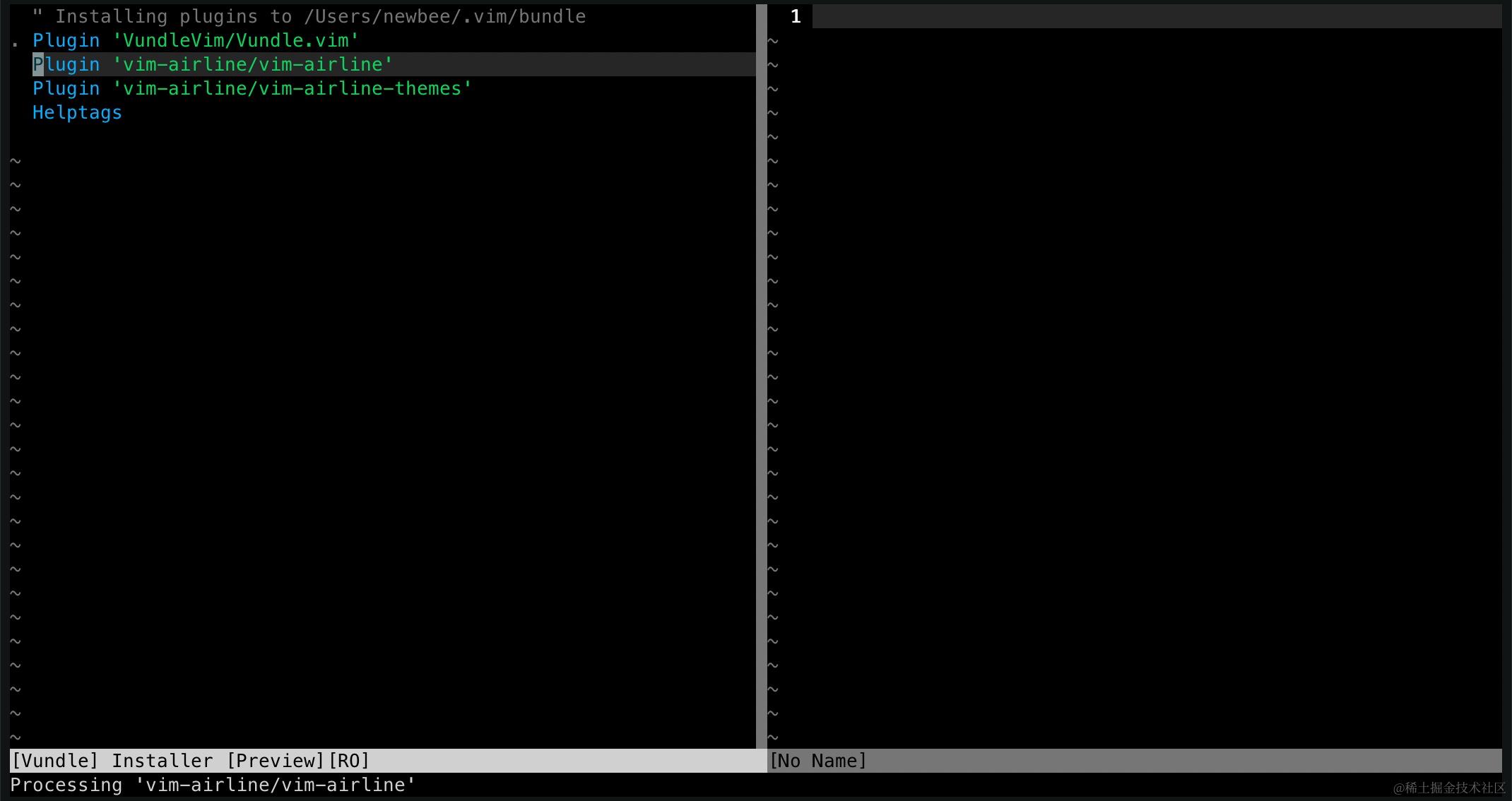
安装完成,效果立竿见影,看底部:
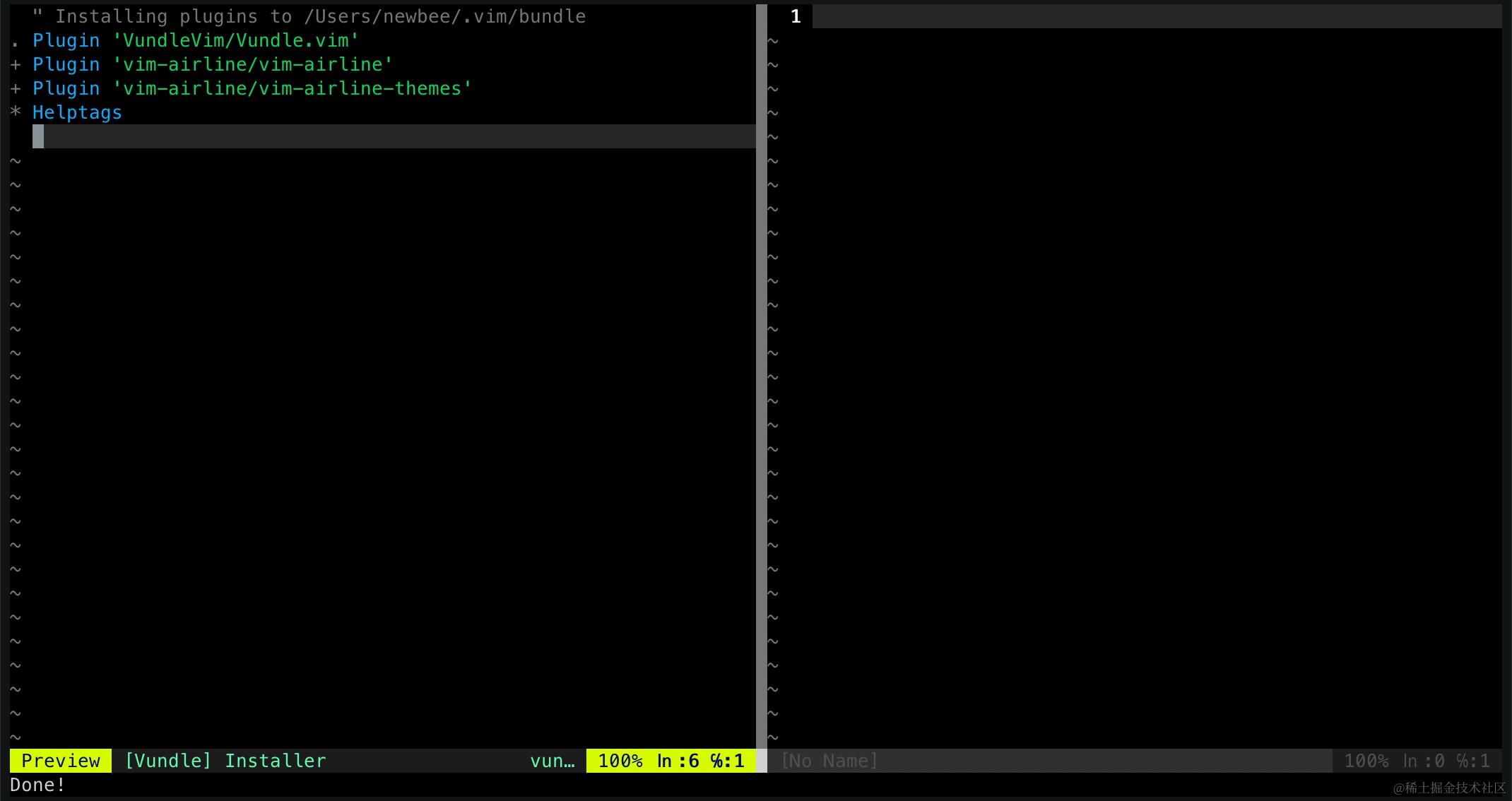
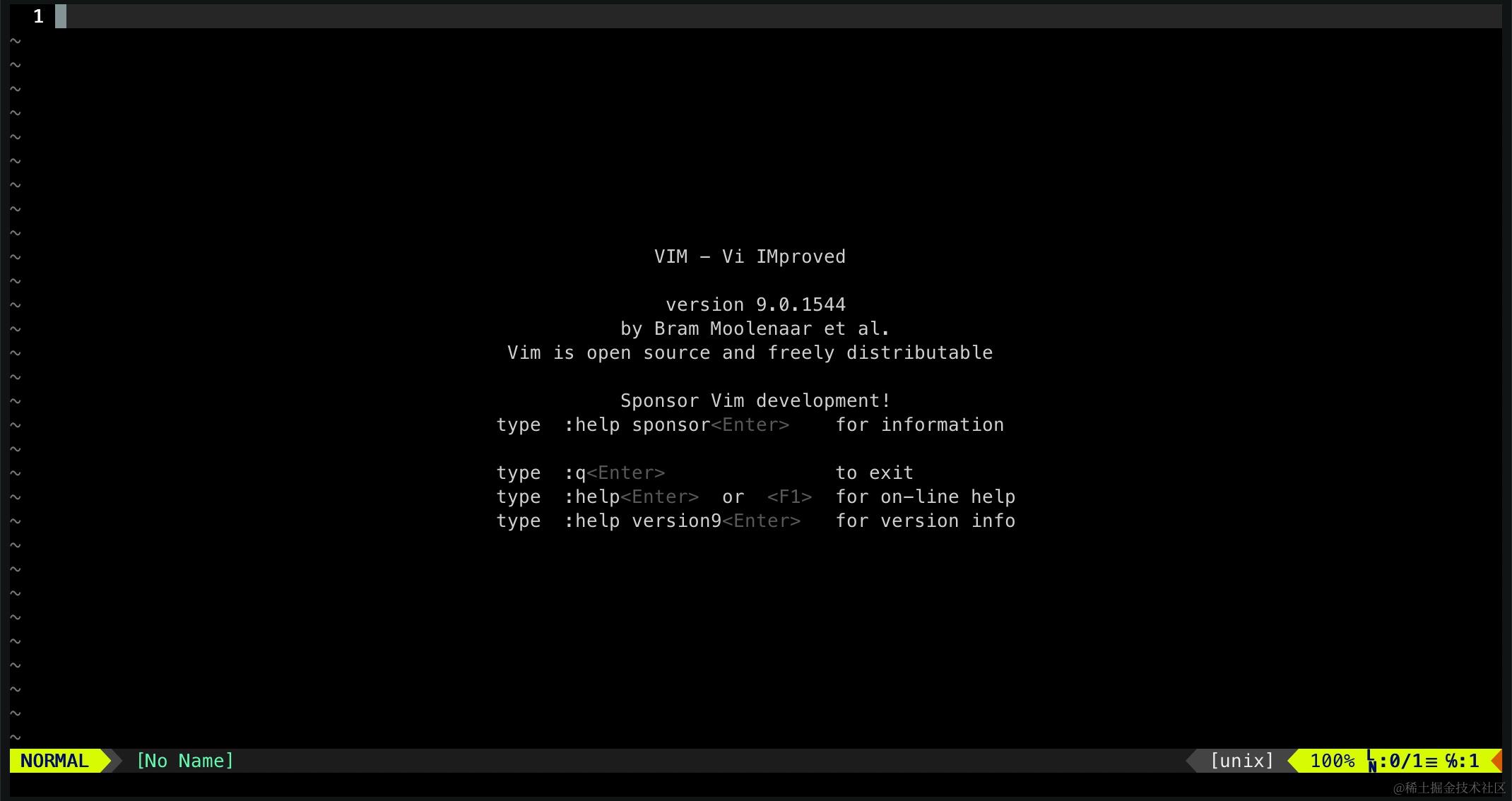
启用 Powerline 字体
没有 Powerline 炫酷的三角形,需要在 .vimrc 末尾添加设置代码(如果有乱码,那么很可能就是你系统上还没安 Powerline 字体 或 Nerdfont(推荐)):
let g:airline_powerline_fonts=1
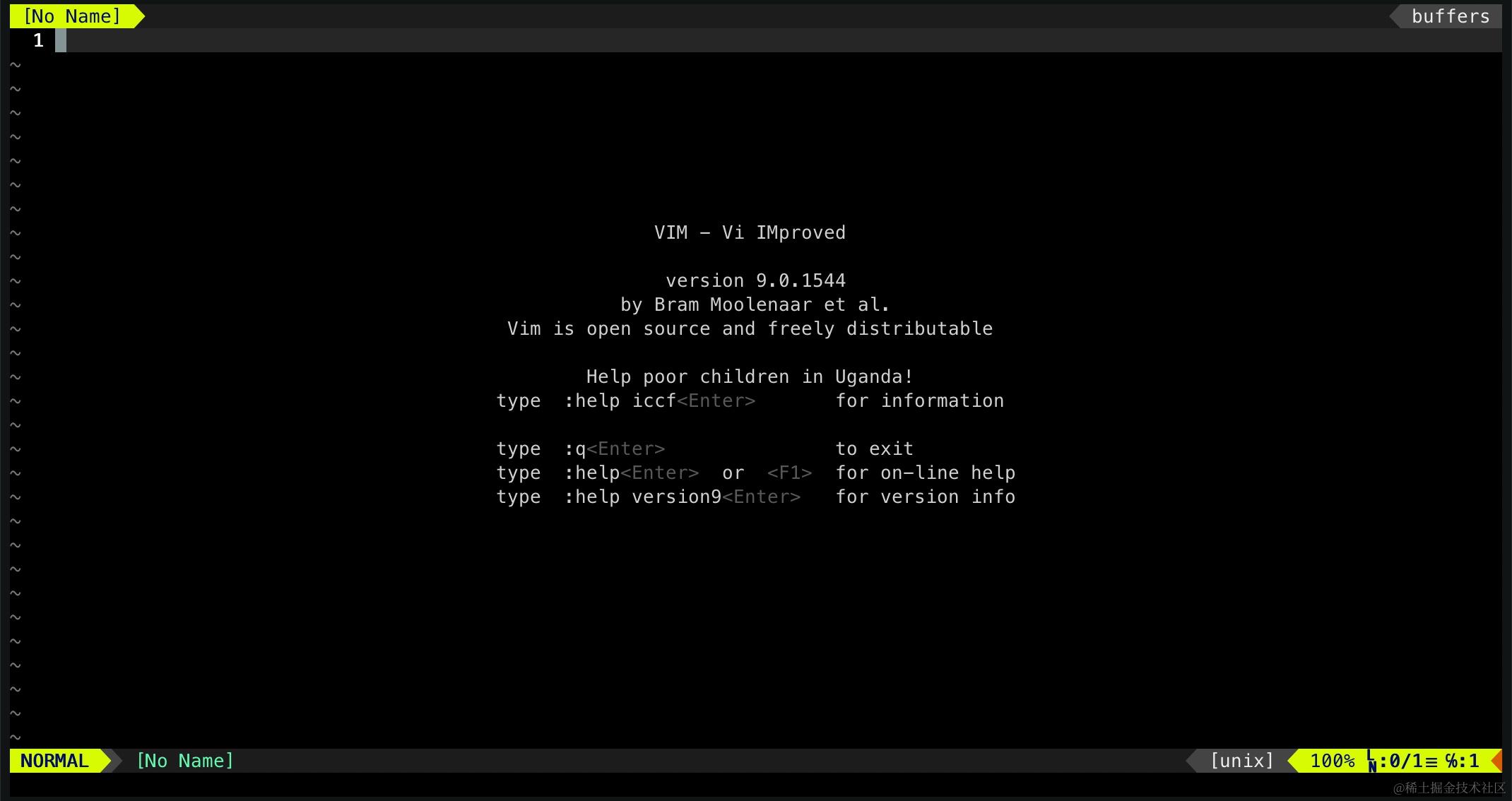
显示顶栏
let g:airline#extensions#tabline#enabled=1
设置主题
我们可以通过 :AirlineTheme xx 动态切换主题,但重启后主题会被还原,可以记住它:
let g:airline_theme='kolor'
这样,Airline 全部设置如下:
" ---- Plugin Settings for vim-airline
let g:airline_powerline_fonts=1                     " Use powerline font when possible
let g:airline#extensions#tabline#enabled=1          " Enable tab line
let g:airline_theme='kolor'                         " Use this theme
我对主题的要求:
- 色彩第一眼眼缘(玄学)
- Vim 各模式差别明显
- 未保存状态明显(最好有颜色区分)
- 由于重要信息在两头,所以中间部分颜色不要太突兀
200+ 个主题,除了 base16_xx 之外,几乎每一个我都试了一下,最后刷下来这么些,瑾供参考:
| 名称 | 优点 | 缺点 | 无编辑 | 待保存 |
|---|---|---|---|---|
| angr | 配色偏灰 | 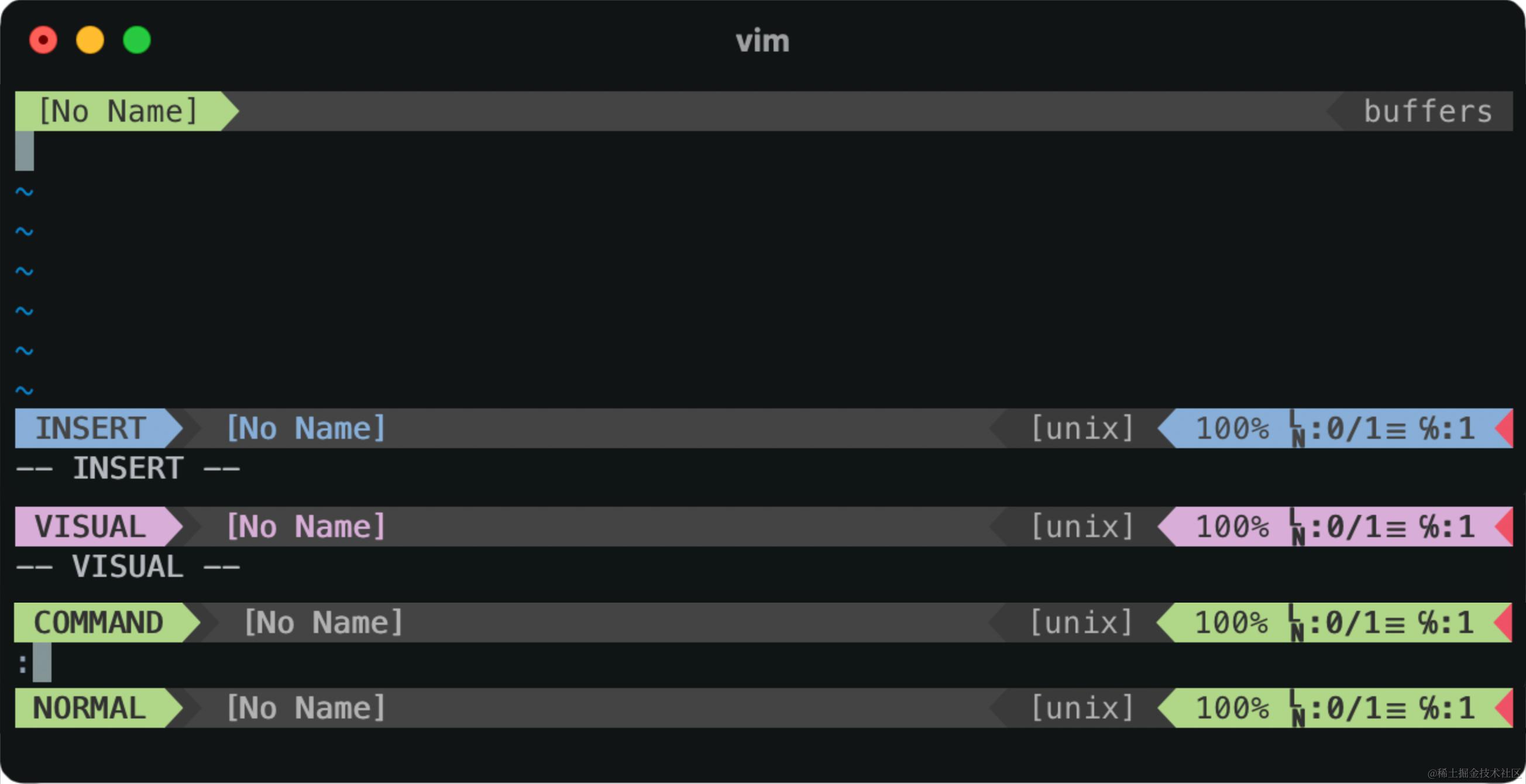 | 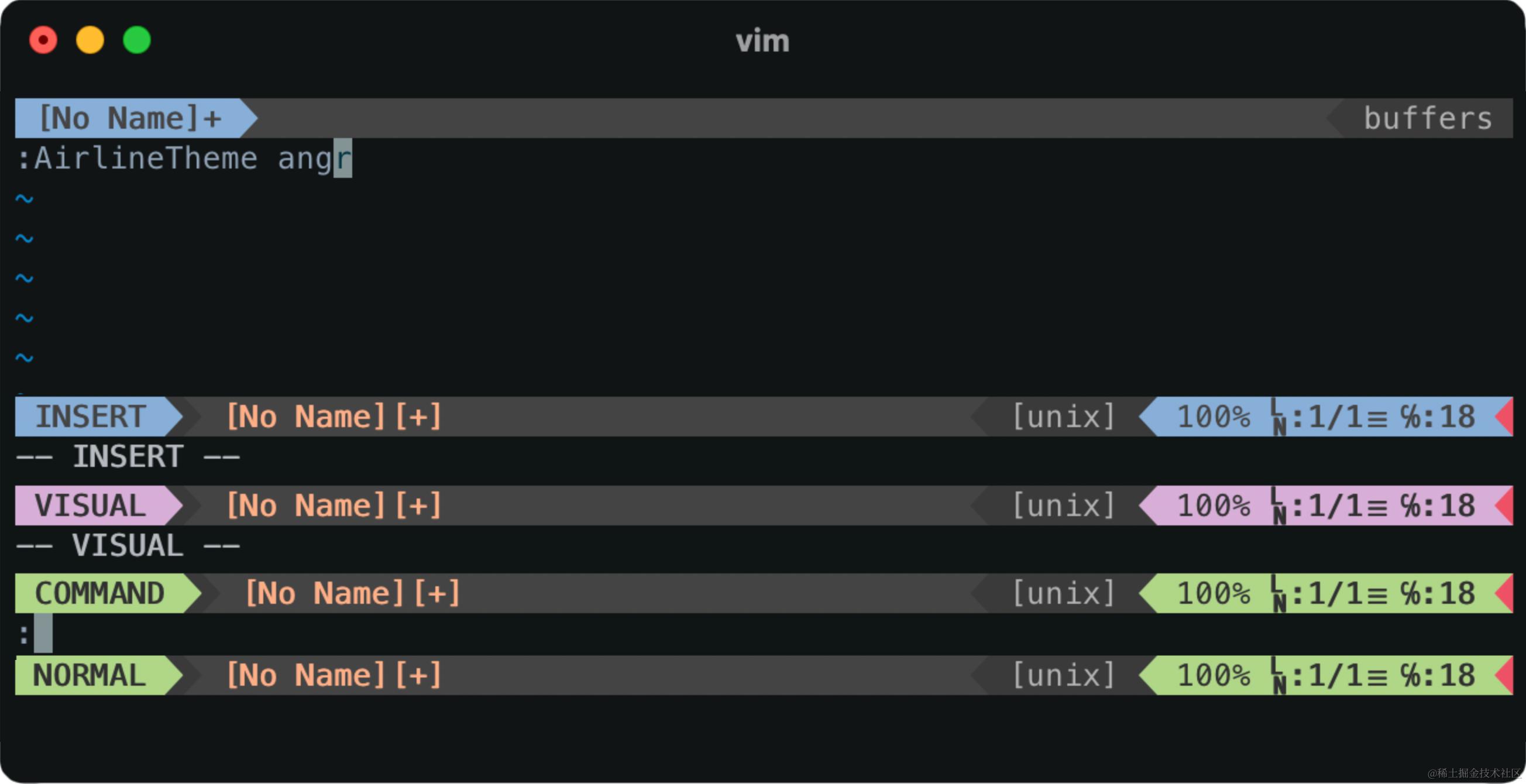 | |
| badwolf | 和 angr 很像,但比 angr 颜色鲜艳一些 | 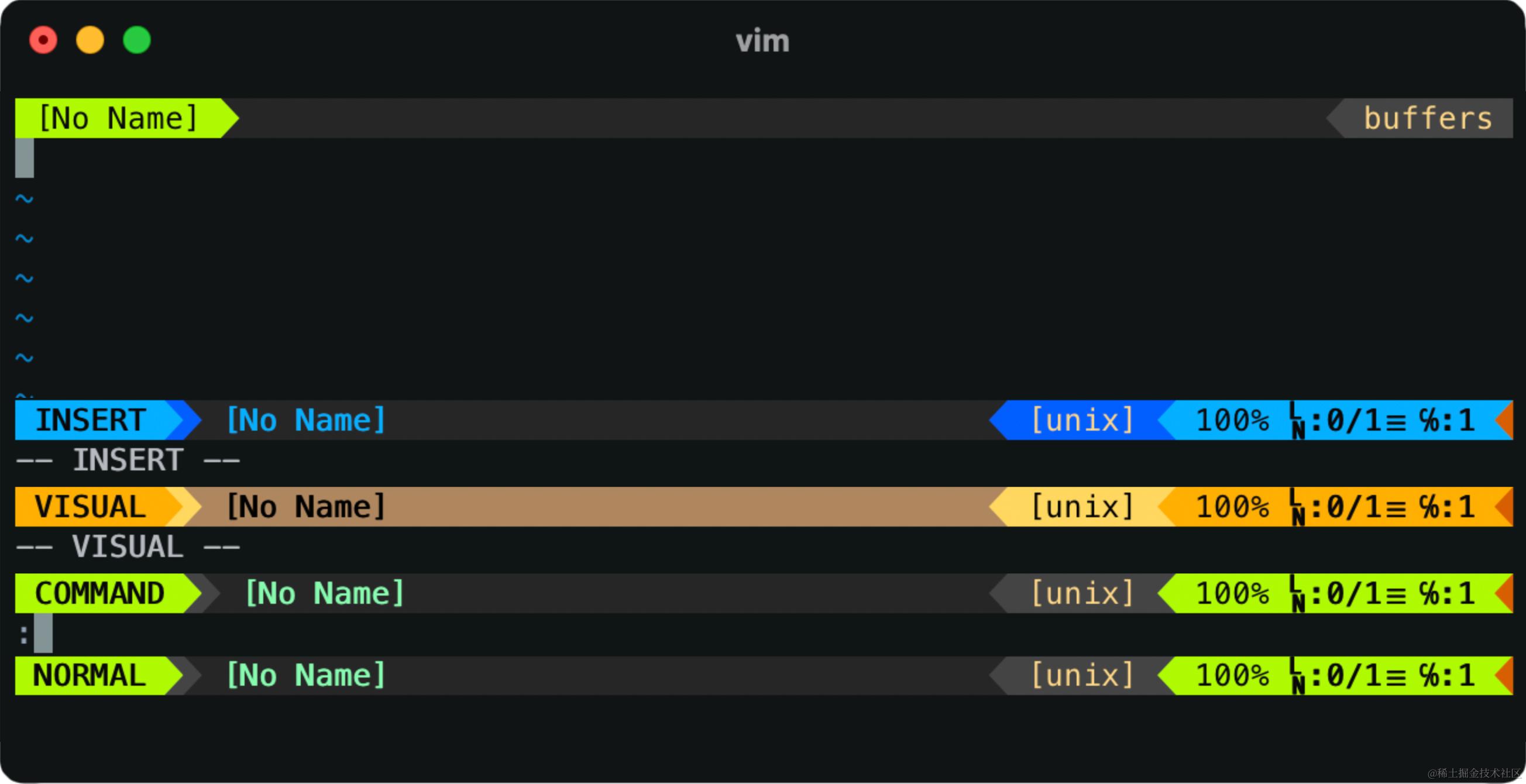 | 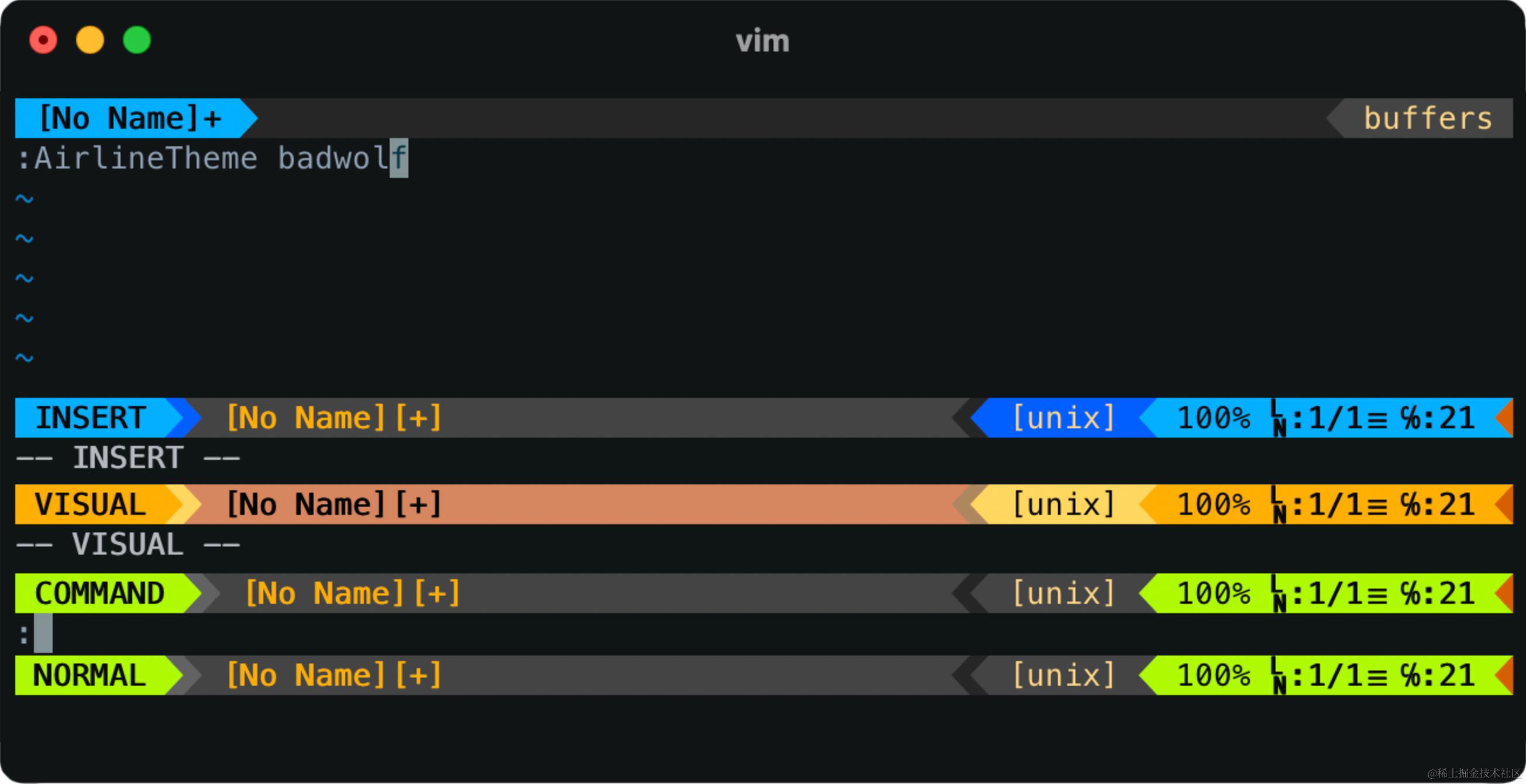 | |
| behelit | 色彩鲜明不突兀,底栏的中间部分很舒服 | 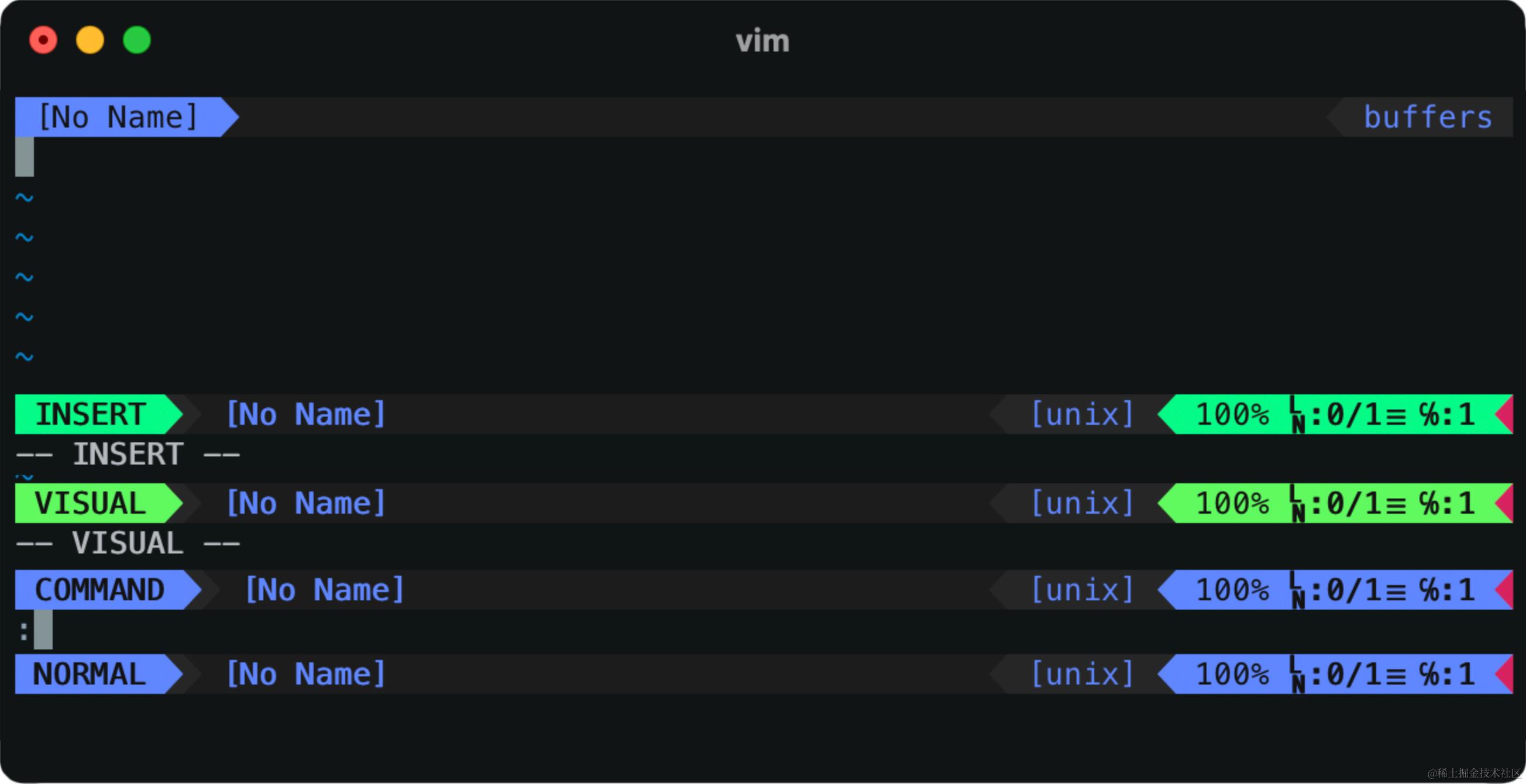 | 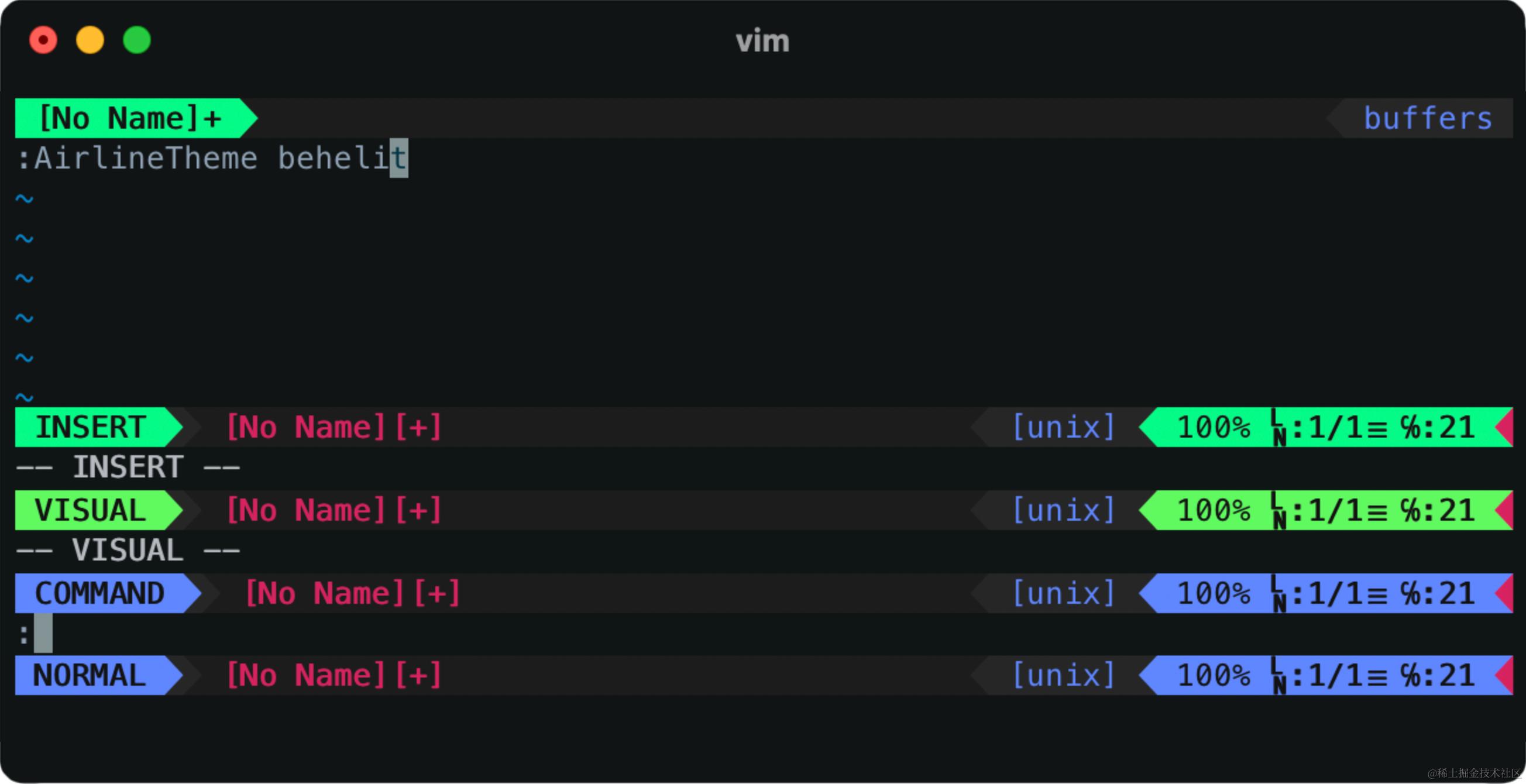 | |
| dark | 默认配色,且 COMMAND 有单独配色 | 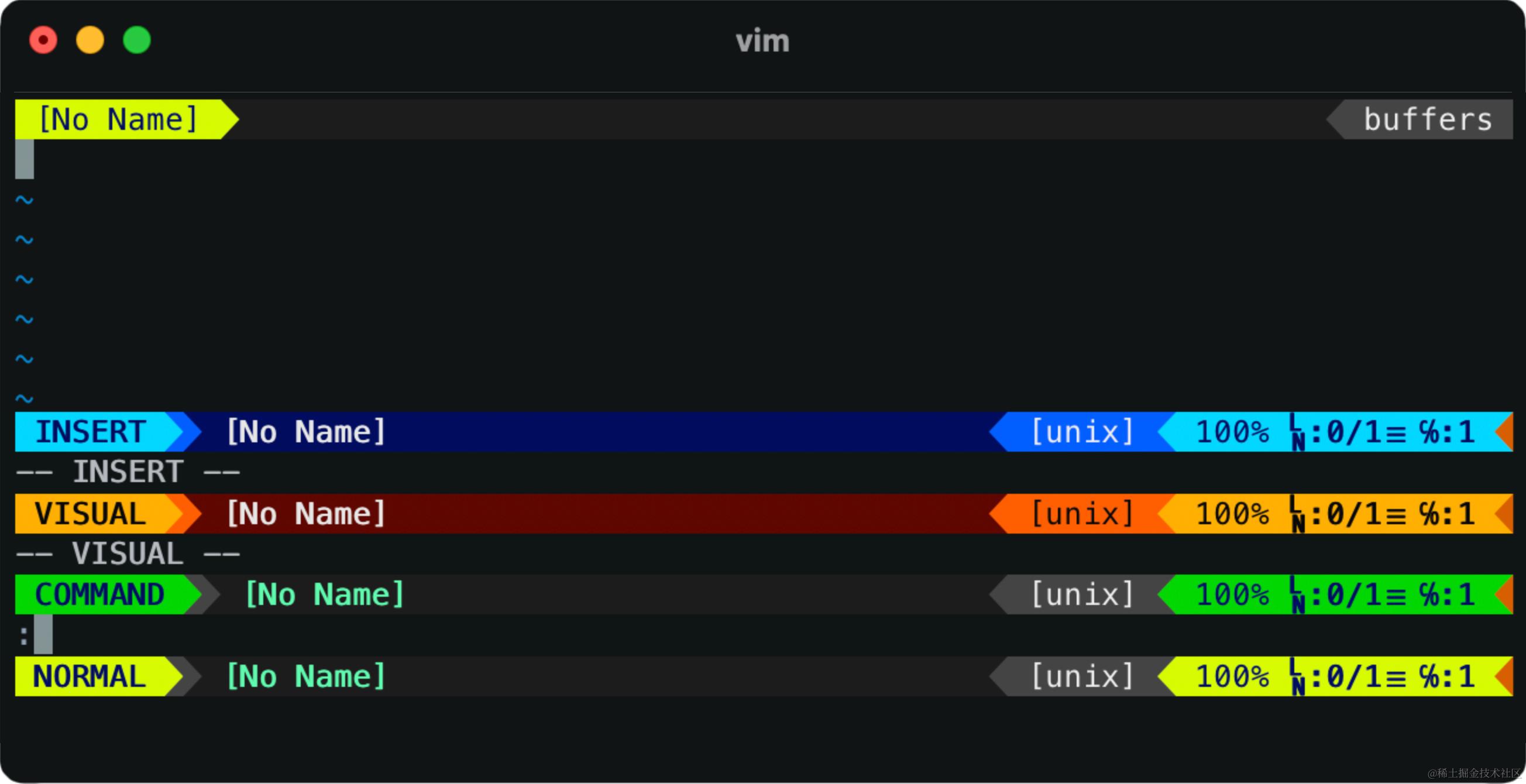 | 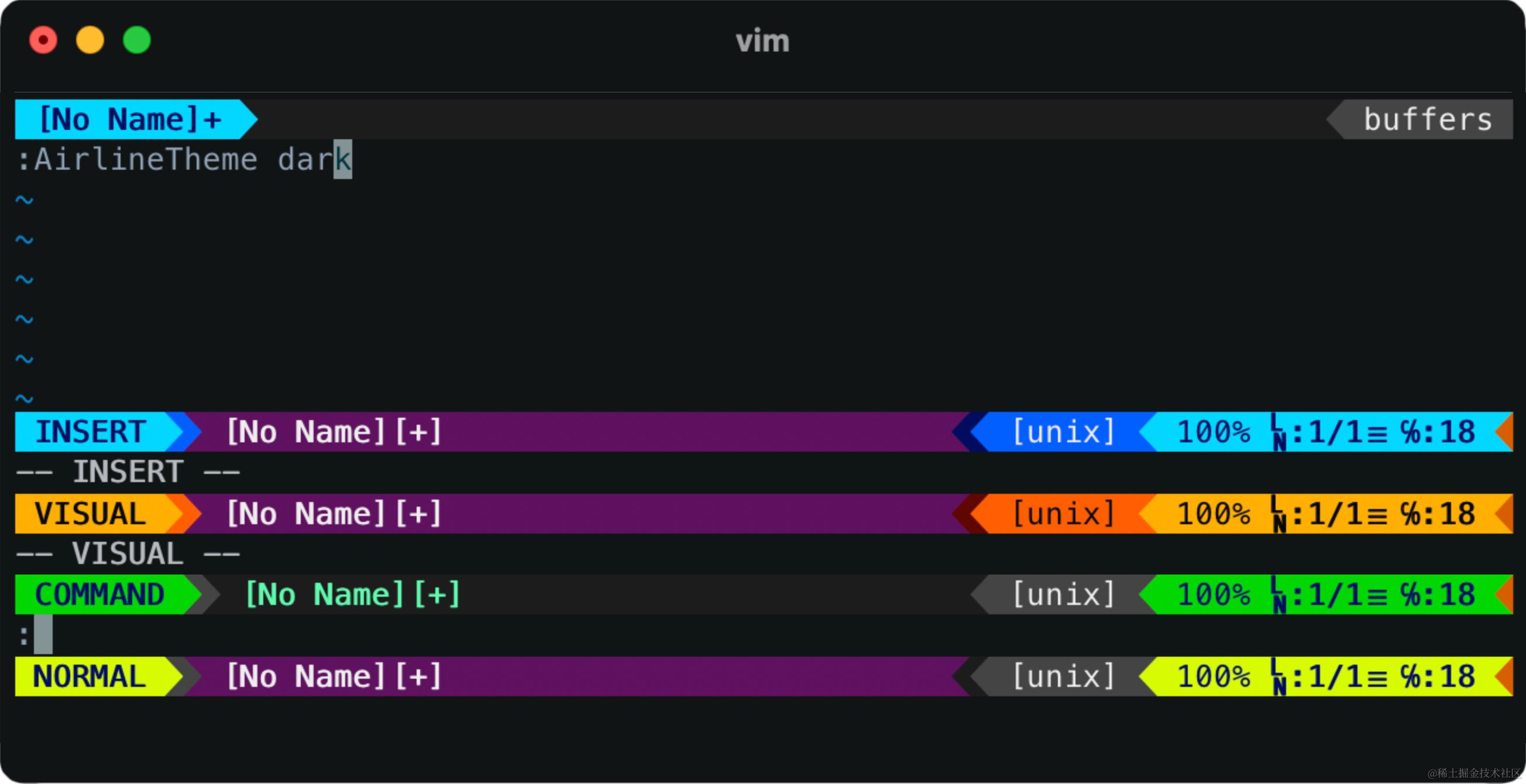 | |
| desertink | 橙色系很抓眼球 | 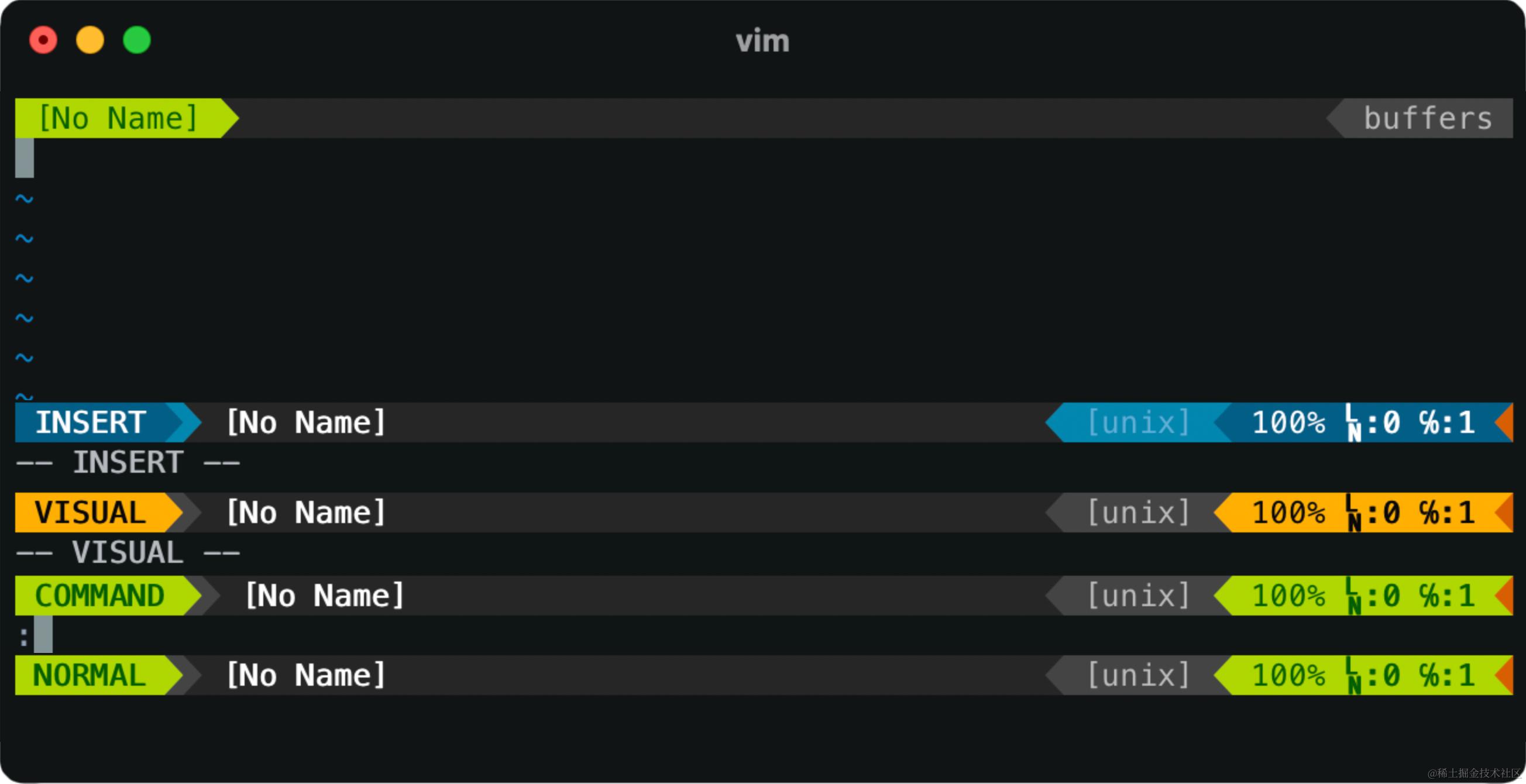 | 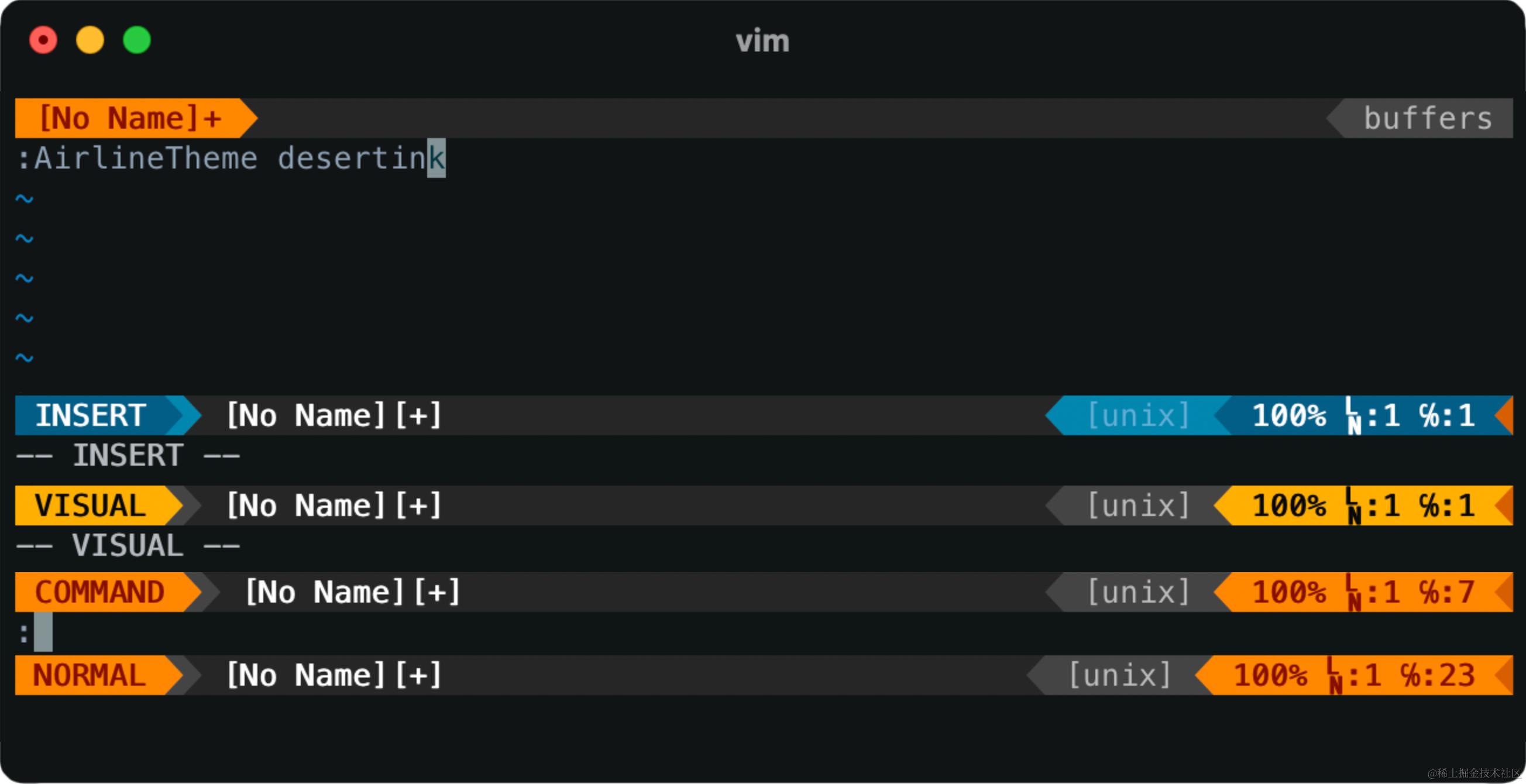 | |
| kolor | 蓝紫色系,配色恰到好处 | 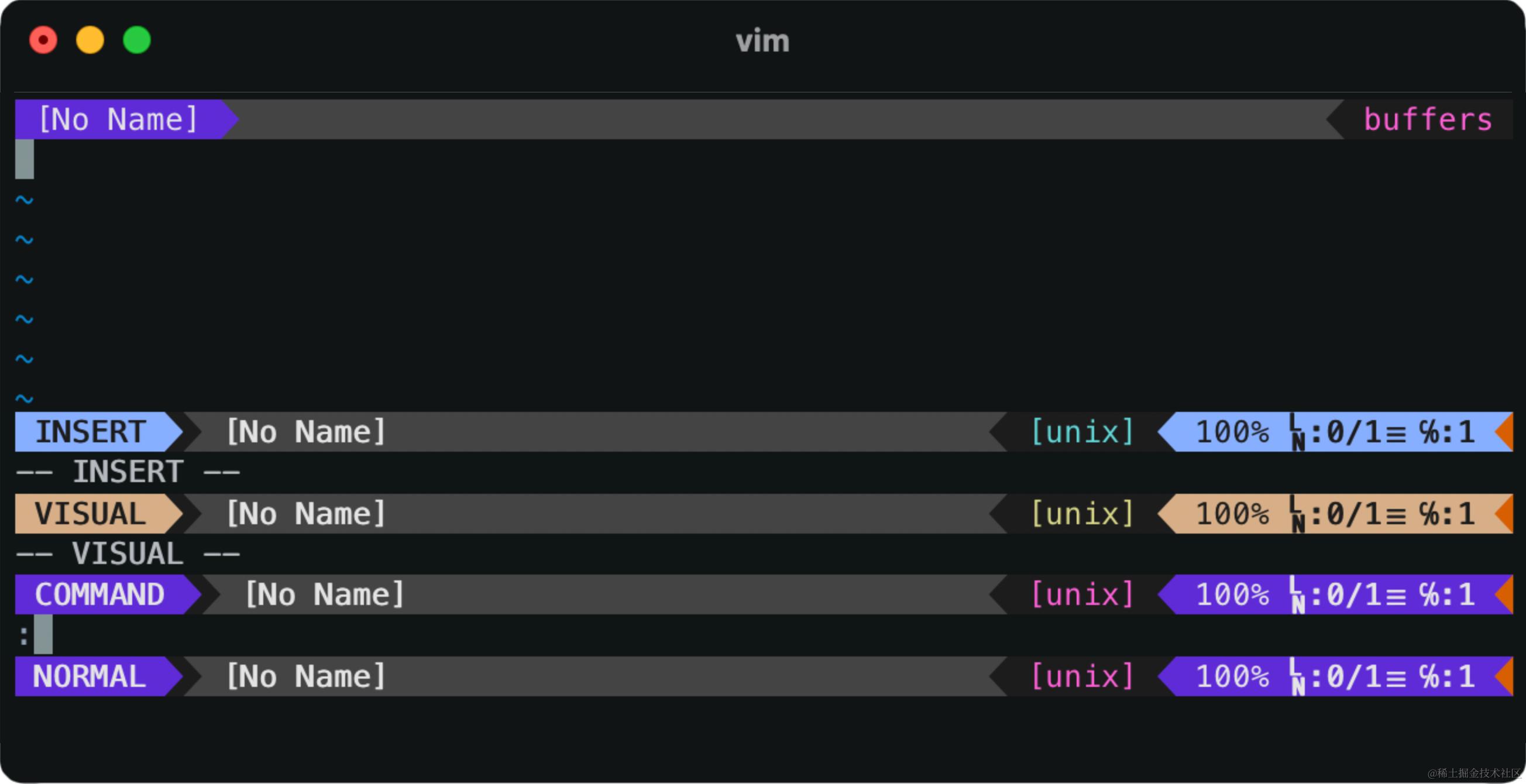 | 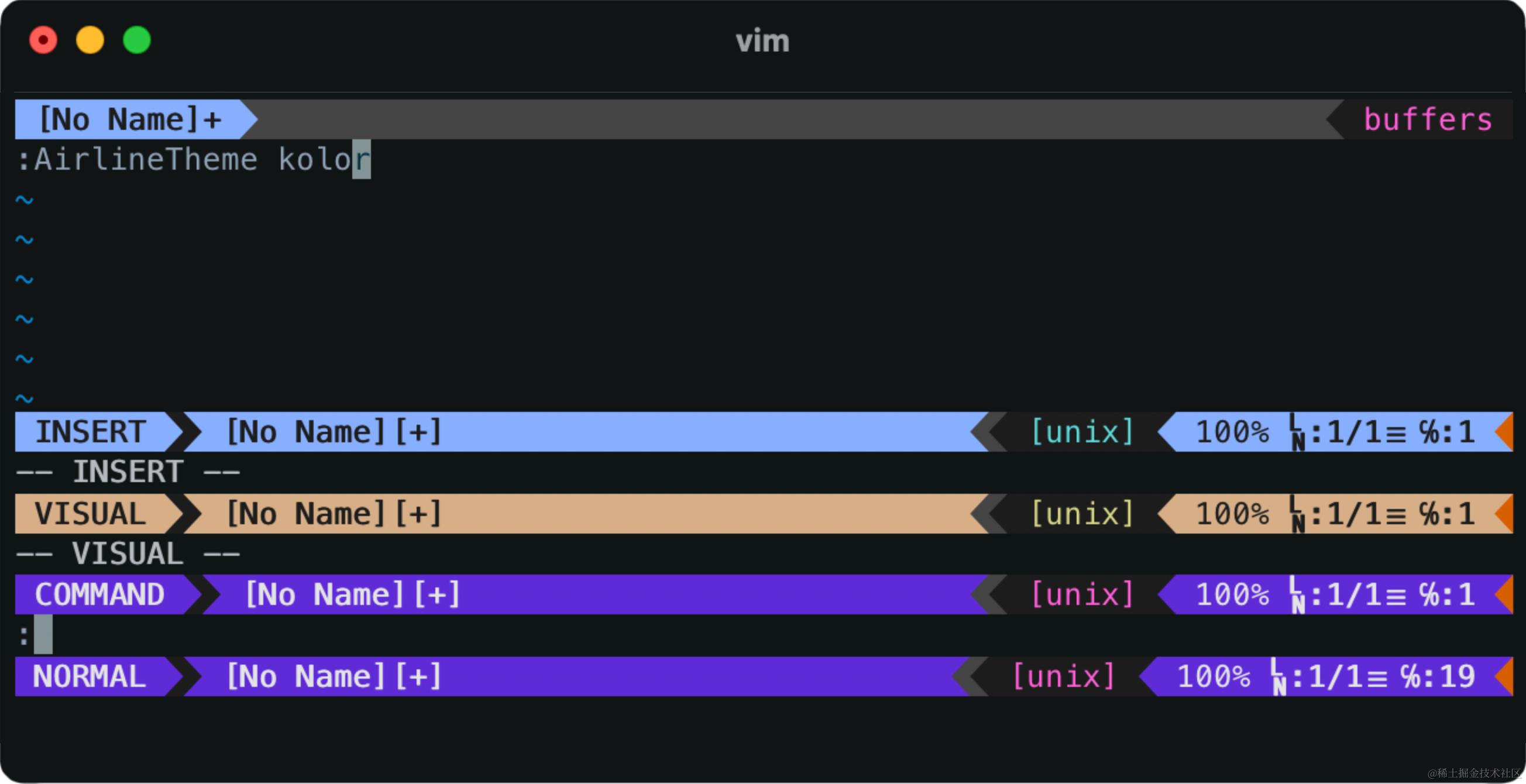 |
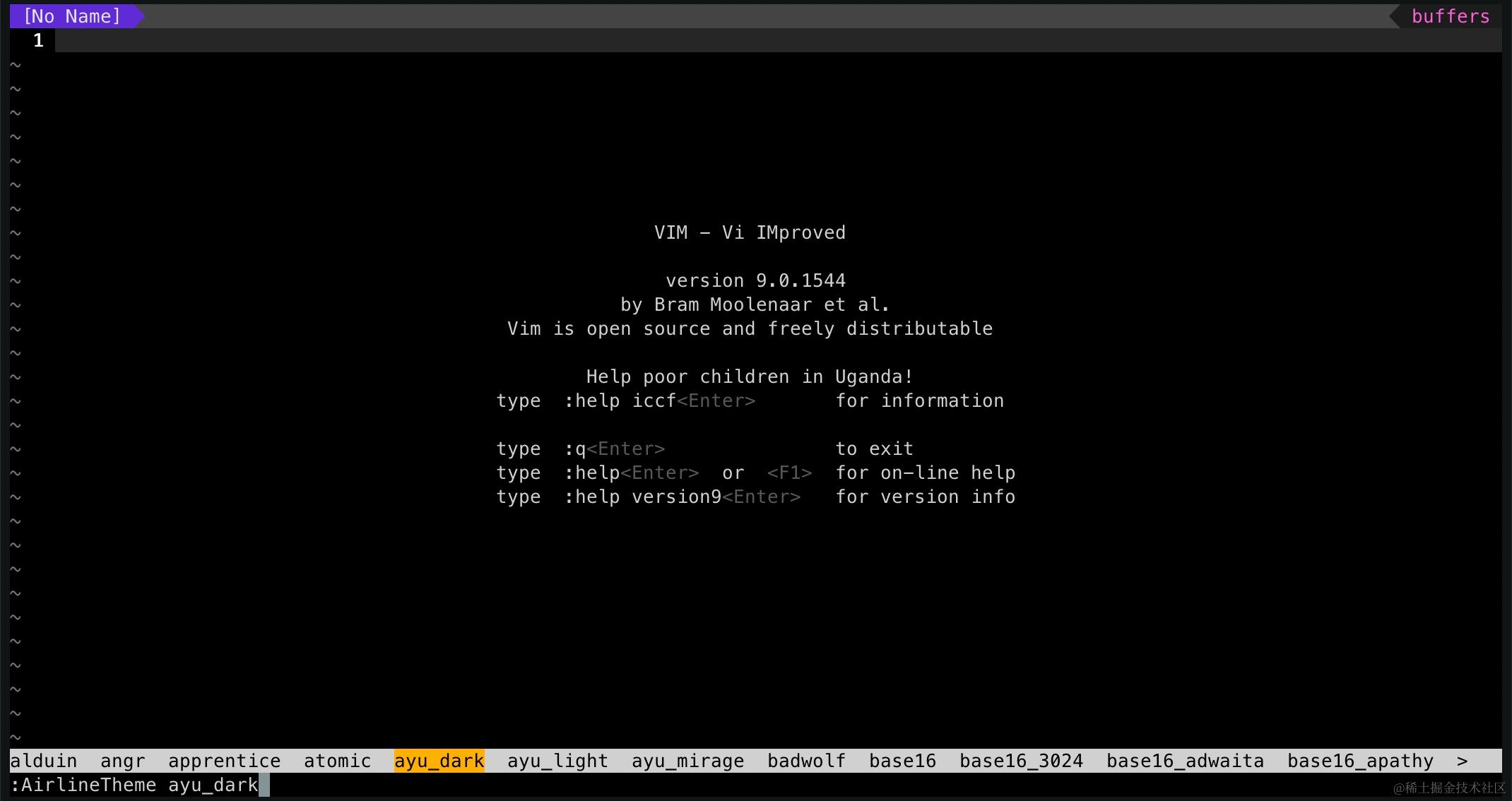
命令行菜单优化
切换主题的时候,已经感觉不爽利了:
- 需要的命令是
AirlineTheme,但每次输入Air后 Tab,直接变成了AirlineExtensions(后来我才明白还可以继续用 Tab 切换) - 可选项太多了,不知道下一个 Tab 到的是哪个主题
这个不需要用插件,在「通用设置」处添加几行代码就行:
" --- Use the vim wildmenu for command completion
set wildmenu
set wildmode=longest:full,full
set wildignore+=*/tmp/*,*.so,*.swp,*.zip,.meteor/*      " Ignore files in the wildmenun
效果:
安装插件 - NERDTree
搞个文件树。
- NERDTree
- NERDPlugin#Git 显示 Git 状态
- NERDPlugin#DevIcon 文件类型图标(文档说「Always load the vim-devicons as the very last one」,但我试了放前面也没问题)
- NERDPlugin#DevIconHighlight 为
vim-devicons的图标上色 - NERDPlugin#DevIconHighlight ⚠️ 运行报错
- NERDPlugin#BufferOps ⚠️ 和
NERDPlugin#Git、NERDPlugin#DevIcon冲突 - NERDPlugin#VisualSelection 😵 不会用,没装
安装
在 .vimrc 插件部分加入以下代码:
" Plugins for tree view
Plugin 'preservim/nerdtree'
Plugin 'Xuyuanp/nerdtree-git-plugin'                " Git status flag
Plugin 'ryanoasis/vim-devicons'                     " File icon
Plugin 'tiagofumo/vim-nerdtree-syntax-highlight'    " File icon color
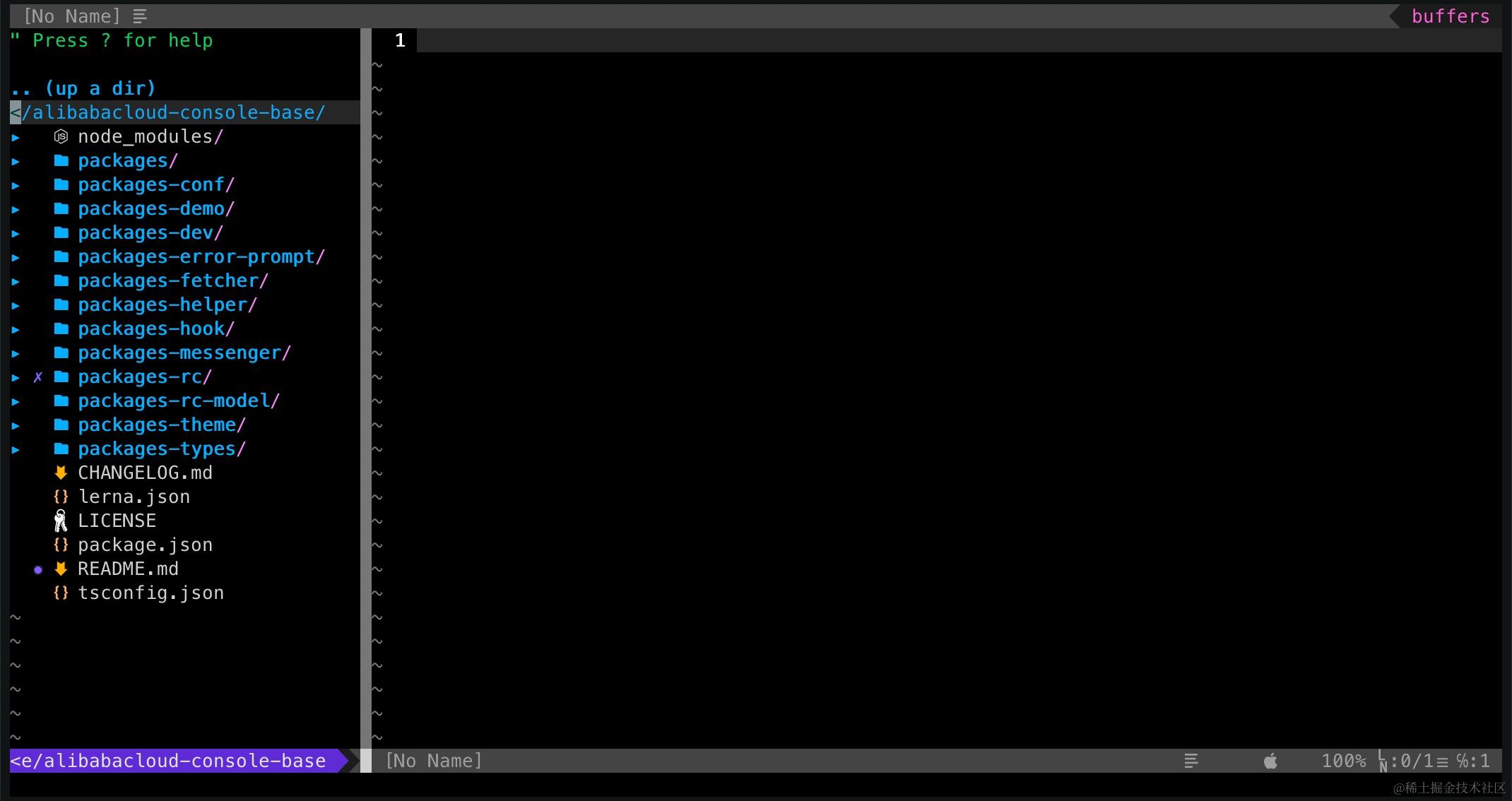
重启后,敲命令 :NERDTree 即可展示当前目录文件树:
NERDTree 配置
我希望:
- NERDTree 可以在适当的时候自己开启
- 焦点在期望的编辑区域
- 在关闭最末一个编辑区域的时候,不需要再关一次 NERDTree 才能关闭 Vim
在 .vimrc 末尾添加配置代码:
" ---- Plugin Settings for NERDTree
nnoremap <C-t> :NERDTreeToggle<CR>
autocmd StdinReadPre * let s:std_in=1
" Start NERDTree. If a file is specified, move the cursor to its window.
autocmd VimEnter * NERDTree | if argc() > 0 || exists("s:std_in") | wincmd p | endif
" Start NERDTree when Vim starts with a directory argument
autocmd VimEnter * if argc() == 1 && isdirectory(argv()[0]) && !exists('s:std_in') |
    \ execute 'NERDTree' argv()[0] | wincmd p | enew | execute 'cd '.argv()[0] | endif
" Exit Vim if NERDTree is the only window remaining in the only tab.
autocmd BufEnter * if tabpagenr('$') == 1 && winnr('$') == 1 && exists('b:NERDTree') && b:NERDTree.isTabTree() | quit | endif
鼠标交互
剩下一个问题,鼠标怎么办?双击无效果,也无法对 NERDTree 的宽度进行拖拽调整。
这个设置不在 NERDTree 上,但很简单,在「通用设置」处添加一行代码:
set mouse=a " Make mouse interactive, i.e. NERDTree can be clicked
玩转 NERDTree 指令
下面这张表助你玩转 NERDTree,更多内容可以看 NERDTree 文档。
| 命令 | 说明 | 速记 |
|---|---|---|
| 鼠标双击 | 和 o 等效 | 就是很普通的双击操作 |
| 鼠标中键单击 | 对文件与 i 等效,对目录是 e | |
^w + w | 光标在每个区块之间切换 | |
^w + h/j/k/l | 光标在相邻区块之间根据方向(h←/j↓/k↑/l→)跳转 | |
o / ⏎ | 展开 / 收起目录,打开文件 / 书签(光标移入工作区) | open |
O | 展开所有子目录 | |
go | 打开文件,光标仍停留在 NERDTree 中(可以看作是文件预览功能) | |
t | 在标签页中打开选中节点 / 书签 | tab |
T | 和 t 一样,但光标停留在当前 tab,即在后台标签页中打开 | |
i | 纵向(向上)分割窗口打开文件 | |
gi | 和 i 一样,但光标不离开 NERDTree | |
s | 横向(向左)分割窗口打开文件 | |
gs | 和 i 一样,但光标不离开 NERDTree | |
x | 收起当前节点的父节点(其下子节点的展开状态保持) | |
X | 收起所有子目录 | |
e | 编辑目录,会打开一个新的 NERDTree | edit |
D | 删除当前书签 | |
p | 回到上一级目录 | parent |
P | 回到根目录 | BIG Parent |
K | 跳到同目录下第一个节点 | 小 k 向下,大 K 局限在当前目录的最下方 |
J | 跳到同目录下最后一个节点 | 小 j 向下,大 J 局限在当前目录的最上方 |
^J | 跳到同目录下的下一个节点(有的话) | |
^K | 跳到同目录下的上一个节点(有的话) | |
C | 将当前选中的目录作为 root | |
u | root 上跳一级 | |
U | 和 u 一样,不同的是保持老的 root 的展开状态 | |
r | 刷新光标所在目录 | refresh |
R | 刷新 root | BIG Refresh |
m | 显示文件系统菜单(添加、删除、移动,不甚好用) | menu |
cd | 将 CWD 改为选中目录,或选中文件所在的目录,但只有提示,不会修改树的 root | |
CD | 将 CWD 作为 root | |
I | 切换是否显示隐藏文件 | Invisible |
f | Toggle whether the file filters are used | 不会用 |
F | 显示 / 隐藏所有文件(即仅展示目录) | |
B | 显示 / 隐藏书签列表 | |
q | 关闭 NERDTree | |
A | 切换全屏状态 | |
? | 显示 / 隐藏帮助 |
安装 Git 相关插件
- vim-fugitive Vim Git 插件
- vim-gitgutter 在 Gutter 上显示 Git 改动
- vim-signify 在 Gutter 上显示 Git 改动,也支持别的 VCS
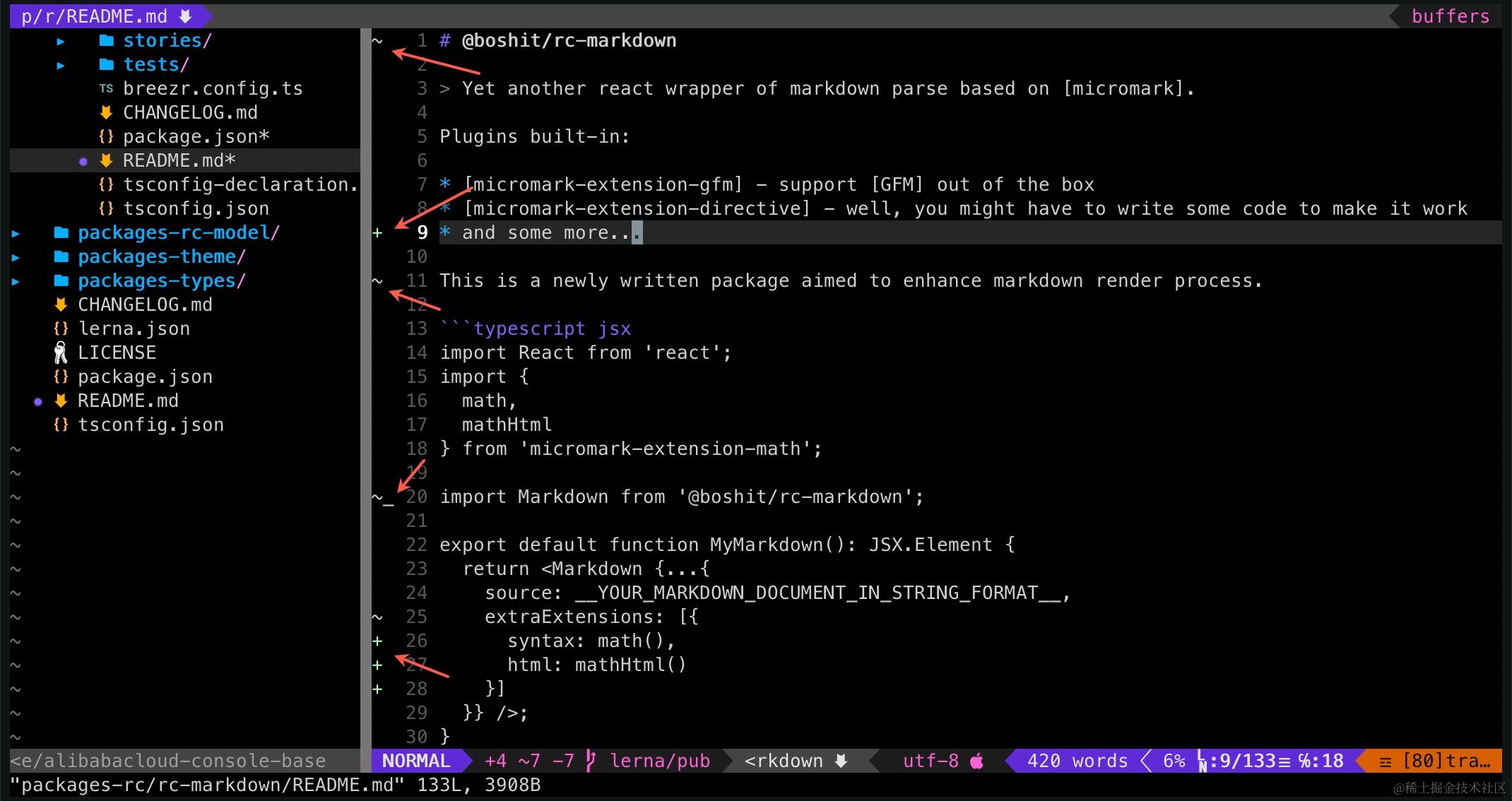
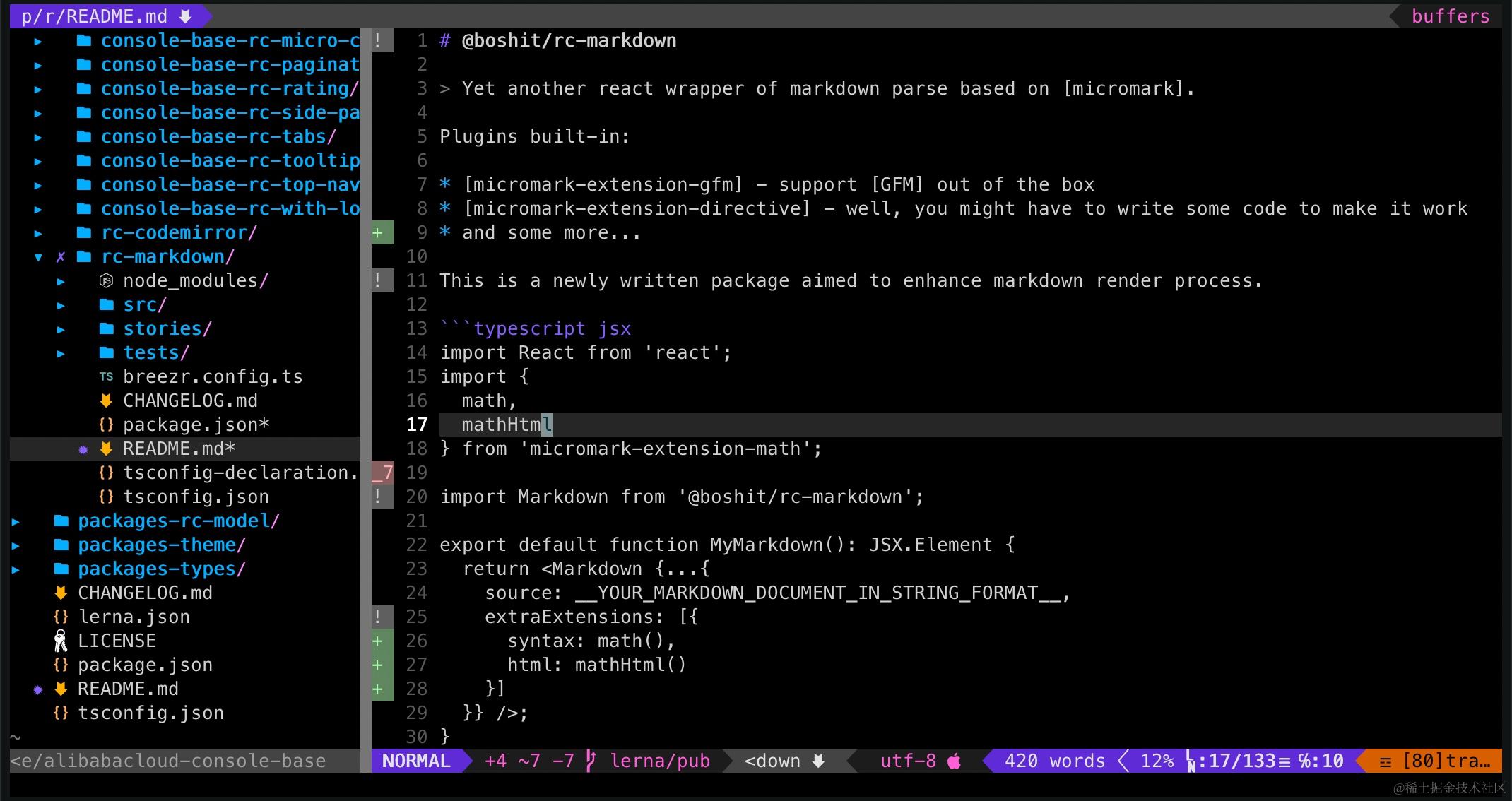
vim-gitgutter 和 vim-signify 选一个就行,看效果选后者吧:
| vim-gitgutter | vim-signify |
|---|---|
 |  |
代码:
" Plugins for git
Plugin 'tpope/vim-fugitive'                         " The premier Git plugin for Vim, illegally awesome
Plugin 'mhinz/vim-signify'                          " Add git gutter to note diffs inline

" ------- Plugin Settings for vim-fugitive
nnoremap <leader>gs :Gstatus<return>
nnoremap <leader>gd :Gdiff<return>
nnoremap <leader>gb :Gblame<return>
nnoremap <leader>gr :Gread<return>
nnoremap <leader>gc :Gcommit<return>
nnoremap <leader>gw :Gwrite<return>
安装其他插件
安装代码:
" Plugins for quick editing
Plugin 'mattn/emmet-vim'                            " Emmet-vim for super fast HTML editing
Plugin 'mg979/vim-visual-multi'                     " Multiple cursors
Plugin 'Raimondi/delimitMate'                       " Auto closing of parens, brackets, etc
" Plugin 'Valloric/YouCompleteMe'                     " YouCompleteMe Autocompletion, Works great with Tern
" Plugin 'SirVer/ultisnips'                           " Ultisnips snippet engine
Plugin 'ervandew/supertab'                          " Supertab to get Ultisnips and YCM to play nice
" Plugin 'vim-syntastic/syntastic'                    " Syntax checking

" Plugins misc
Plugin 'ctrlpvim/ctrlp.vim'                         " CtrlP fuzzy finder
Plugin 'embear/vim-localvimrc'                      " Search local vimrc files .lvimrc in the tree and load them
带 💥 的我没有装。
| 插件 | 推荐指数 | 说明 |
|---|---|---|
| mattn/emmet-vim | ★★★★☆ | 触发快捷键是 ^Y,,没有别处的 Tab 键好用 |
| mg979/vim-visual-multi | ★★★☆ | 多点编辑 |
| Raimondi/delimitMate | ★★★★★ | 自动闭合括号引号 |
| ycm-core/YouCompleteMe | ★★★★★ | 💥 不支持 Mac 自带的 Vim |
| SirVer/ultisnips | 💥 报错 | |
| ervandew/supertab | 有作用,但缺少 YCM 和 ultisnips 的辅助,不够好用 | |
| vim-syntastic/syntastic | 💥 设置起来比较麻烦,我没有搞出来 | |
| ctrlpvim/ctrlp.vim | ★★★★★ | ^P 找万物 |
| embear/vim-localvimrc | ★★ | 加载项目本地的 .lvimrc 以支持自定义 |
localvimrc 设置
" ------- Plugin Settings for localvimrc
let g:localvimrc_ask=0                              " Don't ask to load the .vimrc file
let g:localvimrc_reverse=1                          " load files going from working dir to root
let g:localvimrc_name=['.lvimrc', '.vimrc']
至此,整个 Vim 的配置就基本完成了,你已经得到了一个长的还可以,用起来也挺瞬爽的 Vim 了。
🥑 使用 Vim(TODO)
「命令」和「指令」是两个很容易混淆的概念(我也没有找到很官方的说法),本文中可以认为「命令」是在冒号后面的,比如 :w 等,「指令」是在 Command mode 下通过手指头直接发出的键盘指令,比如切换插入的 i,取消上次编辑用的 u 等。
常用命令
| 指令 | 说明 | 速记 |
|---|---|---|
| :s/find/replace | 查找替换 |
常用指令
如果你仔细阅读了前文,你应该已经能够感受到 Vim 和常见的编辑器的不同之处了:Vim 是基于指令的,你完全可以脱离鼠标 —— 这既是它能够在命令行工具和服务端得到广泛使用,也是入门门槛偏高的原因。
了解常用的键盘指令非常重要,以下是我整理的一个新手必会的指令列表:
| 指令 | 说明 | 速记 |
|---|---|---|
h、j、k、l | 移动光标(当然你也可以用「真」方向键) | 对应 ←↓↑→ |
i | 切换为插入模式(光标处) | insert |
I | 切换为插入模式(光标移到行首) | Insert |
a | 切换为插入模式(光标后) | apend |
A | 切换为插入模式(光标移到行末) | Apend |
🥱 懒人方案
🕋 完整配置
我的 .vimrc,不想折腾的,直接用就行,但记得:
- 安装 Vundle
- 在 Vim 下执行
:BundleInstall安装插件 - 重启 Vim
set nocompatible              " be iMproved, required
filetype off                  " required

" set the runtime path to include Vundle and initialize
set rtp+=~/.vim/bundle/Vundle.vim
call vundle#begin()

" let Vundle manage Vundle, required
Plugin 'VundleVim/Vundle.vim'

""""""""""""""""""""""""""""""""""""""""""""""""""""""""""""
" Install plugins, supported formats:
"
" - Plugin on GitHub repo, e.g. `Plugin 'tpope/vim-fugitive'`
" - Plugin from http://vim-scripts.org/vim/scripts.html, e.g. `Plugin 'L9'`
" - Plugin hosted on other Git repos, e.g. `Plugin 'git://git.wincent.com/command-t.git'`
" - Your local git repos (i.e. your own plugin), e.g. `Plugin 'file:///path/to/plugin'`
" - The sparkup vim script is in a subdirectory of this repo called vim, pass the path to set the runtimepath properly, e.g. `Plugin 'rstacruz/sparkup', {'rtp': 'vim/'}`
" - Install L9 and avoid a Naming conflict if you've already installed a different version somewhere else, e.g. `Plugin 'ascenator/L9', {'name': 'newL9'}`
""""""""""""""""""""""""""""""""""""""""""""""""""""""""""""

" Plugins for UI
Plugin 'vim-airline/vim-airline'
Plugin 'vim-airline/vim-airline-themes'

" Plugins for tree view
Plugin 'preservim/nerdtree'
Plugin 'Xuyuanp/nerdtree-git-plugin'                " Git status flag
Plugin 'ryanoasis/vim-devicons'                     " File icon
Plugin 'tiagofumo/vim-nerdtree-syntax-highlight'    " File icon color

" Plugins for git
Plugin 'tpope/vim-fugitive'                         " The premier Git plugin for Vim, illegally awesome
Plugin 'mhinz/vim-signify'                          " Add git gutter to note diffs inline

" Plugins for quick editing
Plugin 'mattn/emmet-vim'                            " Emmet-vim for super fast HTML editing
Plugin 'mg979/vim-visual-multi'                     " Multiple cursors
Plugin 'Raimondi/delimitMate'                       " Auto closing of parens, brackets, etc
" Plugin 'Valloric/YouCompleteMe'                     " YouCompleteMe Autocompletion, Works great with Tern
" Plugin 'SirVer/ultisnips'                           " Ultisnips snippet engine
Plugin 'ervandew/supertab'                          " Supertab to get Ultisnips and YCM to play nice
" Plugin 'vim-syntastic/syntastic'                    " Syntax checking

" Install misc
Plugin 'ctrlpvim/ctrlp.vim'                         " CtrlP fuzzy finder
Plugin 'embear/vim-localvimrc'                      " Search local vimrc files .lvimrc in the tree and load them

" All of your Plugins must be added before the following line
call vundle#end()            " required
filetype plugin indent on    " required
" To ignore plugin indent changes, instead use: `filetype plugin on`
"
" Brief help
" :PluginList         - Lists configured plugins
" :PluginInstall      - Installs plugins; append `!` to update or just :PluginUpdate
" :PluginSearch foo   - Searches for foo; append `!` to refresh local cache
" :PluginClean        - Confirms removal of unused plugins; append `!` to auto-approve removal
"
" see :h vundle for more details or wiki for FAQ
" Put your non-Plugin stuff after this line

""""""""""""""""""""""""""""""""""""""""""""""""""""""""""""
" Common Settings
""""""""""""""""""""""""""""""""""""""""""""""""""""""""""""

" set fileencodings=ucs-bom,utf-8,gbk,gb2312,cp936,gb18030,big5,latin-1
" set encoding=utf-8                          " encoding used inside Vim, buffers, registers, Strings in expressions, viminfo file, etc
" set termencoding=utf-8                      " encoding used for the terminal
" set fileencoding=utf-8                      " character encoding for the file of this buffer

" --- Window settings
set splitbelow                              " Open split windows below
set splitright                              " Open split windows to the right

" --- Color Scheme
colorscheme wildcharm                       " The default colorscheme shows only a bottom line

" --- Editor Basic
set regexpengine=2                          " Prevent error `redrawtime exceeded` for syntax highlight
syntax on                                   " Syntax highlight, also make NERDTree render properly
set number                                  " Show line number in the gutter
" set cursorline                              " Highlight current line
" hi CursorLine cterm=NONE ctermbg=black      " If you realy like default colorscheme
set wrap                                    " Wrap words visually
set linebreak                               " Wrap only at the 'breakat' option

autocmd InsertEnter,InsertLeave * set cursorline!

" --- Tab & Space
" filetype plugin indent on                   " don't know  what it is for
set list                                    " Make invisible chars visible
set listchars=tab:»-⋮,space:·,eol:¶         " How invisible chars are displayed
set expandtab                               " Press Tab key will generate spaces according to tabstop setting
set tabstop=4                               " Real tab width
set softtabstop=2                           " How many spaces will expand from tab
set smartindent                             " Ease editing code by smart auto indenting
set shiftwidth=2                            " How many spaces for auto indent

" --- Search
set smartcase                               " When searching try to be smart about cases
set incsearch                               " Makes search act like search in modern browsers
set lazyredraw                              " Don't redraw while executing macros (good performance config)
set magic                                   " For regular expressions turn magic on
set hlsearch                                " Highlights all search hits

" --- Use the vim wildmenu for command completion
set wildmenu
set wildmode=longest:full,full
set wildignore+=*/tmp/*,*.so,*.swp,*.zip,.meteor/*      " Ignore files in the wildmenun

" --- Misc
set showcmd                                 " Show current command at the bottom-right for some time
set history=77                              " How many command history vim should remember
set pastetoggle=<F5>                        " Toggle paste mode
set mouse=a                                 " Make mouse interactive, i.e. NERDTree can be clicked

" """"""""""""""""""""""""""""""""""""""""""""""""""""""""""""
" " Plugin Settings
" """"""""""""""""""""""""""""""""""""""""""""""""""""""""""""

" ---- Plugin Settings for vim-airline
let g:airline_powerline_fonts=1                     " Use powerline font when possible
let g:airline#extensions#tabline#enabled=1          " Enable tab line
let g:airline_theme='kolor'                         " Use this theme

" ---- Plugin Settings for NERDTree
nnoremap <C-t> :NERDTreeToggle<CR>
autocmd StdinReadPre * let s:std_in=1
" Start NERDTree. If a file is specified, move the cursor to its window.
autocmd VimEnter * NERDTree | if argc() > 0 || exists("s:std_in") | wincmd p | endif
" Start NERDTree when Vim starts with a directory argument
autocmd VimEnter * if argc() == 1 && isdirectory(argv()[0]) && !exists('s:std_in') |
    \ execute 'NERDTree' argv()[0] | wincmd p | enew | execute 'cd '.argv()[0] | endif
" Exit Vim if NERDTree is the only window remaining in the only tab.
autocmd BufEnter * if tabpagenr('$') == 1 && winnr('$') == 1 && exists('b:NERDTree') && b:NERDTree.isTabTree() | quit | endif

" ------- Plugin Settings for vim-fugitive
nnoremap <leader>gs :Gstatus<return>
nnoremap <leader>gd :Gdiff<return>
nnoremap <leader>gb :Gblame<return>
nnoremap <leader>gr :Gread<return>
nnoremap <leader>gc :Gcommit<return>
nnoremap <leader>gw :Gwrite<return>

" ------- Plugin Settings for vim-localvimrc
let g:localvimrc_ask=0                              " Don't ask to load the .vimrc file
let g:localvimrc_reverse=1                          " load files going from working dir to root
let g:localvimrc_name=['.lvimrc', '.vimrc']

" " -------- Plugin Settings for syntastic
" let g:syntastic_always_populate_loc_list=1
" let g:syntastic_auto_loc_list=1
" let g:syntastic_check_on_open=1
" let g:syntastic_check_on_wq=0

" " ------- Plugin Settings for YCM
" let g:ycm_complete_in_comments=1                            " Completion enabled in comments
" let g:ycm_autoclose_preview_window_after_completion=1       " Close the preview window after we pick an option
" let g:ycm_key_list_select_completion=['<C-n>', '<Down>']    " Make YCM compatible with UltiSnips (using supertab)
" let g:ycm_key_list_previous_completion=['<C-p>', '<Up>']
💎 Even Better
如果不想自己折腾配置,可以试试以下这些更 NB 的:
🙋 FAQ
❓ 如何解决报错「redrawtime exceeded syntax highlighting disabled」,特别是打开 TS 文件的时候?
set regexpengine=2
regexpengine 的可选值有:
- 0 自动
- 1 旧的正则引擎 ← 会报错
- 2 NFA 引擎
参见 Issue。
❓ 如何以「出厂设置」打开 Vim?
就像我在写这篇文章一样,有的时候需要去之前的步骤调整截图。我可以把当前的 .vimrc 全注释了再打开 Vim,但这不够聪明。
聪明一些的做法是使用 -u <vimrc> 参数(实际上可以只想任何配置文件):
vi -u DEFAULTS # 出厂设置打开空的 Vim
vi -u DEFAULTS -- path/to/file # 出厂设置打开文件
❓ 如何查看 Vim 自带了哪些色彩主题?
ls /usr/share/vim/vim90/colors/ | grep .vim
❓ 插件安装路径在哪里?
插件全部安装在 ~/.vim/bundle 下:
~/.vim/bundle/
  ├── Vundle.vim
  ├── vim-airline
  └── vim-airline-themes
❓ NERDTree 图标乱码,怎么解决?
去 Nerd Font 下几个字体,设置成 Terminal 的字体。
参考我的《入坑 iTerm + OMZ,看这一篇就够了》的 配置 Powerline / Nerd 字体 一节。
❓ NERDTree 有中括号和 ^G,怎么解决?
你可能看到 NERDTree 的展示很奇怪,每个文件前面有 ^G,文件图标两边还有一对中括号:
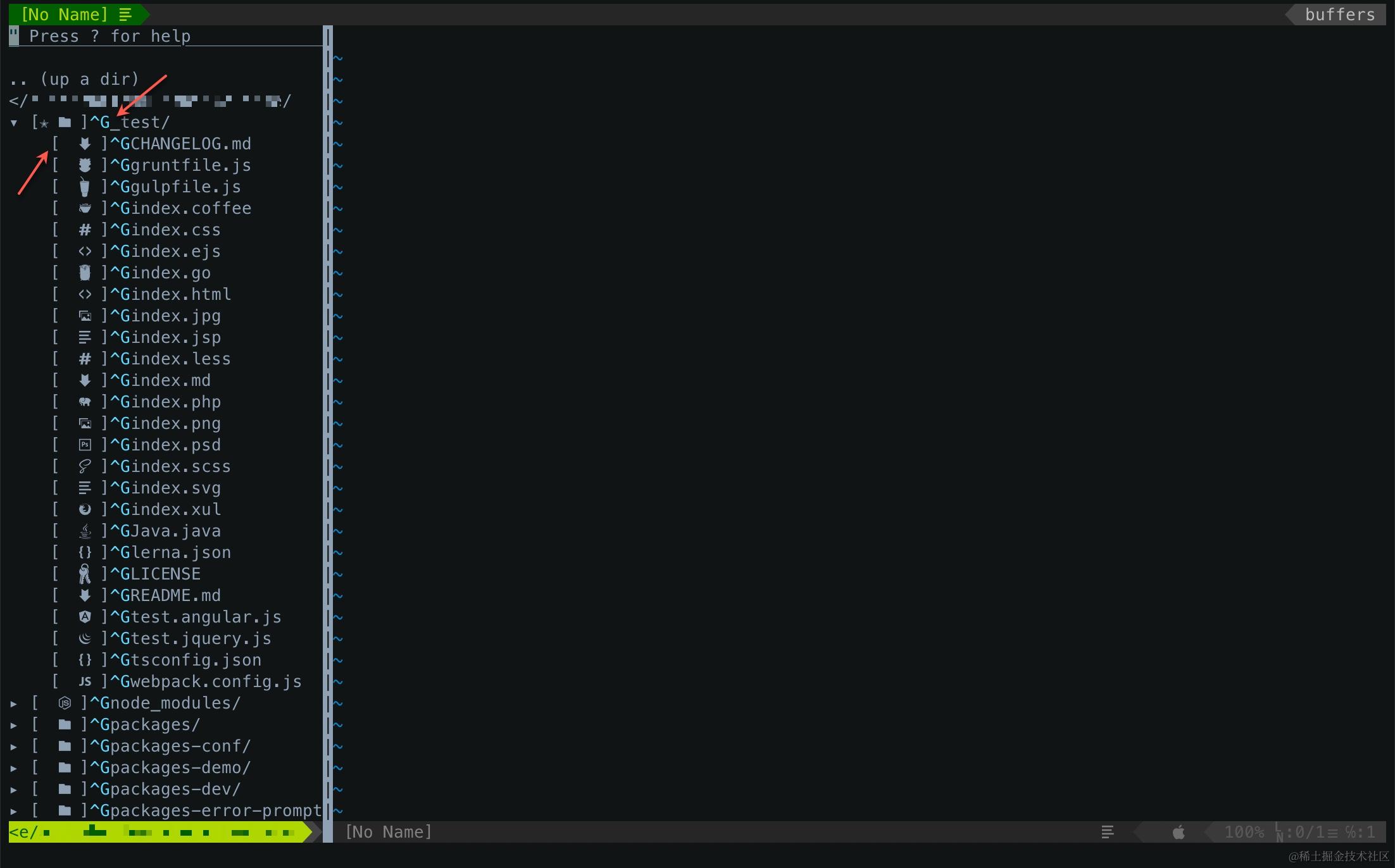
其实是因为语法高亮没有开启的缘故,保证 .vimrc 中有 syntax on 或 syntax enable 就能解决。
❓ 如何改变行高?
办法是有,但在终端 Vim 中是无效的,仅在 GUI Vim 下有用,比如 MacVim。
set linespace=3
❓ 如何自动重新读取文件,当打开的文件在外部被改动?
set autoread
然而,不建议设置,Vim 会有提示。
❓ 如何让 NERDTree 向右和向下分割窗口?
NERDTree 的 i(纵向切割窗口)和 s(横向切割窗口)默认行为是向上和向左,很不符合人类习惯,在 .vimrc 中添加两行设置:
set splitbelow
set splitright
❓ 如何让帮助文档展示在当前窗口下方?
确保 .vimrc 中有这个设置(跟 NERDTree 的诉求一样):
set splitbelow
❓ 为什么有些单词有红色背景,特别烦人?
像这样:
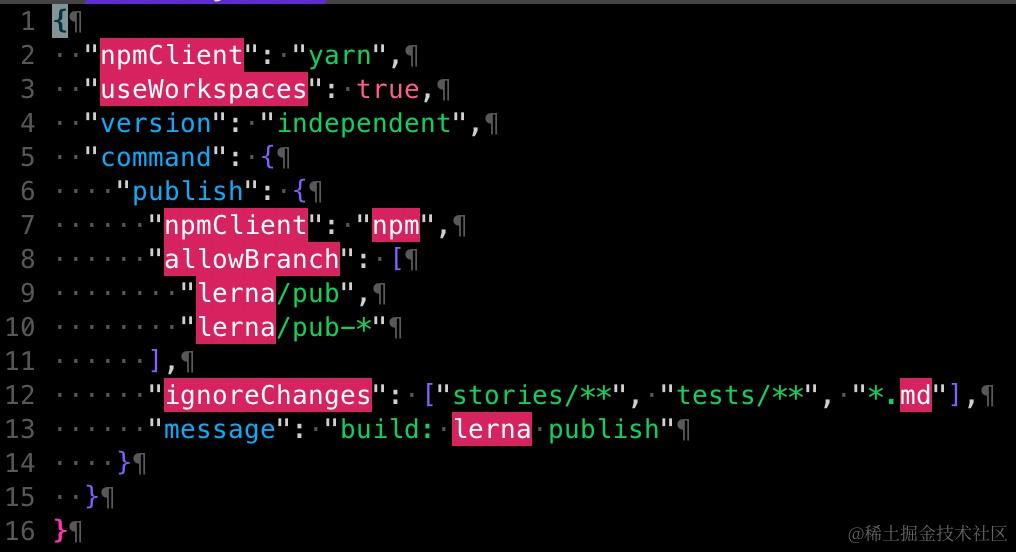
这个是 SpellCheck 造的,可以关掉 :set spell!。
📌 链接
🪭 写在最后
以上介绍了 Vim 的一些基本知识,和一步一步如何将 Vim 配置到「有点好看」、「有点好用」的地步,但如果要把它作为常规的编辑器,甚至开发工具,还是远远不够的,你不仅可能需要按需装更多的插件,更加需要不断地实践和学习。
但「入坑」这个任务,本文算是完成了。