

Hadoop 操作与集群管理秘籍(五)
八、使用 Amazon EC2 和 S3 构建 Hadoop 集群
在本章中,我们将介绍:
- 注册亚马逊网络服务(AWS)
- 管理 AWS 安全凭据
- 为 EC2 连接准备本地计算机
- 创建 Amazon 机器映像(AMI)
- 使用 S3 托管数据
- 使用新 AMI 配置 Hadoop 集群
简介
Amazon弹性云计算(EC2)和简单存储服务(S3)是由 Amazon Web Services(AWS)提供的云计算 Web 服务。 EC2 提供了平台即服务(PaaS),理论上我们可以在云上启动无限数量的服务器。 S3 在云上提供存储服务。 有关 AWS、EC2 和 S3 的更多信息,请访问aws.amazon.com。
从本书的前几章我们了解到,Hadoop 集群的配置需要大量的硬件投资。 例如,要设置 Hadoop 集群,需要许多计算节点和网络设备。 相比之下,借助 AWS 云计算,尤其是 EC2,我们可以以最低的成本和更少的工作量建立 Hadoop 集群。
在本章中,我们将讨论在 Amazon 云中配置 Hadoop 集群的主题。 我们将指导您完成向 AWS 注册、创建Amazon 机器映像(AMI)、使用新 AMI 配置 Hadoop 集群等步骤。
注册 Amazon Web Services(AWS)
要使用 AWS,需要注册**。 注册 AWS 的步骤很简单。 在本食谱中,我们将概述执行此操作的步骤。**
**## 做好准备
我们假设使用 GUI Web 浏览器进行 AWS 注册。 因此,我们假设您已经有一个可以访问互联网的 Web 浏览器。 此外,还需要准备个人信息来填写在线注册表。
怎么做……
我们将使用以下步骤注册 AWS:
-
使用 Web 浏览器打开以下链接:aws.amazon.com/。
-
Click on the Sign Up button on the upper-right corner of the window.
您将被定向到一个网页,如以下屏幕截图所示:
-
用标签填写文本字段中的电子邮件地址我的电子邮件地址是:,然后选择I am a new user单选按钮,如上一个屏幕截图所示。
-
单击底部的Sign In Using Our Secure Server按钮上的,如上一个屏幕截图所示。
-
Fill the Login Credentials form, which includes name, e-mail, and password as shown in the following screenshot:
-
单击底部的Continue按钮,如上一个屏幕截图所示。
-
Fill in the Contact Information, Security Check, and AWS Customer Agreement form as shown in the following screenshot:
-
单击底部的Create Account and Continue按钮,如上一个屏幕截图所示。
-
So far, an AWS account has been created. Now we can log in to AWS with the newly created account by using the I am a returning user and my password is: option as shown in the following screenshot:
-
By clicking on the Sign in using our secure server button at the bottom of the window, we will be able to log in to the AWS management console page with EC2 and S3 service available as shown in the following screenshot:

我们已成功完成注册步骤。
另请参阅
管理 AWS 安全凭据
安全凭证对于 EC2 和 S3 等 Web 服务至关重要。 它们用于远程访问 AWS 上的云服务器。 例如,在本章中,我们将使用这些凭据从客户端计算机远程登录到服务器。
AWS 提供 Web 界面来管理安全凭证。 本食谱将指导您完成创建、下载和管理这些安全凭据的步骤。
做好准备
在开始之前,我们假设您已成功注册 AWS;否则,您需要按照上一食谱中的步骤注册 AWS。
我们还假设我们有一台安装了 Linux(如 CentOS)的客户端计算机。 机器应该能够访问互联网,并且至少安装了一个 GUI Web 浏览器。
使用以下命令为存储 AWS 凭证的创建一个目录:
mkdir -v ~/.ec2
怎么做……
使用以下步骤管理 AWS 安全凭证:
-
打开 Web 浏览器并转到 URLaws.amazon.com。
-
Click on the My Account / Console drop-down button on the upper-left of the window as shown in the following screenshot:
-
Click on the Security Credentials option in the drop-down list as shown in the previous screenshot.
如果您以前登录过 AWS,则可以访问安全凭证管理页面。 否则,将出现登录窗口。 您需要输入用户名和密码,然后使用**我是返回用户,我的密码是:**选项登录。
目前,Amazon AWS 有几种类型的凭据,如以下屏幕截图所示:
-
Access Credentials include Access Keys, X.509 Certificates, and Key Pairs as shown in the following screenshot:
-
By clicking on the Make Inactive link on the status column of the access keys table, we can make the access keys inactive. Inactive access keys can be made active again and can be deleted from the list.
类似地,我们可以使 X.509 证书处于非活动状态,如前面的屏幕截图所示。 非活动证书可以重新激活或从列表中删除。
-
By clicking on the Create a new Certificate link, we will be able to create a new certificate as shown in the following screenshot:
我们需要通过单击前一个屏幕截图中所示的按钮来下载私钥文件和 X.509 证书。 这些文件应受到保护,不得与任何其他人共享。
-
Key pairs used for EC2 can be managed from the management console as shown in the following screenshot:
单击窗口顶部的Create Key Pair按钮可以创建新的密钥对。 将使用一个弹出窗口键入密钥对的名称。 并且,新创建的密钥对将被下载到本地计算机。
-
使用下面的命令将下载的密钥对复制到
.ec2文件夹:cp *.pem ~/.ec2/
它是如何工作的.
下表显示了每个安全凭据的用法:
|安全凭证
|
用于
| | --- | --- | | 访问凭据 | 访问键 | 保护 REST 或查询请求访问 AWS 服务 API。 | | X.509 证书 | 向 AWS 服务 API 发出 SOAP 协议请求。 | | 密钥对 | 启动并安全访问 EC2 实例。 | | 登录凭据 | | 从门户网站登录 AWS。 | | 帐户标识符 | | 在客户之间共享资源。 |
为 EC2 连接准备本地计算机
访问 EC2 需要本地客户端计算机。 例如,我们可以使用本地客户端计算机启动 EC2 实例、登录 EC2 上的实例等。 在本食谱中,我们将列出为 EC2 连接配置本地计算机的步骤。
做好准备
在开始之前,我们假设已向 AWS 注册并且已创建安全凭据。 我们还假设已经安装了一台安装了 Linux 的计算机。
怎么做……
使用以下步骤配置本地计算机以进行 EC2 远程访问:
-
Get the Access Key ID and the Secret Access Key from the security credentials web page as shown in the following screenshot:
-
使用以下命令将密钥对移动到
.ec2目录:mv <key-pair-name>.pem ~/.ec2/ -
使用以下命令将私钥文件移动到
.ec2目录:mv pk-*.pem ~/.ec2/ -
Move the certificate file to the
.ec2directory using the following command:mv cert-*.pem ~/.ec2/从 URLaws.amazon.com/developerto…下载 ec2 命令行工具。
-
使用以下命令解压缩 ZIP 文件:
unzip ec2-ami-tools.zip -
将以下内容添加到文件
~/.profile中:export EC2_HOME=~/ec2/ export AWS_ACCOUNT_ID=example@mail.com export EC2_PRIVATE_KEY=~/.ec2/pk-WXP232J7PL4TR5JKMUBJGH65DFNCYZGY.pem export EC2_CERT=~/.ec2/cert-WXP232J7PL4TR5JKMUBJGH65DFNCYZGY.pem export AWS_ACCESS_KEY_ID=AKIAJ7GAQT52MZKJA4WQ export AWS_SECRET_ACCESS_KEY=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 export PATH=$PATH:$EC2_HOME/bin -
将以下内容添加到文件
~/.bashrc中:. ~/.profile -
Test the configuration using the following command:
ec2-describe-images如果配置没有问题,我们将获得 AMI 列表;否则,我们将收到类似以下内容的错误消息:
Client.AuthFailure: AWS was not able to validate the provided access credentials
创建 Amazon 机器映像(AMI)
Amazon 机器映像(AMI)是 EC2 使用的机器映像。 AMI 是包含操作系统和软件包配置的模板。 我们可以从预先存在的或个性化的 AMI 启动 EC2 实例。 AWS 提供了大量可免费使用的公共 AMI。
通常有两种类型的 AMI,一种是 EBS 支持的 AMI(弹性块存储支持的 AMI),另一种是实例存储支持的 AMI。 在本食谱中,我们将首先概述创建实例存储支持的 AMI 的步骤,并简要介绍如何创建 EBS 支持的 AMI。
做好准备
在开始之前,我们假设您已成功注册 AWS。 此外,我们还假设已正确配置客户端计算机以连接到 AWS。
登录到本地计算机并安装
MAKEDEV实用程序使用以下命令:
sudo yum install -y MAKEDEV
使用以下命令安装 Amazon AMI 工具:
sudo rpm -ivh  http://s3.amazonaws.com/ec2-downloads/ec2-ami-tools.noarch.rpm
Retrieving http://s3.amazonaws.com/ec2-downloads/ec2-ami-tools.noarch.rpm
Preparing...                #################################### [100%]
 1:ec2-ami-tools          #################################### [100%]
怎么做……
使用以下步骤创建实例存储支持的 AMI:
-
Create an image file using the following command:
dd if=/dev/zero of=centos.img bs=1M count=1024此命令将发出以下消息:
1024+0 records in
1024+0 records out
1073741824 bytes (1.1 GB) copied, 10.5981 s, 101 MB/s
在此命令中,
if指定数据的输入,/dev/zero是 Linux 系统上的特殊设备,of指定命令的输出,其中我们指定文件名作为图像名称,bs指定块的大小,count是输入到输出的块数。 输出文件的大小centos.img由块大小和计数确定。 例如,前面的命令创建了一个大小为 1M x 1024 的图像文件,大小约为 1.0 GB。 -
Check the size of the image file using the following command:
ls -lh centos.img输出结果为:
-rw-rw-r--. 1 shumin shumin 1.0G May 3 00:14 centos.img -
Create a root filesystem inside the image file using the following command:
mke2fs -F -j centos.img输出消息将类似于以下内容:
mke2fs 1.42.3 (14-May-2012) Discarding device blocks: done Filesystem label= OS type: Linux Block size=4096 (log=2) Fragment size=4096 (log=2) Stride=0 blocks, Stripe width=0 blocks 655360 inodes, 2621440 blocks 131072 blocks (5.00%) reserved for the super user First data block=0 Maximum filesystem blocks=2684354560 80 block groups 32768 blocks per group, 32768 fragments per group 8192 inodes per group Superblock backups stored on blocks: 32768, 98304, 163840, 229376, 294912, 819200, 884736, 1605632 Allocating group tables: done Writing inode tables: done Creating journal (32768 blocks): done Writing superblocks and filesystem accounting information: done -
使用以下命令在
/mnt目录下创建一个目录:sudo mkdir -v /mnt/centos -
使用以下命令将镜像文件挂载到文件夹:
sudo mount -o loop centos.img /mnt/centos -
使用以下命令在挂载的文件系统的根目录下创建
/dev目录:sudo mkdir -v /mnt/centos/dev -
Create a minimal set of devices using the following commands:
sudo /sbin/MAKEDEV -d /mnt/centos/dev -x console
sudo /sbin/MAKEDEV -d /mnt/centos/dev -x null
sudo /sbin/MAKEDEV -d /mnt/centos/dev -x zero
这些命令将为我们提供以下输出:
MAKEDEV: mkdir: File exists
MAKEDEV: mkdir: File exists
MAKEDEV: mkdir: File exists
出现这些警告消息的原因是父目录已经存在。 当
MAKEDEV命令尝试使用mkdir命令创建文件夹时,它将失败并显示此警告消息。 -
使用以下命令创建
fstab配置文件:sudo mkdir -pv /etc/fstab -
将以下内容放入文件:
/dev/sda1 / ext3 defaults 1 1 none /dev/pts devpts gid=5,mode=620 0 0 none /dev/shm tmpfs defaults 0 0 none /proc proc defaults 0 0 none /sys sysfs defaults 0 0 -
使用以下命令在镜像文件的根文件系统下创建
proc文件夹:
```sh
sudo mkdir -pv /mnt/centos/proc

```
11. 使用以下命令将proc文件系统装载到/mnt/centos/proc目录:
```sh
sudo mount -t proc none /mnt/centos/proc

```
12. 使用以下内容创建 CentOS yum 存储库文件/etc/yum.repos.d/centos.repo:
```sh
[centos]
name=centos
#mirrorlist=http://mirrorlist.centos.org/?release=$releasever&arch=$basearch&repo=os
#baseurl=http://mirror.centos.org/centos/$releasever/os/$basearch/
baseurl=http://mirror.centos.org/centos-6/6.4/os/x86_64/
gpgkey=http://mirror.centos.org/centos-6/6.4/os/x86_64/RPM-GPG-KEY-CentOS-6
gpgcheck=1
protect=1

```
13. Install the latest CentOS 6.3 operating system using the following command:
```sh
sudo yum --disablerepo=* --enablerepo=centos  --installroot=/mnt/centos -y groupinstall Base

```

`--disablerepo`选项禁用所有可用的存储库,`--enablerepo`选项仅启用上一步中指定的 CentOS 存储库。

此命令将在挂载目录上启动 CentOS 6.3 的安装,这将需要一段时间,具体取决于网络速度和主机系统硬件配置。
14. When the installation is complete, we can verify the installation using thefollowing command:
```sh
ls -lh /mnt/centos/

```

安装的操作系统的目录结构应该与常规安装的 Linux 的目录结构相同。 例如,输出将类似于以下内容:

```sh
total 108K
dr-xr-xr-x.  2 root root 4.0K May  3 01:12 bin
dr-xr-xr-x.  3 root root 4.0K May  3 01:13 boot
drwxr-xr-x.  2 root root 4.0K Sep 23  2011 dev
drwxr-xr-x. 73 root root 4.0K May  3 02:00 etc
drwxr-xr-x.  2 root root 4.0K Sep 23  2011 home
dr-xr-xr-x. 10 root root 4.0K May  3 01:12 lib
dr-xr-xr-x.  9 root root  12K May  3 01:11 lib64
drwx------.  2 root root  16K May  3 00:17 lost+found
drwxr-xr-x.  2 root root 4.0K Sep 23  2011 media
drwxr-xr-x.  2 root root 4.0K Sep 23  2011 mnt
drwxr-xr-x.  3 root root 4.0K May  3 01:12 opt
dr-xr-xr-x.  2 root root 4.0K Sep 23  2011 proc
dr-xr-x---.  2 root root 4.0K Sep 23  2011 root
dr-xr-xr-x.  2 root root  12K May  3 01:12 sbin
drwxr-xr-x.  2 root root 4.0K Sep 23  2011 selinux
drwxr-xr-x.  2 root root 4.0K Sep 23  2011 srv
drwxr-xr-x.  2 root root 4.0K Sep 23  2011 sys
drwxrwxrwt.  2 root root 4.0K May  3 01:13 tmp
drwxr-xr-x. 13 root root 4.0K May  3 01:02 usr
drwxr-xr-x. 19 root root 4.0K May  3 01:12 var

```
我们将通过以下步骤配置系统:
-
Create the network adapter configuration file,
/mnt/centos/etc/sysconfig/network-scripts/ifcfg-eth0, using the following content:DEVICE=eth0 BOOTPROTO=dhcp ONBOOT=yes TYPE=Ethernet USERCTL=yes PEERDNS=yes IPV6INIT=no在此配置中,
BOOTPROTO指定使用 DHCP IP 地址分配。 -
通过在网络配置文件
/mnt/centos/etc/sysconfig/network:NETWORKING=yes中添加或更改
NETWORKING选项来启用联网 -
Add the following content into the
file /mnt/centos/etc/fstab:/dev/sda2 /mnt ext3 defaults 0 0 /dev/sda3 swap swap defaults 0 0这两行配置
swap和root分区的挂载点。 -
配置为使用以下命令启动必要的服务:
sudo chroot /mnt/centos /bin/sh chkconfig --level 345 network on exit -
使用以下命令卸载镜像文件:
sudo umount /mnt/centos/proc sudo umount -d /mnt/centos -
使用以下命令将私钥和 X.509 证书文件复制到实例中:
scp -i shumin.guo ~/.ec2/pk-*pem ~/.ec2/cert-*pem root@ec2-58-214-29-104.compute-1.amazonaws.com:~/.ec2/ -
Log in to the instance using the following command:
ssh -i ~/.ec2/shumin.guo.pem root@ec2-58-214-29-104.compute-1.amazonaws.com在此命令中,
ec2-58-214-29-104.compute-1.amazonaws.com是实例的公有域名。 -
Configure password-less login with the following commands:
ssh-keygen mkdir -v /mnt/centos/root/.ssh sudo cp ~/.ssh/id_* /mnt/centos/root/.ssh当系统提示您输入释义时,按Enter键将其留空。
-
使用以下命令将公钥复制到
authorized_keys文件:cat /mnt/centos/root/.ssh/id_rsa.pub >> /mnt/centos/root/.ssh/authorized_keys -
使用以下命令将本地 Java 安装文件复制到镜像文件夹:
```sh
sudo cp -r /usr/java/mnt/centos/usr

```
11. 从镜像官方网站www.apache.org/dyn/closer.…下载最新的 Hadoop 发行版。 12. 使用以下命令解压 Hadoop 包并创建符号链接:
```sh
sudo tar xvf hadoop-*.tar.gz -C /mnt/centos/usr/local/
sudo ln -s /mnt/centos/usr/local/hadoop-* /mnt/centos/usr/local/hadoop

```
13. 将以下环境变量添加到文件.bashrc:
```sh
export JAVA_HOME=/usr/java/latest
export HADOOP_HOME=/usr/local/hadoop
export PATH=$PATH:$HADOOP_HOME/bin

```
14. 将以下内容添加到文件$HADOOP_HOME/conf/core-site.xml中:
```sh
<configuration>
<property>
<name>fs.default.name</name>
<value>hdfs://localhost:54310</value>
</property>
<configuration>
```
15. 将以下内容添加到文件$HADOOP_HOME/conf/mapred-site.xml中:
```sh
<configuration>
<property>
<name>dfs.replication</name>
<value>2</value>
</property>

<property>
<name>dfs.data.dir</name>
<value>/hadoop/data/</value>
</property>
<property>
<name>hadoop.tmp.dir</name>
<value>/hadoop/tmp/hadoop-${user.name}/</value>
</property>
</configuration>
```
16. 将以下内容添加到文件$HAOOP_HOME/conf/hdfs-site.xml中:
```sh
<configuration>

<property>
<name>mapred.job.tracker</name>
<value>localhost:54311</value>
</property>

<property>
<name>mapred.system.dir</name>
<value>/hadoop/mapred</value>
</property>

</configuration>
```
17. 使用第 3 章、配置 Hadoop 集群中的食谱中概述的步骤下载并安装其他生态系统组件。
我们将使用以下步骤捆绑、上传和注册 AMI:
-
Bundle the loopback image file using the following command:
ec2-bundle-image -i centos.img -k .ec2/pk-*.pem -c .ec2/cert-*.pem -u 123412341234选项
-i指定图像文件名,-k指定私钥文件,-c指定证书文件,-u指定用户帐号,它是一个 12 位数字字符串。我们可以通过以下网址从 Web 用户界面获取帐号:portal.aws.amazon.com/gp/aws/mana…。 账号位于窗口左上角,如以下屏幕截图所示:
该命令将询问镜像的体系结构,然后它将把镜像与用户的安全凭证捆绑在一起,并将捆绑的镜像文件拆分成更小的文件。
输出消息将类似于以下内容:
Please specify a value for arch [x86_64]: Bundling image file... Splitting /tmp/centos.img.tar.gz.enc... Created centos.img.part.00 Created centos.img.part.01 Created centos.img.part.02 Created centos.img.part.03 Created centos.img.part.04 Created centos.img.part.05 Created centos.img.part.06 Created centos.img.part.07 Created centos.img.part.08 Created centos.img.part.09 Created centos.img.part.10 ... Generating digests for each part... Digests generated. Creating bundle manifest... ec2-bundle-image complete. -
Create a bucket from the S3 web interface as shown in the following screenshot:
-
Type in the bucket name and select the region based on your location as shown in the following screenshot:
-
Click on the Create Bucket button and the bucket will be successfully created as shown in the following screenshot:
-
Upload the bundled file into S3 using the following command:
ec2-upload-bundle -b packt-bucket -m /tmp/centos.img.manifest.xml -a AKIAJ7GAQT52MZKJA4WQ -s QDHHZ0/Mj5pDYFWKpqEzXhwjqM1UB+cqjGQQ6l3S此命令会将捆绑的镜像部分上传到指定的存储桶(在本例中为
packt-bucket),该存储桶由-b选项指定。 选项-m指定清单文件的位置,选项-a指定访问密钥,-s指定密钥。 请注意,出于安全考虑,清单文件在上载之前将使用公钥进行加密。该命令将产生类似于以下内容的输出:
Uploading bundled image parts to the S3 bucket packt-bucket ... Uploaded centos.img.part.00 Uploaded centos.img.part.01 Uploaded centos.img.part.02 Uploaded centos.img.part.03 Uploaded centos.img.part.04 Uploaded centos.img.part.05 Uploaded centos.img.part.06 Uploaded centos.img.part.07 Uploaded centos.img.part.08 Uploaded centos.img.part.09 Uploaded centos.img.part.10 ... Uploading manifest ... Uploaded manifest. Bundle upload completed. -
When the upload completes, we can check the content of the bucket by clicking on the bucket name. The bucket should now contain all the image parts as well as the manifest file as shown in the following screenshot:
-
Register the AMI using the following command:
ec2-register packt-bucket/image.manifest.xml -n packt-centos-6.4-x64 -O AKIAJ7GAQT52MZKJA4WQ -W QDHHZ0/Mj5pDYFWKpqEzXhwjqM1UB+cqjGQQ6l3S该命令将为我们提供新注册的 AMI 的 ID,如下所示:
IMAGE ami-9f422ff6备注
为了让 EC2 找到 AMI 并使用它运行实例,AMI 注册步骤是必需的。 请注意,一旦对存储在 S3 上的图像部件文件进行了更改,则需要重新注册才能使更改生效。
-
We can check the details of the new AMI using the following command:
ec2-describe-images ami-9f422ff6输出将类似于以下内容:
IMAGE ami-9f422ff6 869345430376/packt-centos-6.4-x64 869345430376 available private x86_64 machine instance-store paravirtual xen每列的含义为:
IMAGE标识符- 镜像的 ID
- 图像的来源
- 镜像所有者的 ID
- 映像的状态
- 图像的可见性(
public或private) - 附加到实例的产品代码(如果有)
- 镜像的体系结构(
i386或x86_64) - 图像类型(
machine、kernel或ramdisk) - 与映像关联的内核 ID(仅限机器映像)
- 与映像关联的 RAM 磁盘的 ID(仅限机器映像)
- 形象的平台
- 根设备的类型(
ebs或instance-store) - 虚拟化类型(
paravirtual或hvm) - 虚拟机管理程序类型(
xen或kvm)
-
Once the registration is completed, we can start an instance with the new AMI using the following command:
ec2-run-instances ami-9f422ff6 -n 1 -k shumin.guo此命令指定使用新的 AMI 运行实例,选项
-n指定要启动的实例数,选项-k指定用于登录这些实例的密钥对。输出将类似于以下内容:
RESERVATION     r-ca8919aa      869345430376    default
INSTANCE        i-0020e06c      ami-9f422ff6    pending shumin.guo      0               m1.small        2013-05-03T08:22:09+0000  us-east-1a                              monitoring-disabled        instance-store     paravirtual     xen             sg-7bb47b12     default false
输出的第一行是预订信息,各列的含义为:
RESERVATION标识符- 预订的 ID
- 实例所有者的 AWS 帐户 ID
- 实例所在的每个安全组的名称
第二行显示实例信息,各列含义如下:
INSTANCE标识符。- 实例的 ID。
- 实例所基于的映像的 AMI ID。
- 与实例关联的公共 DNS 名称。 这仅适用于处于运行状态的实例。
- 与实例关联的专用 DNS 名称。 这仅适用于处于运行状态的实例。
- 实例的状态。
- 密钥名称。 如果密钥在启动时与实例关联,则会显示其名称。
- AMI 启动指数。
- 与实例关联的产品代码。
- 实例类型。
- 实例启动时间。
- 可用区。
- 内核的 ID。
- RAM 磁盘的 ID。
- 平台(Windows 或空)。
- 监控状态。
- 公有 IP 地址。
- 私有 IP 地址。
- [EC2-vpc]私有网络的 ID。
- [EC2-vPC]子网 ID。
- 根设备的类型(
ebs或instance-store)。 - 实例生命周期。
- Spot 实例请求 ID。
- 实例许可证。
- 集群实例所在的置放组。
- 虚拟化类型(
paravirtual或hvm)。 - 虚拟机管理程序类型(
xen或kvm)。 - 客户端令牌。
- 实例所在的每个安全组的 ID。
- 实例的租户(
default或dedicated)。 - 实例是否经过 EBS 优化(
true或false)。 - IAM角色的Amazon 资源名称(ARN)。
输出消息显示实例 ID 为
i-0020e06c。 -
After waiting for a while, we can check the status of the instance using the following command:
```sh
ec2-describe-instances i-0020e06c
```
输出将类似于以下内容:
```sh
RESERVATION r-ca8919aa 869345430376 default
INSTANCE i-0020e06c ami-9f422ff6 ec2-54-224-240-54.compute-1.amazonaws.com ip-10-34-102-91.ec2.internal running shumin.guo 0 m1.small 2013-05-03T08:22:09+0000 us-east-1a monitoring-disabled 54.224.240.54 10.34.102.91 instance-store paravirtual xen sg-7bb47b12 default false
```
实例状态告诉我们它处于**运行状态**。
或者,我们可以从 Web 用户界面检查实例的状态。 例如,我们可以获得类似以下截图的实例状态:

11. Log in to the instance using the following command:
```sh
ssh -i ~/.ec2/shumin.guo.pem root@ec2-54-224-240-54.compute-1.amazonaws.com

```

在此命令中,`-i`指定用于登录的密钥对,`ec2-54-224-240-54.compute-1.amazonaws.com`是 EC2 实例的公共域名。
还有更多...
正如我们前面提到的,还有其他方法可以创建 AMI。 一种方法是从现有的 AMI 创建一个 AMI。 另一种方法是创建 EBS 支持的 AMI。
从现有 AMI 创建 AMI
本节列出了从现有 AMI 创建实例存储支持的 AMI 的个步骤。 我们假设您已向 AWS 注册,并已在本地计算机上成功配置安全凭据。 我们还假设您已经下载了密钥对并将其保存到正确的位置。
在本节中,我们假设私钥、证书和密钥对都位于.ec2文件夹中。
-
Start an instance from an existing AMI. For example, we can start an instance with the new AMI created in the Creating an Amazon Machine Image (AMI) recipe using the following command:
ec2-run-instances ami-9f422ff6 -n 1 -k shumin.guo此命令将从新的 AMI 启动一个实例。 密钥对
shumin.guo用于远程登录实例。 -
使用以下命令将私钥和 X.509 证书复制到实例中:
scp -i shumin.guo ~/.ec2/pk-*pem ~/.ec2/cert-*pem root@ec2-58-214-29-104.compute-1.amazonaws.com:~/.ec2/ -
使用以下命令登录实例:
ssh -i ~/.ec2/shumin.guo.pem root@ec2-58-214-29-104.compute-1.amazonaws.com -
使用以下命令配置无密码登录:
ssh-keygen -
系统将提示您输入释义;按Enter键将其留空。
ssh-copy-id localhost -
按照第 2 章,准备 Hadoop 安装的安装 Java 和其他工具配方中列出的步骤下载并安装 Java。
-
从www.apache.org/dyn/closer.…下载最新的 Hadoop 发行版。
-
使用以下命令解压 Hadoop 包并创建符号链接:
tar xvf hadoop-*.tar.gz -C /usr/local/ ln -s /usr/local/hadoop-* /usr/local/hadoop -
将以下环境变量添加到文件
.bashrc:export JAVA_HOME=/usr/java/latest export HADOOP_HOME=/usr/local/hadoop export PATH=$PATH:$HADOOP_HOME/bin -
将以下内容添加到文件
$HADOOP_HOME/conf/core-site.xml中:
```sh
<configuration>
<property>
<name>fs.default.name</name>
<value>hdfs://localhost:54310</value>
</property>
<configuration>
```
11. 将以下内容添加到文件$HADOOP_HOME/conf/mapred-site.xml中:
```sh
<configuration>
<property>
<name>dfs.replication</name>
<value>2</value>
</property>

<property>
<name>dfs.data.dir</name>
<value>/hadoop/data/</value>
</property>

<property>
<name>hadoop.tmp.dir</name>
<value>/hadoop/tmp/hadoop-${user.name}/</value>
</property>

</configuration>
```
12. 将以下内容添加到文件$HAOOP_HOME/conf/hdfs-site.xml中:
```sh
<configuration>

<property>
<name>mapred.job.tracker</name>
<value>localhost:54311</value>
</property>

<property>
<name>mapred.system.dir</name>
<value>/hadoop/mapred</value>
</property>

</configuration>
```
13. 按照第 3 章、配置 Hadoop 集群中的食谱中概述的步骤下载并安装所有其他 Hadoop 生态系统组件。 14. 使用以下命令安装 AMI 工具包:
```sh
rpm -ivh http://s3.amazonaws.com/ec2-downloads/ec2-ami-tools.noarch.rpm

```
15. 使用以下命令禁用 SE Linux:
```sh
setenforce 0

```
16. 使用以下命令禁用 iptables:
```sh
iptables -F
chkconfig iptables off

```
17. Bundle the image using the following command:
```sh
ec2-bundle-vol -e ~/.ec2 -kpk-*pem -ccert-*.pem -u 123412341234

```

在此命令中,`-k`指定包含私钥的文件的名称,`-c`指定包含 X.509 证书的文件,`-u`指定当前用户没有破折号的 12 到 15 位计数 ID,`-e`指定包含私钥文件和证书文件的位置/目录。
18. Upload the bundled AMI to S3 using the following command:
```sh
ec2-upload-bundle -b packt-bucket -m /tmp/image.manifest.xml -a AKIAJ7GAQT52MZKJA4WQ -p QDHHZ0/Mj5pDYFWKpqEzXhwjqM1UB+cqjGQQ6l3S

```

在此命令中,`-b`指定 S3 上的存储桶的名称,`-m`指定清单文件的位置,`-a`指定访问密钥字符串,`-p`指定密钥字符串。
19. Register the AMI using the following command:
```sh
ec2-register packt-bucket/image.manifest.xml -n centos-hadoop-1.0 -O AKIAJ7GAQT52MZKJA4WQ-WQDHHZ0/Mj5pDYFWKpqEzXhwjqM1UB+cqjGQQ6l3S

```

在此命令中,第一个参数指定清单文件在 S3 存储桶中的位置,`-n`选项指定 AMI 的名称,`-O`指定访问密钥字符串,`-W`指定密钥字符串。
创建 EBS 支持的 AMI
从Web 管理控制台可以直接创建 EBS 支持的 AMI。 本节将指导您完成从正在运行的 EC2 实例创建 EBS 支持的 AMI 的步骤。 欲了解更多信息,请访问亚马逊官方文档docs.aws.amazon.com/AWSEC2/late…。
使用以下步骤创建 EBS 支持的 AMI:
-
Go to console.aws.amazon.com/ec2/v2/home… and filter the AMIs with conditions similar to the following screenshot:
-
Start an instance by right-clicking on one of the AMIs and then click on Launch as shown in the following screenshot:
-
When the instance is running, log in to the instance and make changes according to your requirements. Then, from the Web Management console, right-click on the running instance and then select Create Image (EBS AMI) as shown in the following screenshot:
-
Go to the AMIs tab of the AWS web console and select Owned By Me; we will see that EBSAMI is being created as shown in the following screenshot:
EC2 为新 AMI 创建快照。 与存储在 S3 中的映像部分文件类似,快照存储 EBS 支持的 AMI 的物理映像。
另请参阅
- 第 3 章,配置 Hadoop 集群的安装 HBase配方
- 第 3 章,配置 Hadoop 集群的安装配置单元配方
- 第 3 章,配置 Hadoop 集群的安装 Pig配方
- 第 3 章,配置 Hadoop 集群的安装 ZooKeeper配方
- 第 3 章,配置 Hadoop 集群的安装 Mahout配方
- 参考docs.aws.amazon.com/AWSEC2/late…
- 参考docs.aws.amazon.com/AWSEC2/late…
使用 S3 托管数据
简单存储服务(S3)提供了方便的在线数据存储。 用户可以使用它来存储和检索数据。 有关 S3 的更多信息可以从aws.amazon.com/s3/获得。
本食谱将概述将 S3 配置为 MapReduce 的分布式数据存储系统的步骤。
做好准备
在开始之前,我们假设您已成功注册 AWS,并且客户端计算机已成功配置为可以访问 AWS。
怎么做……
使用以下步骤为数据存储配置 S3:
-
使用以下命令停止 Hadoop 集群:
stop-all.sh -
Open the file
$HADOOP_HOME/conf/core-site.xmland add the following contents into the file:<property> <name>fs.default.name</name> <!-- value>master:54310</value--> <value>s3n://packt-bucket</value> </property> <property> <name>fs.s3n.awsAccessKeyId</name> <value>AKIAJ7GAQT52MZKJA4WQ</value> </property> <property> <name>fs.s3n.awsSecretAccessKey</name> <value>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</value> </property>第一个属性将 Hadoop 配置为使用 S3 作为分布式文件系统。
-
Start the cluster using the following command:
start-mapred.sh提示
由于我们使用 S3 而不是 HDFS 作为数据存储文件系统,因此不再需要启动 HDFS 集群。
-
Check the configuration with S3 using the following command:
hadoop fs -ls /我们应该能够列出存储桶中的所有文件。 例如,我们应该看到以下内容:
Found 49 items
-rwxrwxrwx   1       8560 2013-05-03 03:18 /centos.img.manifest.xml
-rwxrwxrwx   1   10485760 2013-05-03 03:17 /centos.img.part.00
-rwxrwxrwx   1   10485760 2013-05-03 03:17 /centos.img.part.01
-rwxrwxrwx   1   10485760 2013-05-03 03:17 /centos.img.part.02
...
使用新 AMI 配置 Hadoop 集群
使用新的 AMI 启动 Hadoop 集群非常简单明了。 本食谱将列出使用新 AMI 启动 Hadoop 集群的步骤。
做好准备
在开始之前,我们假设您已经注册了 AWS,并且已经成功创建了一个正确配置了 Hadoop 的新 AMI。
怎么做……
使用以下步骤配置带有 EC2 的 Hadoop 集群:
-
从命令行或 Web 界面运行多个实例。
-
After the instances are all in running state, run the following command to get the internal hostname of these instances:
ec2-describe-instances | grep running | egrep -o 'ip.*?internal' | sed -e 's/.ec2.internal//g' > nodes.txtnodes.txt文件将包含类似于以下内容的内容:ip-10-190-81-210 ip-10-137-11-196 ip-10-151-11-161 ip-10-137-48-163 ip-10-143-160-5 ip-10-142-132-17我们假设使用
ip-10-190-81-210节点作为主节点,并将该节点的公共域名用作ec2-174-129-127-90.compute-1.amazonaws.com。 -
从本地计算机使用以下命令将
nodes.txt文件复制到主节点:scp -i ~/.ec2/shumin.guo.pem nodes.txt ec2-user@ec2-174-129-127-90.compute-1.amazonaws.com:~/ -
使用以下命令登录新实例:
ssh -i ~/.ec2/shumin.guo.pem root@ec2-user@ec2-174-129-127-90.compute-1.amazonaws.com -
Use the following commands to create a
hostsfile:cp nodes.txt nodes.ip.txt cp nodes.txt slaves sed -i 's/ip-//g' nodes.ip.txt sed -i 's/-/./g' nodes.ip.txt sed -i '1d' slaves paste nodes.ip.txt nodes.txt > hosts主机文件应包含以下内容:
10.190.81.210 ip-10-190-81-210 10.137.11.196 ip-10-137-11-196 10.151.11.161 ip-10-151-11-161 10.137.48.163 ip-10-137-48-163 10.143.160.5 ip-10-143-160-5 10.142.132.17 ip-10-142-132-17 -
使用以下命令将主机文件移动到
/etc/hosts:for hosts in 'cat nodes.txt'; do echo 'Configuring /etc/hosts file for host : ' $host scp hosts $hosts:/etc/hosts done -
使用以下命令配置
slaves文件:cp slaves $HADOOP_HOME/conf/slaves -
使用文本编辑器打开文件
$HADOOP_HOME/conf/core-site.xml,并按如下方式更改fs.default.name:<property> <name>fs.default.name</name> <value>hdfs://ip-10-190-81-210:54310</value> </property> -
使用文本编辑器打开文件
$HADOOP_HOME/conf/mapred-site.xml,并按如下方式更改themapred.job.tracker属性:<property> <name>mapred.job.tracker</name> <value>ip-10-190-81-210:54311</value> </property> -
使用以下命令将配置复制到所有从节点:
```sh
for host in 'cat $HADOOP_HOME/conf/slaves'; do
 echo "Copying Hadoop conifugration files to host: ' $host
 scp $HADOOP_HOME/conf/{core,mapred}-site.xml $host:$HADOOP_HOME/conf
done

```
11. Start the cluster using the following command:
```sh
start-dfs.sh
start-mapred.sh

```

当集群运行时,我们可以开始从主节点向集群提交作业。
还有更多...
使用 Amazon 云运行 MapReduce 的另一种方法是使用Amazon Elastic MapReduce(EMR)。 Amazon EMR 提供了一个基于 EC2 和 S3 的弹性并行计算平台。 数据和结果可以存储在 S3 上。 电子病历计算对于特殊的数据处理需求非常方便。
使用 Amazon Elastic MapReduce 进行数据处理
在使用 EMR 之前,我们假设您已注册 AWS。 已使用 S3 Web 控制台创建了 S3 存储桶(例如packt-bucket)。 在下面的菜谱中,我们将使用 Hadoop 示例的 JAR 包附带的wordcount作业作为示例。
我们将使用以下步骤使用电子病历进行数据处理:
-
在 S3Web Management控制台的存储桶下创建输入目录(名称为
input)和 Java 库目录(名称为jars)。 -
Upload data into the
inputfolder from the web console as shown in the following screenshot: -
Upload the required JAR file (
hadoop-examples-*.jarin this example) into thejarsdirectory.备注
如果您已经使用上一个配方中的命令配置了 S3,您还可以使用以下命令来完成前面的步骤:
hadoop fs -mkdir /jars /input hadoop fs -put $HADOOP_HOME/hadoop-examples-*.jar /jars hadoop fs -put words.txt /input -
words.txt包含wordcount作业的输入数据。 -
Click on the Create New Job Flow button as shown in the following screenshot:
-
Next, enter the Job Flow Name, select the Hadoop Version, and select the job flow type as shown in the following screenshot:
要测试简单的作业流,您可以选择运行示例应用。
-
Click on the Continue button at the bottom; the next window asks for the location of the JAR file and the parameters for running the Hadoop MapReduce job as shown in the following screenshot:
在此步骤中,我们需要指定 JAR 文件的位置和运行作业的参数。 规范应该类似于命令行中的选项规范,唯一的区别是所有文件都应该使用 S3 方案指定。
-
Click on Continue; we need to configure EC2 instances. By default, there will be one
m1.smallinstance as the master node and twom1.smallinstances as the slave nodes. You can configure the instance type and the number of instances based on the job properties (for example, big or small input data size, data intensive, or computation intensive). This step is shown in the following screenshot: -
单击继续按钮,我们将进入高级选项窗口。 例如,此窗口要求提供安全密钥对等引导选项。 在此步骤中,我们可以选择密钥对并使用所有其他密钥对作为默认值,然后单击继续。
-
我们将转到Bootstrap Actions窗口。 我们只需在此步骤中使用默认操作,然后单击 Continue。
-
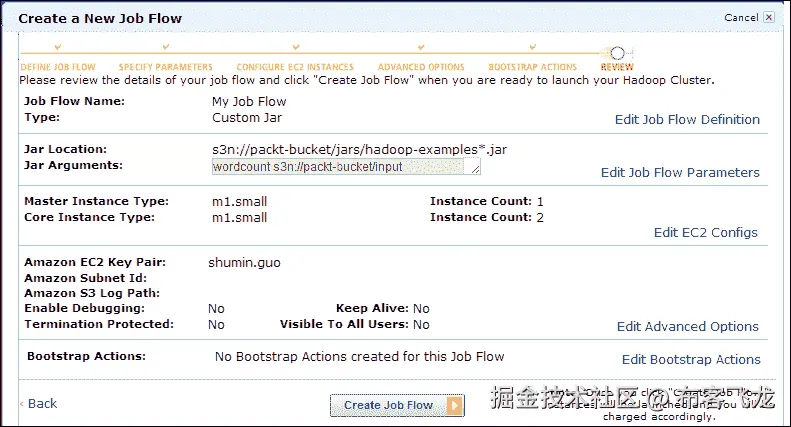
The REVIEW window shows the options we have configured; if there is no problem, we can click on the Create Job Flow button to create an EMR job flow. This step is shown in the following screenshot:
- The job flow will be started and we can check the output when it completes. We can get its status from the web console as shown in the following screenshot:

另请参阅
- 第 3 章,配置 Hadoop 集群**

