背景
- 公司UX设计组同时服务多个团队,在物料设计资源上,存在重复设计,单个图标设计规范不一致问题
- 一个项目内,开发会引入多个同样的图标,开发效率慢和资源重复;
优点
- 沉淀图标物料,避免UI重复开发
- 公司内多产品,在图标风格上的统一,方便整体图标风格升级
- 方便开发快速接入,减少重复打包体积,提升开发效率和体验
方案对比
| 方案 | 技术实现关键细节 | 优点 | 缺点 |
|---|---|---|---|
| image图标资源 | 一般使用png/svg等, 图片资源以base64或静态文件形式打包,前端background-src接入 | 可利用cdn加速 | 无法修改图片/高清屏需要多套图 |
| iconfont | 图片资源打包成iconfont图标字体,以 content:'xxx' 的形式接入 | 可修改图标颜色/大小 | 不支持多色/不支持动画 |
| svg | 以svg形式静态资源沉淀,打包出react/vue图标控件,以js的形式接入 | 支持动态修改大小/颜色/多色/动画/高清/避免资源重复打包/方便业务方快速接入 | js体积会变大 |
SVG设计
期望提供给web使用的控件满足以下场景
- 动态设置大小,满足不同size元素的内嵌场景
- 动态设置线条粗细
- 动态设置线条颜色和填充多区域颜色,满足disabled状态/反色/多主题的场景
- 带有动画,满足loading/uploading/downloading等场景不需要额外写css动画
import Home from '@xxx-icon/Home';
import Loading from '@xxx-icon/Loading';
// 设置大小和多区域背景色
const areas = ['#zzzzzz', '#yyyyyy'];
<Home size="16" fill={areas}/>

// 带动画loading
<Loading />
和设计师的约定
设计师在输出svg的时候需要遵循几个重点规范
- svg的width height设置为16, 里面的线条或矩形占满,不要留有padding, 不然会看起来比16px小
- 每个svg带有默认颜色,保证svg资源可用
- 尽量用path去绘制,这样给svg设置 stroke-width能改变线条的粗细
- 设置背景颜色,用g标签包起来,多区域则多个g
<svg  stroke-width="1" xmlns="http://www.w3.org/2000/svg" width="16" height="16" viewBox="0 0 16 16" fill="none">
    <desc>AI翻译</desc>
    <g id="group-0" stroke="#A770F0" fill="#A770F0">
        <path d="M13 3.5V6C13 6.55228 13.4477 7 14 7C14.5523 7 15 6.55228 15 6V3.5C15 2.11929 13.8807 1 12.5 1H9.5C8.94772 1 8.5 1.44772 8.5 2C8.5 2.55228 8.94772 3 9.5 3H12.5C12.7761 3 13 3.22386 13 3.5Z" stroke="none"/>
        <path d="M3.00004 12.5L3 10.5C2.99999 9.94769 2.55226 9.49999 1.99998 9.5C1.44769 9.50001 0.999988 9.94774 1 10.5L1.00004 12.5001C1.00008 13.8807 2.11935 15 3.50004 15H5C5.55228 15 6 14.5523 6 14C6 13.4477 5.55229 13 5 13L3.50004 13C3.22391 13 3.00005 12.7761 3.00004 12.5Z" stroke="none"/>
    </g>
    <g id="group-1" stroke="#802DF0" fill="#802DF0"><path fill-rule="evenodd" clip-rule="evenodd" d="M3.07718 0.615385C3.23245 0.242738 3.59656 0 4.00026 0H5.00026C5.40396 0 5.76807 0.242738 5.92334 0.615385L8.42334 6.61538C8.63575 7.12519 8.39468 7.71066 7.88488 7.92308C7.37507 8.13549 6.7896 7.89442 6.57718 7.38462L6.20859 6.5H3C2.93159 6.5 2.86479 6.49313 2.80024 6.48005L2.42334 7.38462C2.21092 7.89442 1.62545 8.13549 1.11565 7.92308C0.605844 7.71066 0.364767 7.12519 0.577184 6.61538L3.07718 0.615385ZM3.62526 4.5H5.37526L4.50026 2.4L3.62526 4.5Z" stroke="none"/>
        <path fill-rule="evenodd" clip-rule="evenodd" d="M12 8C12 7.44772 11.5523 7 11 7C10.4477 7 10 7.44772 10 8V9H8.3C7.58203 9 7 9.58203 7 10.3V12.7C7 13.418 7.58203 14 8.3 14H10V15C10 15.5523 10.4477 16 11 16C11.5523 16 12 15.5523 12 15V14H13.7C14.418 14 15 13.418 15 12.7V10.3C15 9.58203 14.418 9 13.7 9H12V8ZM10 11H9V12H10V11ZM12 12V11H13V12H12Z" stroke="none"/>
    </g>
</svg>
<svg stroke-width="3" xmlns="http://www.w3.org/2000/svg" width="16" height="16" viewBox="0 0 16 16" fill="none" >
    <g id="group-0" stroke="#E52525" fill="#E52525">
        <path d="M13 3.5V6C13 6.55228 13.4477 7 14 7C14.5523 7 15 6.55228 15 6V3.5C15 2.11929 13.8807 1 12.5 1H9.5C8.94772 1 8.5 1.44772 8.5 2C8.5 2.55228 8.94772 3 9.5 3H12.5C12.7761 3 13 3.22386 13 3.5Z" stroke="none"></path>
        <path d="M3.00004 12.5L3 10.5C2.99999 9.94769 2.55226 9.49999 1.99998 9.5C1.44769 9.50001 0.999988 9.94774 1 10.5L1.00004 12.5001C1.00008 13.8807 2.11935 15 3.50004 15H5C5.55228 15 6 14.5523 6 14C6 13.4477 5.55229 13 5 13L3.50004 13C3.22391 13 3.00005 12.7761 3.00004 12.5Z" stroke="none"></path>
    </g>
    <g id="group-1" stroke="#151414" fill="#151414">
        <path fill-rule="evenodd" clip-rule="evenodd" d="M3.07718 0.615385C3.23245 0.242738 3.59656 0 4.00026 0H5.00026C5.40396 0 5.76807 0.242738 5.92334 0.615385L8.42334 6.61538C8.63575 7.12519 8.39468 7.71066 7.88488 7.92308C7.37507 8.13549 6.7896 7.89442 6.57718 7.38462L6.20859 6.5H3C2.93159 6.5 2.86479 6.49313 2.80024 6.48005L2.42334 7.38462C2.21092 7.89442 1.62545 8.13549 1.11565 7.92308C0.605844 7.71066 0.364767 7.12519 0.577184 6.61538L3.07718 0.615385ZM3.62526 4.5H5.37526L4.50026 2.4L3.62526 4.5Z" stroke="none"></path>
        <path fill-rule="evenodd" clip-rule="evenodd" d="M12 8C12 7.44772 11.5523 7 11 7C10.4477 7 10 7.44772 10 8V9H8.3C7.58203 9 7 9.58203 7 10.3V12.7C7 13.418 7.58203 14 8.3 14H10V15C10 15.5523 10.4477 16 11 16C11.5523 16 12 15.5523 12 15V14H13.7C14.418 14 15 13.418 15 12.7V10.3C15 9.58203 14.418 9 13.7 9H12V8ZM10 11H9V12H10V11ZM12 12V11H13V12H12Z" stroke="none"></path>
    </g>
</svg>
SVG动画实现
由于动画偏技术,而且数量也不会很多,所以这部分一般都由我们开发去实现
这部分我们结合svg的animate来实现
- animate:基础动画
- animateTransform:形变动画
- animateMotion:路径动画
这里不对svg动画做技术细节的讲解,大家自行去学习就行
举2个例子
<svg width="16" height="16" viewBox="0 0 16 16" fill="none" xmlns="http://www.w3.org/2000/svg">
    <g>
            <path d="M7.99999 2.5C6.29206 2.5 4.76595 3.2785 3.75716 4.5" stroke="url(#paint0_linear_17650_2488)" stroke-width="1.5"/>
            <path d="M2.5 8C2.5 6.67037 2.97182 5.45094 3.75716 4.5" stroke="url(#paint1_linear_17650_2488)" stroke-width="1.5"/>
            <path d="M2.5 8C2.5 9.57603 3.16289 10.9972 4.22506 12" stroke="url(#paint2_linear_17650_2488)" stroke-width="1.5"/>
            <path d="M8.00001 13.5C6.53847 13.5 5.21008 12.9299 4.22507 12" stroke="url(#paint3_linear_17650_2488)" stroke-width="1.5"/>
            <path d="M8 13.5C9.46154 13.5 10.7899 12.9299 11.7749 12" stroke="url(#paint4_linear_17650_2488)" stroke-width="1.5"/>
            <path d="M13.5 8C13.5 9.57603 12.8371 10.9972 11.7749 12" stroke="url(#paint5_linear_17650_2488)" stroke-width="1.5"/>
            <path d="M13.5 8C13.5 6.67037 13.0282 5.45094 12.2428 4.5" stroke="url(#paint6_linear_17650_2488)" stroke-width="1.5"/>
            <path d="M8 2.5C9.70794 2.5 11.234 3.2785 12.2428 4.5" stroke="url(#paint7_linear_17650_2488)" stroke-width="1.5"/>
            <animateTransform
                attributeType="xml"
                attributeName="transform"
                type="rotate"
                from="0 8 8"
                to="360 8 8"
                dur="0.8s"
                repeatCount="indefinite"/>
    </g>
    <defs>
        <linearGradient id="paint0_linear_17650_2488" x1="4" y1="4.5" x2="8" y2="2.5" gradientUnits="userSpaceOnUse">
            <stop stop-color="#F39FCD"/>
            <stop offset="0.996304" stop-color="#E335DD"/>
        </linearGradient>
        <linearGradient id="paint1_linear_17650_2488" x1="3.5" y1="4.5" x2="2.5" y2="8" gradientUnits="userSpaceOnUse">
            <stop stop-color="#F3A0CD"/>
            <stop offset="1" stop-color="#E6C3B0"/>
        </linearGradient>
        <linearGradient id="paint2_linear_17650_2488" x1="2.5" y1="8" x2="4" y2="12" gradientUnits="userSpaceOnUse">
            <stop stop-color="#E6C3B0"/>
            <stop offset="1" stop-color="#DEABB0"/>
        </linearGradient>
        <linearGradient id="paint3_linear_17650_2488" x1="4" y1="12" x2="8" y2="13.5" gradientUnits="userSpaceOnUse">
            <stop stop-color="#DFACB1"/>
            <stop offset="1" stop-color="#CF67C7"/>
        </linearGradient>
        <linearGradient id="paint4_linear_17650_2488" x1="8" y1="13.5" x2="11.5" y2="11.5" gradientUnits="userSpaceOnUse">
            <stop stop-color="#D067C7"/>
            <stop offset="1" stop-color="#C035F0"/>
        </linearGradient>
        <linearGradient id="paint5_linear_17650_2488" x1="13.5" y1="8" x2="11.5" y2="12" gradientUnits="userSpaceOnUse">
            <stop stop-color="#2B3EEC"/>
            <stop offset="1" stop-color="#C233F0"/>
        </linearGradient>
        <linearGradient id="paint6_linear_17650_2488" x1="13.5" y1="8" x2="12.5" y2="4.5" gradientUnits="userSpaceOnUse">
            <stop stop-color="#2B3EEC"/>
            <stop offset="1" stop-color="#3386E9"/>
        </linearGradient>
        <linearGradient id="paint7_linear_17650_2488" x1="11.5" y1="4" x2="8" y2="2.5" gradientUnits="userSpaceOnUse">
            <stop stop-color="#3386E9"/>
            <stop offset="1" stop-color="#E335DD"/>
        </linearGradient>
    </defs>
</svg>
<svg width="16" height="16" viewBox="0 0 16 16" fill="none" xmlns="http://www.w3.org/2000/svg">
    <circle cx="1" cy="1" r="1" transform="matrix(1 0 0 -1 7.00024 13.9658)" fill="#333333" fill-opacity="0.5">
        <animate attributeName="fill-opacity" from="1" to="0" dur="2" begin="0s" repeatCount="indefinite" />
    </circle>
    <path d="M10.2048 10.3244C9.61244 9.80159 8.83439 9.48438 7.98226 9.48438C7.13012 9.48438 6.35208 9.80159 5.75977 10.3244" stroke="#333333" stroke-width="1.5" stroke-linecap="round" stroke-opacity="0.5">
        <animate attributeName="stroke-opacity" from="1" to="0" dur="2" begin="0.5s" repeatCount="indefinite" />
    </path>
    <path d="M12.5779 7.9256C11.378 6.80841 9.76873 6.125 7.99989 6.125C6.23105 6.125 4.62183 6.80841 3.42188 7.9256" stroke="#333333" stroke-width="1.5" stroke-linecap="round" stroke-opacity="0.5">
        <animate attributeName="stroke-opacity" from="1" to="0" dur="2" begin="1s" repeatCount="indefinite" />
    </path>
    <path d="M15 5.57995C13.1831 3.83685 10.7167 2.76562 8 2.76562C7.22763 2.76562 6.47549 2.85221 5.75275 3.01621C4.32963 3.33914 3.02051 3.9622 1.89545 4.81533C1.58219 5.05287 1.28321 5.30825 1 5.57995" stroke="#333333" stroke-width="1.5" stroke-linecap="round" stroke-opacity="0.5">
        <animate attributeName="stroke-opacity" from="1" to="0" dur="2" begin="1.5s" repeatCount="indefinite" />
    </path>
</svg>
开发架构
管理图标
git在版本管理,权限控制,审核自动发布等上有天然的优势,说服设计师,让设计师使用git管理图标,避免开发web站点,浪费开发资源
SVG图标编译成框架控件
具体的细节不展开,相信大家都能写
图标库站点
在图标git工程代码里面,用koa启动一个nodejs服务部署一套前端服务
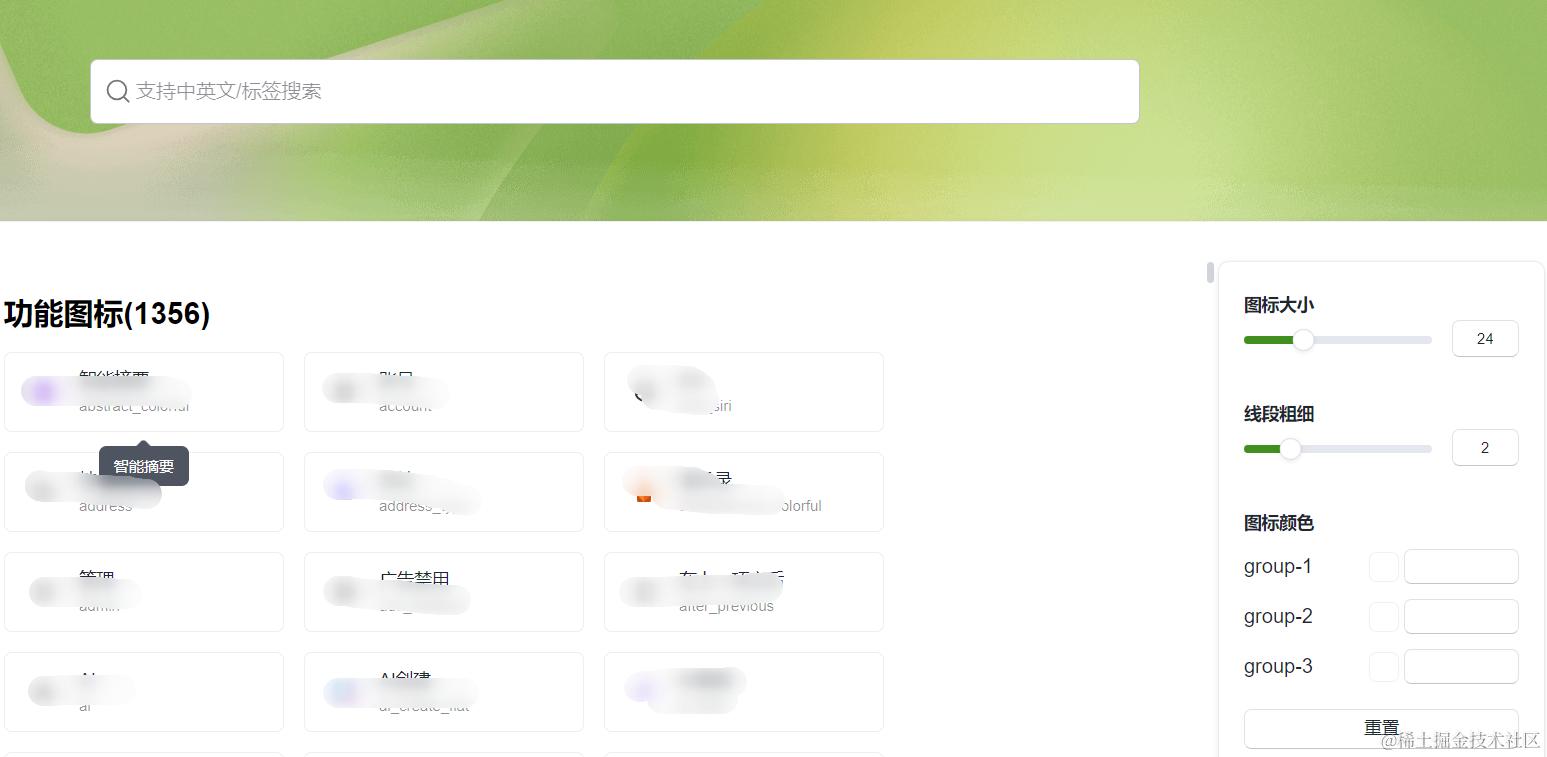
右侧提供支持修改图标大小/线条粗细/图标颜色的栏目
控件设计
import Close from '@xxxicons/Close';

// 简单接入
<Close />
// 修改大小和线条粗细
<Close size='24' strokeWidth='3'/>
// 设置背景颜色
<Close fill='#xxxxxx'/>
// 设置多背景颜色
<Close fill={['#xxxxxx','#yyyyyty']} />
自动发布
- 利用git的mr审核
- 结合cicd做npm自动化发布
总结
具体源码不公开了,这里主要讲述图标库的实现方案,大家实现过程中有问题可以评论讨论