

效果图:
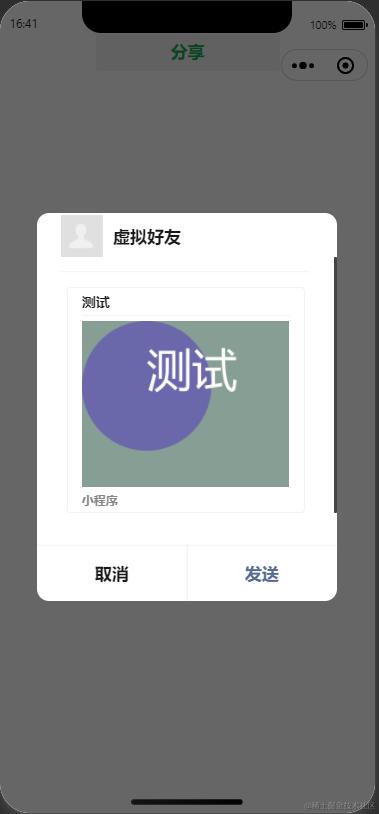
先上代码
页面的主要结构:
<canvas class="cantSee" type="2d"></canvas>
<button type="default" open-type="share">分享</button>
分享卡片的页面逻辑
Page({
  data: {
    imgPath: '',
  },
  onShow() {
    this.drawCard();
  },
  drawCard() {
    wx.createSelectorQuery()
      .select('.cantSee')
      .fields({ node: true, size: true })
      .exec(this.initCard.bind(this));
  },
  initCard(list) {
    const dpr = wx.getSystemInfoSync().pixelRatio;
    const { width, height, node } = list[0];
    const canvas = node;
    const context = canvas.getContext('2d');
    canvas.width = width * dpr;
    canvas.height = height * dpr;
    context.scale(dpr, dpr);
    // 设置背景/方块
    context.fillStyle = '#cd9480';
    context.fillRect(0, 0, width, height);
    context.fillStyle = '#869e93';
    // 设置原型
    context.fillRect(0, 0, width, height);
    context.fillStyle = '#6a67aa';
    context.beginPath();
    context.arc(100, 100, 100, 0, Math.PI * 10);
    context.strokeStyle = 'rgba(1,1,1,0)';
    context.fill();
    context.stroke();
    // 写字
    context.fillStyle = '#fff';
    context.font = '70px "Fira Sans"';
    context.textAlign = 'center';
    context.fillText('测试', 170, 100);
    context.restore();
    wx.canvasToTempFilePath({
      x: 0,
      y: 0,
      width,
      height,
      canvas,
      success: (res) => {
        this.setData({
          imgPath: res.tempFilePath,
        });
      },
    });
  },
  onShareAppMessage() {
    const { imgPath } = this.data;
    return {
      title: `测试`,
      imageUrl: imgPath,
    };
  },
})
把 canvas 移出页面:
.cantSee {
  width: 320px;
  height: 256px;
  position: absolute;
  top: -256px
}
H5 生成海报图技术选型
- html2canvas。基于页面中存在且可用的DOM结构、样式,构建“截图”,绘制到canvas画布中。
- dom-to-image。将DOM 节点序列化为XML,包装到SVG中,再转为图片。
- canvas 纯原生绘制
// 获取canvas元素
var canvas = document.getElementById('poster')
var ctx = canvas.getContext('2d')
// 设置canvas宽高
canvas.width = 600
canvas.height = 800
// 绘制背景
ctx.fillStyle = '#ff6600'
ctx.fillRect(0, 0, canvas.width, canvas.height)
// 绘制文字
ctx.font = 'bold 48px Arial'
ctx.fillStyle = '#ffffff'
ctx.textAlign = 'center'
ctx.fillText('这里是标题', canvas.width / 2, 120)

ctx.font = '24px Arial'
ctx.fillText('这里是副标题', canvas.width / 2, 180)
// 绘制图片
var img = new Image()
img.onload = function () {
    ctx.drawImage(img, 100, 250, 400, 400)
}
img.src = '图片地址'
如果需要处理的页面比较复杂或者需要支持SVG图片渲染,在html2canvas中可能更好一些。
如果需要稳定的文字、图片渲染能力或者处理结构化数据的能力,在dom-to-image中可能更好一些。
如果页面基本是图片资源,那么使用原生canvas性能是最好的。
小程序生成海报
- wxml-to-canvas
- Painter。利用JSX语法,将绘图的操作转化成绘制命令,并生成对应的canvas绘图
- Canvas/Canvas2D
从技术实现上看,wxml-to-canvas 是基于2d类型的Canvas组件能力,对基础库有要求,需在2.7.0以上。在canvas2d的基础上,封装了绘制text、image和view的能力,提供wxml绘制到canvas和导出图片的方法。
Painter不仅支持2d类型的canvas,同时兼容了低版本canvas组件。同时支持更多复杂样式的绘制,对于网络素材实现了一套LRU存储机制,无需重复下载图片,并增加了容错机制。
从使用方法上看,wxml-to-canvas使用相对较简单,只需要在小程序中引入wxml-to-canvas库,然后传入需要生成海报图的wxml代码和画布的宽高即可。而Painter需要在小程序中使用类JSX的语法绘制所有图形,覆盖小程序页面中相应的canvas组件。

