一、后处理
在Android OpenGL基础(三、绘制Bitmap纹理)一文中,我们简单介绍了如何把一张图片绘制到四边形上。现在我们可以在绘制原始图片的基础上再实现一些后处理的功能,例如灰度、反色、模糊等。
对于图片的后期处理,我们所要改的只有片段着色器的代码,在使用GLSL内建的texture2D函数来采样纹理的颜色后,先进行后期处理,再传给片段着色器。
二、灰度
先回忆下绘制原始图片的片段着色器的代码:
/**
 * 片段着色器代码
 */
private val fragmentShaderCode ="""
    varying highp vec2 textureCoordinate;
    uniform sampler2D inputImageTexture;
    void main() {
        gl_FragColor = texture2D(inputImageTexture, textureCoordinate);
    }
"""
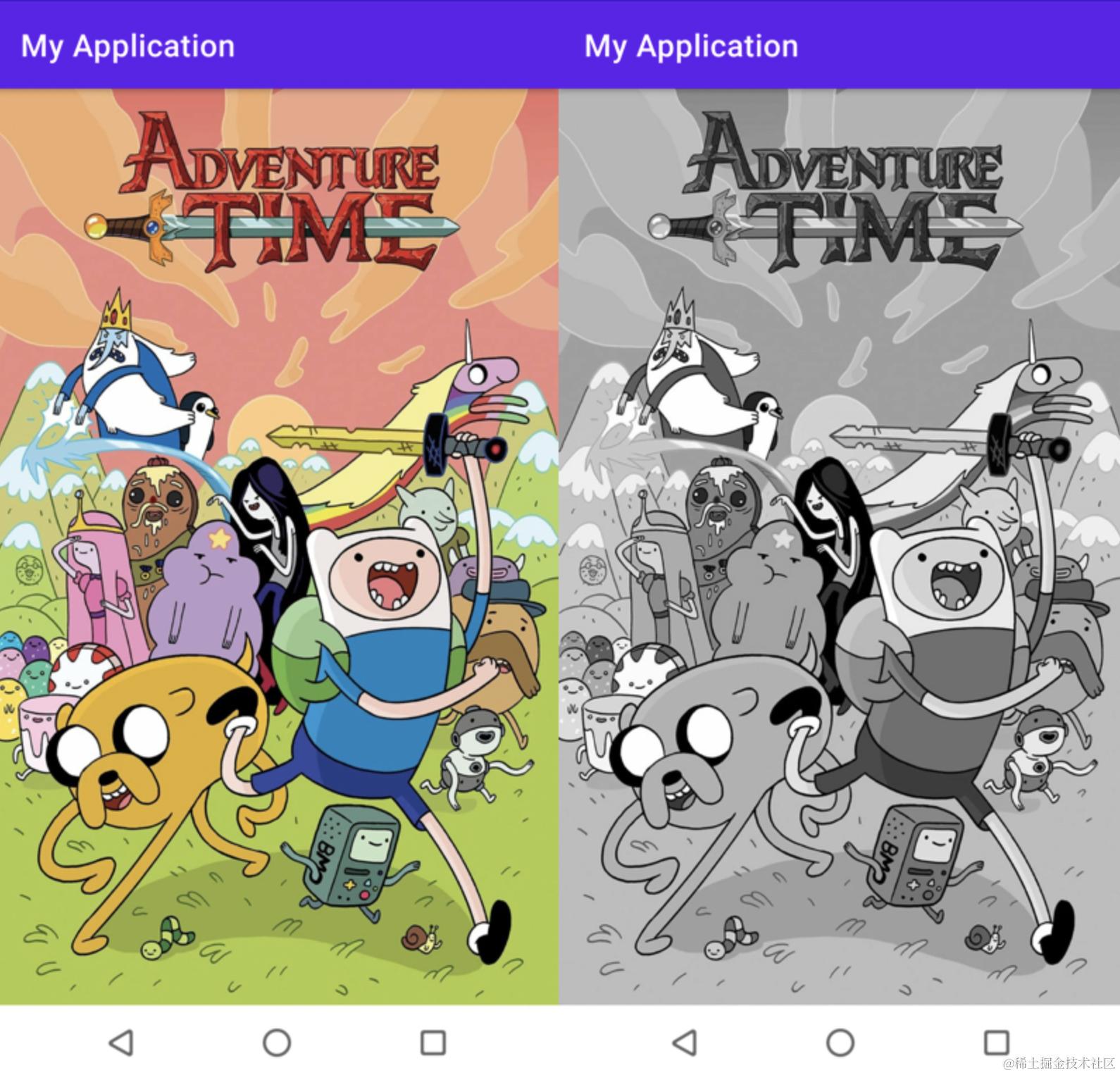
在这个基础上,要实现灰度效果很简单:移除场景中除了黑白灰以外所有的颜色,让整个图像灰度化(Grayscale)。一种简单的实现方式是,取所有的颜色分量,将它们加权或平均,对应的片段着色器代码如下:
/**
 * 灰度片段着色器代码
 */
private val fragmentShaderCode ="""
    varying highp vec2 textureCoordinate;
    uniform sampler2D inputImageTexture;
    void main() {
        gl_FragColor = texture2D(inputImageTexture, textureCoordinate);
        float average = 0.2126 * gl_FragColor.r + 0.7152 * gl_FragColor.g + 0.0722 * gl_FragColor.b;
        gl_FragColor = vec4(average, average, average, 1.0);
    }
"""
其他代码都不需要修改,实现效果对比如下:
三、反相
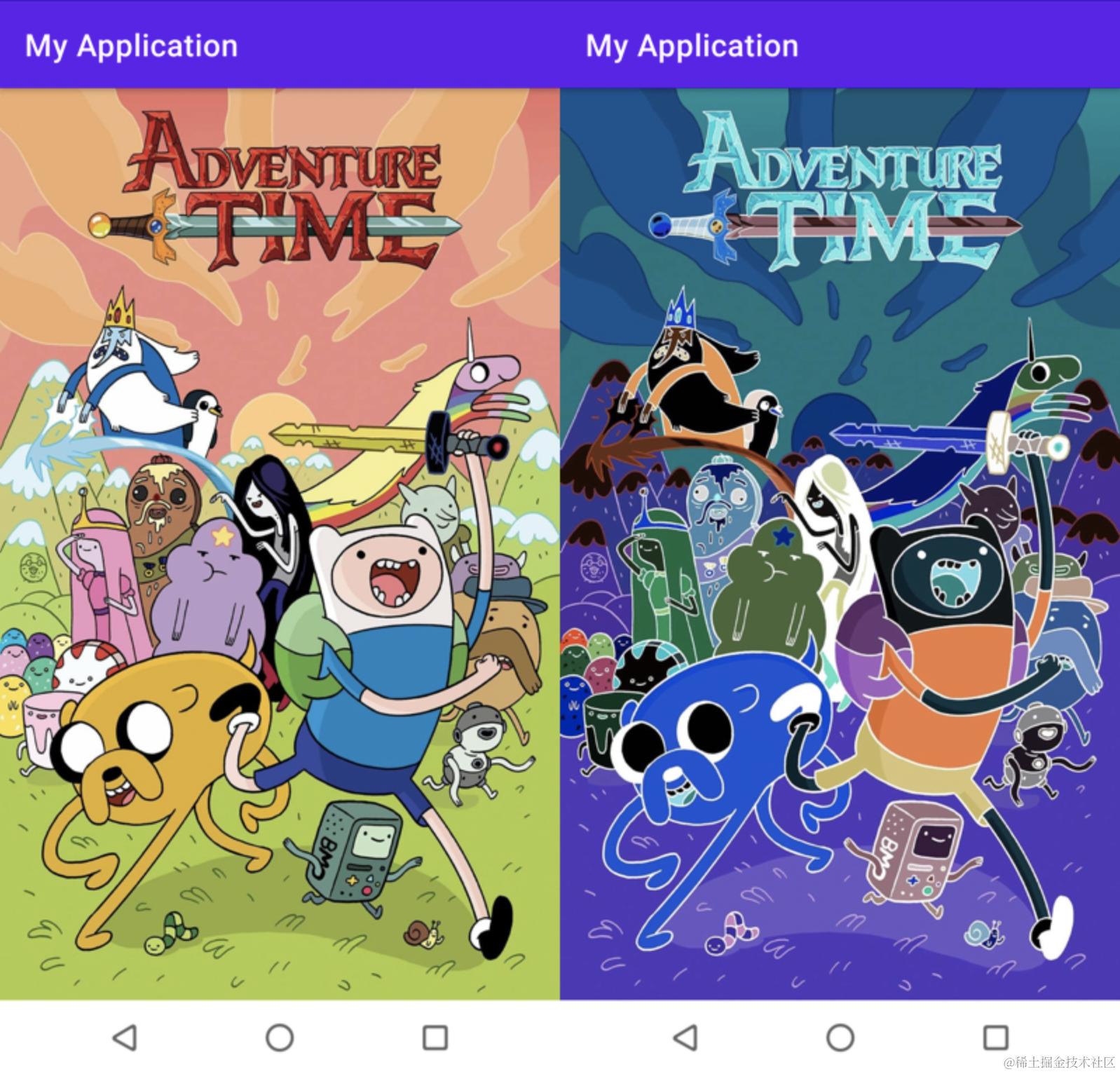
要实现反相也比较简单:从纹理中取颜色值,然后用1.0减去它,对它进行反相,对应的片段着色器代码如下:
/**
 * 反相片段着色器代码
 */
private val fragmentShaderCode ="""
    varying highp vec2 textureCoordinate;
    uniform sampler2D inputImageTexture;
    void main() {
        gl_FragColor = vec4(vec3(1.0 - texture2D(inputImageTexture, textureCoordinate)), 1.0);
    }
"""
同样,其他代码都不需要修改,实现效果对比如下:
四、核效果
核效果的计算原理是,以当前像素为中心点,将当前像素与其周围的像素点,按照某个计算方式(核函数)计算出一个新的颜色值。
核(Kernel,或称为卷积矩阵Convolution Matrix)是一个类矩阵的数值数组,它的中心为当前的像素,它会用它的核值乘以周围的像素值,并将结果相加变成一个值。通过设置不同的核效果,可以创建出很多有意思的效果。核是后期处理一个非常有用的工具,网上也能找到很多其他核效果的例子。
4.1 模糊
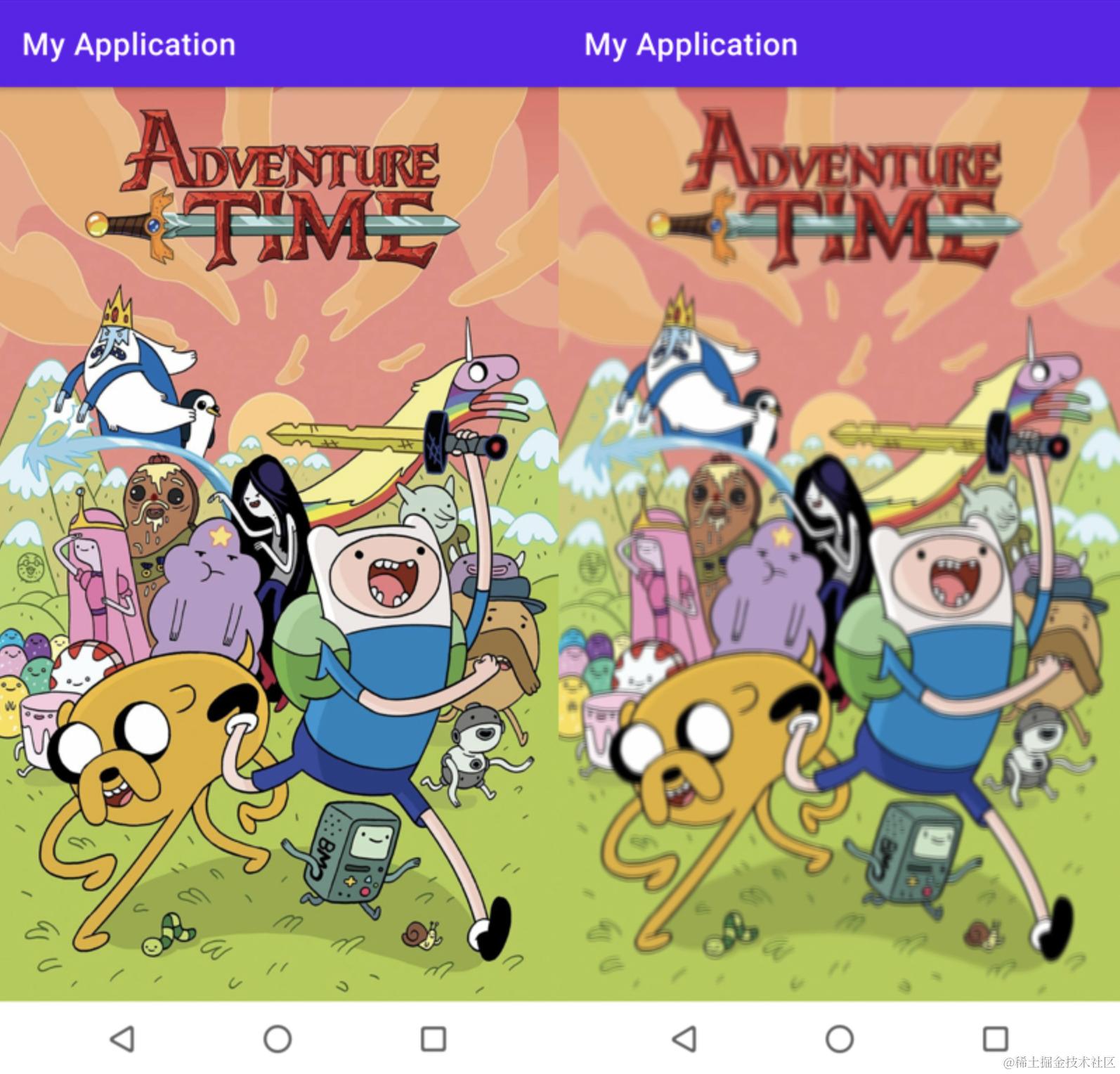
实现模糊(Blur)效果的核函数是:
接着,修改片段着色器代码为:
/**
 * 片段着色器代码
 */
private val fragmentShaderCode = """
    varying highp vec2 textureCoordinate;
    uniform sampler2D inputImageTexture;
    const float offset = 1.0f / 300.0f;
    void main() {
        // 核效果取周围像素值的偏移量
        vec2 offsets[9];
        offsets[0] = vec2(-offset,  offset); // 左上
        offsets[1] = vec2( 0.0f,    offset); // 正上
        offsets[2] = vec2( offset,  offset); // 右上
        offsets[3] = vec2(-offset,  0.0f);   // 左
        offsets[4] = vec2( 0.0f,    0.0f);   // 中
        offsets[5] = vec2( offset,  0.0f);   // 右
        offsets[6] = vec2(-offset, -offset); // 左下
        offsets[7] = vec2( 0.0f,   -offset); // 正下
        offsets[8] = vec2( offset, -offset);  // 右下
        // 核函数
        float kernel[9];
        kernel[0] = 1.0f / 16.0f;
        kernel[1] = 2.0f / 16.0f;
        kernel[2] = 1.0f / 16.0f;
        kernel[3] = 2.0f / 16.0f;
        kernel[4] = 4.0f / 16.0f;
        kernel[5] = 2.0f / 16.0f;
        kernel[6] = 1.0f / 16.0f;
        kernel[7] = 2.0f / 16.0f;
        kernel[8] = 1.0f / 16.0f;
        // 计算采样值
        vec3 sampleTex[9];
        for(int i = 0; i < 9; i++)
        {
            sampleTex[i] = vec3(texture2D(inputImageTexture, textureCoordinate.xy + offsets[i]));
        }
        vec3 col = vec3(0.0);
        for(int i = 0; i < 9; i++)
            col += sampleTex[i] * kernel[i];

        gl_FragColor = vec4(col, 1.0);
    }
"""
同样,其他代码都不需要修改,实现效果对比如下:
4.2 锐化
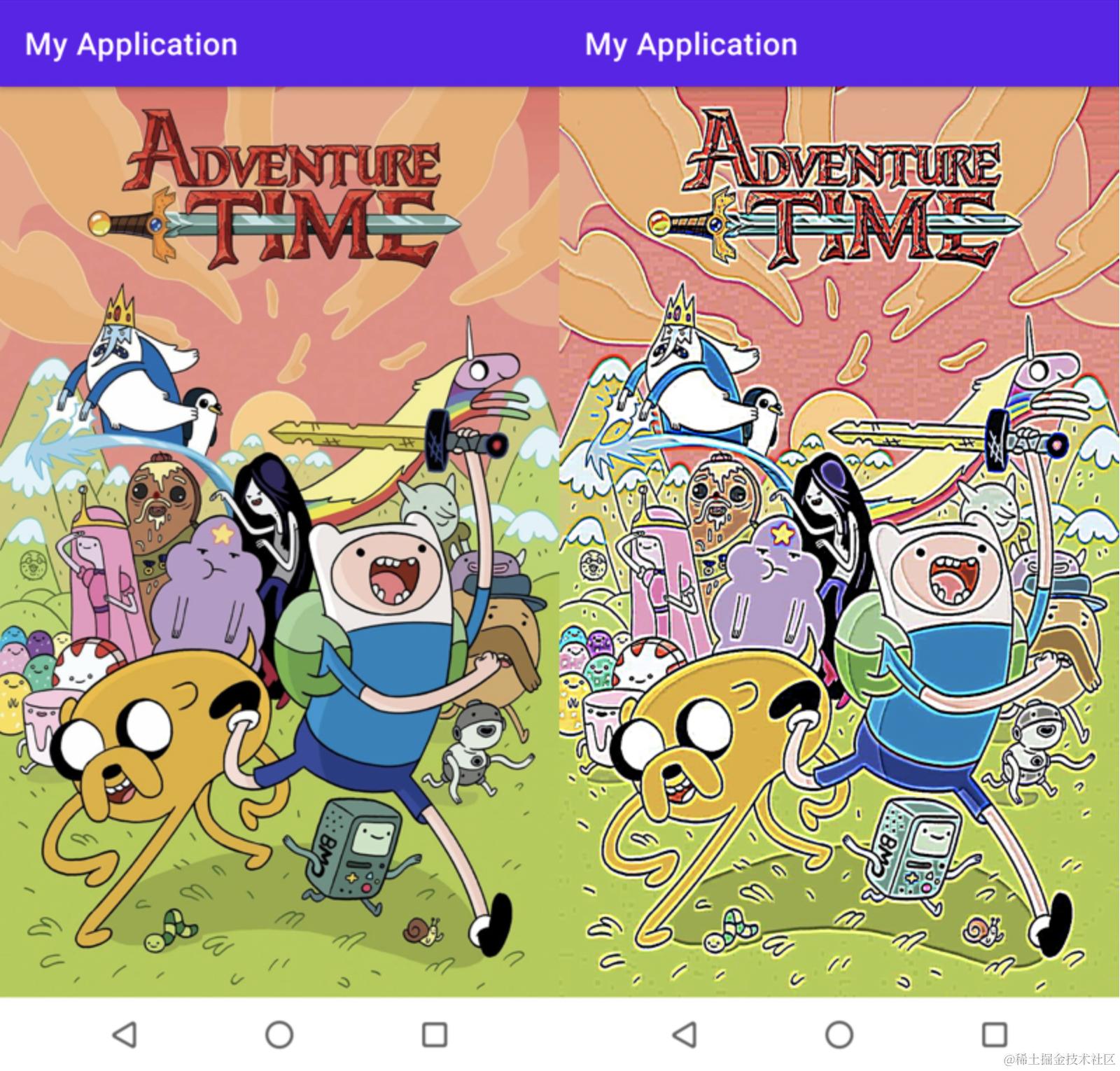
实现锐化效果的核函数是:
接着,修改片段着色器代码为:
/**
 * 片段着色器代码
 */
private val fragmentShaderCode = """
    varying highp vec2 textureCoordinate;
    uniform sampler2D inputImageTexture;
    const float offset = 1.0f / 300.0f;
    void main() {
        // 核效果取周围像素值的偏移量
        vec2 offsets[9];
        offsets[0] = vec2(-offset,  offset); // 左上
        offsets[1] = vec2( 0.0f,    offset); // 正上
        offsets[2] = vec2( offset,  offset); // 右上
        offsets[3] = vec2(-offset,  0.0f);   // 左
        offsets[4] = vec2( 0.0f,    0.0f);   // 中
        offsets[5] = vec2( offset,  0.0f);   // 右
        offsets[6] = vec2(-offset, -offset); // 左下
        offsets[7] = vec2( 0.0f,   -offset); // 正下
        offsets[8] = vec2( offset, -offset);  // 右下
        // 核效果
        float kernel[9];
        kernel[0] = -1.0f;
        kernel[1] = -1.0f;
        kernel[2] = -1.0f;
        kernel[3] = -1.0f;
        kernel[4] = 9.0f;
        kernel[5] = -1.0f;
        kernel[6] = -1.0f;
        kernel[7] = -1.0f;
        kernel[8] = -1.0f;
        // 计算采样值
        vec3 sampleTex[9];
        for(int i = 0; i < 9; i++)
        {
            sampleTex[i] = vec3(texture2D(inputImageTexture, textureCoordinate.xy + offsets[i]));
        }
        vec3 col = vec3(0.0);
        for(int i = 0; i < 9; i++)
            col += sampleTex[i] * kernel[i];

        gl_FragColor = vec4(col, 1.0);
    }
"""
同样,其他代码都不需要修改,实现效果对比如下:
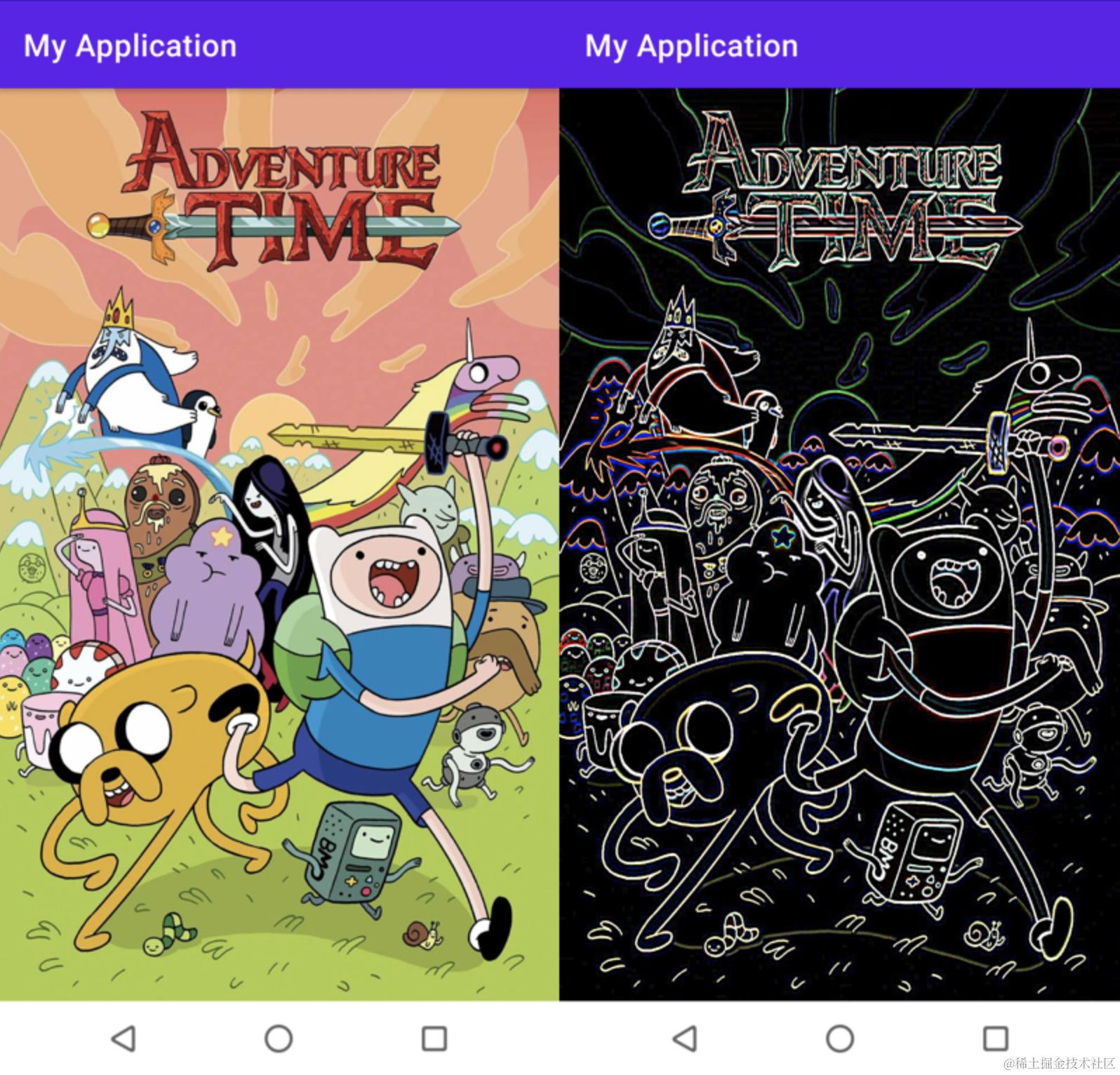
4.3 边缘检测
实现边缘检测效果的核函数是:
接着,修改片段着色器代码为:
/**
 * 片段着色器代码
 */
private val fragmentShaderCode = """
    varying highp vec2 textureCoordinate;
    uniform sampler2D inputImageTexture;
    const float offset = 1.0f / 300.0f;
    void main() {
        // 核效果取周围像素值的偏移量
        vec2 offsets[9];
        offsets[0] = vec2(-offset,  offset); // 左上
        offsets[1] = vec2( 0.0f,    offset); // 正上
        offsets[2] = vec2( offset,  offset); // 右上
        offsets[3] = vec2(-offset,  0.0f);   // 左
        offsets[4] = vec2( 0.0f,    0.0f);   // 中
        offsets[5] = vec2( offset,  0.0f);   // 右
        offsets[6] = vec2(-offset, -offset); // 左下
        offsets[7] = vec2( 0.0f,   -offset); // 正下
        offsets[8] = vec2( offset, -offset);  // 右下
        // 核效果
        float kernel[9];
        kernel[0] = 1.0f;
        kernel[1] = 1.0f;
        kernel[2] = 1.0f;
        kernel[3] = 1.0f;
        kernel[4] = -8.0f;
        kernel[5] = 1.0f;
        kernel[6] = 1.0f;
        kernel[7] = 1.0f;
        kernel[8] = 1.0f;
        // 计算采样值
        vec3 sampleTex[9];
        for(int i = 0; i < 9; i++)
        {
            sampleTex[i] = vec3(texture2D(inputImageTexture, textureCoordinate.xy + offsets[i]));
        }
        vec3 col = vec3(0.0);
        for(int i = 0; i < 9; i++)
            col += sampleTex[i] * kernel[i];

        gl_FragColor = vec4(col, 1.0);
    }
"""
同样,其他代码都不需要修改,实现效果对比如下:
The End
欢迎关注我,一起解锁更多技能:BC的主页~~💐💐💐
Android OpenGL开发者文档:developer.android.com/guide/topic…
opengl学习资料:learnopengl-cn.github.io/
滤镜开源库GPUImage:github.com/cats-oss/an…
Android OpenGL基础(一、绘制三角形四边形):juejin.cn/post/707675…
Android OpenGL基础(二、坐标系统):juejin.cn/post/707713…
Android OpenGL基础(三、绘制Bitmap纹理):juejin.cn/post/707967…
Android OpenGL基础专栏:juejin.cn/column/7076…