1 使用 xcodebuild archive并export出ipa包
1.1.archive命令
xcodebuild archive -workspace projectname.xcworkspace -scheme schemename -configuration Debug -derivedDataPath DerivedData -archivePath "bin/projectname.xcarchive"
命令说明
xcodebuild archive
           -archivePath <archivePath>
           -project <projectName>
           -workspace <workspaceName>
           -scheme <schemeName>    #从-list命令中获取
           -configuration <Debug|Release>
其他xcodebuild archive 变形
xcodebuild archive -workspace workspaceName.xcworkspace -scheme schemeName -configuration Debug -archivePath bin/schemeName.xcarchive ;
xcodebuild archive -workspace "workspaceName.xcworkspace" -scheme "schemeName" -configuration Debug -archivePath "bin/schemeName.xcarchive" ;
1.2. export ipa命令:
xcodebuild -exportArchive -exportOptionsPlist ./exportPlist.plist -archivePath "bin/projectname.xcarchive" -exportPath "bin/"
命令实例
xcodebuild -exportArchive -archivePath "bin/schemeName.xcarchive" -exportPath "bin/" -exportOptionsPlist ./exportOptionsPlist.plist -allowProvisioningUpdates;
xcodebuild archive -scheme "shcemeName" -target "targetName" -configuration Debug -archivePath "bin/chiveName.xcarchive" ;
注意: ❗️ 此处 archivePath 参数 和上一个archive 命令的 archivePath 是一个地址
命令说明
xcodebuild -exportArchive
           -archivePath <xcarchivepath>
           -exportPath <destinationpath>
           -exportOptionsPlist <plistpath>   #这个plist文件可以通过打一次ipa包里面去获取
-exportOptionsPlist这个参数需要有一个xml的配置文件(plist格式),文件格式如下:
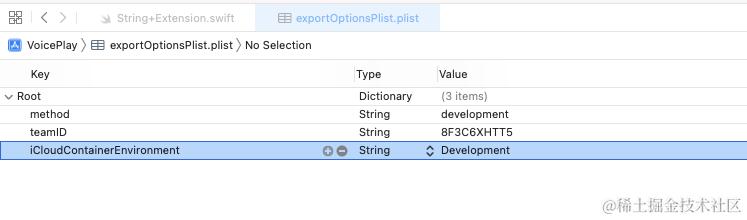
<?xml version="1.0" encoding="UTF-8"?>
<!DOCTYPE plist PUBLIC "-//Apple//DTD PLIST 1.0//EN" "http://www.apple.com/DTDs/PropertyList-1.0.dtd">
<plist version="1.0">
<dict>
	<key>method</key>
	<string>development</string>
	<key>teamID</key>
	<string>-----</string>
	<key>iCloudContainerEnvironment</key>
	<string>Development</string>
        <key>uploadSymbols</key>
        <false/>
</dict>
</plist>
其中teamID可以在 developer.apple.com/account/#/m…
account 中 membership 查到。
网址 developer.apple.com/account/#/membership
1.3 Clean
xcodebuild clean
           -workspace <workspaceName>
           -scheme <schemeName>    #从-list命令中获取
           -configuration <Debug|Release>
如果在执行过程中又不喜欢日志输出的,可以在命令行最后加上
-quiet #只有 warn 和 error 才会输出
以上就是自动化打包基本的几种使用方法以及参数配置了,当然xcodebuild的参数非常多,xcode能做的事情大部分都有对应的命令行
2.使用蒲公英账号上传ipa包
curl -F "file=@bin/projectname.ipa" \
-F "uKey=xxxxxxxxxxx" \
-F "_api_key=xxxxxxxxxxx" \ https://www.pgyer.com/apiv1/app/upload
uKey和_api_key在你的蒲公英账号配置中能找到,具体不赘述。
3.创建分支更新代码,避免污染开发分支 完成了上面两步,每次还是得手动去将xcode配置修改,在打完包后还原,还是很不方便,可以将工程代码重新checkout一份,并创建一个新的分支,在分支上进行打包执行打包操作:
git checkout 开发分支名
git pull
git checkout pushTest
git merge develop --no-commit
git commit -m 'pushtest merge'
git push
pod update

复制代码
END 最后整个脚本如下:
git checkout 开发分支名
git pull
git checkout pushTest
git merge develop --no-commit
git commit -m 'pushtest merge'
git push
pod update

xcodebuild -workspace projectname.xcworkspace -scheme schemename -configuration Debug -derivedDataPath DerivedData -archivePath "bin/projectname.xcarchive"  -destination generic/platform=iOS  clean archive

xcodebuild -exportArchive -exportOptionsPlist ./exportPlist.plist -archivePath "bin/projectname.xcarchive" -exportPath "bin/"

curl -F "file=@bin/projectname.ipa" \
-F "uKey=xxxxxxxxxxx" \
-F "_api_key=xxxxxxxxxxx" \
https://www.pgyer.com/apiv1/app/upload
复制代码
补充说明
上传ipa文件到 蒲公英 也可用
http命令,前提是 要安装httpie
http -f POST https://www.pgyer.com/apiv2/app/upload userKey="xxx" _api_key="xx" file@"~/Desktop/iPa/xx.ipa";