1.Dockerfile文件
- # This my first nginx Dockerfile
- # Version 1.0
- # Base images 基础镜像
- FROM centos:centos7
- #MAINTAINER 维护者信息
- MAINTAINER fendo 2312892206@qq.com
- #ADD 获取url中的文件,放在当前目录下
- ADD http://nginx.org/download/nginx-1.14.0.tar.gz .
- #RUN 执行以下命令
- RUN yum install -y pcre-devel wget net-tools gcc zlib zlib-devel make openssl-devel
- RUN useradd -M -s /sbin/nologin nginx
- RUN tar -zxvf nginx-1.14.0.tar.gz
- RUN mkdir -p /usr/local/nginx
- RUN cd nginx-1.14.0 && ./configure --prefix=/usr/local/nginx --user=nginx --group=nginx --with-http_stub_status_module && make && make install
- RUN ln -s /usr/local/nginx/sbin/* /usr/local/sbin/
- #EXPOSE 映射端口
- EXPOSE 80
- #CMD 运行以下命令
- CMD ["nginx"]
# This my first nginx Dockerfile
# Version 1.0

# Base images 基础镜像
FROM centos:centos7

#MAINTAINER 维护者信息
MAINTAINER fendo 2312892206@qq.com

#ADD  获取url中的文件,放在当前目录下
ADD http://nginx.org/download/nginx-1.14.0.tar.gz .

#RUN 执行以下命令
RUN yum install -y pcre-devel wget net-tools gcc zlib zlib-devel make openssl-devel
RUN useradd -M -s /sbin/nologin nginx
RUN tar -zxvf nginx-1.14.0.tar.gz
RUN mkdir -p /usr/local/nginx
RUN cd nginx-1.14.0 && ./configure --prefix=/usr/local/nginx --user=nginx --group=nginx --with-http_stub_status_module && make && make install
RUN ln -s /usr/local/nginx/sbin/* /usr/local/sbin/

#EXPOSE 映射端口
EXPOSE 80

#CMD 运行以下命令
CMD ["nginx"]
2、执行构建镜像命令
[html] view plain copy print?- [root@swarm01 docker]# docker build --rm --tag centos_nginx:centos7 .
[root@swarm01 docker]# docker build --rm --tag centos_nginx:centos7 .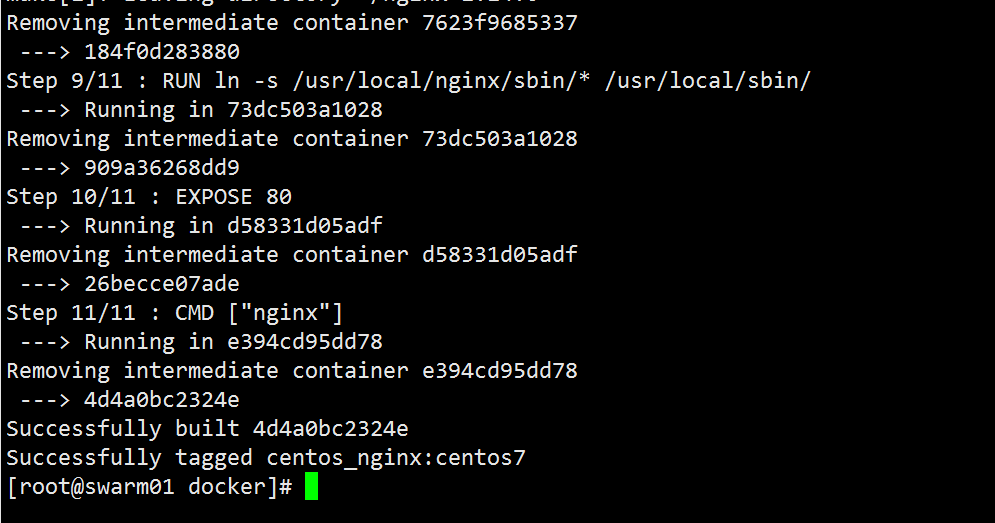
3、查看镜像是否安装构建成功
- [root@swarm01 docker]# docker images
[root@swarm01 docker]# docker images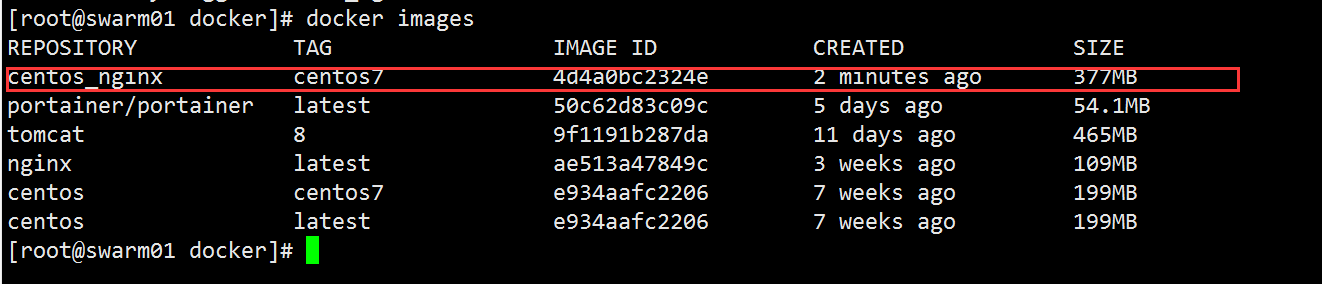
4、启动容器
可以通过以下两种方式启动容器:
[html] view plain copy print?- 不挂载文件:
- docker run -i -t -d -p 192.168.182.110:80:80 centos_nginx /bin/bash
- 挂载文件:
- docker run \
- --name centos_nginx \
- -d -p 80:80 \
- -v /home/nginx/html:/usr/share/nginx/html \
- -v /home/nginx/log:/var/log/nginx \
- -v /home/nginx/nginx.conf:/usr/local/nginx/nginx.conf:ro \
- -v /home/nginx/conf.d:/usr/local/nginx/conf.d \
- nginx
不挂载文件:
docker run -i -t -d -p 192.168.182.110:80:80 centos_nginx /bin/bash

挂载文件:
docker run \
--name centos_nginx \
-d -p 80:80 \
-v /home/nginx/html:/usr/share/nginx/html \
-v /home/nginx/log:/var/log/nginx \
-v /home/nginx/nginx.conf:/usr/local/nginx/nginx.conf:ro \
-v /home/nginx/conf.d:/usr/local/nginx/conf.d \
nginx
注意:
(1)第一个"-v",是项目位置,把项目放到挂载到的目录下即可;
(2)第二个"-v",是挂载的主配置文件"nginx.conf",注意"nginx.conf"文件内有一行"include /etc/nginx/conf.d/*.conf;",这个include指向了子配置文件的路径,此处注意include后所跟的路径一定不要出错。
(3)第三个"-v",把docker内子配置文件的路径也挂载了出来,注意要与(2)中include指向路径一致
(4)重点强调一下,nginx.conf是挂载了一个文件(docker是不推荐这样用的),conf.d挂载的是一个目录
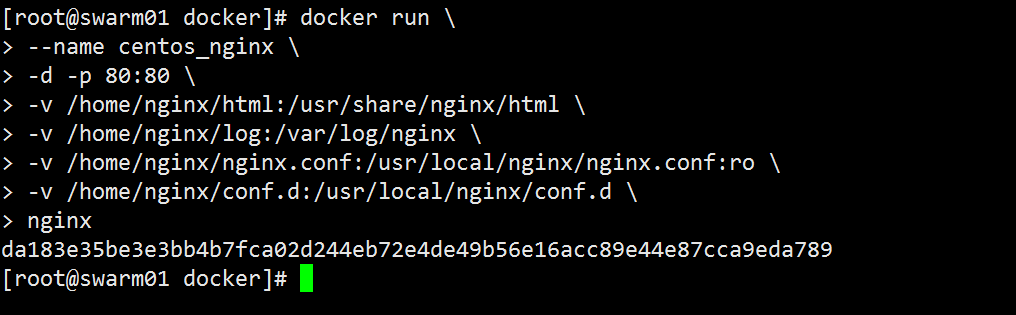
启动成功之后如下:
5.在系统中创建Nginx配置文件
通过上面的命令启动之后,会在/home/nginx目录下多出以下文件
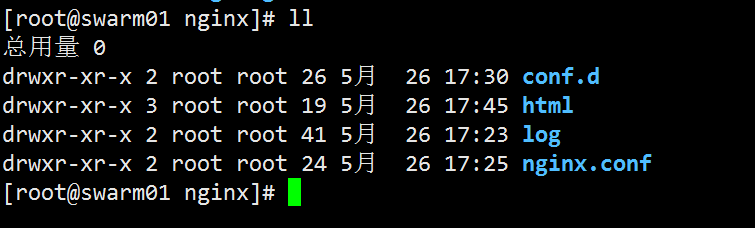
这些文件就是与Docker容器共享的配置文件,在nginx.conf目录下创建Nginx配置文件nginx.conf,内容如下:
[html] view plain copy print?- user root;
- worker_processes 1;
- error_log /var/log/nginx/error.log warn;
- pid /var/run/nginx.pid;
- events {
- worker_connections 1024;
- }
- http {
- include /etc/nginx/mime.types;
- default_type application/octet-stream;
- log_format main '$remote_addr - $remote_user [$time_local] "$request" '
- '$status $body_bytes_sent "$http_referer" '
- '"$http_user_agent" "$http_x_forwarded_for"';
- access_log /var/log/nginx/access.log main;
- sendfile on;
- #tcp_nopush on;
- keepalive_timeout 65;
- autoindex on;
- #gzip on;
- include /etc/nginx/conf.d/*.conf;
- client_max_body_size 100M;
- client_header_buffer_size 128k;
- large_client_header_buffers 4 128k;
- }
user  root;
worker_processes  1;
error_log  /var/log/nginx/error.log warn;
pid        /var/run/nginx.pid;

events {
    worker_connections  1024;
}

http {
    include       /etc/nginx/mime.types;
    default_type  application/octet-stream;

    log_format  main  '$remote_addr - $remote_user [$time_local] "$request" '
                      '$status $body_bytes_sent "$http_referer" '
                      '"$http_user_agent" "$http_x_forwarded_for"';
    access_log  /var/log/nginx/access.log  main;

    sendfile        on;
    #tcp_nopush     on;

    keepalive_timeout  65;
    autoindex  on;
    #gzip  on;
    include /etc/nginx/conf.d/*.conf;
    client_max_body_size 100M;
    client_header_buffer_size    128k;
    large_client_header_buffers  4  128k;
}
然后在conf.d目录下创建default.conf文件,内容如下:
[html] view plain copy print?- server {
- listen 80;
- server_name localhost;
- #charset koi8-r;
- #access_log /var/log/nginx/log/host.access.log main;
- location / {
- root /home/nginx/html/fendo;
- index index.html index.htm;
- autoindex on;
- try_files $uri /index/index/page.html;
- #try_files $uri /index/map/page.html;
- }
- #error_page 404 /404.html;
- # redirect server error pages to the static page /50x.html
- #
- error_page 500 502 503 504 /50x.html;
- location = /50x.html {
- root /usr/share/nginx/html;
- }
- # proxy the PHP scripts to Apache listening on 127.0.0.1:80
- #
- #location ~ \.php$ {
- # proxy_pass http://127.0.0.1;
- #}
- # pass the PHP scripts to FastCGI server listening on 127.0.0.1:9000
- #
- #location ~ \.php$ {
- # root html;
- # fastcgi_pass 127.0.0.1:9000;
- # fastcgi_index index.php;
- # fastcgi_param SCRIPT_FILENAME /scripts$fastcgi_script_name;
- # include fastcgi_params;
- #}
- # deny access to .htaccess files, if Apache's document root
- # concurs with nginx's one
- #
- #location ~ /\.ht {
- # deny all;
- #}
- }
server {
    listen       80;
    server_name  localhost;

    #charset koi8-r;
    #access_log  /var/log/nginx/log/host.access.log  main;

    location / {
        root   /home/nginx/html/fendo;
        index  index.html index.htm;
        autoindex  on;
        try_files $uri /index/index/page.html;
        #try_files $uri /index/map/page.html;
    }

    #error_page  404              /404.html;

    # redirect server error pages to the static page /50x.html
    #
    error_page   500 502 503 504  /50x.html;
    location = /50x.html {
        root   /usr/share/nginx/html;
    }

    # proxy the PHP scripts to Apache listening on 127.0.0.1:80
    #
    #location ~ \.php$ {
    #    proxy_pass   http://127.0.0.1;
    #}

    # pass the PHP scripts to FastCGI server listening on 127.0.0.1:9000
    #
    #location ~ \.php$ {
    #    root           html;
    #    fastcgi_pass   127.0.0.1:9000;
    #    fastcgi_index  index.php;
    #    fastcgi_param  SCRIPT_FILENAME  /scripts$fastcgi_script_name;
    #    include        fastcgi_params;
    #}

    # deny access to .htaccess files, if Apache's document root
    # concurs with nginx's one
    #
    #location ~ /\.ht {
    #    deny  all;
    #}
}
然后在/home/nginx/fendo目录下创建Index.html文件,内容为:
[html] view plain copy print?- <!DOCTYPE html>
- <html>
- <head>
- <title>Welcome to nginx! This is a demo!</ title>
- <style>
- body {
- width: 35em;
- margin: 0 auto;
- font-family: Tahoma, Verdana, Arial, sans-serif;
- }
- </style>
- </head>
- <body>
- <h1>*********************************** Welcome to nginx! Fendo *********************************** </h1>
- <p>If you see this page, the nginx web server is successfully installed and
- working. Further configuration is required.</p>
- <p>For online documentation and support please refer to
- <a href="http://nginx.org/">nginx.org </a>.<br/>
- Commercial support is available at
- <a href="http://nginx.com/">nginx.com </a>.</p>
- <p><em>Thank you for using nginx. </em></p>
- </body>
- </html>
<!DOCTYPE html>
<html>
<head>
<title>Welcome to nginx! This is a demo!</title>
<style>
    body {
        width: 35em;
        margin: 0 auto;
        font-family: Tahoma, Verdana, Arial, sans-serif;
    }
</style>
</head>
<body>
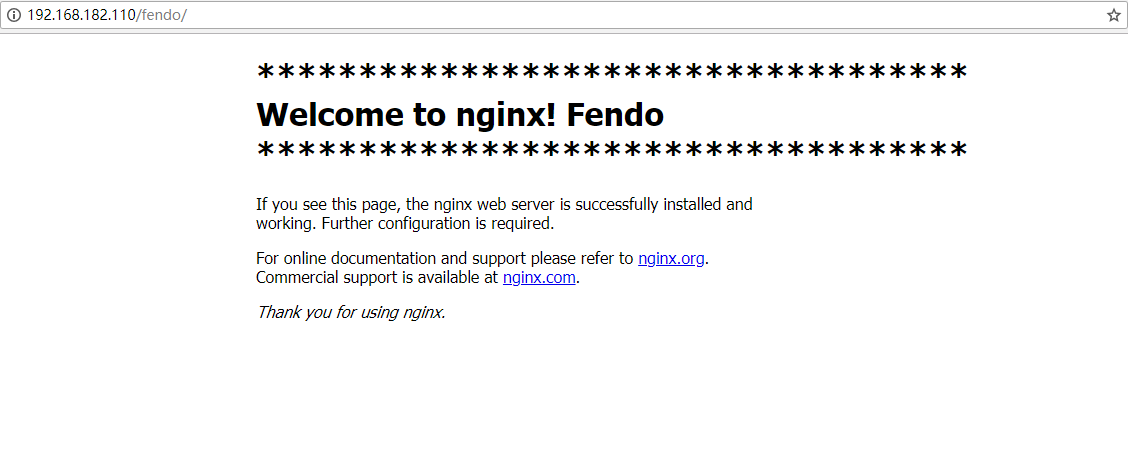
<h1>*********************************** Welcome to nginx! Fendo ***********************************</h1>
<p>If you see this page, the nginx web server is successfully installed and
working. Further configuration is required.</p>

<p>For online documentation and support please refer to
<a href="http://nginx.org/">nginx.org</a>.<br/>
Commercial support is available at
<a href="http://nginx.com/">nginx.com</a>.</p>

<p><em>Thank you for using nginx.</em></p>
</body>
</html>
修改好之后,重启下Nginx
[html] view plain copy print?- [root@swarm01 conf.d]# docker restart centos_nginx
- centos_nginx
[root@swarm01 conf.d]# docker restart centos_nginx
centos_nginx
6.测试Nginx
访问http://192.168.182.110/fendo/效果如下:
7.一些错误
7.1、访问 curl http://192.168.182.110/fendo/出现拒绝连接,解决方法就是进入容器 docker exec -i -t centos_nginx /bin/sh接着在容器里面执行(直接输入即可)nginx 启动Nginx。
7.2、如过挂载Nginx文件时报错,基本就是路径的问题。
[html] view plain copy print?- unknown: Are you trying to mount a directory onto a file (or vice-versa)? Check if the specified host path exists and is the expected type
unknown: Are you trying to mount a directory onto a file (or vice-versa)? Check if the specified host path exists and is the expected type