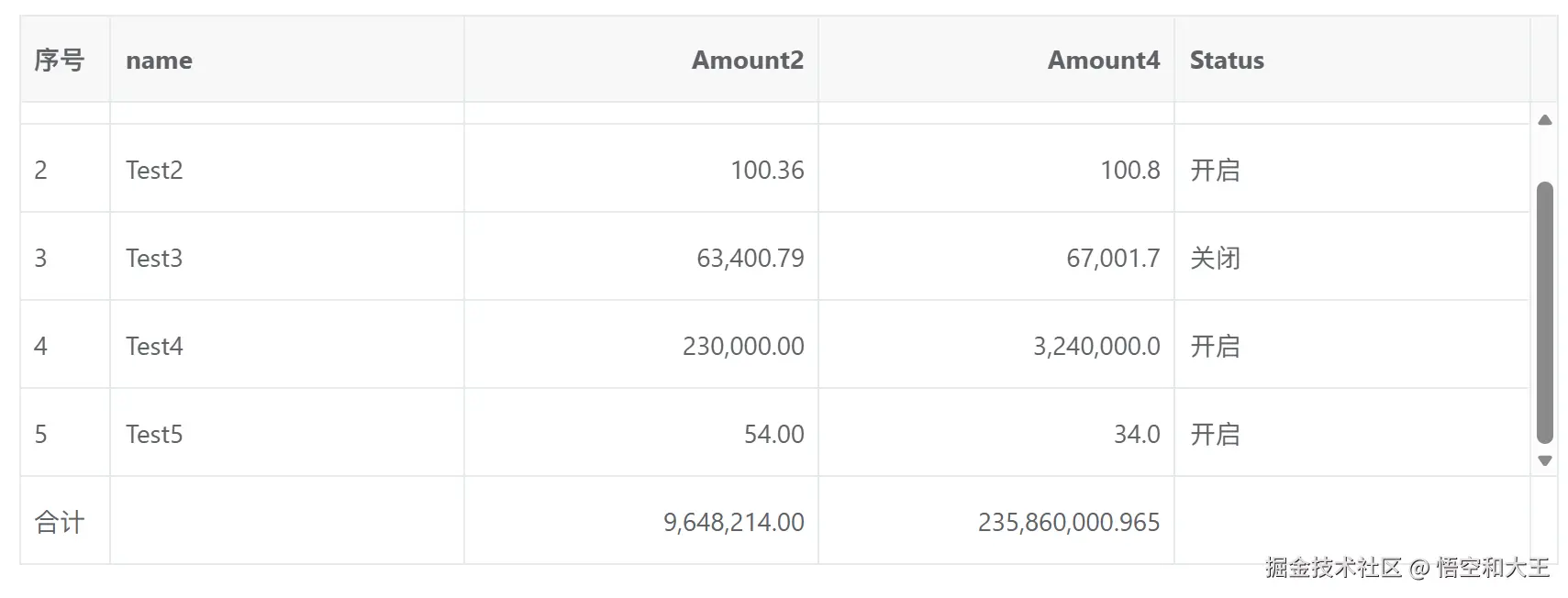

自定义单元格格式化方法
CustomFormatter.ts
import { VxeUI } from 'vxe-table'
import XEUtils from 'xe-utils'
VxeUI.formats.add('myAmount', {
tableCellFormatMethod ({ cellValue }, digits = 2) {
return XEUtils.commafy(XEUtils.toNumber(cellValue), { digits })
},
tableFooterCellFormatMethod ({ itemValue }, digits = 2) {
return XEUtils.commafy(XEUtils.toNumber(itemValue), { digits })
}
})
VxeUI.formats.add('mySwitch', {
tableCellFormatMethod ({ cellValue }) {
return cellValue === 1 ? '开启' : '关闭'
}
})
使用
<template>
  <div>
    <vxe-grid v-bind="gridOptions"></vxe-grid>
  </div>
</template>

<script lang="tsx" setup>
import { reactive } from 'vue'
import type { VxeGridProps } from 'vxe-table'

interface RowVO {
  id: number
  name: string
  nickname: string
  status: number
  amount2: number
  amount4: number
}

const gridOptions = reactive<VxeGridProps<RowVO>>({
  border: true,
  height: 300,
  showFooter: true,
  columns: [
    { field: 'seq', type: 'seq', width: 50 },
    { field: 'name', title: 'name' },
    { field: 'amount2', title: 'Amount2', align: 'right', formatter: 'myAmount', footerFormatter: 'myAmount' },
    { field: 'amount4', title: 'Amount4', align: 'right', formatter: ['myAmount', 1], footerFormatter: ['myAmount', 3] },
    { field: 'status', title: 'Status', formatter: 'mySwitch' }
  ],
  data: [
    { id: 10001, name: 'Test1', nickname: 'T1', status: 0, amount2: 192, amount4: 225 },
    { id: 10002, name: 'Test2', nickname: 'T2', status: 1, amount2: 100.35678, amount4: 100.7686342 },
    { id: 10003, name: 'Test3', nickname: 'T3', status: 0, amount2: 63400.7945893, amount4: 67001.69834 },
    { id: 10004, name: 'Test4', nickname: 'T4', status: 1, amount2: 230000, amount4: 3240000 },
    { id: 10005, name: 'Test5', nickname: 'T5', status: 1, amount2: 54, amount4: 34 }
  ],
  footerData: [
    { seq: '合计', amount2: 9648214, amount4: 235860000.9647 }
  ]
})
</script>
参考资料
Vxe Table v4



