🚀🚀🚀本篇主要内容
配置机器2
* 在演示中,172.16.179.131为当前ubuntu机器的ip * 在172.16.179.131上进⼊Desktop⽬录,创建conf⽬录 * 在conf⽬录下创建⽂件7003.conf,编辑内容如下
port 7003
bind 172.16.179.131
daemonize yes
pidfile 7003.pid
cluster-enabled yes
cluster-config-file 7003_node.conf
cluster-node-timeout 15000
appendonly yes
* 在conf⽬录下创建⽂件7004.conf,编辑内容如下
port 7004
bind 172.16.179.131
daemonize yes
pidfile 7004.pid

# 创建集群


[文档连接](http://doc.redisfans.com/topic/cluster-tutorial.html)

* redis的安装包中包含了redis-trib.rb,⽤于创建集群
* 接下来的操作在172.16.179.130机器上进⾏
* 将命令复制,这样可以在任何⽬录下调⽤此命令

```python
sudo cp /usr/share/doc/redis-tools/examples/redis-trib.rb /usr/local/bin/
* 安装ruby环境,因为redis-trib.rb是⽤ruby开发的 > sudo apt-get install ruby
* 在提示信息处输⼊y,然后回⻋继续安装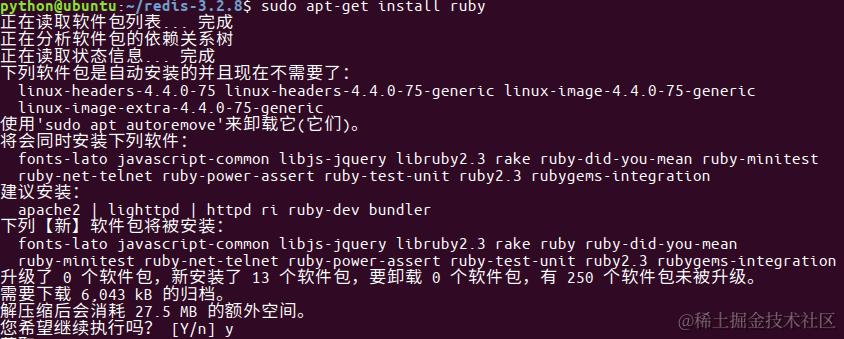
* 运⾏如下命令创建集群
# 数据验证
* 根据上图可以看出,当前搭建的主服务器为7000、7001、7003,对应的从服务器是7004、7005、7002
* 在172.16.179.131机器上连接7002,加参数-c表示连接到集群
>
redis-cli -h 172.16.179.131 -c -p 7002
* 写⼊数据
>
set name itheima
* ⾃动跳到了7003服务器,并写⼊数据成功<br></br>
* 在7003可以获取数据,如果写入数据又重定向到7000(负载均衡)<br></br>