Excel上传新建/编辑 实现方式
主要步骤
- 用户通过后端接口下载固定格式的模版(excel 文件)
- 在 excel 文件中填充或者编辑数据之后,将文件上传
- 前端自定义上传文件逻辑,读取 excel 文件内容并将其转化成符合 Antd Table 组件需要的 table json 数据格式
- 向后端请求对应的旧数据,将请求而来的旧数据转化为 table json 数据
- 前端比对新旧数据的差异值
- 自定义antd tabel columns以展示数据的差异
读取用户上传文件数据
用户上传的模版<前四行 和 第一列 属于模版内容,读取文件数据时需要过滤掉这些信息>
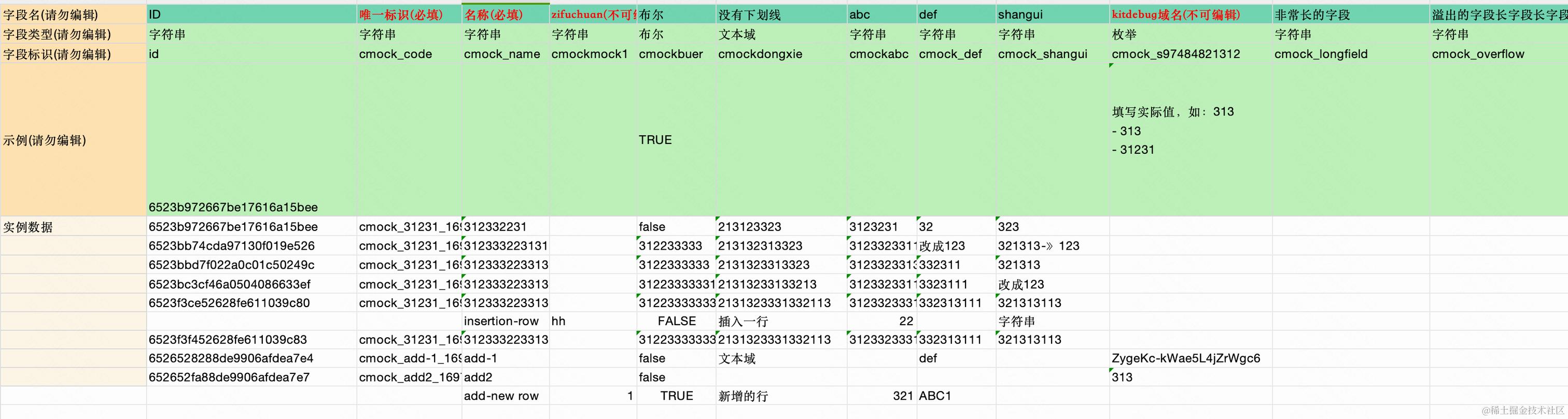
利用第三方库 XLSX 配合 antd Upload组件的自定义上传功能 读取excel中的数据并将其转化为json格式
// 利用 antd Upload 组件

<Dragger {...props}>...</Dragger>

const props: UploadProps = {
    multiple: false,
    maxCount: 1,
    showUploadList: false,
    customRequest: (options: any) => {
      const { file } = options;
      const uploadFileList = [file];
      const canReceiveType = [
        'application/vnd.ms-excel',
        'application/vnd.openxmlformats-officedocument.spreadsheetml.sheet',
        'text/csv',
      ];
      const isCorrectType = canReceiveType.includes(file.type);
      if (!isCorrectType) {
        setUploadError('文档格式不符合要求,请上传xls或csv格式的文件');
        return;
      }
      const isLt2M = file.size / 1024 / 1024 < 2;
      if (!isLt2M) {
        setUploadError('超出文档大小限制,请上传大小在2MB内的文档');
        return;
      }

      // 主要解析转化逻辑
      try {
        const reader = new FileReader();
        reader.onload = (e: any) => {
          const workbook = XLSX.read(e.target.result, {
            type: 'array',
            // cellDates: true,
            raw: true,
          });

          // @Mark::: 默认取第一张表 workbook.SheetNames[0],因为任何模版 约定默认就一张表
          const worksheet = workbook.Sheets[workbook.SheetNames[0]];
          // 去除空行
          const includeNullRowJsonData = XLSX.utils.sheet_to_json(worksheet, {
            header: 1,
            blankrows: true,
            defval: null,
            raw: true,
          });
          const nullRowIndex = includeNullRowJsonData.findIndex((row: any) => {
            return row.every((item: any) => item == null);
          });
          const dataBeforeNullRow =
            nullRowIndex === -1
              ? includeNullRowJsonData
              : includeNullRowJsonData.slice(0, nullRowIndex);
          // .filter((row: any) => row.some((cell: any) => cell !== null && cell !== ''));

          // 拿到 每一列的字段类型,将其中的 时间和日期 列筛选出来,用以下一步骤处理该列的数据
          // 目前模版中的第二行用一记录着每个字段对应的字段类型,即filterNullRowJsonData[1]
          const everyColumnType = includeNullRowJsonData[1] as string[];
          const dataAndTimeIndexArr: number[] = [];
          everyColumnType.forEach((item, index) => {
            if (['日期', '时间'].includes(item)) {
              dataAndTimeIndexArr.push(index);
            }
          });

          /*************XLSX 解析出来值之后,针对不同的字段类型需要不同的处理******************/
          const jsonData = dataBeforeNullRow.map((itemArr: any, index: number) => {
            // 模版前几行不是用户数据,所以没必要处理, userDataRowIndex = 4
            if (index < userDataRowIndex) return itemArr;
            return itemArr.map((val: any, i: number) => {
              // 这儿由于excel中填写的boolean值会无法在antd表格中正常渲染出来,所以需要把这些boolean值转换成string
              if (typeof val === 'boolean') return val + '';

              // 将 时间和日期 两列的值转换回字符串
              if (dataAndTimeIndexArr.includes(i)) {
                // 这儿被XLSX 解析 出来的时间值格式 xxxx.xxxx, 小数点前面的数字表示日期,后面的数字表示时间
                if (!val) return;
                // excel中解析出来的日期和时间都是number类型
                const [dateNum, timeNum] = (val + '').split('.');
                let formatRule = '';
                if (dateNum && +dateNum > 0) {
                  // 这儿 dd 后面需要有一个空格
                  formatRule += 'yyyy/mm/dd ';
                }
                if (timeNum && +timeNum > 0) {
                  formatRule += 'hh:mm:ss';
                }
                return XLSX.SSF.format(formatRule, val);
              }
              return val;
            });
          });
          // console.log('成功解析到的数据是>>>>>>>>>>', jsonData);
          setSessionStorageValue('curExcelTemplateJson', jsonData);

          const isCorrectTemplate = handleExcelResult();
          if (!isCorrectTemplate) {
            setUploadError('文件不符合模版要求,无法解析,请下载模版');
            return;
          }
        };
        reader.readAsArrayBuffer(file);
        setFileList(uploadFileList);
        setUploadError('');
        message.success(`${file.name} 上传成功`);
      } catch (error) {
        setUploadError('解析excel文件出错,请重试');
      }
    }
  };
excel 文件解析成功后的数据格式如下:
处理excel数据 并转化成table json 格式的数据
 // 解析用户上传的excel表格
 const newTemplateEXCEL = getSessionStorageValue('curExcelTemplateJson');

 // 处理请求回来的数据,后续将它改造成便于比对的格式
 const res = await querySingleResourcesDetail({ ids: needEditRowIds });
 const { data: oldServerData } = res?.data ?? [];

 // 拿到 字段名 行,即表头
 const firstRow = newTemplateEXCEL.shift().filter(Boolean);
 console.log('%cfirstRow>>>>>>>>>','color:rgb(244, 73, 5)', firstRow);

 // 去除掉 模版中的标识行(2,3,4行), 并去除掉剩余数据行中为空的第一列
      const targetNewTemplateEXCEL = newTemplateEXCEL
        .slice(userDataRowIndex - 1)
        .map((item: any) => {
          item.shift();
          return item;
        });

      // ****** 构造 新值 ********
      const columns = firstRow.slice(1);
      // 将新上传的excel数据格式转化为table展示的Json格式便于比对出差异
      const newTemplateJSON = [];
      console.log('%c targetNewTemplateEXCEL','color: #eea24b', targetNewTemplateEXCEL);
      for (let i = 0; i < targetNewTemplateEXCEL.length; i++) {
        const item = targetNewTemplateEXCEL[i];
        const o = {};
        for (let j = 0; j < item.length; j++) {
          const oKey = columns[j];
          o[oKey] = item[j];
          if (oKey && oKey.startsWith('名称') && (oKey.endsWith(')') || oKey.endsWith(')'))) {
            o['rowName'] = item[j];
          }
        }
        // 每行数据循环完毕之后,如果ID为空,说明是在编辑模版中新增的值,此时直接使用我们和后端约定好的id代替即可
        if (!o['ID']) {
          o['ID'] = IdWhileAddInEditTemplate;
        }
        newTemplateJSON.push(o);
      }
      // ****** 构造 旧值 ********
      const oldTemplateJSON =
        oldServerData?.map((item: any) => {
          const { data, id } = item;
          data.id = id;
          const targetObj: Record<string, string> = {};
          for (let k in data) {
            targetObj[english2ChineseCodeReflect[k]] = data[k];
          }
          return targetObj;
        }) || [];

      console.log('%c newTemplateJSON>>>>>>','color: #eea24b', newTemplateJSON);
      console.log('%c oldTemplateJSON<<<<<<','color: #eea24b', oldTemplateJSON);
      const markDiffTableData = markDiffValue(newTemplateJSON, oldTemplateJSON);
去除了模版行列(前 4 行,第 1 列)信息后,得到的数据信息如下(二维数组)
再把这些数据转化为 table 可以展示的 json 数据
[我们本次在 excel 文件中的操作是:修改了第一条和第四条数据]
根据选中的数据ID向后端发起请求,可以得到这些数据的旧值,再经过一些处理(可忽略),就能得到一份 table json格式的旧数据。
开始比对 新的table json 和 旧的table json
const markDiffTableData = markDiffValue(newTemplateJSON, oldTemplateJSON);
export const Proxy_Row_key = 'ID';
export const Select_Row_key = 'ID';
/**
 ** description: 找出两个 object[] 中每项的差异,并放入每项的diffValue对象中
 * @param  {object[]} newArr -- 新数组
 * @param  {object[]} oldArr -- 旧数组
 * @return {object[]}  返回一个新数组
 */
export const markDiffValue = (
  newArr: Record<string, any>,
  oldArr: Record<string, any>,
): Record<string, any> => {
  /** Mark:
   *  1、只能以新模版数据为基准来遍历
   *  2、diffValue的中存储的是:用户更改后的值,而非原始值。这样在上传用户选中的数据时会方便很多。
   */
  const oldValueMap = new Map();

  oldArr.forEach((item: any) => {
    const mapKey = item[Proxy_Row_key];
    if (!oldValueMap.has(mapKey)) {
      oldValueMap.set(mapKey, item);
    }
  });
  // console.log('新值>>>>>>>>>>>>>', newArr);
  // console.log('旧值<<<<<<<<<<<<<<<<<<<<<<<<<<<<<<<<<<<<', oldArr);
  // console.log('oldValueMap', oldValueMap);

  const target = newArr.map((item: any) => {
    const itemKey = item[Proxy_Row_key];
    const oldValue = oldValueMap.get(itemKey);
    // 没有的话,那说明整行都是新增的(添加 || 插入)
    if (!oldValue) {
      return { ...item, diffValue: item, isNewRow: true };
      // 如果这样返回的话,展示差异值的功能不会被影响,但是因为没有id将无法勾选该行
      // return {diffValue: item}
    } else {
      // 能找到的话,比对出差异的项目即可
      const diffValue = getDiffValue(item, oldValue);
      return { ...item, diffValue, oldValue };
    }
  });
  return target;
};
/**
 ** description: 拿到两个对象中 <key同值不同> 的项,并放入一个全新对象中
 */
export const getDiffValue = (newObj: Record<string, any>, oldObj: Record<string, any>) => {
  const result = {};
  for (let k in newObj) {
    if (newObj[k] && newObj[k] != oldObj[k]) {
      result[k] = newObj[k];
    }
    // 如果用户在excel中删除了某个格子内的数据,那么新值为null,但是需求是:删除单元格内值视为不做改变,所以这种情况需要将旧值填补给新值
    if (!newObj[k]) {
      newObj[k] = oldObj[k];
    }
  }
  return result;
};
对比完成,得到携带了变更信息的数据
再通过对antd table 的columns 进行自定义render < TextOverflow 是一个文本溢出省略组件>
import { Tooltip } from 'antd';
import TextOverflow from '@/components/TextOverflow';
import { IdWhileAddInEditTemplate } from '../constant';
import curStyle from './index.less';

export const generateEditTableColumns = (columnKeys: string[]) => {
  return columnKeys.map((z) => ({
    title:
      z.length > 4 ? (
        <TextOverflow
          text={z}
          wrapWidth="100%"
          textLenWhileNeedShowTooltip={4}
          wrapStyle={{ justifyContent: 'center', padding: '0 4px' }}
        />
      ) : (
        z
      ),
    dataIndex: z,
    align: 'center',
    key: z,
    width: z === 'ID' ? 220 : 160,
    // ellipsis: {
    //   showTitle: true,
    // },
    render: (item: any, record: any) => {
      const diffValueObj = record.diffValue;
      const oldValueObj = record.oldValue;
      // 新增的行是不需要oldValue的,一律置为''
      const oldValue = record.isNewRow ? '' : oldValueObj?.[z];
      const newValue = diffValueObj?.[z];
      return (
        <>
          {newValue ? (
            <div className={curStyle.custom_flex_cell} style={{ flexWrap: 'wrap' }}>
              <div style={{ width: '100%', backgroundColor: '#EDEDED', marginBottom: '4px' }}>
                <Tooltip placement="top" title={oldValue}>
                  {/* 此处如果是插入的新行,则oldValue应当为null */}
                  {oldValue ? (
                    <div
                      style={{
                        width: '100%',
                        overflow: 'hidden',
                        textOverflow: 'ellipsis',
                        whiteSpace: 'nowrap',
                      }}
                    >
                      {oldValue}
                    </div>
                  ) : (
                    <></>
                  )}
                </Tooltip>
              </div>
              {newValue !== IdWhileAddInEditTemplate && (
                <div style={{ width: '100%', backgroundColor: '#F8E499' }}>
                  <TextOverflow
                    text={newValue}
                    wrapWidth="100%"
                    textLenWhileNeedShowTooltip={4}
                    wrapStyle={{ justifyContent: 'center', padding: '0 4px' }}
                  />
                </div>
              )}
            </div>
          ) : (
            <TextOverflow
              text={oldValue}
              wrapWidth="100%"
              textLenWhileNeedShowTooltip={4}
              wrapStyle={{ justifyContent: 'center', padding: '0 4px' }}
            />
          )}
        </>
      );
    },
  }));
};
最终展示的table如下:(在编辑模版中新增数据,用户是不用填写 ID 和 唯一标识这两个字段的,因为这两个字段的值是系统自动生成的)