前言
笔者之前一直在稀土掘金中记录个人技术博文,但是掘金毕竟是第三方独立运营的平台,而且还不提供历史文章导出,等于就将笔者绑死在掘金平台了。
一旦掘金出现了什么删库跑路、或者历史数据丢失等问题,我的技术博文就和说拜拜了,让我很没有安全感,于是想起来自己之前折腾过的个人博客。随又捡起了Hexo博客,并记录一下搭建过程。
环境推荐
- 本地环境:Windows11
- 服务器环境:RockyLinux 8.10(Centos系列)
服务器环境搭建
为了方便我直接使用了root用户进行操作,如果想要使用其他用户进行搭建要主要权限问题哦!
安装git环境
sudo yum install -y git
安装nodejs与pnpm环境
打开node.js-download这个链接,选择符合自己的系统环境复制命令到终端进行下载即可。
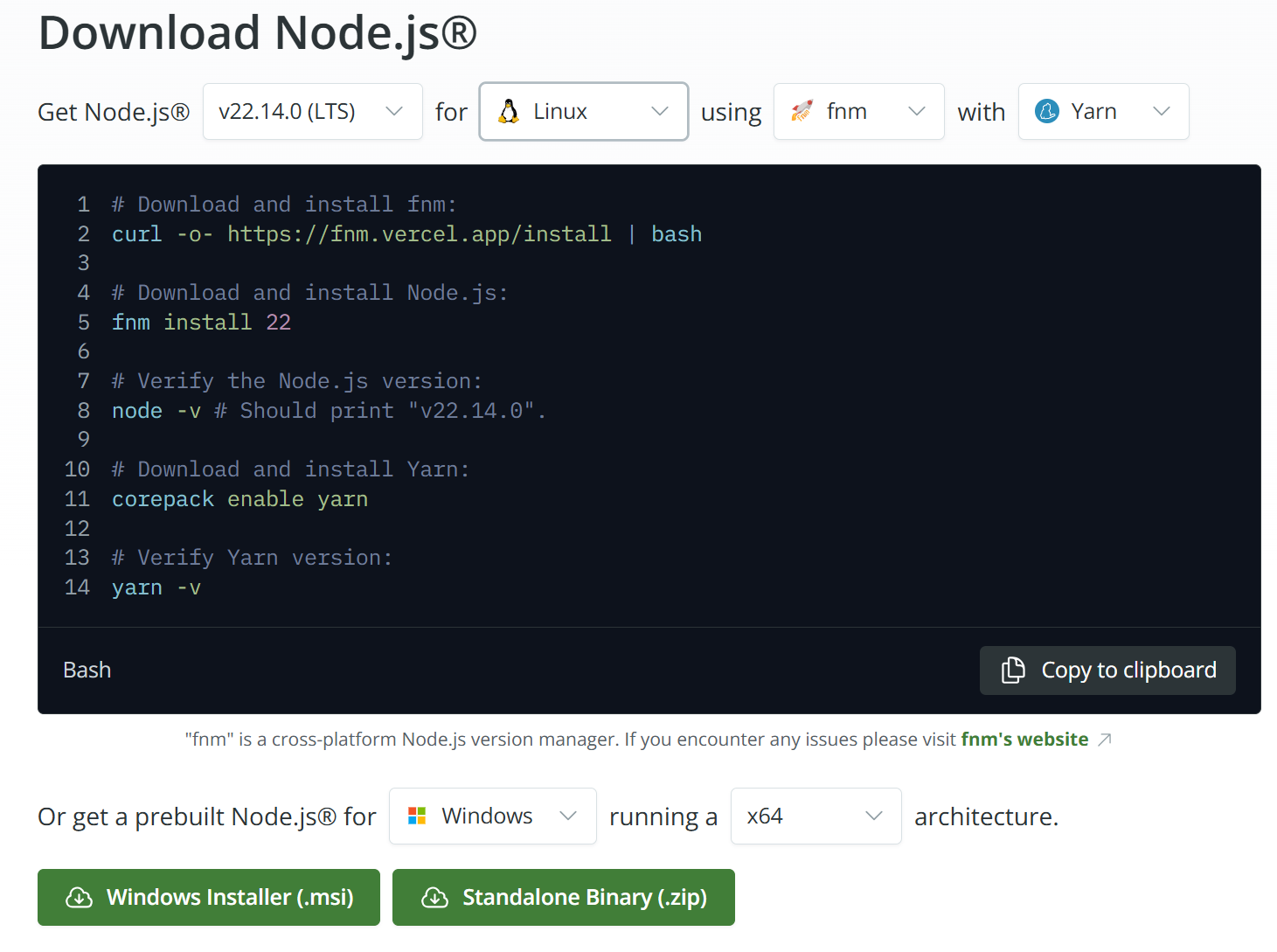
安装nginx环境
# 通过yum安装nginx
sudo yum install -y nginx
# 启动nginx开机自启
sudo systemctl enable nginx
# 启动nginx服务
sudo systemctl start nginx
# 查看nginx状态
sudo systemctl status nginx
创建博客目录与git钩子
创建git钩子是为了当本地环境执行
hexo d时可以实时更新服务器的博文内容
# 创建博客目录
mkdir -p /root/document/blog
# 创建git钩子
cd /root/document && git init --bare hexo.git
sudo tee /root/document/hexo.git/hooks/post-receive <<'EOF'
git --work-tree=/root/document/blog --git-dir=/root/document/hexo.git checkout -f
EOF
# 基于钩子文件执行权限
sudo chmod +x /root/document/hexo.git/hooks/post-receive
配置nginx代理
-
修改
/etc/nginx/nginx.conf文件user root; worker_processes auto; error_log /var/log/nginx/error.log; pid /run/nginx.pid; # Load dynamic modules. See /usr/share/doc/nginx/README.dynamic. include /usr/share/nginx/modules/*.conf; events { worker_connections 1024; } http { log_format main '$remote_addr - $remote_user [$time_local] "$request" ' '$status $body_bytes_sent "$http_referer" ' '"$http_user_agent" "$http_x_forwarded_for"'; access_log /var/log/nginx/access.log main; sendfile on; tcp_nopush on; tcp_nodelay on; keepalive_timeout 65; types_hash_max_size 2048; include /etc/nginx/mime.types; default_type application/octet-stream; include /etc/nginx/conf.d/*.conf; } -
新增
/etc/nginx/conf.d/blog.conf配置文件如果仅有公网ip、没有域名的情况,配置文件内容如下
server {
   listen        80;
   listen   [::]:80;
   # 配置为自己的公网IP
   server_name  106.14.19.58;

   location / {
     # 配置为服务器中个人博客的目录
     root   /root/document/blog;
     index  index.html index.htm;
   }

   error_page   500 502 503 504  /50x.html;
   location = /50x.html {
     root   /usr/share/nginx/html;
   }
}
如果有域名、且有SSL证书的情况,配置文件内容如下
server { listen 80; listen [::]:80; # 配置为自己的域名 server_name liboshuai.icu; rewrite ^(.*)$ https://${server_name}$1 permanent; } server { listen 443 ssl; # 配置为自己的域名 server_name liboshuai.icu; # 配置为自己ssl证书pem文件的路径 ssl_certificate /etc/nginx/ssl/liboshuai.icu.pem; # 配置为自己ssl证书key文件的路径 ssl_certificate_key /etc/nginx/ssl/liboshuai.icu.key; ssl_session_cache shared:SSL:1m; ssl_session_timeout 5m; ssl_ciphers HIGH:!aNULL:!MD5; ssl_prefer_server_ciphers on; location / { proxy_set_header X-Real-IP $remote_addr; proxy_set_header Host $http_host; proxy_set_header X-Forwarded-For $proxy_add_x_forwarded_for; # 配置为服务器中个人博客的目录 root /root/document/blog; index index.html index.htm; } error_page 500 502 503 504 /50x.html; location = /50x.html { root /usr/share/nginx/html; } } -
重新加载nginx配置
# 检查nginx配置文件是否正确
/usr/sbin/nginx -t
# 热加载nginx配置文件
/usr/sbin/nginx -s reload
本地环境搭建
安装git环境
打开git-download链接,选择符合自己的系统点击进行下载即可,随后打开安装包一直进行下一步即可。
随后配置git全局变量
# 修改为自己的邮箱
git config --global user.email "liboshuai01@gmail.com"
# 修改为自己的英文名
git config --global user.name "BoShuai Li"
安装nodejs与yarn环境
打开node.js-download这个链接,选择符合自己的系统环境复制命令到终端进行下载安装即可。
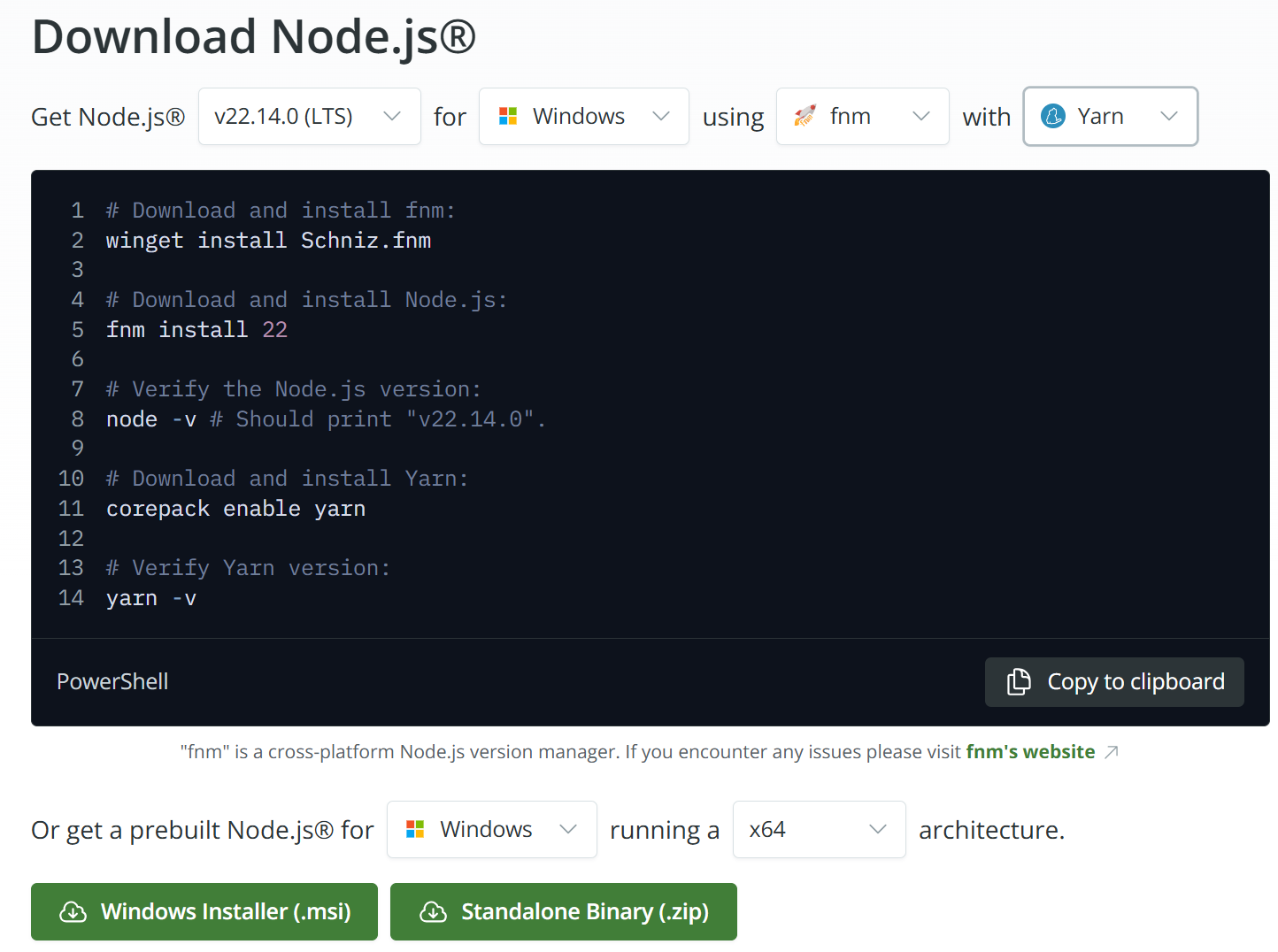
安装hexo环境
-
新建一个目录用于存储个人博客数据,例如:
C:\Me\Project\other。 -
在新建的目录中打开
git bash终端,执行下面的命令。一定要在
C:\Me\Project\other目录下执行# 全局安装hexo-cli yarn install -g hexo-cli # 创建并进入博客目录 hexo init blog && cd blog # 安装Hexo项目依赖 yarn install # 安装deploy命令支持 yarn add hexo-deployer-git # 启动Hexo本地服务 hexo s下面是安装结束后的目录结构

在浏览器打开
http://localhost:4000查看页面
-
安装icarus主题
一定要在
C:\Me\Project\other\blog目录下执行# 通过yarn安装icarus主题 yarn add hexo-theme-icarus hexo-renderer-inferno # 配置hexo当前主题为icarus hexo config theme icarus # 重新启动hexo验证主题是否生效 hexo sicarus主题生效后,目录中多出了
_config.icarus.yml这个文件
在浏览器打开
http://localhost:4000查看页面
-
配置远程部署地址,修改
_config.yml文件中的deploy项注意:我的ssh端口为22222,而非22
deploy: type: 'git' repo: ssh://root@106.14.19.58:22222/root/document/hexo.git branch: master -
配置本地SSH免密登录服务器(使用git bash)
# 生成密钥,随后一路回车
ssh-keygen -t rsa
# 这一步的目的是将本地生产的`id_rsa.pub`文件的内容拷贝到服务器上的`~/.ssh/authorized_keys`文件中
# 当然也可以自己手动将生成的`id_rsa.pub`文件内容拷贝到服务器上的`~/.ssh/authorized_keys`文件中
ssh -p 22222 root@106.14.19.58 "cat >> ~/.ssh/authorized_keys" < C:/Users/libos/.ssh/id_rsa.pub
现在需要测试一下本地是否可以免密登录到服务器了
ssh -p 22222 root@106.14.19.58 -
发布博客内容到服务器
hexo clean && hexo d -g -
浏览器打开
https://liboshuai.icu链接访问博客页面,进行查看
主题美化
_config.yml文件内容如下
# Hexo Configuration
## Docs: https://hexo.io/docs/configuration.html
## Source: https://github.com/hexojs/hexo/

# Site
title: 技术博客
subtitle: '李博帅的技术博客'
description: '记录自己的技术成长'
keywords:
author: 李博帅
language: zh-CN
timezone: 'Asia/Shanghai'

# URL
## Set your site url here. For example, if you use GitHub Page, set url as 'https://username.github.io/project'
url: https://liboshuai.icu
#permalink: :year/:month/:day/:title/
permalink: '/pages/:title/'
permalink_defaults:
pretty_urls:
  trailing_index: true # Set to false to remove trailing 'index.html' from permalinks
  trailing_html: true # Set to false to remove trailing '.html' from permalinks

# Directory
source_dir: source
public_dir: public
tag_dir: tags
archive_dir: archives
category_dir: categories
code_dir: downloads/code
i18n_dir: :lang
skip_render:

# Writing
new_post_name: :title.md # File name of new posts
default_layout: post
titlecase: false # Transform title into titlecase
external_link:
  enable: true # Open external links in new tab
  field: site # Apply to the whole site
  exclude: ''
filename_case: 0
render_drafts: false
post_asset_folder: false
relative_link: false
future: true
syntax_highlighter: highlight.js
highlight:
  line_number: true
  auto_detect: false
  tab_replace: ''
  wrap: true
  hljs: false
prismjs:
  preprocess: true
  line_number: true
  tab_replace: ''

# Home page setting
# path: Root path for your blogs index page. (default = '')
# per_page: Posts displayed per page. (0 = disable pagination)
# order_by: Posts order. (Order by date descending by default)
index_generator:
  path: ''
  per_page: 10
  order_by: -date

# Category & Tag
default_category: uncategorized
category_map:
tag_map:

# Metadata elements
## https://developer.mozilla.org/en-US/docs/Web/HTML/Element/meta
meta_generator: true

# Date / Time format
## Hexo uses Moment.js to parse and display date
## You can customize the date format as defined in
## http://momentjs.com/docs/#/displaying/format/
date_format: YYYY-MM-DD
time_format: HH:mm:ss
## updated_option supports 'mtime', 'date', 'empty'
updated_option: 'mtime'

# Pagination
## Set per_page to 0 to disable pagination
per_page: 10
pagination_dir: page

# Include / Exclude file(s)
## include:/exclude: options only apply to the 'source/' folder
include:
exclude:
ignore:

# Extensions
## Plugins: https://hexo.io/plugins/
## Themes: https://hexo.io/themes/
theme: icarus

# Deployment
## Docs: https://hexo.io/docs/one-command-deployment
deploy:
  type: 'git'
  repo: ssh://root@106.14.19.58:22222/root/document/hexo.git
  branch: master
_config.icarus.yml配置文件内容如下
# Version of the configuration file
version: 5.1.0
# Icarus theme variant, can be "default" or "cyberpunk"
variant: default
# Path or URL to the website's logo
logo: https://lbs-images.oss-cn-shanghai.aliyuncs.com/202503181853491.svg
# Page metadata configurations
head:
    # URL or path to the website's icon
    favicon: https://lbs-images.oss-cn-shanghai.aliyuncs.com/202503181853491.svg
    # Web application manifests configuration
    # https://developer.mozilla.org/en-US/docs/Web/Manifest
    manifest:
        # Name of the web application (default to the site title)
        name:
        # The displayed name of the web application
        # when there is not enough space to display full name
        short_name:
        # The start URL of the web application
        start_url:
        # The default theme color for the application
        theme_color:
        # A placeholder background color for the application page to display
        # before its stylesheet is loaded
        background_color:
        # The preferred display mode for the website
        display: standalone
        # Image files that can serve as application icons for different contexts
        icons:
            -
                # The path to the image file
                src: ''
                # A string containing space-separated image dimensions
                sizes: ''
                # A hint as to the media type of the image
                type:
    # Open Graph metadata
    # https://hexo.io/docs/helpers.html#open-graph
    open_graph:
        # Page title (og:title) (optional)
        # You should leave this blank for most of the time
        title:
        # Page type (og:type) (optional)
        # You should leave this blank for most of the time
        type: blog
        # Page URL (og:url) (optional)
        # You should leave this blank for most of the time
        url:
        # Page cover (og:image) (optional)
        # You should leave this blank for most of the time
        image:
        # Site name (og:site_name) (optional)
        # You should leave this blank for most of the time
        site_name:
        # Page author (article:author) (optional)
        # You should leave this blank for most of the time
        author:
        # Page description (og:description) (optional)
        # You should leave this blank for most of the time
        description:
        # Twitter card type (twitter:card)
        twitter_card:
        # Twitter ID (twitter:creator)
        twitter_id:
        # Twitter Site (twitter:site)
        twitter_site:
        # Google+ profile link (deprecated)
        google_plus:
        # Facebook admin ID
        fb_admins:
        # Facebook App ID
        fb_app_id:
    # Structured data of the page
    # https://developers.google.com/search/docs/guides/intro-structured-data
    structured_data:
        # Page title (optional)
        # You should leave this blank for most of the time
        title:
        # Page description (optional)
        # You should leave this blank for most of the time
        description:
        # Page URL (optional)
        # You should leave this blank for most of the time
        url:
        # Page author (article:author) (optional)
        # You should leave this blank for most of the time
        author:
        # Page publisher (optional)
        # You should leave this blank for most of the time
        publisher:
        # Page publisher logo (optional)
        # You should leave this blank for most of the time
        publisher_logo:
        # Page images (optional)
        # You should leave this blank for most of the time
        image:
    # Additional HTML meta tags in an array
    meta:
        # Meta tag specified in <attribute>=<value> style
        # E.g., name=theme-color;content=#123456 => <meta name="theme-color" content="#123456">
        - ''
    # URL or path to the website's RSS atom.xml
    rss:
# Page top navigation bar configurations
navbar:
    # Navigation menu items
    menu:
        首页: /
        归档: /archives
        分类: /categories
        标签: /tags
        关于: /about
    # Links to be shown on the right of the navigation bar
    links:
        Download on GitHub:
            icon: fab fa-github
            url: https://github.com/liboshuai01
# Page footer configurations
footer:
    # Copyright text
    copyright: © 2025
    # Links to be shown on the right of the footer section
    links:
#        Creative Commons:
#            icon: fab fa-creative-commons
#            url: https://creativecommons.org/
#        Attribution 4.0 International:
#            icon: fab fa-creative-commons-by
#            url: https://creativecommons.org/licenses/by/4.0/
#        Download on GitHub:
#            icon: fab fa-github
#            url: https://github.com/ppoffice/hexo-theme-icarus
# Article related configurations
article:
    # Code highlight settings
    highlight:
        # Code highlight themes
        # https://github.com/highlightjs/highlight.js/tree/master/src/styles
        theme: atom-one-light
        # Show copy code button
        clipboard: true
        # Default folding status of the code blocks. Can be "", "folded", "unfolded"
        fold: unfolded
    # Whether to show estimated article reading time
    readtime: true
    # Whether to show updated time. For "auto", shows article update time only when page.updated is set and it is different from page.date
    update_time: true
    # Article licensing block
    licenses:
        Creative Commons:
            icon: fab fa-creative-commons
            url: https://creativecommons.org/
        Attribution:
            icon: fab fa-creative-commons-by
            url: https://creativecommons.org/licenses/by/4.0/
        Noncommercial:
            icon: fab fa-creative-commons-nc
            url: https://creativecommons.org/licenses/by-nc/4.0/
# Search plugin configurations
# https://ppoffice.github.io/hexo-theme-icarus/categories/Plugins/Search/
search:
    type: insight
    # Whether to include pages in the search results
    index_pages: true
# Comment plugin configurations
# https://ppoffice.github.io/hexo-theme-icarus/categories/Plugins/Comment/
#comment:
#    type: disqus
#    # Disqus shortname
#    shortname: ''
# Donate plugin configurations
# https://ppoffice.github.io/hexo-theme-icarus/categories/Plugins/Donation/
#donates:
#    # "Afdian.net" donate button configurations
#    -
#        type: afdian
#        # URL to the "Afdian.net" personal page
#        url: ''
#    # Alipay donate button configurations
#    -
#        type: alipay
#        # Alipay qrcode image URL
#        qrcode: ''
#    # "Buy me a coffee" donate button configurations
#    -
#        type: buymeacoffee
#        # URL to the "Buy me a coffee" page
#        url: ''
#    # Patreon donate button configurations
#    -
#        type: patreon
#        # URL to the Patreon page
#        url: ''
#    # Paypal donate button configurations
#    -
#        type: paypal
#        # Paypal business ID or email address
#        business: ''
#        # Currency code
#        currency_code: USD
#    # Wechat donate button configurations
#    -
#        type: wechat
#        # Wechat qrcode image URL
#        qrcode: ''
# Share plugin configurations
# https://ppoffice.github.io/hexo-theme-icarus/categories/Plugins/Share/
#share:
#    type: sharethis
#    # URL to the ShareThis share plugin script
#    install_url: ''
# Sidebar configurations.
# Please be noted that a sidebar is only visible when it has at least one widget
sidebar:
    # Left sidebar configurations
    left:
        # Whether the sidebar sticks to the top when page scrolls
        sticky: false
    # Right sidebar configurations
    right:
        # Whether the sidebar sticks to the top when page scrolls
        sticky: false
# Sidebar widget configurations
# http://ppoffice.github.io/hexo-theme-icarus/categories/Widgets/
widgets:
    # Profile widget configurations
    -
        # Where should the widget be placed, left sidebar or right sidebar
        position: left
        type: profile
        # Author name
        author: 李博帅
        # Author title
        author_title: Java Developer
        # Author's current location
        location: Shang Hai
        # URL or path to the avatar image
        avatar: https://lbs-images.oss-cn-shanghai.aliyuncs.com/202503181739528.jpg
        # Whether show the rounded avatar image
        avatar_rounded: true
        # Email address for the Gravatar
        gravatar:
        # URL or path for the follow button
        follow_link: https://github.com/liboshuai01
        # Links to be shown on the bottom of the profile widget
        social_links:
            Github:
                icon: fab fa-github
                url: https://github.com/liboshuai01
    # Table of contents widget configurations
    -
        # Where should the widget be placed, left sidebar or right sidebar
        position: left
        type: toc
        # Whether to show the index of each heading
        index: true
        # Whether to collapse sub-headings when they are out-of-view
        collapsed: true
        # Maximum level of headings to show (1-6)
        depth: 3
    # Recommendation links widget configurations
    -
        # Where should the widget be placed, left sidebar or right sidebar
        position: left
        type: links
        # Names and URLs of the sites
        links:
            Github: https://github.com/liboshuai01
            Gitee: https://gitee.com/liboshuai01
            掘金: https://juejin.cn/user/1878395516357111
    # Categories widget configurations
    -
        # Where should the widget be placed, left sidebar or right sidebar
        position: left
        type: categories
    # Recent posts widget configurations
    -
        # Where should the widget be placed, left sidebar or right sidebar
        position: left
        type: recent_posts
    # Archives widget configurations
    -
        # Where should the widget be placed, left sidebar or right sidebar
        position: left
        type: archives
    # Tags widget configurations
    -
        # Where should the widget be placed, left sidebar or right sidebar
        position: left
        type: tags
        # How to order tags. For example 'name' to order by name in ascending order, and '-length' to order by number of posts in each tags in descending order
        order_by: name
        # Amount of tags to show. Will show all if not set.
        amount: 20
        # Whether to show tags count, i.e. number of posts in the tag.
        show_count: true
# Plugin configurations
# https://ppoffice.github.io/hexo-theme-icarus/categories/Plugins/
plugins:
    # Enable page startup animations
    animejs: true
    # Show the "back to top" button
    back_to_top: true
    # Baidu Analytics plugin settings
    # https://tongji.baidu.com
    baidu_analytics:
        # Baidu Analytics tracking ID
        tracking_id:
    # Bing Webmaster Tools plugin settings
    # https://www.bing.com/toolbox/webmaster/
    bing_webmaster:
        # Bing Webmaster Tools tracking ID in the <meta> tag
        tracking_id:
    # BuSuanZi site/page view counter
    # https://busuanzi.ibruce.info
    busuanzi: false
    # CNZZ statistics
    # https://www.umeng.com/web
    cnzz:
        # CNZZ tracker id
        id:
        # CNZZ website id
        web_id:
    # Alerting users about the use of cookies
    # https://www.osano.com/cookieconsent/
    cookie_consent:
        # The compliance type. Can be "info", "opt-in", or "opt-out"
        type: info
        # Theme of the popup. Can be "block", "edgeless", or "classic"
        theme: edgeless
        # Whether the popup should stay static regardless of the page scrolls
        static: false
        # Where on the screen the consent popup should display
        position: bottom-left
        # URL to your site's cookie policy
        policyLink: https://www.cookiesandyou.com/
    # Enable the lightGallery and Justified Gallery plugins
    gallery: true
    # Google Analytics plugin settings
    # https://analytics.google.com
    google_analytics:
        # Google Analytics tracking ID
        tracking_id:
    # Hotjar user feedback plugin
    # https://www.hotjar.com/
    hotjar:
        # Hotjar site id
        site_id:
    # Enable the KaTeX math typesetting support
    # https://katex.org/
    katex: false
    # Enable the MathJax math typesetting support
    # https://www.mathjax.org/
    mathjax: false
    # Enable the Outdated Browser plugin
    # http://outdatedbrowser.com/
    outdated_browser: false
    # Enable PJAX
    pjax: true
    # Show a progress bar at top of the page on page loading
    progressbar: true
    # Statcounter statistics
    # https://statcounter.com/
    statcounter:
        # Statcounter project id
        project:
        # Statcounter project security code
        security:
    # Twitter conversion tracking plugin settings
    # https://business.twitter.com/en/help/campaign-measurement-and-analytics/conversion-tracking-for-websites.html
    twitter_conversion_tracking:
        # Twitter Pixel ID
        pixel_id:
# CDN provider settings
# https://ppoffice.github.io/hexo-theme-icarus/Configuration/Theme/speed-up-your-site-with-custom-cdn/
providers:
    # Name or URL template of the JavaScript and/or stylesheet CDN provider
    cdn: jsdelivr
    # Name or URL template of the webfont CDN provider
    fontcdn: google
    # Name or URL of the fontawesome icon font CDN provider
    iconcdn: fontawesome
hexo常用命令
# 初始化站点,生成一个简单网站所需的各种文件。
hexo init

# 清除缓存 网页正常情况下可以忽略此条命令(简写 hexo c)
hexo clean

# 新建文章
hexo new "postName"

# 新建页面
hexo new page "pageName"

# 生成静态页面至public目录 简写:hexo g
hexo generate

# 开启预览访问端口(默认端口4000,'ctrl + c'关闭server) 简写:hexo s,可用--debug
hexo server

# 将.deploy目录部署到GitHub 简写:hexo d
hexo deploy

# 组合命令,先生成页面,后部署到服务器
hexo d -g
结语
这样就可以在本地编写博文,然后快速部署到服务器中。