- 本文主要分析如何封装一个鸿蒙web组件。包括顶部导航条(含返回、关闭、标题展示和路由菜单功能)、底部 webview、加载进度条等功能的实现。阐述了组件布局、事件处理(如加载进度、历史记录、标题更新),还有父组件调用子组件和菜单操作设置。
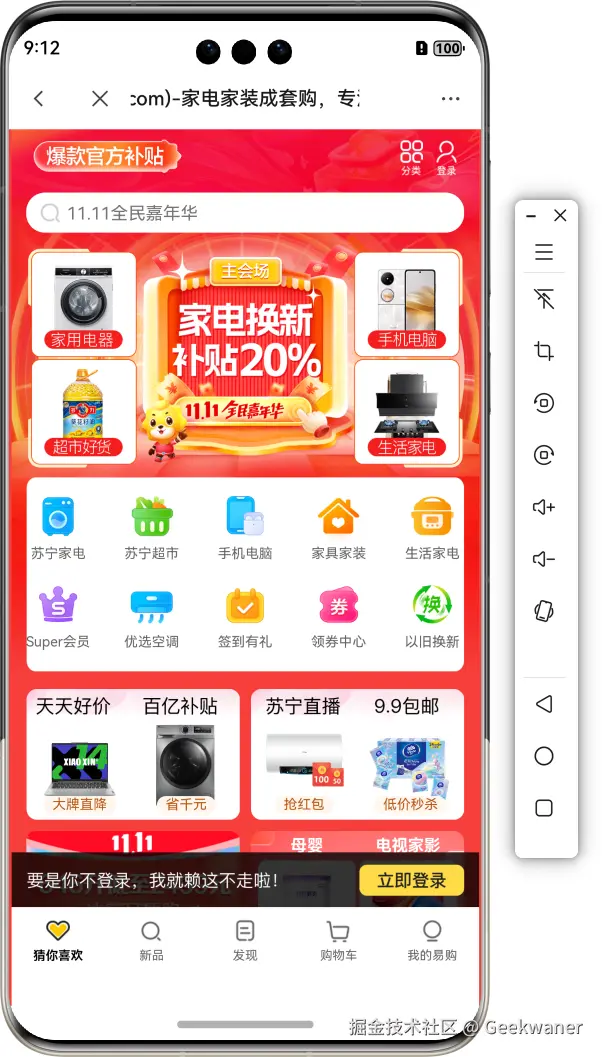
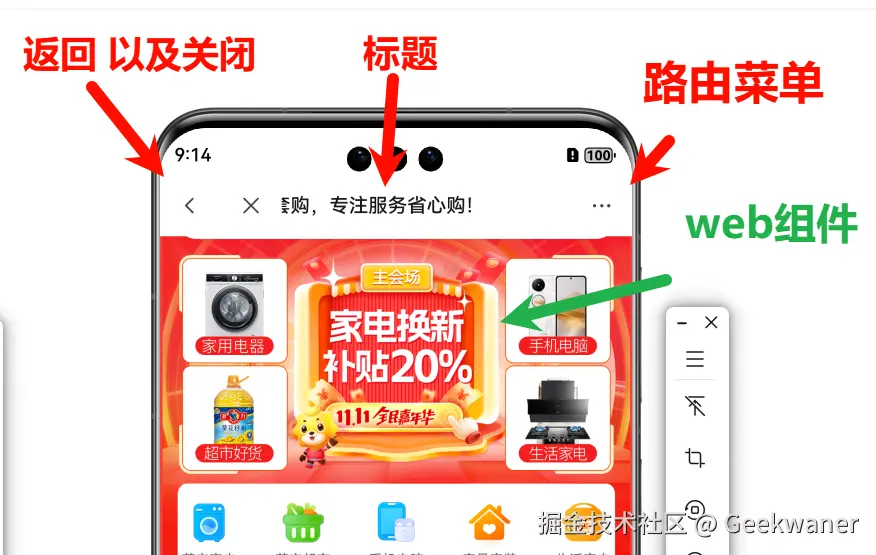
1. 组件设计展示
2. 组件功能包含
-
- 返回上一个网页,以及关闭网页
- 网页的标题动态展示(网页document标题)
- 右上角的路由菜单
3. 封装web组件实现
3.1. 完成组件静态布局
src/main/ets/utils/WebComponent.ets 新建组件- 完成顶部导航条 静态布局
@Component
export struct WebComponent {
src: ResourceStr = ''
@Prop title: string = '标题'
@StorageProp('safeTop') safeTop: number = 0
build() {
Column() {
Row() {
Row() {
Image($r("app.media.ic_public_left"))
.iconStyle()
.onClick(() => {
this.webBack()
})
Image($r('app.media.ic_public_close'))
.iconStyle()
.onClick(() => {
this.webClose()
})
}
.width(100)
Text(this.title)
.fontSize(16)
.fontWeight(500)
.fontColor($r('app.color.black'))
.layoutWeight(1)
.maxLines(1)
.textAlign(TextAlign.Center)
.textOverflow({ overflow: TextOverflow.MARQUEE })
Row() {
Blank()
Image($r('app.media.ic_public_more'))
.iconStyle()
.bindMenu(this.MenuBuilderParam)
}
.width(100)
}
.height(50 + this.safeTop)
.backgroundColor($r('app.color.white'))
.padding({ top: this.safeTop })
}
}
@Extend(Image)
function iconStyle() {
.width(24)
.aspectRatio(1)
.fillColor($r('app.color.text'))
.margin(13)
}
3.2. 添加web组件
- 使用堆叠组件将loading容器 和 web容器都放置在一起,
Stack({ alignContent: Alignment.Top }) {
if (this.loading) {
Progress({ type: ProgressType.Linear, value: this.progress, total: 100 })
.style({ strokeWidth: 2, enableSmoothEffect: true })
.color($r('app.color.red'))
.zIndex(1)
}
Web({ src: this.src, controller: this.controller })
}
.width('100%')
.layoutWeight(1)
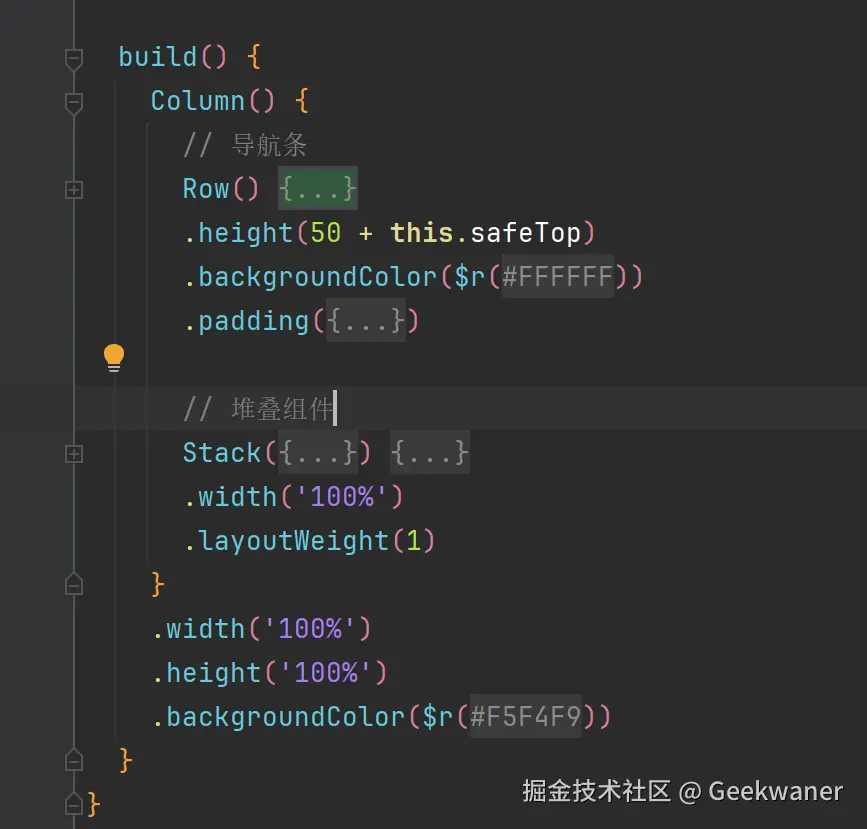
- 此时的UI结构
3.3. 添加进度条功能
- 使用web中的 onProgressChange 事件,此时回调会返回了一个进度数字,我们将他保存下来
@State loading: boolean = true
@State progress: number = 0
....
if (this.loading) {
Progress({ type: ProgressType.Linear, value: this.progress, total: 100 })
.style({ strokeWidth: 2, enableSmoothEffect: true })
.color($r('app.color.red'))
.zIndex(1)
}
Web({ src: this.src, controller: this.controller })
.onProgressChange((data) => {
if (data) {
this.progress = data.newProgress
if (data.newProgress === 100) {
animateTo({ duration: 300, delay: 300 }, () => {
this.loading = false
})
}
}
})
.....
- 此时因为点击别的网页跳转也需要触发进度条加载,所以需要在 onPageBegin 事件里也添加上
web()
....
.onPageBegin(() => {
this.progress = 0
this.loading = true
})
3.4. 记录这个网页点击的历史连接,方便后面返回以及退出
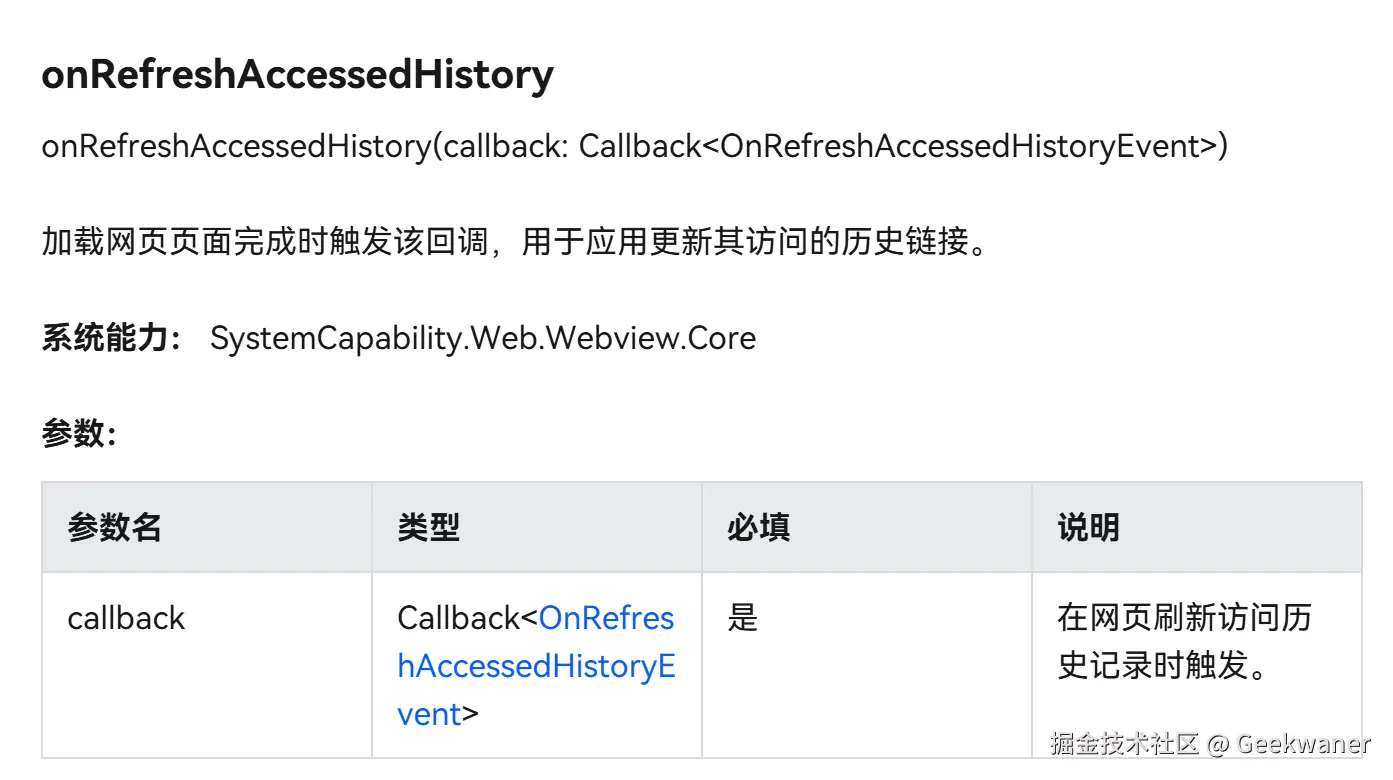
- 设置web中的 onRefreshAccessedHistory
historyCurrIndex: number = 0
historySize: number = 0
.onRefreshAccessedHistory(() => {
const history = this.controller.getBackForwardEntries()
this.historyCurrIndex = history.currentIndex
this.historySize = history.size
})
3.5. 网页的标题动态展示(网页document标题)
@Prop title: string = '标题'
.onTitleReceive((data) => {
this.title = data?.title || ''
})
3.6. 点击返回 && 点击退出
Row() {
Image($r("app.media.ic_public_left"))
.iconStyle()
.onClick(() => {
this.webBack()
})
Image($r('app.media.ic_public_close'))
.iconStyle()
.onClick(() => {
this.webClose()
})
}
webBack() {
if (this.historyCurrIndex > 0) {
this.controller.backward()
} else {
router.back()
}
}
webClose() {
router.back()
}
3.7. 父组件调用子组件
import { router } from '@kit.ArkUI'
import { WebComponent } from '../utils/WebComponent'
@Entry
@Component
struct WebPage {
src: ResourceStr = ''
aboutToAppear(): void {
this.src = 'https://m.suning.com/'
}
build() {
Column() {
WebComponent({MenuBuilderParam: this.MenuBuilder,src:'https://m.suning.com' })
}
}
}
3.8. 设置右上角菜单操作
- 我们可以构建一个builder去实现,不过由于使用组件是可能需要传入的操作不一致,所以我们又父组件传入到子组件中
@Builder
MenuBuilder() {}
@BuilderParam MenuBuilderParam: () => void = this.MenuBuilder;
Row() {
Blank()
Image($r('app.media.ic_public_more'))
.iconStyle()
.bindMenu(this.MenuBuilderParam)
}
@Builder
MenuBuilder(){
Menu() {
MenuItem({ content: '首页' })
.onClick(() => router.back({ url: 'pages/Index', params: { index: 0 } }))
MenuItem({ content: '分类' })
.onClick(() => router.back({ url: 'pages/Index', params: { index: 1 } }))
MenuItem({ content: '购物袋' })
.onClick(() => router.back({ url: 'pages/Index', params: { index: 2 } }))
MenuItem({ content: '我的' })
.onClick(() => router.back({ url: 'pages/Index', params: { index: 3 } }))
}
.width(100)
.fontColor($r('app.color.text'))
.font({ size: 14 })
.radius(4)
}
build() {
Column() {
WebComponent({MenuBuilderParam: this.MenuBuilder,src:'https://m.suning.com' })
}
}
4. 完整代码
import { router } from '@kit.ArkUI'
import { webview } from '@kit.ArkWeb'
@Component
export struct WebComponent {
src: ResourceStr = ''
@Prop title: string = '标题'
@StorageProp('safeTop') safeTop: number = 0
@State loading: boolean = true
@State progress: number = 0
controller = new webview.WebviewController()
historyCurrIndex: number = 0
historySize: number = 0
@Builder
MenuBuilder() {
}
@BuilderParam MenuBuilderParam: () => void = this.MenuBuilder;
webBack() {
if (this.historyCurrIndex > 0) {
this.controller.backward()
} else {
router.back()
}
}
webClose() {
router.back()
}
build() {
Column() {
Row() {
Row() {
Image($r("app.media.ic_public_left"))
.iconStyle()
.onClick(() => {
this.webBack()
})
Image($r('app.media.ic_public_close'))
.iconStyle()
.onClick(() => {
this.webClose()
})
}
.width(100)
Text(this.title)
.fontSize(16)
.fontWeight(500)
.fontColor($r('app.color.black'))
.layoutWeight(1)
.maxLines(1)
.textAlign(TextAlign.Center)
.textOverflow({ overflow: TextOverflow.MARQUEE })
Row() {
Blank()
Image($r('app.media.ic_public_more'))
.iconStyle()
.bindMenu(this.MenuBuilderParam)
}
.width(100)
}
.height(50 + this.safeTop)
.backgroundColor($r('app.color.white'))
.padding({ top: this.safeTop })
Stack({ alignContent: Alignment.Top }) {
if (this.loading) {
Progress({ type: ProgressType.Linear, value: this.progress, total: 100 })
.style({ strokeWidth: 2, enableSmoothEffect: true })
.color($r('app.color.red'))
.zIndex(1)
}
Web({ src: this.src, controller: this.controller })
.onProgressChange((data) => {
console.log('mk-logger', JSON.stringify(data))
if (data) {
this.progress = data.newProgress
if (data.newProgress === 100) {
animateTo({ duration: 300, delay: 300 }, () => {
this.loading = false
})
}
}
})
.onPageBegin(() => {
this.progress = 0
this.loading = true
console.log('mk-logger', 'onPageBegin')
})
.onRefreshAccessedHistory(() => {
const history = this.controller.getBackForwardEntries()
this.historyCurrIndex = history.currentIndex
this.historySize = history.size
})
.onTitleReceive((data) => {
console.log('mk-logger', 'onTitleReceive')
this.title = data?.title || ''
})
}
.width('100%')
.layoutWeight(1)
}
.width('100%')
.height('100%')
.backgroundColor($r('app.color.under'))
}
}
@Extend(Image)
function iconStyle() {
.width(24)
.aspectRatio(1)
.fillColor($r('app.color.text'))
.margin(13)
}
import { router } from '@kit.ArkUI'
import { WebComponent } from '../utils/WebComponent'
@Entry
@Component
struct WebPage {
src: ResourceStr = ''
aboutToAppear(): void {
this.src = 'https://m.suning.com/'
}
@Builder
MenuBuilder(){
Menu() {
MenuItem({ content: '首页' })
.onClick(() => router.back({ url: 'pages/Index', params: { index: 0 } }))
MenuItem({ content: '分类' })
.onClick(() => router.back({ url: 'pages/Index', params: { index: 1 } }))
MenuItem({ content: '购物袋' })
.onClick(() => router.back({ url: 'pages/Index', params: { index: 2 } }))
MenuItem({ content: '我的' })
.onClick(() => router.back({ url: 'pages/Index', params: { index: 3 } }))
}
.width(100)
.fontColor($r('app.color.text'))
.font({ size: 14 })
.radius(4)
}
build() {
Column() {
WebComponent({MenuBuilderParam: this.MenuBuilder,src:'https://m.suning.com' })
}
}
}