

一、Cesium-navication es6插件使用
1、安装Cesium-navication es6插件版本为3.0.8
2、在报错的文件内(包含node_modules里的Cesium-navication es6源码)import{......}from 'cesium' 更改为 import{......}from 'cesium/Cesium'
3、初始化(要注意的是eslint可能会报错new关键字,必须保留,忽略eslint语法)
**import CesiumNavigation from 'cesium-navigation-es6'**
...
 const options = {}
      // 用于在使用重置导航重置地图视图时设置默认视图控制。接受的值是Cesium.Cartographic 和 Cesium.Rectangle.
      options.defaultResetView = Cesium.Rectangle.fromDegrees(80, 22, 130, 50)
      // 用于启用或禁用罗盘。true是启用罗盘,false是禁用罗盘。默认值为true。如果将选项设置为false,则罗盘将不会添加到地图中。
      options.enableCompass = true
      // 用于启用或禁用缩放控件。true是启用,false是禁用。默认值为true。如果将选项设置为false,则缩放控件将不会添加到地图中。
      options.enableZoomControls = true
      // 用于启用或禁用距离图例。true是启用,false是禁用。默认值为true。如果将选项设置为false,距离图例将不会添加到地图中。
      options.enableDistanceLegend = false
      // 用于启用或禁用指南针外环。true是启用,false是禁用。默认值为true。如果将选项设置为false,则该环将可见但无效。
      options.enableCompassOuterRing = true
      /* eslint-disable no-new */
      new CesiumNavigation(this.viewer, options)

      css:(写在全局样式里)
      #navigationDiv {
          position: absolute;
          left: 100px;
          top:0
}
二、目录树加载和移除图层(很呆的办法,目前没有好办法的思路)
elementui 的树组件为页面主题,数据写死,主要依赖id来控制选择的图层,且每个节点需要一个属性为是否显示,绑定点击事件,会自动传参当前选择的节点id,判断节点id是某一个层、判断节点是否显示,如果该属性为false,则this.viewer.imageryLayers.addImageryProvider(该图层),并把注记层raiseToTop,把这个节点的是否显示属性改为true,如果再次点击此节点,判断节点已经显示了,则把之前添加的图层去掉this.viewer.imageryLayers.remove(this.geoway_shp_layer)
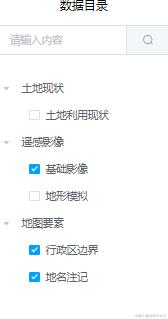
<el-tree ref="treeRef" :data="data" :props="defaultProps1" show-checkbox node-key="id" :default-checked-keys="checkedlayer" @check="handleCheckChange" default-expand-all></el-tree>
。。。
      geoway_shp: undefined,
      geoway_wmts: undefined,
      geoway_shp_layer: undefined,
      geoway_wmts_layer: undefined,
      xzq_title: undefined,
      xzq_title_layer: undefined,

      data: [
        {
          id: 1,
          label: '土地现状',
          children: [
            {
              id: 4,
              label: '土地利用现状',
              isshow: false
            }
          ]
        },
        {
          id: 2,
          label: '遥感影像',
          children: [
            {
              id: 5,
              label: '基础影像'
            },
            {
              id: 6,
              label: '地形模拟',
              isshow: false
            }
          ]
        },
        {
          id: 3,
          label: '地图要素',
          children: [
            {
              id: 7,
              label: '行政区边界'
            },
            {
              id: 8,
              label: '地名注记'
            }
          ]
        }
      ],
。。。
//
handleCheckChange(checkedNodes) {
      if (checkedNodes.id === 4 && checkedNodes.isshow === false) {
        this.geoway_shp_layer = this.viewer.imageryLayers.addImageryProvider(this.geoway_shp)
        this.viewer.imageryLayers.raiseToTop(this.xzq_title_layer) // 标注层置顶
        checkedNodes.isshow = true
      } else if (checkedNodes.id === 4 && checkedNodes.isshow === true) {
        this.viewer.imageryLayers.remove(this.geoway_shp_layer)
        checkedNodes.isshow = false
      } else if (checkedNodes.id === 6 && checkedNodes.isshow === false) {
        this.geoway_wmts_layer = this.viewer.imageryLayers.addImageryProvider(this.geoway_wmts)
        this.viewer.imageryLayers.raiseToTop(this.xzq_title_layer) // 标注层置顶
        checkedNodes.isshow = true
      } else if (checkedNodes.id === 6 && checkedNodes.isshow === true) {
        this.viewer.imageryLayers.remove(this.geoway_wmts_layer)
        checkedNodes.isshow = false
      }
      console.log(this.viewer.imageryLayers)
    }
图例展开
 <el-card :class='showlegend?"box":["showlegend","box"]'>
            <div slot="header" class="clearfix">
              <span>图例</span>
            </div>
            <el-tree :data="legendInfo" show-checkbox node-key="id" :props="defaultProps" :default-checked-keys="checklegend" :default-expand-all='true'>
              <span class="custom-tree-node" slot-scope="{ data }">
                <span>
                  <img :src="data.ico" alt="" class="treeImg">
                  <font style="vertical-align: -webkit-baseline-middle;">{{ data.name }}</font>
                </span>
              </span>
            </el-tree>
          </el-card>
          。。。。。。。
async gettuli() {
      const { data: res } = await this.$http({
        url: 'http://172.16.67.105:81/mapserver/styleInfo/DLTB20191201/DLTB/legend.json?isTree=true',
        method: 'get'
      })
      // this.legendInfo = res['15-20'].legends.forEach(obj => {
      //   // 修改对象的属性
      //   obj.children = []
      // })
      this.legendInfo = res['15-20'].legends.map(obj => {
        // 创建一个新的对象,修改属性后返回
        return { ...obj, children: obj.children.slice(0, obj.children.length / 2) }
      })
      this.legendInfo.forEach(obj => {
        obj.children.forEach(obj1 => {
          this.checklegend.push(obj1.id)
        })
      })
      console.log(res)
      console.log(this.legendInfo)
      this.showlegend = !this.showlegend
    }
属性查询
 <div class="tool-box">
            <li style="padding-left:10px">
              <i class="el-icon-location-information"></i>
              <el-cascader v-model="XZQvalue" :options="DataCity" :props="{ expandTrigger: 'hover',...params }" clearable></el-cascader>
            </li>
            <li>
              <el-button icon="el-icon-refresh" size="medium" @click="resetAdd()">复位</el-button>
            </li>
            <li>
              <el-button icon="el-icon-office-building" size="medium">地名查询</el-button>
            </li>
            <li>
              <el-button icon="el-icon-info" size="medium" @click="isearch()">i查询</el-button>
            </li>
            <li>
              <el-button icon="el-icon-rank" size="medium" @click="north()">正北</el-button>
            </li>
            <li>
              <el-button icon=" el-icon-document-copy" size="medium" @click="openduibi()">对比浏览</el-button>
            </li>
            <li>
              <el-button icon="el-icon-s-promotion" size="medium">书签</el-button>
            </li>
            <li>
              <el-button icon="el-icon-delete" size="medium">清除</el-button>
            </li>
            <li>
              <el-button icon="el-icon-camera" size="medium">举证查询</el-button>
            </li>
            <li>
              <el-button icon="el-icon-suitcase-1" size="medium">工具</el-button>
            </li>
          </div>


          <el-dialog title="i 查询结果" :visible.sync="iboxvisible" width="30%">
            <el-table :data="dataArray" style="width: 100%;height:400px;overflow-y:scroll">
              <el-table-column prop="key" label="字段名称">
              </el-table-column>
              <el-table-column prop="value" label="属性值"></el-table-column>
            </el-table>

          </el-dialog>

    isearch() {
      this.isisearch = true
    },

          // 单击事件
handler.setInputAction(click => {
        console.log('左键单击事件:', click.position)
        // 屏幕坐标转世界坐标——关键点
        const cartesian = this.viewer.camera.pickEllipsoid(click.position, this.viewer.scene.globe.ellipsoid)
        // 将笛卡尔坐标转换为地理坐标
        const cartographic = Cesium.Cartographic.fromCartesian(cartesian)
        // 将弧度转为度的十进制度表示,保留5位小数
        const lon = Cesium.Math.toDegrees(cartographic.longitude).toFixed(5)
        const lat = Cesium.Math.toDegrees(cartographic.latitude).toFixed(5)
        console.log(lon, lat)
        if (this.isisearch) {
          this.queryParams(lon, lat)
          this.isisearch = false
        }
      }, Cesium.ScreenSpaceEventType.LEFT_CLICK)

async queryParams(x, y) {
      const { data: res } = await this.$http.get(`http://172.16.67.105:81/mapserver/DLTB20191201/DLTB/pickup?level=16&lon=${x}&lat=${y}`)
      console.log(res.DLTB20191201)
      // 获取对象第一个属性的值
      const objAttribute = Object.keys(res.DLTB20191201)
      const firstAttribute = objAttribute[0]
      this.elementParams = res.DLTB20191201[firstAttribute]
      // 转换对象为数组
      console.log(this.elementParams)
      this.dataArray = Object.keys(this.elementParams).map(item => ({
        key: this.trans[item],
        value: this.elementParams[item]
      }))
      console.log(this.dataArray)
      // this.elementParams = res.DLTB20191201[Object.keys(res.DLTB20191201)[0]]
      this.iboxvisible = true
    },
当前进度
问题记录:
1、三维球有细微的倾斜角度
解决方案:检查orientation对象里的三个参数
this.viewer.camera.flyTo({
        // destination: Cesium.Cartesian3.fromDegrees(93.608, 42.45, 150000),
        destination: Cesium.Cartesian3.fromDegrees(106.17, 37.4, 1082800),
        orientation: {
          heading: Cesium.Math.toRadians(0),
          pitch: Cesium.Math.toRadians(-90),
          roll: Cesium.Math.toRadians(0)
        },
        complete: function callback() {
          // 定位完成之后的回调函数
        }
      })

