前言
需求给到几个摄像头的trsp流地址,希望前端实现在多用户在页面中观看多个摄像头画面,大体上实现的思路是:
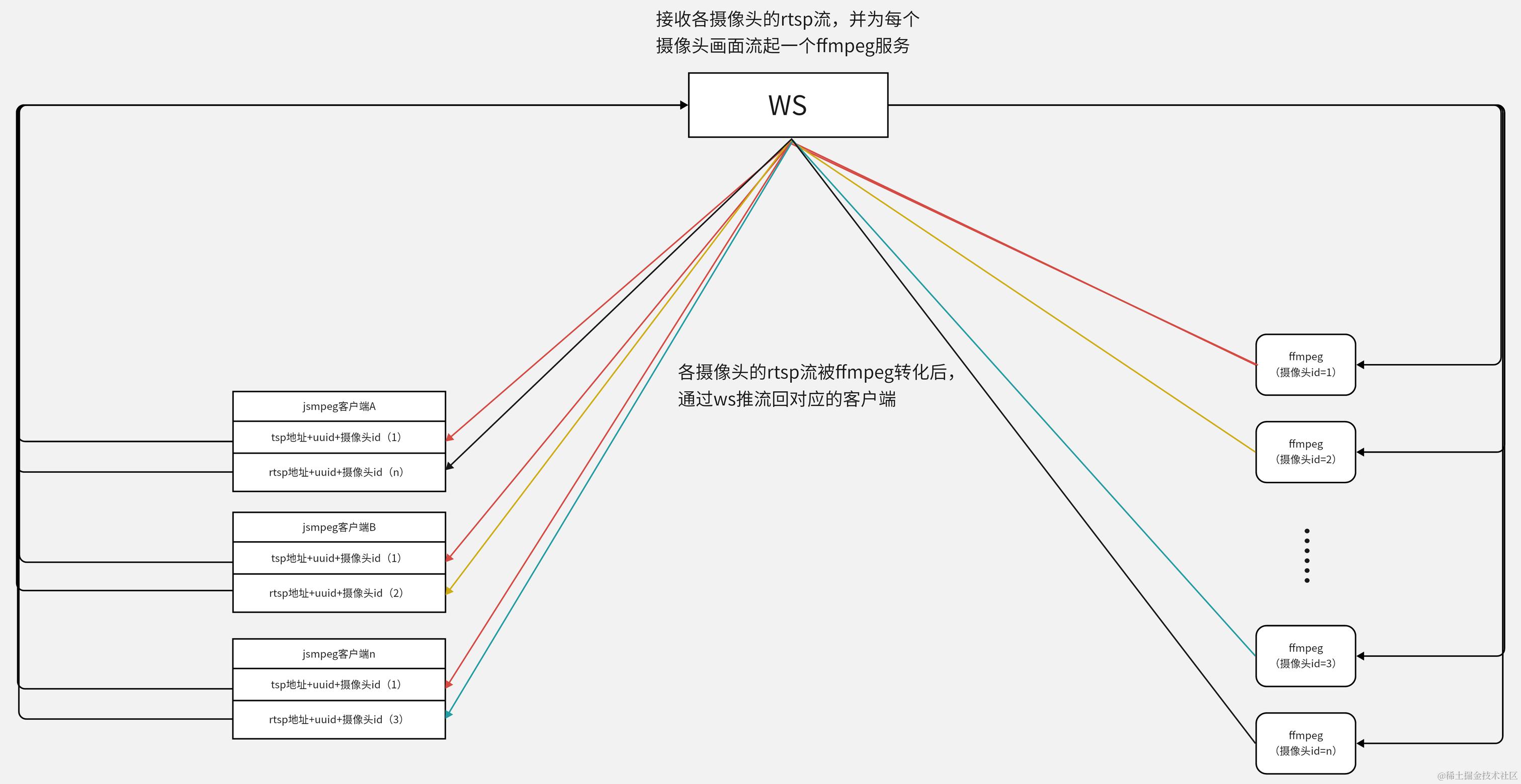
在拿到rtsp地址时可以使用VLC播放器测试画面是否正常。
jsmpeg.js采用软解码方式,仅支持mpeg1格式视频、mp2格式音频 ,将视频流解码成图片并渲染到canvas上,别的格式就不要用jsmpeg了。
前端
- npm引入JSMpeg
npm install jsmpeg-player -S - 在main中把它挂到原型上
import JSMpeg from 'jsmpeg-player'; Vue.prototype.$JSMpeg = JSMpeg; - 页面
// 遍历创建摄像头画面
<div v-for="i in Monitoreo" :key="i.url">
    <canvas :id="`jsmpeg-canvas${i.cameraid}`" style="width: 500px;height: 300px;"></canvas >
</div>

// Monitoreo数组里装的是摄像头端口和摄像头id
Monitoreo:[{  url: 171,cameraid:171 },{ url: 189,cameraid:189 },{ url: 180,cameraid:180 },{ url: 181, cameraid:181 }]

mounted() {
    this.Monitoreo.forEach(item => {
        let url = encodeURI(`rtspUrl=rtsp://账号:密码@172.31.111.${item.url}:554/h264/ch1/main/av_stream`);
        let uuid = encodeURI(`uuid=${uuidv4()}`);  //uuid作为本次链接的id
        let cameraid=`cameraId=${item.cameraid}`;  //cameraid为每个摄像头的编号
        new this.$JSMpeg.Player(`ws://${window.location.hostname}:7730/lisscamera/lab?${url}&${uuid}&${cameraid}`, {
            canvas: document.getElementById(`jsmpeg-canvas${item.cameraid}`),
            autoplay:true,//是否自动播放
            loop:false,
        })
    });
},
服务端
前端要起ffmpeg服务需要用到一个库fluent-ffmpeg,它能直接在服务端起ffmpeg服务,不需要让后端再去起了。
官方文档:www.npmjs.com/package/flu…
中文翻译文档:www.manongjc.com/detail/54-i…
- 做一些基础的配置
// 引入fluent-ffmpeg
const ffmpeg = require('fluent-ffmpeg')
const http = require('http')
const WebSocketServer = require('ws').Server
// 用于提取请求链接的参数
const parseUrl = require('url').parse
const {v4: uuidv4} = require('uuid')

const cfg = {
  wsPost: 7730
}
- 创建一个http服务用于拉取ffmpeg流
const httpServer = http.createServer((request,response)=>{
  // 获取请求中携带的摄像头id
  const cameraId = request.url.substring(1)
  console.log(`摄像头ID=${cameraId}`)

  request.on('data', data => {
    /*
      data为摄像头的流
    */
    if(!wsServer || !wsServer._webClient[cameraId] || !wsServer._webClient[cameraId].length){
      console.log(`摄像头ID${cameraId} 无web端请求`)
      return
    }

    wsServer._webClient[cameraId].forEach(wsClient => {
      // 向该摄像头下的所有web端推流
      wsClient.send(data)
    })
  })

  request.on('end', () => {
    console.log(`摄像头ID${cameraId}流已结束,关闭它所有web端的连接`)
    wsServer._closeAll(cameraId)
  })
})

// 启动该http服务并监听7730端口
httpServer.listen(cfg.wsPost, ()=>{
  console.log(`http收流服务已启动,等待websocket连接,正在侦听${cfg.wsPost}`)
})
- 创建一个websocket服务,用于推流到web端
const wsServer = new WebSocketServer({
  server: httpServer,
  path: '/lisscamera/lab'
})

wsServer._webClient = {}; // 各摄像头画面流与web端的ws映射集
wsServer._rtspClient = {}; // 摄像头画面流对象
- 当ws有连接时
wsServer.on('connection', (wsClient, request)=>{
  console.log("——————————————————————————————有ws请求连接——————————————————————————")
  const {rtspUrl, cameraId} = parseUrl(request.url, true).query
  wsClient._cameraId = cameraId
  wsClient._rtspUrl = rtspUrl
  wsClient._uuid = `${cameraId}-${uuidv4()}-${Date.now()}`
  // 当没人请求过该摄像头画面时
  if (!wsServer._webClient[cameraId]) {
    console.log(`摄像头ID${cameraId}没有创建过流,创建流`)
    wsServer._webClient[cameraId] = []
    // _rtspClient中存储的是摄像头id对应该画面流实例,如果最多有100个摄像头,对应的这里最多也会有100个对象属性
    wsServer._rtspClient[cameraId] = wsServer._createFfmpeg(rtspUrl, cameraId)
    wsServer._rtspClient[cameraId].run()
  }
  console.log(`有客户端和摄像头ID${cameraId}建立了ws连接`)
  wsServer._webClient[cameraId].push(wsClient)
  wsClient.on('close', () => {
    console.log(`有客户端主动关闭了和摄像头ID${cameraId}的ws连接`)
    wsServer._closeAll(cameraId, wsClient._uuid)
  })
})
- 启动ffmpeg服务
//创建ffmpeg服务进行收流,把rtsp流转成mpeg1格式视频、mp2格式音频的流
wsServer._createFfmpeg = (rtspUrl, cameraId) => {
  return ffmpeg(rtspUrl)
    .setFfmpegPath('./ffmpeg/ffmpeg.exe')
    .addOption([
      //'-rtsp_transport tcp',
      '-q 0',
      '-f mpegts',
      '-codec:v mpeg1video',
      '-s 500x300',
      '-b:v 128k',
      '-an'
    ])
    .output(`http://127.0.0.1:${cfg.wsPost}/${cameraId}`)
    .on('start', () => {
      console.log(`已启动${rtspUrl}拉流转码,cameraId=${cameraId}`)
    })
    .on('error', (err) => {
      console.log(`${rtspUrl}拉流转码错误,cameraId=${cameraId}`, err.message)
      wsServer._closeAll(cameraId)
    })
    .on('end',  () => {
      console.log(`${rtspUrl}拉流转码结束,cameraId=${cameraId}`)
      wsServer._closeAll(cameraId)
    })
}
- ws的关闭方法
wsServer._closeAll = function (cameraId, uuid) {
  console.log("cameraId,uuid",cameraId, uuid)

  if(uuid) {
    console.log(`有客户端单独关闭了和${cameraId}的ws`)
    let wsClient = null
    let wsCIndex = wsServer._webClient[cameraId].findIndex(item => {
      if (item._uuid === uuid) {
        wsClient = item
        return true
      }
      return false
    })

    if(wsCIndex > -1) {
      wsClient.close(4000, '连接已关闭')
      wsServer._webClient[cameraId].splice(wsCIndex, 1)
    }
  }

  // 无uuid传进来代表整个客户端直接关闭了
  if(!uuid) {
    if(!wsServer._webClient[cameraId]) return
    console.log(`关闭所有cameraId=${cameraId}`)
    wsServer._webClient[cameraId].forEach(wsClient => {
      wsClient.close(4000, '连接已关闭')
    })
    wsServer._webClient[cameraId]=[]
  }

  if(!wsServer._webClient[cameraId].length) {
    // 如果某一摄像头画面无任何终端请求,则结束该摄像头的rtsp流
    if(wsServer._rtspClient[cameraId]){
      wsServer._rtspClient[cameraId].kill('SIGKILL')
      delete wsServer._rtspClient[cameraId]
    }
    delete wsServer._webClient[cameraId]
    console.log(`结束了摄像头${cameraId}的视频流`)
  }
}