前言
大家好,我是抹茶。
个人技术博客可能是程序员人手必备的门面之一。去年为了学习vue3.0,就顺手用vue项目搭建了个简单的博客。今年想着优化一下,所以就调研了一些blog插件,想着让写博客更加简单一些,但是却遇到了一些难点,让我决定github的博客还是用原始的Vue项目来实现。
利用github page搭建博客
1.创建一个公开的仓库,名字为(username.github.io)
前往 GitHub 并创建一个名为 username.github.io 的新公共仓库,其中 username 是你在 GitHub 上的用户名(或组织名称)。
如果版本库的第一部分与你的用户名不完全匹配,就无法运行,所以一定要正确填写。
2.下载仓库到本地
git clone https://github.com/*username*/username.github.io
3.往仓库里放内容
cd username.github.io

~$echo "Hello World" > index.html
4.提交到远程仓库
git add --all

~$git commit -m "Initial commit"

~$git push -u origin main
5.通过浏览器访问
打开浏览器访问https://username.github.io,即可看到博客
博客的优化探索
尝试用vue-press和vite-press这样的blog框架
结果没有达到预期,所以放弃
1.vue-press的没有很好的支持vue组件展示
很多的技术博客都是用vue-press和vite-press这样的插件来实现的,所以我也做了相应的尝试。
根据vue-press的官方文档,很快的就把项目搭起来了,效果如下
对应的markdown源文件如下
# 一级标题
风急天高猿啸哀
<OtherComponent text="hello world" />
# 前言
大家好,我是抹茶。
个人技术博客可能是程序员人手必备的门面之一。去年为了学习vue3.0,就顺手用vue项目搭建了个简单的博客。今年想着优化一下,所以就调研了一些blog插件,想着让写博客更加简单一些,但是却遇到了一些难点,让我决定github的博客还是用原始的Vue项目来实现。
# 为何不用vue-press和vite-press这样的blog框架
很多的技术博客都是用vue-press和vite-press这样的插件来实现的,所以我也做了相应的尝试。
根据[vue-press](https://vuepress.vuejs.org/zh/guide/getting-started.html)的官方文档,很快的就把项目搭起来了,效果如下
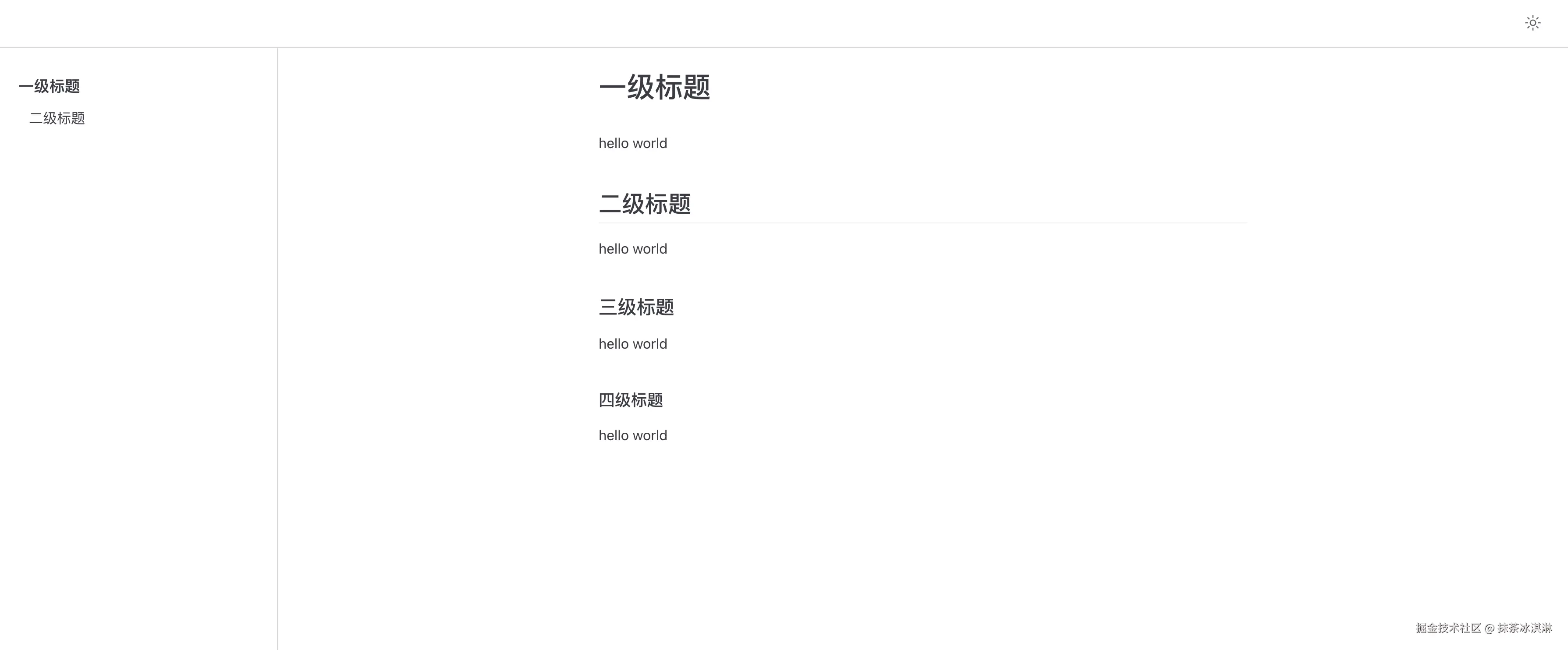
对应的markdown源文件如下
# 可交互性,更好的demo互动效果
# 怎么用githubPage搭建个人博客
# 部署,我采用了自己的ci
如果仔细留意,可以发现<OtherComponent text="hello world" />这一行并没有正确被渲染出来。
虽然官网是这样写的,但是vue组件就是没有被渲染出来。
继续查资料
还是不行。
再来看看vite-press
2.vite-press支持简单的Vue组件展示,但是嵌套多层的就不行了
vite-press的官网写得很清楚怎么引入vue组件并使用。
实际上也是可行的,但是如果父组件包含子组件这样的情况,就很难办。
原生Vue项目具有可交互性,更好的demo互动效果
基于vue-press或者vite-press 对vue组件的支持情况,如果用这两个框架,会难免丧失vue组件本身的灵活性。
举个例子,我想可交互的呈现,table布局的等高拖拽效果(这个功能还会用到第三方拖拽插件),vue-press或者vite-press就很难做到可交互。
所以,还是打算用原始vue项目来实现博客,同时,作为一个vue项目,他还可以随时引用不同的插件,并以可交互的形式呈现效果。
原生Vue项目的优化
1.markdown-it,让vue项目也可以用md文件写博客
虽然vue项目在可交互性上很方便,但是直接写h1、h2、h3...标签来展示文章内容效率太低了,博客本身还是用markdown最方便,所以往写markdown,但是也是一个vue组件的方向优化。在测试对比后,markdown-it是最合适的。
在main.ts中引入,并注册到全局
//main.ts
import markdownit from 'markdown-it';


// 从这里开始创建Vue的应用实例
const app = createApp(App);

app.config.globalProperties.$markdown = new markdownit({
  html: true,
  linkify: true,
  typographer: true,
  highlight: function (str:string, lang:string) {
    if (lang && hljs.getLanguage(lang)) {
      try {
        return hljs.highlight(lang, str).value;
      } catch (__) {}
    }
    return ''; // 使用额外的默认转义
  },
});
封装了一个MarkdwonWrapper的组件
<script setup>
import {
  onMounted,
  ref,
  getCurrentInstance,
} from 'vue';

defineProps({
  title: {
    type: String,
    default: '',
  },
  description: {
    type: String,
    default: '',
  },
  content: {
    type: String,
    default: '',
  },
})

const markdownHTML = ref("");
onMounted(() => {
  const instance = getCurrentInstance();
  if (instance.proxy.$markdown) {
    markdownHTML.value = instance.proxy.$markdown.render(instance.proxy.content);
  } else {
    console.error('Markdown renderer is not available on the component instance');
  }
  console.log('$markdown',this)

})
</script>
<template>
  <section>
    <page-header :title="title" :description="description"> </page-header>
    <div v-html="markdownHTML"></div>
  </section>
</template>
使用的时候,如
<script setup>
import {
  ref,
} from 'vue';
import md from './httpsblog.md?raw';
const markdownHTML = ref(md);

</script>
<template>
  <section>
    <markdown-Wrapper title="为什么我们需要Https" description="" :content="markdownHTML"/>
  </section>
</template>
效果如
2.利用github 的ci进行自动化部署
githubPage本身是有自己的部署Action的,如图所示,他将读取master分支的docs文件夹下的内容进行部署
这个方案的卡点在于,docs文件夹里的内容就需要手动build了。那有没有可以自动build的方案,答案是可以的。 可以使用自定义的workflow
在几经测试后,可行的版本如下
name: Custom Deploy to GitHub Pages

# 触发条件:每次 push 到 master 分支时触发
on:
  push:
    branches:
      - master

permissions:
  pages: write  # 赋予写入 GitHub Pages 的权限
  contents: write
  id-token: write

jobs:
  build:
    runs-on: ubuntu-latest

    steps:
    - name: Checkout code
      uses: actions/checkout@v3

    - name: Set up Node.js
      uses: actions/setup-node@v3
      with:
        node-version: '18'

    - name: Install and Build
      run: |
          yarn
          yarn build

    - name: Upload build artifacts
      uses: actions/upload-pages-artifact@v3
      with:
        path: ./docs
        name: github-pages
        retention-days: 1

    - name: Deploy to GitHub Pages
      uses: actions/deploy-pages@v4
      with:
        token: ${{ secrets.GITHUB_TOKEN }}
        artifact_name: github-pages
现在就实现了用markdown的语法写博客,同时提交后自动部署。
总结
本文介绍了为何不同vue-press或者vite-press开发技术博客,同时步步推进,介绍如何在vue项目中使用markdown写文章,且实现了提交代码后就自动化部署。
还可以优化的地方,写个脚本,每次创建新的博客,就自动配置好菜单和路由,创建好相关的文件模版。(待实现后补充到本片)