

sudo chmod +x ~/Library/LaunchAgents/org.php.php-fpm.plist sudo launchctl load -w ~/Library/LaunchAgents/org.php.php-fpm.plist
执行完以上命令,可以用这个调试命令,来看看是否加载了启动项
launchctl list | grep php
输出:
586 0 com.apple.xpc.launchd.oneshot.0x10000003.phpstorm
中间的数字是状态码,如果是0说明已经成功了,这时服务已经启动了


###### 三. 安装Mysql
brew install mysql
安装路径为 /usr/local/Cellar
cd /usr/local/Cellar/mysql 8.0.19_1
开启服务
cd 8.0.19_1 /bin/mysqld
进入MySQL, 默认密码为空, 直接进入
/bin/mysql -u root -p
Welcome to the MySQL monitor. Commands end with ; or \g. Your MySQL connection id is 38 Server version: 8.0.19 Homebrew
Copyright (c) 2000, 2020, Oracle and/or its affiliates. All rights reserved.
Oracle is a registered trademark of Oracle Corporation and/or its affiliates. Other names may be trademarks of their respective owners.
Type 'help;' or '\h' for help. Type '\c' to clear the current input statement.
mysql>
用Navicat链接MySQL时, 出现 Authentication plugin ‘caching\_sha2\_password’ cannot be loaded
 出现这个原因是mysql8 之前的版本中加密规则是mysql\_native\_password, 而在mysql8之后,加密规则是caching\_sha2\_password
 解决问题方法是把mysql用户登录密码加密规则还原成mysql\_native\_password.


1. 登陆MySQL
2. 修改账户密码加密规则并更新用户密码
ALTER USER 'root'@'localhost' IDENTIFIED BY 'your password' PASSWORD EXPIRE NEVER; ALTER USER 'root'@'localhost' IDENTIFIED WITH mysql_native_password BY 'your password';
3. 刷新权限并重置密码
FLUSH PRIVILEGES;
Navicat远程登录报错Host is not allowed to connect to this MySQL server


1. 登录MySQL mysql -u root -p密码
2. 执行use mysql
3. 执行update user set host = ‘%’ where user = ‘root’;这一句执行完可能会报错,不用管它
4. 执行FLUSH PRIVILEGES


设置mysql开机自启动


1. 编辑一个mysql启动文件
sudo vim /Library/LaunchDaemons/com.mysql.mysql.plist
2. 输入启动文件内容
上面xml中的 /usr/local/Cellar/mysql/8.0.19/bin/mysqld\_safe 为我的mysql所在目录


3. 加载这个启动文件
sudo launchctl load -w /Library/LaunchDaemons/com.mysql.mysql.plist
4. 查看启动情况
ps -aef | grep mysql
###### 四. 安装Nginx
brew install nginx
通过brew安装后位置: /usr/local/Cellar
进入
cd /usr/local/Cellar/nginx/1.17.10
启动 默认端口8080
nginx
重启
nginx -s reload
停止
nginx -s stop
检验
在浏览器中输入 127.0.0.1:8080
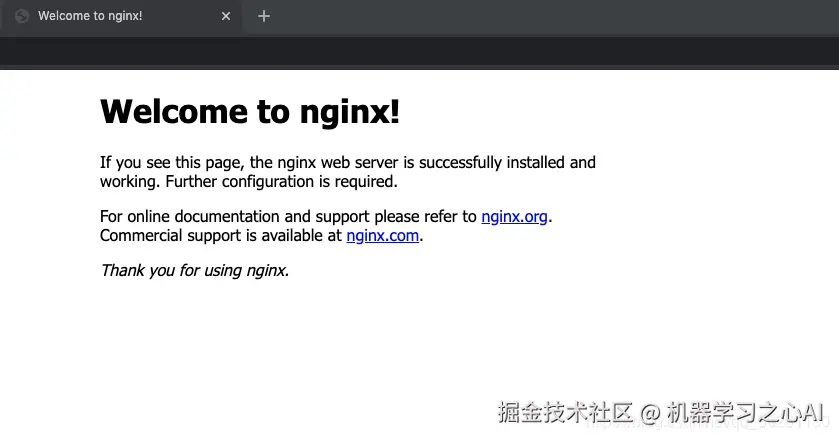
或者终端里输入
curl 127.0.0.1:8080
Welcome to nginx! body { width: 35em; margin: 0 auto; font-family: Tahoma, Verdana, Arial, sans-serif; }Welcome to nginx!
If you see this page, the nginx web server is successfully installed and working. Further configuration is required.
For online documentation and support please refer to
nginx.org.
Commercial support is available at
nginx.com.
Thank you for using nginx.
设置Nginx开机自启动
1
mkdir -p ~/Library/LaunchAgents
2
cp /usr/local/Cellar/nginx/1.17.10/homebrew.mxcl.nginx.plist ~/Library/LaunchAgents/
3
launchctl load -w ~/Library/LaunchAgents/homebrew.mxcl.nginx.plist
4
sudo chown root:wheel /usr/local/Cellar/nginx/1.17.10/bin/nginx
5
sudo chmod u+s /usr/local/Cellar/nginx/1.17.10/bin/nginx
###### 五. 配置文件


通过brew安装, 配置文件位置为: /usr/local/etc
cd /usr/local/etc
查看
ls
ODBCDataSources httpd nginx openssl redis-sentinel.conf bash_completion.d locales.conf odbc.ini openssl@1.1 redis-sentinel.conf.default freetds.conf my.cnf odbcinst.ini php redis.conf gitconfig my.cnf.default openldap pool.conf redis.conf.default
数据库配置文件
my.cnf
nginx配置文件
ngin/
php配置文件
php/
1. 查看php-fpm端口
进入
cd /usr/local/etc/php/7.4/php-fpm.d
查看
vim vim www.conf
绑定端口
... listen = 127.0.0.1:9000 ...
2. Nginx配置文件
编辑
vim /usr/local/etc/nginx/nginx.conf
日志打开
.... http { ... log_format main 'remote_user [request" ' 'body_bytes_sent "http\_referer" ' '"http_user_agent" "$http_x_forwarded_for"'; ... access_log logs/access.log main; ... }
在文件http包体末尾添加
include wang/*;
新建wang文件夹, 用来管理项目配置
新建
mkdir wang
进入
cd wang
新建当前项目配置文件
vim wang.com.conf
编辑
server { listen 8081; server_name wang.com;
    #charset koi8-r;

    access_log  logs/wang.com.access.log  main;
	error_log logs/wang.com.error.log;
    location / {
        root   /Users/laowang/PhpstormProjects/tp6/public;
        index  index.html index.htm index.php;
    }

    #error\_page 404 /404.html;

    # redirect server error pages to the static page /50x.html
    #
    error_page   500 502 503 504  /50x.html;
    location = /50x.html {
        root   html;
    }

    # proxy the PHP scripts to Apache listening on 127.0.0.1:80
    #
    #location ~ \.php$ {
    # proxy\_pass http://127.0.0.1;
    #}

    # pass the PHP scripts to FastCGI server listening on 127.0.0.1:9000
    #
    location ~ \.php$ {
        root           /Users/laowang/PhpstormProjects/tp6/public;
        fastcgi_pass   127.0.0.1:9000;
        fastcgi_index  index.php;
        fastcgi_param  SCRIPT_FILENAME  $document\_root$fastcgi\_script\_name;
        include        fastcgi_params;
    }

    # deny access to .htaccess files, if Apache's document root
    # concurs with nginx's one
    #
    #location ~ /\.ht {
    # deny all;
    #}
}
使用域名访问时, 要将该域名绑定到本机
sudo vim /etc/hosts ... 127.0.0.1 wang.com ...
修改配置后重新加载Nginx
sudo nginx -s reload
至此, Nginx可以通过该域名访问静态资源, 但是还不能访问php文件, 因为未开启php-fpm


开启php-fpm服务
进入
cd /usr/local/Cellar/php/7.4.6/sbin
开启
nohup ./php-fpm > a.log &
此时可以访问php文件


Nginx不支持PathInfo模式


不支持 http://wang.com:8081/index.php/demo/index
 支持 http://wang.com:8081/index.php?s=demo/index
修改配置文件, 使其支持pathinfo模式
vim /usr/local/etc/nginx/wang/wang.com.conf
... location / { root /Users/laowang/PhpstormProjects/tp6/public; index index.html index.htm index.php; if (!-e request\_filename) { rewrite ^/index.php(.\*) /index.php?s= /index.php?s=$1 last; break; } } ...
重启Nginx
nginx -s reload
**网上学习资料一大堆,但如果学到的知识不成体系,遇到问题时只是浅尝辄止,不再深入研究,那么很难做到真正的技术提升。**
**[需要这份系统化的资料的朋友,可以添加戳这里获取](https://gitee.com/vip204888)**
**一个人可以走的很快,但一群人才能走的更远!不论你是正从事IT行业的老鸟或是对IT行业感兴趣的新人,都欢迎加入我们的的圈子(技术交流、学习资源、职场吐槽、大厂内推、面试辅导),让我们一起学习成长!**

