initialState = None
List of all the tracks when there is any detected of motion in the frames
motionTrackList= [ None, None ]
A new list ‘time’ for storing the time when movement detected
motionTime = []
Initialising DataFrame variable ‘dataFrame’ using pandas libraries panda with Initial and Final column
dataFrame = panda.DataFrame(columns = ["Initial", "Final"])
#### 主要捕获过程


在本节中,我们将执行主要的运动检测步骤。让我们逐步理解它们:


1. 首先,我们将开始使用 cv2 模块捕获视频并将其存储在 video 变量中。
2. 然后我们将使用无限循环来捕获视频中的每一帧。
3. 我们将使用 read() 方法读取每一帧并将它们存储到各自的变量中。
4. 我们定义了一个可变运动并将其初始化为零。
5. 我们使用 cv2 函数 cvtColor 和 GaussianBlur 创建了另外两个变量 grayImage 和 grayFrame 来查找运动的变化。
6. 如果我们的 initialState 是 None 那么我们将当前的 grayFrame 分配给 initialState 否则并使用“continue”关键字停止下一个进程。
7. 在下一节中,我们计算了我们在当前迭代中创建的初始帧和灰度帧之间的差异。
8. 然后我们将使用 cv2 阈值和扩张函数突出显示初始帧和当前帧之间的变化。
9. 我们将从当前图像或帧中的移动对象中找到轮廓,并通过使用矩形函数在其周围创建绿色边界来指示移动对象。
10. 在此之后,我们将通过添加当前检测到的元素来附加我们的motionTrackList。
11. 我们使用imshow方法显示了所有的帧,如灰度和原始帧等。
12. 此外,我们使用 cv2 模块的 witkey() 方法创建了一个键来结束进程,我们可以使用“m”键来结束我们的进程。
starting the webCam to capture the video using cv2 module
video = cv2.VideoCapture(0)
using infinite loop to capture the frames from the video
while True:
Reading each image or frame from the video using read function
check, cur_frame = video.read()
Defining 'motion' variable equal to zero as initial frame
var_motion = 0
From colour images creating a gray frame
gray_image = cv2.cvtColor(cur_frame, cv2.COLOR_BGR2GRAY)
To find the changes creating a GaussianBlur from the gray scale image
gray_frame = cv2.GaussianBlur(gray_image, (21, 21), 0)
For the first iteration checking the condition
we will assign grayFrame to initalState if is none
if initialState is None:
   initialState = gray_frame

   continue
Calculation of difference between static or initial and gray frame we created
differ_frame = cv2.absdiff(initialState, gray_frame)
the change between static or initial background and current gray frame are highlighted
thresh_frame = cv2.threshold(differ_frame, 30, 255, cv2.THRESH_BINARY)[1]
thresh_frame = cv2.dilate(thresh_frame, None, iterations = 2)
For the moving object in the frame finding the coutours
cont,_ = cv2.findContours(thresh_frame.copy(),
cv2.RETR_EXTERNAL, cv2.CHAIN_APPROX_SIMPLE)
for cur in cont:
   if cv2.contourArea(cur) < 10000:

       continue

   var_motion = 1

   (cur_x, cur_y,cur_w, cur_h) = cv2.boundingRect(cur)


   # To create a rectangle of green color around the moving object

   cv2.rectangle(cur_frame, (cur_x, cur_y), (cur_x + cur_w, cur_y + cur_h), (0, 255, 0), 3)
from the frame adding the motion status
motionTrackList.append(var_motion)
motionTrackList = motionTrackList[-2:]
Adding the Start time of the motion
if motionTrackList[-1] == 1 and motionTrackList[-2] == 0:
motionTime.append(datetime.now())
Adding the End time of the motion
if motionTrackList[-1] == 0 and motionTrackList[-2] == 1:
motionTime.append(datetime.now())
In the gray scale displaying the captured image
cv2.imshow("The image captured in the Gray Frame is shown below: ", gray_frame)
To display the difference between inital static frame and the current frame
cv2.imshow("Difference between the inital static frame and the current frame: ", differ_frame)
To display on the frame screen the black and white images from the video
cv2.imshow("Threshold Frame created from the PC or Laptop Webcam is: ", thresh_frame)
Through the colour frame displaying the contour of the object
cv2.imshow("From the PC or Laptop webcam, this is one example of the Colour Frame:", cur_frame)
Creating a key to wait
wait_key = cv2.waitKey(1)
With the help of the 'm' key ending the whole process of our system
if wait_key == ord('m'):
   # adding the motion variable value to motiontime list when something is moving on the screen

   if var_motion == 1:

       motionTime.append(datetime.now())

   break
#### 完成代码


关闭循环后,我们会将 dataFrame 和 motionTime 列表中的数据添加到 CSV 文件中,最后关闭视频。
At last we are adding the time of motion or var_motion inside the data frame
for a in range(0, len(motionTime), 2):
dataFrame = dataFrame.append({"Initial" : time[a], "Final" : motionTime[a + 1]}, ignore_index = True)
To record all the movements, creating a CSV file
dataFrame.to_csv("EachMovement.csv")
Releasing the video
video.release()
Now, Closing or destroying all the open windows with the help of openCV
cv2.destroyAllWindows()
### **流程总结**


我们已经创建了代码;现在让我们再次简要讨论该过程。


首先,我们使用设备的网络摄像头拍摄视频,然后将输入视频的初始帧作为参考,并不时检查下一帧。如果找到与第一个不同的帧,则存在运动。这将在绿色矩形中标记。


### **组合代码**


我们已经在不同的部分看到了代码。现在,让我们结合起来:
Importing the Pandas libraries
import pandas as panda
Importing the OpenCV libraries
import cv2
Importing the time module
import time
Importing the datetime function of the datetime module
from datetime import datetime
Assigning our initial state in the form of variable initialState as None for initial frames
initialState = None
List of all the tracks when there is any detected of motion in the frames
motionTrackList= [ None, None ]
A new list 'time' for storing the time when movement detected
motionTime = []
Initialising DataFrame variable 'dataFrame' using pandas libraries panda with Initial and Final column
dataFrame = panda.DataFrame(columns = ["Initial", "Final"])
starting the webCam to capture the video using cv2 module
video = cv2.VideoCapture(0)
using infinite loop to capture the frames from the video
while True:
Reading each image or frame from the video using read function
check, cur_frame = video.read()
Defining 'motion' variable equal to zero as initial frame
var_motion = 0
From colour images creating a gray frame
gray_image = cv2.cvtColor(cur_frame, cv2.COLOR_BGR2GRAY)
To find the changes creating a GaussianBlur from the gray scale image
gray_frame = cv2.GaussianBlur(gray_image, (21, 21), 0)
For the first iteration checking the condition
we will assign grayFrame to initalState if is none
if initialState is None:
   initialState = gray_frame

   continue
Calculation of difference between static or initial and gray frame we created
differ_frame = cv2.absdiff(initialState, gray_frame)
the change between static or initial background and current gray frame are highlighted
thresh_frame = cv2.threshold(differ_frame, 30, 255, cv2.THRESH_BINARY)[1]
thresh_frame = cv2.dilate(thresh_frame, None, iterations = 2)
For the moving object in the frame finding the coutours
cont,_ = cv2.findContours(thresh_frame.copy(),
cv2.RETR_EXTERNAL, cv2.CHAIN_APPROX_SIMPLE)
for cur in cont:
   if cv2.contourArea(cur) < 10000:

       continue

   var_motion = 1

   (cur_x, cur_y,cur_w, cur_h) = cv2.boundingRect(cur)


   # To create a rectangle of green color around the moving object

   cv2.rectangle(cur_frame, (cur_x, cur_y), (cur_x + cur_w, cur_y + cur_h), (0, 255, 0), 3)
from the frame adding the motion status
motionTrackList.append(var_motion)
motionTrackList = motionTrackList[-2:]
Adding the Start time of the motion
if motionTrackList[-1] == 1 and motionTrackList[-2] == 0:
motionTime.append(datetime.now())
Adding the End time of the motion
if motionTrackList[-1] == 0 and motionTrackList[-2] == 1:
motionTime.append(datetime.now())
In the gray scale displaying the captured image
cv2.imshow("The image captured in the Gray Frame is shown below: ", gray_frame)
To display the difference between inital static frame and the current frame
cv2.imshow("Difference between the inital static frame and the current frame: ", differ_frame)
To display on the frame screen the black and white images from the video
cv2.imshow("Threshold Frame created from the PC or Laptop Webcam is: ", thresh_frame)
Through the colour frame displaying the contour of the object
cv2.imshow("From the PC or Laptop webcam, this is one example of the Colour Frame:", cur_frame)
Creating a key to wait
wait_key = cv2.waitKey(1)
With the help of the 'm' key ending the whole process of our system
if wait_key == ord('m'):
   # adding the motion variable value to motiontime list when something is moving on the screen

   if var_motion == 1:

       motionTime.append(datetime.now())

   break
At last we are adding the time of motion or var_motion inside the data frame
for a in range(0, len(motionTime), 2):
dataFrame = dataFrame.append({"Initial" : time[a], "Final" : motionTime[a + 1]}, ignore_index = True)
To record all the movements, creating a CSV file
dataFrame.to_csv("EachMovement.csv")
Releasing the video
video.release()
Now, Closing or destroying all the open windows with the help of openCV
cv2.destroyAllWindows()
### **结果**
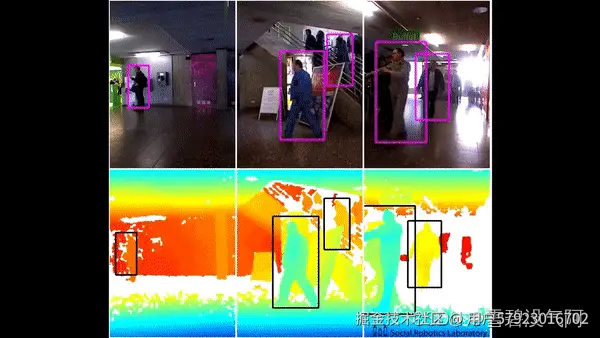
运行上述代码后得出的结果将与下面看到的类似。
在这里,我们可以看到视频中男人的动作已经被追踪到了。因此,可以相应地看到输出。
然而,在这段代码中,跟踪将在移动对象周围的矩形框的帮助下完成,类似于下面可以看到的。这里要注意的一件有趣的事情是,该视频是一个安全摄像机镜头,已经对其进行了检测。
1712805148911)
### **结论**
* Python 编程语言是一种开源库丰富的语言,可为用户提供许多应用程序。
* 当一个物体静止并且没有速度时,它被认为是静止的,而恰恰相反,当一个物体没有完全静止时,它被认为是运动的。
* OpenCV 是一个开源库,可以与许多编程语言一起使用,通过将它与 python 的 panda/NumPy 库集成,我们可以充分利用 OpenCV 的特性。
* 主要思想是每个视频只是许多称为帧的静态图像的组合,并且帧之间的差异用于检测.

**收集整理了一份《2024年最新Python全套学习资料》免费送给大家,初衷也很简单,就是希望能够帮助到想自学提升又不知道该从何学起的朋友。**



**既有适合小白学习的零基础资料,也有适合3年以上经验的小伙伴深入学习提升的进阶课程,涵盖了95%以上Python知识点,真正体系化!**
**了解详情:https://docs.qq.com/doc/DSnl3ZGlhT1RDaVhV**