一、基本使用
官网:Easing | GSAP | Docs & Learning
中文文档:GSAP 中文教程 中文文档 |官方文档 官方教程翻译 |好奇代码出品
1、安装
npm install gsap
2、引入
import gsap from 'gsap';
3、基本使用
注意:将GSAP代码放在mounted 钩子中
<div class="regin"></div>

const gsap_animation = () => {
    gsap.from('.region', { rotation: 360, x: 100, duration: 1 })
}

onMounted(() => {
    gsap_animation()
})
二、动画属性
| 属性名 | 属性 |
|---|
| x | x 轴位移 |
| rotation | 旋转 |
| transformOrigin | 旋转中心(50% 50%) |
| duration | 持续时间(秒) |
| delay | 延迟(秒) |
| stagger | 交错时间(秒)(0.1:表示每个元素启动时间为0.1秒) |
| yPercent | 根据自己大小,向y轴移动的百分比 |
| paused | true:时间线创建时处于暂停状态 |
| repeat | 重复次数(-1:无限循环) |
| scale | 缩放 |
| yoyo | true:动画将来回播放,即在达到终点后反向播放 |
| ease | 运动方式 |
easa 运动方式详见:Easing | GSAP | Docs & Learning
| ease | 属性 |
|---|
| elastic | 弹性 |
| strong.inOut | 强烈的先快后慢 |
| power1.out | 渐缓(默认值) |
三、时间线
1、时间线
let tl = gsap.timeline()
tl.to(".green", { x: 600, duration: 2 });
tl.to(".purple", { x: 600, duration: 1 });
tl.to(".orange", { x: 600, duration: 1 });
tl.to(".purple", { x: 600, duration: 1 }, "<");
- "1":过一秒开始
- "<":上一个动画开始处
- "+=1":上一个动画结束后1秒
- "-=1":上一个动画结束前1秒
- "+=50%":
- "-=25%":
2、控制
let tween = gsap.to("#logo", {duration: 1, x: 100});
tween.play();
tween.pause();
tween.resume();
tween.reverse();
tween.seek(0.5);
tween.progress(0.25);
tween.timeScale(1);
tween.kill();
tween.revert();
tween.timeScale(2).reverse();
3、回调
- **onComplete**: 动画结束时,执行的回调
- **onStart**: 动画开始
- **onUpdate**: 动画更新
- **onRepeat**: 重复调用时
- **onReverseComplete**: 动画反转时调用
gsap.to(".class", { duration: 1, x: 100,
onComplete: () => console.log("the tween is complete") });
gsap.timeline({onComplete: tlComplete});
function tlComplete() {
console.log("the tl is complete");
}
四、插件使用(学习中。。。。。。)
- ScrollTrigger:用于创建滚动相关的触发动画。
- Draggable:拖拽。
- MorphSVGPlugin:用于创建SVG形状之间的平滑过渡动画,沿着路径的动画。
使用 motionPath 可以规定任何对象沿路径运动。motionPath可以为:一个 SVG <path> 元素
| ScrollTrigger属性 | 属性值 |
|---|
| trigger | 元素进入视口时触发 |
| scrub | 动画速度(2表示正常速度的两倍) |
| markers | 开发期间,显示动画开始结束位置(true / false) |
| start | 动画开始位置(top 30%) |
| end | 动画结束位置(top 20%) |
| |
| Draggable属性 | 属性值 |
|---|
| bounds | 拖动元素(限制在body内) |
| inertia | 惯性效果(true) |
| type | 表示拖动操作会导致元素比变化(rotation:旋转/) |
| |
| motionPath属性 | 属性值 |
|---|
| path | 定义动画轨迹([{ x: 0, y: 0 }, { x: 80, y: 0 }, { x: 80, y: 100 }, { x: 100, y: 100 }]) |
| type | 指定路径的类型,(cubic:路径将被视为三次贝塞尔曲线) |
| align | 指定路径的对齐方式(#lineAB) |
| distance | 控制当前元素基于 offset-path 运动的距离 |
| position | 指定初始位置 |
| anchor | 定义锚点。 运动的元素可能不是一个点,需要指定元素中的哪个点附着在路径上进行运动 |
| rotate | 定位时元素的方向 |
| offsetX / offsetY | 微调,(、start / end 开始和结束,控制进度、resolution增加 resolution 的值会增加分解的精度,默认值为 12、) |
| curviness | (1.5)弯曲的程度 |
| resolution | 增加值会增加分解的精度,默认值为 12 |
import gsap from 'gsap'
import { ScrollTrigger } from "gsap/ScrollTrigger";
gsap.registerPlugin(MotionPathPlugin, ScrollTrigger, MorphSVGPlugin);
<div class="box green">123</div>
gsap.to(".greeen"{
rotation: 900,
duration: 1,
ScrollTrigger:{
trigger: '.box',
scrub: 2,
markers: true,
}
})
Draggable.create(".orange", { inertia: true, type: "rotation", bounds: "body" });
gsap.to('div',{
duration: 2,
motionPath: {
path: [{ x: 0, y: 0 }, { x: 20, y: 0 }, { x: 30, y: 50 }, { x: 50, y: 50 }],
type: "cubic",
align: "#lineAB"
}
})
五、案例
案例一(参考gsap官网案例):鼠标移入出现,移出消失
dinolloss.event.com.cn/movie/gsap%…
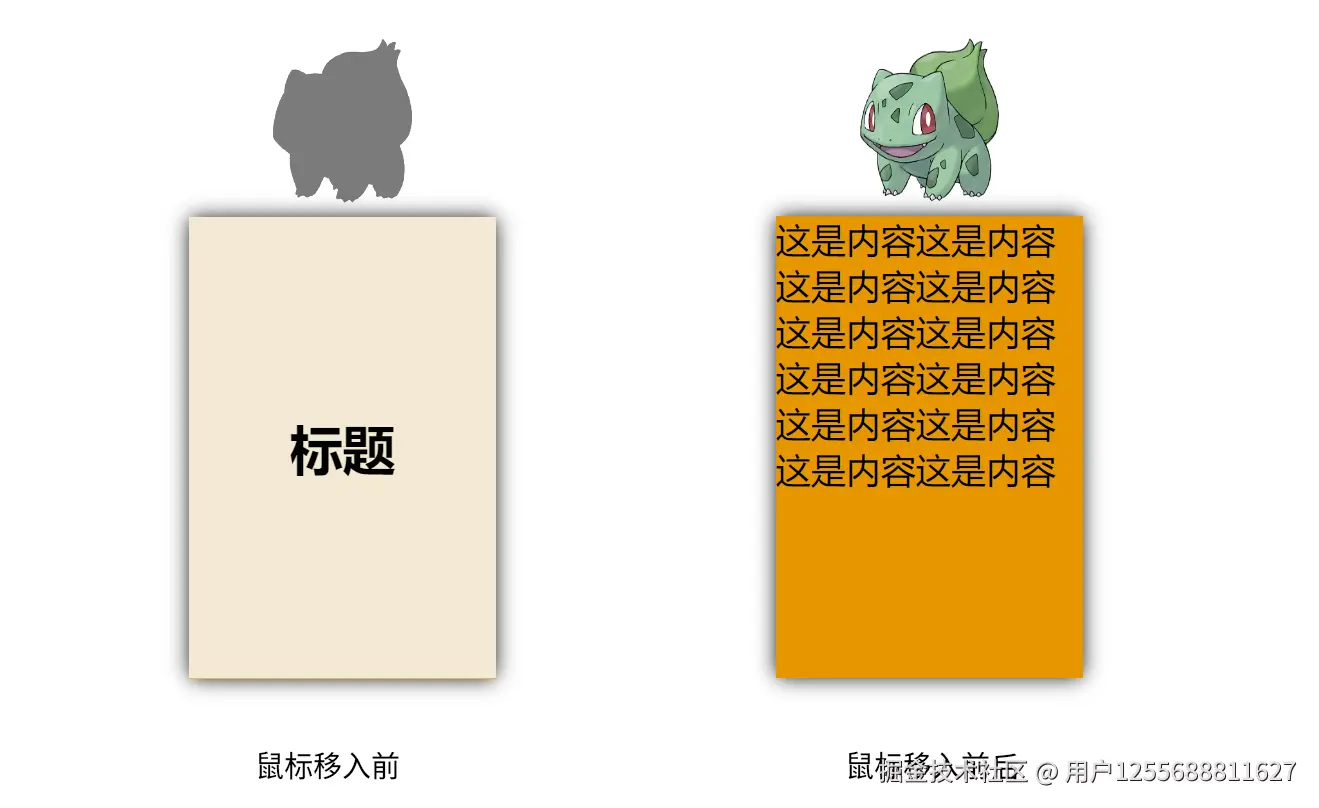 思路:
思路:
- 布局:两张图作为父子元素的背景,标题和内容用兄弟元素排列
- 初始状态:内容隐藏掉 { yPercent: 100 };
- icon改变父元素透明度,内容改变位移
- 移出时 反向
<template>
<div class="pages">
<div class="region" @mouseenter="handleMouseEnter" @mouseleave="handleMouseLeave">
<div class="icon-bg">
<div class="icon" id="icon"></div>
</div>
<div class="card">
<div class="title">标题</div>
<div class="content" id="content">这是内容这是内容这是内容这是内容这是内容这是内容这是内容这是内容这是内容这是内容这是内容这是内容</div>
</div>
</div>
</div>
</template>
<script setup lang="ts">
import gsap from 'gsap'
import { ref, onMounted } from 'vue'
const handleMouseEnter = () => {
console.log("移入");
gsap_animation().timeScale(1).play()
}
const handleMouseLeave = () => {
console.log("移出");
gsap_animation().timeScale(3).reverse()
}
let tl = gsap.timeline()
const gsap_animation = () => {
tl.to('#icon', {
opacity: 0
})
tl.to('#content', { yPercent: 0 })
return tl
}
onMounted(() => {
gsap.set("#content", { yPercent: 100 });
})
</script>
<style scoped lang="scss">
.pages {
display: flex;
// justify-content: center;
align-items: center;
flex-direction: column;
.region {
display: flex;
justify-content: center;
align-items: center;
flex-direction: column;
// width: 100px;
// background-color: red;
}
.region2 {
width: 100px;
height: 100px;
background-color: rgb(0, 134, 7);
}
.icon-bg {
width: 20vw;
height: 25vw;
// border: 1px solid red;
background-size: 100% 100%;
background-image: url('https://assets.pokemon.com/assets/cms2/img/pokedex/full/001.png');
.icon {
width: 20vw;
height: 25vw;
background-size: 100% 100%;
background-image: url('https://assets.codepen.io/16327/001-silhouette.png');
}
}
.card {
width: 40vw;
height: 60vw;
// border: 1px solid red;
overflow: hidden;
position: relative;
box-shadow: 0px 0px 12px -1px black;
.title {
display: flex;
justify-content: center;
align-items: center;
width: 100%;
height: 100%;
font-size: 30px;
font-weight: 600;
background-color: antiquewhite;
}
.content {
position: absolute;
top: 0;
left: 0;
width: 100%;
height: 100%;
font-size: 20px;
font-weight: 400;
background-color: rgb(255, 152, 16);
z-index: 2;
}
}
}
</style>
案例二:使用svg(学习中。。。。。。)