Electron Mac 公证
开始前需要购买 Apple Developer 账号,¥688一年
除了上架Mac App Store(MAS)一般使用分发.dmg文件供用户下载安装,过程远不如上架MAS繁琐,但是还是需要进行签名并且公证,否则用户会出现以下提示:

NPM Dependencies
npm install @electron/notarize electron-builder
Profiles
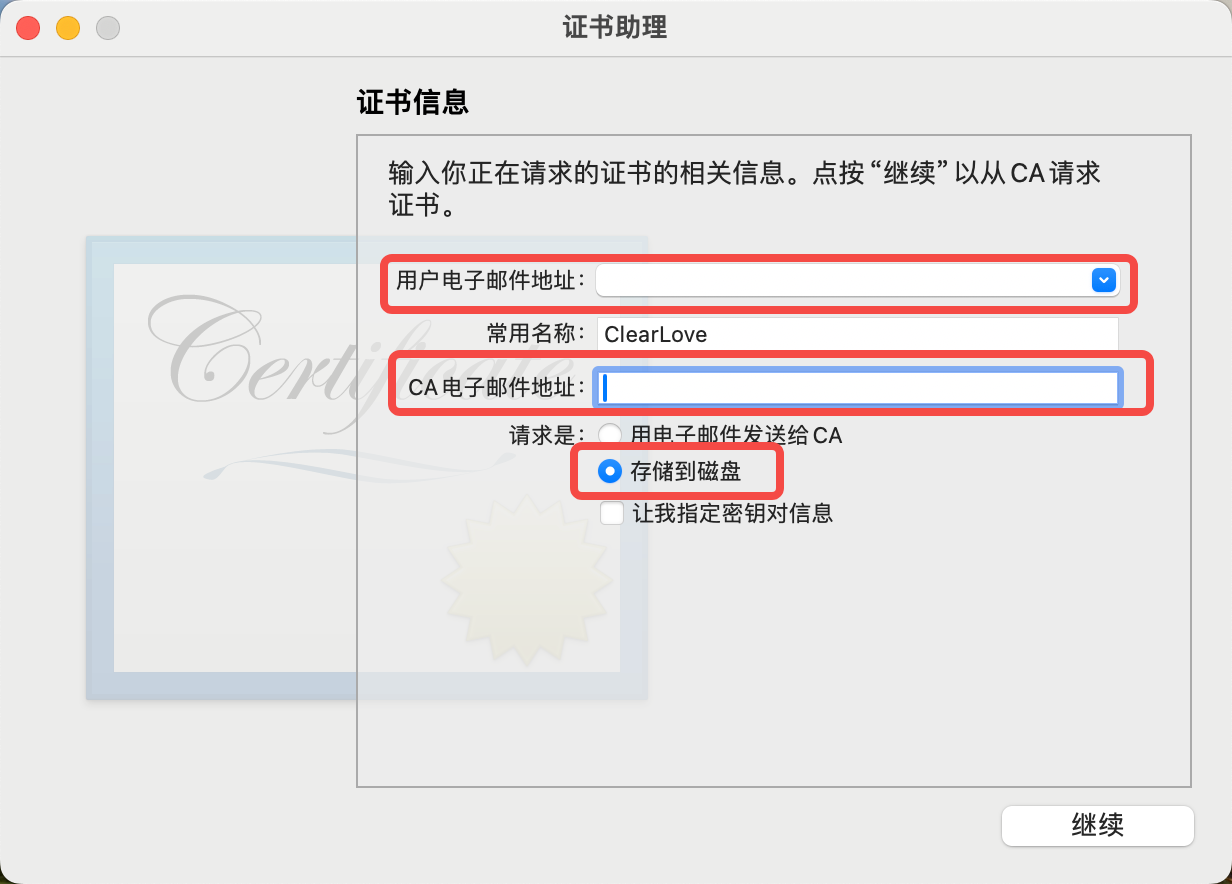
创建证书助理
将创建的CertificateSigningRequest.certSigningRequest的文件可以按照如下方式保存在本地,或者使用邮箱发送:

Certifications
- 创建证书需要
Signing request file即上面创建的CertificateSigningRequest.certSigningRequest文件,创建时候导入即可; - 这里只是需要
DeveloperID Applaication证书,下载后双击导入钥匙串的登录中- 注意该证书每个账号最多生成五个,生成完请妥善保存,并且该证书生成过后不可撤回或者删除!

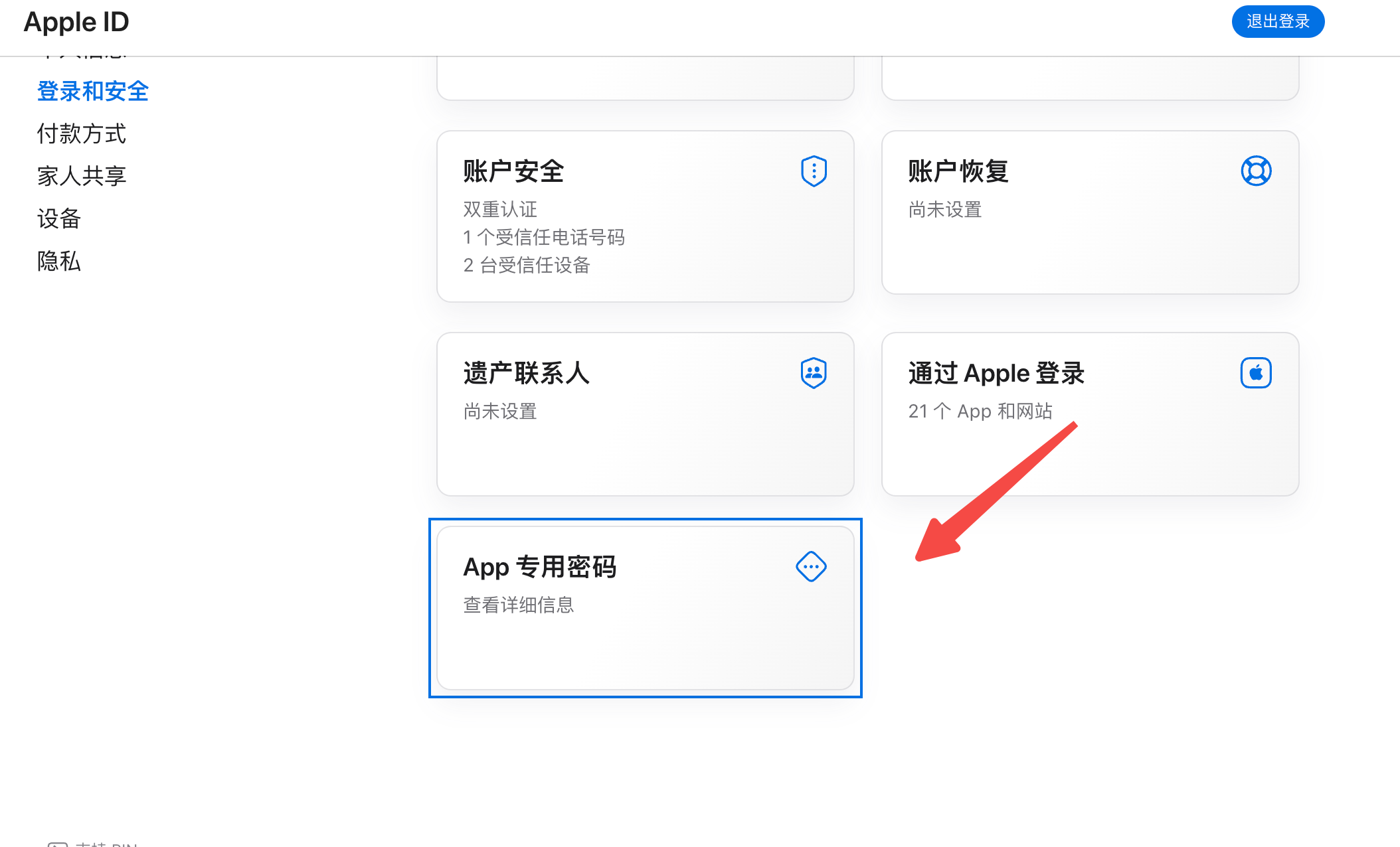
App-specific password
使用Apple Developer账号登录appleId,按照如下生成专属密码;
⚠️:专属密码只会生成一次,如果丢失需要重新生成,但是不会影响原本的APP;
Config
先在electron-builder中配置,下面这个例子是在pacakge.json中配置:
{
    "build": {
       "afterSign": "./config/notarize.js",
    }
}
新建notarize.js:
const { notarize } = require('@electron/notarize');

exports.default = async function notarizing(context) {
  if (process.platform !== 'darwin') {
    return;
  }
  const filePath = context.outDir;
  const appName = context.packager.appInfo.productName;
  return notarize({
    appPath: `${filePath}/${appName}.app`, // 应用的路径 xxx.app 结尾的
    appBundleId: 'your appid', // appid
    appleId: 'Apple Developer account', // 苹果开发者账号
    appleIdPassword: 'xxxx-xxxx-xxxx-xxxx', // 应用专用密码
    teamId: 'Apple Developer id' // Apple Developer 账号自带的一个ID
  })
    .then((res) => {
      console.log('公证成功!');
    })
    .catch(console.log);
};
Tips
上述中除了签名这一步是必须,并非是非要公证才能使用软件,可以在系统中如下设置依旧可以打开软件: