简介
Nginx 是一个高性能的开源 Web 服务器,同时也可以作为反向代理服务器、负载均衡 和 HTTP 缓存等多种用途。它的高性能和稳定性使其成为许多网站和应用程序的首选。本文将介绍在 macOS 系统上通过 Homebrew 安装并配置 Nginx 的过程。
安装HomeBrew
参考以往文章 juejin.cn/post/736511…
通过brew -v查看是否安装成功
安装nginx
brew install nginx
这里可以看到nginx的默认配置路径/opt/homebrew/etc/nginx/nginx.conf(有的情况下不在这个路径,而是在/usr/local/etc/nginx/nginx.conf)
/opt/homebrew/Cellar/nginx是nginx的所在安装路径
/opt/homebrew/etc/nginx/nginx.conf是nginx的配置路径
启动nginx
nginx // 启动nginx
如果没有权限使用sudo
sudo nginx
在浏览器打开http://localhost:8080/
这种情况就是启动成功了
配置nginx
打开配置文件
/opt/homebrew/etc/nginx/nginx.conf主要关注server配置这就是
nginx的默认配置,服务名localhost端口8080转发到root目录下html文件夹下的index文件 打开index文件(/opt/homebrew/Cellar/nginx/1.27.0/html/index.html),可以发现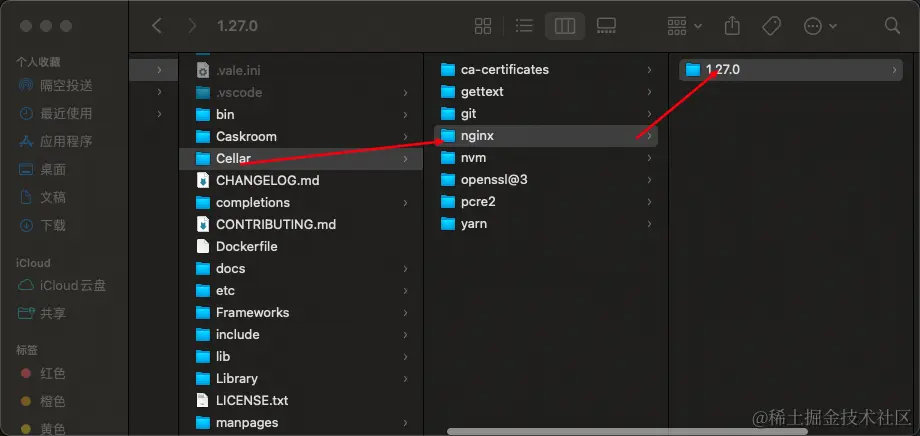
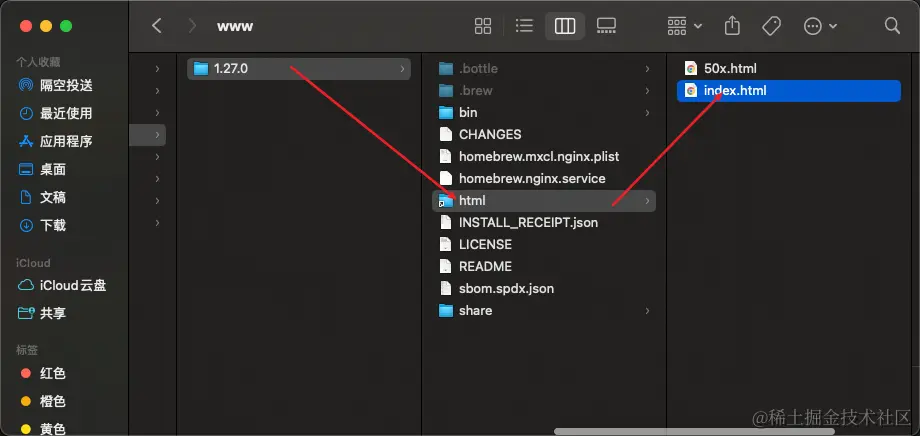
所以在浏览器打开
http://localhost:8080/看到的页面其实是nginx根目录下的index.html在配置文件最下面可以看到
这里意思就是
nginx.conf文件会自读取servers文件下的文件配置作为nginx的配置
- 下面我们来简单配置一次转发
我在本地
http://127.0.0.1:5500/test.html跑了一个页面在server文件夹下新建一个
test文件test 新增文件内容
server {
 listen       8888;
 server_name  localhost;
   location / {
     proxy_pass   http://127.0.0.1:5500/test.html;
 }
}
重启
nginxnginx -s reload在浏览器打开
http://localhost:8888配置成功
nginx常用命令
sudo nginx  //启动服务

sudo nginx -s stop  //停止服务

sudo nginx -s reload  //重启服务

nginx -t  //检查 Nginx 配置是否正确