源码地址github
瀑布流
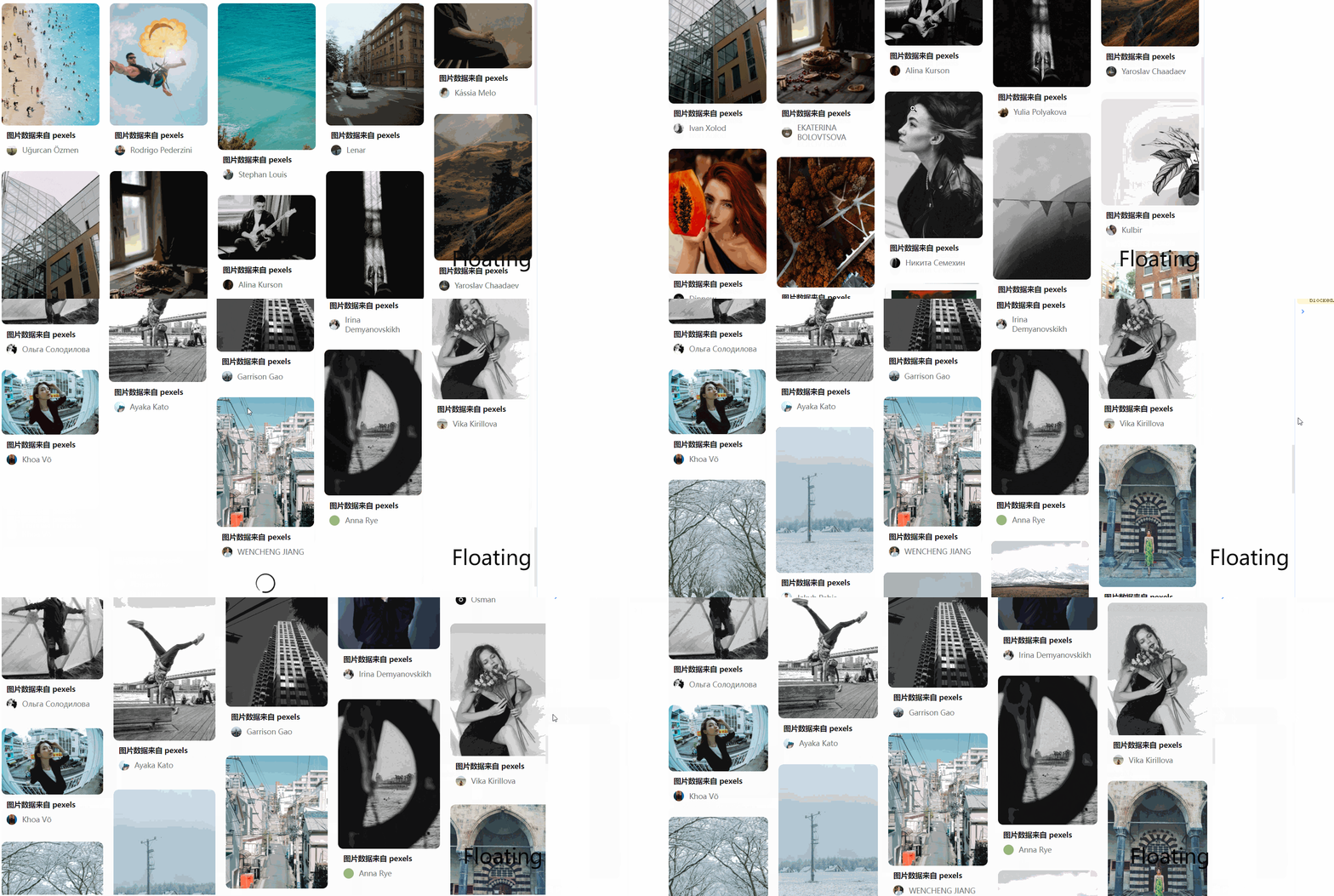
列表渲染时,列表元素的高度不一致,根据元素高度形成一种犬牙交错的布局
效果图:
实现原理分析
以图片列表为例
核心思路
由于每个瀑布流元素的位置根据瀑布流元素的高度进行变化,因此,使用relative + absolute方式进行布局,结合js计算每个瀑布流元素的位置,这种方式普适性强适用于大部分场景,其核心思路为:
给容器设置相对定位,每个瀑布流元素设置绝对定位,根据列宽和每列的高度计算子元素的top,left,在设置每个瀑布流元素的top时,使用当前高度最低的列计算.设置left时根据高度最低的列和列宽进行计算.
是否需要预加载
由于布局过程中需要根据子元素的高度来确定所在列的高度,而如果加载的元素包含图片,图片加载过程中高度为0,这就导致获取的子元素高度不准确,因此需要分为两种情况进行处理:
-
后端数据返回的有图片的宽高
这种情况下,根据每一列的宽度和图片宽度的比值,可以计算出保持图片比例的前提下子元素中图片高度,有了高度可以在组件中直接设置,在之后获取子元素高度的时候就能准确获取
-
后端数据只返回了图片路径
如果后端只返回了图片路径,那么浏览器渲染
img时,会根据路径去请求这个图片资源,此时img标签的高度为0,为了保证在布局过程中准确的获取到子元素的高度,我们需要预加载图片提前将图片下载到本地,这样浏览器渲染img时就可以直接使用缓存的图片资源.在布局过程中便能准确的获取宽高
组件功能分析
从使用的角度出发分析组件应具有的功能:
在使用组件时
- 希望瀑布流组接收数据列表
data,根据这个data可以渲染任意的子元素,那么瀑布流组件应具有一个作用域插槽,并向子组件传递传递data列表中的数据,以便子组件进行渲染 - 使用时还需区分是否为预加载场景,因此需要一个属性
picturePreReading - 在不需要预加载的场景中,需要根据列宽手动设置子元素的高度,,这个插槽还要向子组件传递一个数据:
width - 由于是列表渲染,每个子元素需要指定唯一的
key,因此需要一个属性nodekey来告诉组件使用哪个值作为key - 如果想计算出列宽,我们要知道应该将列表渲染为几列,因此需要一个属性,用于指定列数:
col - 列表中每一列和每一行应该可以指定间距,因此需要两个属性,用来表示
行间距和列间距:rowSpace和colSpace
通过上面的分析,使用瀑布流组件应该是这样的:
-
使用时的结构
<Mwaterfall class="px-1" :data="cardInfos" :picturePreReading="true" :col="5" > <template #default="{ item, width }"> <子元素 :width={width} data={item} /> </template> </Mwaterfall> -
属性
- data: 数据源
- col: 列数
- picturePreReading: 是否使用预加载
- nodeKey: 子元素唯一key值
- rowSpace: 行间距
- colSpace: 列间距
-
事件
无
具体实现
vue+tailwindcss react版本请看下文
在libs文件夹下新建waterfall/index.vue
定义参数
根据上述分析先将参数定义一下:
interface Props {
  data: any[];
  nodeKey?: string;
  col?: number;
  colSpace?: number;
  rowSpace?: number;
  picturePreReading?: boolean;
}
// 指定默认值
const props = withDefaults(defineProps<Props>(), {
  col: 2,
  colSpace: 20,
  rowSpace: 20,
  picturePreReading: true
});
设计模板
根据先前决定的布局方式,模板应该有又给相对定位的容器,然后根据data循环渲染插槽内容,结构应该是这样:
<template>
  <div
    class="relative"
    ref="containerRef"
    :style="{
      height: containerHeight + 'px' // 因为内部子元素都是绝对定位,无法称起父元素,所以需要主动指定高度
    }"
  >
    <template v-if="data.length && colWidth"> //
      <div
        class="absolute"
        v-for="(item, index) of data"
        :style="{
          width: colWidth + 'px' // 列宽,根据容器宽度和指定的列数进行计算
        }"
        :key="nodeKey ? item[nodeKey] : index" //没有指定默认使用index
      >
        <slot
          :item="item" // 将渲染子元素所需的数据传递出去
          :width="colWidth" // 将列宽传递出去
        />
      </div>
    </template>
    <template v-else>
        <div>
            加载中...
        </div>
    </template>
  </div>
</template>
<script setup lang="ts">
const containerRef = ref<Element>(); // 获取容器DOM元素
const containerHeight = ref(0); // 容器高度
// 每列的宽度
const colWidth = ref(0);
</script>
实现逻辑
初始化容器宽度和列宽度,列高度的映射
-
计算列宽
colWidth: (容器内容宽度 - 总列间距) / 列数,同时顺便记录一下容器的左内边距containerPL,后面用于计算每一列距离容器左边框的位置// 容器内容宽度: 容器总宽度 - 容器左右`padding `- 容器左右`borderWidth ` // 总列间距: (列数 - 1) * 列数 const containerPL = ref(0); // 记录容器的左内边距,后面用于计算每一列距离容器左边框的位置 function initColWidth() { const { width } = containerRef.value!.getBoundingClientRect(); const { paddingLeft, paddingRight } = getComputedStyle(containerRef.value!, null); containerPL.value = parseFloat(paddingLeft); const containerWidth = width - parseFloat(paddingLeft) - parseFloat(paddingRight) - spaceTotal.value; colWidth.value = containerWidth / props.col; } -
有了列宽之后,还需要一个列高度的映射:
colHeightMap,{[key: 第几列]: 当前列高},之后设置子元素位置时,可以根据这个映射来获取最短列的值//根据`col`初始化这个映射,刚开始每一列高度都是0: function initColHeightMap() { colHeightMap.value = Object.fromEntries(new Array(props.col).fill(0).map((item, index) => [index + 1, item])); } -
上面的前期数据已经准备好了,在
DOM渲染完成后初始化一下,之后就可以愉快的使用了onMounted(() => { initColHeightMap(); initColWidth(); });
预加载
图片的预加载原理很简单: 根据图片的src创建一个Image对象,当Image对象的onload事件触发时,表示这个图片都加载完毕.此时就可以获取瀑布流子元素的高度了,这里我们需要等所有的图片都加载完毕才可以
加载过程中,我们可以给每个加载过的元素打一个标记,这样以后再次渲染的时候就不需要重复加载了,先把打标记相关的方法封装一下:
//这里利用data-*设置一个标记
function addDoneTag(item: HTMLDivElement) {
  item.dataset.done = 'true';
}
function isHasDonetag(item: HTMLDivElement) {
  return !!item.dataset.done;
}
function cleanAllDoneTag() {
  const itemEls = [...containerRef.value!.children] as HTMLDivElement[];
  itemEls.forEach(item => {
    item.dataset.done = '';
  });
}
接下来实现一个方法waitAllImageLoad,最后通过Promise.all保证所有的图片加载完毕再向下执行
/**
 * @message: 通过 new Image确保加载的img加载完毕,以便获取高度
 * params: 所有瀑布流子元素
 */
function waitAllImageLoad(itemEls: HTMLDivElement[]) {
  const imgLoadPromises = itemEls.map(item => {
    return new Promise(resolve => {
      if (isHasDonetag(item)) {
        // 加载过的元素就不需要再加载了,直接使用缓存
        resolve(0);
        return;
      }
      const imgEl = item.querySelector('img')!;
      const imageObj = new Image();
      imageObj.src = imgEl.src;
      imageObj.onload = () => {
        resolve(0);
      };
      imageObj.onerror = () => {
        resolve(0);
      };
    });
  });
  return Promise.all(imgLoadPromises);
}
计算子元素为位置
-
为了便于计算子元素的高度,需要先查找出当前最短的列,封装'
getMinOrMaxCol'方法,用来获取最长,最短列的信息/** * @message: 获取记录列高的对象中,最大或最小值 */ function getMinOrMaxCol(colHeightMap: { [key: string]: number }, type: 'min' | 'max') { const mapArr = Object.entries(colHeightMap); if (type === 'max') { mapArr.sort((a, b) => b[1] - a[1]); } else { mapArr.sort((a, b) => a[1] - b[1]); } return { targetCol: Number(mapArr[0][0]), targetHeight: mapArr[0][1] }; } -
封装
computeItemsPos方法用来设置子元素的top和left,同时通过restItemsHeightMap方法维护列高的映射,将子元素的高度累加到对应列,function computeItemsPos(item: HTMLDivElement) { const { targetCol, targetHeight } = getMinOrMaxCol(colHeightMap.value, 'min'); if (!isHasDonetag(item)) { item.style.top = `${targetHeight}px`; item.style.left = `${getItemLeft(targetCol)}px`; addDoneTag(item); } restItemsHeightMap(targetCol, item.offsetHeight); } /** * @message: 每选取一次最短列,就累加该列高, */ function restItemsHeightMap(key: number, val: number) { colHeightMap.value\[key] += val + props.rowSpace; } /** * @message: 计算当前元素的left */ function getItemLeft(key: number) { return containerPL.value + (key - 1) \* (props.colSpace + colWidth.value); } -
循环设置所有的子元素,所有的子元素设置完毕,更新容器的高度
containerHeightfunction setItemsPos(itmesEl: HTMLDivElement[]) { itmesEl.forEach(item => { computeItemsPos(item); }); setContainerHeight(); } function setContainerHeight() { containerHeight.value = getMinOrMaxCol(colHeightMap.value, 'max').targetHeight; }
将各个函数按照逻辑组合起来,放在主函数beginLoad中
async function beginLoad() {
const itemEls = [...containerRef.value!.children] as HTMLDivElement[];
const needPreLoad = props.picturePreReading
if (needPreLoad) { // 需要预加载,则等待所有图片加载完之后再设置子元素位置
await waitAllImageLoad(itemEls);
}
setItemsPos(itemEls);
}
触发时机
如果瀑布流组件的数据源发生变化了,就需要重新计算列宽和子元素位置,因此可以监听data的变化,当data变化时重新执行计算逻辑
watch(
() => props.data,
() => {
nextTick(() => {
initColWidth();
initColHeightMap();
beginLoad();
});
},
{
deep: true
}
);
非预加载
非预加载的情况下,需要子元素根据瀑布流组件传递的width动态计算高度
// 子元素内部
<img :height="(width / data.photoWidht) * data.photoWidth" />
自适应
当浏览器窗口大小变化时,希望容器内自动适应,可以通过监听window的resize事件来实现:
- 窗口变化时,图片不需要重新预加载,因此需要定义一个开关
isResizeing,如果是窗口变化引起的重新计算,则不走预加载的流程
let isResizeing = false
async function beginLoad() {
....
const needPreLoad = props.picturePreReading && !isResizeing;
...
}
onMounted(() => {
initColHeightMap();
initColWidth();
window.addEventListener(
'resize',
debounce(() => {
cleanAllDoneTag(); // 清楚所有的已加载标记
isResizeing = true;
initColHeightMap();
initColWidth();
nextTick(async () => {
await beginLoad();
isResizeing = false;
});
}, 300)
);
});
测试
编写一个子元素组件,进行一下测试:
<template>
<div
class="bg-white dark:bg-zinc-900 xl:dark:bg-zinc-800 rounded pb-1"
:class="[`w-[${width}px]`]"
>
<img
v-lazy:autoBg
class="w-full rounded bg-transparent"
:src="cardInfo.photo"
:style="{ height: width ? `${(width / cardInfo.photoWidth) * cardInfo.photoHeight}px` : 'auto' }"
/>
</div>
</template>
<script setup lang="ts">
import { CardInfo } from './type';
defineProps<{
cardInfo: CardInfo;
width?: number;
}>();
</script>
把子组件放在瀑布流组件waterfall中
<Mwaterfall
class="px-1"
:data="cardInfos"
:picturePreReading="true"
:col="5"
>
<template #default="{ item, width }">
<CardItem
:cardInfo="item"
:width="width"
></CardItem>
</template>
</Mwaterfall>
可以看到成功展示

源码部分
vue
<template>
<div
class="relative pr-1"
ref="containerRef"
:style="{
height: containerHeight + 'px' // 因为当前为 relative 布局,所以需要主动指定高度
}"
>
<template v-if="data.length && colWidth">
<div
class="absolute duration-300"
v-for="(item, index) of data"
:style="{
width: colWidth + 'px' // 列宽,根据容器宽度和指定的列数进行计算
}"
:key="nodeKey ? item[nodeKey] : index"
>
<slot
:item="item"
:width="colWidth"
:index="index"
/>
</div>
</template>
<template v-else>
<div class="h-screen w-screen fixed top-0 left-0 flex items-center justify-center">
<MsvgIcon
name="loading"
class="w-8 h-8 animate-spin mr-1"
></MsvgIcon>
</div>
</template>
</div>
</template>
<script setup lang="ts">
import { debounce } from 'lodash-es';
interface Props {
data: any[];
nodeKey?: string;
col?: number;
colSpace?: number;
rowSpace?: number;
picturePreReading?: boolean;
}
const props = withDefaults(defineProps<Props>(), {
col: 2,
colSpace: 20,
rowSpace: 20,
picturePreReading: true
});
// 容器高度
const containerRef = ref<Element>();
const containerHeight = ref(0);
const colHeightMap = ref<{ [key: number]: number }>([]); // 列高度的映射,方便求出瀑布流元素高度,每列初始化为0
// 计算每列的宽度,根据容器宽度 / 指定列数
const colWidth = ref(0);
const containerPL = ref(0); // 记录容器的左内边距,后面用于计算每一列距离容器左边框的位置
const spaceTotal = computed(() => {
// 列间距总和
return (props.col - 1) * props.colSpace;
});
let isResizeing = false;
function initColHeightMap() {
colHeightMap.value = Object.fromEntries(new Array(props.col).fill(0).map((item, index) => [index + 1, item]));
}
function initColWidth() {
const { width } = containerRef.value!.getBoundingClientRect();
const { paddingLeft, paddingRight } = getComputedStyle(containerRef.value!, null);
containerPL.value = parseFloat(paddingLeft);
const containerWidth = width - parseFloat(paddingLeft) - parseFloat(paddingRight) - spaceTotal.value;
colWidth.value = containerWidth / props.col;
}
onMounted(() => {
initColHeightMap();
initColWidth();
window.addEventListener(
'resize',
debounce(() => {
cleanAllDoneTag();
isResizeing = true;
initColHeightMap();
initColWidth();
nextTick(async () => {
await beginLoad();
isResizeing = false;
});
}, 300)
);
});
// 预加载: 未指定图片高度时,需要预加载才能获取图片的offsetHeight
async function beginLoad() {
const itemEls = [...containerRef.value!.children] as HTMLDivElement[];
const needPreLoad = props.picturePreReading && !isResizeing;
if (needPreLoad) {
await waitAllImageLoad(itemEls);
}
setItemsPos(itemEls);
}
function setItemsPos(itmesEl: HTMLDivElement[]) {
itmesEl.forEach(item => {
computeItemsPos(item);
});
setContainerHeight();
}
function computeItemsPos(item: HTMLDivElement) {
if (isHasDonetag(item)) {
return;
}
addDoneTag(item);
const { targetCol, targetHeight } = getMinOrMaxCol(colHeightMap.value, 'min');
item.style.top = `${targetHeight}px`;
item.style.left = `${getItemLeft(targetCol)}px`;
restItemsHeightMap(targetCol, item.offsetHeight);
}
function addDoneTag(item: HTMLDivElement) {
item.dataset.done = 'true';
}
function isHasDonetag(item: HTMLDivElement) {
return !!item.dataset.done;
}
function cleanAllDoneTag() {
const itemEls = [...containerRef.value!.children] as HTMLDivElement[];
itemEls.forEach(item => {
item.dataset.done = '';
});
}
function setContainerHeight() {
containerHeight.value = getMinOrMaxCol(colHeightMap.value, 'max').targetHeight;
}
/**
* @message: 通过 new Image确保加载的img加载完毕,以便获取高度
*/
function waitAllImageLoad(itemEls: HTMLDivElement[]) {
const imgLoadPromises = itemEls.map(item => {
return new Promise(resolve => {
if (isHasDonetag(item)) {
// 加载过的元素就不需要再加载了,直接使用缓存
resolve(0);
return;
}
const imgEl = item.querySelector('img')!;
const imageObj = new Image();
imageObj.src = imgEl.src;
imageObj.onload = () => {
resolve(0);
};
imageObj.onerror = () => {
resolve(0);
};
});
});
return Promise.all(imgLoadPromises);
}
function getItemLeft(key: number) {
return containerPL.value + (key - 1) * (props.colSpace + colWidth.value);
}
/**
* @message: 每选取一次最短列,就累加该列高,
*/
function restItemsHeightMap(key: number, val: number) {
colHeightMap.value[key] += val + props.rowSpace;
}
/**
 * @message: 获取记录列高的对象中,最大或最小值
 */
function getMinOrMaxCol(colHeightMap: { [key: string]: number }, type: 'min' | 'max') {
  const mapArr = Object.entries(colHeightMap);
  if (type === 'max') {
    mapArr.sort((a, b) => b[1] - a[1]);
  } else {
    mapArr.sort((a, b) => a[1] - b[1]);
  }
  return { targetCol: Number(mapArr[0][0]), targetHeight: mapArr[0][1] };
}
watch(
() => props.data,
() => {
nextTick(() => {
initColWidth();
beginLoad();
});
},
{
deep: true
}
);
</script>
react-render props
import { useUpdateEffect } from 'ahooks';
import { useEffect, useRef, useState } from 'react';
interface Props {
data: any;
col: number; // 列数
colSpace?: number; //列间距
rowSpace?: number; //行间距
nodeKey?: string; // 列表渲染唯一id的key
isPreReading?: boolean; // 是否需要预加载
renderChild: (item: any, colWidth?: number) => React.ReactNode; // 需要渲染的瀑布流元素
loadingElement?: React.ReactNode; // 自定义加载动画
}
/**
* render props版本瀑布流组件
* 1.根据容器宽度和指定的列数计算列宽
* 2.是否需要预加载
* 2.1 是: 等待预加载完成
* 3.获取itemHeight,计算item的top和left
*/
const Waterfall: React.FC<Props> = ({
data,
col,
colSpace = 20,
rowSpace = 20,
nodeKey,
isPreReading = true,
renderChild,
loadingElement
}) => {
const [wrapHeight, setWrapHeight] = useState<number>(0);
const [colWidth, setColWidth] = useState<number>(0);
const [wrapPL, setWrapPL] = useState<number>(0);
const wrapRef = useRef<HTMLDivElement>(null);
const colHeightMap = useRef<{ [key: string]: number }>({});
const [isBeginLoad, setIsBeginLoad] = useState(false);
useEffect(() => {
initColWidth();
initColHeightMap();
}, []);
useUpdateEffect(() => {
initColWidth();
beginLoad();
}, [data]);
function initColWidth() {
const wrapEl = wrapRef.current as HTMLDivElement;
const { width } = wrapEl.getBoundingClientRect();
const styles = getComputedStyle(wrapEl);
const PL = parseFloat(styles.paddingLeft);
const PR = parseFloat(styles.paddingRight);
const BL = parseFloat(styles.borderLeftWidth);
const BR = parseFloat(styles.borderRightWidth);
setColWidth((width - PL - PR - BL - BR - (col - 1) * colSpace) / col);
setWrapPL(PL + BL);
}
function initColHeightMap() {
colHeightMap.current = Object.fromEntries(
new Array(col).fill(0).map((item: number, index) => [String(index + 1), item])
);
}
async function beginLoad() {
setIsBeginLoad(true);
const wrapEl = wrapRef.current!;
const itmesEl = [...wrapEl.children] as HTMLDivElement[];
if (isPreReading) {
await setItemPosWhenImgLoad(itmesEl);
}
setItemPos(itmesEl);
setIsBeginLoad(false);
}
function setItemPos(itmesEl: HTMLDivElement[]) {
itmesEl.forEach(item => {
computeItemsPos(item);
});
setWrapHeightInEnd();
}
function computeItemsPos(item: HTMLDivElement) {
if (isHasDonetag(item)) {
return;
}
addDoneTag(item);
const { targetCol, targetHeight } = getMinOrMaxColHeight('min');
item.style.top = `${targetHeight}px`;
item.style.left = `${(Number(targetCol) - 1) * (colWidth + colSpace) + wrapPL}px`;
restColHeight(targetCol, item.offsetHeight);
}
function setWrapHeightInEnd() {
const { targetHeight } = getMinOrMaxColHeight('max');
setWrapHeight(targetHeight);
}
function restColHeight(key: string, val: number) {
colHeightMap.current[key] = val + rowSpace + colHeightMap.current[key];
}
function getMinOrMaxColHeight(type: 'min' | 'max') {
const arr = Object.entries(colHeightMap.current);
if (type === 'min') {
arr.sort((a, b) => a[1] - b[1]);
} else {
arr.sort((a, b) => b[1] - a[1]);
}
return { targetHeight: arr[0][1], targetCol: arr[0][0] };
}
async function setItemPosWhenImgLoad(itmesEl: HTMLDivElement[]) {
const allPromises = itmesEl.map(item => {
return new Promise(resolve => {
if (isHasDonetag(item)) {
// 加载过的元素就不需要再加载了,直接使用缓存
resolve(0);
return;
}
const imgEl = item.querySelector('img')!;
const imageObj = new Image();
imageObj.src = imgEl.src;
imageObj.onload = imageObj.onerror = () => {
resolve(0);
};
});
});
await Promise.all(allPromises);
}
function addDoneTag(item: HTMLDivElement) {
item.dataset.done = 'true';
}
function isHasDonetag(item: HTMLDivElement) {
return !!item.dataset.done;
}
return (
<>
<div
style={{ position: 'relative', height: wrapHeight, width: '100%' }}
ref={wrapRef}
>
{!!data.length &&
data.map((item: any, index: number) => {
return (
<div
key={nodeKey ? item[nodeKey] : index}
style={{
position: 'absolute',
width: `${colWidth}px`,
top: 0,
left: 0,
transition: 'all 0.3s',
zIndex: index === 0 ? 20 : ''
}}
>
{renderChild(item, isPreReading ? undefined : colWidth)}
</div>
);
})}
</div>
{isBeginLoad && (
<div
style={{
position: 'absolute',
top: '50%',
left: '50%',
transform: 'translate(-50%,-50%)'
}}
>
{loadingElement ? loadingElement : <div>框框加载中....</div>}
</div>
)}
</>
);
};
export default Waterfall;
react-HOC
import { CardProps } from '@/pages/waterfallPage';
import { useUpdateEffect } from 'ahooks';
import { useEffect, useRef, useState } from 'react';
interface Props {
data: any;
col: number;
colSpace?: number;
rowSpace?: number;
nodeKey?: string;
isPreReading?: boolean;
loadingElement?: React.ReactNode; // 自定义加载动画
}
/**
* HOC版本瀑布流组件,预加载时一次性加载当次请求的所有图片然后渲染
* 1.根据容器宽度和指定的列数计算列宽
* 2.是否需要预加载
* 2.1 是: 等待预加载完成
* 3.获取itemHeight,计算item的top和left
*/
const withWaterfall = (Component: React.FC<CardProps>) => {
const Waterfall: React.FC<Props> = ({
data,
col,
colSpace = 20,
rowSpace = 20,
nodeKey,
isPreReading = true,
loadingElement, // 自定义加载动画
...rest
}) => {
const [wrapHeight, setWrapHeight] = useState<number>();
const [colWidth, setColWidth] = useState<number>(0);
const [wrapPL, setWrapPL] = useState<number>(0);
const wrapRef = useRef<HTMLDivElement>(null);
const colHeight = useRef<{ [key: string]: number }>({});
const [isBeginLoad, setIsBeginLoad] = useState(false);
useEffect(() => {
initParams();
initColHeight();
}, []);
useUpdateEffect(() => {
initParams();
beginLoad();
}, [data]);
function initParams() {
const wrapEl = wrapRef.current as HTMLDivElement;
const { width } = wrapEl.getBoundingClientRect();
const styles = getComputedStyle(wrapEl);
const PL = parseFloat(styles.paddingLeft);
const PR = parseFloat(styles.paddingRight);
const BL = parseFloat(styles.borderLeftWidth);
const BR = parseFloat(styles.borderRightWidth);
setColWidth((width - PL - PR - BL - BR - (col - 1) * colSpace) / col);
setWrapPL(PL + BL);
}
function initColHeight() {
colHeight.current = Object.fromEntries(
new Array(col).fill(0).map((item: number, index) => [String(index + 1), item])
);
}
async function beginLoad() {
setIsBeginLoad(true);
const wrapEl = wrapRef.current!;
const itmesEl = [...wrapEl.children] as HTMLDivElement[];
if (isPreReading) {
await waitAllImgLoad(itmesEl);
}
computeItemsPos(itmesEl);
setIsBeginLoad(false);
}
function computeItemsPos(itmesEl: HTMLDivElement[]) {
itmesEl.map(item => {
if (isHasDonetag(item)) {
return;
}
const { targetCol, targetHeight } = getMinOrMaxColHeight('min');
item.style.top = `${targetHeight}px`;
item.style.left = `${(Number(targetCol) - 1) * (colWidth + colSpace) + wrapPL}px`;
restColHeight(targetCol, item.offsetHeight);
addDoneTag(item);
});
const { targetHeight } = getMinOrMaxColHeight('max');
setWrapHeight(targetHeight);
}
function restColHeight(key: string, val: number) {
colHeight.current[key] = val + rowSpace + colHeight.current[key];
}
function getMinOrMaxColHeight(type: 'min' | 'max') {
const arr = Object.entries(colHeight.current);
if (type === 'min') {
arr.sort((a, b) => a[1] - b[1]);
} else {
arr.sort((a, b) => b[1] - a[1]);
}
return { targetHeight: arr[0][1], targetCol: arr[0][0] };
}
function waitAllImgLoad(itmesEl: HTMLDivElement[]) {
return new Promise(resolve => {
let finishIdx = 0;
itmesEl.forEach((item, index) => {
if (isHasDonetag(item)) {
finishIdx++;
return;
}
const imgEl = item.querySelector('img')!;
const imageObj = new Image();
imageObj.src = imgEl.src;
imageObj.onload = imageObj.onerror = () => {
finishIdx++;
if (finishIdx === itmesEl.length) {
resolve({
index
});
}
};
});
});
}
function addDoneTag(item: HTMLDivElement) {
item.dataset.done = 'true';
}
function isHasDonetag(item: HTMLDivElement) {
return !!item.dataset.done;
}
return (
<>
<div
style={{ position: 'relative', height: wrapHeight, width: '100%' }}
ref={wrapRef}
>
{!!data.length &&
data.map((item: any, index: number) => {
return (
<div
key={nodeKey ? item[nodeKey] : index}
style={{
position: 'absolute',
width: `${colWidth}px`,
top: 0,
left: 0,
visibility: wrapHeight ? 'visible' : 'hidden',
transition: 'all 0.5s'
}}
>
<Component
data={item}
width={colWidth}
{...rest}
></Component>
</div>
);
})}
{isBeginLoad && (
<div
style={{
position: 'absolute',
top: '50%',
left: '50%',
transform: 'translate(-50%,-50%)'
}}
>
{loadingElement ? loadingElement : <div>框框加载中....</div>}
</div>
)}
</div>
</>
);
};
return Waterfall;
};
export default withWaterfall;
长列表
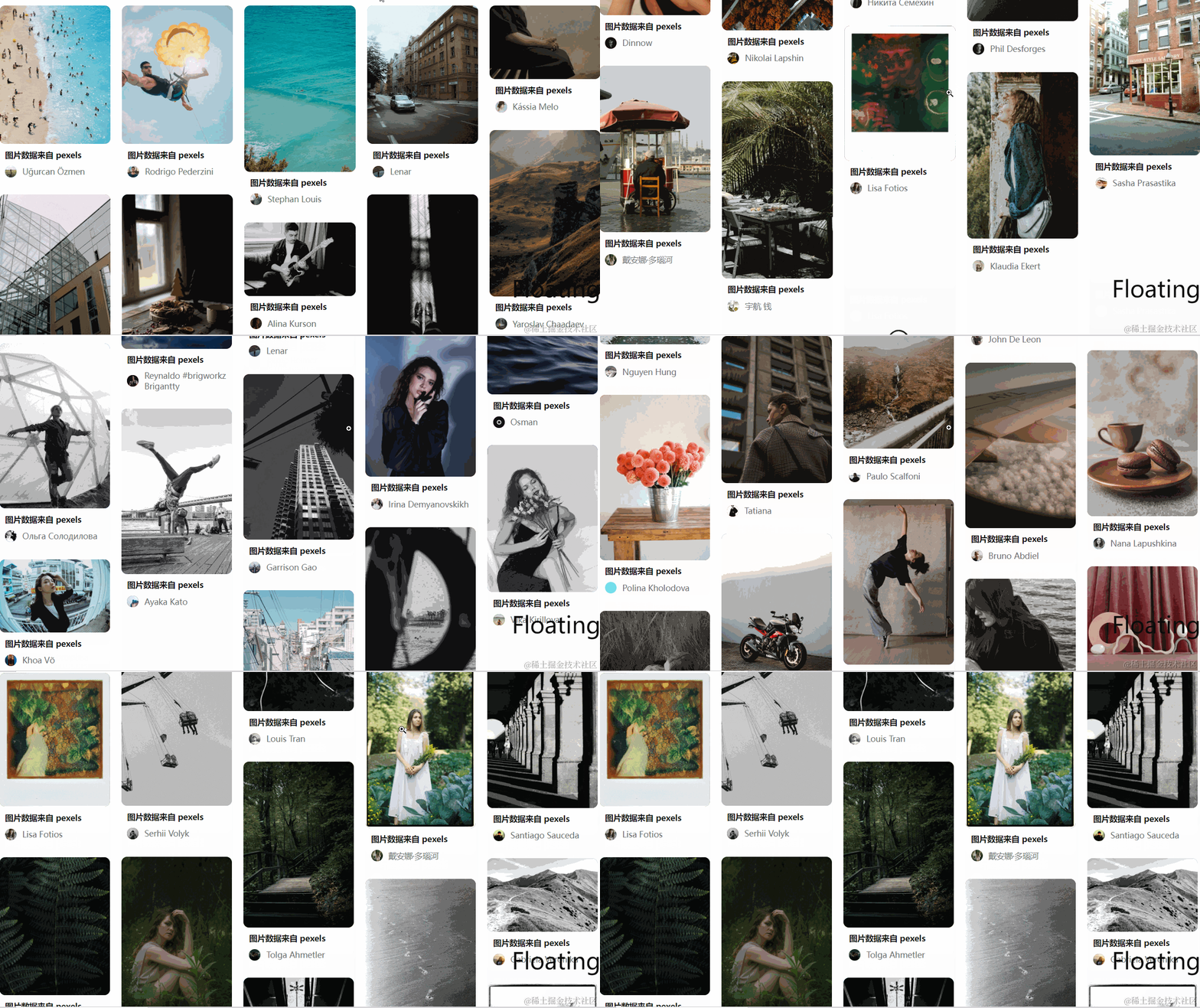
无限滚动的列表,当滚动到底部的时候自动加载下一页数据
效果图:
长列表实现原理
-
核心思想就是监听列表滚动到底部,然后加载下一页的数据,实现思路有两种:
- 交叉观察器 API:在列表底部放一个标志(如加载图标),通过交叉观察期监听标志是否出现在视口,如果出现,表示列表已经滚动到底部了,这时候加载数据
- 监听滚动事件: 通过判断列表的滚动高度 + 容器高度是否等于列表的高度,如果等于,表示列表滚动到底部了,这时需要加载新的数据
这里直接使用交叉观察期,vueuse提供了封装好的hook可以更方便的使用.
组件功能分析
依然还是从从使用的角度出发分析组件应具有的功能:
在使用组件时
- 希望只提供加载下一列的功能,不关注列表如何渲染,因此组件需要一个插槽来放置子列表组件
- 当组件正在加载数据时,即使滚动到底部也不应该重复加载数据,因此需要一个属性表示加载状态:
isLoading - 当数据加载完毕时,即使滚动到底部都不会再加载数据,因此需要一个数据表示是否加载完毕:
isFinished - 滚动到底部时,需要触发加载数据的方法,因此需要一个事件:
load
通过上面的分析,使用瀑布流组件应该是这样的:
-
使用时的结构
<template> <MinfiniteList :isLoading="isLoading" @load="fetch" :isFinished="isFinished" > <子列表 /> </MinfiniteList> </template> -
属性
- isLoading: 是否正在加载
- isFinished: 是否加载完毕
-
事件
- load: 加载函数
具体实现
在libs文件夹下新建infiniteList/index.vue
定义参数
const props = defineProps<{
isFinished: boolean;
isLoading: boolean
}>();
const emits = defineEmits(['load']);
设计模板
<template>
<div>
<slot />
<!-- 列表底部标志位 -->
<div
ref="signRef"
>
<!-- 加载更多, -->
<MsvgIcon
v-show="isLoading"
class="w-4 h-4 mx-auto animate-spin"
name="infinite-load"
></MsvgIcon>
<!-- 没有更多数据了 -->
<p
v-if="isFinished"
class="text-center text-base text-zinc-400"
>
已经没有更多数据了!
</p>
</div>
</div>
</template>
<script setup lang="ts">
...
const signRef = ref(null);
...
</script>
实现逻辑
通过useIntersectionObserver监听标记signRef是否出现在viewport,如果出现,则加载数据
<script setup lang="ts">
import { useIntersectionObserver } from '@vueuse/core';
....
useIntersectionObserver(signRef, ([{ isIntersecting }]) => {
isInViewPort.value = isIntersecting;
emitLoad();
});
function emitLoad() {
const needLoad = isInViewPort.value && !props.isFinished && !props.isLoading;
if (needLoad) {
emits('load');
}
}
</script>
当第一页的数据过少时,标志位即使出现在viewport中,交叉观察器也只会触发一次,这时就会出现无论怎么滚动都不会继续加载的现象,为了解决这个问题可以监听isLoading的变化,当数据加载完毕时,isLoading会由true变成false,此时判断标志位是否出现在viewport,如果出现则继续加载,
<script setup lang="ts">
watch(
() => isLoading.value,
() => {
setTimeout(() => {
emitLoad();
}, 100);
}
);
</script>
测试
<template>
<MinfiniteList
:isLoading="isLoading"
@load="fetch"
:isFinished="isFinished"
>
<Mwaterfall
  class="px-1"
  :data="cardInfos"
  :picturePreReading="true"
  :col="5"
>
  <template #default="{ item, width }">
    <CardItem
      :cardInfo="item"
      :width="width"
    ></CardItem>
  </template>
</Mwaterfall>
</MinfiniteList>
</template>
<script setup lang="ts">
import { getPexelsList } from '@/service/main';
import CardItem from '../cardItem/index.vue';
import { CardInfo } from '../cardItem/type';
const isLoading = ref(false);
const isFinished = ref(false);
const cardInfos = ref<CardInfo[]>([]);
const params = ref({ page: 0, size: 20 });
async function fetch() {
if (isFinished.value) {
return;
}
isLoading.value = true;
params.value.page += 1;
const [data, err] = await getPexelsList(params.value);
if (err) {
return;
}
cardInfos.value.push(...data.list);
isFinished.value = cardInfos.value.length === data.total;
isLoading.value = false;
}
</script>
滚动到组件最底部,可以看到已经触发加载
源码部分:
vue
<template>
<div>
<slot />
<!-- 列表底部标志位 -->
<div ref="signRef">
<!-- 加载更多 -->
<MsvgIcon
v-show="isLoading"
class="w-4 h-4 mx-auto animate-spin"
name="infinite-load"
></MsvgIcon>
<!-- 没有更多数据了 -->
<p
v-if="isFinished"
class="text-center text-base text-zinc-400"
>
已经没有更多数据了!
</p>
</div>
</div>
</template>
<script setup lang="ts">
import { useIntersectionObserver } from '@vueuse/core';
const props = defineProps<{
  isFinished: boolean;
    isLoading: boolean
}>();
const emits = defineEmits(['load']);
const isInViewPort = ref(false);
const signRef = ref(null);
useIntersectionObserver(signRef, ([{ isIntersecting }]) => {
isInViewPort.value = isIntersecting;
emitLoad();
});
function emitLoad() {
const needLoad = isInViewPort.value && !props.isFinished && !props.isLoading.value;
if (needLoad) {
emits('load');
}
}
watch(
() => isLoading.value,
() => {
setTimeout(() => {
emitLoad();
}, 100);
}
);
</script>
react
import { useInViewport, useUpdateEffect } from 'ahooks';
import { useRef } from 'react';
interface Props {
isLoading: boolean;
isFinished: boolean;
children: React.ReactNode;
load: () => void;
}
const InFiniteList: React.FC<Props> = ({ isLoading = false, isFinished = false, children, load }) => {
const signRef = useRef(null);
const [inviewport] = useInViewport(signRef);
const emitLoad = () => {
const needLoad = inviewport && !isFinished && !isLoading;
if (needLoad) {
load();
}
};
useUpdateEffect(() => {
emitLoad();
}, [inviewport]);
return (
<>
<div>
<div>{children}</div>
<div
ref={signRef}
style={{ textAlign: 'center' }}
>
{isLoading && <p>加载中</p>}
{isFinished && <p>已经加载全部数据</p>}
</div>
</div>
</>
);
};
export default InFiniteList;
写在最后
本人技术能力有限,如果文章中有不好的地方,还请各位看官不吝赐教~