macOS搭建php开发环境
1.安装brew
/bin/zsh -c "$(curl -fsSL https://gitee.com/cunkai/HomebrewCN/raw/master/Homebrew.sh)"
- Homebrew安装的软件会默认在:
/usr/local/Cellar/ - php 配置文件php.ini:
/usr/local/etc/php/ - nginx 默认配置文件目录:
/usr/local/etc/nginx/ - nginx 配置虚拟主机目录:
/usr/local/etc/nginx/servers/这个目录下配置 xxx.conf - mysql 配置文件目录:
/usr/local/etc/my.cnf - redis 配置文件目录:
/usr/local/etc/redis.conf
2.安装Nginx
brew install nginx
3.安装mysql
brew install mysql
如果修改了 my.cnf 文件,使用 brew services restart mysql 重启mysql 是不会生效的
应该使用 mysql.server restart
4.安装php
由于 homebrew 主库中没有PHP7.2 之前的版本,并且7.2,7.3版本也被标记成过时版本;所以需要先挂在第三方的扩展,具体操作如下:
brew tap shivammathur/php
brew search php
php5.6
brew install shivammathur/php/php@5.6
php7.4
brew install shivammathur/php/php@7.4
php8.1
brew install shivammathur/php/php@8.1
默认安装最新版 PHP
brew install php
5.修改php设置
sudo vim /usr/local/etc/php/5.6/php-fpm.conf  下的:

注意:5.6版本的配置文件路径和其他版本不一样
listen = 127.0.0.1:9000
改为
listen = 127.0.0.1:9056
sudo vim /usr/local/etc/php/7.4/php-fpm.d/www.conf  下的:
listen = 127.0.0.1:9000
改为
listen = 127.0.0.1:9074
sudo vim /usr/local/etc/php/8.1/php-fpm.d/www.conf  下的:
listen = 127.0.0.1:9000
改为
listen = 127.0.0.1:9081
6.修改nginx配置
sudo vim /usr/local/etc/nginx/nginx.conf
改为如下:
#user  nobody;
worker_processes  1;

error_log  /var/logs/error.log;
#error_log  logs/error.log  notice;
#error_log  logs/error.log  info;

#pid        logs/nginx.pid;


events {
    worker_connections  1024;
}


http {
    include       mime.types;
    default_type  application/octet-stream;

    #log_format  main  '$remote_addr - $remote_user [$time_local] "$request" '
    #                  '$status $body_bytes_sent "$http_referer" '
    #                  '"$http_user_agent" "$http_x_forwarded_for"';

    #access_log  logs/access.log  main;

    sendfile        on;
    #tcp_nopush     on;

    #keepalive_timeout  0;
    keepalive_timeout  65;

    #gzip  on;

    include servers/*;
}
配置站点test1:
在 cd /usr/local/etc/nginx/servers 下新建站点配置文件如:
   sudo vim test1.com.conf
内容如下:
server {
    listen       80;
    server_name  www.test1.com;
    # 配置项目路径
    root   /Users/xxx/xxx/php/test1;

    #access_log  logs/host.access.log  main;

    location / {
        index  index.html index.htm index.php;
        if (!-e $request_filename) {
            rewrite  ^(.*)$  /index.php?s=/$1  last;
            break;
        }
    }

    #error_page  404              /404.html;

    # redirect server error pages to the static page /50x.html
    #
    error_page   500 502 503 504  /50x.html;
    location = /50x.html {
    root   html;
    }

    # pass the PHP scripts to FastCGI server listening on 127.0.0.1:9000
    location ~ \.php$ {
        # 9074上面设置的监听端口,加载php7.4
        fastcgi_pass   127.0.0.1:9074;
        fastcgi_index  index.php;
        fastcgi_param  SCRIPT_FILENAME  $document_root$fastcgi_script_name;
        include        fastcgi_params;
    }
}
配置站点test2:
在 cd /usr/local/etc/nginx/servers 下新建站点配置文件如:
sudo vim test2.com.conf`
内容如下:
server {
    listen       80;
    server_name  www.test2.com;
    # 配置项目路径
    root   /Users/xxx/xxx/php/test2;

    #access_log  logs/host.access.log  main;

    location / {
        index  index.html index.htm index.php;
        if (!-e $request_filename) {
            rewrite  ^(.*)$  /index.php?s=/$1  last;
            break;
        }
    }

    #error_page  404              /404.html;

    # redirect server error pages to the static page /50x.html
    #
    error_page   500 502 503 504  /50x.html;
    location = /50x.html {
    root   html;
    }

    # pass the PHP scripts to FastCGI server listening on 127.0.0.1:9000
    location ~ \.php$ {
        # 9081上面设置的监听端口,加载php8.1
        fastcgi_pass   127.0.0.1:9081;
        fastcgi_index  index.php;
        fastcgi_param  SCRIPT_FILENAME  $document_root$fastcgi_script_name;
        include        fastcgi_params;
    }
}

其他php配置 版本以此类推
如果使用TinkPHP 框架 则需如下配置:
server {

    listen 80;
    listen [::]:80;

    # For https
    # listen 443 ssl;
    # listen [::]:443 ssl ipv6only=on;
    # ssl_certificate /etc/nginx/ssl/default.crt;
    # ssl_certificate_key /etc/nginx/ssl/default.key;

    server_name www.tpdemo.com;
    # 配置项目路径
    root /Users/xxxx/xxxx/php/tpdemo/public;
    index index.php index.html index.htm;

    location / {
        # 添加这一行,就可以实现pathinfo访问了
        try_files $uri $uri/ /index.php?s=$uri&$args;
    }

    location ~ \.php$ {
        try_files $uri /index.php =404;
        #fastcgi_pass php-upstream;
        #设置php端口号
        fastcgi_pass 127.0.0.1:9074;
        fastcgi_index index.php;
        fastcgi_buffers 16 16k;
        fastcgi_buffer_size 32k;
        fastcgi_param SCRIPT_FILENAME $document_root$fastcgi_script_name;
        #fixes timeouts
        fastcgi_read_timeout 600;
        include fastcgi_params;
    }

    location ~ /\.ht {
        deny all;
    }

    location /.well-known/acme-challenge/ {
        root /var/www/letsencrypt/;
        log_not_found off;
    }

    error_log /var/log/nginx/jdshop.com_error.log;
    access_log /var/log/nginx/jdshop.csom_access.log;
}
检查配置
sudo nginx -t
如果报文件权限问题:sudo chmod -R 777 /var/log
重启nginx
sudo nginx -s reload
brew 操作 nginx 命令参考
启动
brew services start nginx (会添加到mac电脑系统设置登录项当中)

重启(不会重新加载配置文件,会添加到mac电脑系统设置登录项当中)
brew services restart nginx

停止
brew services stop nginx
使用以下命令完成对 nginx 的操作
- 启动 nginx
sudo nginx - 重启 nginx
sudo nginx -s reload(会重新加载配置文件) - 停止 nginx
sudo nginx -s stop
在mac 上添加 hosts 配置
编辑文件
将上面 test1.com.conf、test2.com.conf、tpdemo.conf 文件中的域名配置到hosts 文件中
sudo vim /etc/hosts
按下键盘的 a 键 或者 i 键开始编辑

文件内容如下:
127.0.0.1 www.test1.com
127.0.0.1 www.test2.com
127.0.0.1 www.tpdemo.com

按下ESC进入命令模式

:wq   保存文件并退出
手动启动php-fpm
 brew services start php@5.6

 brew services start php@7.4

 brew services start php@8.1
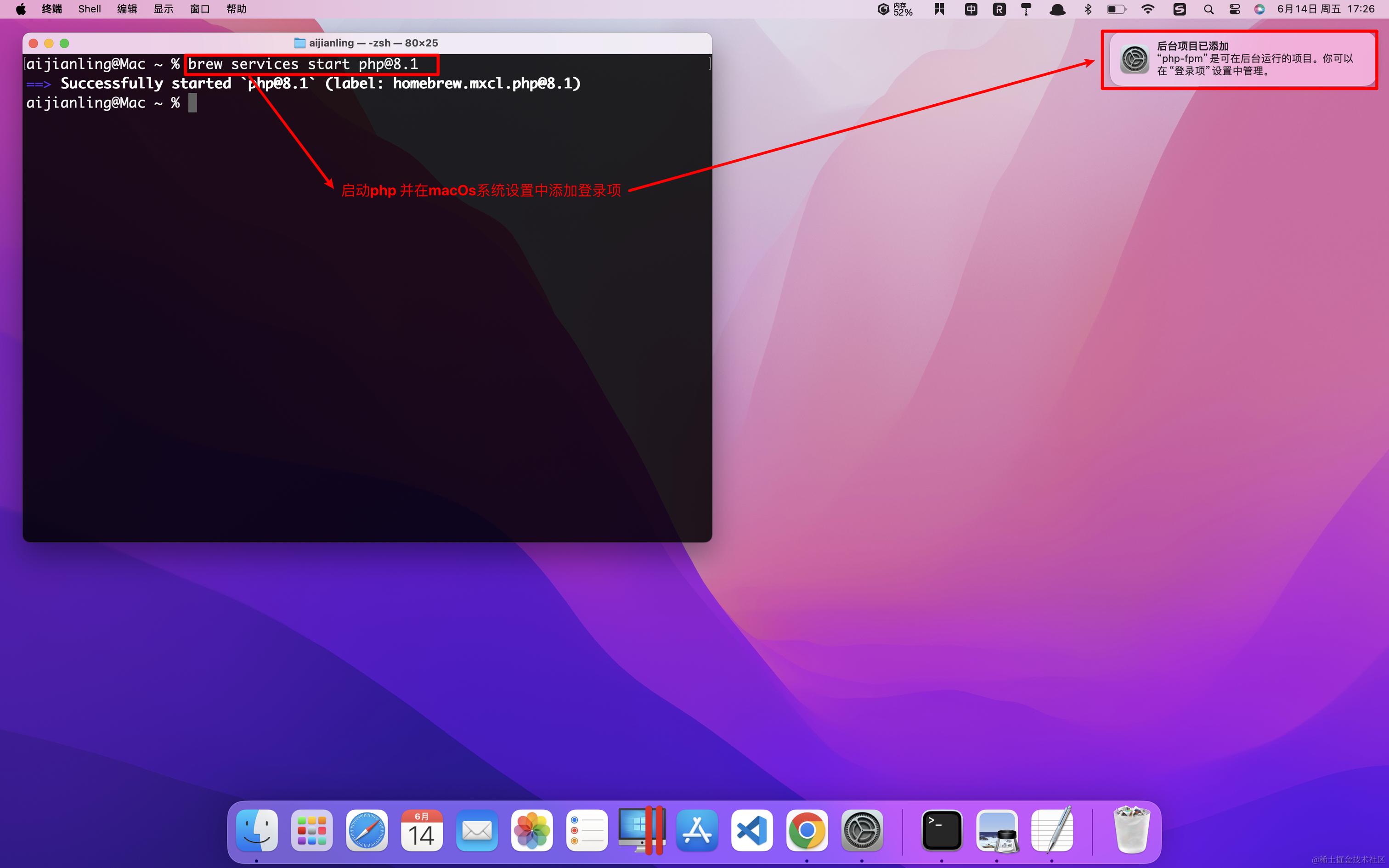
验证是否启动成功
lsof -i :9056

lsof -i :9074

lsof -i :9081
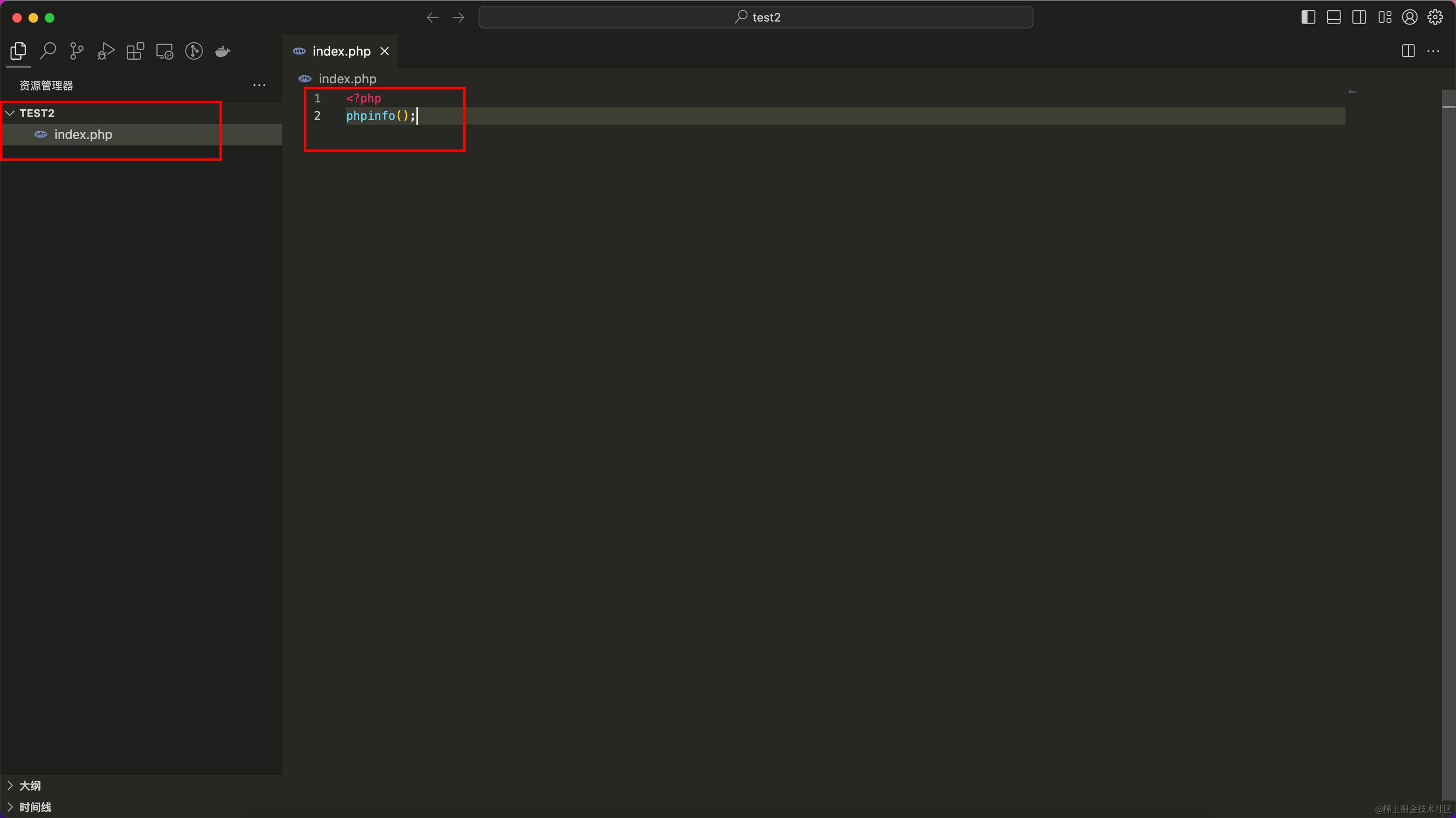
根据test.com.conf 配置文件中 项目路径为:
/Users/xxx/xxx/php/test2
在此目录下新增一个index.php,并编写phpinfo,如下图所示:
如果你修改 test2.com.conf 文件需要重启 nginx
sudo nginx -s reload
看看能不能正常输出phpinfo
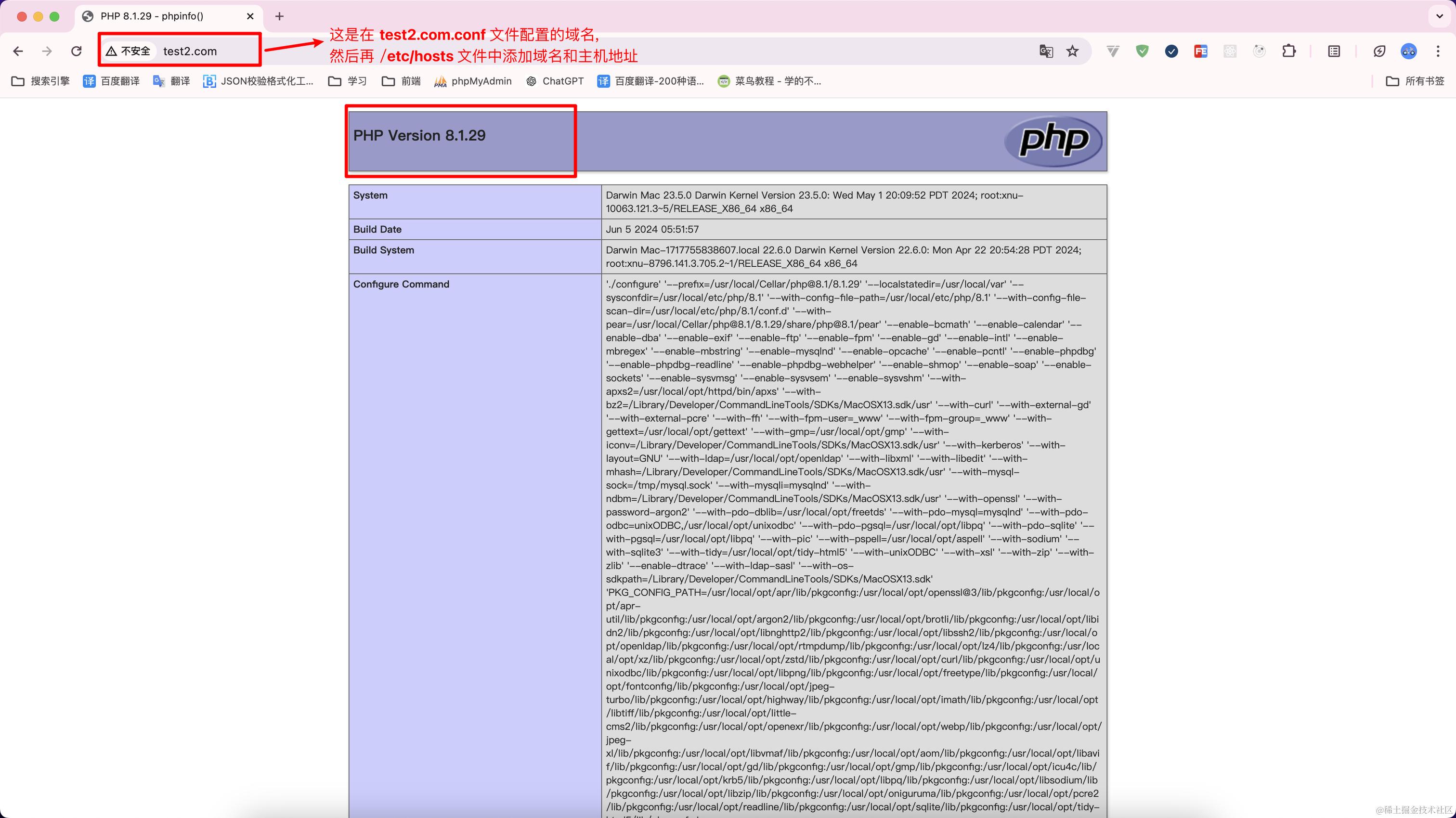
以此类推 访问本地配置好的 www.test1.com 域名将会显示不同的PHP版本
重新启动系统测试是否开机自启
只要关机前没有主动输入命令停止php,开机后仍会自动启动
我尝试是过将 /usr/local/Cellar/php@8.1/8.1.29/homebrew.php@8.1.service
此文件 复制到 /Library/LaunchAgents
然后 输入命令 brew services stop php@8.1 停止php
然后重启电脑,发现没有自动启动php
最后输入 brew services start php@8.1 才能启动成功
但这种属于手动启动不算开机自启,现在没有找到解决办法.
终端切换php版本
解除之前版本链接:brew unlink php
增加新版本链接:

brew link --overwrite php@5.6

brew link --overwrite php@7.4

brew link --overwrite php@8.1
将php加入环境变量 .bash_profile 或者使用 .zshrc
使用 .zshrc
如果没有此文件则使用命令创建,一般在家目录创建
切换目录 cd ~

创建文件
touch .zshrc

编辑文件 (按下键盘的 a 键 或者 i 键开始编辑)
vim .zshrc

export PATH="/usr/local/opt/php@8.1/bin:/usr/local/opt/php@8.1/sbin:$PATH"
export PATH="/usr/local/opt/php@7.4/bin:/usr/local/opt/php@7.4/sbin:$PATH"
export PATH="/usr/local/opt/php@7.1/bin:/usr/local/opt/php@7.1/sbin:$PATH"

alias php71='/usr/local/opt/php@7.1/bin/php'
alias php74='/usr/local/opt/php@7.4/bin/php'
alias php81='/usr/local/opt/php@8.1/bin/php'

保存文件
修改完后先按 ESC 然后在输入命令 :wq 就保存成功了
使配置生效 source .zshrc
如果使用的是 .bash_profile 重复上面步骤即可
校验配置是否成功,终端输入

php56 -v

php74 -v

php81 -v
显示如下类似内容,则为成功
PHP 7.4.33 (cli) (built: Jun  6 2024 19:16:29) ( NTS )

Copyright (c) The PHP Group

Zend Engine v3.4.0, Copyright (c) Zend Technologies

    with Zend OPcache v7.4.33, Copyright (c), by Zend Technologies
安装 php 扩展
 按照上面的链接安装会出现redis 扩展版本过高问题,安装php7.4 redis 扩展时,
 仍能成功安装
 打印 phpinfo 可以看到 redis 成功安装如下图所示
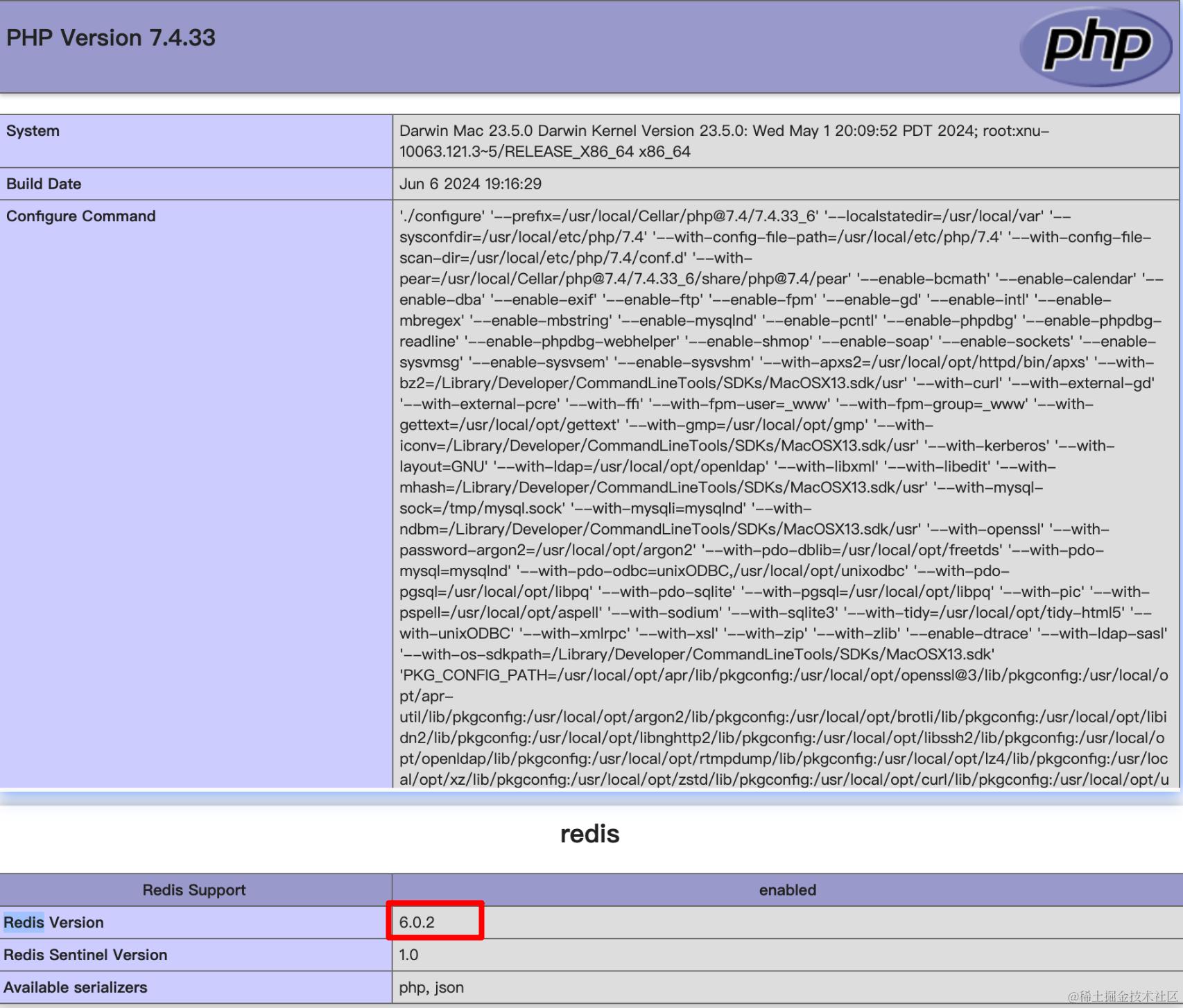
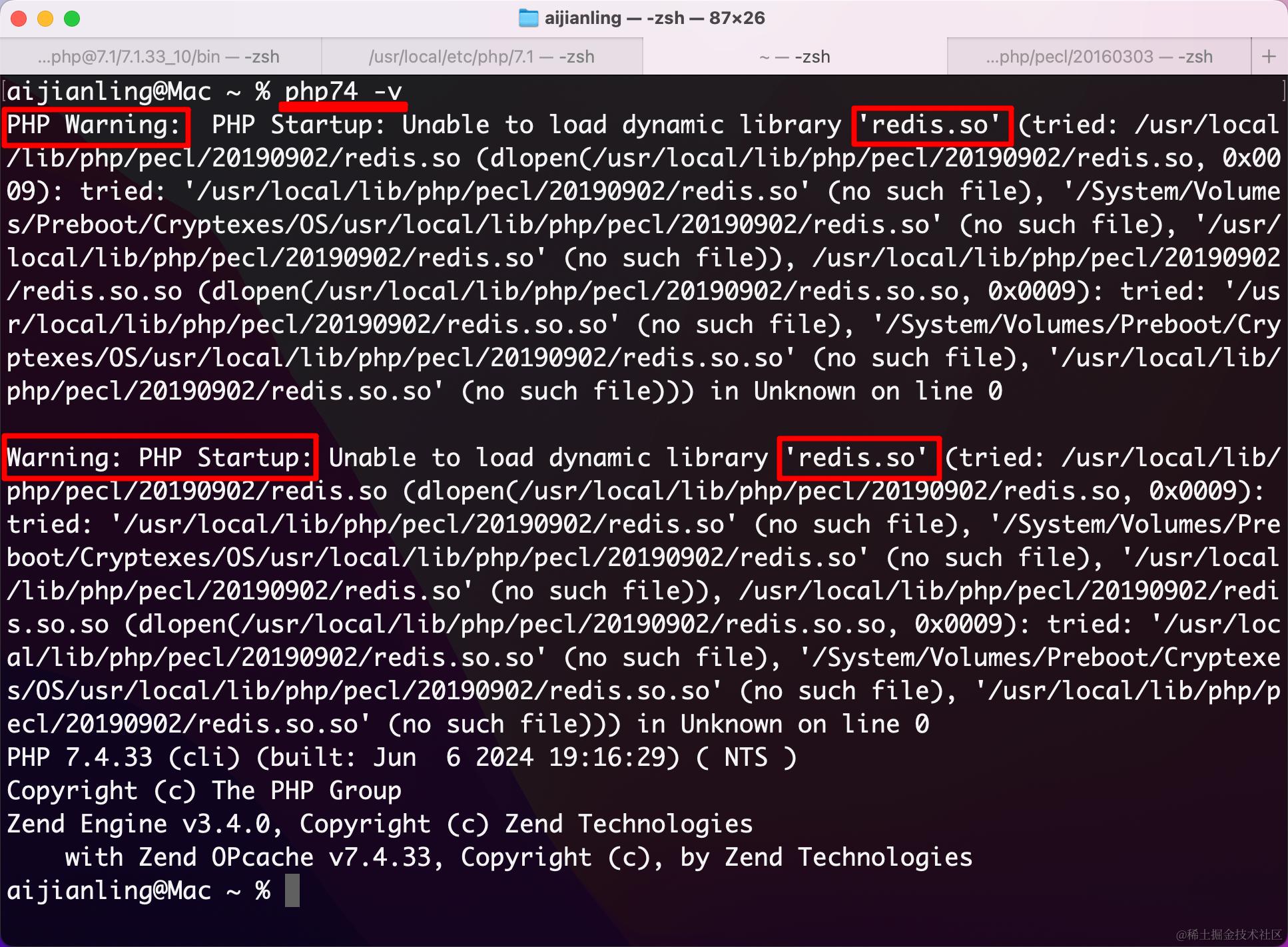
使用命令 php74 -v 查看 php 版本时,会出现警告错误如下图所示
解决安装 php 扩展的问题
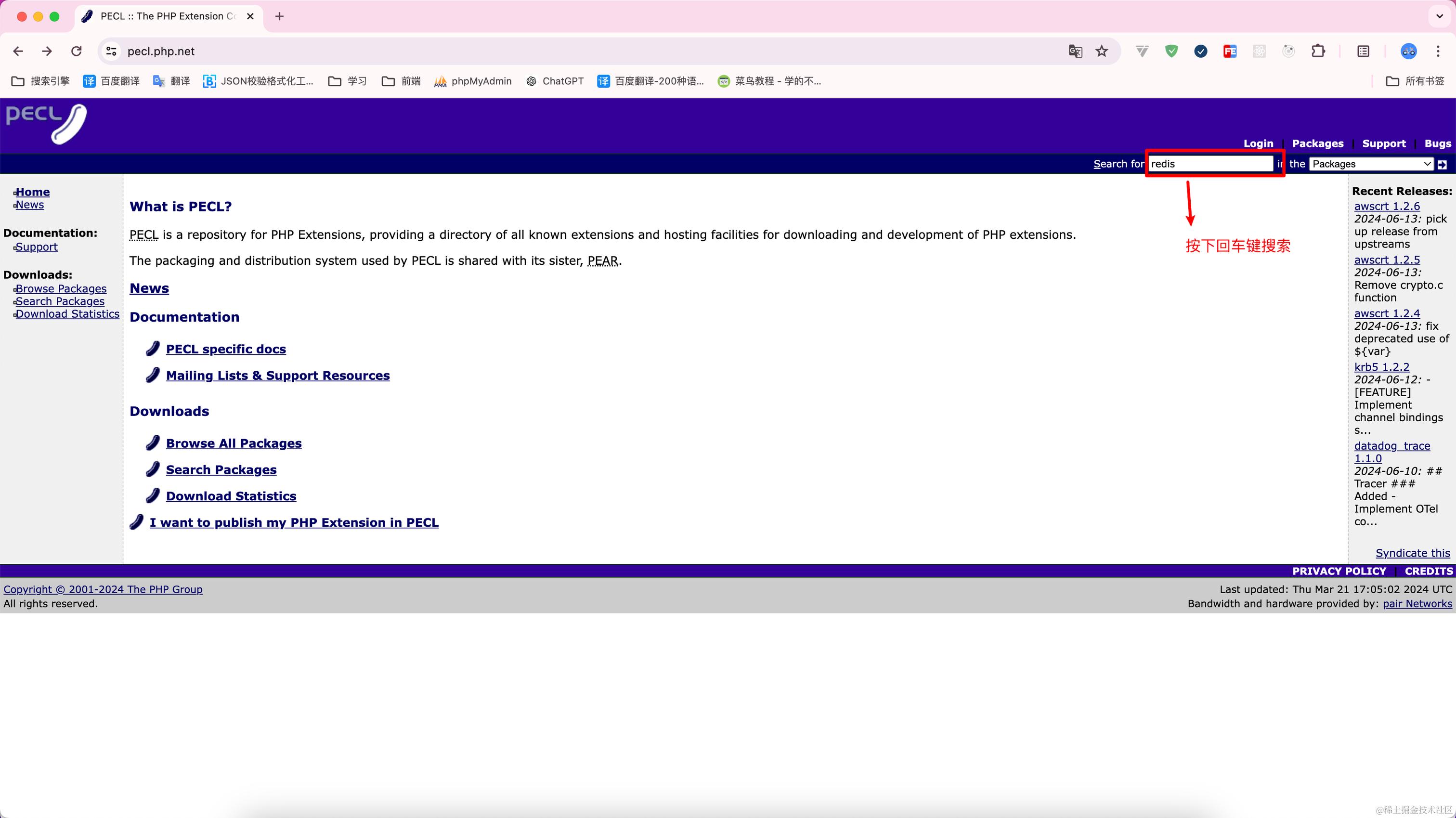
php 扩展官方链接
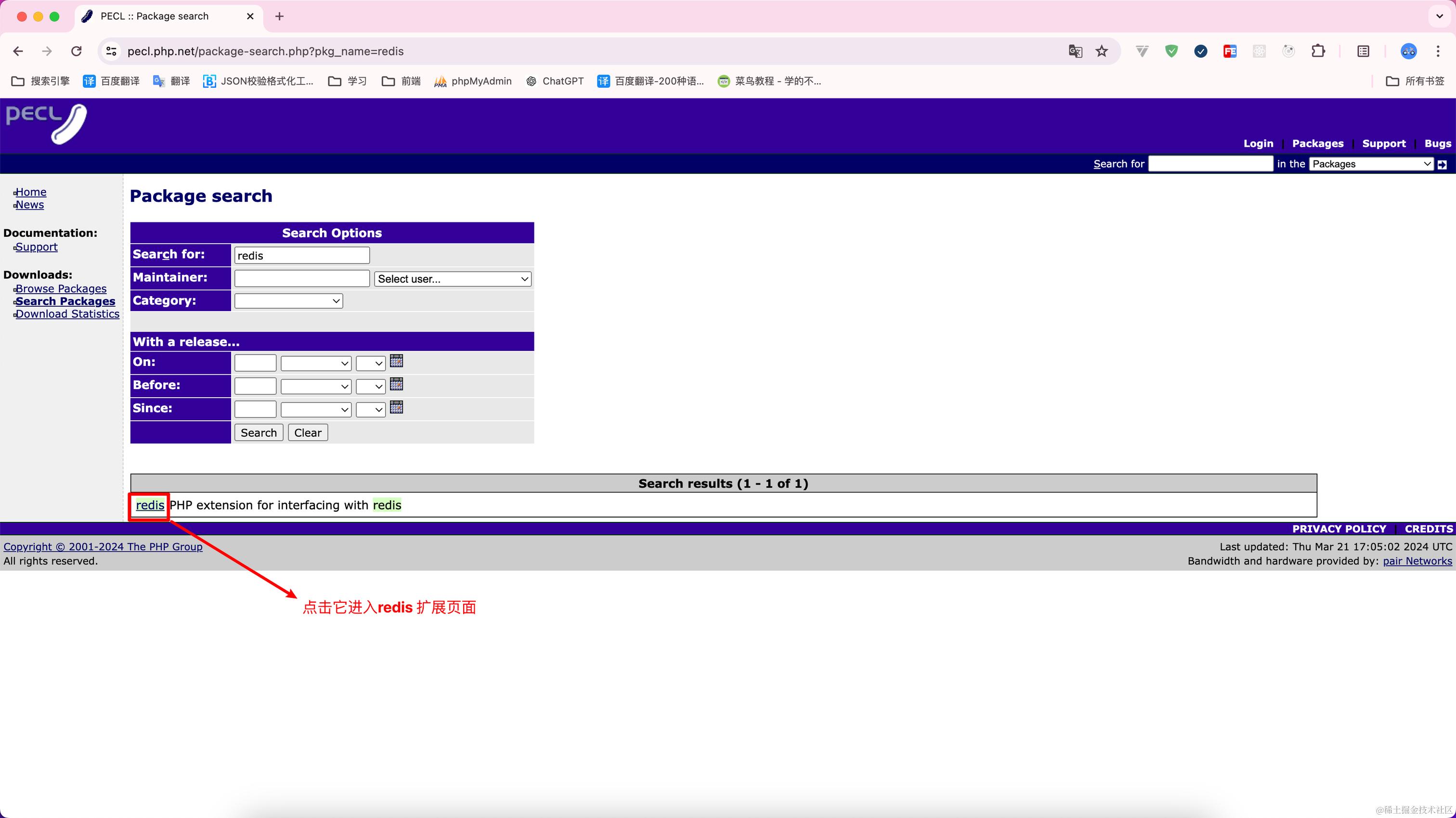
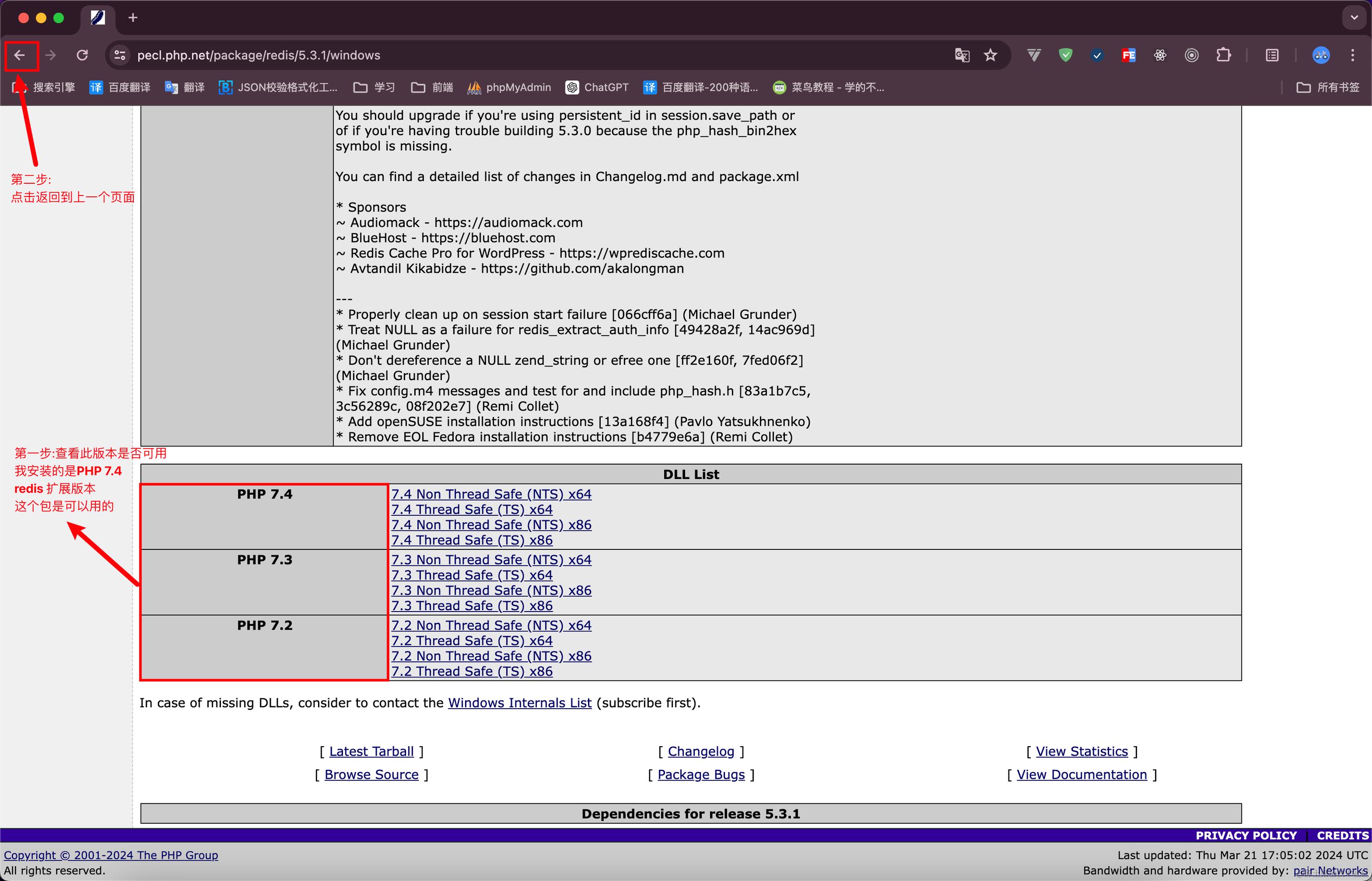
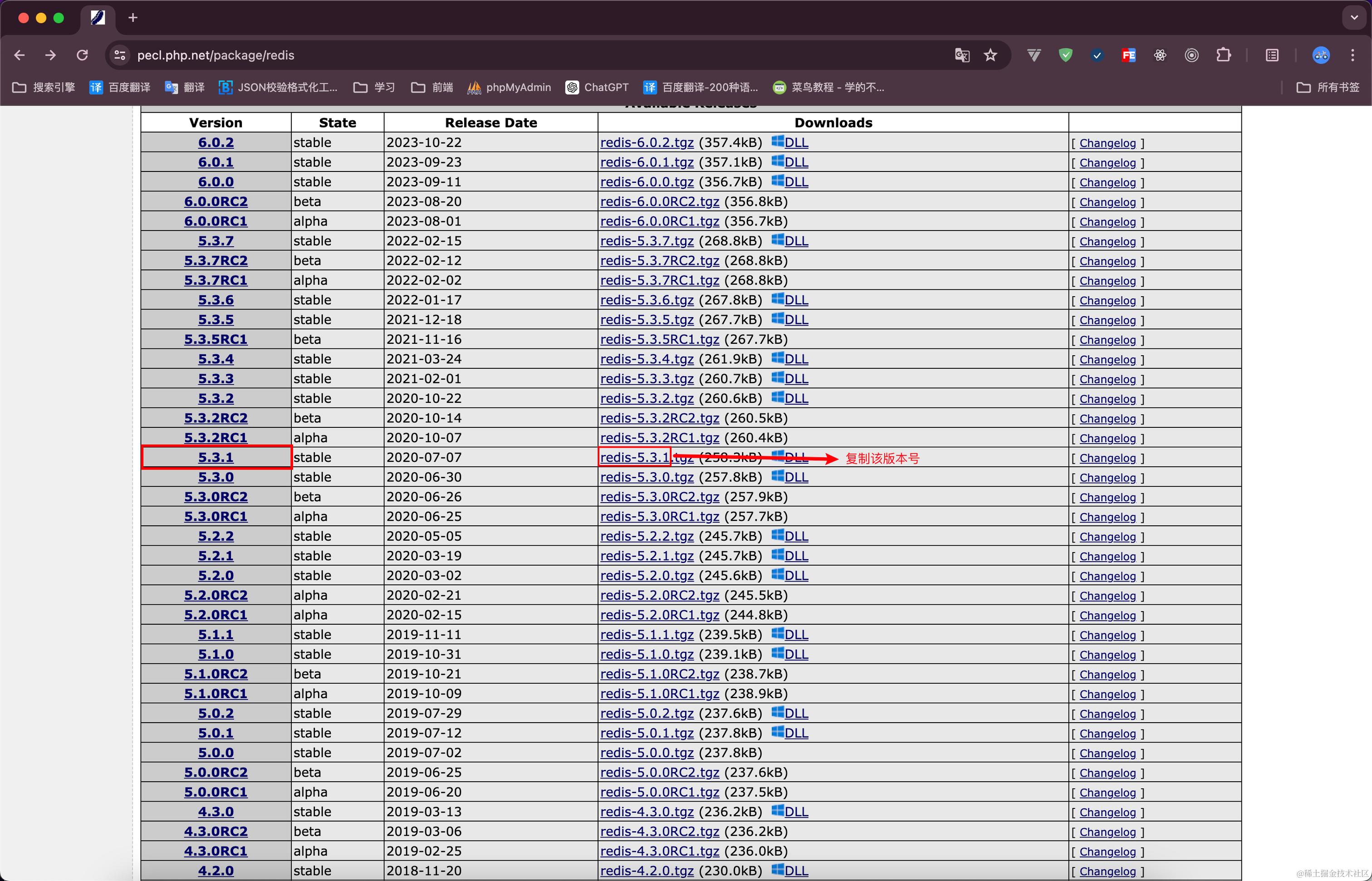
点击上面的链接进入网站后搜索如下图所示
先看看 .zshrc 文件内容
比如我在php8.1安装目录下执行 php -v
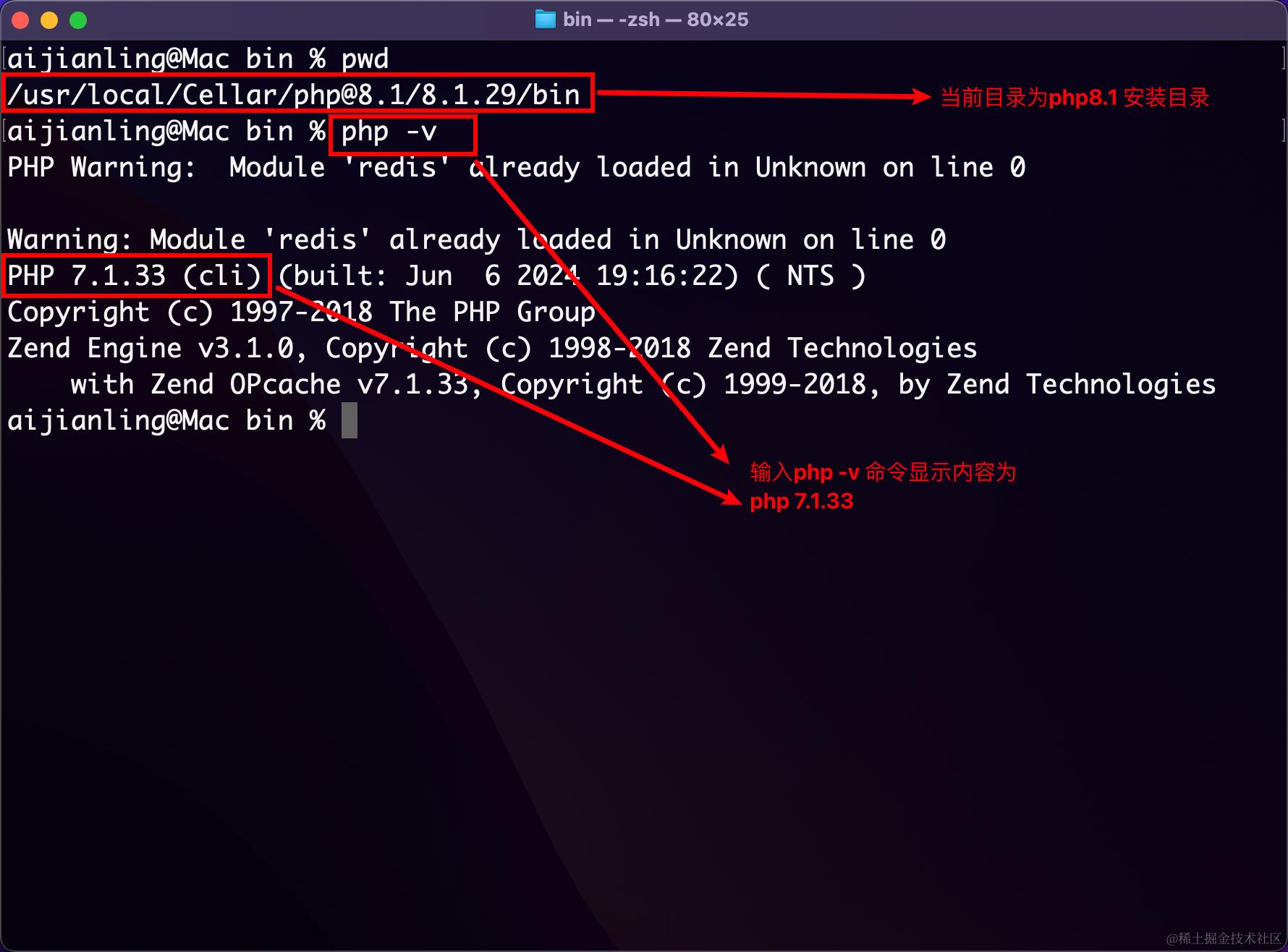
本来按道理我在php8.1 安装目录 执行 php -v
显示的应该是php8.1版本信息
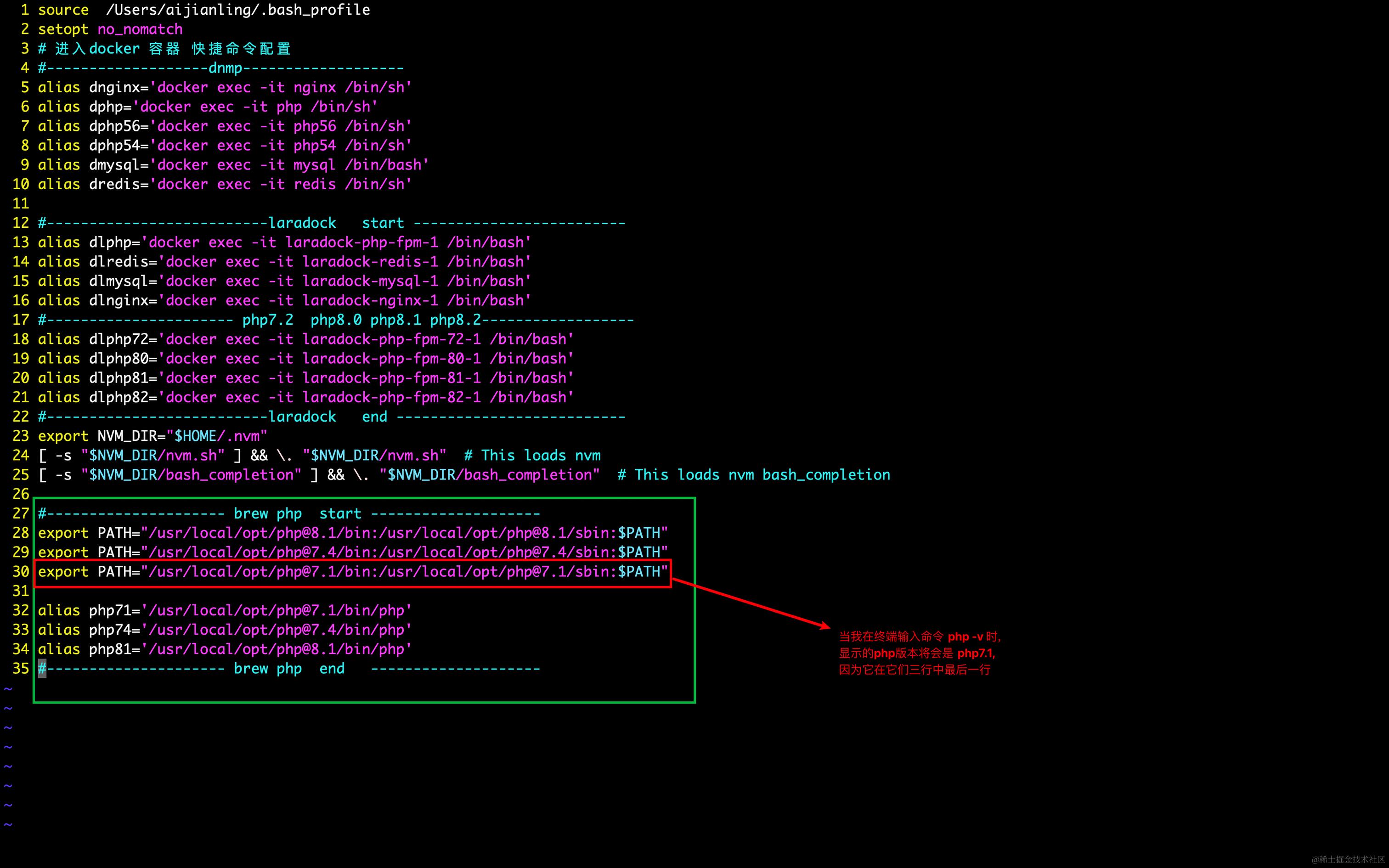
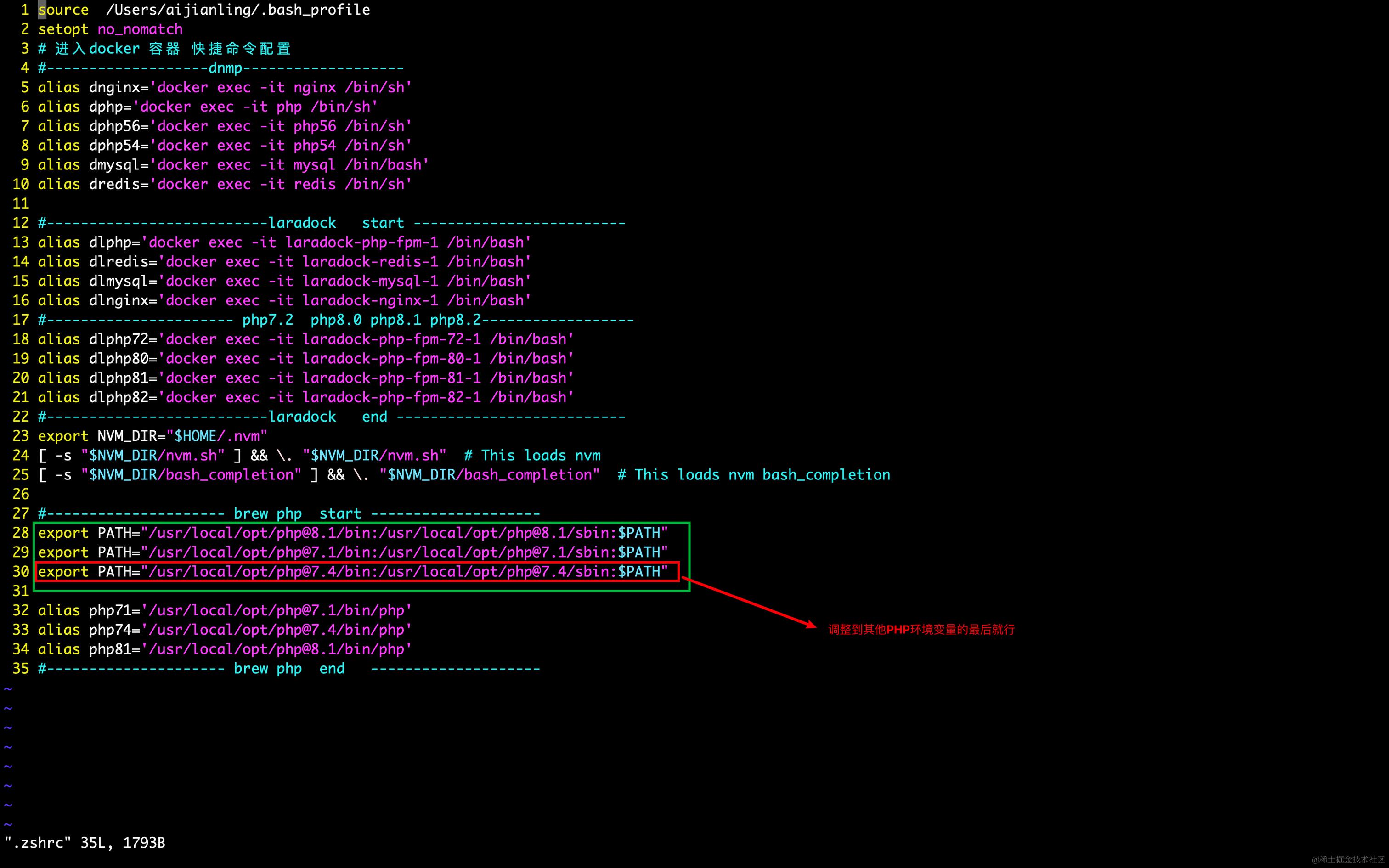
因为我在 .zshrc 文件中设置了php7.1环境变量放到了最后一行,
所以显示是php7.1 版本.
vim ~/.zshrc
我们可以通过调整 .zshrc 文件中 PHP环境变量的位置,来安装 php 扩展
如图所示
然后按ESC 退出编辑模式
:wq 保存并退出

最后输入命令生效
source ~/.zshrc

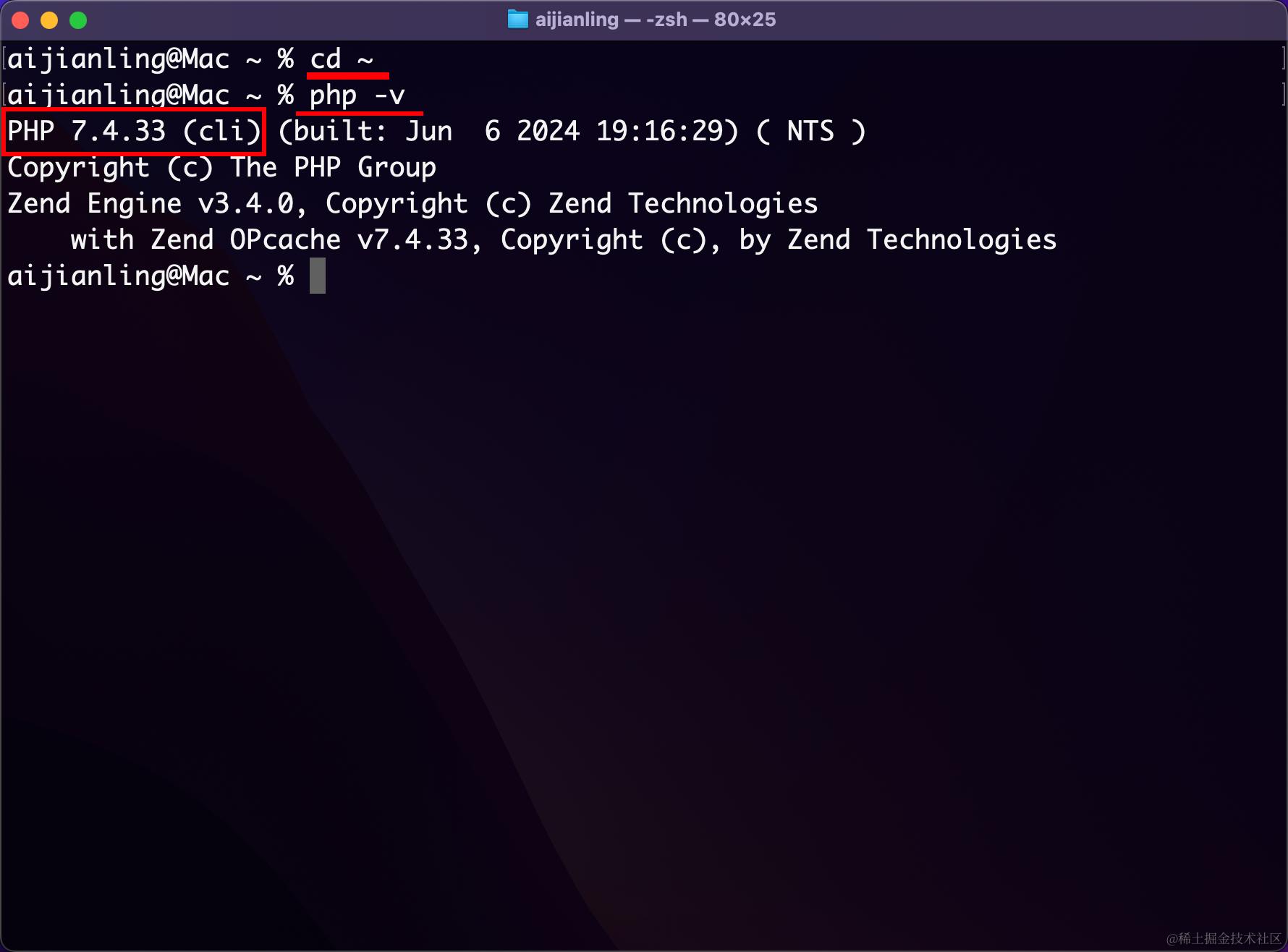
此时我们就可以安装 PHP 7.4 的扩展了

cd ~
php -v
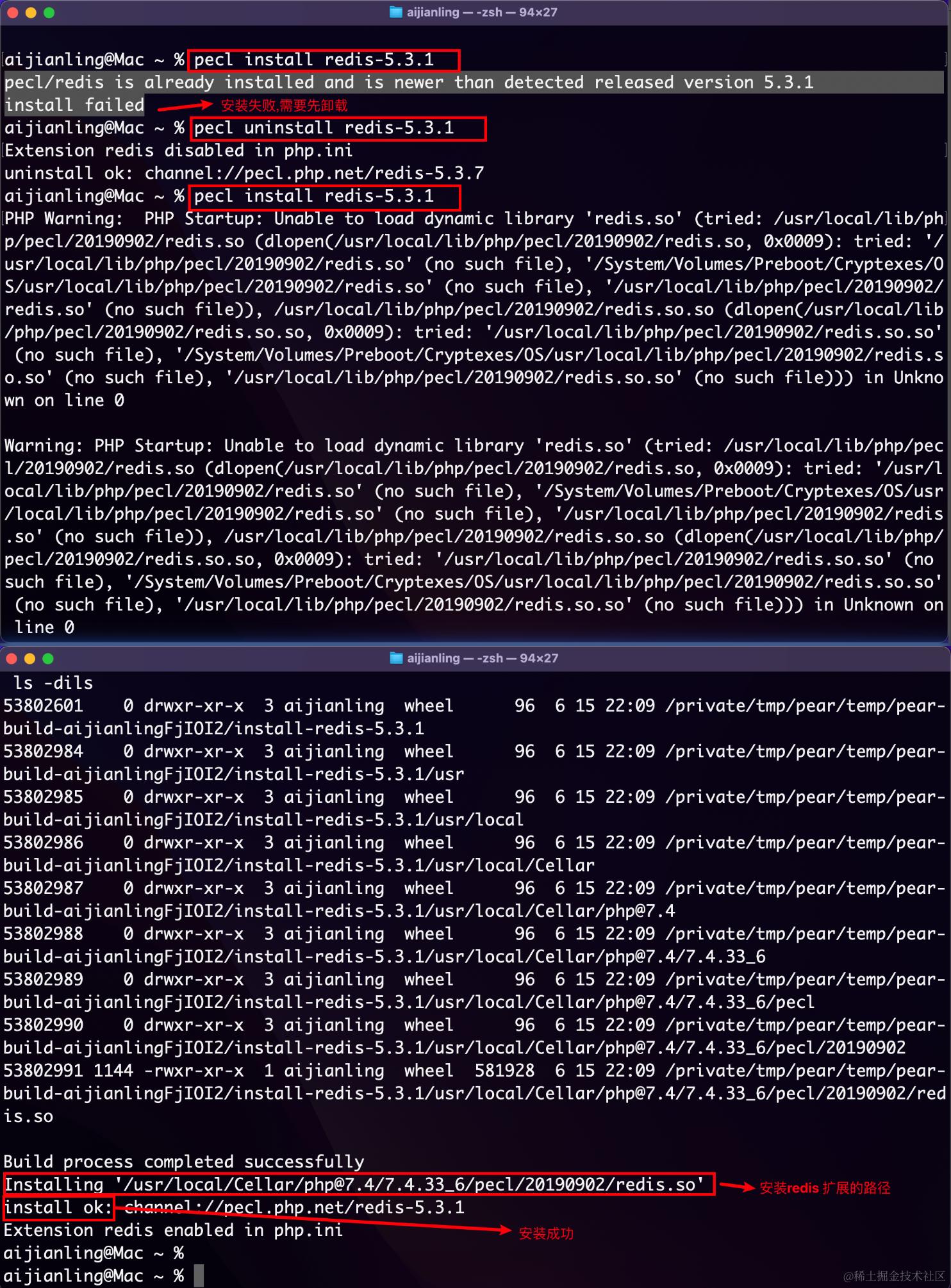
如下图所示
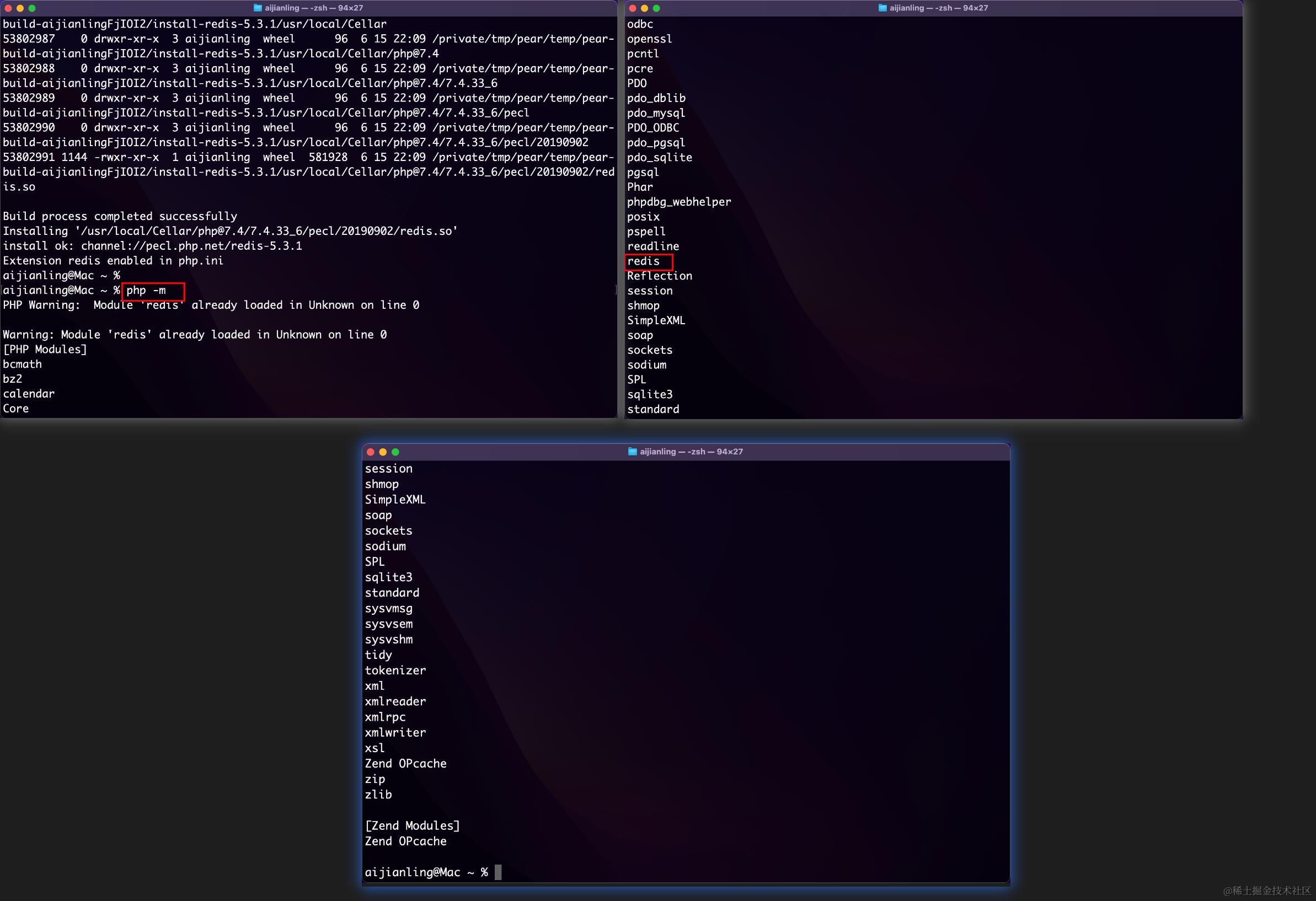
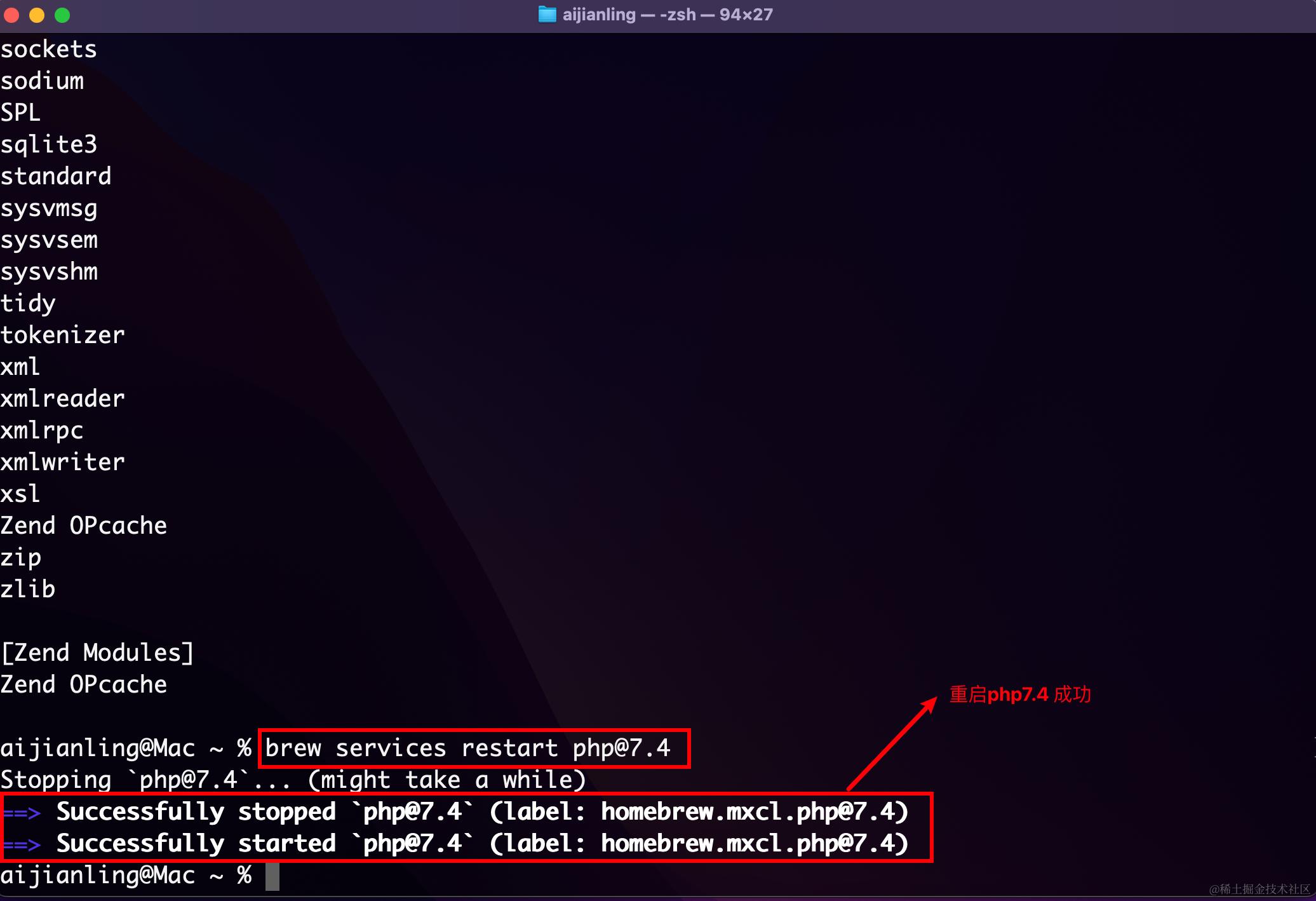
输入命令php - m 查看
输入命令重启php7.4
brew services restart php@7.4
查看 phpinfo
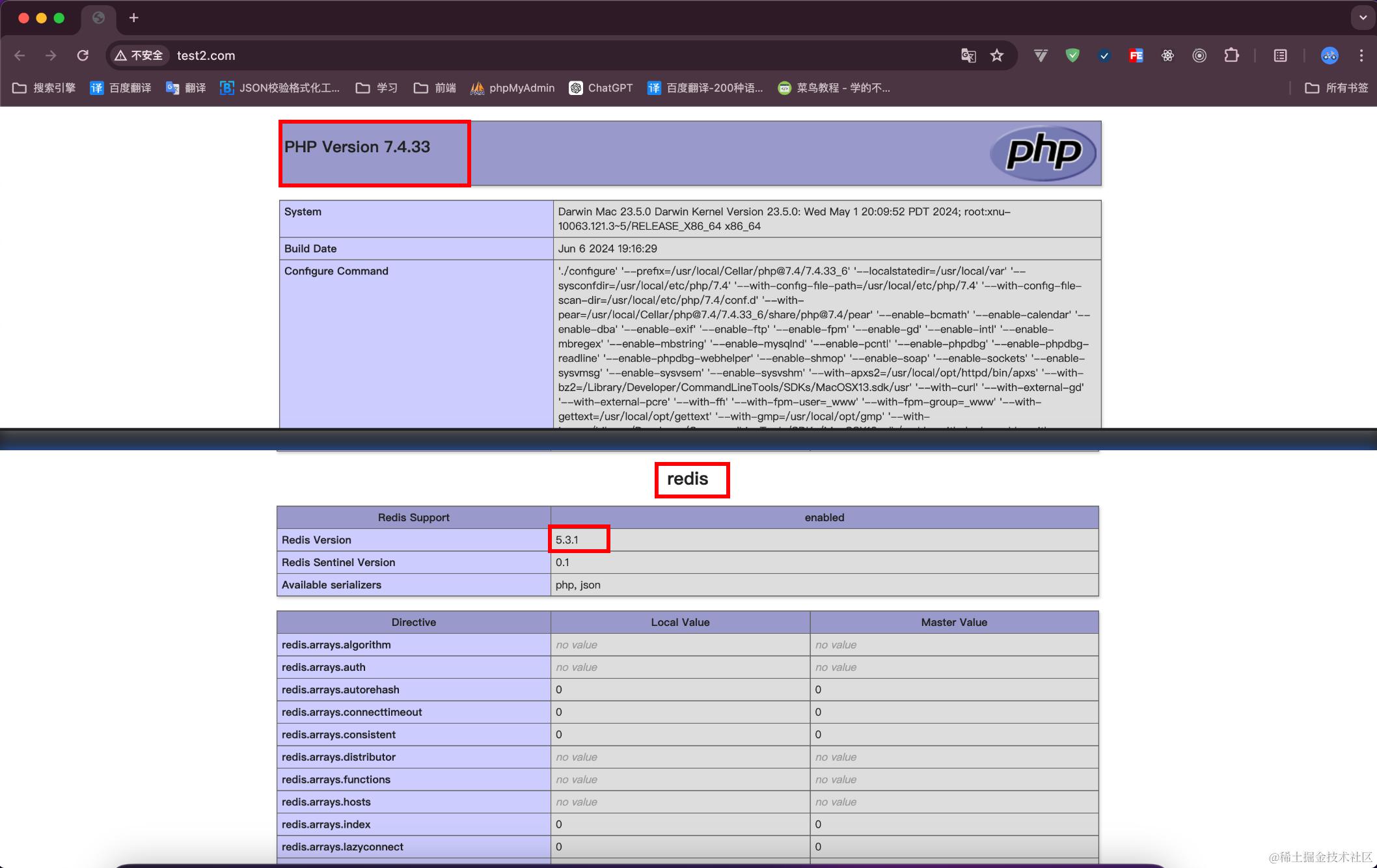
成功安装 redis 扩展
其他PHP版本安装 redis 扩展跟上面一样
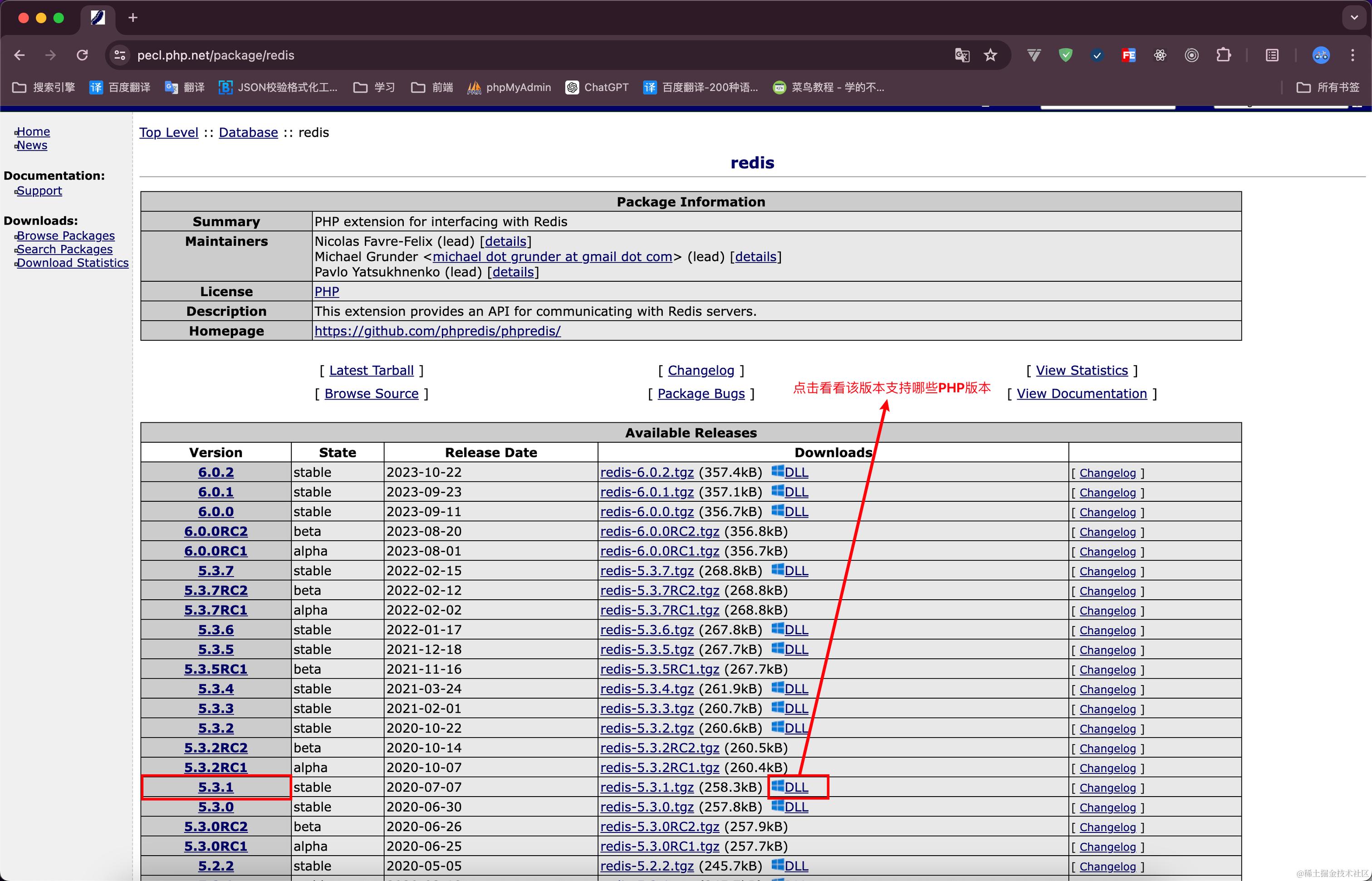
如果想要更高的redis 扩展版本,再去php扩展官网看看支不支持你当前的PHP版本,
卸载原来的 pecl uninstall redis-xxx
再执行命令安装 pecl install redis-xxx
安装composer
//composer 需要进入php安装目录下执行,可以根据自己的需求为每个php 版本安装不同版本的composer
cd /usr/local/Cellar/php@7.4/7.4.33_6/bin


//下载composer-setup.php
php -r "copy('https://install.phpcomposer.com/installer', 'composer-setup.php');"

//安装composer
php composer-setup.php

//删除安装脚本
php -r "unlink('composer-setup.php');"

然后就可以把下好的composer.phar移动到系统里
sudo mv composer.phar /usr/local/bin/composer74

最后查看composer版本
composer -V

这种方式默认是安装最新版的composer,如果想安装其他composer 版本
可以将composer 版本降低
检验是否成功
~/ composer74
The "fxp/composer-asset-plugin" plugin (installed globally) was skipped because it requires a Plugin API version ("^1.0") that does not match your Composer installation ("2.6.0"). You may need to run composer update with the "--no-plugins" option.
   ______
  / ____/___  ____ ___  ____  ____  ________  _____
 / /   / __ \/ __ `__ \/ __ \/ __ \/ ___/ _ \/ ___/
/ /___/ /_/ / / / / / / /_/ / /_/ (__  )  __/ /
\____/\____/_/ /_/ /_/ .___/\____/____/\___/_/
                    /_/
Composer version 2.7.6 2024-05-04 23:03:15