菜鸟做项目时发现很多 vue3 常用的代码,所以来总结一下!
监听路由
监听路由
import { useRoute } from "vue-router";
let route = useRoute();
watch(
  () => route.fullPath, // 大家可以思考一下为什么不用path?
  (newValue, oldValue) => {
    // 最好加上 —— keep-alive的时候有用
    if (isActive.value) {
      ……
    }
    console.log("watch", newValue, oldValue);
  },
  { immediate: true }
);
也可以
import { onBeforeRouteUpdate } from "vue-router";

onBeforeRouteUpdate((to, from) => {
  ……
});
这里顺便补充一下 路由跳转 、 跨界面跳转、获取参数
路由跳转
路由跳转
import { useRouter, useRoute } from "vue-router";
const router = useRouter();
const route = useRoute();

// 跳转路由
const toPath = function (path) {
  router.push(path);
};
如果一定要判断,建议用:
const toPath = (location) => {
  const targetFullPath = router.resolve(location).fullPath;

  if (route.fullPath !== targetFullPath) {
    router.push(location);
  }
};
跨界面跳转
跨界面跳转
import { useRouter } from "vue-router";
// 新标签页跳转
const router = useRouter();
const openPage = (params = "") => {
  let href = null;

  if (params) {
    href = router.resolve({
      path: "/newform",
      query: {
        id: encodeURIComponent(JSON.stringify(params)),
      },
    });
  } else {
    href = router.resolve({
      path: "/newform",
      query: {
        id: null,
      },
    });
  }
  window.open(`${href.href}`, "_blank");
};
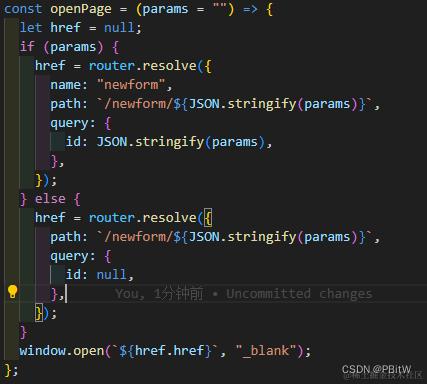
这里也可以使用 name:"newform" ,要和自己router里面定义的保持 对应关系!
动态路由也是一样:
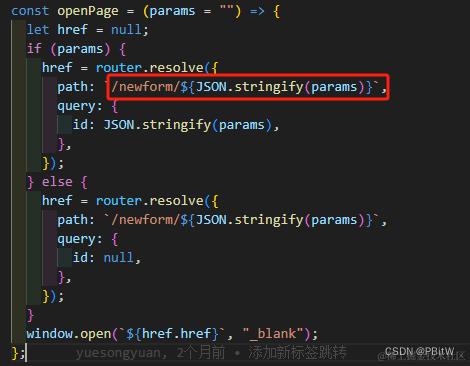
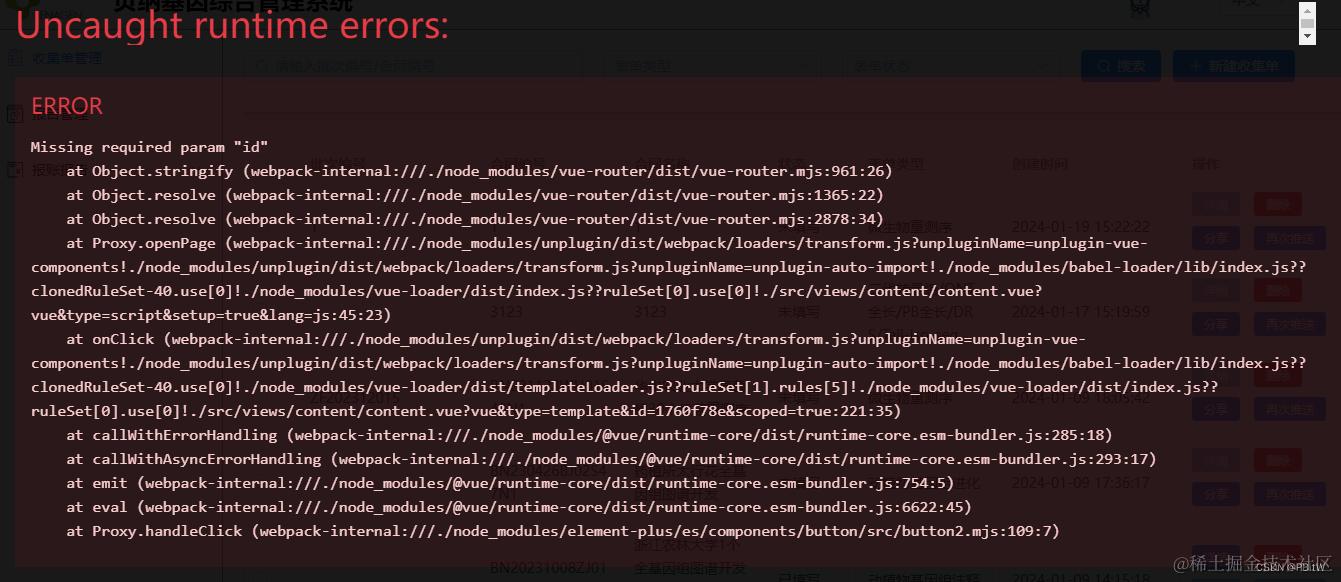
普通路由两个同时写也没有问题,但是动态路由不行,会报错!!!
报错:runtime-core.esm-bundler.js:343 Uncaught Error: Missing required param "xxx"
获取参数
获取参数
import { useRoute } from "vue-router";
const route = useRoute();
console.log(route.query.id); // 这里有两种一种 params、一种 query,注意取的时候要对应!打印看看就好
且要分清 动态路由(params) 和 路由后面带参数(query) 这两种情况!具体看文章:23 动态路由(路由传参)
mitt、project / inject 无效
mitt、project / inject 无效
如果通信的组件是 router-view 里面 根据路由加载的 或者 路由有两层嵌套,那么不管是 mitt 还是 project/inject 都无法进行组件间的通信,因为 mitt 要能通信必须是该界面已经加载出来了!而 project/inject 不知道为什么,嵌套了两层后,第二层 router-view 里面的组件就无法获取了,会报错
[Vue warn]: injection "openmenu" not found.
  at <Resources onVnodeUnmounted=fn<onVnodeUnmounted> ref=Ref< undefined > >
  at <RouterView>
  at <ElMain>
  at <ElContainer>
  at <Home onVnodeUnmounted=fn<onVnodeUnmounted> ref=Ref< null > >
  at <RouterView>
  at <App>
好像是因为第一层 router-view 被卸载了,所以 project 为 undefined 了!也可能是因为 provide 只能够向下进行传递数据,而路由并不相当于是其子组件!
解决方案
使用pinia、vuex等!
防抖函数 (已封装)
防抖函数 (已封装)
/**
 * 防抖函数
 * @param {function} fn
 * @param {number} delay
 * @returns {function}
 * 如果函数有参数,直接定义一个常量等于debounce(fn,delay)
 * 调用的时候直接 常量(函数参数) 就行
 *
 */
export const debounce = (fn, delay) => {
  let timer = null;
  return function () {
    let context = this;
    let args = arguments;
    clearTimeout(timer);
    timer = setTimeout(function () {
      fn.apply(context, args);
    }, delay);
  };
};
vue动态绑定背景(transform类比)
vue动态绑定背景(transform类比)
<div class="cover1" :style="{transform:`rotate(${rotate1}deg)`}" v-if="rotate1 <= 90"></div>
<div class="cover2" :class="rotate1 <= 90 ? 'cover2i' : ''" :style="{transform:`rotate(${rotate1}deg)`}" v-if="rotate1 <= 180"></div>
<div class="cover3" :class="rotate1 <= 180 ? 'cover3i': ''" :style="{transform:`rotate(${rotate1}deg)`}" v-if="rotate1 <= 270"></div>
<div class="bgimg" :style="{backgroundImage:'url('+msg.url+')'}"></div>
复制函数封装
复制函数
/**
 * 复制文本到粘贴板
 * @param {*} txt 需要粘贴的文本
 * @returns {function}
 *
 */
export let copyTxt = (txt) => {
  // 惰性函数
  if (navigator.clipboard) {
    copyTxt = (txt) => {
      navigator.clipboard.writeText(txt);
    };
    copyTxt(txt);
  } else {
    copyTxt = (txt) => {
      const input = document.createElement("input");
      input.setAttribute("value", txt);
      document.body.appendChild(input);
      input.select();
      document.execCommand("copy");
      document.body.removeChild(input);
    };
    copyTxt(txt);
  }
};
下载函数(get)
下载函数(get)
下载和请求接口的逻辑不太一样,只需要访问就行了,菜鸟有时候也容易忘记,所以这里记一下!
/**
 * 判断是否是微信浏览器
 */
export const isWxBrowser = () => {
  // 判断是否H5微信环境,true为微信浏览器
  const ua = navigator.userAgent.toLowerCase();
  return ua.match(/MicroMessenger/i) == "micromessenger" ? true : false;
};

/**
 * 下载工具
 * @param {string} url 下载地址
 * @param {string} name 文件名
 *
 */
export const downloadTool = (url, name = "") => {
  if (!url) {
    console.warn("downloadFile: url不能为空");
    return;
  }

  // 微信内置浏览器要提示
  if (isWxBrowser()) {
    ElMessage({
      message: `请先在浏览器中打开再下载,或点击复制链接:${url}`,
      type: "error",
    });
    copyTxt(url); // 上面封装的
  } else {
    const a = document.createElement("a");
    a.style.display = "none";
    a.href = url;
    a.download = name;
    document.body.appendChild(a);
    a.click();
    a.remove();
  }
};
post
当然有时候下载传入的参数比较多,那么后端是可能将下载变成post请求的,这个时候要进行如下修改:
function downloadFileFun(formType) {
    const params = {
      formType,
    };
    downloadFile(params)
      .then((res) => {
        // console.log(res);
        // 从响应中获取文件数据
        const fileData = res;
        // 创建一个Blob对象
        let blob = new Blob([fileData], { type: "application/vnd.ms-excel" });
        // 生成文件URL
        const downloadUrl = URL.createObjectURL(blob);
        downloadTool(downloadUrl, "模板表.xlsx");
      })
      .catch((err) => {
        console.log(err);
      });
  }
}
注意
downloadFile 这个api里面要加一个responseType: "blob":
export function downloadFile(params) {
  return request({
    url: "/user/downloadExcel",
    method: "POST",
    data: params,
    responseType: "blob",
  });
}
如果是 pdf ,这里要修改为 :
let blob = new Blob([fileData], { type: "application/pdf" });

responseType: "arraybuffer",
如果后端不仅会返回数据,有时候还会返回报错信息的话,就需要对返回的结果进行判断,因为只要使用了 responseType 就算返回的不是数据类型,也会强制转换,那么报错信息就变成了 blob数据对象 了,没有 data、message 等东西了,需要将数据对象转换回json对象,代码如下:
createReportApi(formdata.value)
   .then((res) => {
     console.log(res);
     loading.close();
     // 非文件数据,长度会较小
     if (res.byteLength <= 100) {
       // 转换回json对象代码
       const jsonString = new TextDecoder("utf-8").decode(res);
       const jsonObject = JSON.parse(jsonString);
       console.log(jsonObject);
       // eslint-disable-next-line
       ElMessage({
         message: jsonObject.message,
         type: "error",
       });
     } else {
       let blob = new Blob([res], { type: "application/pdf" });
       downloadTool(
         window.URL.createObjectURL(blob),
         `${formdata.value.contractNum}-${formdata.value.projectName}.pdf`
       );
     }
   })
   .catch((err) => {
     console.log(err);
     loading.close();
   });
自适应js --》 index.html里使用
自适应js --》 index.html里使用
; (function (win) {
  var bodyStyle = document.createElement('style')
  bodyStyle.innerHTML = `body{width:1920px; height:1200px; overflow:hidden}`  // 需要适配的屏幕的宽高
  document.documentElement.firstElementChild.appendChild(bodyStyle)

  function refreshScale() {
    let docWidth = document.documentElement.clientWidth
    let docHeight = document.documentElement.clientHeight
    let designWidth = 1920 // 需要适配的屏幕的宽
    let designHeight = 1200  // 需要适配的屏幕的高
    let widthRatio = 0
    widthRatio = docWidth / designWidth
    let heightRatio = 0
    heightRatio = docHeight / designHeight
    document.body.style =
      'transform:scale(' +
      widthRatio +
      ',' +
      heightRatio +
      ');transform-origin:left top;'

    // 应对浏览器全屏切换前后窗口因短暂滚动条问题出现未占满情况
    setTimeout(function () {
      let lateWidth = document.documentElement.clientWidth,
        lateHeight = document.documentElement.clientHeight
      if (lateWidth === docWidth) return

      widthRatio = lateWidth / designWidth
      heightRatio = lateHeight / designHeight
      document.body.style =
        'transform:scale(' +
        widthRatio +
        ',' +
        heightRatio +
        ');transform-origin:left top;'
    }, 0)
  }
  refreshScale()

  window.addEventListener(
    'pageshow',
    function (e) {
      if (e.persisted) {
        // 浏览器后退的时候重新计算
        refreshScale()
      }
    },
    false
  )
  window.addEventListener('resize', refreshScale, false)
})(window);
这个自适应是最简单的自适应,主要用来对一些等比例的屏幕或者长宽比相近的屏幕的适配,主要还是针对类似电脑屏幕的适配!
注意: 1、如果项目有3d相关的操作,那么这个可能会适得其反,让本来百分比就可以适配的变得不适配!参考:swiper 3d 结合 loop 向左移动缺少一个内容
2、手机端、pad端还是建议使用px2rem,参考我的:使用px2rem不生效
3、一定要给body加overflow,因为只是缩小了,但是其实原来的内容大小没变!
GPT优化:
;(function (win) {
  const designWidth = 1920
  const designHeight = 1200

  function refreshScale() {
    const docWidth = document.documentElement.clientWidth
    const docHeight = document.documentElement.clientHeight

    // 保持比例
    const scale = Math.min(docWidth / designWidth, docHeight / designHeight)

    // 不覆盖原本 style
    document.body.style.transform = `scale(${scale})`
    document.body.style.transformOrigin = 'top left'
    document.body.style.width = designWidth + 'px'
    document.body.style.height = designHeight + 'px'
    document.body.style.overflow = 'hidden'
  }

  refreshScale()

  // 防抖 resize
  let resizeTimer
  window.addEventListener('resize', () => {
    clearTimeout(resizeTimer)
    resizeTimer = setTimeout(refreshScale, 100)
  })

  window.addEventListener('pageshow', (e) => {
    if (e.persisted) refreshScale()
  })
})(window)
禁止放大
禁止放大
// 禁用双指放大
document.addEventListener(
  'touchstart',
  function (event) {
    if (event.touches.length > 1) {
      event.preventDefault()
    }
  },
  {
    passive: false,
  }
);

// 禁用双击放大
var lastTouchEnd = 0
document.addEventListener(
  'touchend',
  function (event) {
    var now = Date.now()
    if (now - lastTouchEnd <= 300) {
      event.preventDefault()
    }
    lastTouchEnd = now
  },
  {
    passive: false
  }
)
使用:
const container = document.querySelector('#noZoomArea')
container.addEventListener('touchstart', ...)
container.addEventListener('touchend', ...)
注意
整个界面不让缩放应该用meta标签
<meta name="viewport" content="width=device-width, initial-scale=1.0, maximum-scale=1.0, user-scalable=no">
websocket封装
websocket封装
websocket确实使用起来很简单,但是最好搞一个统一的断线重连以及连接流程,不然真的不太好规范!
这里菜鸟把公司一个同事的封装的献上:
data:
// 连接地址
websocketUrlPlay: ws://xxxxxx,
// 断线重连
lockReconnect: false,
// 重连定时器
reconnetTimer: null
method:
// 重连
reconnect() {
  if (lockReconnect) {
    return;
  }
  lockReconnect = true;
  // 没连接上会一直重连,设置延迟避免请求过多
  reconnetTimer && clearTimeout(reconnetTimer);
  reconnetTimer = setTimeout(() => {
    createWebsocketPlay();
    lockReconnect = false;
  }, 4000);
},

// 创建websocket
createWebsocketPlay() {
  socket = new WebSocket(websocketUrlPlay);
  socket.onopen = () => {
    // onopen 连接触发
    console.log("websocket pad open");
  };
  socket.onclose = () => {
    // onclose 断开触发
    console.log("websocket close");
    this.reconnect();
  };
  socket.onerror = () => {
    console.log("发生异常了");
    reconnect();
  };
  socket.onmessage = (event) => {
    // console.log(JSON.parse(event.data));
    const data = JSON.parse(event.data);
  }
}
注意:
1、这个 lockReconnect 类似于java中的 锁,所以 断开连接的时候一定要置为true
lockReconnect = true;
clearTimeout(reconnetTimer);
reconnetTimer = null;

setTimeout(()=>{
  socket.close();
},100);  // 如果关闭之前会发送消息,那么建议关闭时延时,可以更加有效!
注意
这里最好把 websocket 放在一个公共 js 里面,应用一开始就监听,应用卸载才关闭,不然自己在每一个界面创建时去创建 websocket 不仅影响性能,而且还要时刻关闭,不然就会创建多个!当然如果项目中本来就只有一个界面需要使用,那就无所谓!
echarts
echarts
echarts实现渐变
echarts实现渐变
itemStyle: {
  color: new echarts.graphic.LinearGradient(0, 0, 0, 1, [
    { offset: 0, color: "#17e5a2" },
    { offset: 1, color: "#23e8ca" },
  ]),
},
或者官网的代码:
labelLine: {
    normal: {
        show: true,
        length: 30,
        length2: 30,
        lineStyle: {
            color:{
              type: 'linear',
              x: 0,
              y: 0,
              x2: 0,
              y2: 1,
              colorStops: [{
                  offset: 0, color: 'red' // 0% 处的颜色
              }, {
                  offset: 0.5, color: 'red' // 100% 处的颜色
              }, {
                  offset: 1, color: 'rgba(255,0,0,0)' // 100% 处的颜色
              },],
              global: false // 缺省为 false
            },
            width: 2,
        }
    }
},
参考:
配置color:echarts.apache.org/zh/option.h…
echarts适配
echarts适配
window.addEventListener("resize", function () {
  if (document.getElementById("echart_box2")) {
    chartssize(document.getElementById("echart_box2"), document.getElementById("echart2"), 3); // 第三个参数是自由发挥用的
    chart2.resize();
  }
});

//为图表计算高度
chartssize(container, charts, type) {
  function getStyle(el, name) {
    if (window.getComputedStyle) {
      return window.getComputedStyle(el, null);
    } else {
      return el.currentStyle;
    }
  }
  let wi = getStyle(container, "width").width;
  let hi = getStyle(container, "height").height;
  charts.style.width = wi;
  charts.style.height = hi;
},
MDN:
我的博客:
其实就是获取父元素最终样式,然后设置echarts样式而已!
echarts中间是图片或者文字(不要用定位,low)
echarts中间是图片或者文字(不要用定位,low)
graphic: {
    elements: [{
        type: 'image',
        style: {
            image: giftImageUrl,
            width: 100,
            height: 100
        },
        left: 'center',
        top: 'center'
    }]
},
参考: 配置graphic:echarts.apache.org/zh/option.h…
设置labelline的位置
设置labelline的位置
参考饼图引导线调整: echarts.apache.org/examples/zh…
打印效果:
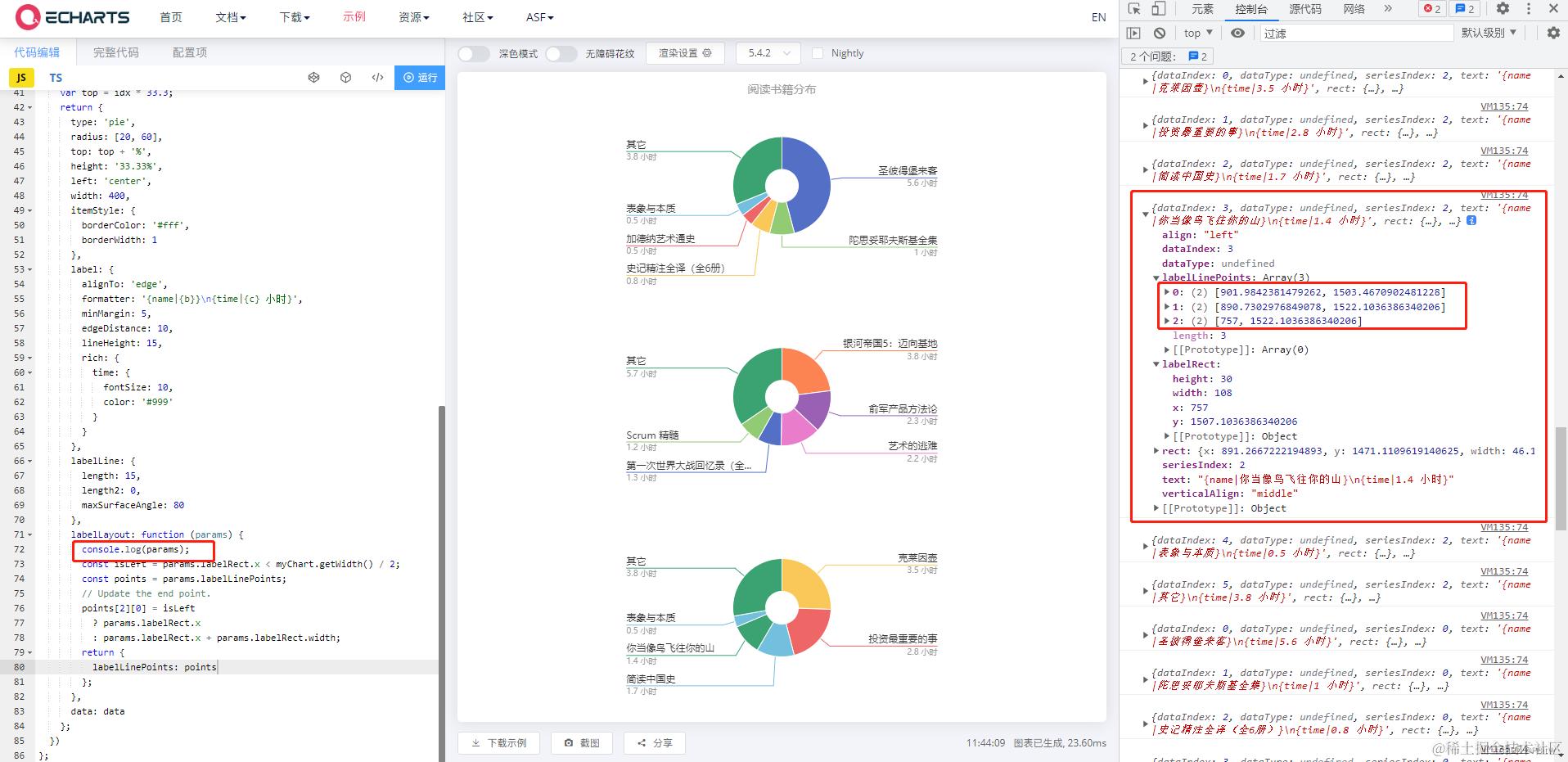
参考edgeDistance -- 防止太小显示字数过少: echarts.apache.org/zh/option.h…