1.aspect-ratio
让元素保持固定的宽/高的比例缩放 可以直接应用在 div。img video 标签上
- 如果 固定了高度 100,就会 根据 如 16:9 , 去换算 9 为100 对应的宽边 16:9 = x : 100
- 如果 固定了宽度 100就会 根据 如 16:9 , 去换算 16 为100 对应的宽边 16:9 = 100 : x
- 当同时设置宽度 则失效。
.wrapper {
    width: 300px;
    aspect-ratio: 16/9;
    background-color: red;
}
<div class="wrapper"></div>
这里不设置高度,就会自动计算wrapper 的动态高度
应用到video标签
video {
    /* width: 600px; 这里可以不设置宽 让aspect-ratio 来计算 */
    height: 204px;
    aspect-ratio: 16/9;
    object-fit: cover;
}
<div class="wrapper">
 <video muted="" webkit-playsinline="" playsinline="" preload="auto" name="media" class="" loop="true" >
    <source src="./test.mp4" type="video/mp4" />
 </video>
</div>
视频有默认的宽高 ,强制设置宽高 只会等比缩放,可以使用 object-fit 实现裁剪显示,再配合 aspect-ratio + 设置其中一个宽或高
使用 padding模拟
模拟实现 通过 padding-top/padding-bottom + 宽度的百分比
.box{
    width: 40%;
    padding-top: 30%;
    /*padding-top: percentage(30/100); 也可以使用percentage 函数计算 */
    background: red;
}
.innerbox{
    position: absolute;
}
<div class="wrapper">
    <div class="innerbox"></div>
</div>
使用vw/vh 模拟
.box{
    width: 40vw;
    height: 30vw;
    background: #D1B3DF;
}
<div class="box"></div>
使用max-width(图片自适应):
图片自适应意思就是图片能随着容器的大小进行缩放,可以采用如下代码:
img {
    display: inline-block;
    max-width: 100%;
    height: auto;
}
2. img标签中使用srcset
<img srcset="photo_w350.jpg 1x, photo_w640.jpg 2x" src="photo_w350.jpg" alt="">
如果屏幕的dpi = 1的话则加载1倍图,而dpi = 2则加载2倍图,手机和mac基本上dpi.
但是你会发现实际情况并不是如此,在Mac上的Chrome它会同时加载srcset里面的那张2x的,还会再去加载src里面的那张,加载两张图片。 顺序是先把所有srcset里面的加载完了,再去加载src的。这个策略比较奇怪,它居然会加载两张图片,如果不写src,则不会加载两张,但是兼容性就没那么好。 这个可能是因为浏览器认为,既然有srcset就不用写src了,如果写了src,用户可能是有用的。而使用picture就不会加载两张.
使用picture标签加载图片
picturefill.min.js :解决IE等浏览器不支持 的问题
<!-- picturefill.min.js 解决IE等浏览器不支持 <picture> 的问题 -->
<script type="text/javascript" src="js/vendor/picturefill.min.js"></script>
<picture>
    <source srcset="banner_w1000.jpg" media="(min-width: 801px)">
    <source srcset="banner_w800.jpg" media="(max-width: 800px)">
    <img src="banner_w800.jpg" alt="">
</picture>
3. 视频标签使用
实现视频背景
<!DOCTYPE html>
<html lang="en">
<head>
    <meta charset="UTF-8">
    <meta http-equiv="X-UA-Compatible" content="IE=edge">
    <meta name="viewport" content="width=device-width, initial-scale=1.0">
    <title>Document</title>
    <style>
        * {
            margin: 0;
            padding: 0;
        }
        .box {
            width: 100%;
            height: 700px;
            background-color: rgb(230, 134, 134);
            /* position: relative; */
        }
        video {
            width: 100%;
            height: 100%;
            position: absolute;
            top: 0;
            left: 0;
            object-fit: cover;
        }
        div {
            width: 100%;
            height: 100%;
            position: relative;
            z-index: 3;
            border: 1px solid #000;
        }
    </style>
</head>
<body>
    <div class="box">
        <video autoplay loop muted="" preload>
            <source src="xxxxx">
        </video>
        <div>我是文本文本</div>
    </div>
</body>
</html>
4.前端视差滚动
1.background-attachment: fixed
<!DOCTYPE html>
<html lang="en">

<head>
    <meta charset="UTF-8">
    <meta name="viewport" content="width=device-width, initial-scale=1.0">
    <title>test</title>
</head>
<body>
    <style>
        div {
            height: 100vh;
            background: rgba(0, 0, 0, .7);
            color: #fff;
            line-height: 100vh;
            text-align: center;
            font-size: 20vh;
        }
        .img {
            background-attachment: fixed;
            background-size: cover;
            background-position: center center;
        }
        .a-img1 {
            background-image: url(https://picsum.photos/1024/768?random=1);
            background-attachment: scroll;
        }
        .a-img2 {
            background-image: url(https://picsum.photos/1024/768?random=2);
        }
        .a-img3 {
            background-image: url(https://picsum.photos/1024/768?random=3);
        }
    </style>
    <div class="a-text">1</div>
    <div class="a-img1 img">2</div>
    <div class="a-text">3</div>
    <div class="a-img2 img">4</div>
    <div class="a-text">5</div>
    <div class="a-img3 img">6</div>
    <div class="a-text">7</div>
</body>
</html>
2. transform: translateZ(-1px)
通过z轴,改变用户与实际图片的距离
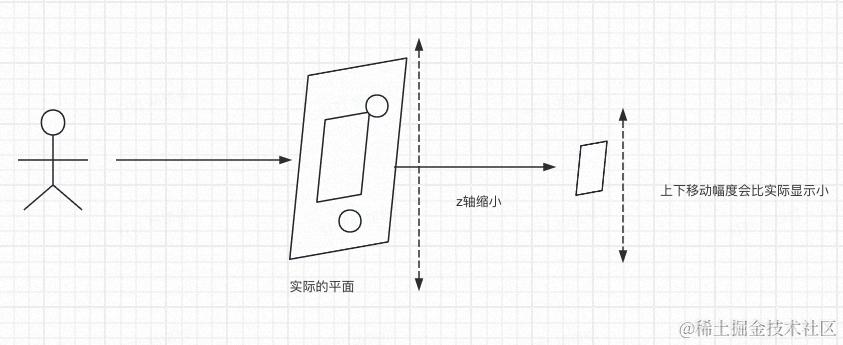
<!DOCTYPE html>
<html lang="en">
<head>
    <meta charset="UTF-8">
    <meta name="viewport" content="width=device-width, initial-scale=1.0">
    <title>test</title>
</head>
<body>
    <style>
        .box {
            margin: 300px auto;
            height: 600px;
            overflow-x: hidden;
            overflow-y: auto;
            perspective: 1px;
        }
        img{
            display: block;
            height: 100%;
            margin: auto;
        }
        .img1{
            transform: translateZ(-3px);
        }
        .img2{
            transform: translateZ(-1px);
        }
        .img3{
            transform: translateZ(0px);
        }
    </style>
    <div class="box">
        <img class="img1" src="https://picsum.photos/1024/768?random=1" alt="">
        <img class="img2" src="https://picsum.photos/1024/768?random=2" alt="">
        <img class="img3" src="https://picsum.photos/1024/768?random=3" alt="">
    </div>
</body>
</html>
3.使用gsap
5.毛玻璃效果
    box-shadow: 1px 1px 15p gba(0, 0, 0, 0.8);
    backdrop-filter: blur(5px);
    border: 1px solid rgba(255, 255, 255, 0.4);
    border-top-left-radius: 50px;
    border-bottom-left-radius: 50px;
6.列表 间距问题
<!DOCTYPE html>
<html lang="en">
<head>
    <meta charset="UTF-8">
    <meta name="viewport" content="width=device-width, initial-scale=1.0">
    <title>Document</title>
    <style>
        ul {
            border: 1px solid #000;
        }
       li{
        list-style: none;
        height: 50px;
        background-color: blanchedalmond;
        margin-top: 20px;
       }
    </style>
</head>
<body>
     <ul>
        <li>1</li>
        <li>2</li>
        <li>3</li>
        <li>4</li>
        <li>5</li>
     </ul>

</body>
</html>
直接在li写 margin-top 缺点多了 一个
优化 li + li
- 默认找当前的下一个兄弟
   li{
    list-style: none;
    height: 50px;
    background-color: blanchedalmond;
   }
   li + li{
    margin-top: 20px;
    }
6.css attr
.link::after {
    content: " (" attr(href) ")";
    color: gray;
}

<a href="https://example.com" class="link">Example</a>
显示
Example (https://example.com)
一个像素
<!DOCTYPE html>
<html lang="en">
<head>
    <meta charset="UTF-8">
    <meta name="viewport" content="width=device-width, initial-scale=1.0">
    <meta http-equiv="X-UA-Compatible" content="ie=edge">
    <title>Document</title>
    <style>
        html{
            font-size: 10vw;
        }
        div{
            height: 200px;
            /* border: 0.027rem solid #000; */
            position: relative;
            background: pink;
        }
        .border_1px:before{
            content: '';
            position: absolute;
            top: 0;
            height: 1px;
            width: 100%;
            background-color: #000;
            transform-origin: 0% 0%;
        }
        @media only screen and (-webkit-min-device-pixel-ratio:2){
            .border_1px:before{
                transform: scaleY(0.5);
            }
        }
        @media only screen and (-webkit-min-device-pixel-ratio:3){
            .border_1px:before{
                transform: scaleY(0.33);
            }
        }
    </style>
</head>
<body>
    <div class="border_1px"></div>
</body>
</html>
滚动穿透
<!DOCTYPE html>
<html lang="en">
<head>
    <meta charset="UTF-8">
    <meta name="viewport" content="width=device-width, initial-scale=1.0">
    <meta http-equiv="X-UA-Compatible" content="ie=edge">
    <title>Document</title>
    <style>

        #alerta{
            position: fixed;
            width: 100vw;
            height: 100vh;
            background: rgba(0,0,0,.5);
            left: 0;
            top: 0;
            display: none;

        }
        #txt{
            background: orange;
            color: #fff;
            /* position: fixed; */
        }
    </style>
</head>
<body>
    <div id="txt">
        <button id="btn">显示</button>
        测试内容测试内容测试内容测试内容测试内容测试内容测试内容测试内容测试内容测试内容测试内容测试内容测试内容测试内容测试内容测试内容测试内容测试内容测试内容测试内容测试内容测试内容测试内容测试内容测试内容测试内容测试内容测试内容测试内容测试内容
        测试内容测试内容测试内容测试内容测试内容测试内容测试内容测试内容测试内容测试内容测试内容测试内容测试内容测试内容测试内容测试内容测试内容测试内容测试内容测试内容测试内容测试内容测试内容测试内容测试内容测试内容测试内容测试内容测试内容测试内容 测试内容测试内容测试内容测试内容测试内容测试内容测试内容测试内容测试内容测试内容测试内容测试内容测试内容测试内容测试内容测试内容测试内容测试内容测试内容测试内容测试内容测试内容测试内容测试内容测试内容测试内容测试内容测试内容测试内容测试内容
        测试内容测试内容测试内容测试内容测试内容测试内容测试内容测试内容测试内容测试内容测试内容测试内容测试内容测试内容测试内容测试内容测试内容测试内容测试内容测试内容测试内容测试内容测试内容测试内容测试内容测试内容测试内容测试内容测试内容测试内容 测试内容测试内容测试内容测试内容测试内容测试内容测试内容测试内容测试内容测试内容测试内容测试内容测试内容测试内容测试内容测试内容测试内容测试内容测试内容测试内容测试内容测试内容测试内容测试内容测试内容测试内容测试内容测试内容测试内容测试内容
        测试内容测试内容测试内容测试内容测试内容测试内容测试内容测试内容测试内容测试内容测试内容测试内容测试内容测试内容测试内容测试内容测试内容测试内容测试内容测试内容测试内容测试内容测试内容测试内容测试内容测试内容测试内容测试内容测试内容测试内容
        <div id="alerta">111111</div>
    </div>
    <script>
        var btn = document.querySelector('#btn');
        var alerta = document.querySelector('#alerta');
        var txt = document.querySelector('#txt');

        btn.onclick = function(){
            alerta.style.display = 'block';
            txt.style.position = 'fixed';
            // txt.style.position = 'static';
        }
    </script>
</body>
</html>
键盘唤起
<!DOCTYPE html>
<html lang="en">
<head>
    <meta charset="UTF-8">
    <meta name="viewport" content="width=device-width, initial-scale=1.0,minimum-scale=1.0,maximum-scale=1.0,user-scalable=no">
    <meta http-equiv="X-UA-Compatible" content="ie=edge">
    <meta name="apple-mobile-web-app-title" content="我的APP">
    <meta name="apple-mobile-web-app-capable" content="yes" />
    <meta name="apple-touch-fullscreen" content="yes" />
    <link href="bookmark.png" rel="apple-touch-icon-precomposed">
    <meta name="format-detection" content="telephone=no,email=no" />

    <title>Document</title>
    <style>
        #txt{
            /* height: 2000px; */
            position: absolute; /* 这里设置为absolute */
            bottom: 60px;
            top: 20px;
            overflow-y: scroll;
             -webkit-overflow-scrolling: touch;
        }
        footer{
            height: 60px;
            background: pink;
            position: fixed;
            left: 0;
            bottom: 0;
            width: 100%;
        }
        a,button,input,textarea{-webkit-tap-highlight-color: rgba(0,0,0,0)}
        button{
            -webkit-appearance: none;
            border-radius: 0;
        }
        html{
            -webkit-text-size-adjust: 100%;
        }
    </style>
</head>
<body>
    <div id="txt">
        <button>按钮</button>
        <a href="">这是链接文字</a>
        12345678912 这是内容这是内容这是内容这是内容这是内容这是内容这是内容这是内容这是内容这是内容这是内容这是内容这是内容这是内容这是内容这是内容这是内容这是内容这是内容这是内容这是内容这是内容这是   <a href="tel:12345678912">12345678912</a>   内容这是内容这是内容这是内容这是内容这是内容这是内容这是内容这是内容这是内容这是内容这是内容这是内容这是内容这是内容这是内容这是内容这是内容这是内容<a href="sms:13300000000">13300000000</a>这是内容这是内容这是内容这是内容这是内容这是内容这是内容这是内容这是内容这是内容这是内容这是内容这是内容这是内容这是内容这是内容 <a href="mailto:854121000@qq.com">发送邮件</a> 这是内容这是内容这是内容这是内容这是内容这是内容这是内容这是内容这是内容这是内容这是内容这是内容这是内容这是内容这是内容
        这是内容这是内容这是内容这是内容这是内容这是内容这是内容这是内容这是内容这是内容这是内容这是内容这是内容这是内容这是内容这是内容这是内容这是内容这是内容这是内容这是内容这是内容这是内容这是内容这是内容这是内容这是内容这是内容这是内容这是内容这是内容这是内容这是内容这是内容这是内容这是内容这是内容这是内容这是内容这是内容这是内容这是内容这是内容这是内容这是内容这是内容这是内容这是内容这是内容这是内容这是内容这是内容这是内容这是内容这是内容这是内容这是内容这是内容这是内容这是内容这是内容这是内容这是内容这是内容这是内容这是内容这是内容这是内容这是内容这是内容这是内容这是内容这是内容这是内容这是内容这是内容这是内容这是内容这是内容这是内容是内容这是内容这是内容这是内容这是内容这是内容这是内容这是内容这是内容这是内容这是内容这是内容这是内容这是内容这是内容这是内容这是内容这是内容这是内容这是内容这是内容这是内容这是内容这是内容这是内容这是内容这是内容这是内容这是内容这是内容这是内容这是内容
        这是内容这是内容这是内容这是内容这是内容这是内容这是内容这是内容这是内容这是内容这是内容这是内容这是内容这是内容这是内容这是内容这是内容这是内容这是内容这是内容这是内容这是内容这是内容这是内容这是内容这是内容这是内容这是内容这是内容这是内容这是内容这是内容这是内容这是内容这是内容这是内容这是内容这是内容这是内容这是内容这是内容这是内容这是内容这是内容这是内容这是内容这是内容这是内容这是内容这是内容这是内容这是内容这是内容这是内容这是内容这是内容这是内容这是内容这是内容这是内容这是内容这是内容这是内容这是内容这是内容这是内容这是内容这是内容这是内容这是内容这是内容这是内容这是内容这是内容这是内容这是内容这是内容这是内容这是内容这是内容这是内容这是内容这是内容这是内容这是内容这是内容这是内容这是内容这是内容这是内容这是内容这是内容这是内容这是内容这是内容这是内容这是内容这是内容这是内容这是内容这是内容这是内容这是内容这是内容这是内容这是内容这是内容这是内容这是内容这是内容这是内容这是内容这是内容这是内容这是内容这是内容这是内容这是内容这是内容这是内容这是内容这是内容这是内容这是内容这是内容这是内容这是内容这是内容这是内容这是内容这是内容这是内容这是内容这是内容这是内容这是内容这是内容这是内容这是内容这是内容这是内容这是内容这是内容这是内容这是内容这是内容这是内容这是内容这是内容这是内容这是内容这是内容这是内容这是内容这是内容这是内容这是内容这是内容这是内容这是内容这是内容这是内容这是内容这是内容这是内容这是内容这是内容这是内容这是内容这是内容
    </div>
    <footer>
        <input type="text">
    </footer>
</body>
</html>
main{
    padding: 2rem 0;
    /* height: 2000px; */
    position: absolute;
    top: 60px;
    bottom: 60px;
    overflow-y: scroll;
    width: 100%;
    -webkit-overflow-scrolling: touch;
}
当底部根据页面进行fixed定位的时候,键盘弹出一瞬间,fixed会失效,变成类似absolute,让main的内容无滚动,就不会连带fixed一起动了
并且为了保证如丝般顺滑:
- -webkit-overflow-scrolling: touch;
移动端安全区
<!DOCTYPE html>
<html lang="en">
<head>
    <meta charset="UTF-8">
    <meta name="viewport" content="width=device-width, initial-scale=1.0,minimum-scale=1.0,maximum-scale=1.0,user-scalable=no,viewport-fit=cover">
    <meta http-equiv="X-UA-Compatible" content="ie=edge">
    <title>Document</title>
    <style>
        body{
            padding-bottom:constant(safe-area-inset-bottom);
            padding-bottom:env(safe-area-inset-bottom);
        }
    </style>
</head>

<body>

</body>
</html>
- constant:小于IOS11.2版本生效
- env:大于IOS11.2版本生效
可以看到下面出现了一块内容,这次黑色的这条线,就不会挡住我们的文字或其它内容了。
- safe-area-inset-lef 设置左侧安全区
- safe-area-inset-right 设置右侧安全区
- safe-area-inset-top 设置顶部安全区
- safe-area-inset-bottom 设置底部安全区
图片模糊问题
.avatar{
    background-image: url(conardLi_1x.png);
}
@media only screen and (-webkit-min-device-pixel-ratio:2){
    .avatar{
        background-image: url(conardLi_2x.png);
    }
}
@media only screen and (-webkit-min-device-pixel-ratio:3){
    .avatar{
        background-image: url(conardLi_3x.png);
    }
}
适配横竖屏
<!DOCTYPE html>
<html lang="en">
<head>
    <meta charset="UTF-8">
    <meta name="viewport" content="width=device-width, initial-scale=1.0">
    <meta http-equiv="X-UA-Compatible" content="ie=edge">
    <title>Document</title>
    <style>
        div{
            width: 200px;
            height: 200px;
        }
        @media screen and (orientation:portrait){
            div{
                background: red;
            }
        }
        @media screen and (orientation:landscape){
            div{
                background: green;
            }
        }
    </style>
</head>
<body>
    <div></div>
</body>
</html>
滑动冲突(轮播图和滚动条)
- better-scroll(js)
- animate.css 动画库
- swiper 滑屏工具