1、利用胶囊图形Capsule绘制彩色花瓣
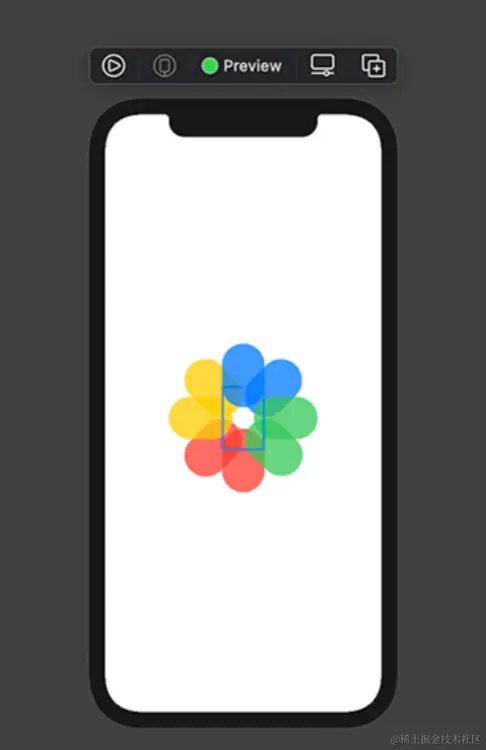
代码实现如下:
import SwiftUI

struct ContentView : View
{
    var body: some View
    {
        ZStack
        {
            NewCapsule(color: .red, degree: 0)
            NewCapsule(color: .red, degree: 45)

            NewCapsule(color: .yellow, degree: 90)
            NewCapsule(color: .yellow, degree: 135)

            NewCapsule(color: .blue, degree: 180)
            NewCapsule(color: .blue, degree: 225)

            NewCapsule(color: .green, degree: 270)
            NewCapsule(color: .green, degree: 314)
        }
    }
}

struct NewCapsule: View {

    var color : Color
    var degree : Double

    var body: some View {
        Capsule()
            .foregroundColor(color)
            .frame(width : 60, height: 90)
            .offset(x: 0, y: 60)
            .rotationEffect(.degrees(degree))
            .opacity(0.75)
    }
}
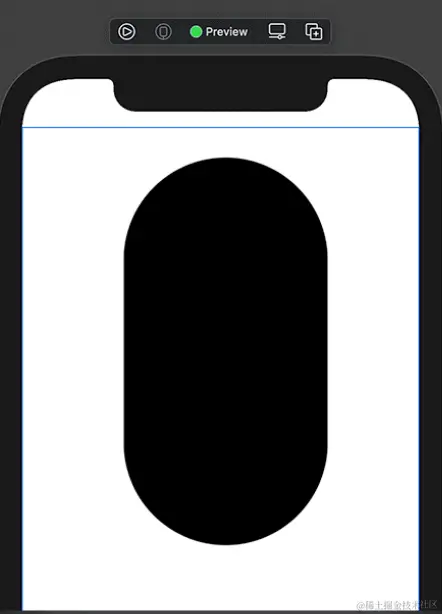
2、Path绘制图形
- addQuadCurve -- 绘制贝塞尔曲线
- addEllipse -- 绘制椭圆
- addRoundedRect -- 绘制圆角矩形
- stroke -- 描边
import SwiftUI
struct ContentView : View
{
var body: some View
{
Path
{ path in
path.addEllipse(in: CGRect(x: 100, y: 30, width: 200, height: 200))
path.addRoundedRect(in: CGRect(x: 100, y: 120, width: 200, height: 200), cornerSize: CGSize(width: 10, height: 10))
path.addEllipse(in: CGRect(x: 100, y: 210, width: 200, height: 200))
}
}
}
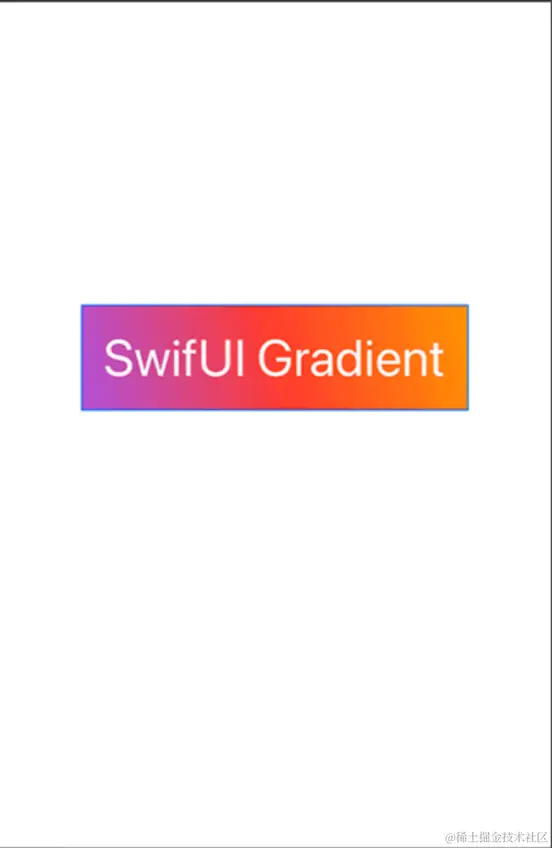
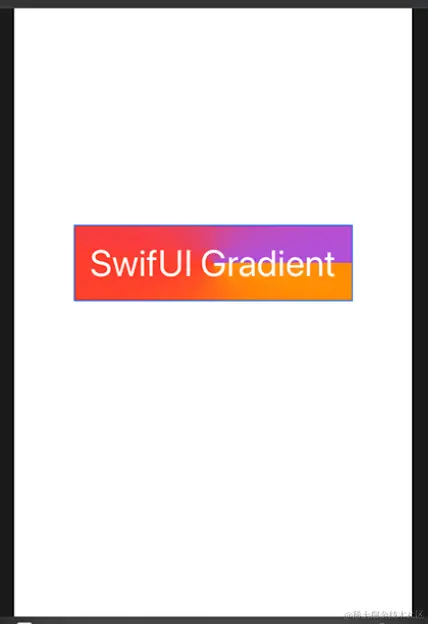
3、渐变色实现 -- LinearGradient & AngularGradient & RadialGradient
- LinearGradient -- 线性渐变
- AngularGradient -- 角度渐变
- RadialGradient -- 径向渐变
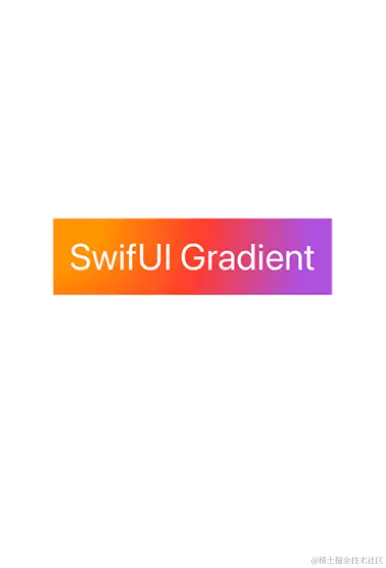
import SwiftUI

struct ContentView : View
{
    @State var lock : Bool = false
    var body: some View
    {
        VStack
        {
            Text("SwiftUI Tutorials")
                .font(.largeTitle)
                .padding()
                .background(LinearGradient(gradient: Gradient.init(colors: [.orange, .purple]), startPoint: .topLeading, endPoint: .bottomTrailing))

            Spacer()

            Text("SwifUI Gradient")
               .font(.system(size: 36))
               .padding()
               .foregroundColor(.white)
               .background(
                   AngularGradient(
                gradient: Gradient(colors: [.orange, .red, .purple]),
                center: UnitPoint(x: 0.5, y: 0.5),
                startAngle: Angle.init(degrees: 0),
                endAngle: Angle.init(degrees: 360))
               )

            Spacer()

            Text("SwifUI Gradient")
            .font(.system(size: 36))
            .padding()
            .foregroundColor(.white)
            .background(
                RadialGradient(gradient: Gradient(colors: [.orange, .red, .purple]),
                    center: .init(x: 0, y: 0),
                    startRadius: CGFloat(50),
                    endRadius: CGFloat(250))
            )
        }
    }
}
4、HStack,VStack和ZStack的综合应用
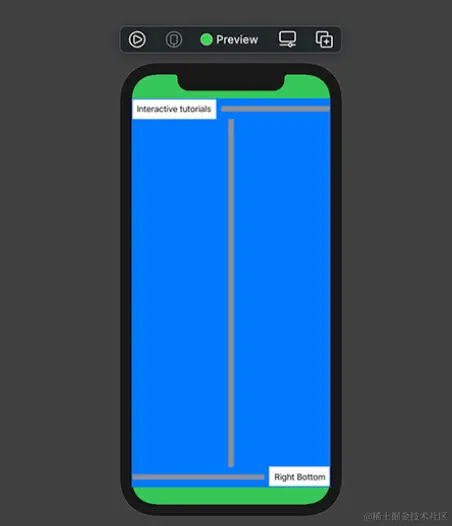
import SwiftUI

struct ContentView : View
{
    var body: some View
    {
        ZStack
        {
            Color.green.edgesIgnoringSafeArea(.all)

            VStack
            {
                HStack(spacing:10)
                {
                    Text("Interactive tutorials")
                        .padding(10)
                        .background(Color.white)

                    Spacer().frame(height:10).background(Color.gray)
                }

                Spacer().frame(width:10).background(Color.gray)

                HStack(spacing:10)
                {
                    Spacer().frame(height:10)
                        .background(Color.gray)
                    Text("Right Bottom").padding(10)
                        .background(Color.white)
                }
            }
            .background(Color.blue)
        }
    }
}
5、List同时支持删除和调序功能
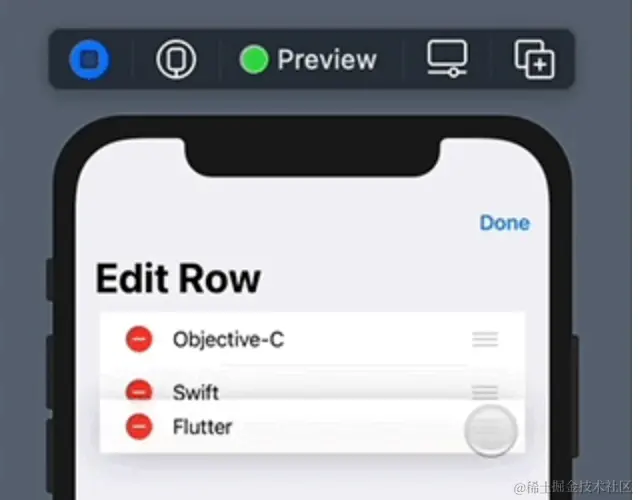
import SwiftUI

struct ContentView : View
{
    @State var languages = ["Objective-C", "Swift", "Flutter"]

    var body: some View
    {
        NavigationView
        {
            List
            {
                ForEach(languages, id: \.self)
                { language in
                    Text(language)
                }
                .onDelete(perform: deleteItem)
                .onMove(perform: moveItem)
            }
            .navigationBarTitle(Text("Edit Row"), displayMode: .large)
            .navigationBarItems(trailing: EditButton())
        }
    }

    func deleteItem(at offsets: IndexSet)
    {
        if let first = offsets.first
        {
            languages.remove(at: first)
        }
    }

    func moveItem(from source: IndexSet, to destination: Int)
    {
        languages.move(fromOffsets: source, toOffset: destination)
    }
}
6、List的children属性实现嵌套列表
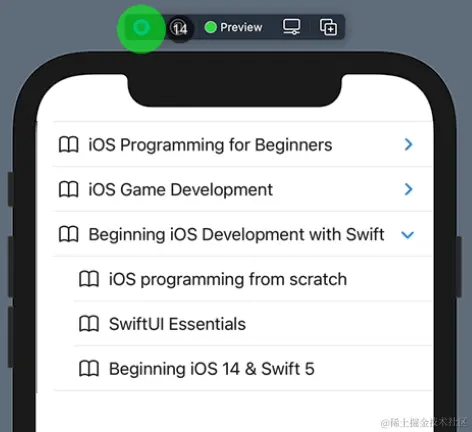
import SwiftUI

struct Book : Identifiable
{
    let id = UUID()
    let title : String
    var referenceBook : [Book]?
}

struct ContentView : View
{
    static let book1 = Book(title: "iOS programming from scratch")
    static let book2 = Book(title: "SwiftUI Essentials")
    static let book3 = Book(title: "Beginning iOS 14 & Swift 5")
    static let master1 = Book(title: "iOS Programming for Beginners", referenceBook: [book1, book2, book3])
    static let master2 = Book(title: "iOS Game Development", referenceBook: [book1, book2, book3])
    static let master3 = Book(title: "Beginning iOS Development with Swift", referenceBook: [book1, book2, book3])
    let masters = [master1, master2, master3]

    var body: some View
    {
        List(masters, children: \.referenceBook)
        { item in
            HStack
            {
                Image(systemName: "book")
                Text(item.title)
            }
        }
    }
}
7、ScrollView实现水平滚动

import SwiftUI

struct ContentView : View
{
    var body: some View
    {
        ScrollView(.horizontal, showsIndicators: true)
        {
            HStack(alignment:.center, spacing: 20)
            {
                ForEach( 1 ..< 8)
                {i in
                    Image("banner_\(i)")
                        .resizable()
                        .scaledToFill()
                        .frame(height: 160)
                }
            }
        }
        .padding(20)
        .background(Color.black.opacity(0.1))
    }
}
8、双层ScrollView嵌套使用
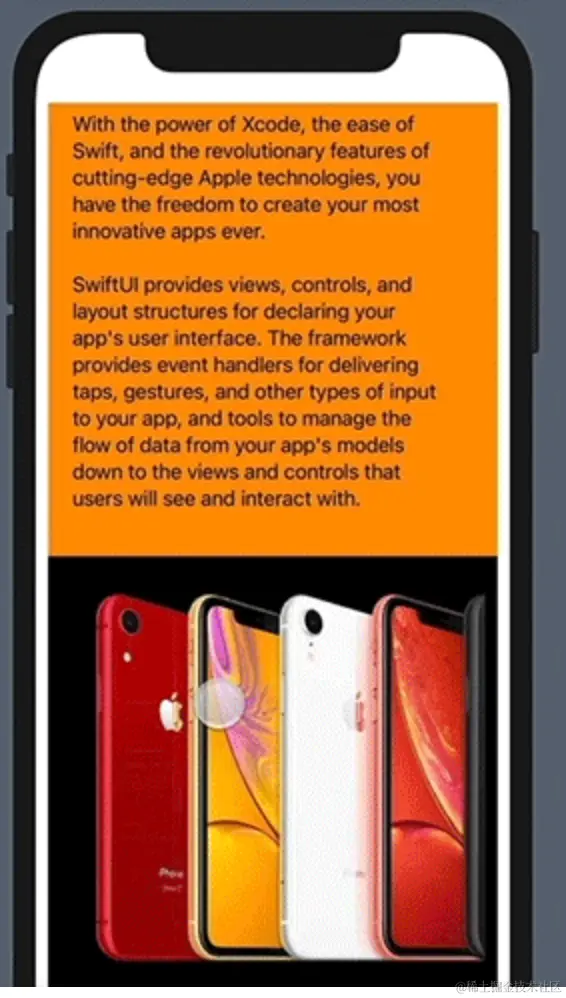
import SwiftUI

struct ContentView : View
{
    var body: some View
    {
        ScrollView(.vertical, showsIndicators: false)
        {
            VStack(alignment: HorizontalAlignment.leading, spacing: 10)
            {
                Text("Overview")
                    .font(.system(size: 48))
                    .padding(20)

                Text("SwiftUI is an innovative, exceptionally simple way to build user interfaces across all Apple platforms with the power of Swift. Build user interfaces for any Apple device using just one set of tools and APIs. \n\nWith the power of Xcode, the ease of Swift, and the revolutionary features of cutting-edge Apple technologies, you have the freedom to create your most innovative apps ever.\n\nSwiftUI provides views, controls, and layout structures for declaring your app's user interface. The framework provides event handlers for delivering taps, gestures, and other types of input to your app, and tools to manage the flow of data from your app's models down to the views and controls that users will see and interact with.")
                    .frame(width: 300, height: 490, alignment: .topLeading)
                    .padding(20)

                ScrollView(.horizontal, showsIndicators: true)
                {
                    HStack(alignment:.center, spacing: 20)
                    {
                        Image("iPhone")
                            .resizable()
                            .frame(width: 189, height: 350, alignment: .center)

                        Image("iPhoneSerial")
                            .resizable()
                            .frame(width: 518, height: 350, alignment: .center)

                        Image("iPhone")
                            .resizable()
                            .frame(width: 189, height: 350, alignment: .center)
                    }
                }
                .background(Color.orange)
                .padding(10)
            }
        }
        .padding(10)
        .background(Color.orange)
    }
}
9、ScrollViewReader实现滚动视图跳转到指定位置 - scrollTo
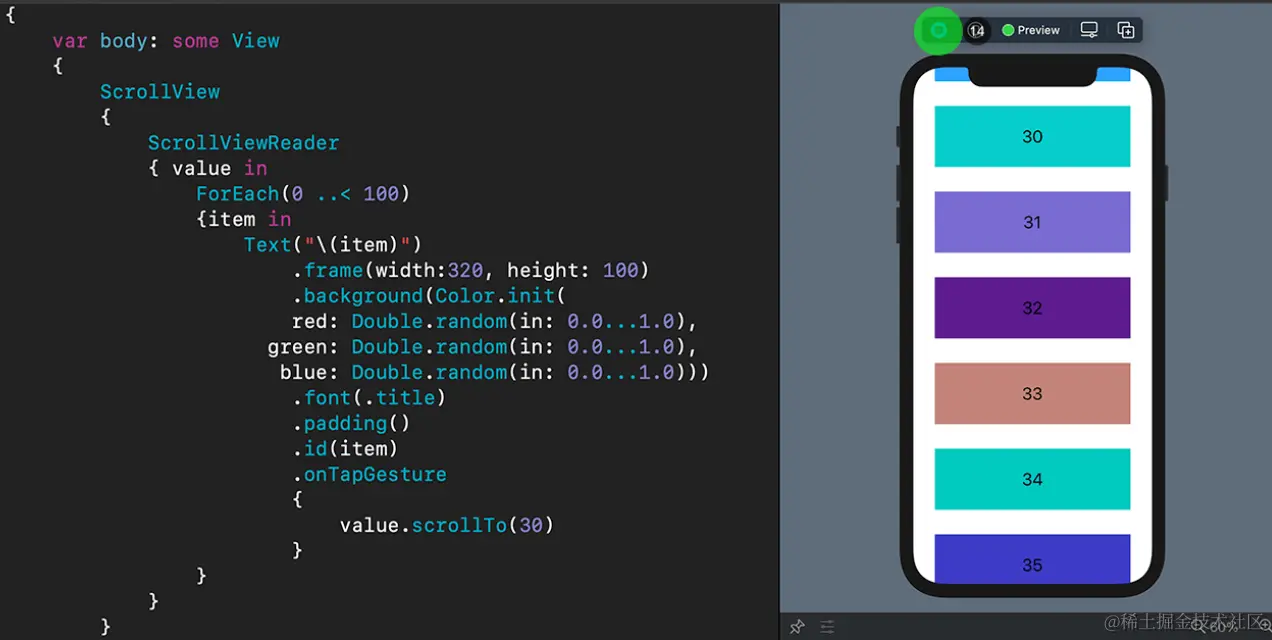
10、表单
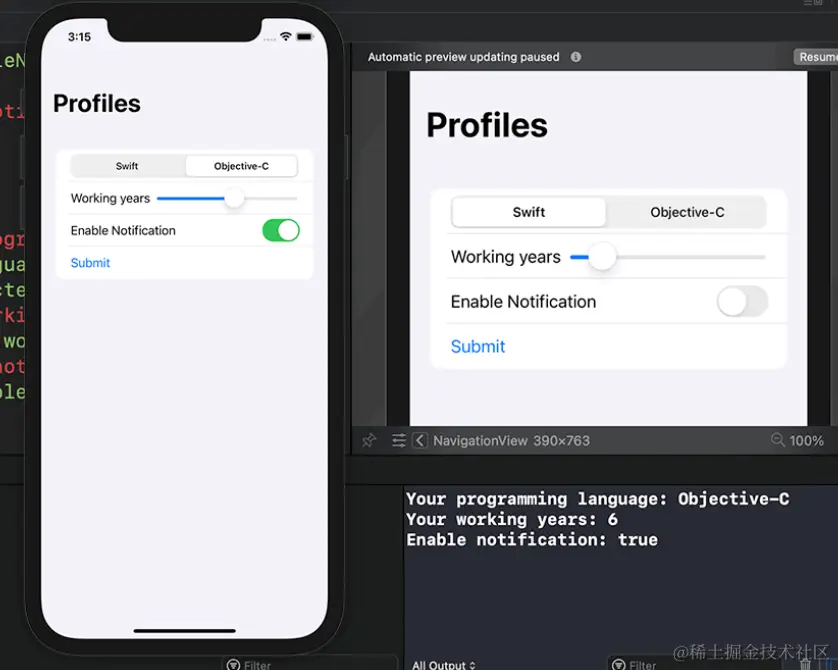
import SwiftUI

struct ContentView : View
{
    private let languages = ["Swift", "Objective-C"]
    @State private var selectedLanguage = 0
    @State private var workingYear: Double = 2
    @State private var enableNotification = false

    var body: some View
    {
        NavigationView
        {
            Form
            {
                Picker(selection: $selectedLanguage, label: Text("Languages"))
                {
                   ForEach(0 ..< languages.count)
                   {
                        Text(self.languages[$0]).tag($0)
                   }
                }
                .pickerStyle(SegmentedPickerStyle())

                HStack
                {
                    Text("Working years")
                    Slider(value: $workingYear, in: 1...10, step: 1)
                }

                Toggle(isOn: $enableNotification)
                {
                    Text("Enable Notification")
                }

                Button(action:
                {
                    print("Your programming language: \(self.languages[self.selectedLanguage])")
                    print("Your working years: \(Int(self.workingYear))")
                    print("Enable notification: \(self.enableNotification)")
                })
                {
                    Text("Submit")
                }
            }
            .navigationBarTitle(Text("Profiles"))
        }
    }
}
11、表单失效控制
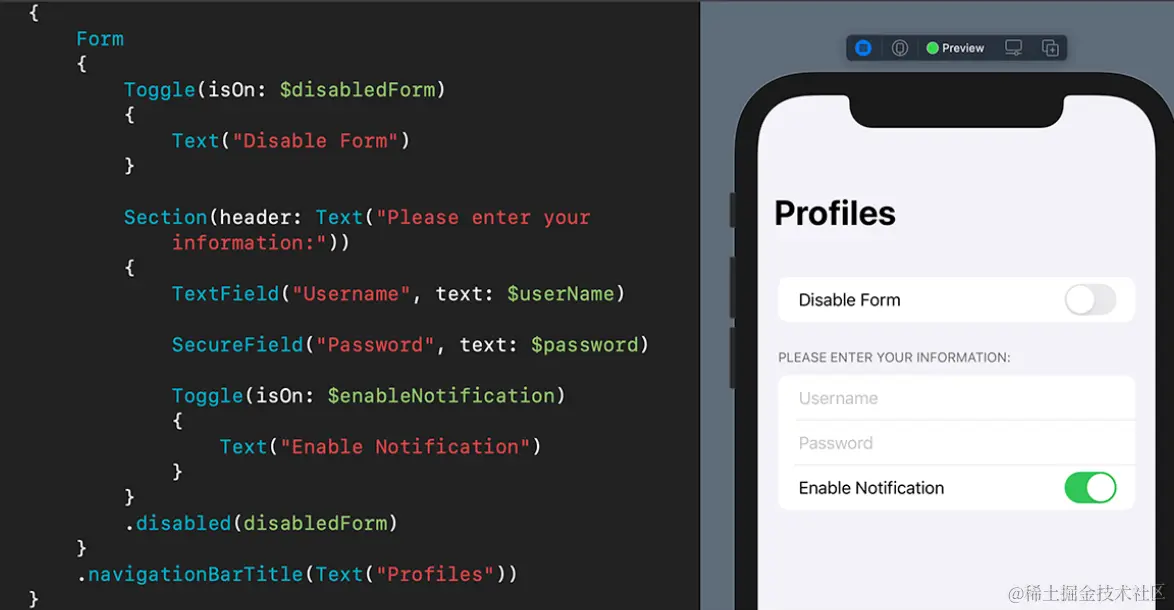
import SwiftUI

struct ContentView : View
{
    @State private var disabledForm = false
    @State private var enableNotification = false
    @State private var userName = ""
    @State private var password = ""

    var body: some View
    {
        NavigationView
        {
            Form
            {
                Toggle(isOn: $disabledForm)
                {
                    Text("Disable Form")
                }

                Section(header: Text("Please enter your information:"))
                {
                    TextField("Username", text: $userName)

                    SecureField("Password", text: $password)

                    Toggle(isOn: $enableNotification)
                    {
                        Text("Enable Notification")
                    }
                }
                .disabled(disabledForm)
            }
            .navigationBarTitle(Text("Profiles"))
        }
    }
}
12、表单的可见性控制
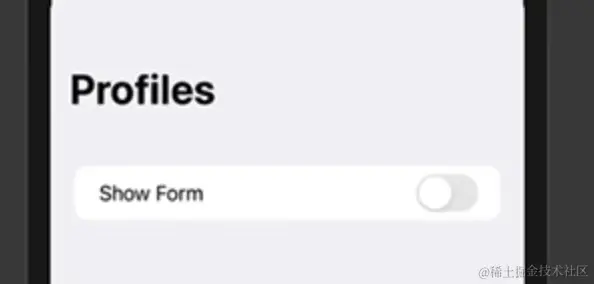
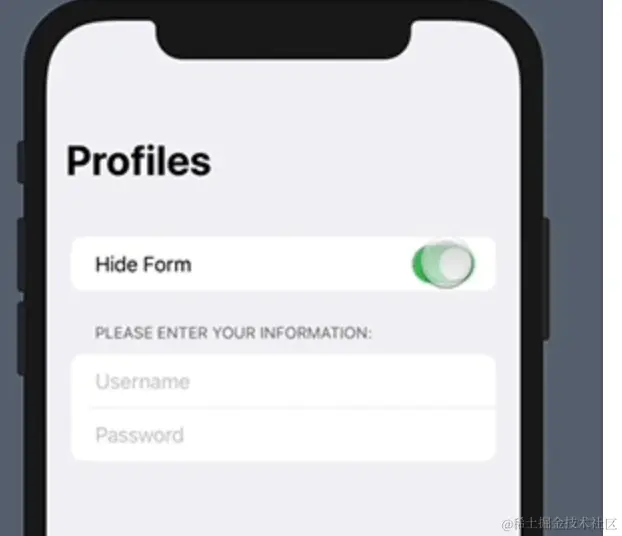
import SwiftUI

struct ContentView : View
{
    @State private var isVisible = false
    @State private var userName = ""
    @State private var password = ""

    var body: some View
    {
        NavigationView
        {
            Form
            {
                Toggle(isOn: $isVisible.animation())
                {
                    if(isVisible)
                    {
                        Text("Hide Form")
                    }
                    else
                    {
                        Text("Show Form")
                    }
                }

                if(isVisible)
                {
                    Section(header: Text("Please enter your information:"))
                    {
                        TextField("Username", text: $userName)
                        SecureField("Password", text: $password)
                    }
                }
            }
            .navigationBarTitle(Text("Profiles"))
        }
    }
}


