Button组件
需求分析
Button 组件大部分关注样式,没有交互。
根据分析可以得到具体的属性列表:
- type:不同的样式 (Primary, Danger, Info, Success, Warning)
- plain: 样式的不同展现模式 boolean
- round:圆角 boolean
- circle:圆形按钮,适合图标 boolean
- size: 不同大小 (small/normal/large)
- disabled:禁用 boolean
- 图标:后面再添加
- *loading:*后面再添加
组件实现:
编写types.ts文件,确定一些需要用到的类型声明:
export type ButtonType = 'primary' | 'success' | 'warning' | 'danger' | 'info'
export type ButtonSize = 'large' | 'small'
export type NativeType = 'button' | 'submit' | 'reset'

export interface ButtonProps {
    type?: ButtonType;
    size?: ButtonSize;
    plain?: boolean;
    round?: boolean;
    circle?: boolean;
    disabled?: boolean;
    nativeType?: NativeType;
    autofocus?: boolean;
    icon?: string;
    loading?: boolean;
}
编写基本结构,因为button组件没有交互的功能,所以逻辑比较简单,我们只需要给其添加样式即可。可以使用添加动态class来实现样式的添加:
<template>
    <button
        ref="_ref"
        class="vk-button"
        :class="{
            [`vk-button--${type}`]: type,
            [`vk-button--${size}`]: size,
            'is-plain': plain,
            'is-round': round,
            'is-circle': circle,
            'is-disabled': disabled,
        }"
        :disabled="disabled || loading"
        :autofocus="autofocus"
        :type="nativeType"
    >
        <Icon icon="spinner" spin v-if="loading" />
        <Icon :icon="icon" v-if="icon" />
        <span>
            <slot></slot>
        </span>
    </button>
</template>
添加原生属性(注意这一点对于所有组件而言都是很重要的):在types.ts中的props中添加原生属性即可
developer.mozilla.org/en-US/docs/…
最后使用defineExpose方法显式的将组件实例暴露出去:
defineExpose({
  ref: _ref
})
CSS解决方案:
CSS 预处理器
- Sass - Ruby,LibSass
- Less - Javascript, Less.js
- Stylus - Node.js
- Postcss - postcss.org/
- 轻量级
- 插件化
- Vite 原生支持 - vitejs.dev/guide/featu…
我们最终选择Postcss作为CSS解决方案。因为该处理方案是轻量型的,插件化的,意思是想使用什么功能就安装对应的插件即可,不想其他预处理器一样会一股脑儿地全部功能都带上。
色彩系统
添加系统默认CSS样式
Normalize.css
- 保护有用的浏览器默认样式
- 一般化的样式
- 修复浏览器自身的bug
- 优化CSS可用性
PostCSS 插件 - PostCSS Nested
VSCode 支持 PostCSS 的插件
地址:marketplace.visualstudio.com/items?itemN…
Button 总结
需求分析:
- 确定 props
- 确定组件展示方式
- 确定事件
初始化项目以及项目结构
- create-vue
- 项目结构
组件编码
- props 的定义方式
- 对象形式
- Typescript 类型方式 - 一些限制
- 安装 Vue Marcos 解决问题
- 原生属性
- defineExpose 定义实例导出
- 附加一点:是否能支持原生的事件?比如 Click
- 透传 - cn.vuejs.org/guide/compo…
样式解决方案
- 选择 PostCSS 作为预处理器
- 了解色彩系统
- 使用 CSS 变量添加颜色系统
- 添加Button 样式
- 善用变量覆盖
- 使用 PostCSS 插件
- 扩展:使用 PostCSS 动态生成主题颜色
Collapse组件(折叠面板)
组件需求分析:
为什么选择这个组件
- 静态展示
- 简单的交互
- 多种解决方案
- 涉及一些新的知识点
-
- Provide/Inject
- v-model 实现
- slots
- Transition
了解功能
- 展示多个 Item,有标题和内容两部分
- 点击标题可以关闭和展开内容
- 特有的手风琴模式
组件开发:
确定展示方案:我们一般有两种选择方案:第一种是比较直观的方法,传入一个数组,数组中保存着需要的数据,再将数据渲染到页面上,但是这种方案对于复杂的内容来说难以实现,不太推荐这种写法,写起来比较麻烦。第二种是语义化展示,可以通过slot具名插槽实现更复杂的内容,是我们使用的方法。
编写types.ts,编写属性:
import type { InjectionKey, Ref } from "vue";
export type NameType = string | number

export interface CollapseProps{
    // api中写的传递modelValue
    modelValue: NameType[];
    // 这个表示是否是手风琴模式
    accordion?: boolean;
}

export interface CollapseItemProps {
    name: NameType;
    title?: string;
    disabled?: boolean;
}

export interface CollapseContext{
    activeNames: Ref<NameType[]>;
    handleItemClick: (name: NameType) => void;
}

// 定义事件
export interface CollapseEmits{
    (e: 'update:modelValue', values: NameType[]) : void;
    (e: 'change', values: NameType[]) : void;
}

export const CollapseContextKey: InjectionKey<CollapseContext> = Symbol('collapseContext')
编写基本结构,先编写Collapse.vue中的,稍微简单些:
<template>
  <div
    class="vk-collapse"
  >
    <slot></slot>
  </div>
</template>
再编写item中的:主要分为两个部分,标题部分和内容部分:
<template>
    <div
        class="vk-collapse-item"
        :class="{
            'is-disabled': disabled
        }"
    >
        <!-- 标题部分 -->
        <div
            class="vk-collapse-item__header"
            :class="{
                'is-disabled': disabled,
                'is-active': isActive
            }"
            :id="`item-header-${name}`"
            @click="handleClick"
        >
            <slot name="title">{{ title }}</slot>
            <Icon icon="angle-right" class="header-angle" />
        </div>
        <!-- 内容部分 -->
        <Transition name="slide" v-on="transitionEvents">
            <div class="vk-collapse-item__wrapper" v-show="isActive">
                <div class="vk-collapse-item__content" :id="`item-content-${name}`">
                    <slot></slot>
                </div>
            </div>
        </Transition>
    </div>
</template>
现在我们来实现业务逻辑,怎么样才可以实现折叠面板的功能呢?如何知道哪个item是打开的,哪个是关闭的呢?
这里我们使用provide和inject来实现组件间通信:
    // 定义一个数组存放现在打开的item
    const activeNames = ref<NameType[]>()

    // 对数组进行更新
    const handleItemClick = (item:NameType) => {
        const index = activeNames.value.indexOf(item)
        if(index > -1){
            // 存在,删除数组对应的一项
            activeNames.value.splice(index, 1)
        }else{
            // 不存在,插入对应的name
            activeNames.value.push(item)
        }
    }
    provide(CollapseContextKey, {
        activeNames,
        handleItemClick
    })
    // provide和inject用于祖给孙传递信息,比props方便
    const CollapseContext = inject(CollapseContextKey)
    // 判断一下item是否被打开
    const isActive = computed(() => CollapseContext?.activeNames.value.includes(props.name))
    // 给标题绑定点击事件
    const handleClick = () => {
        if(props.disabled) {return}
        CollapseContext?.handleItemClick(props.name)
    }
支持v-model的实现:
文档:cn.vuejs.org/guide/compo…
我们都知道,v-model是用来实现双向绑定的,但是当v-model出现在自定义组件身上,还是双向绑定吗?答案肯定不是。v-model出现在组件身上(其实都是一样的原理)会做两件事,第一件绑定一个数据 :modelValue="" 第二件绑定一个事件 @update:modelValue="" 所以我们要实现v-model的思路就是,在组件中接收值并在恰当的时候发射事件。对之前的逻辑进行修改,因为现在的activeNames可能有初始值,所以给其加上一个初始值,初始值为props.modelValue。但是注意一个很容易忽视的地方,当props.modelValue发生变化的时候无法自动更新activeNames的值。所以我们需要监视props.modelValue。
处理手风琴模式(只允许打开一个,其他的都关闭):我们设置了accordion属性确定是否是手风琴模式,如果是手风琴模式,在处理事件的时候需要在数组中查看是否只有目前点击的一个元素,如果是的话就关闭,如果不是的话就打开。
    // 定义一个数组存放现在打开的item
    const activeNames = ref<NameType[]>(props.modelValue)

    // 当props属性用于ref声明,可能会导致不能更新,要用watch监视
    watch(() => props.modelValue, () => {
        activeNames.value = props.modelValue
    })

    if(props.accordion && activeNames.value.length > 1){
        console.warn('accordion mode should only have one active item')
    }

    // 对数组进行更新
    const handleItemClick = (item:NameType) => {
        if(props.accordion){
            activeNames.value = [activeNames.value[0] === item ? '' : item]
        }else{
            const index = activeNames.value.indexOf(item)
            if(index > -1){
                // 存在,删除数组对应的一项
                activeNames.value.splice(index, 1)
            }else{
                // 不存在,插入对应的name
                activeNames.value.push(item)
            }
            emits('update:modelValue', activeNames.value)
            emits('change', activeNames.value)
        }

    }
动画效果:
- 使用内置的 Transition 实现动画效果
-
- 并不提供任何动画
- 提供一系列的 classes 标示整个动画过程
- 提供 javascript 钩子函数支持高级的自定功能
文档:cn.vuejs.org/guide/built…
在设置动画的时候会出现两个问题:
①当我们给height的变化添加动画效果的时候同时给transition的子元素设置padding-bottom,我们会发现在打开的时候会先出现padding-bottom大小的高度,再出现动画效果。关闭也是这样子。我们的解决方案是用一个父元素再把content包裹起来,给父元素设置height的动画效果。
<!-- 内容部分 -->
<Transition name="slide" v-on="transitionEvents">
    <div class="vk-collapse-item__wrapper" v-show="isActive">
        <div class="vk-collapse-item__content" :id="`item-content-${name}`">
            <slot></slot>
        </div>
    </div>
</Transition>
②当我们打开关闭的时候发现文字没有动画效果,一直是出现的,这是因为我们只给父元素的高设置动画效果,会有子元素溢出的现象,此时我们的解决方案是将父元素动态添加一个overflow: hidden。
  const transitionEvents: Record<string, (el: HTMLElement) => void> = {
        beforeEnter(el) {
            el.style.height = '0px'
            el.style.overflow = 'hidden'
        },
        enter(el) {
            el.style.height = `${el.scrollHeight}px`
        },
        afterEnter(el) {
            el.style.height = ''
            el.style.overflow = ''
        },
        beforeLeave(el) {
            el.style.height = `${el.scrollHeight}px`
            el.style.overflow = 'hidden'
        },
        leave(el) {
            el.style.height = '0px'
        },
        afterLeave(el) {
            el.style.height = ''
            el.style.overflow = ''
        }
    }
Icon组件
我们是对一个图标库进行封装,进行二次组件开发:
Inline SVG VS Font Icon
- svg 完全可以控制,font icon 只能控制字符相关的属性
- font icon 需要下载的字体文件较大,除非自己切割打包。
- font icon 会遇到一些比较奇怪的问题。
我们选择的图标库是:Fontawesome 结合 Vue3
文档地址:fontawesome.com/docs/web/us…
组件开发:
- 第一步:支持组件的原始属性
-
- inheritAttrs: false 不继承属性
- 使用 $props 访问所有属性
- 要注意不继承以后一些默认属性失效的问题 attrs包含了除了prop和emit之外的属性)
确定属性:这里使用图标库的原生属性
import type { IconDefinition } from '@fortawesome/fontawesome-svg-core'
export interface IconProps {
  border?: boolean
  fixedWidth?: boolean
  flip?: 'horizontal' | 'vertical' | 'both'
  icon: object | Array<string> | string | IconDefinition
  mask?: object | Array<string> | string
  listItem?: boolean
  pull?: 'right' | 'left'
  pulse?: boolean
  rotation?: 90 | 180 | 270 | '90' | '180' | '270'
  swapOpacity?: boolean
  size?: '2xs' | 'xs' | 'sm' | 'lg' | 'xl' | '2xl' | '1x' | '2x' | '3x' | '4x' | '5x' | '6x' | '7x' | '8x' | '9x' | '10x'
  spin?: boolean
  transform?: object | string
  symbol?: boolean | string
  title?: string
  inverse?: boolean
  bounce?: boolean
  shake?: boolean
  beat?: boolean
  fade?: boolean
  beatFade?: boolean
  spinPulse?: boolean
  spinReverse?: boolean
  type?: 'primary'| 'success'| 'warning'| 'danger'| 'info'
  color?: string
}
写结构:
因为这里的props都是图标库有的,所以我们想把所有的props都传递给图标库的图标组件。但是这里有个默认会传给其父元素,所以我们需要手动取消透传:
defineOptions({
    name: 'VkIcon',
    // 阻止组件间透传,如果透传就会传到根组件上面,即传到i标签上,阻止透传后可以使用$props取到所有的props
    inheritAttrs: false
})
- 第二步:扩充组件属性
-
- 我们添加的 type/color 属性
- 过滤传递的属性 lodash omit
但是我们想要可以创造自己的属性,比如type和color,这个时候我们要是直接把所有的props都给图标库的图标组件的话我们就会无法实现,所以我们需要过滤。由于过滤的是对象所以我们这里使用一个插件实现lodash-es,该插件有一个omit方法可以实现对象过滤指定的属性
    const props = defineProps<IconProps>()
    const filteredProps = computed(() => omit(props, ['type', 'color']))
    const customStyles = computed(() => {
        return props.color ? { color: props.color } : {}
    })
这里为什么要用计算属性呢?因为如果实现两秒之后改变图标的一些属性,如果不是计算属性的话就无法更新相关的值,就无法改变相应的属性。
Tooltip组件
组件需求分析:
- 通用组件
- Tooltip
- Dropdown
- Select 等等
功能分析
- 最根本功能,两块区域
-
- 触发区
- 展示区
- 触发方式
-
- hover
- 点击
- 手动
- 重点就是触发区 发生特定事件的时候,展示区的展示于隐藏
组件开发:
- 使用 popper.js 来完成位置的展示
Tooltip 开发计划
- 最基本的实现
- 支持 click/hover 两种触发方式
- 支持 clickoutside 的时候隐藏
- 支持手动触发
- 支持 popper 参数
- 动画
- 支持延迟显示
- 样式
实现基本功能:
先写基本结构:
<template>
    <div
        class="vk-tooltip"
        v-on="outerEvent"
        ref="popperContainerNode"
    >
      <!-- 触发部分 -->
        <div
            class="vk-tooltip__trigger"
            ref="triggerNode"
            v-on="events"
        >
            <slot></slot>
        </div>
        <!-- 展示区 -->
        <div
            class="vk-tooltip__popper"
            ref="popperNode"
            v-if="isOpen"
        >
            <slot name="content">
                {{content}}
            </slot>
            <div id="arrow" data-popper-arrow></div>
        </div>

    </div>
</template>
实现基本功能:点击触发区可以展示展示区的内容,再次点击可以关闭展示区。我们需要写一个点击事件,还要设置一个状态响应式变量代表是否被打开:
    const isOpen = ref(false)
    const togglePopper = () => {
        isOpen.value = !isOpen.value
        emits('visible-change', isOpen.value)
    }
watch(isOpen, (newValue) => {
    if (newValue) {
        if (triggerNode.value && popperNode.value) {
        popperInstance = createPopper(triggerNode.value, popperNode.value, popperOptions.value)
        } else {
        popperInstance?.destroy()
        }
    }
}, { flush: 'post'})
动态事件的添加:
根据属性值来添加事件,将事件绑定写成对象的形式可以动态添加
let events: Record<string, any> = reactive({})

const open = () => {
    isOpen.value = true
    emits('visible-change', true)
}

const close = () => {
    isOpen.value = false
    emits('visible-change', false)
}

const attachEvents = () => {
  if(props.trigger === 'hover'){
    events['mouseenter'] = open
    outerEvent['mouseleave'] = close
  }else if(props.trigger === 'click'){
    events['click'] = togglePopper
  }
}
<div
    class="vk-tooltip__trigger"
    ref="triggerNode"
    v-on="events"
>
注意监听trigger有没有改变:
watch(() => props.trigger, (newTrigger, oldTrigger) => {
    if(newTrigger !== oldTrigger){
        events = {}
        outerEvent = {}
        attachEvents()
    }
})
实现外侧点击关闭:
因为这个是比较通用的功能,所以我们将函数写在一个hooks文件夹里面。
import { onMounted, onUnmounted } from "vue";
import type { Ref } from "vue";

const useClickOutside = (elementRef: Ref<undefined | HTMLElement>, callback: (e: MouseEvent) => void) => {
    const handler = (e: MouseEvent) => {
        if(elementRef.value && e.target){
            if(!elementRef.value.contains(e.target as HTMLElement)){
                callback(e)
            }
        }
    }
    onMounted(() => {
        document.addEventListener('click', handler)
    })
    onUnmounted(() => {
        document.removeEventListener('click', handler)
    })
}

export default useClickOutside
实现手动打开关闭:
manual属性代表是否手动打开关闭。只要把打开关闭的方法暴露出去即可:
defineExpose<TooltipInstance>({
        'show': openFinal,
        'hide': closeFinal
    })
支持popper参数:
const popperOptions = computed(() => {
    return {
        placement: props.placement,
        modifiers: [
        {
            name: 'offset',
            options: {
            offset: [0, 9],
            },
        }
        ],
        ...props.popperOptions
    }
})
支持延迟显示/隐藏:
使用setTimerout设置延迟会出现多次触发事件的问题,这里我们使用防抖函数debounce,只执行最后一次:
const open = () => {
  isOpen.value = true
  emits('visible-change', true)
}

const close = () => {
  isOpen.value = false
  emits('visible-change', false)
}

const openDebounce = debounce(open, props.openDelay)
const closeDebounce = debounce(close, props.closeDelay)

const openFinal = () => {
  closeDebounce.cancel()
  openDebounce()
}
const closeFinal = () => {
  openDebounce.cancel()
  closeDebounce()
}
Dropdown组件
需求分析:
- 根据 Tooltip 二次开发的组件
- 显示/隐藏一个具体的,有多个选项的菜单
- 菜单中有各种选项,用户可以自定义
- 使用语义化结构
- 使用 javascript 数据结构 ✅
组件开发:
该组件比较简单,就是对Tooltip组件的二次开发。我认为该组件难点在于,传入的label可以是个VNode,我们需要渲染Vnode,可以编写一个渲染组件:
import { defineComponent } from 'vue'
const RenderVnode = defineComponent({
  props: {
    vNode: {
      type: [String, Object],
      required: true
    }
  },
  setup(props) {
    return () => props.vNode
  }
})

export default RenderVnode
在使用时:
<ul class="vk-dropdown__menu">
  <template v-for="item in menuOptions" :key="item.key">
      <li
          v-if="item.divided"
          role="separator"
          class="divided-placeholder"
      >
      </li>
      <li
          class="vk-dropdown__item"
          @click="itemClick(item)"
          :class="{'is-disabled': item.disabled, 'is-divided': item.divided }"
          :id="`dropdown-item-${item.key}`"
      >
          <RenderVnode :vNode="item.label"/>
      </li>
  </template>
</ul>
Message组件
组件需求分析
功能分析:
- 在特定的行为的时候,弹出一个对应的提示(支持普通文本以及 VNode)
- 提示在一定时间后可以消失
- 可以手动关闭
- 可以弹出多个提示
- 有多种类型( default,primary,danger …)
组件属性分析:
export interface MessageProps {
  // 信息内容
  message?: string | VNode;
  // 持续时间
  duration?: number;
  // 是否展示关闭按钮
  showClose?: boolean;
  // 信息的种类
  type?: 'success'| 'info'| 'warning'| 'error';
}
组件实现:
组件的几个组成部分
Message组件主要分为两个部分,弹窗信息体和关闭按钮。弹窗的信息部分的类型可能是DOM结点,这里可以使用我们之前封装的一个用于渲染结点的组件RenderVnode。关闭按钮则是使用二次封装的Icon组件。
将组件 Render 到 DOM 节点上
使用 createApp 的弊端
- 这个方法太重了,它其实返回的是一个应用的实例,而我们这里需要轻量级的解决方案。
使用轻量级render函数将组件渲染到DOM节点上
method.ts:
import { render, h } from 'vue'
import type { MessageProps } from './types'
import MessageConstructor from './Message.vue'

export const createMessage = (props: MessageProps) => {
  const container = document.createElement('div')
  const vnode = h(MessageConstructor, props)
  // 将VNode渲染到container节点上
  render(vnode, container)
  //非空断言操作符
  document.body.appendChild(container.firstElementChild!)
}
组件的卸载
我们需要在不用Message的时候把对应的DOM节点删除,但是因为render函数的返回值是void,所以没办法对返回值进行操作。但是我们可以调用
render(null, container)
这样子就可以实现将节点移除,我们接下来需要将其包装成函数,并通过props传递给Message组件(对属性进行扩展),此时注意修改types.ts中的类型声明:
import type { VNode } from 'vue'
export interface MessageProps {
    message?: string | VNode;
    duration?: number;
    showClose?: boolean;
    type?: 'success'| 'info'| 'warning'| 'error';
    onDestory: () => void;
}

// 从 MessageProps 类型中排除了名为 onDestory 的属性,onDestory不是必选项
export type CreateMessageProps = Omit<MessageProps, 'onDestory'>
获取组件的不同实例的内容
定义一个数组用来存储实例:
export interface MessageContext {
    id: string;
    vnode: VNode;
    props: MessageProps;
}
在method.ts中定义数组并将每次生成的实例存入数组,构造一个函数可以返回上一个实例的信息,以便我们后面实现定位
// 拿到上一个节点
export const getLastInstance = () => {
    return instances.at(-1)
}
组件定位
- 计算偏移量
-
- top:lastBottomOffset(上一个实例留下的底部的偏移)+ offset
- 为下一个实例预留 bottomOffset:top + height
- messageRef.value!.getBoundingClientRect().height
- 使用 defineExpose 暴露
利用上图的计算方法,可以算出组件的offset,也就是fixed定位中的top。核心代码如下:
    // 计算偏移高度
    // 这个 div 的高度
    const height = ref(0)
    // 上一个实例的最下面的坐标数字,第一个是 0
    const lastOffset = computed(() => getLastBottomOffset(props.id))
    // 这个元素应该使用的 top
    const topOffset = computed(() => props.offset + lastOffset.value)
    // 这个元素为下一个元素预留的 offset,也就是它最低端 bottom 的 值
    const bottomOffset = computed(() => height.value + topOffset.value)
    const cssStyle = computed(() => ({
        top: topOffset.value + 'px'
    }))

    onMounted(async () => {
        visible.value = true
        startTimer()
        await nextTick()
        height.value = messageRef.value!.getBoundingClientRect().height
    })

    // 将这次计算的bottomOffset暴露出去给getLastBottomOffset使用
    defineExpose({
        bottomOffset
    })
那么问题来了,怎么样在getLastBottomOffset函数实现获取上一个的bottomOffset呢?如何获取在message.vue暴露的属性值bottomOffset?
- 在函数中获取这个偏移量
-
- vnode.component - ComponentInternalInstance 组件内部实例
- 在组件内可以使用 getCurrentInstance() 获取
- 在函数中使用 vnode.component.exposed!.bottomOffset.value 获得
我们通过对应的vnode可以获取暴露的属性值bottomOffset,尝试在控制台输出vnode看看:
在component下的exposed我们可以看到暴露的属性值,那么我们可以将vnode.component封装入数组中,最后通过查找id可以找到目前实例所在的位置,那么就可以拿到上一个实例在数组中的位置,即可实现getLastBottomOffset函数:
export const getLastBottomOffset = (id: string) => {
    const idx = instances.findIndex(instance => instance.id === id)
    // console.log('idx', id, idx, instances.length)
    if (idx <= 0) {
      return 0
    } else {
      const prev = instances[idx - 1]
      return prev.vm.exposed!.bottomOffset.value
    }
}
我们在实现的过程中会出现问题:
导致数组中的元素不正确,如果调换顺序的话,就会报错
我们发现上一个实例的vnode居然是null,这是为什么呢?因为vnode里面的component是一个异步的操作,只有等组件创建完才能有值,否则就是undefined。那能不能不改变顺序解决这个问题?
可以将存储实例信息的数组变成响应式的,当数组追加了元素之后自动再调用一次getLastBottomOffset函数,那用reactive?如果用reactive就会产生很多次无用的调用,浪费资源。那么有没有更好的解决方案?
shallowReactive
文档地址:cn.vuejs.org/api/reactiv…
- 和 reactive() 不同,这里没有深层级的转换:一个浅层响应式对象里只有根级别的属性是响应式的。属性的值会被原样存储和暴露。
- 假如是数组的话,创建一个浅层响应式的空数组,这意味着数组的元素不会被递归地转换成响应式对象。当我们对数组进行一些增删改操作时,Vue 会自动检测到这些变化,并更新对应的视图。
使用shallowReactive将实例数组包装起来,这样子就可以解决问题啦~
剩余开发计划
- 添加手动删除
- 添加 zIndex
- 添加键盘关闭(按 esc 可以关闭 message)
- hover 到 Message 上面的时候不会自动关闭
- 添加动画以及样式
添加手动删除
手动调用删除,其实就是手动的调整组件中 visible 的值,使用defineExpose方法将visible值传给method.ts,在构造函数中改变即可
  // 手动调用删除,其实就是手动的调整组件中 visible 的值
    // visible 是通过 expose 传出来的
    const manualDestroy = () => {
        const instance = instances.find(instance => instance.id === id)
        if (instance) {
            instance.vm.exposed!.visible.value = false
        }
    }
添加 zIndex
我们需要晚生成的message层级更高,可以编写一个函数,用来产生逐渐递增的zindex的值,如下:
import { computed, ref } from 'vue'

const zIndex = ref(0)
const useZIndex = (initialValue = 2000) => {
  const initialZIndex = ref(initialValue)
  const currentZIndex = computed(() => zIndex.value + initialZIndex.value)
  const nextZIndex = () => {
    zIndex.value ++
    return currentZIndex.value
  }
  return {
    currentZIndex,
    nextZIndex,
    initialZIndex
  }
}

export default useZIndex
添加键盘关闭(按 esc 可以关闭 message)
写一个全局hooks文件,可以添加事件:
isRef函数可以判断一个值是否是响应值。unref函数当值是响应式的时候返回响应式对应的value,如果不是响应式直接返回对应的值。支持给响应式对象添加事件
import {  onMounted, onBeforeUnmount, isRef, watch, unref } from 'vue'
import type { Ref } from 'vue'
export default function useEventListener(
  target: Ref<EventTarget | null> | EventTarget,
  event: string,
  handler: (e: Event) => any
) {
  if (isRef(target)) {
    watch(target, (value, oldValue) => {
      oldValue?.removeEventListener(event, handler)
      value?.addEventListener(event, handler)
    })
  } else {
    onMounted(() => {
      target.addEventListener(event, handler)
    })
  }

  onBeforeUnmount(() => {
    unref(target)?.removeEventListener(event, handler)
  })
}
在组件中添加事件
function keydown(e: Event) {
    const event = e as KeyboardEvent
    if (event.code === 'Escape') {
        visible.value = false
    }
}
useEventListener(document, 'keydown', keydown)
hover 到 Message 上面的时候不会自动关闭
添加两个事件即可
@mouseenter="clearTimer"
@mouseleave="startTimer"
添加动画以及样式
使用 transformY 以及 fade 作出一个 fade-up 的效果,设置opacity和transformY即可完成
但是要注意一个地方,因为之前设置了
// 关闭弹窗的时候销毁节点
    watch(visible, (newValue) => {
        if (!newValue) {
            props.onDestroy()
        }
    })
这导致动画还来不及执行节点就销毁了,那么我们需要修改这段代码,将销毁节点放在Transition标签中的生命周期函数中。
<Transition
    :name="transitionName"
    @after-leave="destroyComponent"
    @enter="updateHeight"
>
Input组件
组件需求分析
- 支持 Input/Textarea
- 支持不同大小
- 支持一键清空(有值的时候显示一个按钮,点击清空)
- 支持切换是否密码显示(有值的时候显示一个按钮,点击切换密码可见/不可见)
- 支持自定义前缀/后缀 slot(prefix/suffix),一般用于图标
- 支持复合型输入框自定义前置或者后置 (prepend/append),一般用于说明和按钮
- 一些原生属性的支持
组件属性分析:
export interface InputProps {
    type?: string;
    size?: 'large' | 'small';
    disabled?: boolean;
    clearable?: boolean;
    showPassword?: boolean;
}
组件开发的方法论
- 根据需求初步确定属性 / 事件 / slots / expose (不需要特别精确,后期随着功能开发可以持续更新)
- 组件的静态版本(不加交互,只有html结构,classes,slots)
- 将需求中有行为的功能做成开发计划列表
- 根据列表一项项完成功能
- 样式/测试 等收尾工作
<template>
    <div
        class="vk-input"
        :class="{
            [`vk-input--${type}`]: type,
            [`vk-input--${size}`]: size,
            'is-disabled': disabled,
            'is-prepend': $slots.prepend,
            'is-append': $slots.append,
            'is-prefix': $slots.prefix,
            'is-suffix': $slots.suffix,
        }"
    >
        <!-- Input -->
        <template v-if="type !== 'textarea'">
            <!-- prepend slot -->
            <div v-show="$slots.prepend" class="vk-input__prepend">
                <slot name="prepend"></slot>
            </div>
            <div class="vk-input__wrapper">
                <!-- prefix slot -->
                <span v-show="$slots.prefix" class="vk-input__prefix">
                    <slot name="prefix"></slot>
                </span>
                <!-- input框 -->
                <input
                    :type="type"
                    class="vk-input__inner"
                    :disabled="disabled"
                >
                <!-- suffix slot -->
                <span v-show="$slots.suffix" class="vk-input__suffix">
                    <slot name="suffix"></slot>
                </span>
                <!-- append slot -->
                <span v-show="$slots.append" class="vk-input__append">
                    <slot name="append"></slot>
                </span>
            </div>
        </template>

        <!-- textarea -->
        <template v-else>
            <textarea
                class="vk-textarea__wrapper"
                :disabled="disabled"
            ></textarea>
        </template>
    </div>
</template>
TDD 的开发方式
TDD(Test-Driven Development,测试驱动开发)是一种软件开发方法,它强调在编写代码之前先编写测试用例,然后通过不断地编写和运行测试用例来驱动代码的开发。
- 编写测试用例
- 运行测试用例
- 编写代码:根据测试用例的要求,编写代码,实现功能。
- 运行测试用例
- 重构代码(可选)
- 重复上述步骤
开发计划
支持 v-model
先编写测试用例:
编写代码:
v-model如果用于一个组件的话,那么就是双向绑定,但是如果用于等自定义组件中的话,就不是双向绑定了,是代表给组件Input传递信息,等价于: 意思是给组件Input传递一个prop和一个emit,需要组件接收并处理,需要更新input框中的值和val的值。
<input
    :type="type"
    class="vk-input__inner"
    :disabled="disabled"
    v-model="modelValue"
    @input="handleInput"
>
const innerValue = ref(props.modelValue)
watch(() => props.modelValue, (newValue) => {
    innerValue.value = newValue
})

const emits = defineEmits<InputEmits>()
const handleInput = () => {
    emits('update:modelValue', innerValue.value)
}
这里要特别注意的是innerValue的更新,要用watch监视,那为什么又要引出innerValue呢?我是这样子觉得的:之前老师有讲过最好不要改变prop传递过来的值,所以这里最好再声明一个变量。
支持点击清空
①只有 Input 支持,Textarea 不支持
②当 Input 进入 focus 状态的时候,并且 input 的值不为空的时候,在 suffix 区域显示一个清空图标
③点击清空以后,文本变为空
先写测试文件:
编写代码:
设置一个计算属性showClear用来控制清空图标什么时候显示。
const showClear = computed(() =>
    props.clearable &&
    !props.disabled &&
    !!innerValue.value &&
    isFocus.value
)
添加点击事件改变innerValue即可
支持密码显示/不显示切换
①只有 Input 支持,Textarea 不支持
②当 Input 的值不为空的时候,显示为密码,在右侧显示一个点击以后显示密码具体内容的图标(eye-slash)。
③点击以后,Input 显示为文本,右侧图标变为点击以后隐藏密码具体内容的图标(eye)。
④来回点击可以多次切换。
先写测试文件:
按照测试文件逐步编写代码:
次需求业务逻辑比较简单:
    // 是否展示密码
    const showPasswordArea = computed(() =>
        props.showPassword &&
        !props.disabled &&
        !!innerValue.value
    )

    // 切换密码图标
    const togglePasswordVisible = () => {
        passwordVisible.value = !passwordVisible.value
    }
支持事件
支持一些原生属性, 暴露实例等等
先写测试文件:
在types.ts中先定义事件类型:
export interface InputEmits {
    (e: 'update:modelValue', value: string) : void;
    // input 的 input事件指的是值有变化就算
    (e: 'input', value: string): void;
    // input 的 change事件指的是修改了值,并且失去了 focus
    (e: 'change', value: string): void;
    (e: 'focus', value: FocusEvent): void;
    (e: 'blur', value: FocusEvent): void;
    (e: 'clear'): void;
}
在组件中发射事件:
    // 处理input事件
    const handleInput = () => {
        emits('update:modelValue', innerValue.value)
        emits('input', innerValue.value)
    }
    // 处理change事件
    const handleChange = () => {
        emits('change', innerValue.value)
    }
    // 处理focus事件
    const handleFocus = (event: FocusEvent) => {
        isFocus.value = true
        emits('focus', event)
    }
    // 处理blur事件
    const handleBlur = (event: FocusEvent) => {
        isFocus.value = false
        emits('blur', event)
    }
    // 处理clear事件
    const clear = () => {
        innerValue.value = ''
        emits('update:modelValue', '')
        emits('clear')
        emits('input', '')
        emits('change', '')
    }
Input 的原生属性
文档地址:
Input:
developer.mozilla.org/zh-CN/docs/…
Textarea:
developer.mozilla.org/en-US/docs/…
分析出来需要添加的原生属性
- disabled (已经添加)
- placeholder - 当没有值设定时,出现在表单控件上的文字
- readonly - 布尔值。如果存在,其中的值将不可编辑。
- autocomplete - 表单自动填充特性提示。(不是一个布尔属性!)
- autofocus - 一个布尔属性,如果存在,表示当页面加载完毕(或包含该元素的 显示完毕)时,该 input 元素应该自动拥有焦点。
- form - 一个字符串,指定该输入与之相关的表单元素(即其表单所有者)。
给组件添加这些属性:可能还有其他属性,可以将透传取消(在defineOptions设置中将inheritAttrs置为false),然后通过useAttrs()的方法获取所有attrs属性值并将其绑定到组件中。最后将input元素暴露出去即可。
<input
    class="vk-input__inner"
    ref="inputRef"
    :type="showPassword ? (passwordVisible ? 'text' : 'password') : type"
    :disabled="disabled"
    :readonly="readonly"
    :autocomplete="autocomplete"
    :placeholder="placeholder"
    :autofocus="autofocus"
    :form="form"
    v-model="modelValue"
    v-bind="attrs"
    @input="handleInput"
    @focus="handleFocus"
    @blur="handleBlur"
    @change="handleChange"
>
改进
在我们界面测试的时候会发现一些问题:
①在点击密码图标的时候input框会自动失去焦点,我们要如何改进呢?
可以写一个获取焦点的函数,但是要注意获取焦点非常特殊,一定要等DOM节点更新完才可以获取焦点,否则是无效的。
    //获取焦点
    const keepFocus = async () => {
        await nextTick()
        inputRef.value.focus()
    }
②在点击清除按钮的时候会发现没有效果,并且消失。这是为什么呢?
经过console调试之后发现根本就没有触发clear函数?而是触发了默认的blur函数,我们只需要阻止默认事件发生即可:在图标上面添加@mousedown.prevent="NOOP"(NOOP是一个空函数)
TDD 开发方式的一些小问题:
在大部分的情况下,它能很好的进行运作,但是由于 jsdom 使用的是模拟的DOM 环境,会和浏览器的真实环境有一些或多或少的差别,在一些小功能上可能会出现问题。
Swich组件
组件需求分析:
Switch ,并不是一个标准 Form 组件,而是被手机端的一种交互发扬光大的一种结构。
Switch 的不同寻常的要点
- 功能类似 checkbox,所以内部有可能是一个 checkbox 在工作,狸猫换太子。
- 样式非常独特,是我们面对面对样式最大的一个挑战。
组件属性分析:
export interface SwtichProps {
  // v-model
  modelValue: boolean;
  disabled?: boolean;
  activeText?: string;
  inactiveText?: string;
  name?: string;
  id?: string;
  size?: 'small' | 'large';
}

export interface SwtichEmits {
  (e: 'update:modelValue', value: boolean) : void;
  (e: 'change', value: boolean): void;
}
组件开发
写html结构:
<template>
    <div
        class="vk-switch"
        :class="{
            [`vk-switch--${size}`]: size,
            'is-disabled': disabled,
            'is-checked': checked
        }"
    >
        <input
            ref="input"
            type="checkbox"
            class="vk-switch__input"
            role="switch"
            :name="name"
            :disabled="disabled"
            @keydown.enter="switchValue"
        >
        <div class="vk-switch__core">
            <div class="vk-switch__core-inner">
                <span v-if="activeText || inactiveText" class="vk-switch__core-inner-text">
                    {{checked ? activeText : inactiveText}}
                </span>
            </div>
            <div class="vk-switch__core-action"></div>
        </div>
    </div>
</template>
为什么要用input呢?
因为input是表单元素可以获取焦点,添加enter事件可以进行切换,是为了实现可访问性,为了特殊人群设计的。
但是显示的时候我们希望不要显示checkbox,我们可以对其设置样式,但是注意这里不要将checkbox的disaplay设置为none,因为这样子就获取不了焦点了,我们可以将其高度宽度设置为0:
.vk-switch__input {
  position: absolute;
  width: 0;
  height: 0;
  opacity: 0;
  margin: 0;
  &:focus-visible {
    & ~ .vk-switch__core {
      outline: 2px solid var(--vk-switch-on-color);
      outline-offset: 1px;
    }
  }
}
Switch 组件,我们也分析出了和它很相似的应该是 checkbox ,所以它是个内部包裹着 checkbox,用 DOM 模拟对应的外貌的组件。
新的知识点:
- 学习写复杂 CSS 样式的方式
- 表单组件设计要特别注意和原生表单元素的配合,实现比较完美的可访问性。
MDN 关于可访问性(无障碍)的文档:developer.mozilla.org/zh-CN/docs/…
Select组件
组件需求分析:
- 类似原生的 Select,不过有着更强大的功能。
- 最基本功能:
-
- 点击展开下拉选项菜单
- 点击菜单中的某一项,下拉菜单关闭
- Select 获取选中状态,并且填充对应的选项。
- 组件本质:进阶版本的Dropdown,Input 组件 Tooltip 组件的组合
- 高级功能:
-
- 可清空选项:当Hover 的时候,在组件右侧显示一个可清空的按钮,点击以后清空选中的值。
- 自定义模版:可以自定义,下拉菜单的选项的格式。
- 可筛选选项:Input 允许输入,输入后可以根据输入字符自动过滤下拉菜单的选项。
- 支持远程搜索:类似自动联想,可以根据输入的字符发送请求,渲染返回的内容作为选项列表。
- 键盘操作
- 可支持多选。
组件属性分析:
import type { VNode } from 'vue'
export interface SelectOption {
    label: string;
    value: string;
    disabled?: boolean;
}

export type RenderLabelFunc = (option: SelectOption) => VNode
// 自定义筛选值的函数
export type CustomFilterFunc = (value: string | number) => SelectOption[]
// 自定义remote处理方式
export type CustomFilterRemoteFunc = (value: string | number) => Promise<SelectOption[]>

export interface SelectProps {
    // v-model
    modelValue: string | number;
    // 选项
    options?: SelectOption[];
    // 一些基本表单属性
    placeholder: string;
    disabled: boolean;
    // 清除按钮
    clearable?: boolean;
    // 回调函数返回要渲染的VNode
    renderLabel?: RenderLabelFunc;
    // 是否可筛选属性
    filterable?: boolean;
    // 自定义筛选函数
    filterMethod?: CustomFilterFunc;
    // 支持远程搜索
    remote?: boolean;
    remoteMethod?: CustomFilterRemoteFunc;
}

export interface SelectStates {
    // input框中的内容
    inputValue: string;
    // 选中的option
    selectedOption: null | SelectOption;
    // 鼠标悬浮
    mouseHover: boolean;
    // 是否在加载
    loading: boolean;
    // 键盘事件上下键选择的option
    highlightIndex: number;
}

export interface SelectEmits{
    (e: 'change', value: string | number) : void;
    (e: 'update:modelValue', value: string | number) : void;
    (e: 'visible-change', value:boolean): void;
    (e: 'clear'): void;
}
组件实现:
基本功能的实现:
是基于Tooltip组件和Input组件进行的二次开发,
<template>
    <div
        class="vk-select"
        :class="{'is-disabled': disabled }"
        @click="toggleDropdown"
    >
        <Tooltip
            placement="bottom-start"
            manual
            ref="tooltipRef"
        >
            <Input
                v-model="innerValue"
                :disabled="disabled"
                :placeholder="placeholder"
            />
            <template #content>
                <ul class="vk-select__menu">
                    <template v-for="(item, index) in options" :key="index">
                    <li
                        class="vk-select__menu-item"
                        :class="{'is-disabled': item.disabled }"
                        :id="`select-item-${item.value}`"
                    >
                        {{ item.label }}
                    </li>
                    </template>
                </ul>
            </template>
        </Tooltip>
    </div>
</template>
需要定义一个变量来标记下拉框是否被打开,将tooltip设置为手动地控制其显示和隐藏,即传递属性值manual。使用Tooltip暴露出的show和hide方法来将下拉框显示和隐藏。
// 获取Tooltip实例
    const tooltipRef = ref() as Ref<TooltipInstance>
    //表示下拉框是否被打开,初始值为FALSE
    const isDropdownShow = ref(false)

    const controlDropdown = (show: boolean) => {
        if(show){
            tooltipRef.value.show()
        }else{
            tooltipRef.value.hide()
        }
        isDropdownShow.value = false
        emits('visible-change', show)
    }

    const toggleDropdown = () => {
        if(props.disabled) return
        if(isDropdownShow.value){
            controlDropdown(false)
        }else{
            controlDropdown(true)
        }
    }
①实现下拉框有初始值:
    // 寻找选中的option
    const findOption = (value: string | number) => {
        const option = props.options.find(option => option.value === value)
        return option ? option : null
    }
    const initialOption = findOption(props.modelValue)
    const innerValue = ref(initialOption ? initialOption.label : '')
②实现点击某个option可以将对应的值呈现在input框中,并且选完之后下拉框消失
给每个li设置点击事件,将item作为参数传递,在函数中发射change函数和update:modelValue函数,更新下拉框中的内容,即innerValue的内容,调用函数controlDropdown,将下拉框置为不可见。但是我们会发现一个问题,下拉框并没有消失,这是为什么呢?是因为点击事件冒泡,触发toggleDropdown事件,导致下拉框没有消失,我们只需要取消冒泡即可。(在@click后面添加.stop修饰符)
    // 设置点击事件,将下拉框选择的内容呈现到input里面
    const itemSelect = (e: SelectOption) => {
        if(e.disabled) return
        innerValue.value = e.label
        // 发射事件
        emits('change', e.value)
        emits('update:modelValue', e.value)
        controlDropdown(false)
    }
③渲染下拉框中被选中的option
我们需要重新定义一个type,表示状态。states可以代替innerValue,所以可以删除了innerValue。这里注意一下需要改变之前用到innerValue的一些地方,然后给每个li添加class
export interface SelectStates {
    // input框中的内容,取代innerValue
    inputValue: string;
    // 选中的option
    selectedOption: null | SelectOption;
}
    // 下拉框选中的内容和input的value
    const states = reactive<SelectStates>({
        inputValue: initialOption ? initialOption.label : '',
        selectedOption: initialOption
    })
<li
    class="vk-select__menu-item"
    :class="{'is-disabled': item.disabled, 'is-selected': states.selectedOption?.value === item.value }"
    :id="`select-item-${item.value}`"
    @click.stop="itemSelect(item)"
>
④下拉框与输入框宽度不一致:
查阅popper官网可以得到解决方案,添加相应的配置即可。codesandbox.io/p/sandbox/b…
const popperOptions: any = {
    modifiers: [
        {
            name: 'offset',
            options: {
                offset: [0, 9],
            },
        },
        {
            name: "sameWidth",
            enabled: true,
            fn: ({ state }: { state: any }) => {
                state.styles.popper.width = `${state.rects.reference.width}px`;
            },
            phase: "beforeWrite",
            requires: ["computeStyles"],
        }
    ],
}
<Tooltip
    placement="bottom-start"
    manual
    ref="tooltipRef"
    :popper-options="popperOptions"
>
⑤美化下拉框,给item添加样式
当我们点击外侧时,对应的下拉框应该关闭,但是为什么没有关闭呢?我们当时写Tooltip组件的时候是在不是手动的情况下才使用我们写的点击外侧的钩子函数。那我们需要在Tooltip组件中再写一个函数是用于手动的。
在Tooltip.vue中:
useClickOutside(popperContainerNode, () => {
  if(props.trigger === 'click' && isOpen.value && !props.manual){
      closeFinal()
  }
  if(isOpen.value){
      emits('click-outside', true)
  }
})
在Select.vue中:
<Tooltip
    placement="bottom-start"
    manual
    ref="tooltipRef"
    :popper-options="popperOptions"
    @click-outside="controlDropdown(false)"
>
当我们选择后,发现焦点转移了,我们需要让输入框获取焦点,那么就可以使用Input暴露出的DOM节点,在点击option事件中获取焦点:
        // 选完后再次获取焦点
        inputRef.value.ref.focus()
添加小图标:使用Input组件的插槽实现向下箭头的小图标
<Input
    v-model="states.inputValue"
    :disabled="disabled"
    :placeholder="placeholder"
    readonly
    ref="inputRef"
>
<template #suffix>
    <Icon
        icon="angle-down"
        class="header-angle"
        :class="{ 'is-active': isDropdownShow }"
    />
</template>
</Input>
高级功能的实现:
1.可清空选项
- 可清空选项:当Hover 的时候,在组件右侧显示一个可清空的按钮,点击以后清空选中的值。
-
- 完全复用
- 不复用,重新写(这里我们选择用这种)
我们需要记录一下hover的状态,以便我们进行操作,可以将mouseHover属性写入states中,在初始的时候给它赋值false,在触发mouseenter和mouseleave的时候改变值即可。
@mouseenter="states.mouseHover = true"
@mouseleave="states.mouseHover = false"
接下来写一个判断是否可以展示clear图标的判断值:
    // clear function
    const showClearIcon = computed(() => {
        // hover进去,并且有值(有待思考), 并且必须要有选择过选项
        return props.clearable
        && states.mouseHover
        && states.inputValue.trim() !== ''
        && states.selectedOption
    })
点击事件的处理:发射事件、清除state中的相关属性值,注意blur冒泡事件,和Input组件处理方式一样,清除默认事件。
@click.stop="onClear"
@mousedown.prevent="NOOP"
    // 清除按钮点击事件
    const onClear = () => {
        states.selectedOption = null
        states.inputValue = ''
        emits('clear')
        emits('change', '')
        emits('update:modelValue', '')
    }
2.自定义模板:
- 自定义模版:可以自定义,下拉菜单的选项的格式。
-
- 使用函数
- (e: SelectOption) => VNode
使用回调函数是一个很重要的思路,可以让用户对自己的item进行操作。
如何使用回调函数?
利用h函数创建一个VNode节点,将该节点作为回调函数的返回值传递给Select组件。
<script setup>
  import { ref, h } from 'vue'
  import Select from '@/components/Select/Select.vue'
  const test = ref('')
  const options2 = [
    { label: 'hello', value: '1' },
    { label: 'xyz', value: '2' },
    { label: 'testing', value: '3' },
    { label: 'check', value: '4', disabled: true }
  ]
  // 回调函数返回一个VNode节点
  const customRender = (option) => {
    return h('div', { className: 'xyz'}, [ h('b', option.label), h('span', option.value) ])
  }
</script>
<template>
  <Select v-model="test" placeholder="基础选择器,请选择" :options="options2" :renderLabel="customRender"/>
</template>

<style>
.vk-select__menu-item, .xyz {
  display: flex;
  align-items: center;
  justify-content: space-between;
  width: 100%;
}
</style>
使用之前封装的一个很好用的组件,可以将VNode虚拟节点放到页面上(取代render的作用,比render好用,因为可以指定所放的位置,类似于插槽的作用)。
<template v-for="(item) in options" :key="item.value">
    <li
        class="vk-select__menu-item"
        :class="{'is-disabled': item.disabled, 'is-selected': states.selectedOption?.value === item.value }"
        :id="`select-item-${item.value}`"
        @click.stop="itemSelect(item)"
    >
        <RenderVnode :vNode="renderLabel ? renderLabel(item) : item.label" />
    </li>
</template>
3.可筛选选项:
Input 允许输入,输入后可以根据输入字符自动过滤下拉菜单的选项。
- 属性:添加两个属性,
-
- 1 开启 filter 功能 boolean
- 2 自定义filter 的处理方式 - 如果有自定义就用自定义,没有就用默认的数组上的filter
// 自定义筛选值的函数
export type CustomFilterFunc = (value: string | number) => SelectOption[]

export interface SelectProps {
    // 是否可筛选属性
    filterable?: boolean;
    // 自定义筛选函数
    filterMethod?: CustomFilterFunc;
}
- 思路:
-
- 在本地存储一个可变的响应式对象
- 在 input 的时候重新计算,渲染新的值
在本地存储一个可变的响应式对象:
// 过滤后的options,注意这里要监视,不然无法获取最新值
    const filteredOptions = ref<SelectOption[]>(props.options)
    watch(() => props.options, (newOptions) => {
        filteredOptions.value = newOptions
    })
编写处理函数:
    // 选项筛选更新函数
    const generateFilterOptions = (searchValue: string) => {
        if(!props.filterable) return
        // 如果是自定义函数则调用自定义函数进行处理,不是自定义函数则按照数组的处理方式
        if(props.filterMethod && isFunction(props.filterMethod)){
            filteredOptions.value = props.filterMethod(searchValue)
        } else {
            filteredOptions.value = props.options.filter(option => option.label.includes(searchValue))
        }
    }
    // 便于理解,可以在input事件里面调用
    const onFilter = () => {
        generateFilterOptions(states.inputValue)
    }
在Input标签上面调用事件@input="onFilter",这里注意把之前列表渲染的数组改成筛选后的数组filteredOptions
- 优化:
-
- 再次选择需要清空 Input
- 再次选择改善 placeholder 的显示,显示当前选中的值
再次选择清空Input,当show传递值为true时,判断一下是否是filter模式,将input框中内容置空。
const controlDropdown = (show: boolean) => {
  if(show){
    // filter模式并且有选项选择,就清空input框中的内容
    if(props.filterable && states.selectedOption){
      states.inputValue = ''
    }
    tooltipRef.value.show()
  }else{
    tooltipRef.value.hide()
  }
  isDropdownShow.value = false
  emits('visible-change', show)
}
改善placeholder的显示,显示当前选中的值
    // 设置placeholder
    const filteredPlaceholder = computed(() => {
        // 让选项显示为placeholder的条件是:打开过滤模式、已经有选项和下拉框显示
        return (props.filterable && states.selectedOption && isDropdownShow.value)
        ? states.selectedOption.label : props.placeholder
    })
当选中的值展示后点击input框,placeholder确实显示了选中的值,但是当鼠标点击外面后会发现选中的值消失了,这时候我们就需要改进,要把值回灌到innerValue中。
const controlDropdown = (show: boolean) => {
  if(show){
    // filter模式并且有选项选择,就清空input框中的内容
    if(props.filterable && states.selectedOption){
      states.inputValue = ''
    }
    tooltipRef.value.show()
  }else{
    // 把值回灌到input中
    if(props.filterable){
      states.inputValue = states.selectedOption ? states.selectedOption.label : ''
    }
    tooltipRef.value.hide()
  }
  isDropdownShow.value = false
  emits('visible-change', show)
}
我们又发现了一个问题
当点击的时候无法恢复默认选项。
const controlDropdown = (show: boolean) => {
  if(show){
    // filter模式并且有选项选择,就清空input框中的内容
    if(props.filterable && states.selectedOption){
      states.inputValue = ''
    }
    // 进行一次默认选项的生成
    if(props.filterable){
      generateFilterOptions(states.inputValue)
    }
    tooltipRef.value.show()
  }else{
    // blur的时候把值回灌到input中
    if(props.filterable){
      states.inputValue = states.selectedOption ? states.selectedOption.label : ''
    }
    tooltipRef.value.hide()
  }
  isDropdownShow.value = false
  emits('visible-change', show)
}
选完后发现input输入状态还存在,我们需要把readonly开启
:readonly="!filterable || !isDropdownShow"
4.支持远程搜索:
类似自动联想,可以根据输入的字符发送请求,渲染返回的内容作为选项列表。
- 需求:
-
- 每输入一个值,就发送特定请求,返回对应的选项
- 显示状态(正在读取/没有数据等提示)
- 属性:
-
- 开启 remote 功能
- 自定义 remote 处理方式 (value: string) => Promise<SelectOption[]>
- 思路:
-
- 在 Input 输入的过程中,根据用户传入的 remote 处理方式,发起请求并且渲染结果。
添加属性remote以及自定义函数
// 支持远程搜索
    remote?: boolean;
    remoteMethod?: CustomFilterRemoteFunc;
// 自定义remote处理方式
export type CustomFilterRemoteFunc = (value: string | number) => Promise<SelectOption[]>
在筛选函数中添加对应的处理:
    // 选项筛选更新函数
    const generateFilterOptions = async (searchValue: string) => {
        if(!props.filterable) return
        // 如果是自定义函数则调用自定义函数进行处理,不是自定义函数则按照数组的处理方式
        if(props.filterMethod && isFunction(props.filterMethod)){
            filteredOptions.value = props.filterMethod(searchValue)
        } else if(props.remote && props.remoteMethod && isFunction(props.remoteMethod)){
            states.loading = true
            try{
                filteredOptions.value = await props.remoteMethod(states.inputValue)
            }catch(e){
                console.error(e)
                filteredOptions.value = []
            }finally{
                states.loading = false
            }
        }else {
            filteredOptions.value = props.options.filter(option => option.label.includes(searchValue))
        }
    }
最后在模板中添加图标
<div class="vk-select__loading" v-if="states.loading"><Icon icon="spinner" spin/></div>
<div class="vk-select__nodata" v-else-if="filterable && filteredOptions.length === 0">no matching data</div>
在输入的过程中会多次发送请求,但是这些请求是没有必要的,我们可以使用防抖函数来控制请求只发送最后一次。
    // 防止发送多次请求,只发送最后一次请求
    const debounceOnFilter = debounce(() => {
        onFilter()
    }, timeout.value)
5.键盘操作
- 键盘操作:
-
- 需求:
-
-
- 在 input focus 的状态下,按下 Enter 打开下拉菜单/再次按下关闭菜单
- 按 ESC 关闭菜单
- 按上下键移动菜单选项,高亮显示当前移动到的选项
- 按下 Enter ,选中特定的选项
-
-
- 思路:
-
-
- 在 document 上绑定 onKeyDown 事件
- 在 Input 的 onKeyDown 事件上绑定特殊的键盘操作事件完成任务
- developer.mozilla.org/zh-CN/docs/…
- 使用哪个属性监控按下了哪个键
- developer.mozilla.org/zh-CN/docs/… 原来经常使用的 keyCode 已经要被弃用
- 使用 e.keyCode 的一个主要弊端是它不够准确和可靠。它返回的是按下的键的字符编码,但这个编码在不同的浏览器和操作系统中可能会有所不同。
- developer.mozilla.org/zh-CN/docs/… 可以使用 e.key 或者 e.code
- e.key 提供了按下的实际按键的值,例如 “A”、“Enter” 或 “Shift”。这对于处理用户输入非常有用,因为它提供了按下的确切字符。
-
    // 添加键盘事件
    const handleKeydown = (e: KeyboardEvent) => {
        switch(e.key){
            case 'Enter':
                toggleDropdown()
                break
            case 'Escape':
                if(isDropdownShow.value){
                    controlDropdown(false)
                }
                break
            default:
                break
        }
    }
给Input添加事件:@keydown="handleKeydown"
按上下键移动,先给state添加一个属性highlightIndex,表示当前键盘选中的索引值。再添加对应的键盘事件:
case 'ArrowUp':
    // 取消默认事件,因为默认事件会使页面上下滚动
    e.preventDefault()
    if(isDropdownShow.value){
        if(filteredOptions.value.length > 0){
            if(states.highlightIndex === -1 || states.highlightIndex === 0){
                states.highlightIndex = filteredOptions.value.length - 1
            }else{
                states.highlightIndex--
            }
        }
    }
    break
case 'ArrowDown':
    e.preventDefault()
    if(isDropdownShow.value){
        if(filteredOptions.value.length > 0){
            if(states.highlightIndex === -1 || states.highlightIndex === (filteredOptions.value.length - 1)){
                states.highlightIndex = 0
            }else{
                states.highlightIndex++
            }
        }
    }
    break
注意在每一次关闭下拉框的时候将index置-1:states.highlightIndex = -1
总结
- 进阶版本的Dropdown,Input 组件 Tooltip 组件的组合。
- 善于使用已经有的基础组件来进行排列组合,二次开发需要的组件。
- 对于复杂需求,可以使用手动控制下拉菜单的显示与隐藏。
- 当遇到列表渲染的时候,应该条件反射一样的想到两种方式。
-
- 语义化,也就是子组件,结构更清楚,渲染复杂的结构比较方便。
- 对于在短时间内会被触发多次的回调,一定要注意是否需要函数截流。
- 使用 keyDown 来监控键盘是否被按下,使用 e.key 而不是 e.keyCode 来监控哪个按键被按下。
- (一个小坑)当你将 props 的值,作为初始值传入给一个响应式对象的时候,一定要 watch 原始值的修改,然后更新本地的响应式对象。
Form表单组件
组件需求分析:
按照原型图整理的一期需求如下:
- 自定义 UI
-
- 整体可自定义
- 用户可以自定义渲染多种类型的表单元素 - Input,Switch,Select 等
- 用户可以自定义提交区域的内容(按钮样式,排列 等等)
- 验证时机
-
- 表单元素默认 Blur 的时候验证,可以自定义
- 整个表单在点击提交提交按钮的时候全部验证
- 验证规则
-
- 每个 Input 可以配置多条规则(不能为空,需要是字符串,最多是多少等等)
- 可以自定义规则 (比如重复密码框输入的要和密码输入的一样)
开发过程:
开发步骤:从静到动
- 根据结构,实现基础布局。
- 添加初始化数据,以及数据更新的功能。
- 添加验证功能。
- 后续的一些需求。
先写简单的html大致结构:
formItem的结构:采用slot的结构渲染复杂的结构,我们之前使用的是RenderVnode函数,但是需要用h函数生成一个VNode比较麻烦,这里可以使用作用域插槽实现相同的功能。
<template>
    <div
        class="vk-form-item"
    >
        <label class="vk-form-item__label">
            <slot name="label" :label="label">
                {{ label }}
            </slot>
        </label>
        <div class="vk-form-item__content">
            <slot></slot>
        </div>
    </div>
</template>
form的结构:
<template>
    <form class="vk-form">
        <slot></slot>
    </form>
</template>
验证的基本要素
- value 数据
- rules 规则
- 在合适的时机,触发对应的验证
export interface FormProps {
  // 相关的label,是一个对象类型
  model: Record<string, any>;
  // 验证的规则
  rules: Record<string, any>;
}
①从form中获取数据和规则
这里使用inject和provide来进行通信,在item组件中:(isNil是load-dash库中的一个方法,判断是否为null or undefined)
    const formContext = inject(formContextKey)

    // 取出需要校验的内容
    const innerValue = computed(() => {
        const model = formContext?.model
        if(model && props.prop && isNil(model[props.prop])){
            return model[props.prop]
        }else {
            return null
        }
    })
    // 取出对应的校验规则:
    const itemRules = computed(() => {
        const rules = formContext?.rules
        if(rules && props.prop && rules[props.prop]){
            return rules[props.prop]
        }else {
            return []
        }
    })
在Form组件中传递数据:
// 把需要的model和rules都传递给item
provide(formContextKey, props)
验证功能
验证的场景
- 单个 Item 的验证
- 整个 Form 的验证
流程
规则(rules)+ 值(value),在特殊的时机(比如 onBlur),调用特殊的逻辑去验证最终的结果。
难点,后面注意
就是怎样在特殊的事件下,完成验证,从设计上来看,FormItem 中的表单相关的组件,并没有显式绑定任何的事件。
第三方库
使用第三方库进行验证
    // 验证
    const validate = () => {
        const modelName = props.prop
        if(modelName){
            const validator = new Schema({
                [modelName]: itemRules.value
            })
            validator.validate({ [modelName]: innerValue.value})
                .then(() => {
                    console.log('no error');
                })
                .catch(e => {
                    console.log(e.errors);
                })
        }
    }
添加验证的状态:
    // 添加验证的状态
    const validateStatus = reactive({
        state: 'init',
        errorMsg: '',
        loading: false
    })
在types.ts中定义错误的类型和rules的类型,使用第三库的type类型定义:
// 定义rule的类型
export type FormRules = Record<string, RuleItem[]>

export interface FormProps {
    model: Record<string, any>;
    rules: FormRules;
}

// 定义错误e的类型,方便我们操作
export interface FormValidateFailure {
    errors: ValidateError[] | null
    fields: ValidateFieldsError
}
自动触发验证:我们需要将验证的函数通过provide提供给相关的表单组件,表单组件使用inject接收即可,这里以Input组件为例:
    const formItemContext = inject(formItemContextKey)
    // 包装一下验证函数。要写成回调函数的方式才能通过类型检查
    const runValidation = () => {
        return formItemContext?.validate()
    }
在处理blur事件中调用验证函数即可
    // 处理blur事件
    const handleBlur = (event: FocusEvent) => {
        isFocus.value = false
        runValidation()
        emits('blur', event)
    }
那如何在原生input标签上面自动触发验证呢?可以使用作用域slot,使用作用域slot把函数传出去。在input中调用即可:
<div class="vk-form-item__content">
    <slot :validate="validate"></slot>
    <div class="vk-form-item__error-msg" v-if="validateStatus.state === 'error'">
        {{ validateStatus.errorMsg }}
    </div>
</div>
添加trigger条件:
    // 确定验证的规则(根据trigger(使用验证规则的时机(事件))确定,这样子就不会一股脑儿地全部验证)
    const getTriggeredRules = (trigger?: string) => {
        const rules = itemRules.value
        if(rules){
            return rules.filter(rule => {
                if(!rule.trigger || !trigger) return true
                return rule.trigger && rule.trigger === trigger
            })
        }else {
            return []
        }
    }
如何实现整个表单的验证呢?这里的解决方案是在Form组件中定义一个数组,还有数组的删除添加方法,使用provide给item传递数组方法。
    // 将每个item的验证结果都存储到下面这个数组里面,通过provide传递
    const fields: FormItemContext[] = []
    const addField: FormContext['addField'] = (field) => {
        fields.push(field)
    }
    const removeField: FormContext['removeField'] = (field) => {
        if (field.prop) {
            fields.splice(fields.indexOf(field), 1)
        }
    }
    // 把需要的model和rules都传递给item
    provide(formContextKey, {
        ...props,
        addField,
        removeField
    })
在item组件挂载的时候调用方法:
    // 挂载的时候添加
    onMounted(() => {
        if (props.prop) {
            formContext?.addField(context)
        }
    })
    onUnmounted(() => {
        formContext?.removeField(context)
    })
在form组件中写整体验证的函数,返回值是一个promise对象
    // 验证所有的的Item
    const validate = async () => {
        //const promiseArr = fields.map(field => field.validate(''))
        let validationErrors: ValidateFieldsError = {}
        for (const field of fields) {
            try {
            await field.validate('')
            } catch(e) {
            const error = e as FormValidateFailure
            validationErrors = {
                ...validationErrors,
                ...error.fields
            }
            }
        }
        if (Object.keys(validationErrors).length === 0) return true
        return Promise.reject(validationErrors)
    }
需要把验证函数暴露出去:
defineExpose<FormInstance>({
    validate
})
添加重置状态功能,先添加每一个Item的重置状态功能函数,将功能函数放到formItemContext上面,这样子就可以保存到数组,可以在父组件Form上面调用。
    // 恢复重置状态的功能
    const clearValidate = () => {
        validateStatus.state = 'init'
        validateStatus.errorMsg = ''
        validateStatus.loading = false
    }
    const resetField = () => {
        const model = formContext?.model
        clearValidate()
        if (model && props.prop && model[props.prop]) {
            model[props.prop] = initialValue
        }
    }
    // 清除和重置功能
    const resetFields = (keys: string[] = []) => {
        const filterArr = keys.length > 0 ? fields.filter(field => keys.includes(field.prop)) : fields
        filterArr.forEach(field => field.resetField())
    }
    const clearValidate = (keys: string[] = []) => {
        const filterArr = keys.length > 0 ? fields.filter(field => keys.includes(field.prop)) : fields
        filterArr.forEach(field => field.clearValidate())
    }
虚拟列表滚动组件:
在渲染数据过多的情况下会影响页面的渲染速度,对于传统的方法是采用懒加载的方式,对于长列表渲染,传统的方法是使用懒加载的方式,下拉到底部获取新的内容加载进来,其实就相当于是在垂直方向上的分页叠加功能,但随着加载数据越来越多,浏览器的回流和重绘的开销将会越来越大,整个滑动也会造成卡顿,这个时候我们就可以考虑使用虚拟列表来解决问题。
其核心思想就是在处理用户滚动时,只改变列表在可视区域的渲染部分。考虑到列表的每一个数据可能是不固定长度的,所以实现了不定高虚拟列表。不定高虚拟列表的实现如下:
我们想着能不能传入一个数组,里面写着每个列表的高度?但是这样好麻烦,会增加开发的难度。我们可以先以预估高度先行渲染,然后获取真实高度并缓存。我们的组件支持传入预估高度和列表的内容,定义一个数组存放列表渲染后每一项的高度及其位置信息。在初始化的时候使用预估高度对位置数组进行初始化,由于需要在渲染完成后,获取列表每项的位置信息并缓存,所以使用钩子函数updated来实现(使用nextTick方法):
在钩子函数中获取真实元素大小,修改对应的尺寸缓存并更新列表的总高度。使用transform进行位置变换。
updated() {
    this.$nextTick(function() {
      if (!this.$refs.items || !this.$refs.items.length) {
        return;
      }
      //获取真实元素大小,修改对应的尺寸缓存
      this.updateItemsSize();
      //更新列表总高度
      let height = this.positions[this.positions.length - 1].bottom;
      this.$refs.phantom.style.height = height + "px";
      //更新真实偏移量
      this.setStartOffset();
    });
  },
    //获取列表项的当前尺寸
    updateItemsSize() {
      let nodes = this.$refs.items;
      nodes.forEach(node => {
        let rect = node.getBoundingClientRect();
        let height = rect.height;
        let index = +node.id.slice(1);
        let oldHeight = this.positions[index].height;
        let dValue = oldHeight - height;
        //存在差值
        if (dValue) {
          this.positions[index].bottom = this.positions[index].bottom - dValue;
          this.positions[index].height = height;

          for (let k = index + 1; k < this.positions.length; k++) {
            this.positions[k].top = this.positions[k - 1].bottom;
            this.positions[k].bottom = this.positions[k].bottom - dValue;
          }
        }
      });
    },
    //获取当前的偏移量
    setStartOffset() {
      let startOffset =
        this.start >= 1 ? this.positions[this.start - 1].bottom : 0;
      this.$refs.content.style.transform = `translate3d(0,${startOffset}px,0)`;
    },
给元素添加滚动事件:
    //滚动事件
    scrollEvent() {
      //当前滚动位置
      let scrollTop = this.$refs.list.scrollTop;
      //此时的开始索引
      this.start = this.getStartIndex(scrollTop);
      //此时的结束索引
      this.end = this.start + this.visibleCount;
      //此时的偏移量
      this.setStartOffset();
    }
因为我们的维护的位置数组里面每个元素的bottom是递增的,所以这里采用二分查找的方式缩减查找当前开始索引的时间复杂度,
    //获取列表起始索引
    getStartIndex(scrollTop = 0) {
      //二分法查找
      return this.binarySearch(this.positions, scrollTop);
    },
    //二分法查找
    binarySearch(list, value) {
      let start = 0;
      let end = list.length - 1;
      let tempIndex = null;
      while (start <= end) {
        let midIndex = parseInt((start + end) / 2);
        let midValue = list[midIndex].bottom;
        if (midValue === value) {
          return midIndex + 1;
        } else if (midValue < value) {
          start = midIndex + 1;
        } else if (midValue > value) {
          if (tempIndex === null || tempIndex > midIndex) {
            tempIndex = midIndex;
          }
          end = end - 1;
        }
      }
      return tempIndex;
    },
当滚动过快时,会出现短暂的白屏现象。
为了使页面平滑滚动,我们还需要在可见区域的上方和下方渲染额外的项目,在滚动时给予一些缓冲,所以将屏幕分为三个区域:
- 可视区域上方:above
- 可视区域:screen
- 可视区域下方:below
定义组件属性bufferScale,用于接收缓冲区数据与可视区数据的比例
可以使用IntersectionObserver替换监听scroll事件,IntersectionObserver可以监听目标元素是否出现在可视区域内,在监听的回调事件中执行可视区域数据的更新,并且IntersectionObserver的监听回调是异步触发,不随着目标元素的滚动而触发,性能消耗极低。
打包与上线:
Vite 的工作原理
解决的问题
大型应用使用 webpack 等传统 bundler 会遇到性能瓶颈:非常慢。Vite 就使用浏览器发展中的新特性来解决这个问题。
开发环境
Vite 以 原生 ESM 方式提供源码,这实际上是让浏览器接管了打包程序的部分工作。
- 依赖
-
- 使用 esbuild 进行预构件,esbuild 由 go 编写,比基于 Node.js 的工具要快 10 - 100 倍。
-
-
- 处理 CommonJS 以及 UMD 类型文件的兼容性,转换为 ESM 以及 ESM 的导入形式。
- 提高性能,将多个模块合并成单个模块。因为原生 ESM 格式下,一个文件就是一次请求。
- 缓存,将预构建的依赖项缓存到 node_modules/.vite 中。
-
- 源码
-
- 包含一些非 Javascript 标准格式的文件,比如 JSX/CSS/Vue 等等,时常会被编辑。
生产环境
并没有使用 es modules 的格式,而是使用 Rollup 的形式构建。
为什么?
在生产环境中使用未打包的 ESM 仍然效率低下。Vite 附带了一套已经内置的构建优化以及构件命令,可以做到开箱即用。
为什么使用 Rollup,而没有选用上面说的 ESBuild?
Vite 目前的插件 API 与使用 esbuild 作为打包器并不兼容。尽管 esbuild 速度更快,但 Vite 采用了 Rollup 灵活的插件 API 和基础建设。
明确打包什么类型的文件:
看一些大型项目是做的,根据他们的经验来进行照猫画虎。
vue3的插件系统:
全局使用: 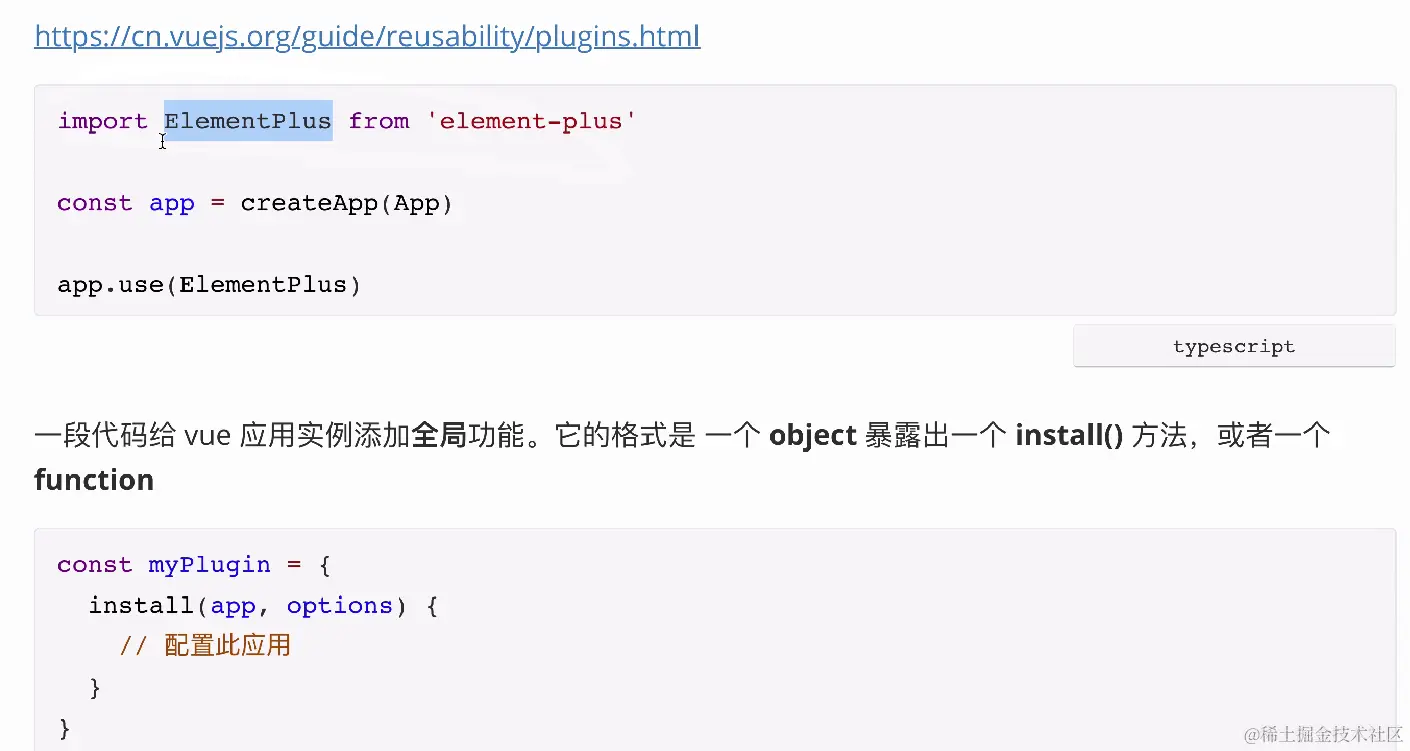
单独使用:
实现局部或者全局使用:
还需要导出类型文件:
打包组件库:
组件库的最终产物是js代码,不是web应用。
库模式
库模式各种配置项:cn.vitejs.dev/config/buil…
使用库模式构建:
修改package.json的配置项:
可以修改打包文件的后缀名为js(esm)cjs(umd)
指定上传到npm上的文件夹
文件路径
设置esm文件路径
用来指出文件的导出方式和文件地址,指定入口文件
生成类型文件:
库模式下默认不会生成类型文件,可以使用插件来完成vite-plugin-dts
在tsconfig.build.json中编写include字段表示哪些文件需要生成类型文件:
生成样式文件:
只要在index.ts中引入样式文件即可
拆分构建脚本:
在esm需要把大部分的依赖文件都排除在外,因为依赖在npm install的时候都会下载,没必要把它们打包成我们最终的代码,这样子可以最小化打包文件的大小。
在umd中只要排除vue就可以:
es中需要把大部分的依赖文件都排除(package.json文件中有的):
创建两个命令生成两种格式代码:
可以使用npm link 把项目关联到本地文件中
npm发布:
npm scripts
Pre&Post scripts
你script 的名称前面加上 pre 或者 post,那么当运行这个命令的时候,pre 和 post 会自动在这个命令之前或者之后运行。
Life Cycle Scripts
- prepare
-
- 在 package 被 packed 之前运行。
- 在 packge 被 published 之前运行。
- 在 npm install 的时候运行。
- prepublish(即将废弃)
- prePublishOnly
npm publish 会触发的hooks
- prepublishOnly
- prepare
- prepublish
- publish
- postpublish
文档地址
npm 命名空间
- @vikingmute/xxxx
- 前面的是命名空间名称,后面的是具体的包名。
- 命名空间通常用于避免包名冲突,并提供更好的包管理和组织,同时也可以提供更好的可读性和包的可发现性。
- 使用命名空间需要带特定参数,也就是公开,因为这个功能默认是 private 的并且收费的。公开就没有问题。