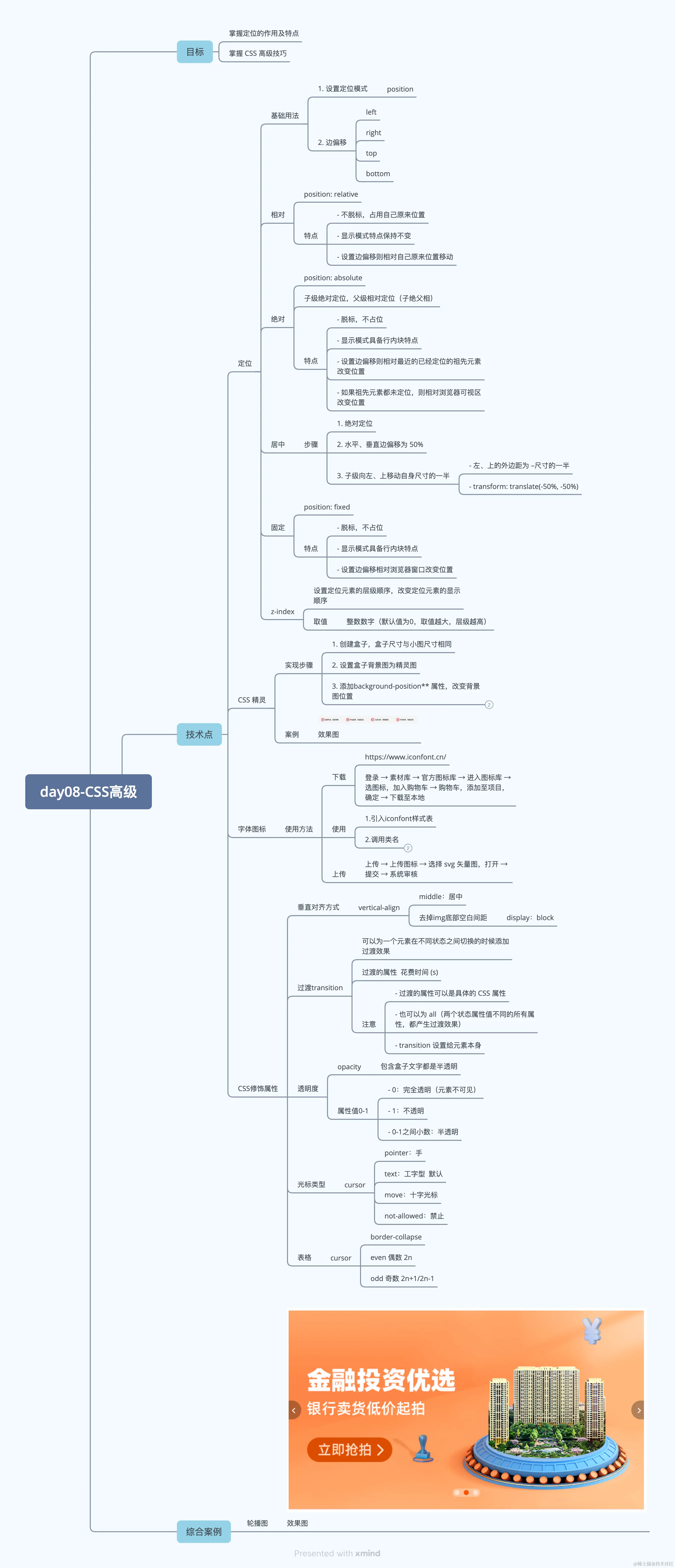
1.相对定位
<meta charset="UTF-8">
<meta name="viewport" content="width=device-width, initial-scale=1.0">
<title>Document</title>
<style>
.div1 {
width: 100px;
height: 100px;
background-color: yellow;
position: relative;
top: 300px;
}
.div2 {
width: 100px;
height: 100px;
background-color: yellowgreen;
}
</style>
</head>
<body>
<div class="div1"></div>
<div class="div2"></div>
</body>
2.绝对定位
<style>
.div1 {
width: 100px;
height: 100px;
background-color: yellow;
position: absolute;
top: 800px;
}
.div2 {
width: 100px;
height: 100px;
background-color: yellowgreen;
}
.father {
width: 500px;
height: 500px;
background-color: pink;
position: relative;
}
.son {
width: 200px;
height: 200px;
background-color: purple;
position: absolute;
right: 10px;
bottom: 10px;
}
</style>
</head>
<body>
<div class="div1"></div>
<div class="div2"></div>
<div class="father">
<div class="son"></div>
</div>
</body>
</html>
3. 绝对布局的水平垂直居中
<style>
.father {
width: 500px;
height: 500px;
background-color: yellow;
position: relative;
}
.son {
width: 100px;
height: 100px;
background-color: blue;
position:absolute;
left: 50%;
top: 50%;
margin-left: -50px;
margin-top: -50px;
}
</style>
</head>
<body>
<div class="father">
<div class="son"></div>
</div>
</body>
</html>
4.固定定位
<style>
.header {
position: fixed;
left: 0px;
top: 0px;
width: 100%;
height: 80px;
background-color: yellowgreen;
z-index: 100;
}
.p_top {
margin-top: 80px;
}
.father {
width: 500px;
height: 500px;
background-color: pink;
position: relative;
}
.son {
width: 200px;
height: 200px;
background-color: purple;
position: absolute;
right: 10px;
bottom: 10px;
}
</style>
<div class="header">123</div>
<p class="p_top"> 里面有很多的文字</p>
<p> 里面有很多的文字</p>
<p> 里面有很多的文字</p>
<p> 里面有很多的文字</p>
<p> 里面有很多的文字</p>
<div class="father">
<div class="son"></div>
</div>
<p> 里面有很多的文字</p>
<p> 里面有很多的文字</p>
<p> 里面有很多的文字</p>
<p> 里面有很多的文字</p>
<p> 里面有很多的文字</p>
<p> 里面有很多的文字</p>
<p> 里面有很多的文字</p>
</body>
</html>
5.精灵图
<style>
.z{
width: 124px;
height: 128px;
background: url('./abcd.jpg') no-repeat;
background-position: -480px -553px;
}
.f {
width: 90px;
height: 130px;
background-color: gray;
background: url('./abcd.jpg') no-repeat;
background-position: 0px -140px;
}
.l {
width: 109px;
height: 120px;
background-color: red;
background: url('./abcd.jpg') no-repeat;
background-position: 0px -270px;
}
.l:hover {
background: url('./abcd.jpg') no-repeat;
background-position: 0px -140px;
}
</style>
</head>
<body>
<div class="z"></div>
<div class="f"></div>
<div class="l"></div>
</body>
</html>
6.粘性定位
<style>
.nav {
position: sticky;
top: 0;
width: 1000px;
height: 100px;
background-color: pink;
}
</style>
</head>
<body>
<p>文字内容</p>
<p>文字内容</p>
<p>文字内容</p>
<p>文字内容</p>
<p>文字内容</p>
<p>文字内容</p>
<p>文字内容</p>
<p>文字内容</p>
<div class="nav"></div>
<p>文字内容</p>
<p>文字内容</p>
<p>文字内容</p>
<p>文字内容</p>
<p>文字内容</p>
<p>文字内容</p>
<p>文字内容</p>
<p>文字内容</p>
<p>文字内容</p>
<p>文字内容</p>
<p>文字内容</p>
<p>文字内容</p>
<p>文字内容</p>
<p>文字内容</p>
<p>文字内容</p>
<p>文字内容</p>
<p>文字内容</p>
<p>文字内容</p>
<p>文字内容</p>
<p>文字内容</p>
<p>文字内容</p>
<p>文字内容</p>
<p>文字内容</p>
<p>文字内容</p>
<p>文字内容</p>
<p>文字内容</p>
<p>文字内容</p>
<p>文字内容</p>
<p>文字内容</p>
<p>文字内容</p>
<p>文字内容</p>
<p>文字内容</p>
<p>文字内容</p>
<p>文字内容</p>
<p>文字内容</p>
<p>文字内容</p>
<p>文字内容</p>
<p>文字内容</p>
<p>文字内容</p>
<p>文字内容</p>
7.字体图标
<!DOCTYPE html>
<html lang="en">
<head>
    <meta charset="UTF-8">
    <meta name="viewport" content="width=device-width, initial-scale=1.0">
    <title>Document</title>
    <link rel="stylesheet" href="./fonts/iconfont.css">
    <style>
        .iconfont{
            font-size: 300px;
            color: pink;
            text-decoration: none;
        }
    </style>
</head>
<body>
     <a href="" class="iconfont icon-shouji"></a>
     <a href="" class="iconfont icon-zhaoxiangji"></a>

</body>
</html>
8.CSS修饰属性 - 垂直对齐 图片和文字的垂直对齐,
<style>
img {
vertical-align: bottom;
}
</style>
</head>
<body>
<img src="../xiangmu/uploads/course01.png" alt="">
<a href="">我是文字</a>
</body>
</html>
9.CSS修饰属性 - 过渡transition
<style>
.div1 {
width: 100px;
height: 100px;
background-color: blue;
transition: height 0.5;
}
.div1:hover {
width: 300px;
height: 300px;
background-color: blue;
}
</style>
</head>
<body>
<div class="div1"></div>
</body>
</html>
9.CSS修饰属性 - div透明度
<!DOCTYPE html>
<html lang="en">
<head>
<meta charset="UTF-8">
<meta name="viewport" content="width=device-width, initial-scale=1.0">
<title>Document</title>
<style>
.div4 {
width: 300px;
height: 300px;
background-color: rgba(6, 95, 6, 0.6);
}
</style>
</head>
<body>
<div class="div4">
我是文字
</div>
</body>
</html>
10.CSS修饰属性 - 光标类型。
<style>
div{
width: 100px;
height: 100px;
background-color: yellowgreen;
margin-bottom: 20px;
}
.div1 {
cursor: default;
}
.div2 {
cursor: text;
}
.div3 {
cursor: pointer;
}
.div4 {
cursor: not-allowed;
}
.div5 {
cursor: move;
}
</style>
</head>
<body>
<div class="div1"></div>
<div class="div2"></div>
<div class="div3"></div>
<div class="div4"></div>
<div class="div5"></div>
</body>
</html>
11.CSS修饰属性 - 表格样式
<style>
table ,tr, td{
border: 1px solid #000;
border-collapse: collapse;
}
table tr:nth-child(even) {
background-color: #ccc;
}
table tr:nth-child(odd) {
background-color: #eee;
}
</style>
</head>
<body>
<table>
<tr>
<td>100</td>
<td>100</td>
<td>100</td>
<td>100</td>
</tr>
<tr>
<td>100</td>
<td>100</td>
<td>100</td>
<td>100</td>
</tr>
<tr>
<td>100</td>
<td>100</td>
<td>100</td>
<td>100</td>
</tr>
<tr>
<td>100</td>
<td>100</td>
<td>100</td>
<td>100</td>
</tr>
</table>
</body>
</html>
12.隐藏display/visibility
<style>
.div1{
width: 100px;
height: 100px;
background-color: tan;
visibility: hidden;
}
.div2{
width: 100px;
height: 100px;
background-color:pink;
}
</style>
</head>
<body>
<div class="div1"></div>
<div class="div2"></div>
</body>
</html>