1 我们在处理安卓一些View触摸问题时,可以将日志定位到秒级别。
下面是通过adb命令调起界面 adb shell am start com.android.systemui/com.android.systemui.DemoMode
选择“状态栏”--》时间--》显示小时,分钟和秒
2 在排查问题时我们常常迷失在错综复杂的方法调用中,特别是涉及到系统调用模块,今天介绍一个android.util.Log的一个方法getStackTraceString,可以帮助我们理清调用关系。
Log.i(TAG, Log.getStackTraceString(Throwable()))
3 有时我们需要对一个方法去重(在一定时间间隔内,这个方法只能调用一次)
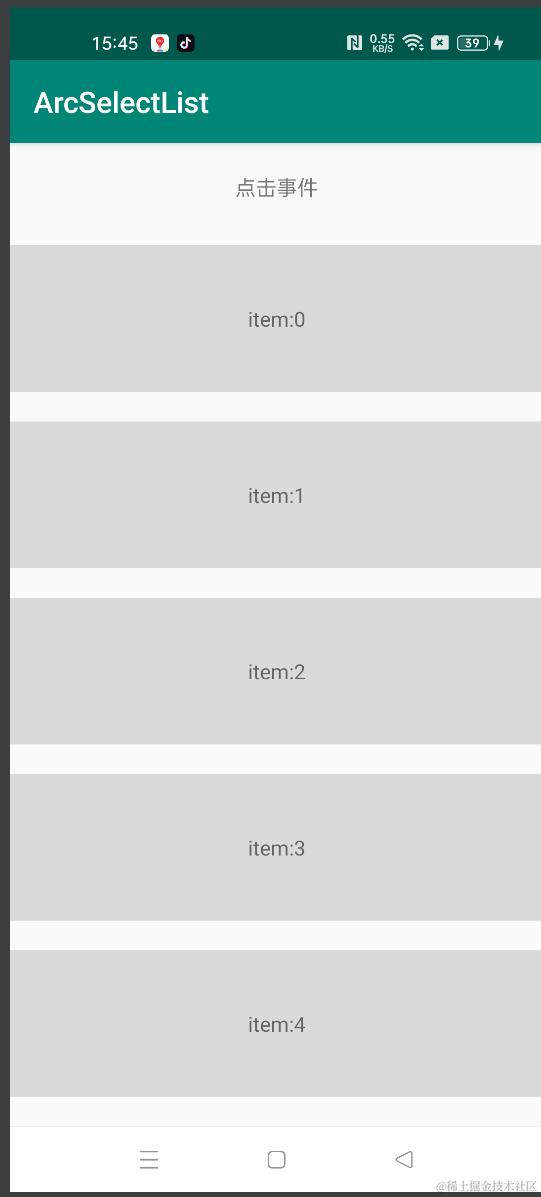
在我们实际项目中,每点击一个item会跳转到一个h5详情页面,但我们如果同时打开两个详情页面(会卡死,项目h5详情页历史老问题了),这时需要我们客户端去重处理,
1 连续多次点击同一个item,这个好处理。可以用点击事件防重处理。
2 手指同时放在item1和item2上,这样会打开两个详情页(在我们项目中,h5会返回有点问题),需要去重(对方法)。
package com.ccb.arcselect

import android.util.Log
import java.util.concurrent.ConcurrentHashMap

/**
 * 时间间隔
 */
class TimeSpan private constructor(val name: String) {
    var interval = 0

    @Volatile
    private var time = 0L

    @Volatile
    private var deltaTime = 0L

    fun now(): Boolean {
        clearNow(this)
        val now = System.currentTimeMillis()
        deltaTime = now - time
        if (deltaTime > interval) {
            time = now
        }
        return afterNow().also {
            if (it.not()) {
                Log.i(TAG, "[false] deltaTime=$deltaTime interval=$interval name=$name")
            }
        }
    }

    private fun afterNow(): Boolean = deltaTime == 0L || deltaTime > interval

    companion object {
        private const val TAG = "TimeSpan"
        private const val MAX_SIZE = 8
        private val caches = ConcurrentHashMap<String, TimeSpan>()

        fun create(name: String): TimeSpan = TimeSpan(name)

        fun get(name: String): TimeSpan {
            return caches[name] ?: create(name).also {
                caches[name] = it
            }
        }

        private fun clearNow(ts: TimeSpan) {
            val now = System.currentTimeMillis()
            val afterNow: (ts: TimeSpan) -> Boolean = {
                it != ts && it.deltaTime != 0L && now - it.time > it.interval
            }
            if (caches.size <= MAX_SIZE) {
                // reset
                caches.forEach { (_, u) ->
                    if (afterNow(u)) {
                        u.deltaTime = 0
                    }
                }
            } else {
                // remove
                caches.filter { (_, u) -> afterNow(u) }.forEach { (t, _) ->
                    caches.remove(t)
                }
            }
        }
    }

}
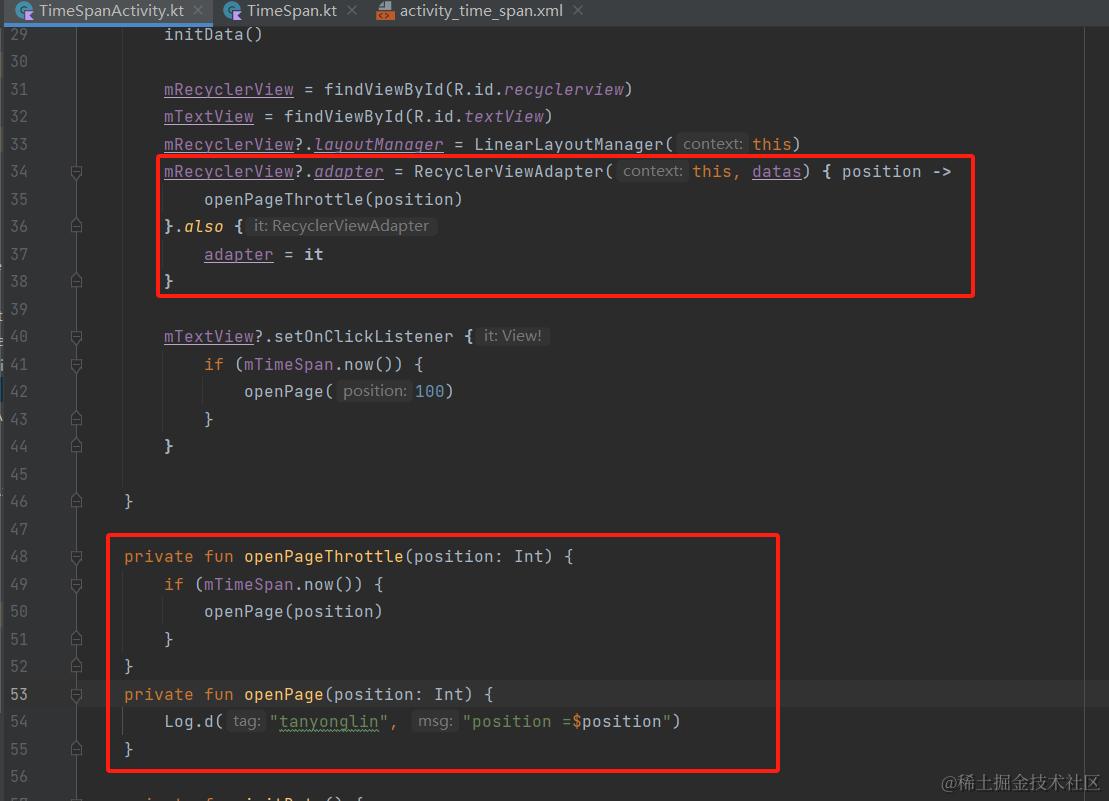
在项目中点击item时候会打印这行代码。
Log.d("tanyonglin", "position =$position")
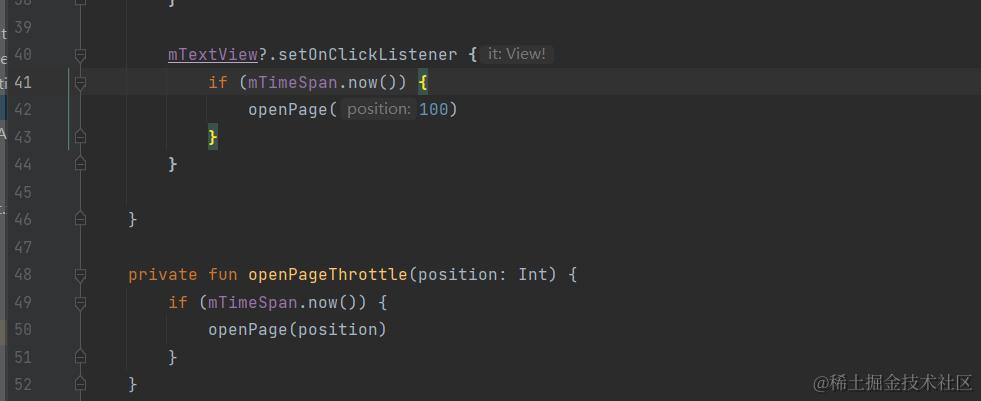
3 如果我们手指同时放在点击事件和item上,这样就是全局去重
4 安装应用的时候提示Failure[INSTALL_FAILED_VERSION_DOWNGRADE]的解决办法,当出现该错误时是因为该机器中已经存在比这个应用的版本号更高的同包名应用。
解决办法:adb install -r -d C:\User\tanyl\Desktop\xx.apk
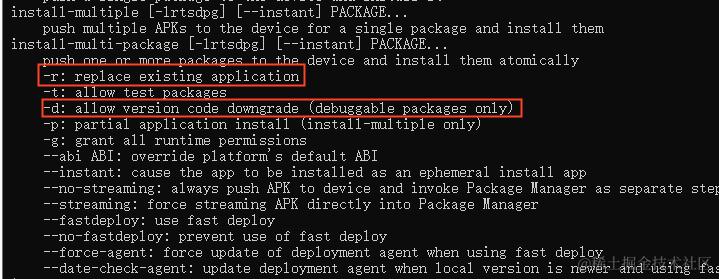
可以看到:
- -r的含义是此次的应用的安装可以代替原来存在的相同包名的应用
- -d的含义是此次的应用的版本号可以低于原来存在的相同包名的应用版本号
5 有时我们UI设计稿上经常出现安卓字体这样的字重Medium,我们可以这样代码处理。
方案一:
package com.example.interfacedemo

import android.graphics.Typeface
import android.os.Build
import android.util.Log
import android.widget.TextView


object TypeFaceUtil {
    private const val tag = "TypeFaceUtil"

    @JvmStatic
    fun changeTextViewStyleToMedium(textView: TextView?) {
        textView?.let {
            kotlin.runCatching {
                if (Build.VERSION.SDK_INT >= Build.VERSION_CODES.P) {
                    it.typeface = Typeface.create(it.typeface, 500, it.typeface.isItalic)
                } else {
                    //优先使用这行代码效果,如果达不到效果考虑下面代码
                    it.typeface = Typeface.create("sans-serif-medium", Typeface.NORMAL)
                    //BOLD是700,NORMAL是400,500是Medium,不过使用NORMAL就完全没有效果了
//                    100
//                    Thin
//                    200
//                    Extra Light
//                    300
//                    Light
//                    400
//                    Normal
//                    500
//                    Medium
//                    600
//                    Semi Bold
//                    700
//                    Bold
//                    800
//                    Extra Bold
//                    900
//                    Black
                    it.setTypeface(it.typeface, Typeface.BOLD)
                }
            }.onFailure {
                Log.e(tag, "[changeTextViewStyleToMedium],error = ${it.message}")
            }
        }
    }
}
方案二
private val MEDIUM_FONT: Typeface = Typeface.create("sans-serif-medium", Typeface.NORMAL)
private var textViewMedium: TextView? = null


private val REGULAR_FONT: Typeface = Typeface.create("sans-serif", Typeface.NORMAL)
private var textViewRegular: TextView? = null

override fun onCreate(savedInstanceState: Bundle?) {
    super.onCreate(savedInstanceState)
    setContentView(R.layout.activit_meduim)
    textViewMedium = findViewById(R.id.text_view)
    textViewRegular = findViewById(R.id.text_view1)

    textViewMedium?.typeface = MEDIUM_FONT
    textViewRegular?.typeface = REGULAR_FONT
}

左边是Medium字重,右边是regular字重。
6 当有gradle编译报错,如下图所示:
一般这种情况报class a.a和class b.a这种说明两个关联不大的aar包里混淆之后有同样的路径a.a类,需要其中一个sdk keep住这个类。这样生成后的路径基本不会相同。