前言
前方高能,长文警告!!

个人比较喜欢在一个集成的平台上进行各种开发, vscode正好满足我的需求,下面我会介绍一些我比较常用的插件.
插件类型速览:
主题插件、基础插件、Vue插件、react插件、小程序插件、代码格式化...
主题
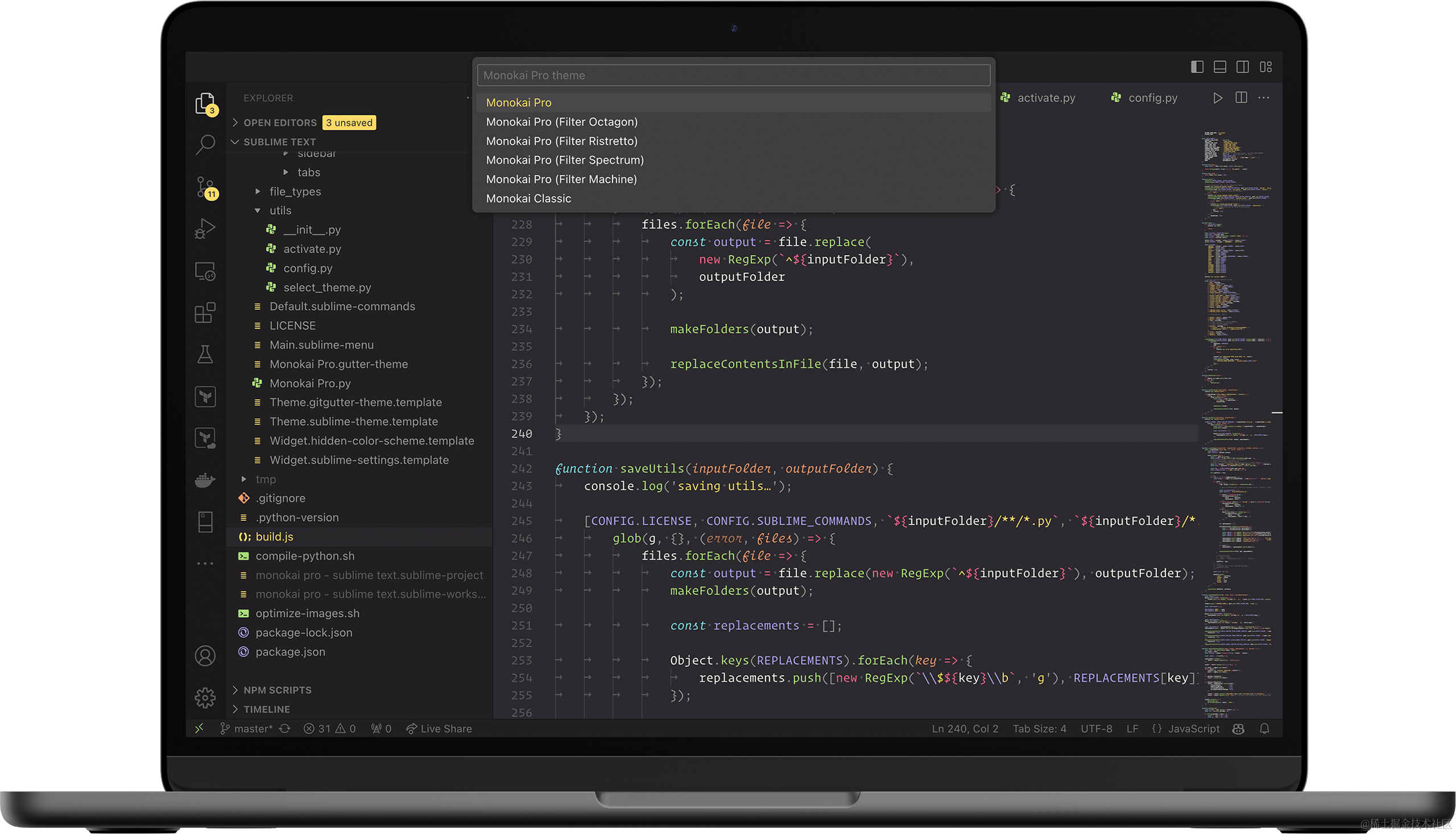
Monokai Pro- 同时提供 配色主题和文件主题,看起来比较舒服.
- 配色方案有多种,用
ctrl+k+t快速选择主题
基础插件
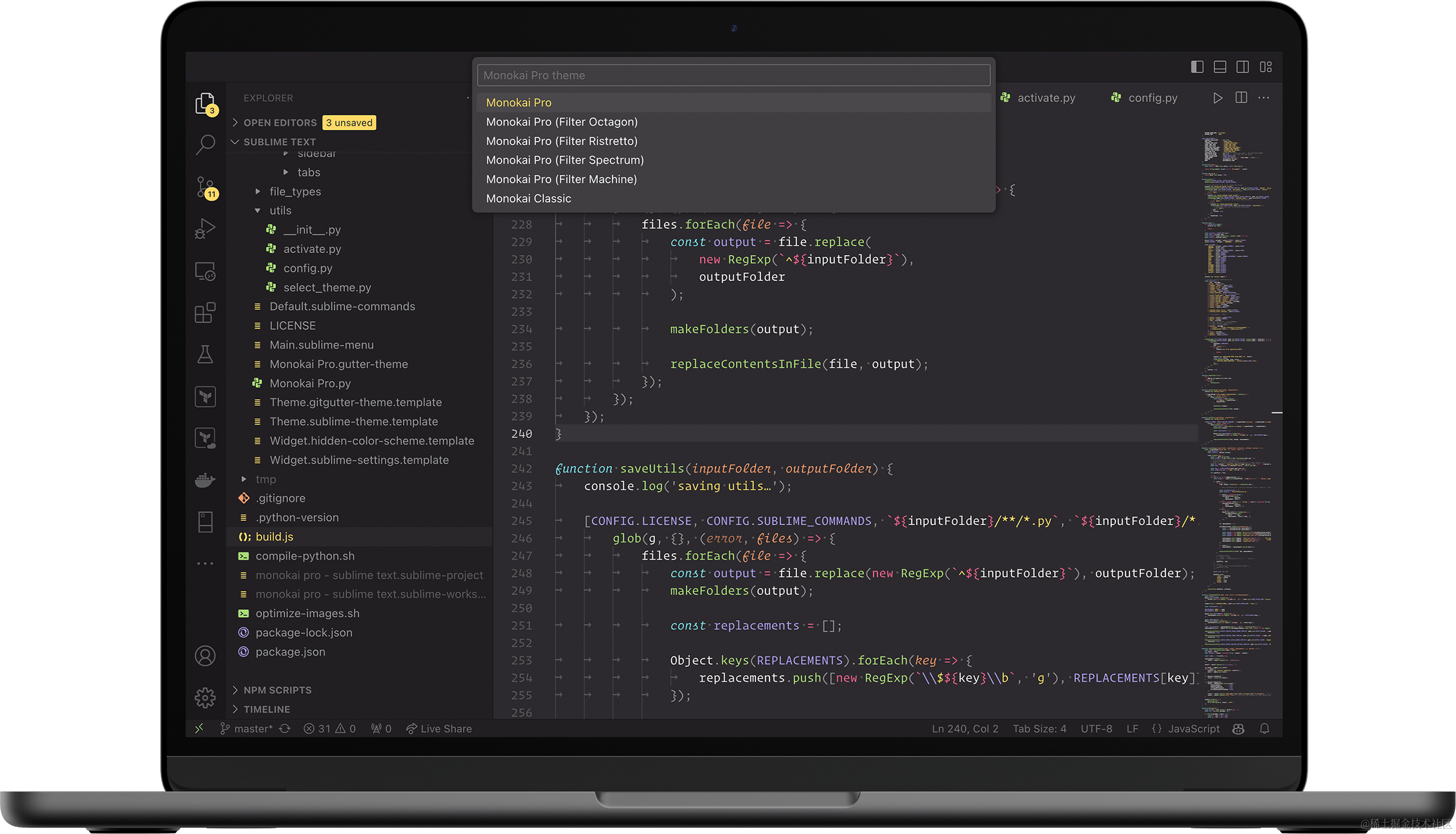
HTML CSS Support- 提供html和css的代码高亮和提示,必备插件
JavaScript (ES6) code snippets- vscode本身有内置js的代码提示,装一个JavaScript (ES6) code snippets用来提示代码片段就够了.
Vue插件推荐
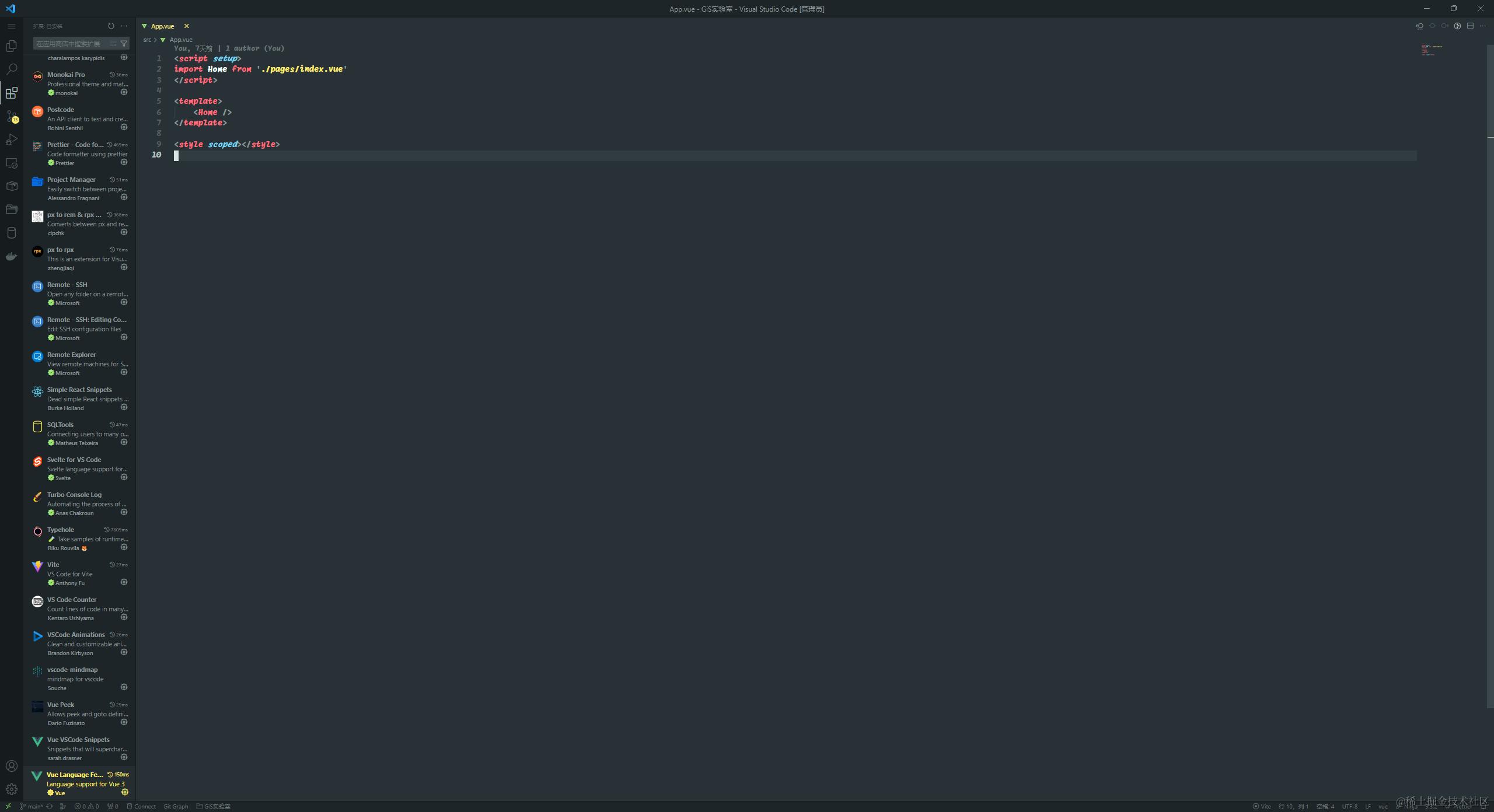
Vue - Official
开发 vue项目必备的插件,代码的高亮和智能提示全靠它了.
注:之前使用的是Volar,已经废弃了,现在使用的是Vue - Official

安装之后的样子
Vue Peek
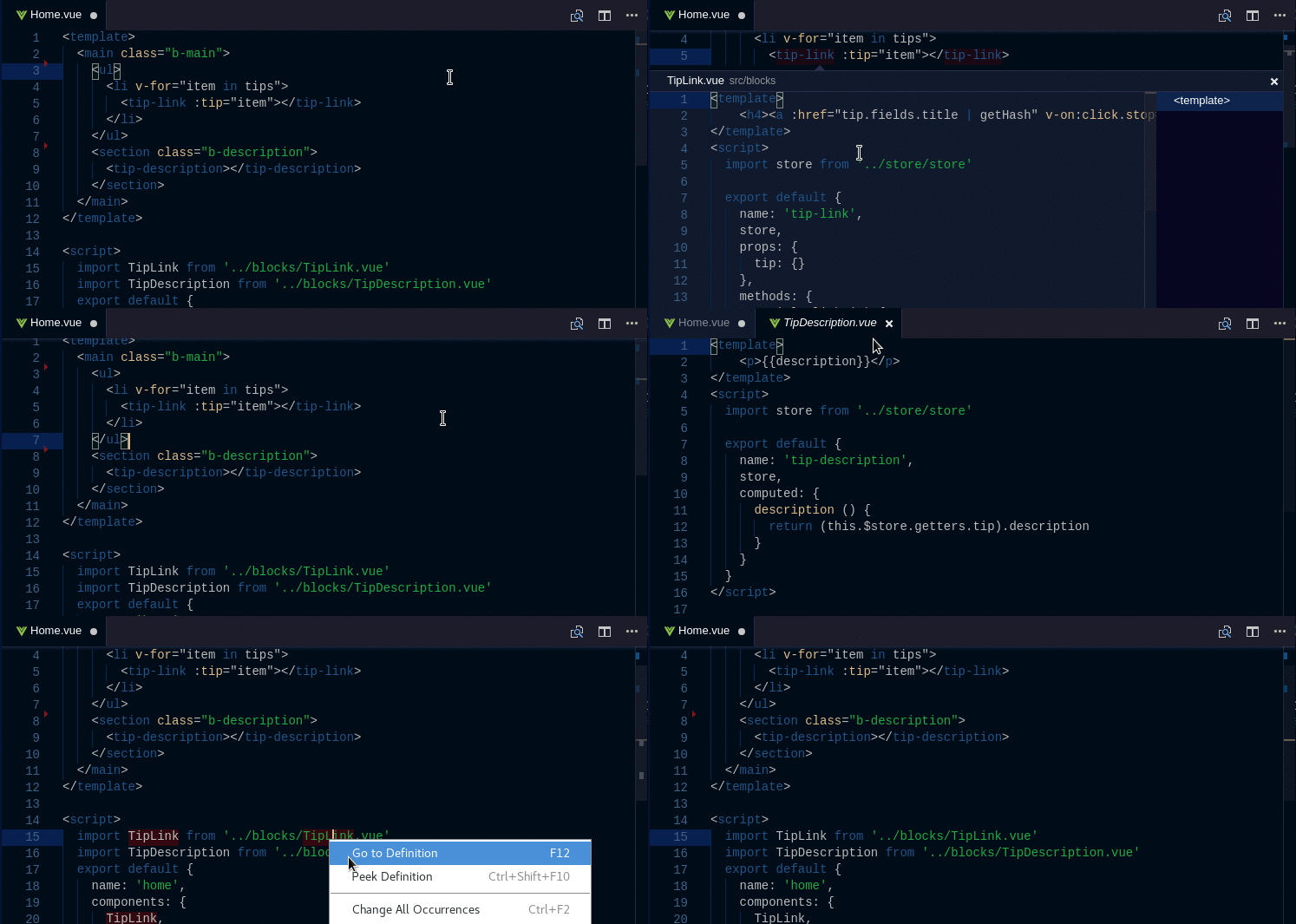
在大型的Vue项目中如果想要快速跳转到某一个组件去,需要找很久才能找到.非常浪费时间
这个插件就完美解决这个问题
注: 虽然
vscode也是可以直接ctrl+鼠标的方式跳转文件,但是这个插件还有一些额外的功能,直接悬浮窗查看文件内容. 之类的, 所以是否要安装还是看自己有没有需要.
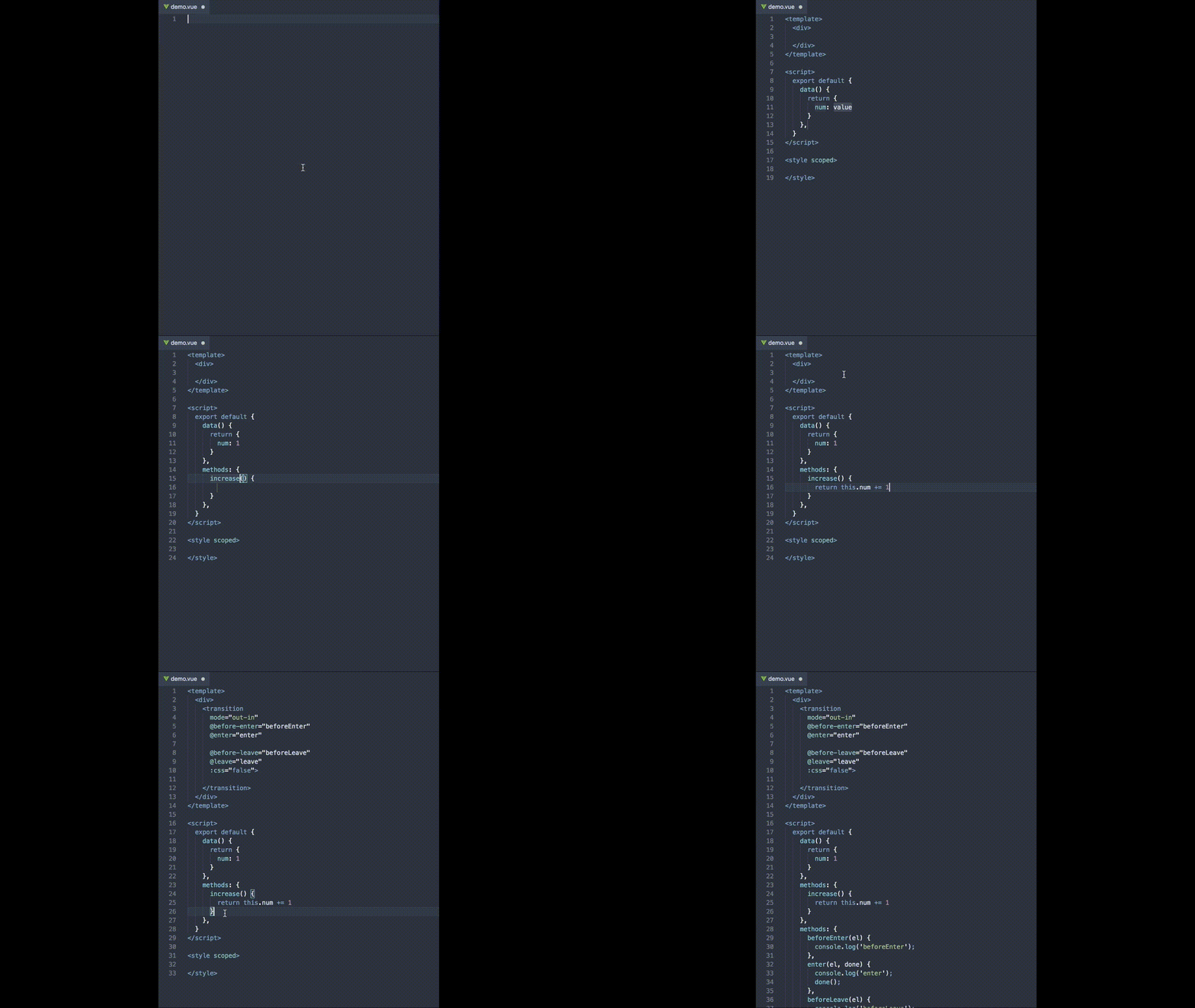
Vue VSCode Snippets
这个插件提供一些Vue的代码片段,在日常开发中,可以节省很多时间
React
react本身用的 jsx和tsx可以被 vscode识别到,所以不像 vue那样还需要装高亮插件.
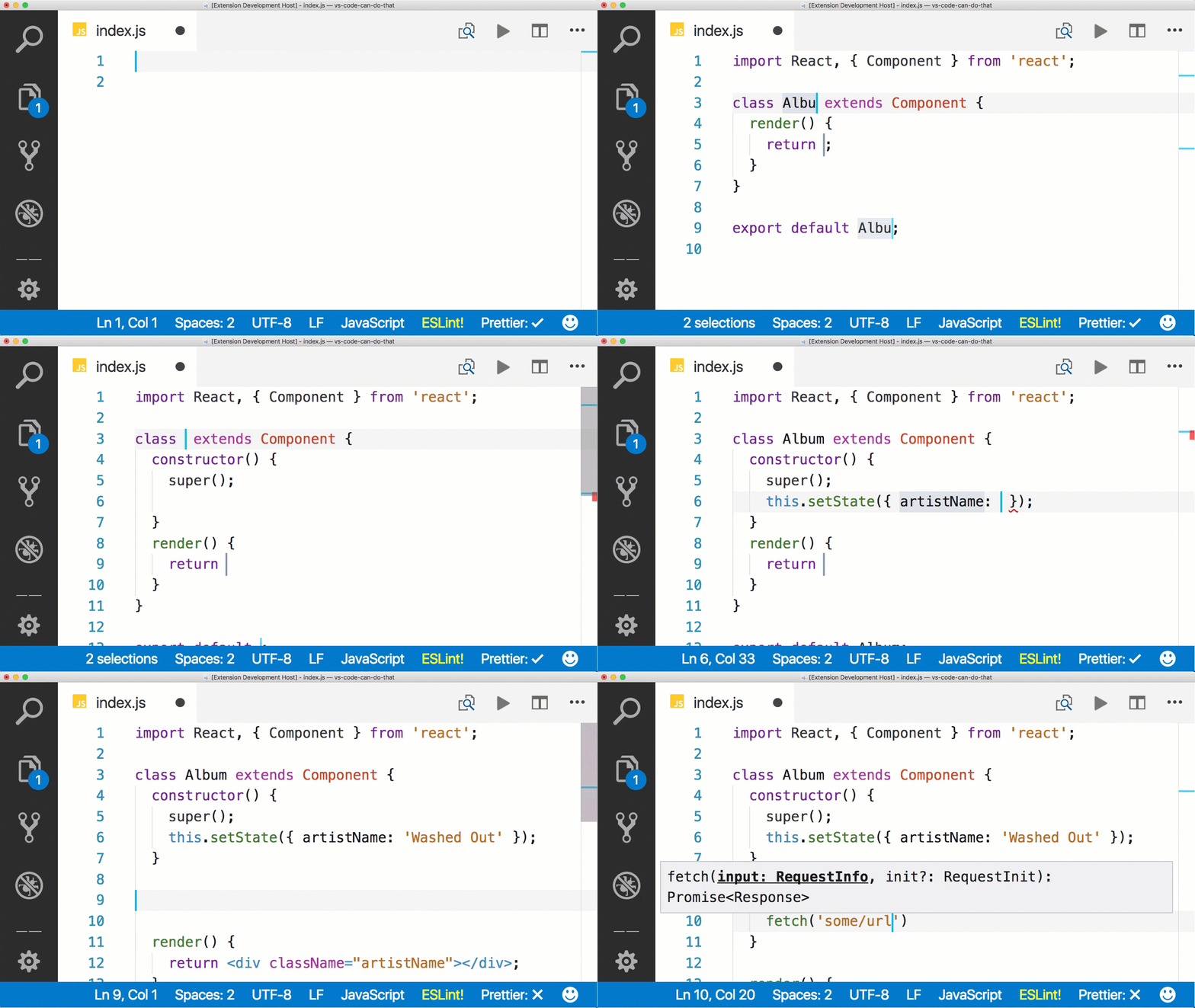
Simple React Snippets
react的代码片段插件,这个插件里面有很多react的代码片段,写新文件的时候可以用来快速生成代码.
Typescript React code snippets
typescript版本的react的代码片段.
ES7+ React/Redux/React-Native snippets
也是一个 react代码片段的插件,
小程序
平常开发主要用到的是Uniapp,所以插件类型也主要偏向uniapp
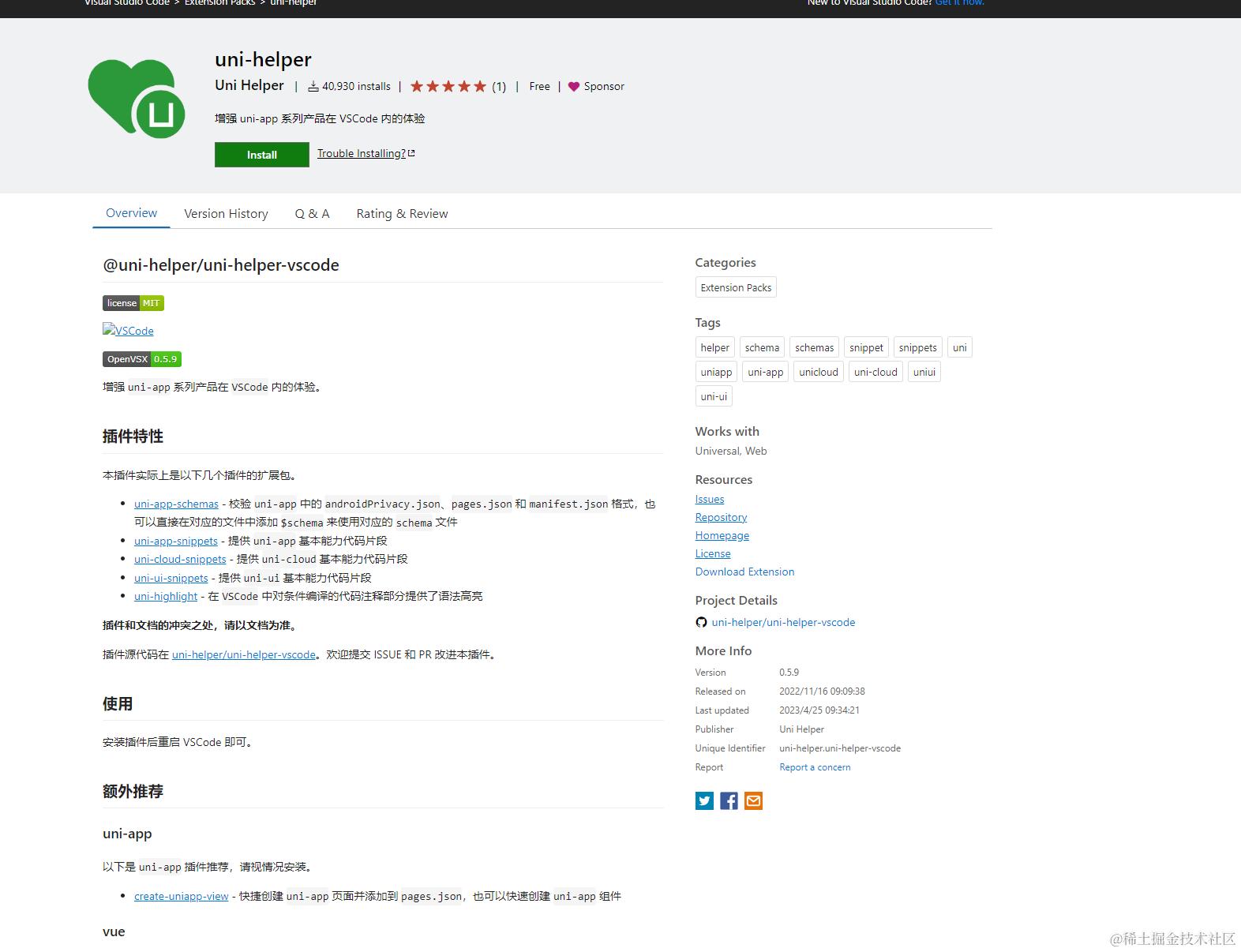
uni-helper
在 vscode上面开发 uniapp只需要装一个这个插件即可,这个插件是一个拓展包会把其他和 uniapp有关的插件也安装下来,提供 uniapp标签的代码提示,代码高亮等相关功能.
代码格式化
代码格式化主要就是 Prettier和 Eslint
Prettier - Code formatter

用来格式化代码,搭配项目中的prettier配置文件使用.
在 settings.json中也需要配置一下
  "[javascript]": {
    "editor.defaultFormatter": "esbenp.prettier-vscode"
  },
  "[typescript]": {
    "editor.defaultFormatter": "esbenp.prettier-vscode"
  },
  "[javascript|react]": {
    "editor.defaultFormatter": "esbenp.prettier-vscode"
  },
  "[typescript|react]": {
    "editor.defaultFormatter": "esbenp.prettier-vscode"
  },
  "[scss]": {
    "editor.defaultFormatter": "esbenp.prettier-vscode"
  },
  "[css]": {
    "editor.defaultFormatter": "esbenp.prettier-vscode"
  },
  "[json]": {
    "editor.defaultFormatter": "esbenp.prettier-vscode"
  },
  "[vue]": {
    "editor.defaultFormatter": "Vue.volar"
  },
  "prettier.configPath": ".prettierrc.js",
Eslint

eslint,用来做一些代码检查,和 prettier不一样在于, prettier注重于代码的格式化,eslit则侧重于代码的语法风格.
eslint和 prettier二者搭配使用
数据库
正常开发中我们使用的数据库可视化工具都是 navicat、dbeaver,但vscode中也有很多插件,也可以做到类似的效果
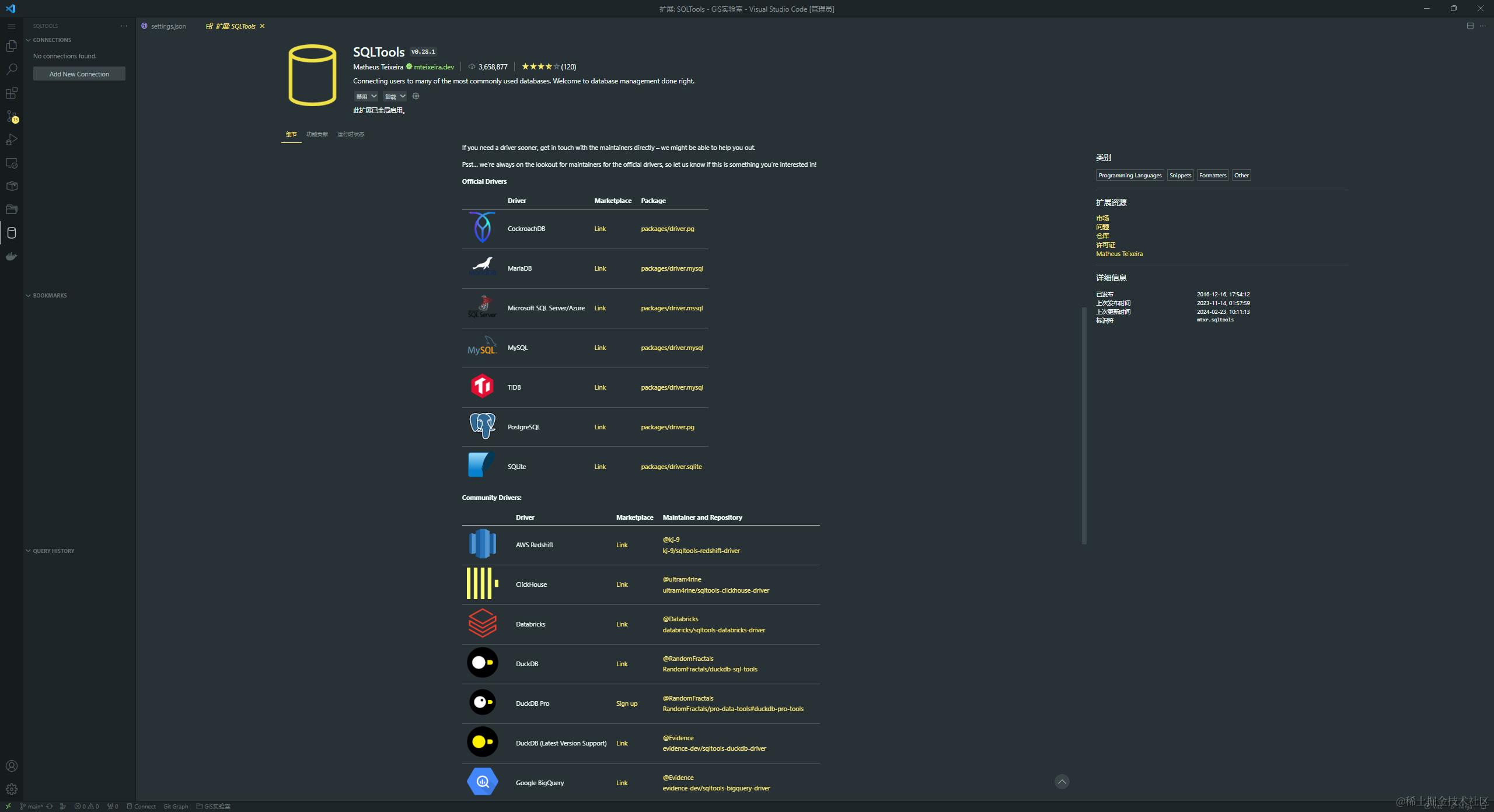
SQL Tools

这个插件支持的数据库种类很多,日常开发需要的数据库基本上都可以覆盖到
MongoDB for VS Code

上面那个插件中没有 mongodb的插件
如果想要看 mongodb就需要MongoDB for VS Code这个插件来辅助
Redis
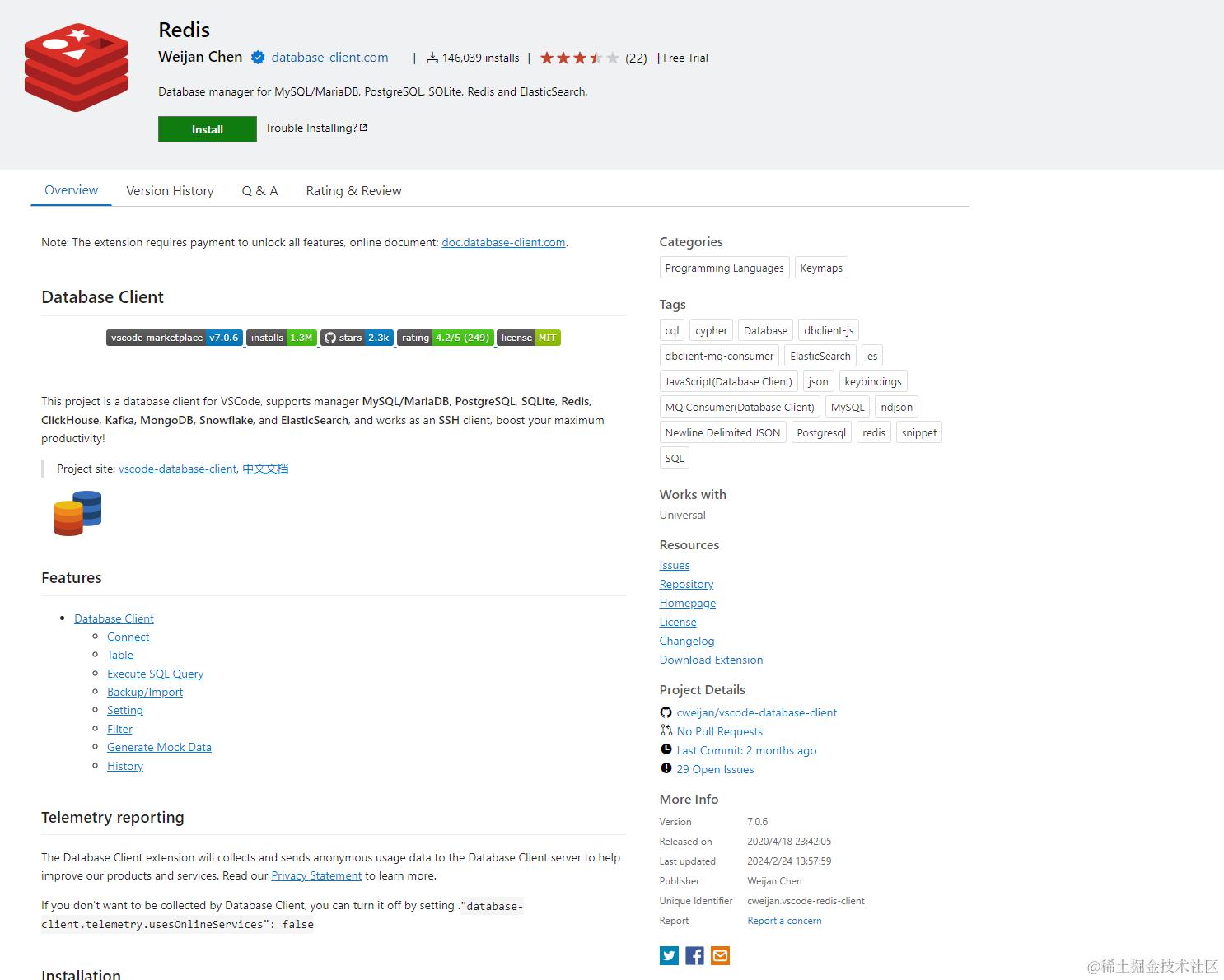
想要在 vscode中使用 redis就需要这个插件.具体的效果和 sql tools差不多.
其他插件
Better Comments
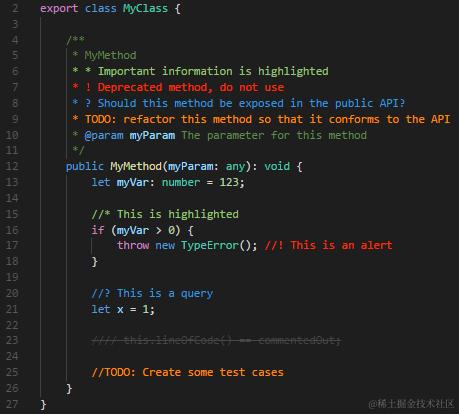
以不同的颜色高亮注释,如果需要自定义可以在 settings.json中写入配置来进行自定义
配置例子:
"better-comments.tags": [
  {
    "tag": "!",
    "color": "#FF2D00",
    "strikethrough": false,
    "underline": false,
    "backgroundColor": "transparent",
    "bold": false,
    "italic": false
  },
  {
    "tag": "?",
    "color": "#3498DB",
    "strikethrough": false,
    "underline": false,
    "backgroundColor": "transparent",
    "bold": false,
    "italic": false
  },
  {
    "tag": "//",
    "color": "#474747",
    "strikethrough": true,
    "underline": false,
    "backgroundColor": "transparent",
    "bold": false,
    "italic": false
  },
  {
    "tag": "todo",
    "color": "#FF8C00",
    "strikethrough": false,
    "underline": false,
    "backgroundColor": "transparent",
    "bold": false,
    "italic": false
  },
  {
    "tag": "*",
    "color": "#98C379",
    "strikethrough": false,
    "underline": false,
    "backgroundColor": "transparent",
    "bold": false,
    "italic": false
  }
]
Turbo Console Log


平常开发打印console.log最少都要敲2~3按键,还需要输入对应的参数,并且也不是很美观
这个插件可以设置模板,只需要按下快捷键就可以快速的打印出上面的这种 console.log
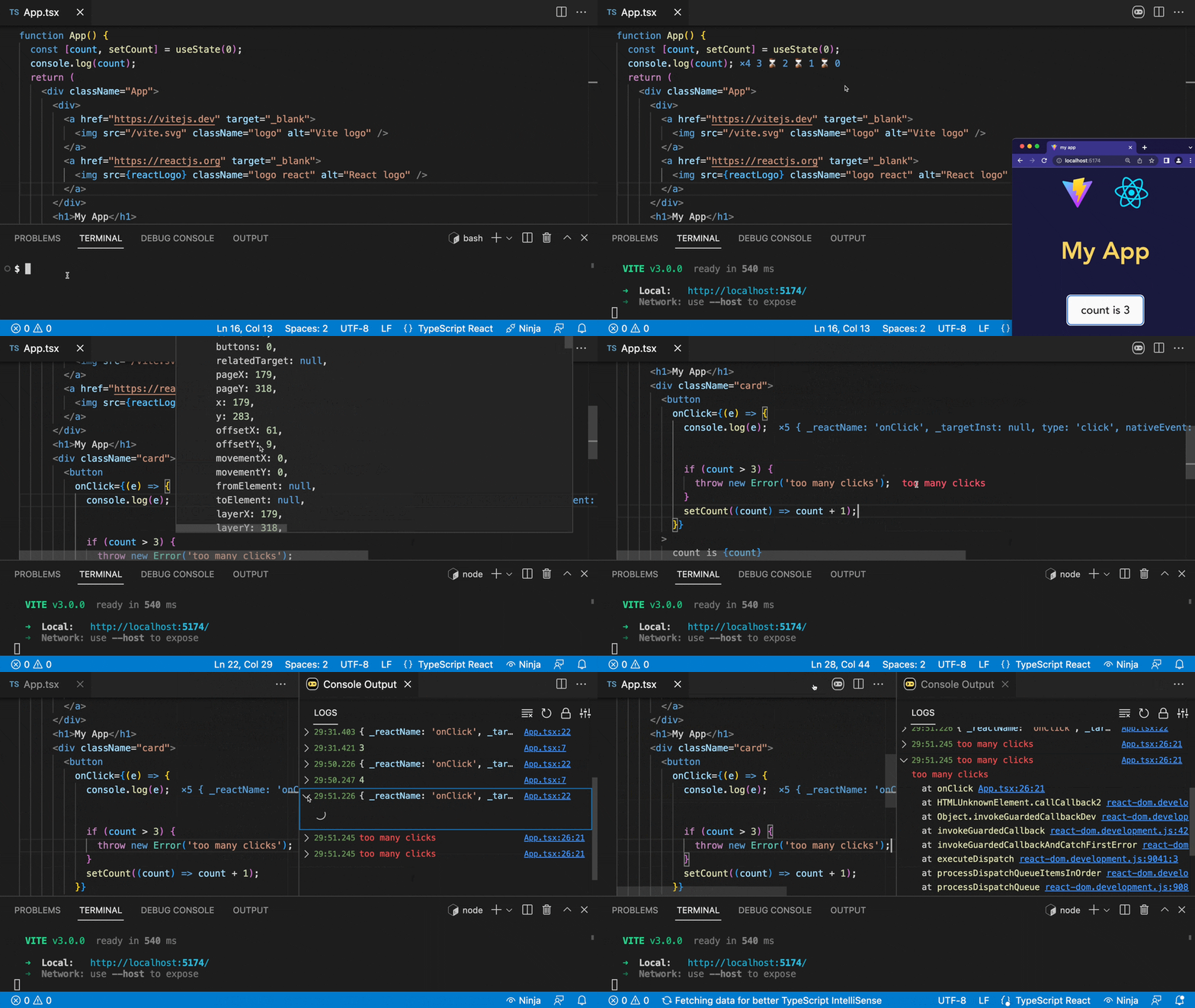
Console Ninja
这个插件可以,直接在你的vscode里面就输出 console.log 结果,提高不少效率,不用每次都去看控制台
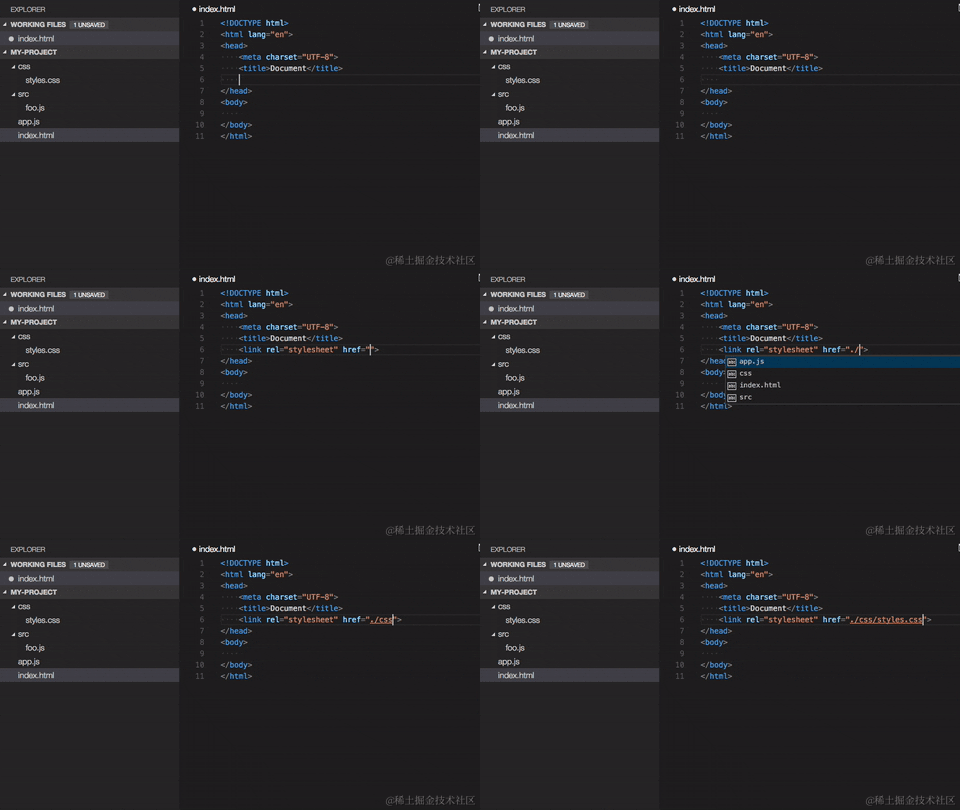
Path Intellisense
自动补全路径的插件,在项目结构比较深的时候这个工具就很好用了
git相关
Git Graph:GitLens — Git supercharged
两个功能强大的 git工具,比 vscode自带的好用不少
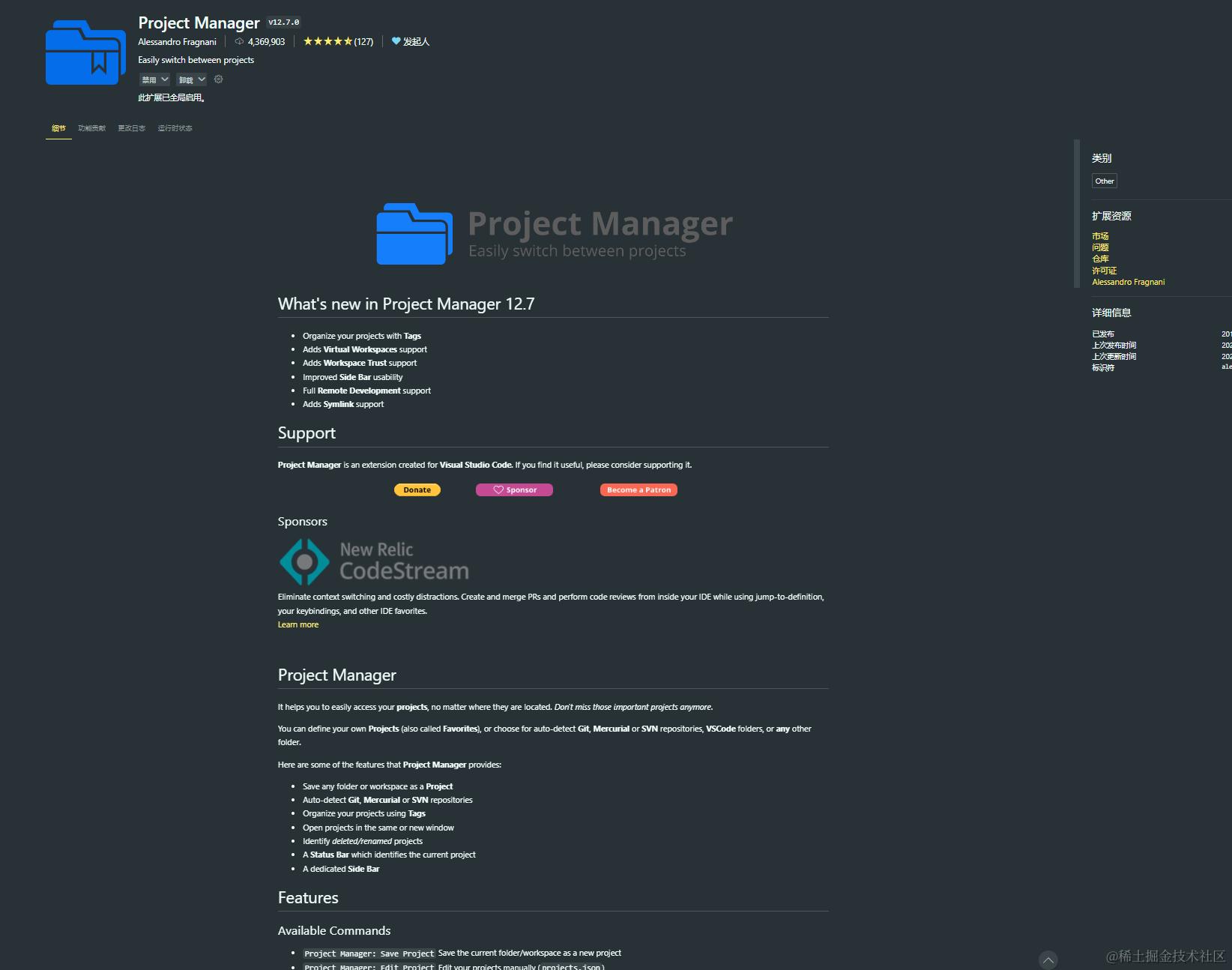
Project Manager
注: vscode里面的最近打开功能,可以平替这个插件,但是这个插件会根据存储的项目生成一份json文件,迁移到新电脑的时候,可以把文件拷过去,稍作修改,就可以直接还原之前的项目管理信息.如果有需要还是可以安装的,不需要的话,直接用最近打开这个就好.

非常好用的一个插件,可以保存项目,方便下次打开项目,在项目多的情况下,非常的好用.
具体的效果可以看插件的介绍
vite

功能很多:
- 启动本地服务器
- 快速启动项目
- 内置浏览器显示项目内容
替代了Live Server在我插件列表中的位置
vscode-mindmap
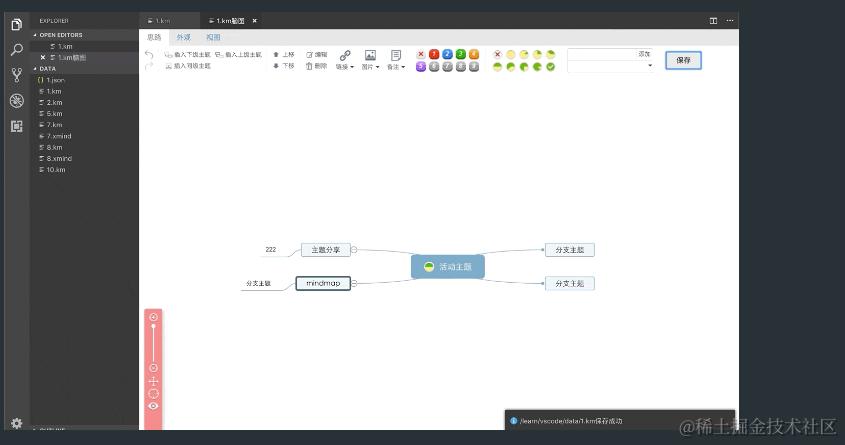
在一些特殊情况下,需要快速画一些流程图、思维导图的时候比较好用,只要创建 .km文件就可以,还支持打开 .xmid文件.
VSCode Animations

这个插件配置完成之后,让 vscode的体验整体上升了一个档次,吃了德芙一样丝滑,我最喜欢的插件之一
Bookmarks
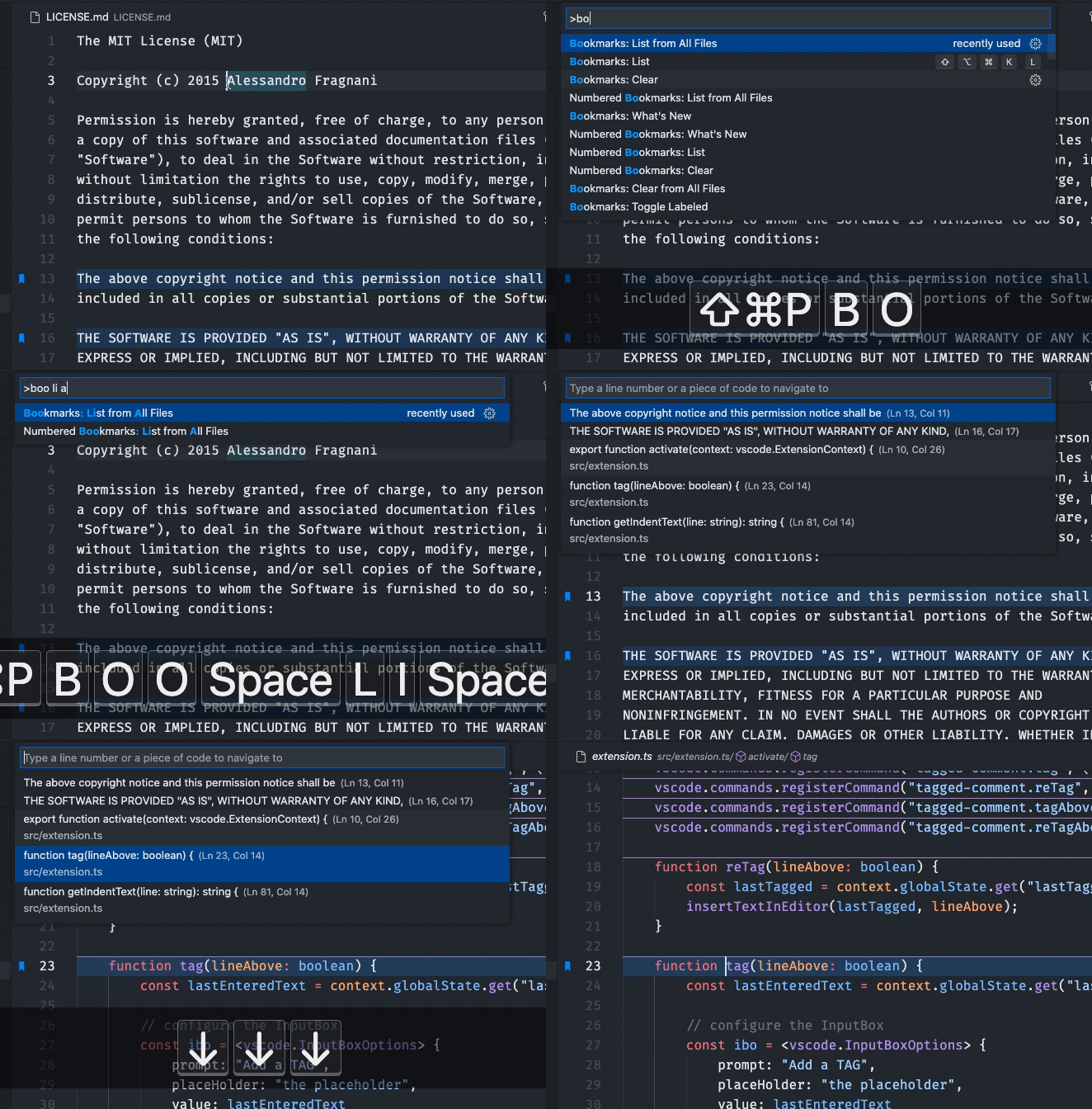
一个书签插件,在项目比较大的情况下,如果有一些功能的在不同的 文件中,需要下次去修改,用这个插件标记一下,是一个不错的选择
配置文件
{
  "workbench.layoutControl.enabled": false,
  "window.commandCenter": false,
  "window.menuBarVisibility": "compact",
  "security.workspace.trust.untrustedFiles": "open",
  "editor.scrollbar.scrollByPage": true,
  "editor.smoothScrolling": true,
  "explorer.confirmDelete": false,
  "explorer.confirmDragAndDrop": true,
  "git.confirmSync": false,
  "editor.fontVariations": false,
  "workbench.startupEditor": "none",
  "editor.acceptSuggestionOnCommitCharacter": false,
  "editor.fontSize": 16,
  "search.followSymlinks": false,
  "search.useIgnoreFiles": false,
  "typescript.tsserver.maxTsServerMemory": 12288,
  "git.autorefresh": false,
  "editor.fontWeight": "bold",
  "editor.codeLensFontFamily": "'Monaspace Radon'",
  "editor.fontFamily": "'Monaspace Radon'",
  "debug.console.fontFamily": "FiraCode Nerd Font",
  "editor.fontLigatures": true,
  "explorer.compactFolders": false,
  "typescript.format.enable": false,
  "editor.formatOnSave": true,
  "extensions.ignoreRecommendations": true,
  "files.autoSave": "afterDelay",
  "editor.defaultFormatter": "esbenp.prettier-vscode",
  "emmet.includeLanguages": {
    "javascript": "javascriptreact"
  },
  "emmet.triggerExpansionOnTab": true,
  "editor.cursorBlinking": "smooth",
  "editor.cursorStyle": "block",
  "editor.cursorSmoothCaretAnimation": "on",
  "workbench.list.smoothScrolling": true,
  "diffEditor.ignoreTrimWhitespace": false,
  // 保存后自动修复格式
  "editor.codeActionsOnSave": {
    "source.fixAll.eslint": "explicit"
  },
  // 添加vue支持
  "eslint.validate": ["javascript", "javascriptreact", "vue"],
  "files.eol": "\n",
  "eslint.format.enable": true,
  "editor.linkedEditing": true,
  "typescript.disableAutomaticTypeAcquisition": true,
  "files.associations": {
    "*.json": "jsonc"
  },
  "window.zoomLevel": -1,
  "px-to-rpx.autoRemovePrefixZero": true,
  "px-to-rpx.baseWidth": 375,
  "px-to-rpx.fixedDigits": 2,
  "javascript.updateImportsOnFileMove.enabled": "never",
  "[javascript]": {
    "editor.defaultFormatter": "esbenp.prettier-vscode"
  },
  "[typescript]": {
    "editor.defaultFormatter": "esbenp.prettier-vscode"
  },
  "[javascript|react]": {
    "editor.defaultFormatter": "esbenp.prettier-vscode"
  },
  "[typescript|react]": {
    "editor.defaultFormatter": "esbenp.prettier-vscode"
  },
  "[scss]": {
    "editor.defaultFormatter": "esbenp.prettier-vscode"
  },
  "[css]": {
    "editor.defaultFormatter": "esbenp.prettier-vscode"
  },
  "[json]": {
    "editor.defaultFormatter": "esbenp.prettier-vscode"
  },
  "[vue]": {
    "editor.defaultFormatter": "Vue.volar"
  },
  "prettier.configPath": ".prettierrc.js",
  "update.mode": "default",
  "workbench.tree.enableStickyScroll": true,
  "turboConsoleLog.logMessagePrefix": "👉",
  "terminal.integrated.smoothScrolling": true,
  "[javascriptreact]": {
    "editor.defaultFormatter": "vscode.typescript-language-features"
  },
  "editor.inlayHints.fontFamily": "'Monaspace Radon'",
  "animations.Install-Method": "Apc Customize UI++",
  "vite.autoStart": false,
  "apc.imports": [
    "file:///c:/Users/cathe/.vscode/extensions/brandonkirbyson.vscode-animations-2.0.1/dist/updateHandler.js"
  ],
  "animations.Enabled": true,
  "workbench.iconTheme": "Monokai Pro (Filter Machine) Icons",
  "workbench.colorTheme": "Monokai Pro (Filter Machine)",
  "terminal.integrated.env.windows": {},
  "console-ninja.featureSet": "Community"
}