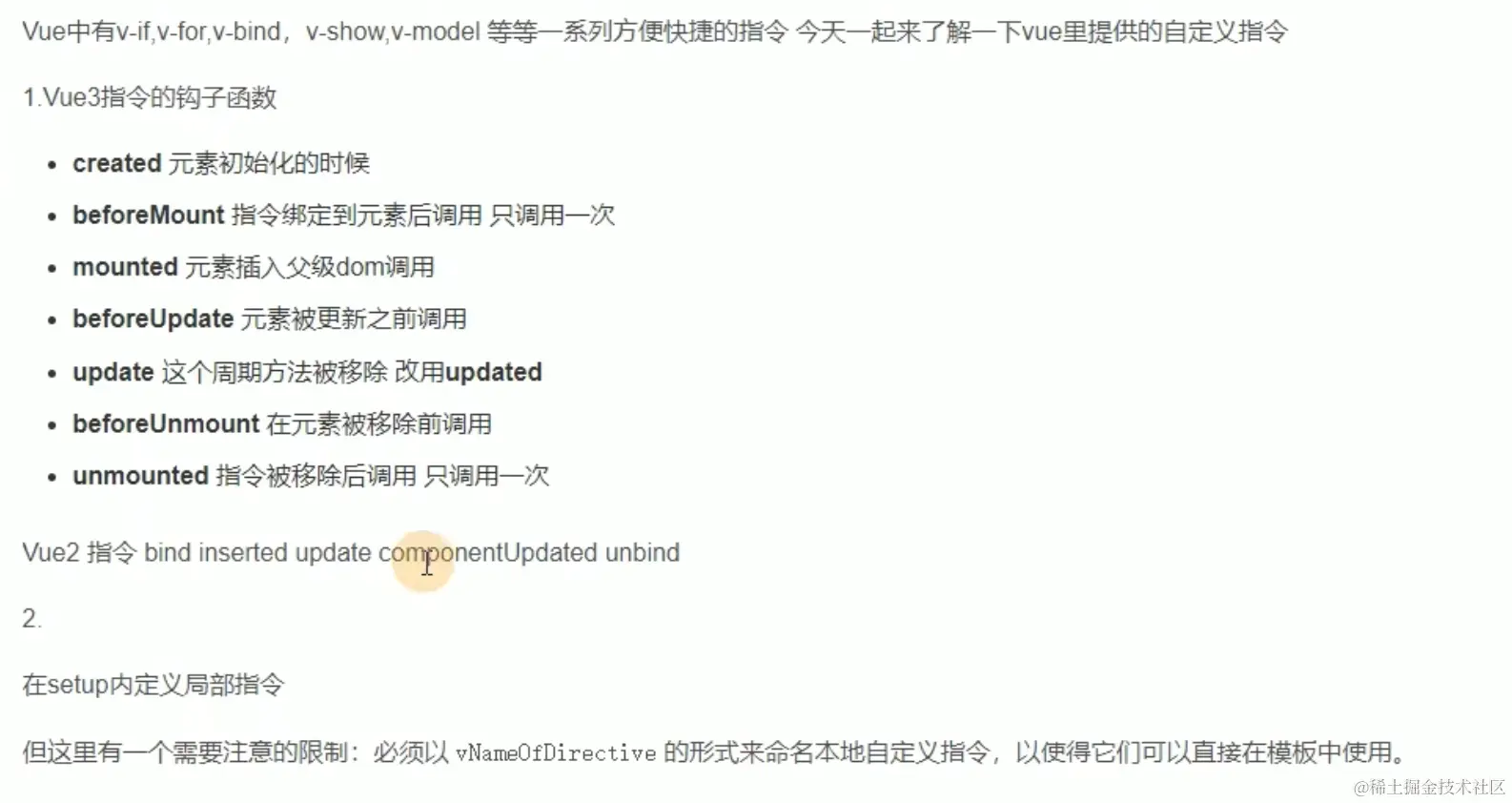
本地自定义指令
多生命周期写法
父组件
<template>
<div>
<div class="box">index组件</div>
<div>show:{{ show }}</div>
<t-button @click="show = !show">切换</t-button>
<hr />
<c-vue v-move:menffy.xxx="{ backgroundColor: 'red' }" />
</div>
</template>
<script lang="ts">
export default {
name: 'ApplyAWSIndex',
};
</script>
<script setup lang="ts">
import { ref, Directive, DirectiveBinding } from 'vue';
import CVue from './C.vue';
const show = ref<boolean>(true);
interface Dir {
backgroundColor: string;
}
const vMove: Directive = {
created() {
console.log('=====> created');
},
beforeMount() {
console.log('=====> beforeMount');
},
mounted(el: HTMLElement, dir: DirectiveBinding<Dir>, ...args) {
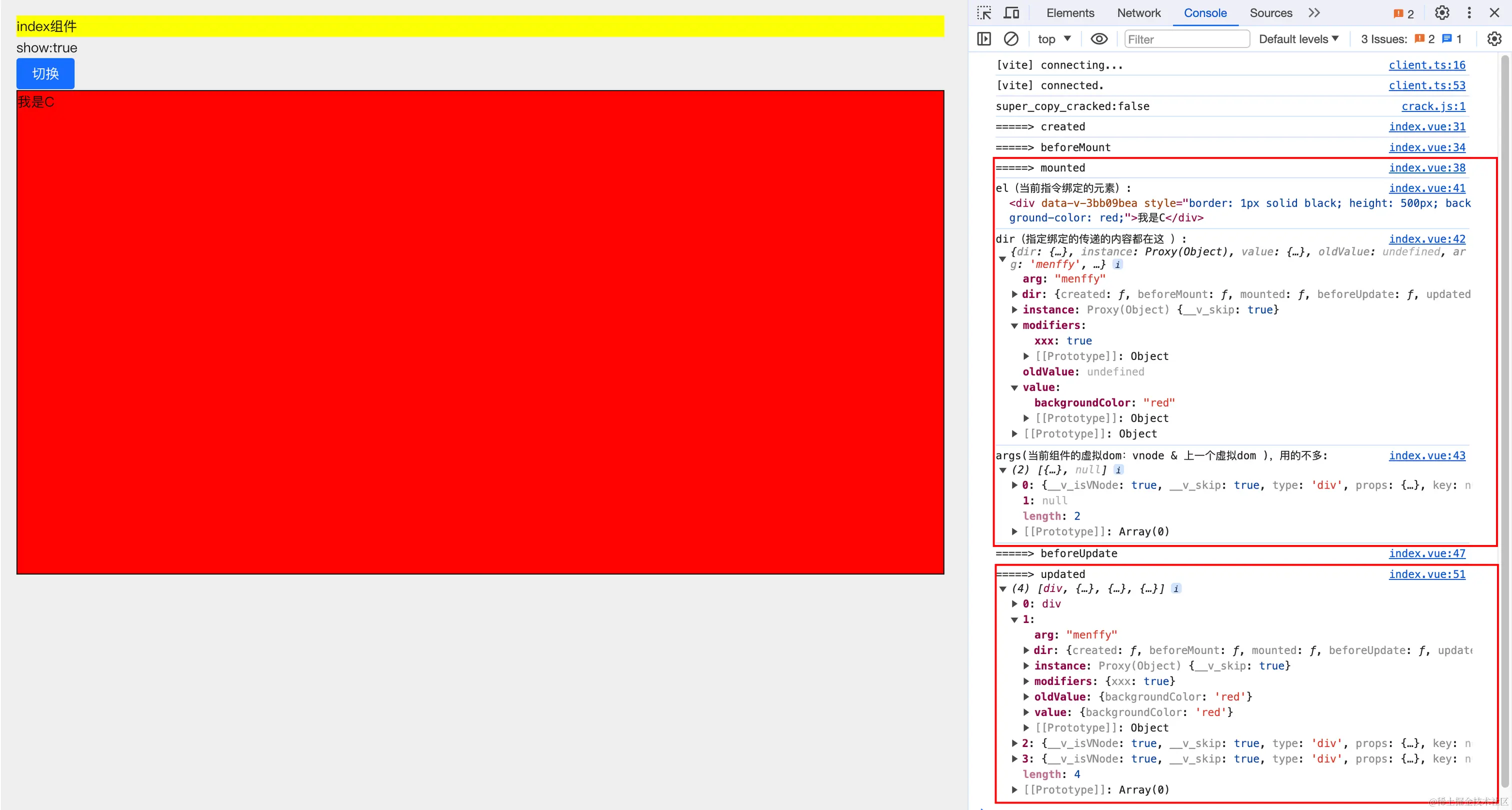
console.log('=====> mounted');
console.log('el(当前指令绑定的元素):', el);
console.log('dir(指定绑定的传递的内容都在这 ):', dir);
console.log('args(当前组件的虚拟dom:vnode & 上一个虚拟dom ),用的不多:', args);
el.style.backgroundColor = dir.value.backgroundColor;
},
beforeUpdate() {
console.log('=====> beforeUpdate');
},
updated(...args) {
console.log('=====> updated', args);
},
beforeUnmount() {
console.log('=====> beforeUnmount');
},
unmounted() {
console.log('=====> unmounted');
console.log('=====> 比如使用v-if隐藏组件时,会触发');
},
};
</script>
<style scoped lang="less">
.box {
background-color: yellow;
}
</style>
子组件
<template>
  <div style="border: 1px solid black; height: 500px">我是C</div>
</template>

<script setup lang="ts"></script>

<style scoped></style>
函数简写
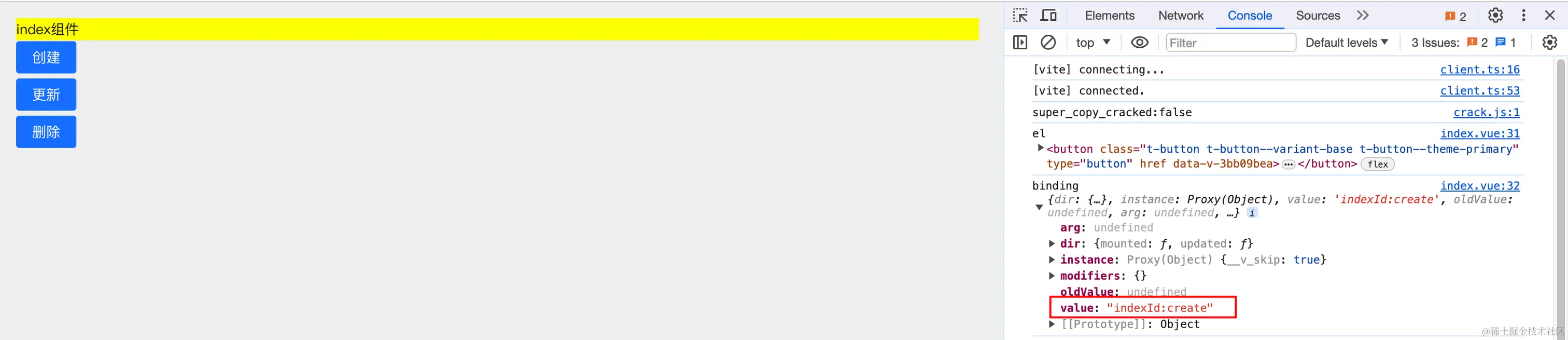
- 如果想在mounted和updated时触发相同的行为,而不关心其他的钩子函数,就可以使用函数简写
父组件
<template>
<div>
<div class="box">index组件</div>
<hr />
<div class="divC"><t-button v-show-role="`indexId:create`">创建</t-button></div>
<div class="divC"><t-button v-show-role="`indexId:update`">更新</t-button></div>
<div class="divC"><t-button v-show-role="`indexId:delete`">删除</t-button></div>
</div>
</template>
<script lang="ts">
export default {
name: 'ApplyAWSIndex',
};
</script>
<script setup lang="ts">
import { ref, Directive } from 'vue';
localStorage.setItem('userId', 'menffy');
const permission = [
'menffy:indexId:create',
'menffy:indexId:update',
'menffy:indexId:delete'
];
const vShowRole: Directive<HTMLElement, string> = (el, binding) => {
console.log('el', el);
console.log('binding', binding);
const userId = localStorage.getItem('userId');
if (!permission.includes(`${userId}:${binding.value}`)) {
el.style.display = 'none';
}
};
</script>
<style scoped lang="less">
.box {
background-color: yellow;
}
.divC {
margin-bottom: 5px;
}
</style>
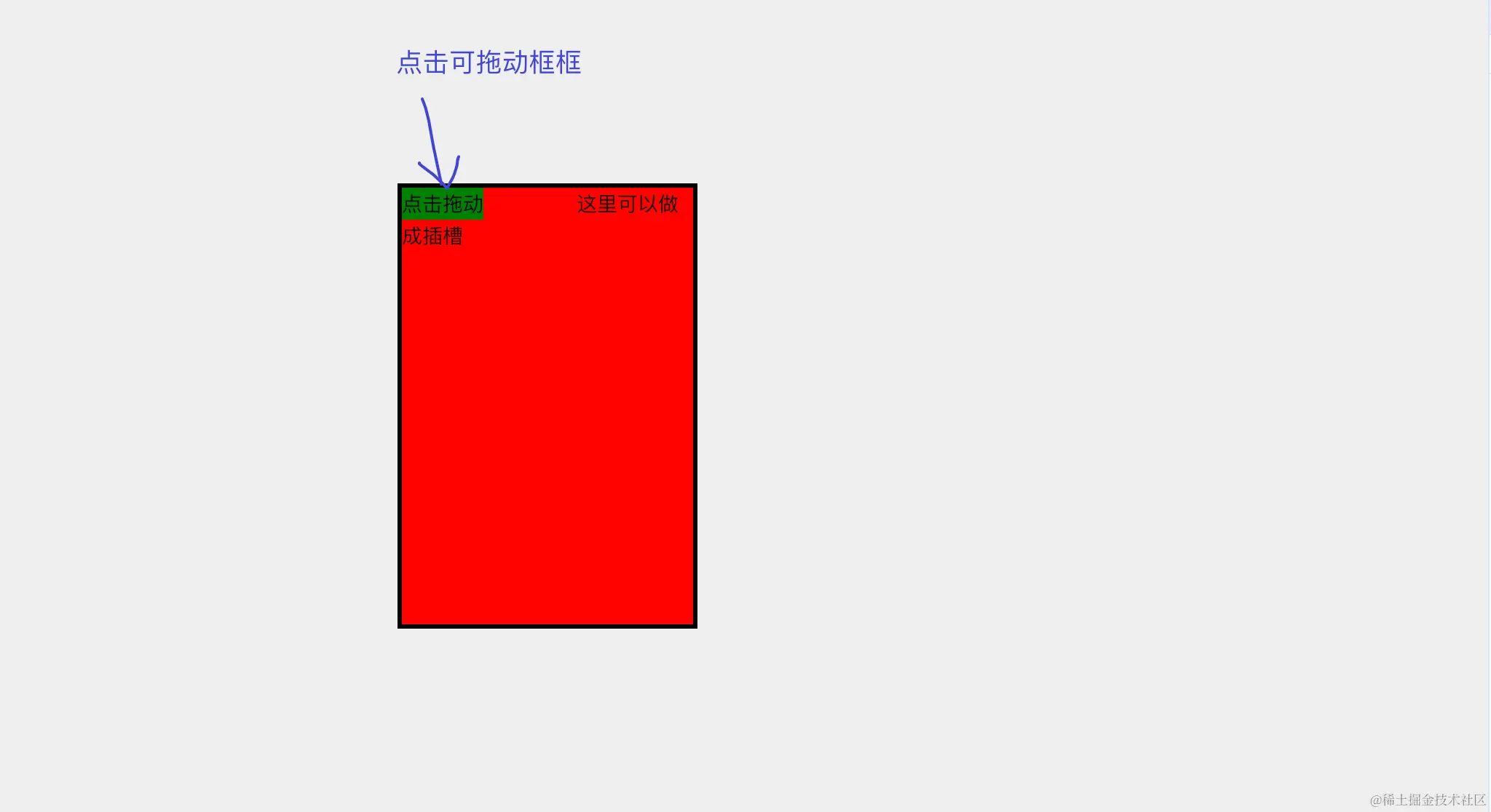
指令实现弹窗可拖拽案例
<template>
<div v-move class="box">
<div style="position: absolute; top: 0; left: 0; background-color: green">点击拖动</div>
<div class="content"><span style="margin-left: 120px">这里可以做成插槽</span></div>
</div>
</template>
<script lang="ts">
export default {
name: 'ApplyAWSIndex',
};
</script>
<script setup lang="ts">
import { Directive } from 'vue';
const vMove: Directive<HTMLElement, any> = (el, binding) => {
el.style.position = 'fixed';
const moveEl = el.firstChild;
const minWidth = document.querySelector('.t-layout__sider').clientWidth;
const maxWidth = document.querySelector('.light').clientWidth - el.clientWidth;
const maxHeight = document.querySelector('.t-layout').clientHeight - el.clientHeight;
const mouseDown = (e: MouseEvent) => {
const x = e.clientX - el.offsetLeft;
const y = e.clientY - el.offsetTop;
const mouseMove = (e: MouseEvent) => {
const mx = e.clientX - x;
let left = mx < minWidth ? minWidth : mx;
left = left > maxWidth ? maxWidth : left;
const my = e.clientY - y;
let top = my < 0 ? 0 : my;
top = top > maxHeight ? maxHeight : top;
el.style.left = `${left}px`;
el.style.top = `${top}px`;
};
document.addEventListener('mousemove', mouseMove);
document.addEventListener('mouseup', () => {
document.removeEventListener('mousemove', mouseMove);
});
return false;
};
moveEl.addEventListener('mousedown', mouseDown);
};
</script>
<style scoped lang="less">
.box {
border: 3px solid black;
height: auto;
width: auto;
}
.content {
height: 300px;
width: 200px;
background-color: red;
}
</style>
注册全局指令

main.ts
import { createApp } from 'vue';
import App from './App.vue';
const app = createApp(App);
import { setupDirectives } from './directives';
setupDirectives(app);
app.mount('#app');
directives/index.ts
import { App } from 'vue';
import { hasRole } from './role';
import { vMove } from './moveElement';
export function setupDirectives(app: App) {
app.directive('role', hasRole);
app.directive('move', vMove);
}
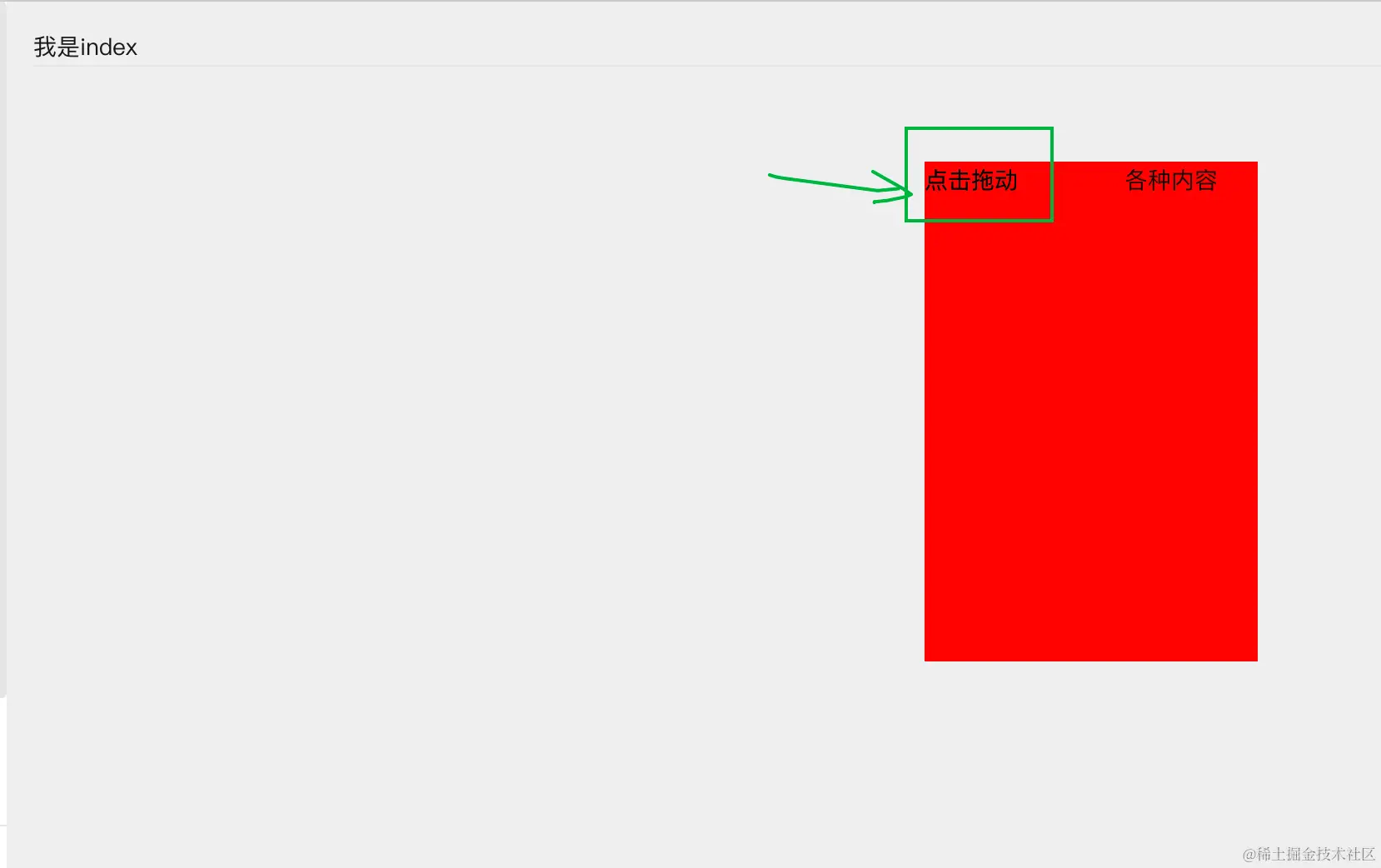
directives/moveElement.ts
import { Directive } from 'vue'
export const vMove: Directive<HTMLElement, any> = (el) => {
// v-move绑定元素必须有position=fixed这个样式,否则无法移动
// 要么在这里加,要么在元素的style里加
el.style.position = 'fixed'
// 在它下方创建一个触发拖动的标签
const moveEl = document.createElement('div')
moveEl.innerText = '点击拖动'
moveEl.style.position = 'absolute'
moveEl.style.top = '0px'
moveEl.style.left = '0px'
el.appendChild(moveEl)
// 根据页面布局选择参照dom元素,允许元素身体部分移出可视区域
const minWidth = document.querySelector('.t-layout__sider').clientWidth
const maxWidth = document.querySelector('.light').clientWidth - el.clientWidth / 2
const maxHeight = document.querySelector('.t-layout').clientHeight - el.clientHeight / 3
const mouseDown = (e: MouseEvent) => {
const x = e.clientX - el.offsetLeft
const y = e.clientY - el.offsetTop
const mouseMove = (e: MouseEvent) => {
const mx = e.clientX - x
let left = mx < minWidth ? minWidth : mx
left = left > maxWidth ? maxWidth : left
const my = e.clientY - y
let top = my < 0 ? 0 : my
top = top > maxHeight ? maxHeight : top
console.log('left', left)
console.log('top', top)
console.log('maxWidth', maxWidth)
console.log('maxHeight', maxHeight)
el.style.left = `${left}px`
el.style.top = `${top}px`
}
document.addEventListener('mousemove', mouseMove)
document.addEventListener('mouseup', () => {
document.removeEventListener('mousemove', mouseMove)
})
return false
}
moveEl.addEventListener('mousedown', mouseDown)
}
DVue.vue 使用
<template>
<div v-move>
<div class="content"><span style="margin-left: 120px">各种内容</span></div>
</div>
</template>
<script lang="ts">
export default {
name: 'ApplyAWSIndex',
};
</script>
<script setup lang="ts"></script>
<style scoped lang="less">
.content {
height: 300px;
width: 200px;
background-color: red;
}
</style>
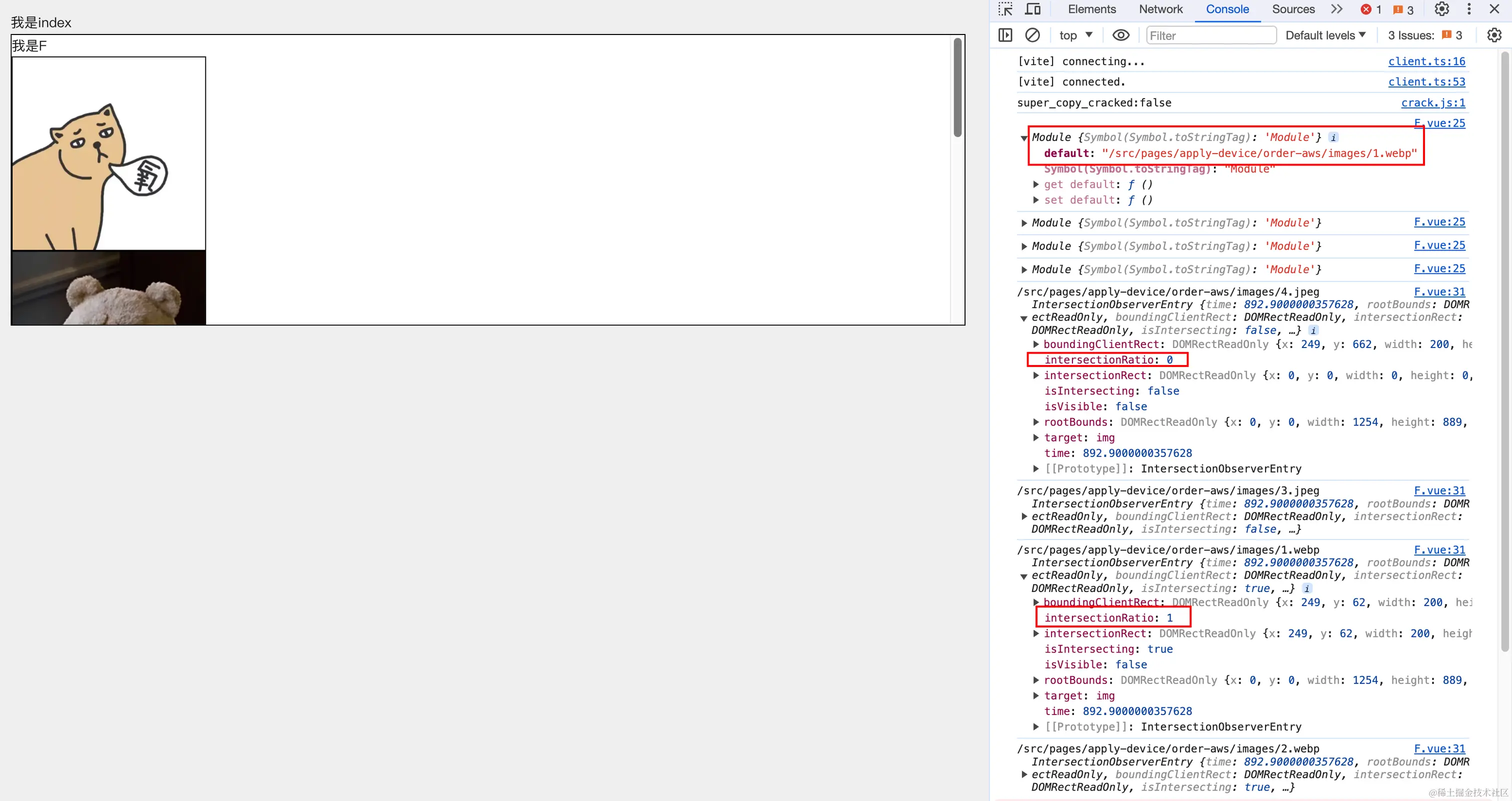
图片懒加载
<template>
<div style="border: 1px solid black; height: 300px; background-color: white; overflow-y: scroll">
我是F
<img
v-for="item in images"
:key="item"
v-lazy="item"
style="border: 1px solid black; width: 200px; height: 200px"
/>
</div>
</template>
<script setup lang="ts">
import { Directive } from 'vue';
const imageList: Record<string, { default: string }> = import.meta.globEager('./images/*');
const images = Object.values(imageList).map((item) => item.default);
const vLazy: Directive<HTMLImageElement, string> = async (el, binding) => {
const def = await import('./images/1.webp');
console.log(def);
el.src = def.default;
const obs = new IntersectionObserver((enr) => {
const t = enr[0];
console.log(binding.value, t);
if (t.intersectionRatio > 0) {
setTimeout(() => {
el.src = binding.value;
}, 2000);
obs.unobserve(el);
}
});
obs.observe(el);
};
</script>
<style scoped></style>