封装svg-icon组件
公共Base64js/ts文件
class Base64 {
private _keyStr: string = "ABCDEFGHIJKLMNOPQRSTUVWXYZabcdefghijklmnopqrstuvwxyz0123456789+/=";
encode(input: string): string {
let output = "";
let chr1: number, chr2: number, chr3: number;
let enc1: number, enc2: number, enc3: number, enc4: number;
let i = 0;
input = this._utf8_encode(input);
while (i < input.length) {
chr1 = input.charCodeAt(i++);
chr2 = input.charCodeAt(i++);
chr3 = input.charCodeAt(i++);
enc1 = chr1 >> 2;
enc2 = ((chr1 & 3) << 4) | (chr2 >> 4);
enc3 = ((chr2 & 15) << 2) | (chr3 >> 6);
enc4 = chr3 & 63;
if (isNaN(chr2)) {
enc3 = enc4 = 64;
} else if (isNaN(chr3)) {
enc4 = 64;
}
output +=
this._keyStr.charAt(enc1) +
this._keyStr.charAt(enc2) +
this._keyStr.charAt(enc3) +
this._keyStr.charAt(enc4);
}
return output;
}
decode(input: string): string {
let output = "";
let chr1: number, chr2: number, chr3: number;
let enc1: number, enc2: number, enc3: number, enc4: number;
let i = 0;
input = input.replace(/[^A-Za-z0-9+/=]/g, "");
while (i < input.length) {
enc1 = this._keyStr.indexOf(input.charAt(i++));
enc2 = this._keyStr.indexOf(input.charAt(i++));
enc3 = this._keyStr.indexOf(input.charAt(i++));
enc4 = this._keyStr.indexOf(input.charAt(i++));
chr1 = (enc1 << 2) | (enc2 >> 4);
chr2 = ((enc2 & 15) << 4) | (enc3 >> 2);
chr3 = ((enc3 & 3) << 6) | enc4;
output += String.fromCharCode(chr1);
if (enc3 !== 64) {
output += String.fromCharCode(chr2);
}
if (enc4 !== 64) {
output += String.fromCharCode(chr3);
}
}
return this._utf8_decode(output);
}
private _utf8_encode(input: string): string {
input = input.replace(/\r\n/g, "\n");
let utftext = "";
for (let n = 0; n < input.length; n++) {
const c = input.charCodeAt(n);
if (c < 128) {
utftext += String.fromCharCode(c);
} else if (c > 127 && c < 2048) {
utftext += String.fromCharCode((c >> 6) | 192);
utftext += String.fromCharCode((c & 63) | 128);
} else {
utftext += String.fromCharCode((c >> 12) | 224);
utftext += String.fromCharCode(((c >> 6) & 63) | 128);
utftext += String.fromCharCode((c & 63) | 128);
}
}
return utftext;
}
private _utf8_decode(utftext: string): string {
let string = "";
let i = 0;
let c = 0, c1 = 0, c2 = 0, c3 = 0;
while (i < utftext.length) {
c = utftext.charCodeAt(i);
if (c < 128) {
string += String.fromCharCode(c);
i++;
} else if (c > 191 && c < 224) {
c1 = utftext.charCodeAt(i + 1);
string += String.fromCharCode(((c & 31) << 6) | (c1 & 63));
i += 2;
} else {
c1 = utftext.charCodeAt(i + 1);
c2 = utftext.charCodeAt(i + 2);
string += String.fromCharCode(((c & 15) << 12) | ((c1 & 63) << 6) | (c2 & 63));
i += 3;
}
}
return string;
}
}
export { Base64 };
一、原生小程序方式
最终效果
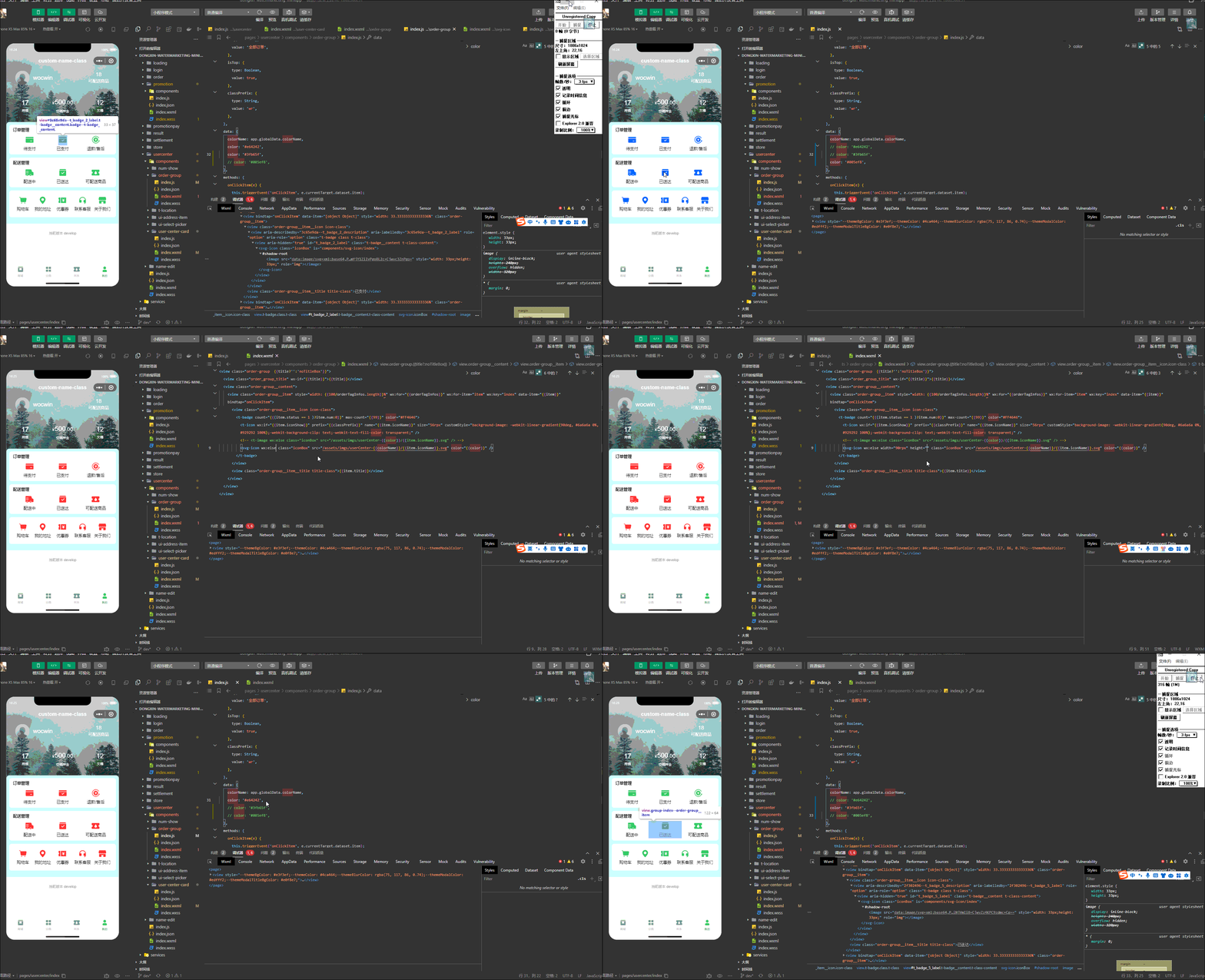
前言
动态设置Svg图片颜色就是修改Svg源码的path中的fill属性,
通过wx.getFileSystemManager().readFile读取.xlsx文件
ios不显示需要把encoding设置 binary
把文件转成base64
1、在项目的components下新建svg-icon文件夹,新增index.json文件
{
  "component": true,
  "usingComponents": {}
}
2、在项目的components下新建svg-icon文件夹,新增index.wxml文件
<block wx:if="{{svgData}}">
  <image style="width: {{width}};height: {{height}};" src="{{svgData}}"></image>
</block>
3、在项目的components下新建svg-icon文件夹,新增index.js文件
const fs = wx.getFileSystemManager()
import { Base64 } from './base64.js';
const base64 = new Base64()
Component({
properties: {
src: {
type: String,
value: ''
},
color: {
type: String,
value: ''
},
width: {
type: String,
value: '60rpx'
},
height: {
type: String,
value: '60rpx'
}
},
observers: {
'src,color': function (src, color) {
this.getSvgFile(src, color)
}
},
data: {
svgData: ''
},
methods: {
getSvgFile(src, color) {
let that = this;
fs.readFile({
filePath: src,
encoding: 'binary',
position: 0,
success(res) {
let sourceFile = res.data;
let newFile = that.changeColor(sourceFile, color);
let svgBase64File = base64.encode(newFile);
that.setData({
svgData: 'data:image/svg+xml;base64,' + svgBase64File
})
},
fail(res) {
console.error(res)
}
})
},
changeColor(sourceFile, color) {
let newSvg;
if (/fill=".*?"/.test(sourceFile)) {
newSvg = sourceFile.replace(/fill=".*?"/g, `fill="${color}"`);
} else {
newSvg = sourceFile.replace(/<svg /g, `<svg fill="${color}" `);
}
return newSvg
}
}
})
原生使用svg-icon组件
1、在使用的页面引入组件(即在json文件中引入)
{
  "usingComponents": {
    "svg-icon": "/components/svg-icon/index"
  }
}
2、在wxml文件中如下使用即可
<svg-icon src="/assets/imgs/userCenter/wocwin.svg" color="#3fb65f" />
uniapp微信小程序Vue3+ts方式
在项目的svg-icon文件夹下,新增index.vue文件
<template>
  <view class="svg-icon" @tap="handleClick">
    <image :style="iconStyle" :src="svgData" :mode="mode"></image>
  </view>
</template>

<script lang="ts" setup>
import { Base64 } from "./base64";
import { computed, ref } from "vue";

// 定义 props 的类型
interface SvgIconProps {
  name: string; // SVG 文件名
  width?: number; // 图标宽度
  height?: number; // 图标高度
  color?: string; // 图标颜色
  mode?: string; // 图标显示模式
  isColor?: boolean; // 是否使用自定义颜色
}

// 使用 withDefaults 设置默认值
const props = withDefaults(defineProps<SvgIconProps>(), {
  width: 100,
  height: 100,
  color: "#355db4",
  name: "",
  mode: "scaleToFill",
  isColor: true
});

onLoad(() => {
  getSvgFile(props.name, props.color);
});
// 定义组件的事件类型
const emit = defineEmits<{
  (e: "click"): void;
}>();

// SVG 数据
const svgData = ref<string>("");

// 计算图标样式
const iconStyle = computed(() => ({
  width: `${props.width}rpx`,
  height: `${props.height}rpx`
}));

// 获取文件系统管理器
const fs = wx.getFileSystemManager();
const base64 = new Base64();

// 读取 SVG 文件并修改颜色
const getSvgFile = (name: string, color: string): void => {
  if (!name) return;
  fs.readFile({
    filePath: `/static/icon/${name}.svg`, // svg项目文件地址
    encoding: "binary",
    position: 0,
    success: res => {
      const sourceFile = res.data as string;
      const newFile = changeColor(sourceFile, color);
      const svgBase64File = base64.encode(props.isColor ? newFile : sourceFile);
      svgData.value = `data:image/svg+xml;base64,${svgBase64File}`;
      // console.log("svgData.value", svgData.value);
    },
    fail: (err: any) => {
      console.error("读取 SVG 文件失败:", err);
    }
  });
};

// 修改 SVG 文件颜色
const changeColor = (sourceFile: string, color: string): string => {
  if (/fill=".*?"/.test(sourceFile)) {
    // 如果 SVG 文件中已有 fill 属性
    return sourceFile.replace(/fill=".*?"/g, `fill="${color}"`);
  } else {
    // 如果 SVG 文件中没有 fill 属性
    return sourceFile.replace(/<svg /g, `<svg fill="${color}" `);
  }
};
// 点击事件处理
const handleClick = (): void => {
  emit("click");
};
</script>
使用svg-icon组件
<svg-icon name="personalInfo" color="#3fb65f" />
相关文章
基于ElementUi再次封装基础组件文档
基于ant-design-vue再次封装基础组件文档
vue3+ts基于Element-plus再次封装基础组件文档