简单的 unix 发展史
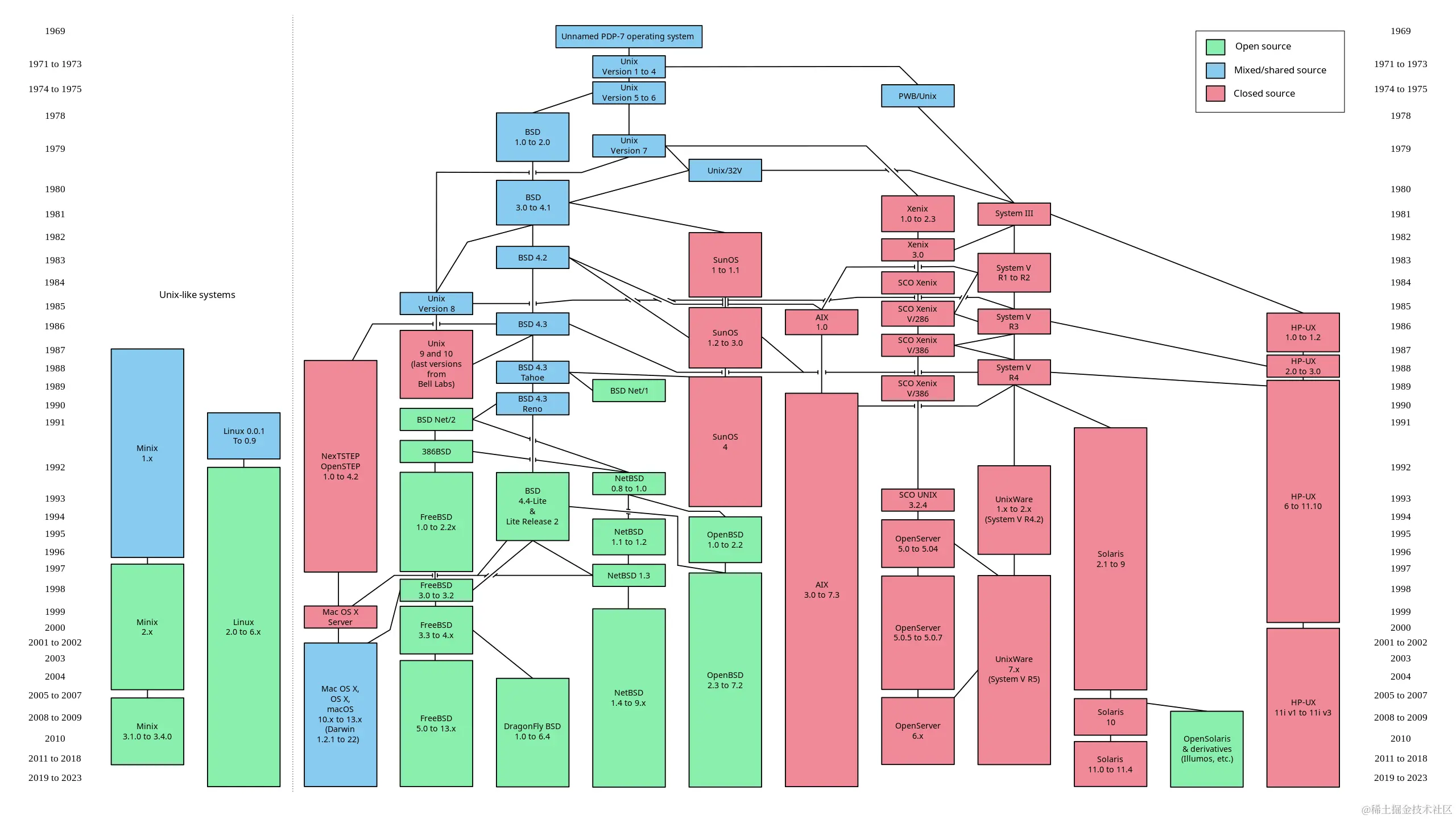 img source
whoami
man ⭐️
clear
pwd
ls
使用 -l 以使用一个长列表的形式
使用 -lh 打印 human-readable 文件大小
使用 -la 显示隐藏的文件,即以 . 开头的文件
使用 -R 以递归列出文件
...
cd
mkdir
rmdir
删除空文件夹
open
打开文件浏览器或文件
open .
open a.txt

macos 中会用默认程序打开文件
mv
cp
head
head -n 20 log.txt
tail
tail -f -n 20 log.txt
date
重定向
将命令的输出输出到文件中

单个大于号,重写
ls > output.txt
两个大于号,追加模式
ls >> res.txt
cat
查看整个文件
cat a.txt

查看多个文件
cat a.txt b.txt c.txt
文件内容整合
cat a.txt b.txt c.txt > all.txt
less
交互式查看文件内容,提供翻页、查找等功能
less doc.txt
echo
输出
echo "hello"
echo ~
echo $PATH
输出当前目录所有文件及目录名
echo *
更高级的通配符
echo app.*
echo *.py
echo *.??
echo Day{1..30}
echo {1,2,3}.txt
wc
统计文本文件内容。输出行数、单词数、字符数
wc song.txt
管道
接收内容并将内容作为输入传递给下一个命令
ls -la | wc
cat ch01.md ch02.md | less
sort
内容排序
sort word.txt

按字母降序
sort -r word.txt

按数值大小对数字排序
sort -n nums.txt

去重
sort -u nums.txt
uniq
去重
sort nums.txt | uniq

统计重复次数
sort nums.txt | uniq -c
sort nums.txt | uniq -c | sort -r
~
指当前用户家目录
cd ~
diff
显示差异
diff file1.txt file2.txt

diff file1.txt file2.txt  -u
find
find . -name '*.js'

查找文件夹
find . -type d -name '*Oracle*'

查找文件
find . -type f -name '*.safetensors'

使用或逻辑添加查找条件
find . -name 'E*' -or -name 'F*'

查找大小超过 100B 的文件
find . -type f -size +100c

查找大小范围在 [100KB, 1MB] 的文件
find . -type f -size +100k -size -1M

查找修改时间超过 3 天的文件
find . -type f -mtime +3

查找24小时内修改的文件
find . -type f -mtime -1
查找并删除24小时内修改的文件
find . -type f -mtime -1 -delete

查找并对每个查找的结果执行操作, {} 会在执行时自动填充文件名,\; 是命令结束符
find . -type f -exec cat {} \;
grep
full name: global regular expression print

查找内容
grep [内容] [文件]
grep document.getElementById bundle.js

添加行号
grep -n document.getElementById bundle.js

显示前 n 行和后 n 行
grep -nC 2 document.getElementById bundle.js

递归查询当前文件夹内所有文件
grep -r "chicken" .

忽略大小写
grep -i "chicken" web.txt

grep 正则
https://www.myfreax.com/regular-expressions-in-grep/
du
查看文件及文件夹占用

查看文件大小,以GB为单位
du -g

查看以 MB 单位
du -m

human readable
du -h

查看 ./marks 文件夹内前 20 个大文件
du -h ./marks | sort -hr | head -n 20
df
查看磁盘占用

df -h
history
查看命令,会带一个id
history

根据id获取历史命令
!id

history | less

history | grep 'docker'
ps
process status

ps axu
ps axww
ps axww|grep "Visual Studio"
top
top -o mem
kill
kill <PID>

查看信号名
kill -l

添加KILL信号
kill -9 <PID>
kill -KILL <PID>
kill -SIGKILL <PID>
killall
killall <name>

e.g.
killall -9 node
jobs, bg, fg
使用 ctrl z 可以暂停一些任务
然后使用 jobs 查看他们

bg <JOBID>
会在任务在后台运行

fg <JOBID>
恢复任务在前台运行

后台运行一个任务:在命令后添加 &,比如
find / -ctime -1 > allchanges.txt &
gzip
压缩文件,默认使用 LZ77 压缩算法,创建一个文件名为 word.txt.gz,源文件被删除
gzip word.txt

gzip 只能压缩单独的文件。同时压缩多个文件,会产生多个 gz 压缩包,即 file1.gz file2.gz
gzip file1 file2

解压缩
gzip -d word.txt.gz

使用 -c 和重定向将压缩的内容输出到一个新的 .gz 文件,保留原文件
gzip -c word.txt > word.gz
使用 -k 生成新的 gz 文件并保留原文件(与上边的命令功能一样)
gzip -k word.txt

显示压缩详情
gzip -kv word.txt
gunzip
功能:解压 gz 压缩包
gunzip myfile.txt.gz
tar
-c 表示创建, -f 指定输出的 .tar 文件
tar -cf archive.tar file1 file2

使用 -v 展示详情
tar -cvf archive.tar file1 file2

使用 -t 查看压缩包中的内容
tar -tf archive.tar

使用 -x 提取压缩包
tar -xf archive.tar
使用 -C 指定提取到的目录
tar -xf archive.tar -C subfolder/

使用 -z 创建 .tar.gz 或 .tgz 文件
tar -zcf archive.tar.gz file1 file2
或者通过 gzip 创建: gzip -k archive.tar

提取 .tar.gz 或 .tgz
gzip -d a.tar.gz 得到 a.tar
gunzip a.tar.gz  得到 a.tar
tar -xzf a.tar.gz 得到压缩的内容
nano
nano <filename>
alias
别名
alias ll='ls -la'
xargs
xargs 命令读取标准输入流,将其转换为命令行参数

示例:查找 Desktop 目录下大于 1M 的文件,通过 xargs 将其转换为参数传递给 ls -lh 命令
find ~/Desktop -type f -size +1M | xargs ls -lh
ln
创建硬链接,硬链接文件指向源文件,修改任一文件,另一个跟着改变。删除源文件,硬链接文件不会丢失
ln original.txt hardlink.txt

创建软连接,软连接相当于一个 ’快捷方式‘,只占用 8B 内存。删除源文件,软连接文件变为空
ln -s original.txt softlink.txt

who
查看谁已经登录,登录时间
su
切换用户
su <username>

添加 -,会以登录者的身份创建一个登录shell,会重新加载环境变量
su - <username>

可以省略 username,表示切换到 root
sudo
super user do

sudo nano /etc/hosts
passwd
修改密码

对普通用户来说,修改自己的密码
passwd

对root用户来说
passwd <username>
权限, chown
文件或文件夹描述信息
drwxrwxrwx <owner> <group> <name>

第一个字符
- regluar file
d directory
l character special file
c symbolic link

接下来的 9 个字符

位置
1-3 拥有者权限
4-6 所属组中用户的权限
7-9 其他用户的权限

字符含义
r 读文件,列出文件夹的内容
w 写文件,如果有x权限则可修改文件夹(创建文件/修改文件名/修改目录名)
x 可执行,目录允许进入
- 无


修改拥有者
chown scolt music/

使用 -R 递归修改拥有者
chown -R scolt music/

修改拥有者和所属组
chown <owner>:<group> <file>

查看当前用户所属的组
groups | awk -F ' ' '{for (i=1; i<=NF; i++) print $i}'
ref from runoob
chmod
u user
g group
o others
a all of the above

chmod u+r file
chmod o-w file
chmod a-x file

chmod u=rwx file
chmod g=rw  file

---

使用数字表示权限
r w x r w x r w x
4 2 1 4 2 1 4 2 1
----- ----- -----
r w x r - - - - -
  7     4     0

chmod 740 file
refer