实现当时电脑播放器中随着音乐的激烈程度产生高低不同的动态柱子
主要应用的技术是 requestAnimationFrame() 动画帧 、 canvas 、 十六进制颜色随机(中间注释的那部分) 、 偏白色的简约风格的按钮,带动画。 目前只实现了一首歌。歌曲切换根据期待值后面进行添加
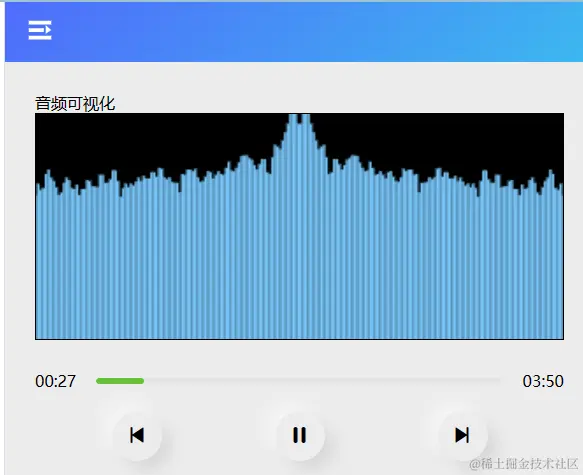
有兴趣的小伙伴可以优化后面的歌曲名字,切换歌曲,快进等功能。
废话不多说,直接贴代码
<template>
<div class="p30 angbg">
<div>音频可视化</div>
<div class="width-full lookbrod mb30">
<canvas id="myCanvas" style="border:1px solid #000;width:100%;height:100%"></canvas>
</div>
<div class="text-center">
</div>
<div class="flex">
<div>{{timefitter(begintime)}}</div>
<el-progress class="flex-1 pl20 pr20 progress" :show-text='false' :percentage="percentage" color="#67c23a" />
<div>{{timefitter(endtime)}}</div>
</div>
<div class="flex flex-around p20">
<div class="text-center">
<div class="iconfont icon-skip-back-fill btnbg " :class="isclick? 'actbtn' : ''" @click="clickit"></div>
</div>
<div class="text-center" v-if="isplay">
<div class="iconfont icon-zanting1 btnbg " :class="isclick? 'actbtn' : ''" @click="pause"></div>
</div>
<div class="text-center" v-else>
<div class="iconfont icon-icon_play btnbg " :class="isclick? 'actbtn' : ''" @click="play"></div>
</div>
<div class="text-center">
<div class="iconfont icon-skip-forward-fill btnbg " :class="isclick? 'actbtn' : ''" @click="clickit"></div>
</div>
</div>
<div class="audiof">
<audio id='myaudio' @canplay="canplay" @play='onplay' controls :src="videosrc"></audio>
</div>
</div>
</template>
<script setup>
import { ref,nextTick,computed ,onMounted} from 'vue';
import videosrc from '@/assets/img/test.mp3'
let myaudio = null
nextTick(()=>{
myaudio = document.getElementById('myaudio')
myaudio.addEventListener('timeupdate', (event) => {
begintime.value = event.target.currentTime
});
})
onMounted(() => {
initcanvas()
draw()
})
let initcanvas = function(){
let canvas = document.getElementById("myCanvas");
let ctx = canvas.getContext("2d");
ctx.fillRect(0, 0, 300, 150);
ctx.fillStyle = '#000'
}
let canplay = ()=>{
endtime.value = myaudio.duration.toFixed()
}
let isplay = ref(false)
let begintime = ref(0)
let endtime = ref(0)
let percentage = computed(() => {
return begintime.value * 100 / endtime.value
})
let timefitter = (time)=>{
let values,left ,right;
left = parseInt(time/60)
right = Math.ceil(time % 60)
function addzro(num){
if(num < 10) {
num = '0' + num
}
return num
}
left = addzro(left)
right = addzro(right)
values = left + ':' + right
return values
}
let isclick = ref(false)
let clickprmisese = ()=>{
isclick.value = true
return new Promise((res,rej)=>{
setTimeout(function(){
isclick.value = false
res('完成了')
}, 300);
})
}
let clickit = ()=>{
clickprmisese().then(res=>{
console.log(res,'---')
})
}
let play = ()=>{
clickprmisese().then(res=>{
isplay.value = true
myaudio.play()
})
}
let isInit = false
let dataArry ,analyser ,source ,audCtx
let onplay = ()=> {
if(isInit){
return
}
audCtx = new AudioContext()
analyser = audCtx.createAnalyser();
source = audCtx.createMediaElementSource(myaudio)
analyser.fftSize = 512;
dataArry = new Uint8Array(analyser.frequencyBinCount)
source.connect(analyser);
analyser.connect(audCtx.destination)
isInit = true
}
let draw = () => {
let cvs = document.getElementById("myCanvas");
let ctx = cvs.getContext("2d");
requestAnimationFrame(draw);
const { width, height } = cvs;
ctx.clearRect(0, 0, width, height);
ctx.fillStyle = '#000'
if (!isInit) {
return;
}
analyser.getByteFrequencyData(dataArry);
const len = dataArry.length / 2.5;
const barWidth = width / len /2 ;
ctx.fillStyle = "#78c5f7";
for (let i = 0; i < len; i++) {
const data = dataArry[i];
const barHeight = (data / 255) * height;
const x1 = i * barWidth + width / 2;
const x2 = width / 2 - (i + 1) * barWidth;
const y = height - barHeight;
ctx.fillRect(x1, y, barWidth, barHeight);
ctx.fillRect(x2, y, barWidth, barHeight);
}
}
let pause = ()=>{
clickprmisese().then(res=>{
isplay.value = false
myaudio.pause()
})
}
</script>
<style lang="scss" scoped>
.btnbg{
-webkit-appearance: none;
box-shadow: -10px -10px 15px rgba(255,255, 255, .5),10px 10px 15px rgba(70,70, 70, .12);
width:50px;
line-height: 50px;
border-radius: 50%;
}
.actbtn:hover{
box-shadow: -10px -10px 15px rgba(255,255, 255, .5),
10px 10px 15px rgba(70,70, 70, .12),
inset -15px -15px 15px rgba(255,255, 255, .5),
inset 15px 15px 15px rgba(70,70, 70, .12);
color: rgba(85, 170, 0, 0.5);
}
.audiof{
display: none;
}
.lookbrod{
height: 50%;
background-color: #000;
}
.angbg{
background-color: #ececec;
height: 100%;
}
</style>
<style lang="scss">
.progress{
.el-progress-bar{
.el-progress-bar__outer{
background-color: #e5e5e5;
}
}
}
</style>