在vue中应用echarts绘制饼状图,自定义lable,并实现lable循环轮播的效果图如下:
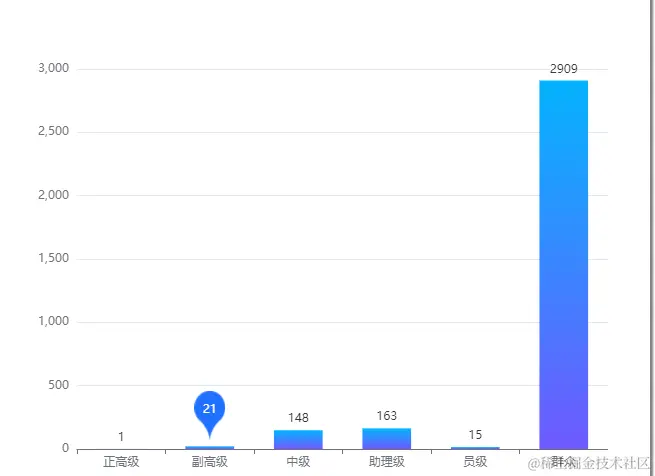
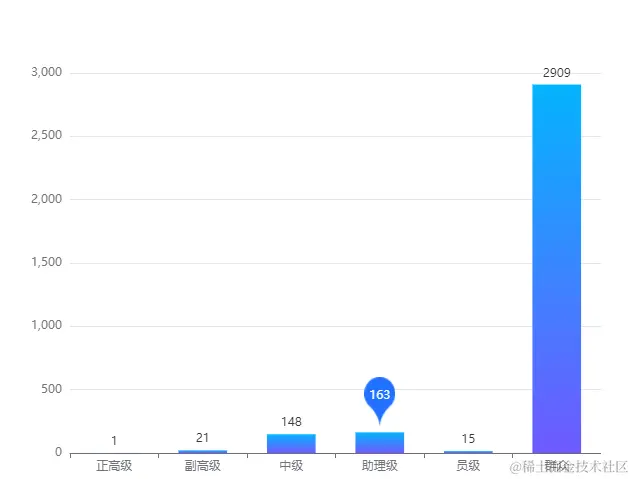
第一步:通过 npm 安装echarts插件
npm install echarts
第二步:在script中引入echarts
import * as echarts from "echarts";
第三步:在.vue文件中为 ECharts 创建一个定义了宽高的 DOM
    <template>
       <div>
         <div id="myEcharts" style="width: 570px; height: 800px; padding: 0"></div>
       <div>
    </template>
第四步:在methods中基于创建好的dom,初始化echarts实例
let chartDom = document.getElementById("myEcharts");
this.myChart = echarts.init(chartDom);
第五步:根据需求定义配置项 options
const  options = {
    tooltip: {
       trigger: "axis",
         axisPointer: {
             type: "shadow",
         },
      },
      xAxis: {
        type: "category",
        data: ["正高级", "副高级", "中级", "助理级", "员级", "群众"],
      },
      yAxis: {
        type: "value",
      },
      grid: {
        top: "50%",
        left: "0px",
        right: "0px",
        bottom: "0px",
        containLabel: true,
      },
      series: [
        {
          name: "test",
          type: "bar",
          barWidth: "55%",
          stack: "数量",
          data:[1, 21, 148, 163, 15, 1250],
          itemStyle: {
            normal: {
              show: true,
              color: new echarts.graphic.LinearGradient(0,0,0,1,
                [
                  {
                    offset: 0,
                    color: "rgba(4, 179, 254, 1)",
                  },
                  {
                    offset: 1,
                    color: "rgba(111, 89, 255, 1)",
                  },
                ],
                false
              ),
              barBorderRadius: 0,
              label: {
                show: false,
                position: "top",
                formatter: function (labelParam) {
                  return `{a|${labelParam.value}}`
                },
                offset: [0, 0],
                rich: {
                  a: {
                    width: 31,
                    height: 39,
                    lineHeight: 50,
                    align: 'center',
                    padding: [0, 0, 12, 0],
                    color: "#fff",
                    backgroundColor: {
                      image: "您引入的图片路径",
                    }
                  },
                }
              },
            },
          },
        },
      ],
     }
第六步:把定义的配置项引入echarts实例中
this.myChart.setOption(options);
第七步:实现自定义lable的循环轮播提示
this.echartsTimer = setInterval(() => {
if (this.myChart && this.myChart.getOption()) {
let optionBar = this.myChart.getOption();
const tempArrBar = this.myChart.getOption().xAxis[0].data;
let arrLenBar = tempArrBar.length;
if (optionBar) {
(optionBar.series[0].label = {
show: true,
position: "top",
formatter: function (labelParam) {
if (labelParam.name == tempArrBar[that.tempbottomBar])
return `{a|${labelParam.value}}`;
},
offset: [0, 0],
rich: {
a: {
width: 31,
height: 39,
lineHeight: 50,
align: "center",
padding: [0, 0, 12, 0],
color: "#fff",
backgroundColor: {
image: "您引入的图片路径",
},
},
},
}),
this.myChart.setOption(optionBar, true);
this.tempbottomBar++;
if (this.tempbottomBar >= arrLenBar) {
this.tempbottomBar = 0;
}
}
}
}, 1500);
第八步:在beforeDestroy生命周期函数中做销毁工作
beforeDestroy() {
   if (this.myChart) {
     this.myChart.dispose();
     this.myChart = null;
   }
   if (this.echartsTimer) {
     clearInterval(this.echartsTimer);
   }
}