前言
在上一节中我们说到,可视化搭建的核心是 「一套规范」
我们利用Json Schema协议规范Json的作用,用规范的Json来描述物料,然后用物料属性解析器来解析、构造物料的属性面板,我们更新物料库时只需要修改对应Json即可。最后提供Schema生成器可视化生成Json
那这节我们就来看看如何搭建一个Schema生成器🏃🏿♀️
拖拽面板🦾
我们使用的拖拽插件是 「vuedraggable」,主要逻辑为拖拽模板物料到页面面板,深拷贝物料配置数据到页面配置中。
核心代码
<!-- 物料模板列表 -->
<draggable v-model="$cmpConfig" :options="{ group: { name: 'itxst', pull: 'clone' }, sort: false }"
        :clone="handleClone" animation="300">
        <div v-for="(item, index) in $cmpConfig" :key="index" class="canvas-left-item">
          <span class="f13">{{ item.label }}</span>
          <span class="canvas-left-item-type">{{ item.type }}</span>
        </div>
</draggable>
想要实现可嵌套物料主要有三点:
- 物料中包含slot,已供子物料存放
- 物料配置中增加children属性,用于存放子物料配置
- 递归渲染物料实现无限层级嵌套
<!-- 页面面板 -->
<draggable v-model="list" group="itxst" ghostClass="ghost" chosenClass="chosen" selector="selector" :animation="500"
    :sort="true" :class="[isChild ? 'drag-child' : 'drag-area']">
    <schema-content-shape v-for="item in list" :key="item.id" :data="item">
      <component :is="item.component" :component-key="item.id" :edit="true" v-bind="item"
        :class="[['object', 'array'].includes(item.type) ? '' : 'event-none']">
        <schema-content-item :componentList.sync="item.child" :isChild="true"></schema-content-item>
      </component>
    </schema-content-shape>
  </draggable>
工具栏🚧
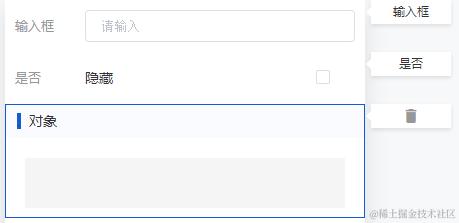
接下来我们为页面的物料加一个保姆工具栏,使用容器组件可以解耦代码功能
- 选中物料并高亮
- 显示物料名字
- 选中时显示删除按钮
核心代码
<!-- 工具栏  SchemaContentShape -->
<template>
  <div class="shape" @click.stop="setcurComponent(data)" ref="shape">
    <!-- 选中组件高亮 -->
    <div v-if="isCurComponent(data.id)" class="shape-solid event-none"></div>
    <div class="shape-dashed event-none"></div>
    <!-- 组件工具栏 -->
    <div v-if="show" class="shape-tab" :style="{ right: getRightStyle() }">
      <template v-if="isCurComponent(data.id)">
        <i class="icon icon-shanchu tab-icon f16" @click.stop="delComponent(content.model.componentList, data.id)"></i>
      </template>
      <span v-else>{{ data.label }}</span>
    </div>
    <slot></slot>
  </div>
</template>
配置物料🥼
当没有选中物料时,默认展示组件配置
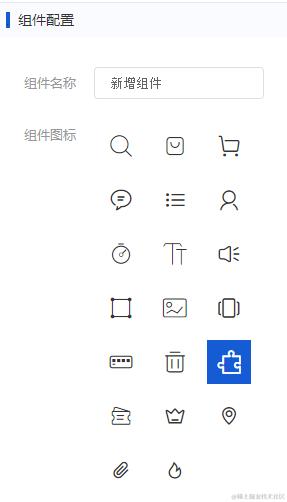
选中物料后,即可对该物料进行配置
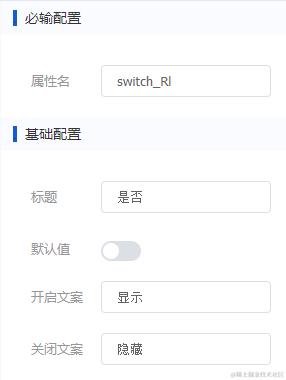
核心代码
<component
    v-if="content.curComponent"
    :is="curComponentConfig"
    v-bind="content.curComponent">
</component>
   <schema-component v-else></schema-component>
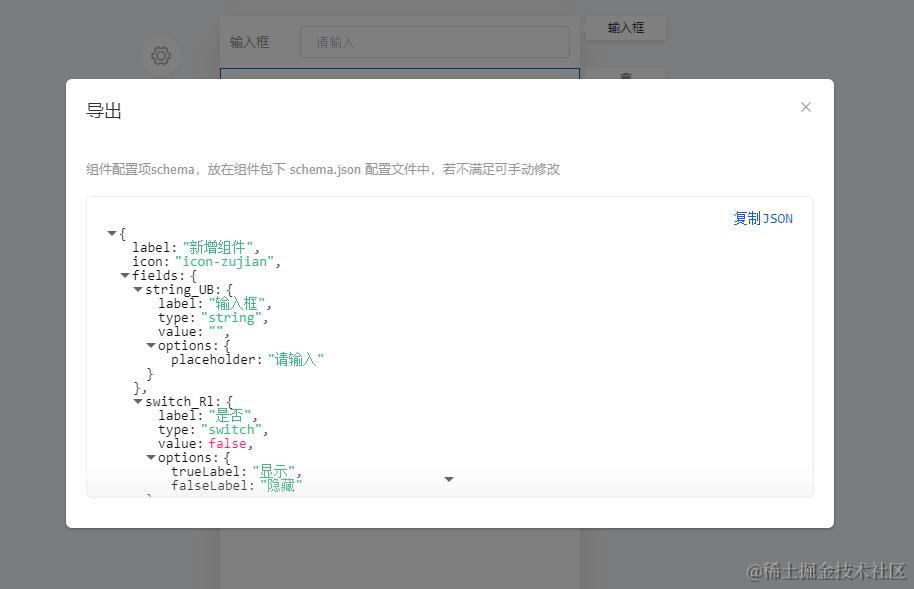
导出JSON👥
<el-dialog title="导出" :visible.sync="show" width="40%">
    <div>
      <template v-if="isComplete">
        <h3 class="mb20 f13 f-grey">
          组件配置项schema,放在组件包下 schema.json
          配置文件中,若不满足可手动修改
        </h3>
        <json-viewer v-model="config" :expand-depth="6" :copyable="{
          copyText: '复制JSON',
          copiedText: '已复制',
          timeout: 1000
        }" boxed></json-viewer>
      </template>
    </div>
  </el-dialog>
结尾
Github地址:github.com/Tooy8/TooyL…