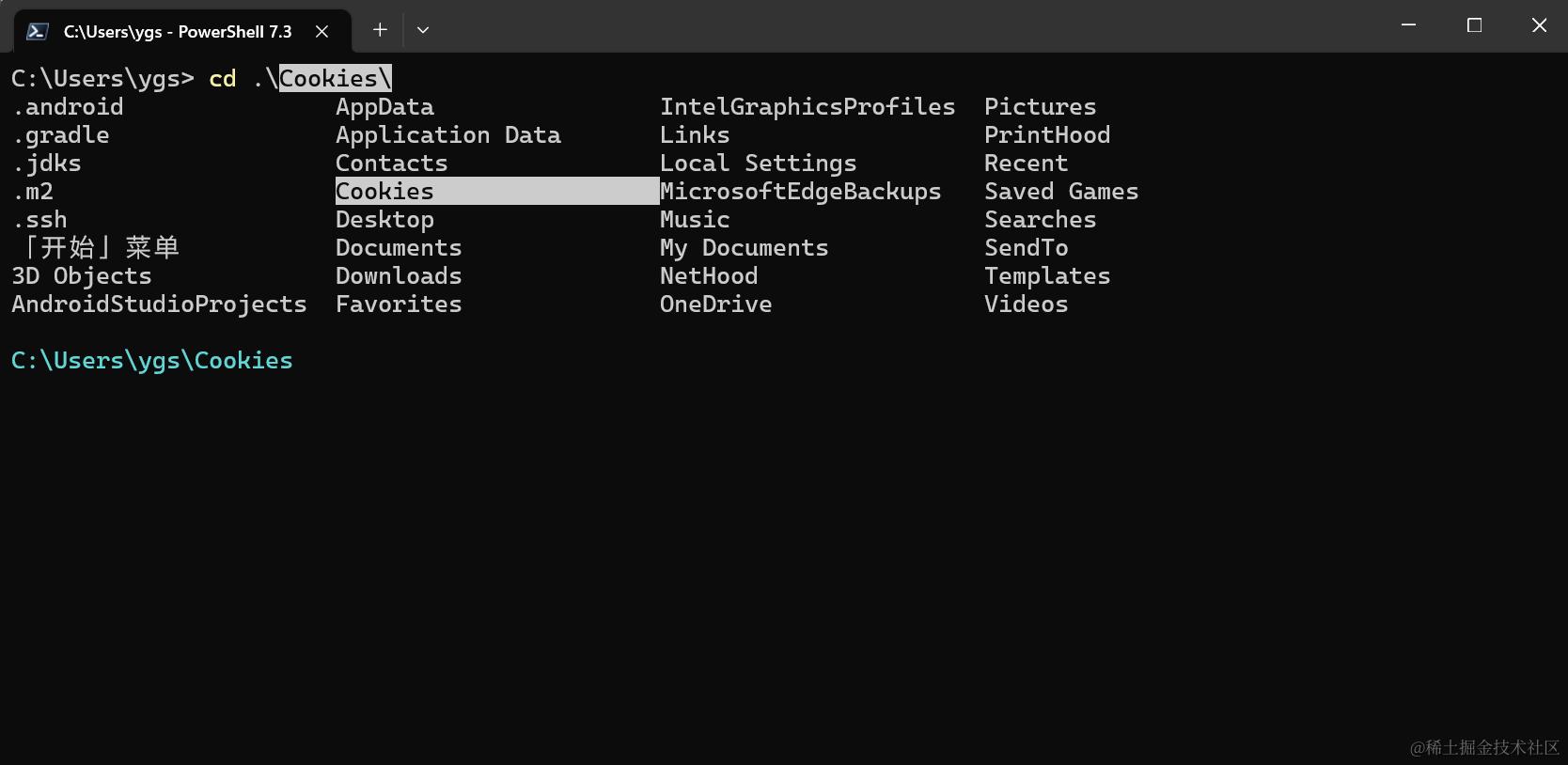
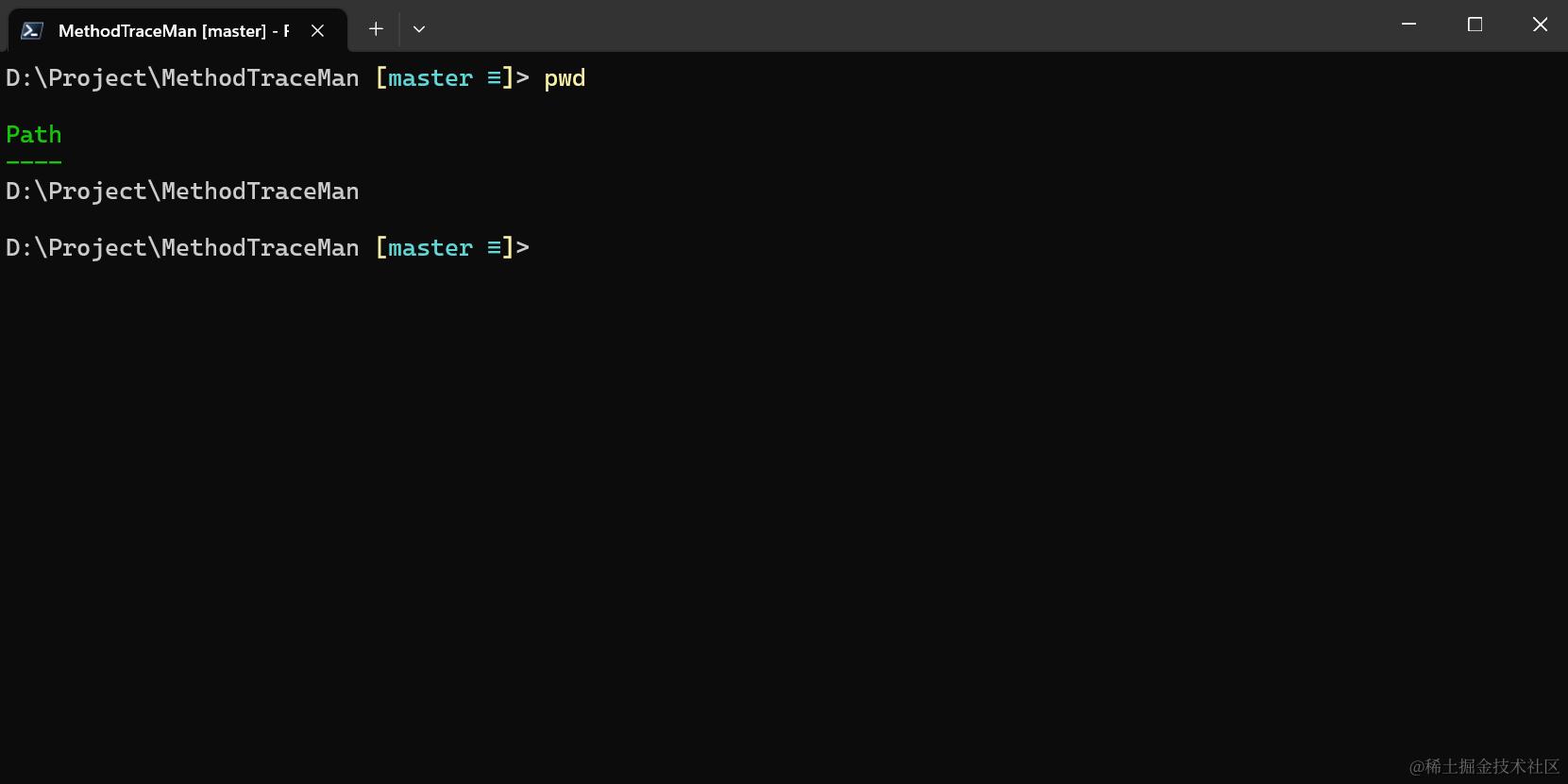
简介
用习惯了Mac电脑,换成了thinkpad,但是window系统的Shell终端太垃圾了。对于一个长期使用zsh的用户,简直是忍受不了的。不过新版的window系统上都预装了PowerShell,只要合理的配置一下,也可以达到非常好用的效果,和Mac上zsh几乎一样的效果
个人推荐 PowerShell + posh-git + PSReadLine + oh-my-posh。
升级到Power Shell 7 以上
- 使用winget搜索power shell
C:\Users\ygs> winget search powershell
名称                                 ID                                          版本        匹配            源
--------------------------------------------------------------------------------------------------------------------
PowerShell                           9MZ1SNWT0N5D                                Unknown                     msstore
PowerShell Preview                   9P95ZZKTNRN4                                Unknown                     msstore
PowerShell to exe&msi Converter free XPDCHZH119SRT8                              Unknown                     msstore
PowerShell Conference Asia 2015      9WZDNCRD37D8                                Unknown                     msstore
PowerShell                           Microsoft.PowerShell                        7.3.7.0                     winget
PowerSession                         Watfaq.PowerSession                         0.1.7       Tag: powershell winget
.........
2. 使用 winget install Microsoft.PowerShell 安装新版的powershell,如果不能下载就手动下载安装,或者从应用商店里面下载暗转。下载地址 3. 设置-> 启动 -> 默认配置文件-> 选择刚刚安装的PowerShell
安装插件模块
# 1. 安装 PSReadline 包,该插件可以让命令行很好用,类似 zsh
Install-Module -Name PSReadLine  -Scope CurrentUser

# 2. 安装 posh-git 包,让你的 git 更好用
Install-Module posh-git  -Scope CurrentUser

# 3. 安装 oh-my-posh 包,让你的命令行更酷炫。
# 3.0该插件是Golang写的,放弃了对PoewrShell支持。可以指定版本下载安装。也可以不安装我自己并没有安装这个。
# Install-Module oh-my-posh -Scope CurrentUser
# Install-Module oh-my-posh -Scope CurrentUser -RequiredVersion 2.0.496 # oh-my-posh
安装过程可能有点慢,好像卡住一样,耐心等待几分钟即可。也可以加 -Verbose 会有详细反馈。
配置PowerShell
- 打开终端设置,修改默认启动配置是新版本的PowerShell,或者也可以直接打开JSON文件修改。
    // 这个就是我们芯的power shell
    "defaultProfile": "{574e775e-4f2a-5b96-ac1e-a2962a402336}",

        "defaults": {},
        "list":
        [
            {
                "experimental.retroTerminalEffect": false,
                "font":
                {
                    "size": 13.0
                },
                "guid": "{574e775e-4f2a-5b96-ac1e-a2962a402336}",
                "hidden": false,
                "name": "PowerShell",
                "source": "Windows.Terminal.PowershellCore"
            },
            {
                "commandline": "%SystemRoot%\\System32\\WindowsPowerShell\\v1.0\\powershell.exe",
                "guid": "{61c54bbd-c2c6-5271-96e7-009a87ff44bf}",
                "hidden": false,
                "name": "Windows PowerShell"
            },
            {
                "commandline": "%SystemRoot%\\System32\\cmd.exe",
                "guid": "{0caa0dad-35be-5f56-a8ff-afceeeaa6101}",
                "hidden": false,
                "name": "\u547d\u4ee4\u63d0\u793a\u7b26"
            },
            {
                "guid": "{b453ae62-4e3d-5e58-b989-0a998ec441b8}",
                "hidden": false,
                "name": "Azure Cloud Shell",
                "source": "Windows.Terminal.Azure"
            }
        ]
2. 安装vim(不需要可以不安装)
在windows上安装的叫gVim,他是vim的一个版本。点击下载 在PowerShell启动参数的配置文件中加上这个配置即可。
#-------------------------------  Set VIM START    -------------------------------
# need install VIM
$VIM_PATH = "C:\Program Files (x86)\Vim\vim82\vim.exe"
Set-Alias vim $VIM_PATH
#-------------------------------  Set VIM END    -------------------------------
- 添加PowerShell启动参数
在PowerShell中输入
notepad.exe $Profile
在弹出来的页面中输入下面一长串配置代码并保存关闭
#------------------------------- Import Modules BEGIN -------------------------------
# 引入 posh-git
Import-Module posh-git

# 引入 oh-my-posh
# Import-Module oh-my-posh

# 引入 ps-read-line
Import-Module PSReadLine

# 设置 PowerShell 主题
# Set-PoshPrompt ys
# Set-PoshPrompt paradox
#------------------------------- Import Modules END   -------------------------------


#-------------------------------  Set Hot-keys BEGIN  -------------------------------
# 设置预测文本来源为历史记录
Set-PSReadLineOption -PredictionSource History

# 每次回溯输入历史,光标定位于输入内容末尾
Set-PSReadLineOption -HistorySearchCursorMovesToEnd

# 设置 Tab 为菜单补全和 Intellisense
Set-PSReadLineKeyHandler -Key "Tab" -Function MenuComplete

# 设置 Ctrl+d 为退出 PowerShell
Set-PSReadlineKeyHandler -Key "Ctrl+d" -Function ViExit

# 设置 Ctrl+z 为撤销
Set-PSReadLineKeyHandler -Key "Ctrl+z" -Function Undo

# 设置向上键为后向搜索历史记录
Set-PSReadLineKeyHandler -Key UpArrow -Function HistorySearchBackward

# 设置向下键为前向搜索历史纪录
Set-PSReadLineKeyHandler -Key DownArrow -Function HistorySearchForward
#-------------------------------  Set Hot-keys END    -------------------------------


#-------------------------------  Set VIM START    -------------------------------
# need install VIM
$VIM_PATH = "C:\Program Files (x86)\Vim\vim82\vim.exe"
Set-Alias vim $VIM_PATH
#-------------------------------  Set VIM END    -------------------------------


#-------------------------------    Functions BEGIN   -------------------------------
# Python 直接执行
$env:PATHEXT += ";.py"

# 更新系统组件
function Update-Packages {
	# update pip
	Write-Host "Step 1: 更新 pip" -ForegroundColor Magenta -BackgroundColor Cyan
	$a = pip list --outdated
	$num_package = $a.Length - 2
	for ($i = 0; $i -lt $num_package; $i++) {
		$tmp = ($a[2 + $i].Split(" "))[0]
		pip install -U $tmp
	}

	# update TeX Live
	$CurrentYear = Get-Date -Format yyyy
	Write-Host "Step 2: 更新 TeX Live" $CurrentYear -ForegroundColor Magenta -BackgroundColor Cyan
	tlmgr update --self
	tlmgr update --all

	# update Chocolotey
	Write-Host "Step 3: 更新 Chocolatey" -ForegroundColor Magenta -BackgroundColor Cyan
	choco outdated
}
#-------------------------------    Functions END     -------------------------------


#-------------------------------   Set Alias BEGIN    -------------------------------
# 1. 编译函数 make
function MakeThings {
	nmake.exe $args -nologo
}
Set-Alias -Name make -Value MakeThings

# 2. 更新系统 os-update
Set-Alias -Name os-update -Value Update-Packages

# 3. 查看目录 ls & ll
function ListDirectory {
	(Get-ChildItem).Name
	Write-Host("")
}
Set-Alias -Name ls -Value ListDirectory
Set-Alias -Name ll -Value Get-ChildItem

# 4. 打开当前工作目录
function OpenCurrentFolder {
	param
	(
		# 输入要打开的路径
		# 用法示例:open C:\
		# 默认路径:当前工作文件夹
		$Path = '.'
	)
	Invoke-Item $Path
}
Set-Alias -Name open -Value OpenCurrentFolder

# 5. cat 查看文本
function OpenCurrentFile {
	param
	(
		# 输入要打开的路径
		# 用法示例:open C:\
		# 默认路径:当前工作文件夹
		$Path = '.'
	)
	Get-Content $Path
}
Set-Alias -Name cat -Value OpenCurrentFile
#-------------------------------    Set Alias END     -------------------------------


#-------------------------------   Set Network BEGIN    -------------------------------
# 1. 获取所有 Network Interface
function Get-AllNic {
	Get-NetAdapter | Sort-Object -Property MacAddress
}
Set-Alias -Name getnic -Value Get-AllNic

# 2. 获取 IPv4 关键路由
function Get-IPv4Routes {
	Get-NetRoute -AddressFamily IPv4 | Where-Object -FilterScript {$_.NextHop -ne '0.0.0.0'}
}
Set-Alias -Name getip -Value Get-IPv4Routes

# 3. 获取 IPv6 关键路由
function Get-IPv6Routes {
	Get-NetRoute -AddressFamily IPv6 | Where-Object -FilterScript {$_.NextHop -ne '::'}
}
Set-Alias -Name getip6 -Value Get-IPv6Routes
#-------------------------------    Set Network END     -------------------------------
最后放2张截图