useMouseElement() 介绍
- 作用:
- 响应式获取鼠标相对于元素的位置;
- 获取到当前的 鼠标 在 盒子内 的 相对位置;
- 使用场景:
- 一些电商网站商品详情页面的图片放大镜(控制滑块跟随鼠标移动
left + top);
- 还有很多场景,不一一距离了,说不定哪天你们公司的业务就给你提这么一个需求😂😂;
使用教程:
安装 VueUse:
各属性说明:
x、y:鼠标相对于 body 的位置;elementX、elementY:鼠标相对于 Hover me 盒子左上角顶点 的位置;elementPositionX、elementPositionY:Hover me 盒子的左上角顶点相对于 body 的位置;elementHeightX、elementWidth:Hover me 盒子的 宽度 和 高度;isOutside:鼠标是否进入到了 Hover me 盒子 内部;
- 进入盒子内部:
false;
- 未进入盒子内部:
true;
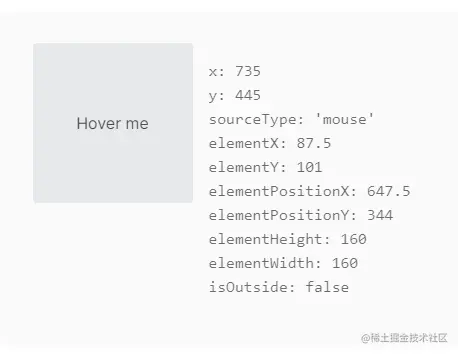
⚠ 注意
- 不管鼠标是否在 盒子中,
useMouseInElement() 会一直执行;
- 解决方案:
- 根据
isOutside 判断,如果 为 true 表示鼠标在盒子外面,不执行相应的逻辑即可;
使用步骤:
组合式API
选项式API
<template>
<div ref="target">
<h1>Hello world</h1>
</div>
</template>
<script>
import { ref } from 'vue';
import { useMouseInElement } from '@vueuse/core'
export default {
setup() {
const target = ref(null)
const { x, y, isOutside } = useMouseInElement(target)
return { x, y, isOutside }
}
}
</script>
案例 - 放大镜:
实现滑块的滑动:
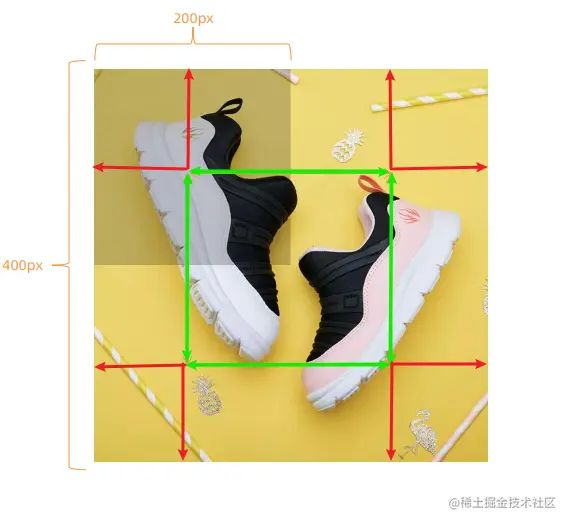
- 有效移动范围内的计算逻辑【上图中 绿色箭头 选中的范围】:
- 横向:
100 < elementX < 300, left = elementX - 小滑块宽度的一半;
- 纵向:
100 < elementY < 300, top = elementY - 小滑块高度的一半;
- 边界距离控制【上图中 红色箭头 选中的范围】:
- 横向:
elementX > 300, left = 200; elementX < 100, left = 0;
- 纵向:
elementY > 300, top = 200; elementY < 100, top = 0;
实现大图的显示隐藏
useMouseInElement()的返回值中,isOutside属性表示鼠标是否进入盒子中(进入:false、未进入:true);
- 可以使用
v-show="!isOutside" 实现大图的显示和隐藏;
实现大图跟着滑块移动
代码展示:
<script setup>
import { reactive, ref, watch } from "vue";
import { useMouseInElement } from "@vueuse/core";
const imageList = [
"https://yanxuan-item.nosdn.127.net/a5d745bbe067ca2468cdb2948f4f10ca.jpg",
"https://yanxuan-item.nosdn.127.net/70faa07bb9e019c0b0809165e1162978.jpg",
"https://yanxuan-item.nosdn.127.net/574703105b5231a0e8c112c50a62678f.jpg",
"https://yanxuan-item.nosdn.127.net/45ecc08a016820a3b4e9ceac790a1721.jpg",
"https://yanxuan-item.nosdn.127.net/13de842b6be03637549f1d82eafdfc75.jpg",
];
const activeIndex = ref(0);
const enterHandler = (index) => {
activeIndex.value = index;
};
const target = ref(null);
const distance = reactive({
left: 0,
top: 0,
});
const { elementX, elementY, isOutside } = useMouseInElement(target);
watch([elementX, elementY, isOutside], () => {
if (isOutside.value) return;
if (elementX.value >= 100 && elementX.value <= 300)
distance.left = elementX.value - 100;
if (elementY.value >= 100 && elementY.value <= 300)
distance.top = elementY.value - 100;
if (elementX.value >= 300) distance.left = 200;
if (elementX.value <= 100) distance.left = 0;
if (elementY.value >= 300) distance.top = 200;
if (elementY.value <= 100) distance.top = 0;
});
</script>
<template>
<div class="goods-image">
<div class="middle" ref="target">
<img :src="imageList[activeIndex]" alt="" />
<div
class="layer"
v-show="!isOutside"
:style="{ left: `${distance.left}px`, top: `${distance.top}px` }"
></div>
</div>
<ul class="small">
<li
v-for="(img, i) in imageList"
:key="i"
@mouseenter="enterHandler(i)"
:class="{ active: activeIndex === i }"
>
<img :src="img" alt="" />
</li>
</ul>
<div
class="large"
:style="[
{
backgroundImage: `url(${imageList[activeIndex]})`,
backgroundPositionX: `-${distance.left * 2}px`,
backgroundPositionY: `-${distance.top * 2}px`,
},
]"
v-show="!isOutside"
></div>
</div>
</template>
<style scoped lang="scss">
img {
width: 100%;
}
li {
list-style: none;
}
.goods-image {
display: flex;
position: relative;
width: 480px;
height: 400px;
margin: auto;
.middle {
width: 400px;
height: 400px;
background: #f5f5f5;
}
.large {
position: absolute;
top: 0;
left: 412px;
width: 400px;
height: 400px;
z-index: 500;
box-shadow: 0 0 10px rgba(0, 0, 0, 0.1);
background-repeat: no-repeat;
// 背景图:盒子的大小 = 2:1 将来控制背景图的移动来实现放大的效果查看 background-position
background-size: 800px 800px;
background-color: #f8f8f8;
}
.layer {
width: 200px;
height: 200px;
background: rgba(0, 0, 0, 0.2);
// 绝对定位 然后跟随咱们鼠标控制left和top属性就可以让滑块移动起来
left: 0;
top: 0;
position: absolute;
}
.small {
width: 80px;
li {
width: 68px;
height: 68px;
margin-left: 12px;
margin-bottom: 15px;
cursor: pointer;
&:hover,
&.active {
border: 2px solid #27ba9b;
}
}
}
}
</style>