在 iOS 模拟器上访问应用程序文件
在开发过程中,我们经常需要检查应用程序生成了哪些文件。有时我们需要将一些文件添加到我们的应用程序文件夹中进行测试。今天我们来了解一下如何在 iOS 模拟器上访问和管理应用程序文件。
获取应用目录的路径
为了在模拟器上获取应用程序目录的路径,我们在 AppDelegate 这个类的 application(_:didFinishLaunchingWithOptions:) 方法中添加一个 print 语句。在应用程序启动时在 Xcode 控制台中打印 App 的文件根目录。
class AppDelegate: UIResponder, UIApplicationDelegate {
    func application(_ application: UIApplication,
        didFinishLaunchingWithOptions launchOptions: [UIApplication.LaunchOptionsKey: Any]?
    ) -> Bool {

        print("Application directory: \(NSHomeDirectory())")
        return true
    }
}
在模拟器上启动 App 后,将会看到打印:
Application directory: /Users/{UserName}/Library/Developer/CoreSimulator/Devices/51CCB000-B69A-48C7-BE9B-A1642B2060FF/data/Containers/Data/Application/C2442244-180E-4193-8B4F-ADA9708070BA
{UserName} 是你的电脑用户名称
在 Finder 中打开应用程序文件夹
首先复制上边的文件夹路径,然后打开 Finder(访达),单击顶部菜单 前往 -> 前往文件夹(快捷键是 command + shift + G),并粘贴这个路径,点击回车键即可。
或者直接打开命令行工具执行 open 命令打开:
open /Users/{UserName}/Library/Developer/CoreSimulator/Devices/51CCB000-B69A-48C7-BE9B-A1642B2060FF/data/Containers/Data/Application/C2442244-180E-4193-8B4F-ADA9708070BA
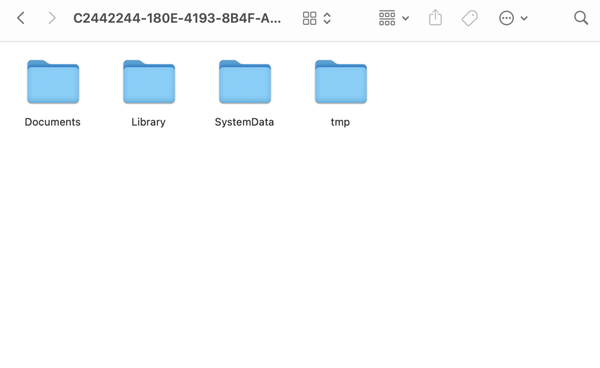
之后你就可以看到应用程序文件夹中的所有文件了。
管理文档文件夹中的文件
做 iOS 开发的同学对这个文件夹内的目录应该都很熟悉了,这里不过多介绍。
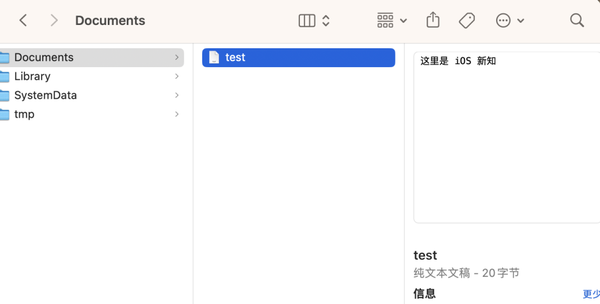
在这个文件夹内,你可以直接操作所有的文件,比如我在 Documents 文件夹内创建一个纯文本 txt 文件。
并尝试在代码中读取它:
func application(_ application: UIApplication, didFinishLaunchingWithOptions launchOptions: [UIApplication.LaunchOptionsKey: Any]?) -> Bool {
    let path = "\(NSHomeDirectory())/Documents/test.txt"
    let fileURL = URL(filePath: path)
    print(try! String(contentsOf: fileURL, encoding: .utf8))
    return true
}
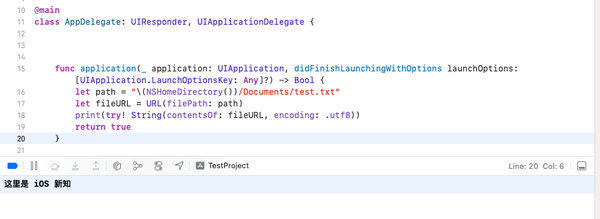
打印结果如下:
本文同步自微信公众号 “iOS新知”,每天准时分享一个新知识,这里只是同步,想要及时学到就来关注我吧!