前言
- 在Windows中,我们可以在文件夹中的路径框中输入cmd就可以打开终端进入到当前目录。
- 可是在Mac中你需要在上一层目录,右键你的目标文件夹,点击‘新建位于文件夹位置的终端窗口’。
- 操作实在是太繁琐了,于是乎就开发了一个应用程序放到finder的头部工具栏,在任何目录下,只要点击就可以打开当前目录的终端。
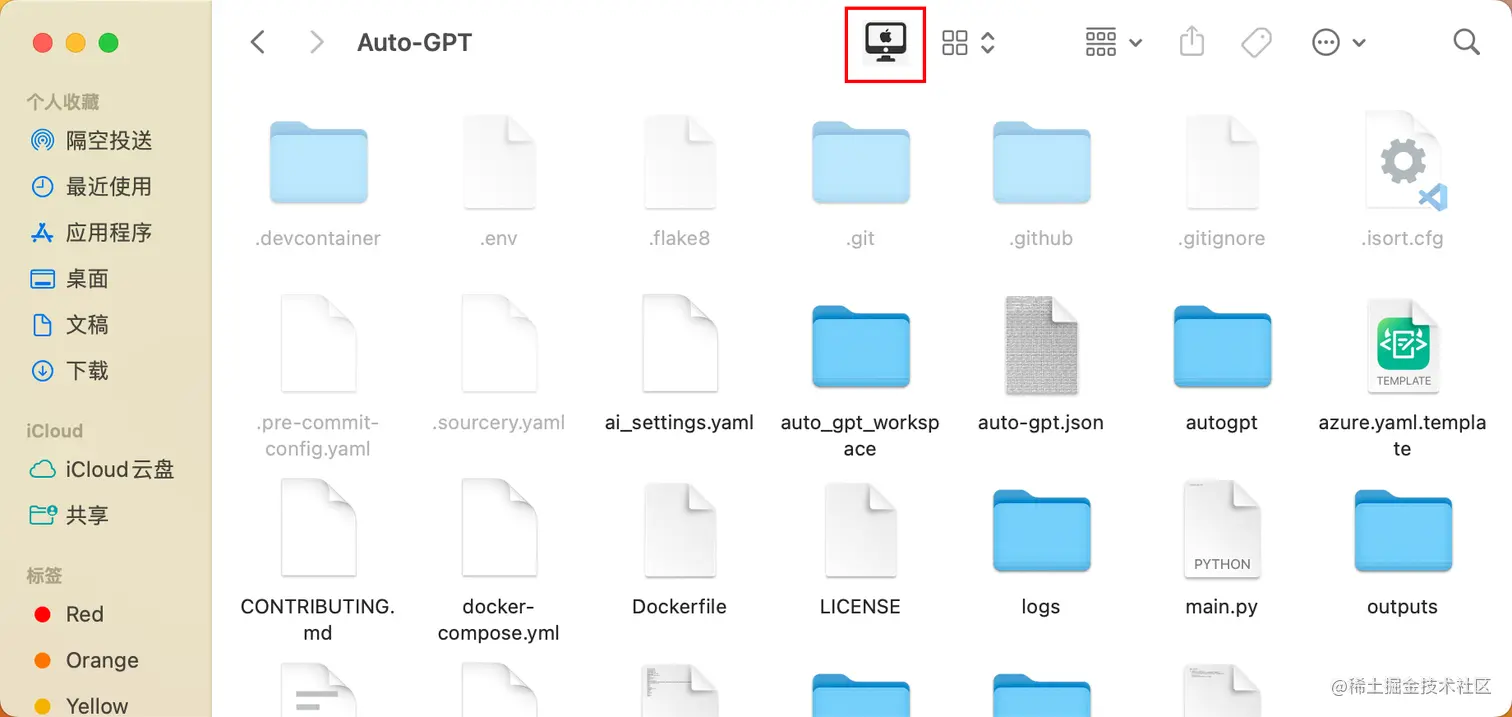
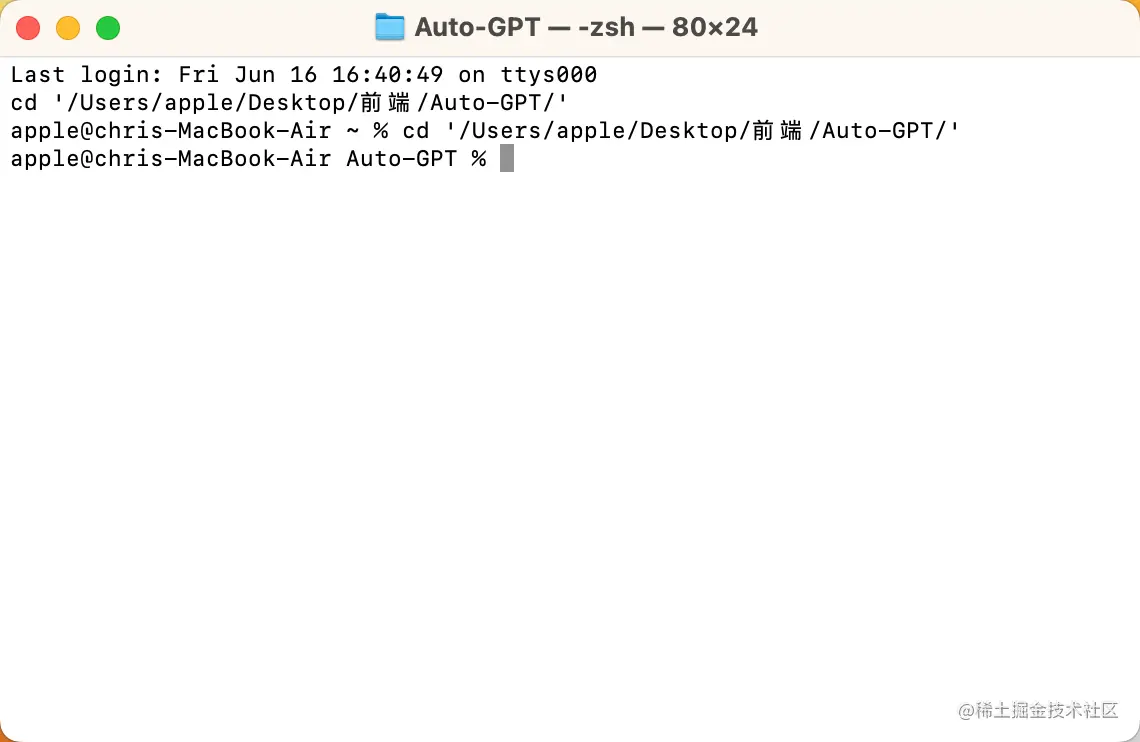
具体实现
- 打开‘脚本编辑器’,编辑以下内容:
-- 获取当前 Finder 窗口的路径
tell application "Finder"
    set currentPath to POSIX path of (target of front Finder window as text)
end tell

-- 激活 Terminal 应用程序
tell application "Terminal"
    activate

    -- 检查终端窗口数量
    if (count of windows) is 0 then
        -- 如果没有窗口,则在新窗口中执行 cd 命令
        do script "cd " & quoted form of currentPath
    else
        -- 如果有窗口,则在第一个窗口中执行 cd 命令
        do script "cd " & quoted form of currentPath in window 1
    end if
end tell
- 保存为‘应用程序’,按住
command把程序拖入到finder工具栏中,就完成啦
END
- 再也不用点一堆东西才可以打开目标目录的终端了🤪
- 希望这篇文章可以帮助到有需要的小伙伴们,有问题可以评论或私信我呀🤞🤞