#概述
- 路由跳转的几种方式;
- 路由常用API;
- 路由的发送和接收数据的使用;
- 路由使用中可能遇到的问题与解决方案;
#路由跳转的方式
- 单一页面跳转(A页面 --- B页面)
- 多个页面路由管理 (A页面 --- 多个其他页面 或者 多个其他页面 --- A页面)
#路由常用API **左边列比较常用,右边列可作了解: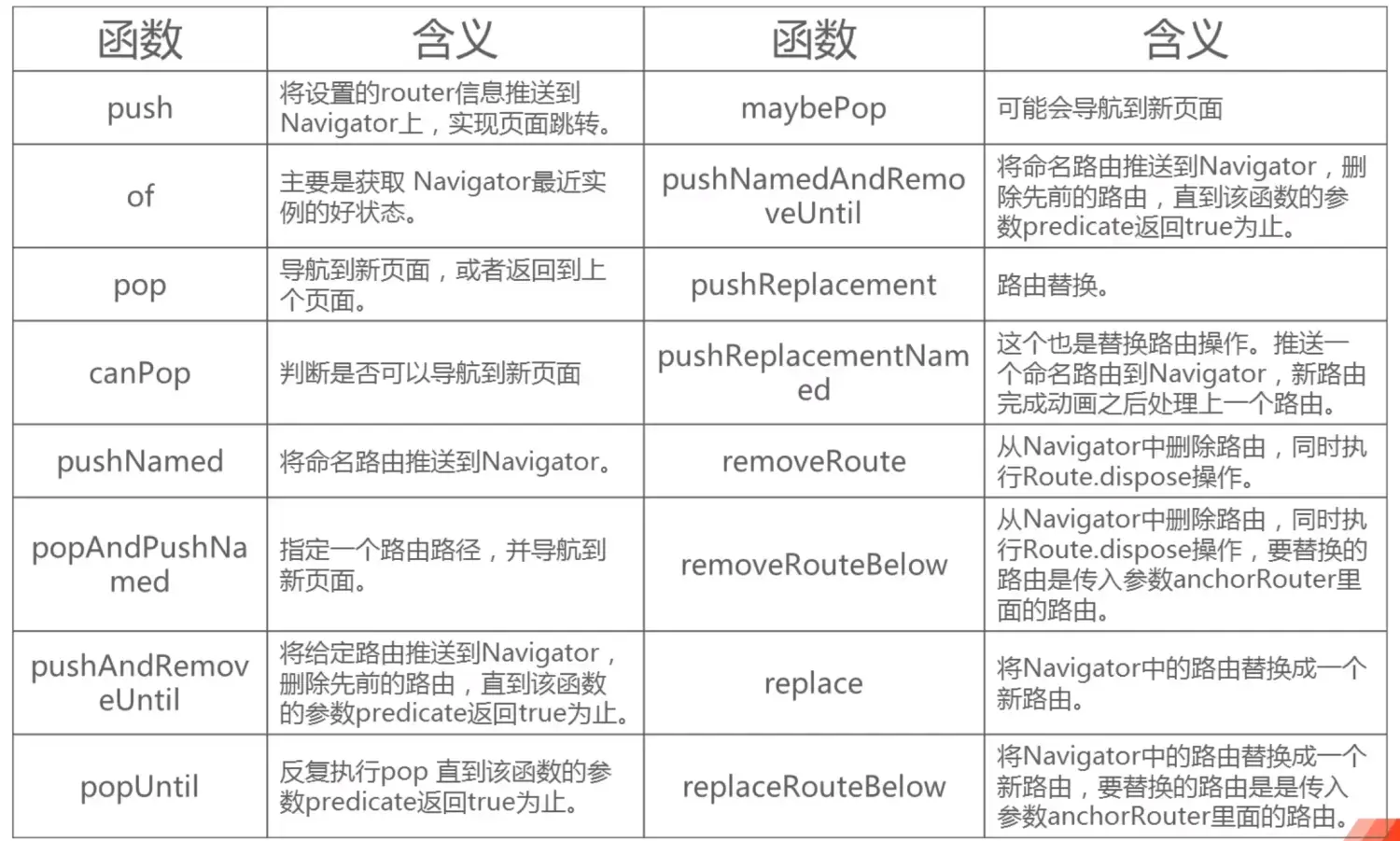`pushAndRemoveUntil`: 跳转到新的页面,并把当前的页面关闭;
【`pop`与`popUntil`区别】 `pop`是直接返回上一个页面,`popUntil`是里边有一个判断;
`maybePop`经常用于if语句判断,判断是否可以导航,再做后续操作;
【`pushAndRemoveUntil`与`pushNamedAndRemoveUntil`区别】 `pushAndRemoveUntil`是面向普通路由, `pushNamedAndRemoveUntil`面向命名路由;
【`push`与`replace`区别】 `push`推送时替换,`replace`直接替换;**
#页面跳转的三个基本API —— of()、push()、pop() **【push】ContentPage跳转到PageOne: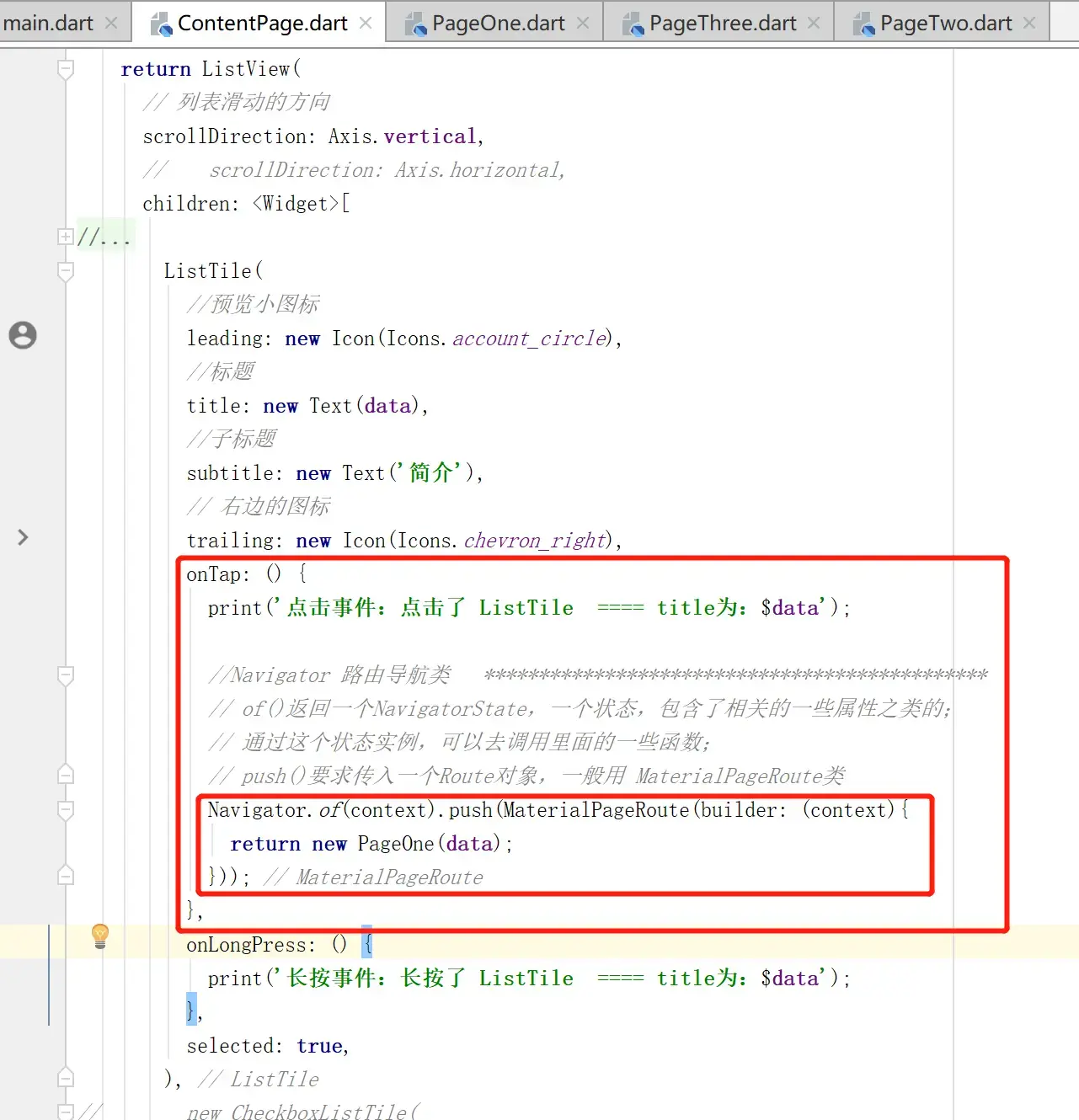【pop】PageOne跳回ContentPage: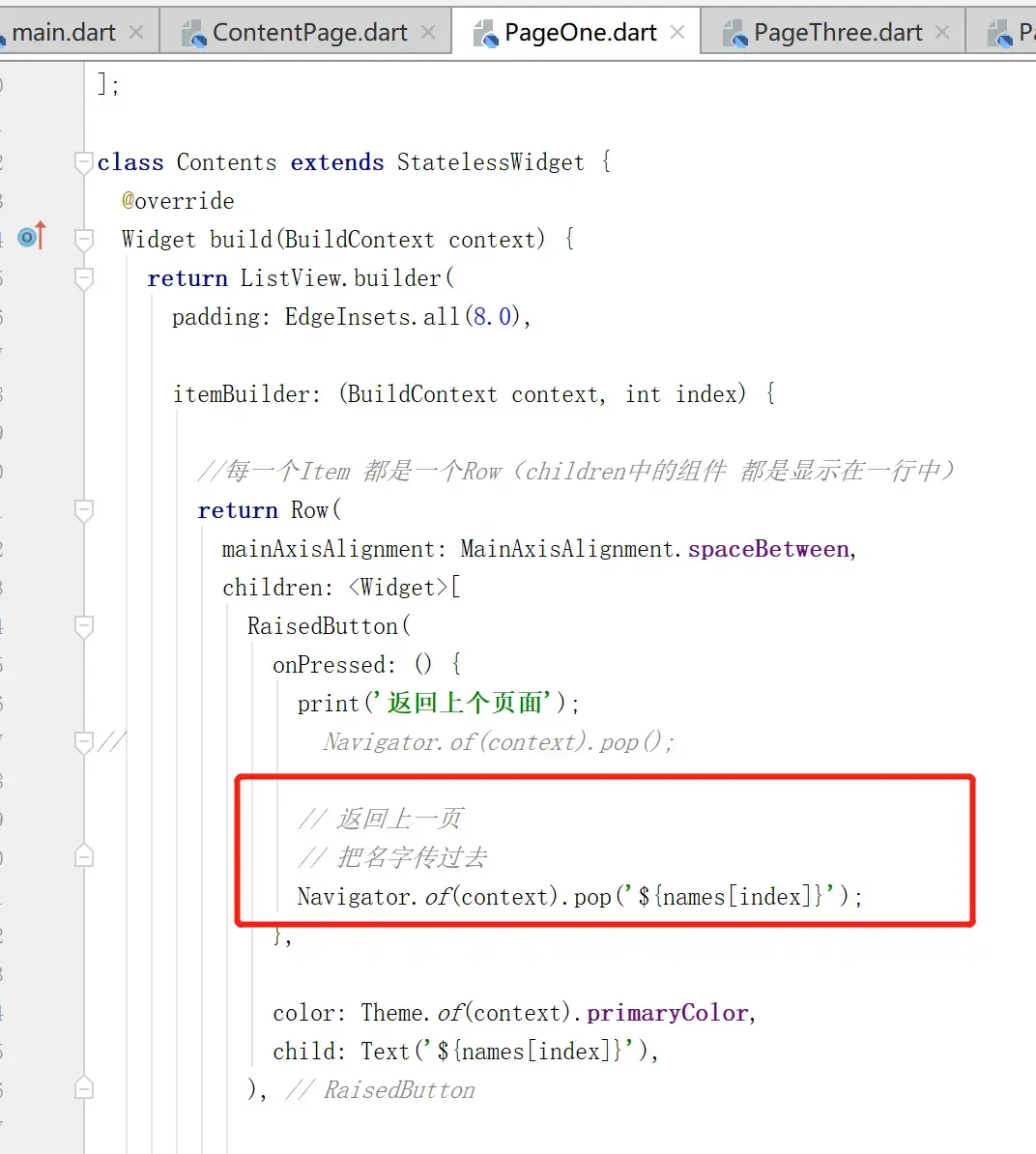**
#两个页面间简单的页面传输 **【Push方向(发送数据),】 `ContentPage`跳转到`PageOne`, 把要传输的数据交给`PageOne`的`构造函数`, `PageOne`接收数据并显示: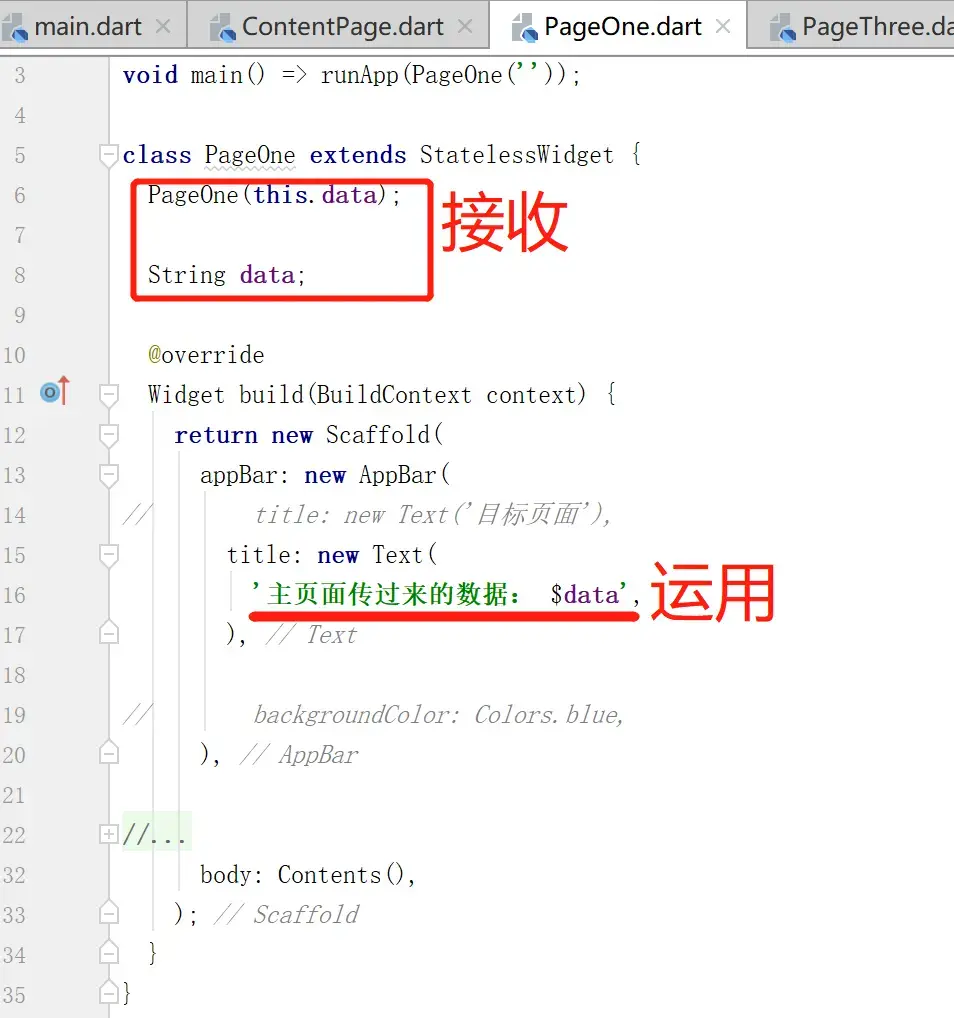
【接收其他页面返回来的数据】 PageOne跳回ContentPage, 通过pop跳回并返回数据:修改ContentPage (封装`pushData()`方法, 用于导航以及接收数据),** ``` String results; //封装一个函数 处理路由返回的数据 // 接收数据是异步的,需要加 async关键字; // 需要接收数据,需要加 await关键字; // 需要准备一个数据类型变量,来承载; // 指定函数返回类型为String,Alt+enter 改成 Future Future pushData(BuildContext context) async{ //Navigator 路由导航类 ********************************************** // of()返回一个NavigatorState,一个状态,包含了相关的一些属性之类的; // 通过这个状态实例,可以去调用里面的一些函数; // push()要求传入一个Route对象,一般用 MaterialPageRoute类 var datas = await Navigator.of(context).push(MaterialPageRoute(builder: (context){ return new PageOne(data); })); return datas; } ``` 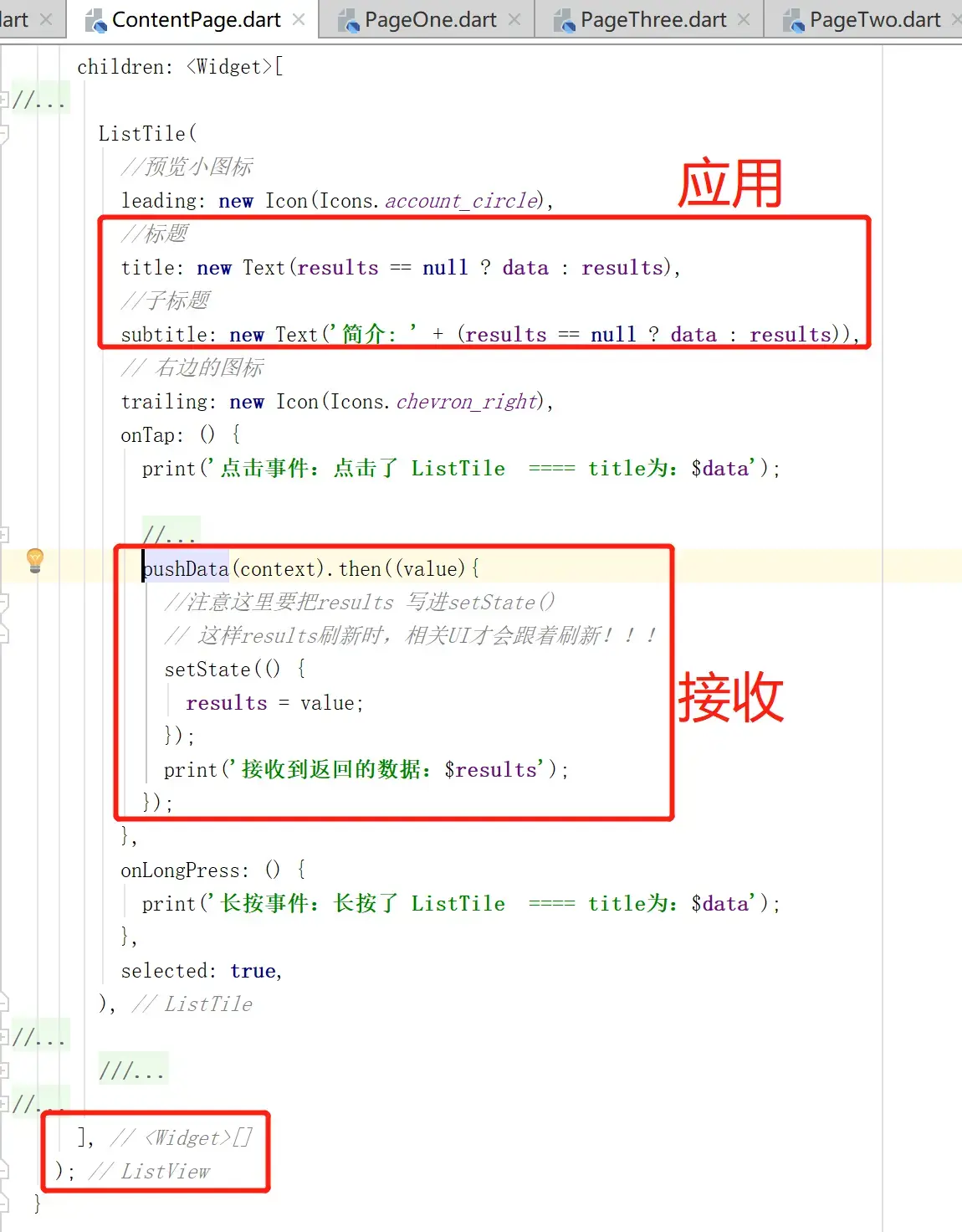 ``` ListTile( //预览小图标 leading: new Icon(Icons.account_circle), //标题 title: new Text(results == null ? data : results), //子标题 subtitle: new Text('简介: ' + (results == null ? data : results)), // 右边的图标 trailing: new Icon(Icons.chevron_right), onTap: () { print('点击事件:点击了 ListTile ==== title为:$data');
        //Navigator 路由导航类   **********************************************
        // of()返回一个NavigatorState,一个状态,包含了相关的一些属性之类的;
        // 通过这个状态实例,可以去调用里面的一些函数;
        // push()要求传入一个Route对象,一般用 MaterialPageRoute类
// Navigator.of(context).push(MaterialPageRoute(builder: (context){ // return new PageOne(data); // }));
        //把以上代码 封装一个函数 处理路由返回的数据
        // 利用Future变量类型的 then方法,拿到返回的数据
        // value位置是一个形参,名字可以随便起,这个形参位置就是返回的数据
        pushData(context).then((value){
          //注意这里要把results 写进setState()
          // 这样results刷新时,相关UI才会跟着刷新!!!
          setState(() {
            results = value;
          });
          print('接收到返回的数据:$results');
        });
      },
      onLongPress: () {
        print('长按事件:长按了 ListTile  ==== title为:$data');
      },
      selected: true,
    ),
**运行效果:
初始效果: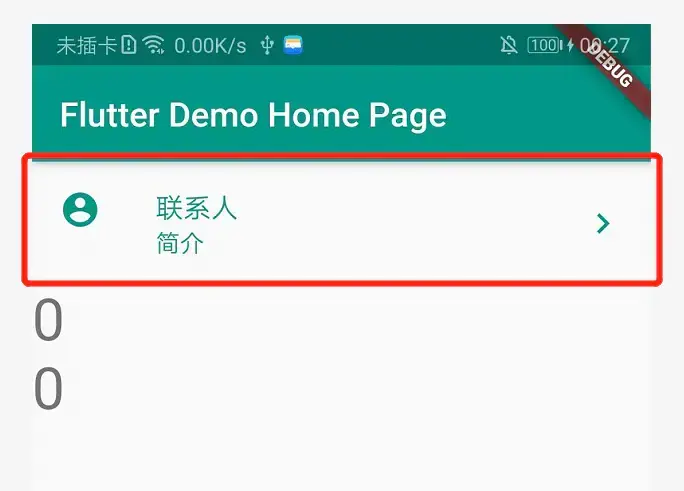点击Item,
`push`跳转到`PageOne`页: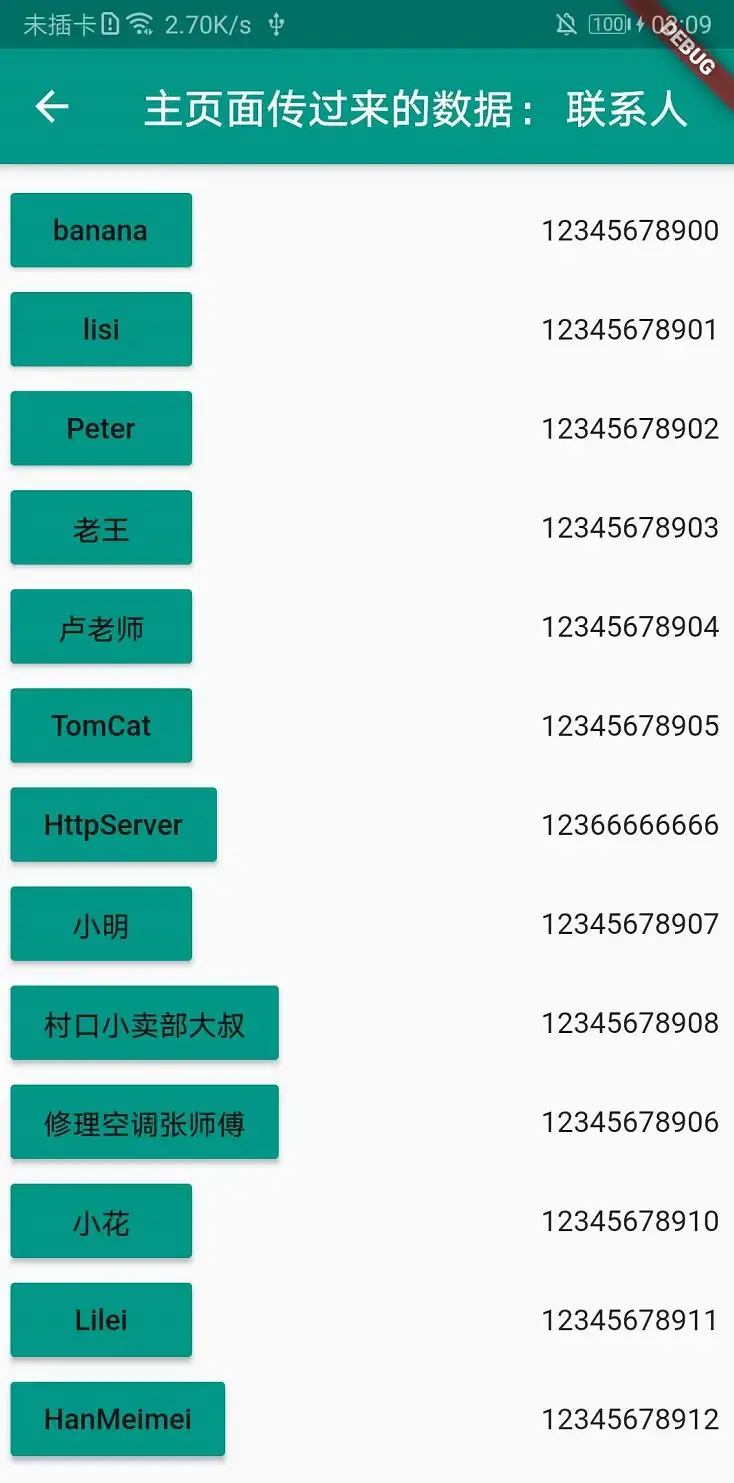
点击任意按钮后触发`pop`方法,
把按钮数据传回到`ContentPage`,
刷新相关UI: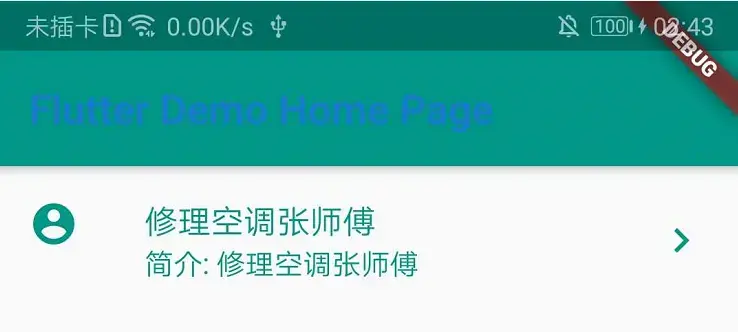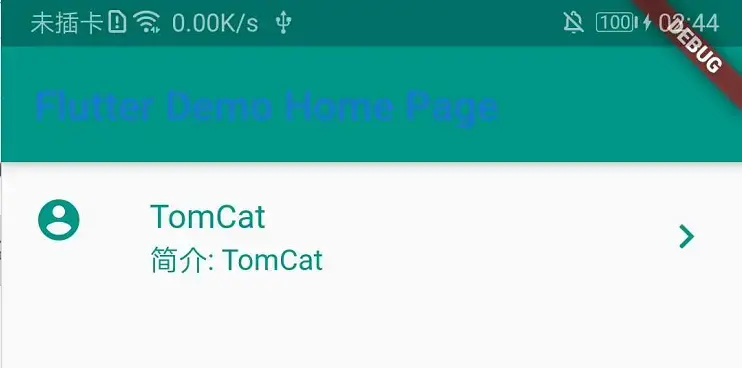<br>【小结一下刚刚的跳转并传输数据的方式】
上面的方式是 —— 在跳转目的页中,
准备一个`构造函数`和一个`全局变量`,用于接收数据,
跳转到目的页时,创建一个目的页实例,并把数据传给其构造函数,完成传递;
目的页接收到数据后,进行运用处理;<br>
【更改一下`pushData()`的封装】
刚刚是把ContentPage的标题`data`传给`pageOne`了,
现在更改一下`pushData()`的封装,灵活一点;**
Future pushData(BuildContext context, String datapush) async{ //Navigator 路由导航类 ********************************************** // of()返回一个NavigatorState,一个状态,包含了相关的一些属性之类的; // 通过这个状态实例,可以去调用里面的一些函数; // push()要求传入一个Route对象,一般用 MaterialPageRoute类 var datas = await Navigator.of(context).push(MaterialPageRoute(builder: (context){ return new PageOne(datapush); })); return datas; }
**`pushData()`运用: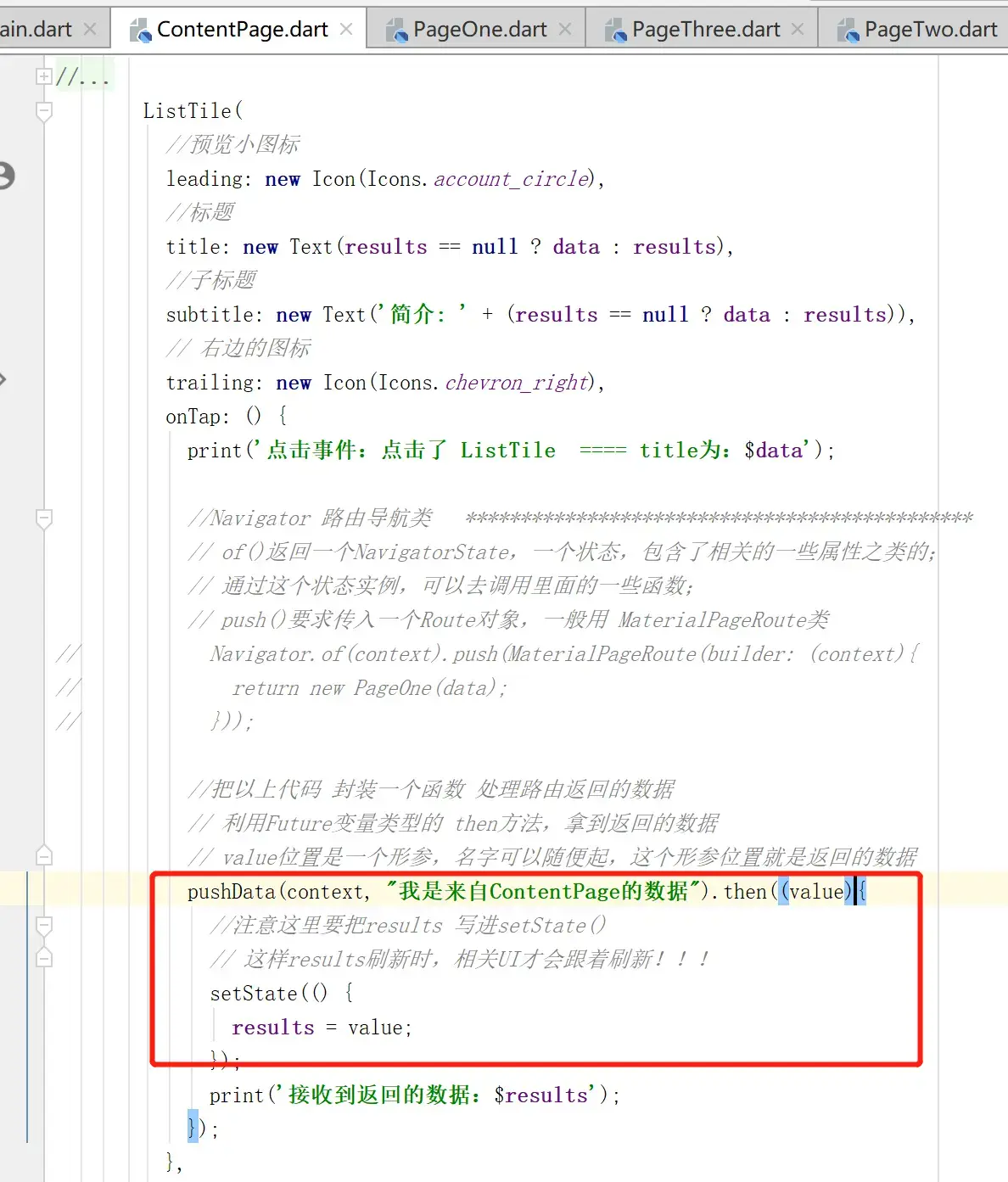
`pageOne`接收数据与应用: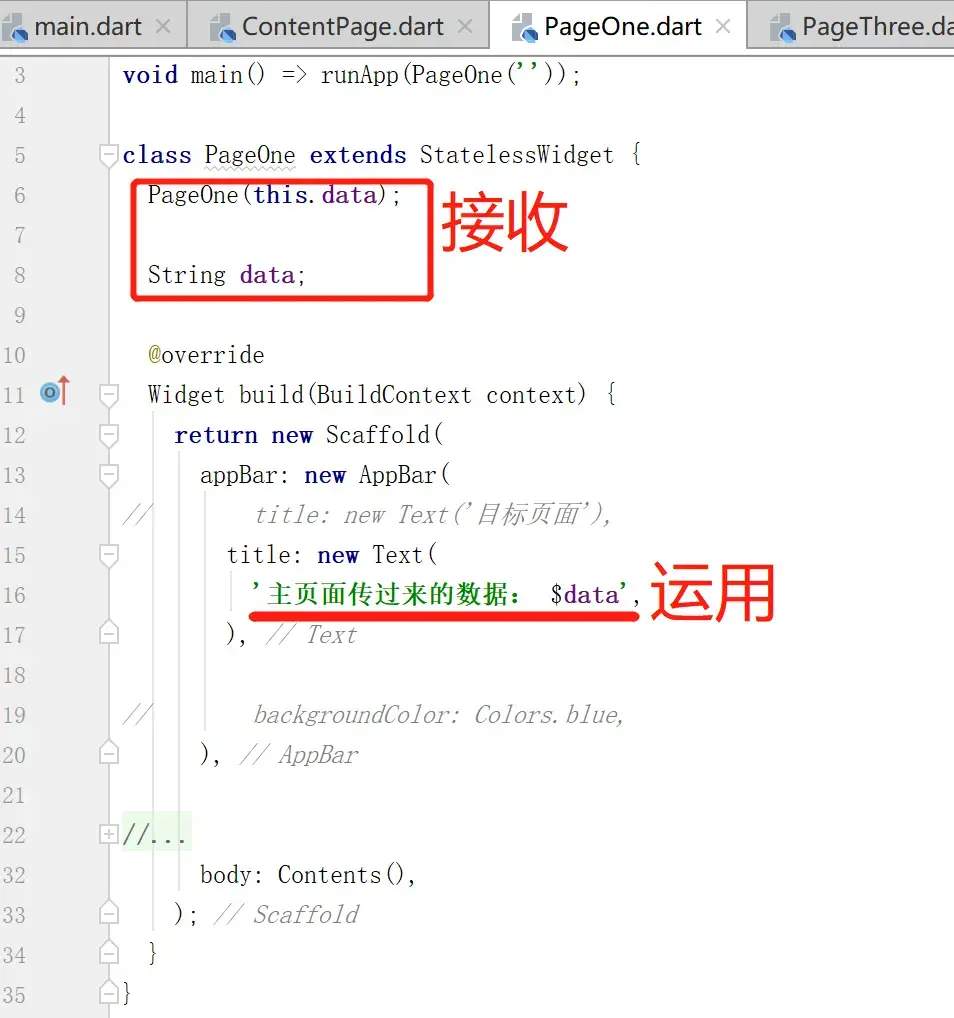运行效果: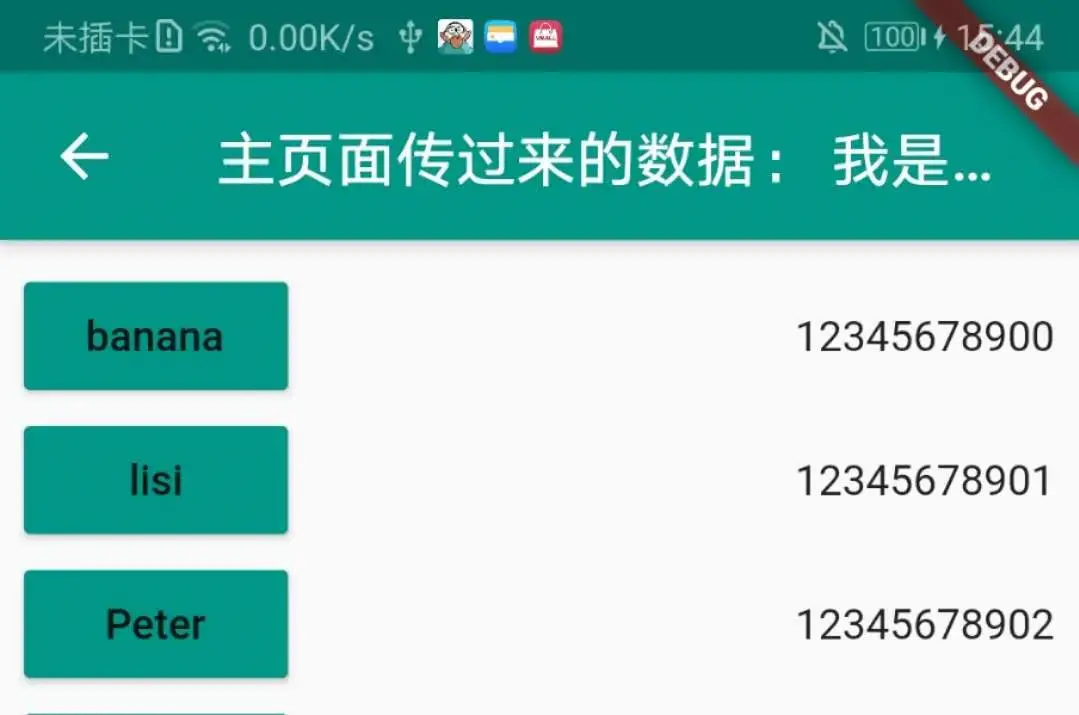**
<br>
#多页面路由发送和接收数据【通过`命名路由`实现】
**main.dart中配置路由: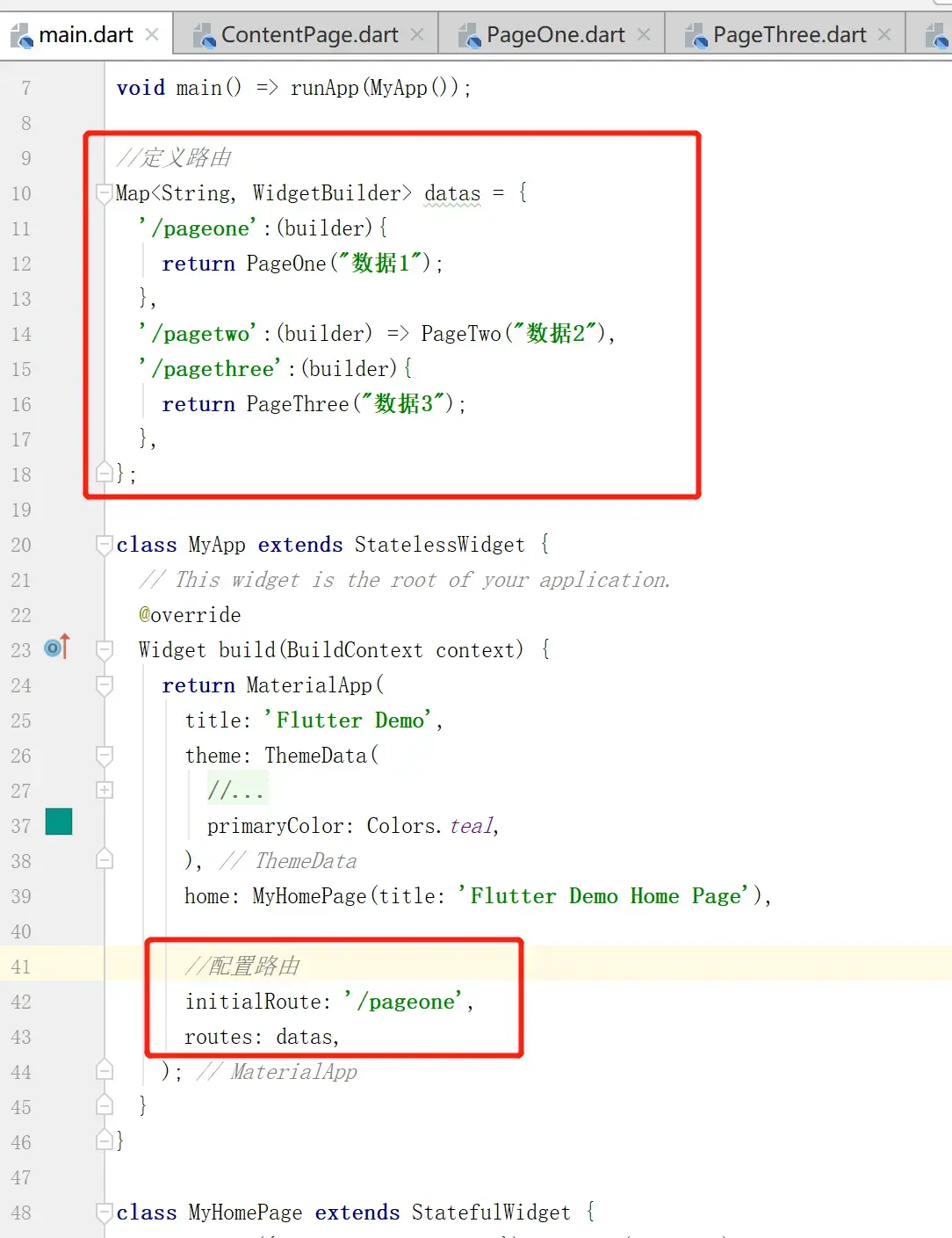**
//定义路由 Map<String, WidgetBuilder> datas = { '/pageone':(builder){ return PageOne("数据1"); }, '/pagetwo':(builder) => PageTwo("数据2"), '/pagethree':(builder){ return PageThree("数据3"); }, };
class MyApp extends StatelessWidget { @override Widget build(BuildContext context) { return MaterialApp( title: 'Flutter Demo', theme: ThemeData( primaryColor: Colors.teal, ), home: MyHomePage(title: 'Flutter Demo Home Page'),
  //配置路由
  initialRoute: '/pageone',
  routes: datas,
);
} }
**封装路由跳转: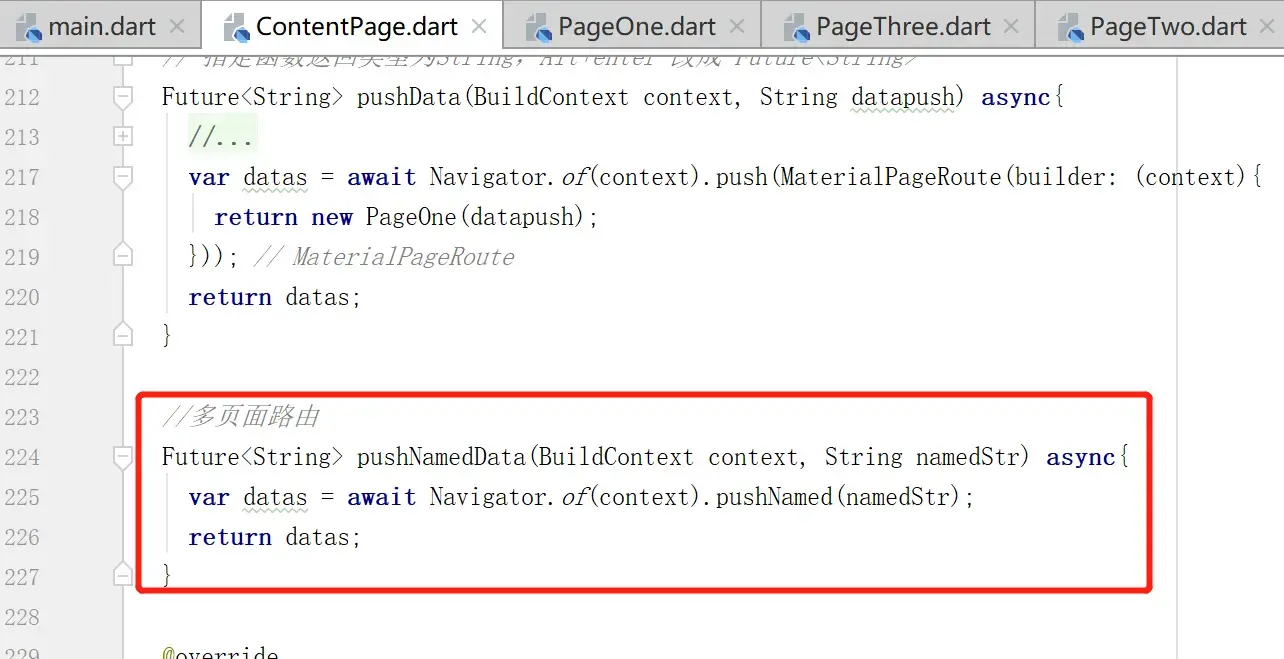**
//多页面路由 Future pushNamedData(BuildContext context, String namedStr) async{ var datas = await Navigator.of(context).pushNamed(namedStr); return datas; }
**应用 跳转: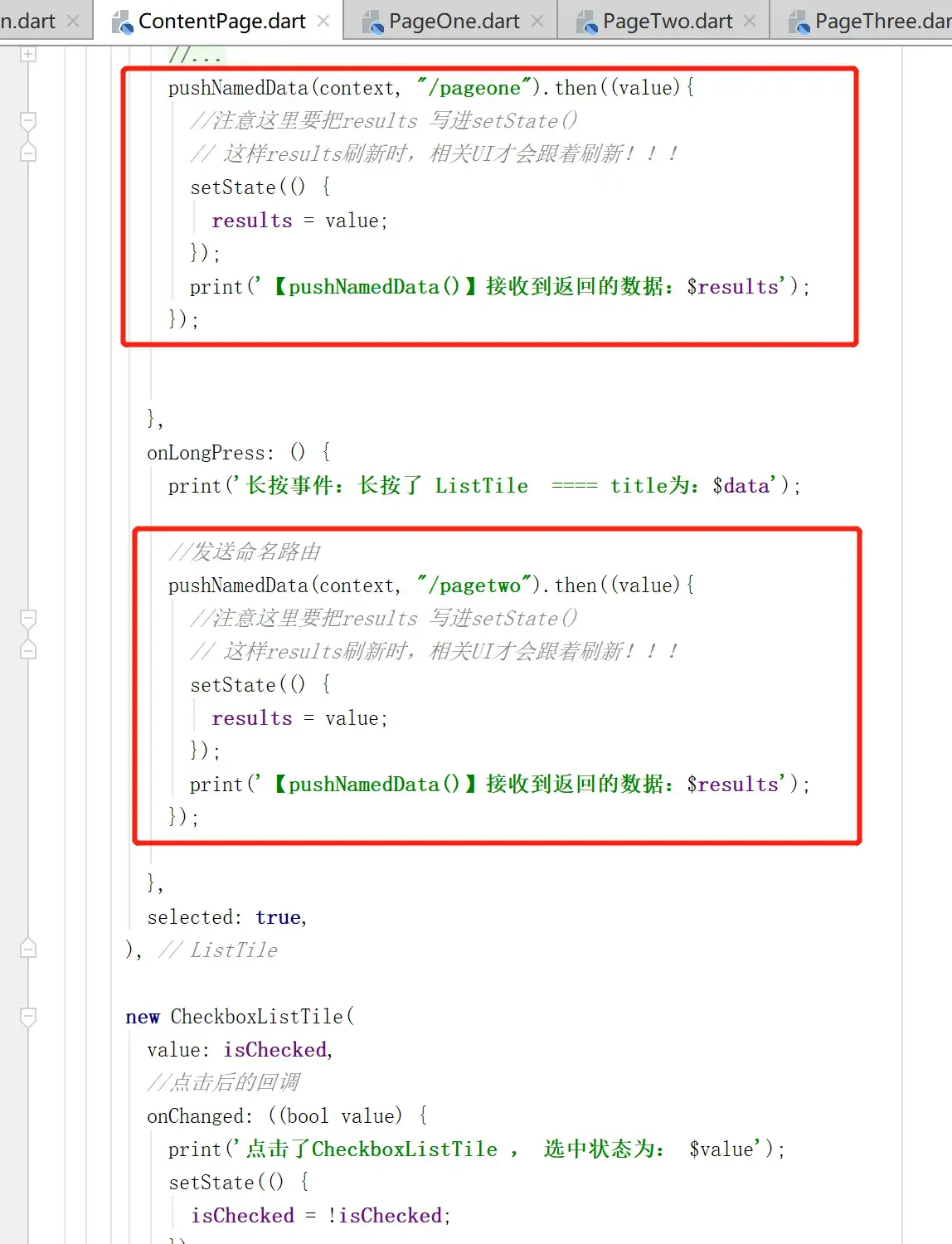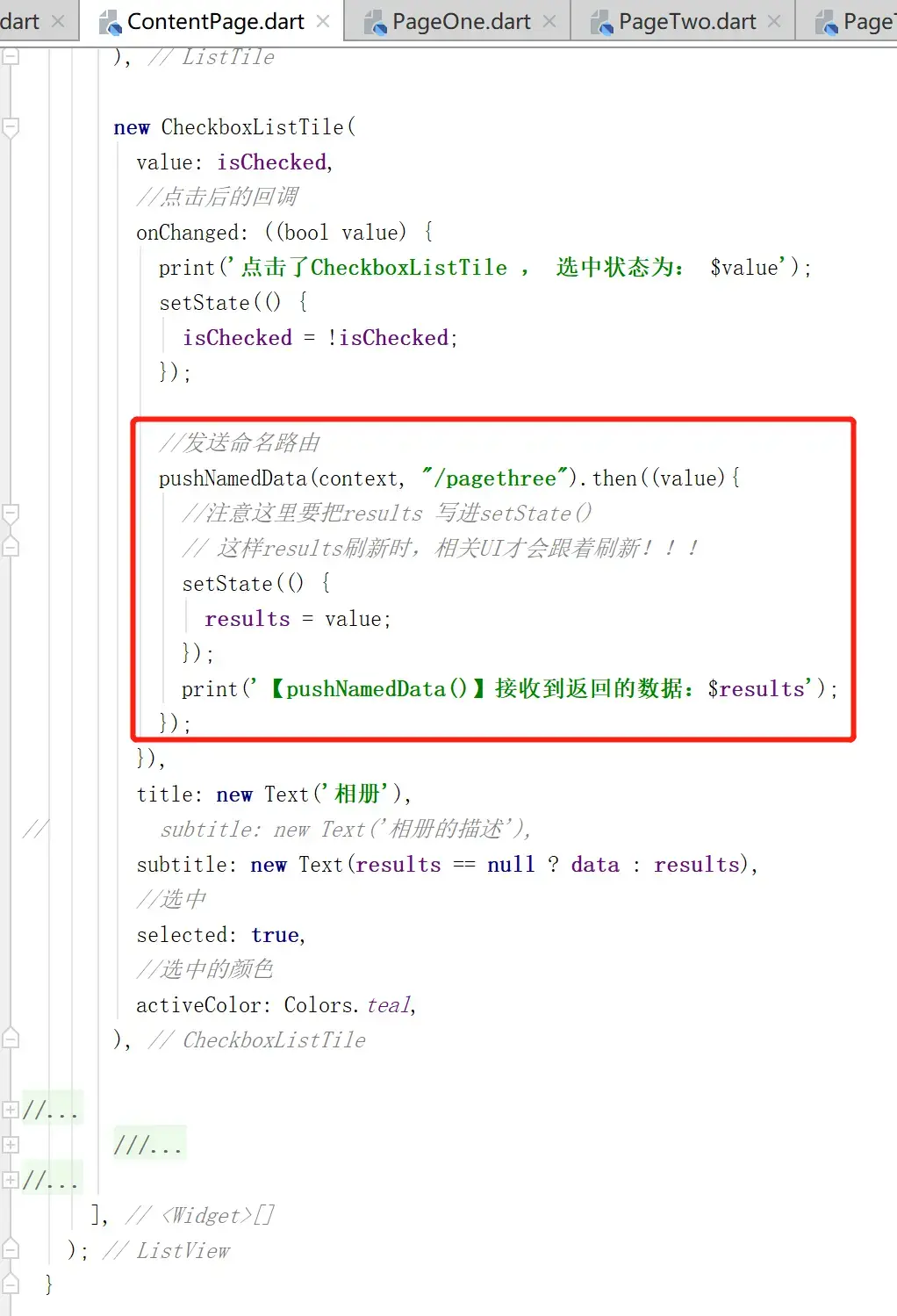各个子页面的UI: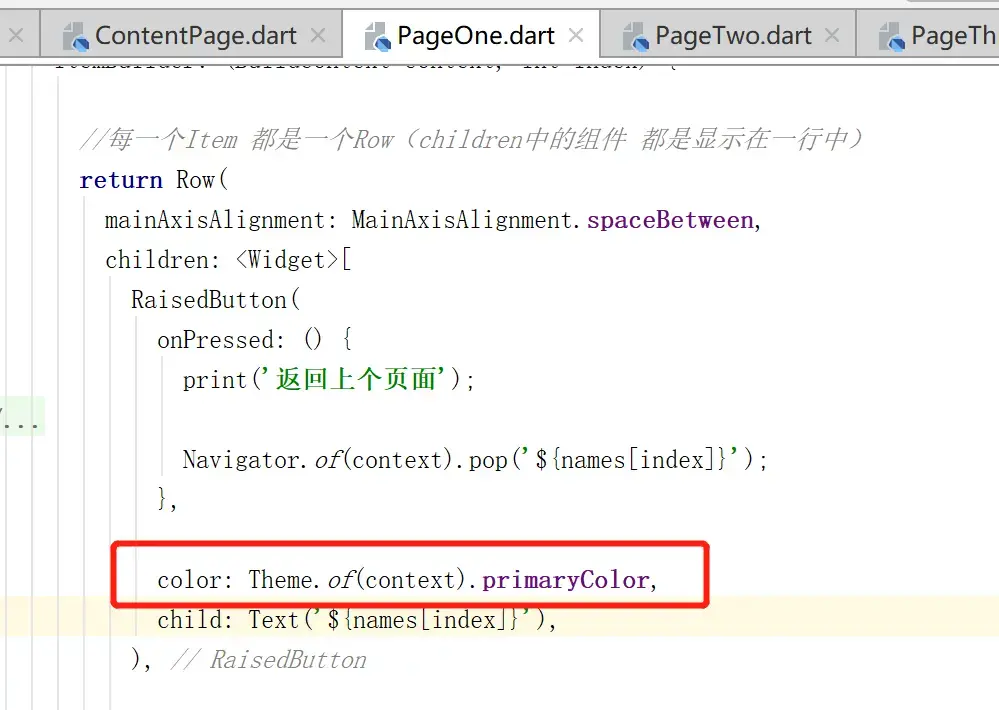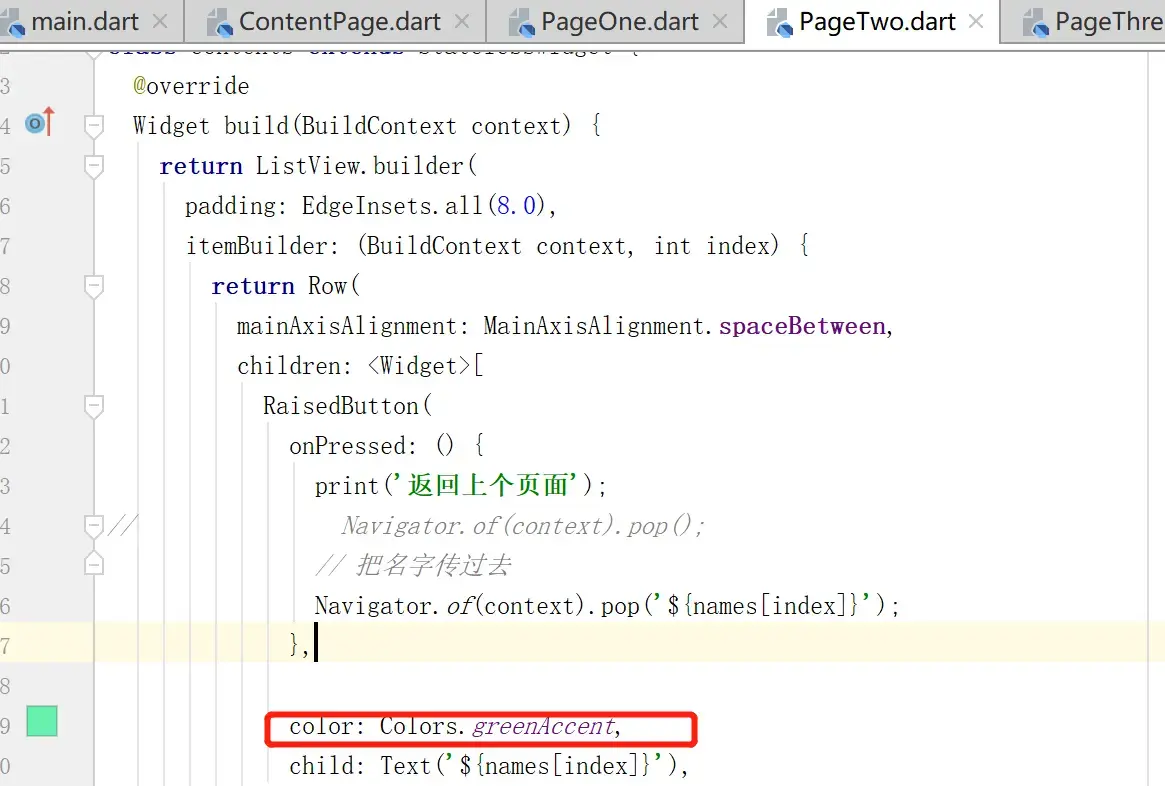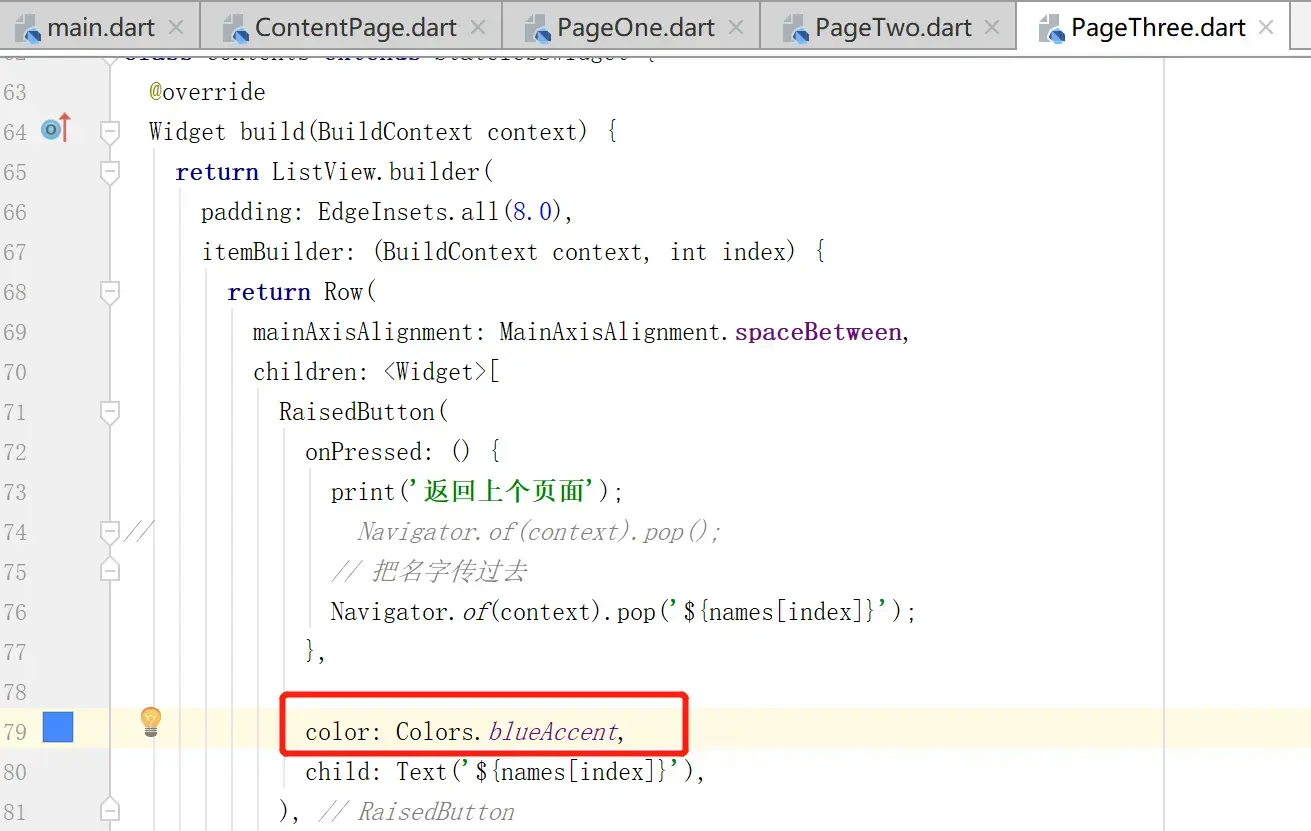运行效果: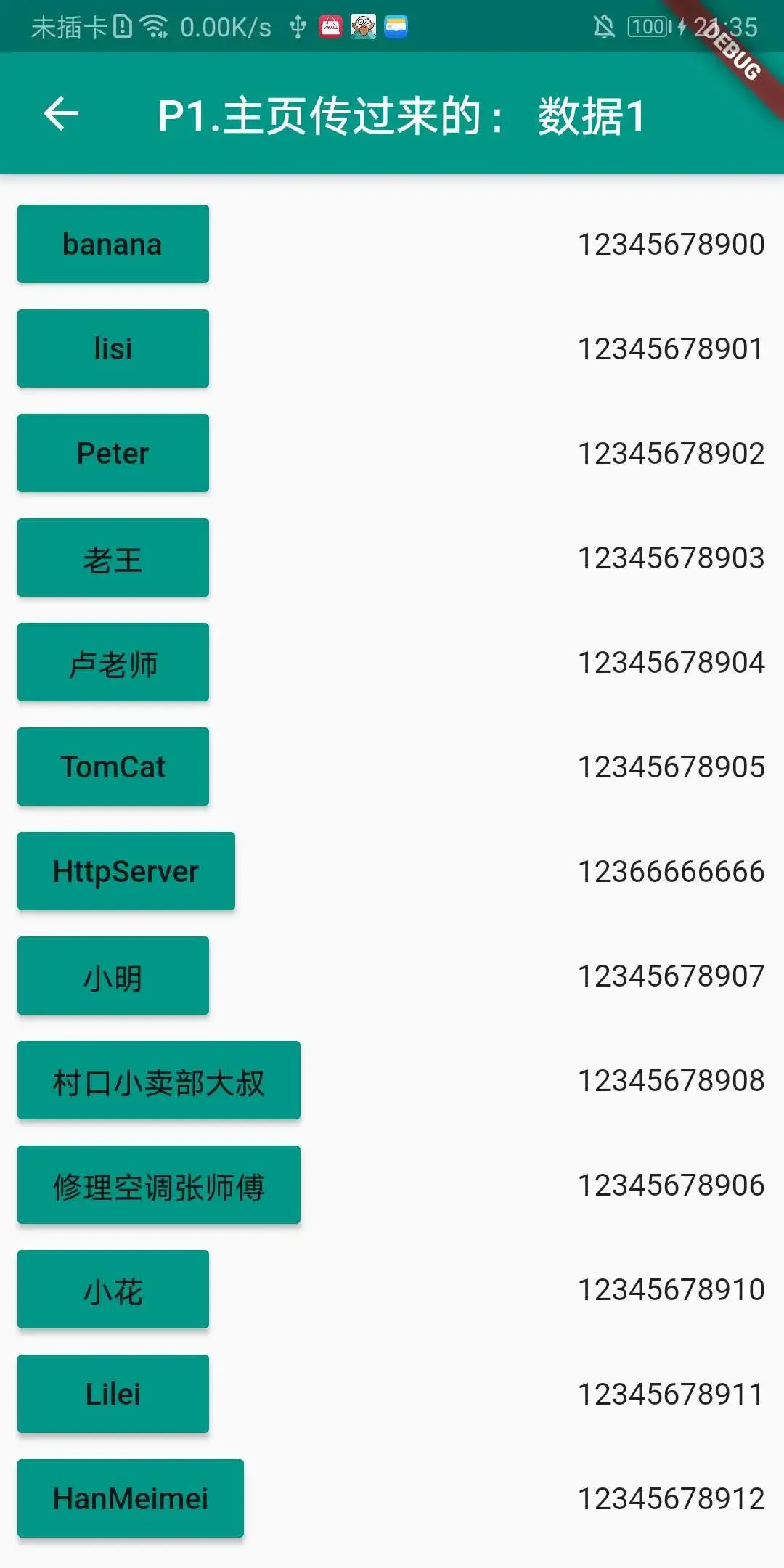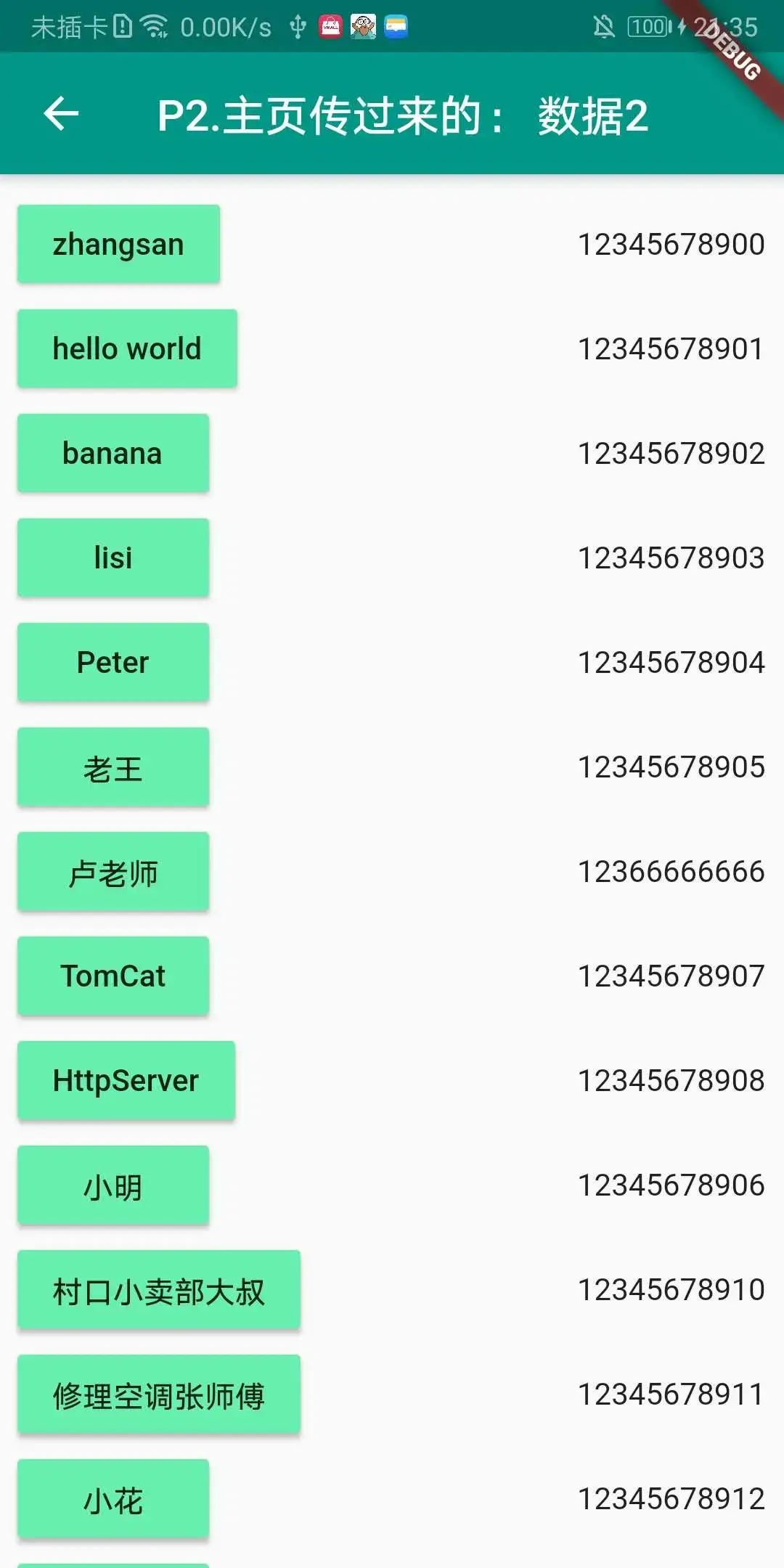**
<br>
#路由常见问题及其解决方案
1. **主题风格的一致性**
2. **主页面和非主页面的 跳转方式选择 可能不太一样;**
3. **Scaffold组件的body属性值 为 具体组件名称,
接收不到 路由返回(或传递过来)的数据;**
4. **目标页面 可以写main函数,也可以不写;
建议只在首页写main,其他页面不要写,便于查找和维护;**
5. **命名路由 路径名称的 正确性(定义与使用要相符合)、
传参(参数类型)的一致性的问题;**
####1. 主题风格的一致性
**【默认主题风格】
main.dart -- MaterialApp -- MyHomePage -- Scaffold -- `AppBar`: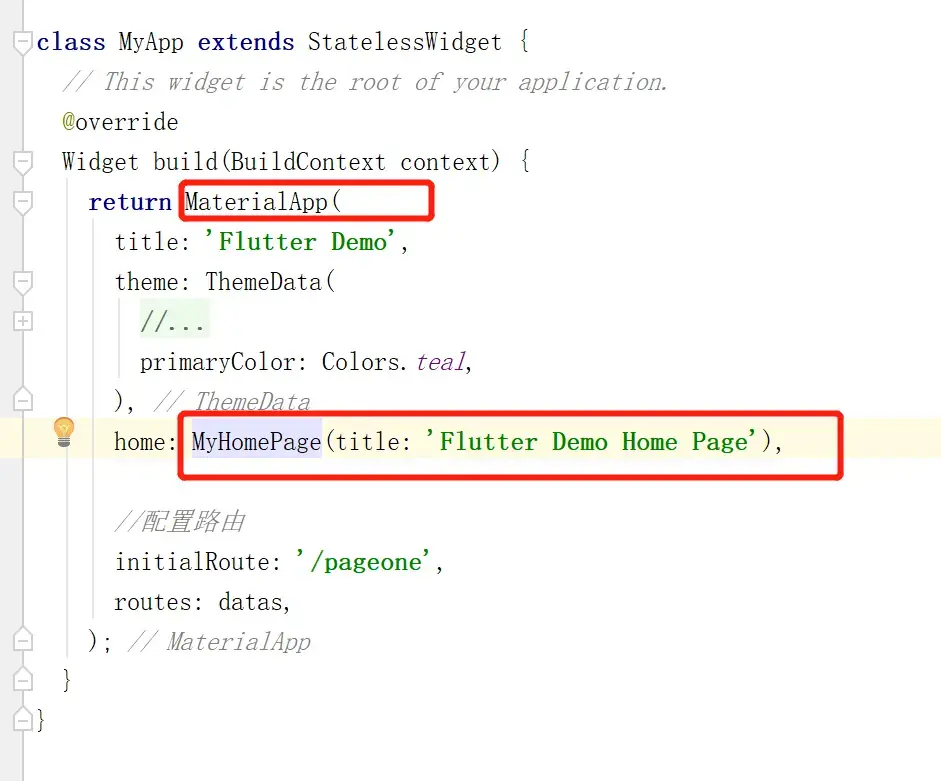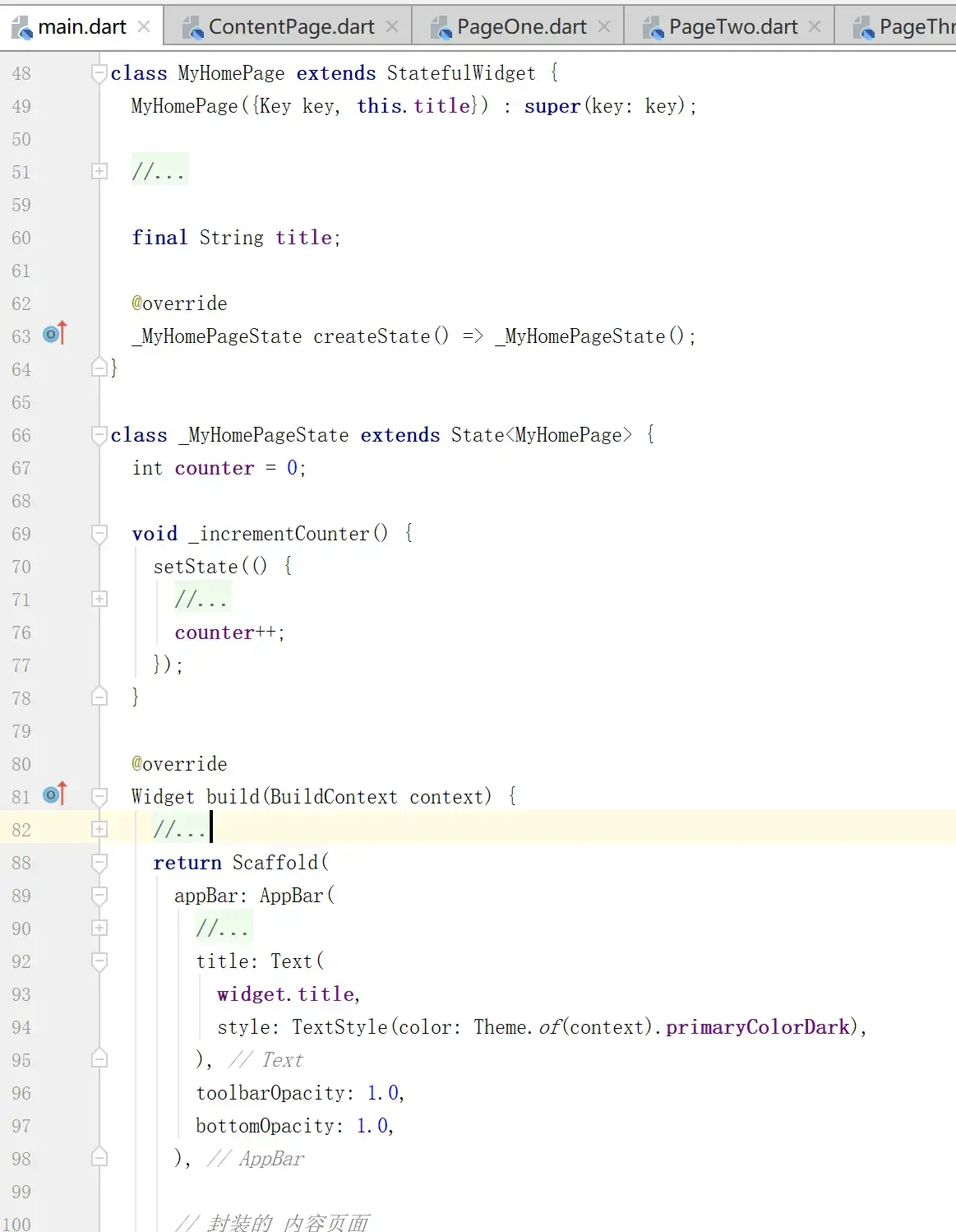
PageOne等 自定义、自创建的 页面中,也有一个AppBar,
这里我们如果不对它进行`单独设置`的话,
则会默认配置为 `首页`的`主题风格`—— 也即main.dart -- MaterialApp 中的 `primaryColor`,
`primaryColor`是什么颜色,
各个页面的 `AppBar`等组件 也`默认`为什么`颜色`;**
如下示例,
我们稍微改一下`main.dart`的`primaryColor`,
自定义页PageOne、PageTwo、PageThree没有设定颜色,
但会默认配置为`main.dart`的主页主题颜色,随之改变:**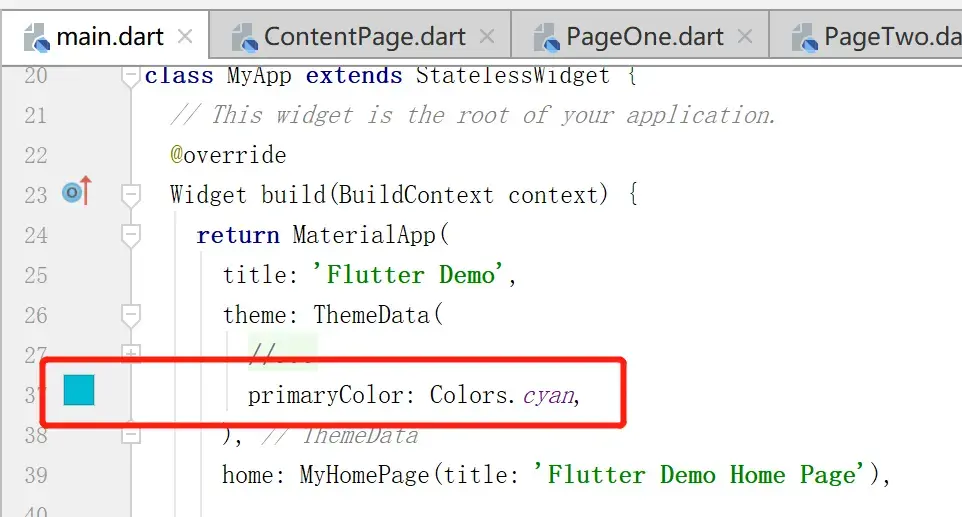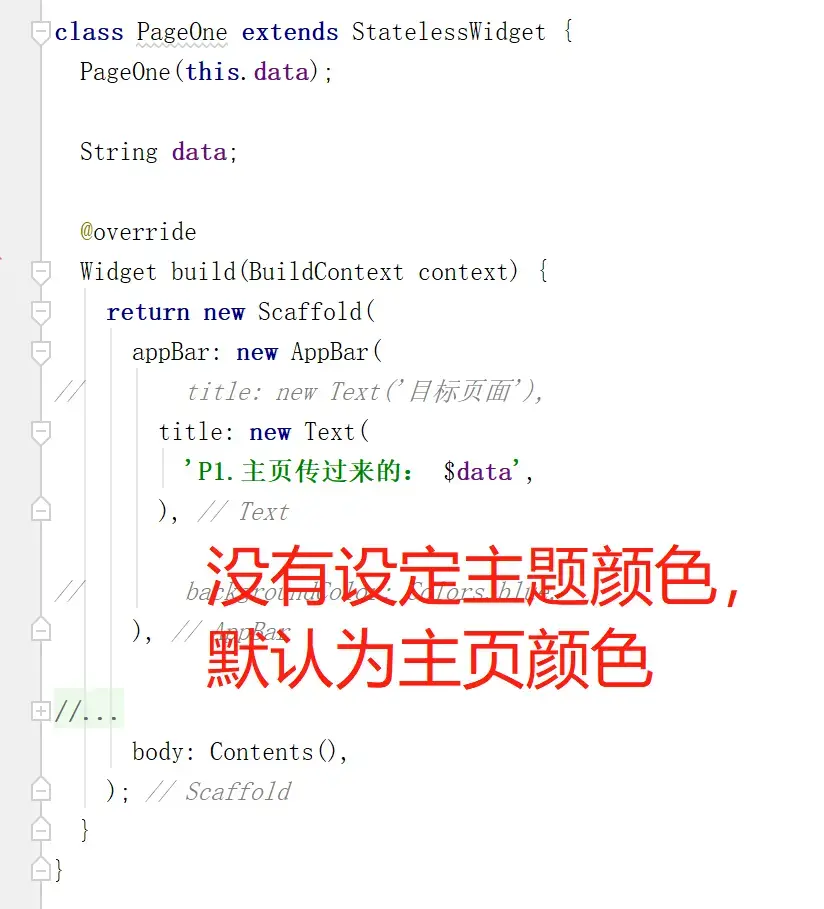效果图: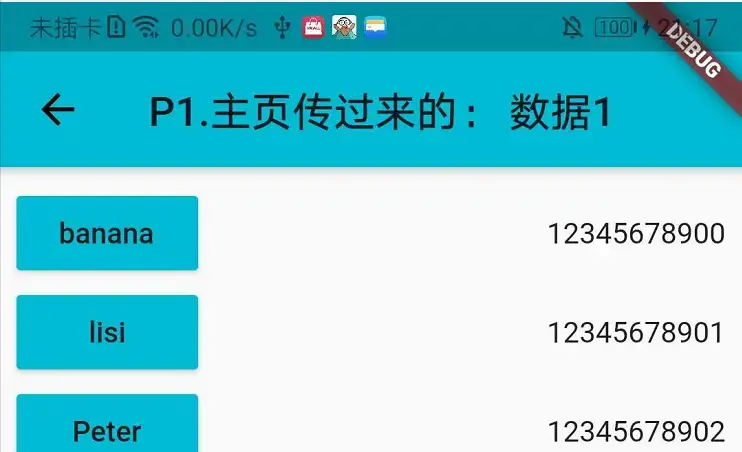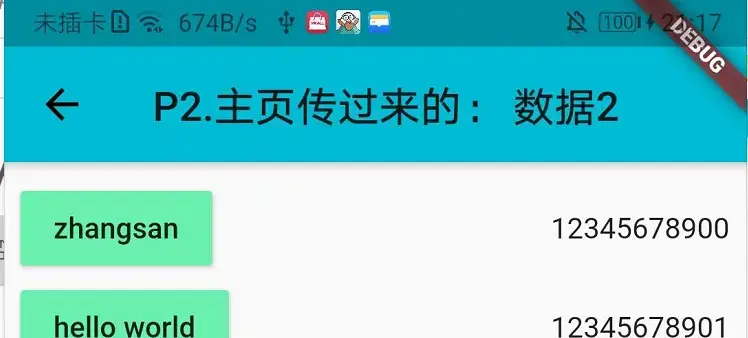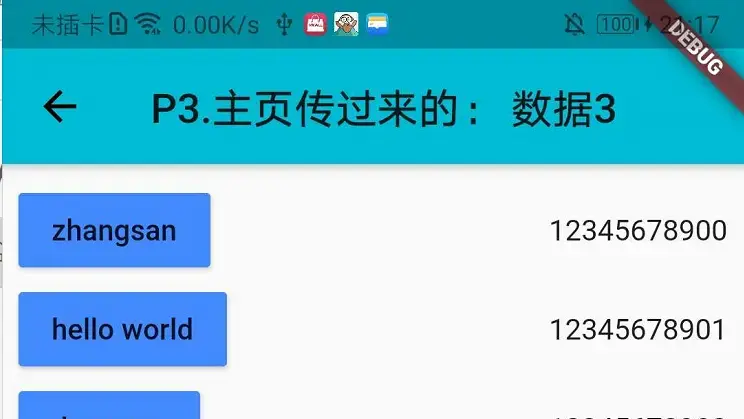<br>
上述的`单独设置`指的是,
在某个页面中,为该页面的appBar单独设置背景颜色,
这样就会覆盖主页的`默认主题颜色`,
【但是如要尽量保持`主题的一致性`,
建议不要对子页面的这些 相关主题属性
进行修改】
示例代码: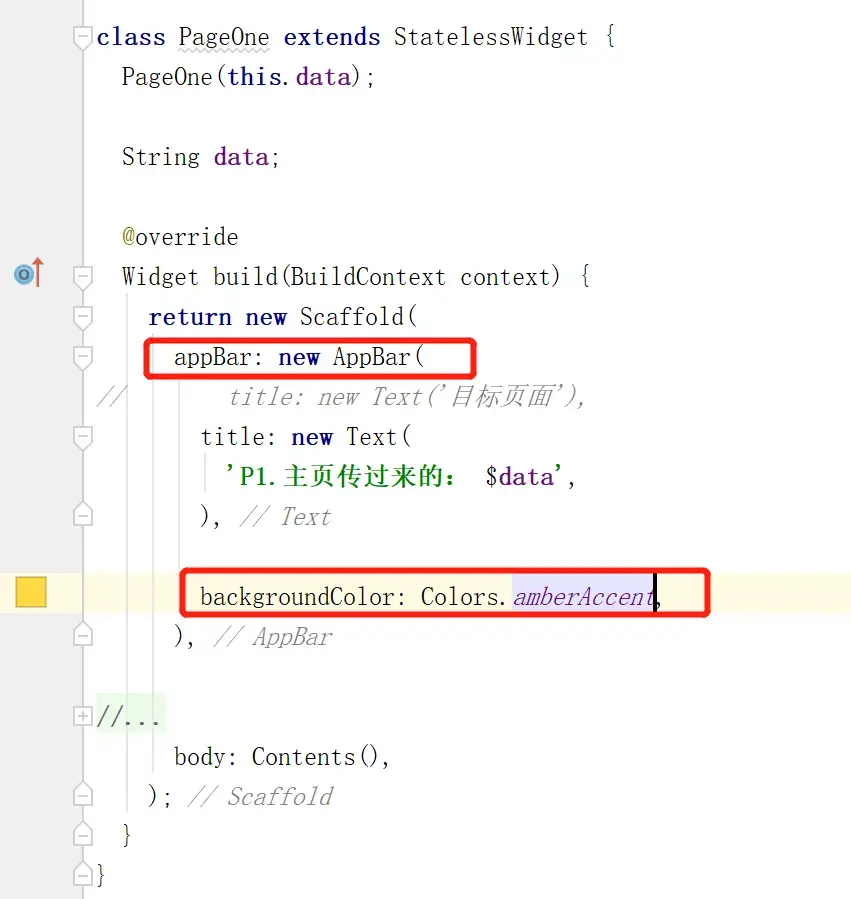效果: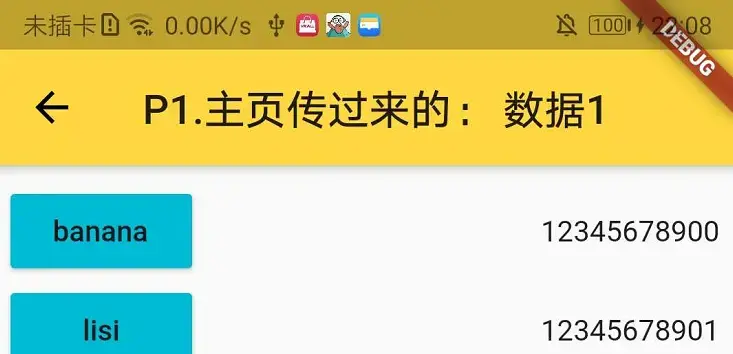**
<br>
####2. 主页面和非主页面的 跳转方式选择 可能不太一样
>**刚刚上面提到了,
跳转的方式主要是两种:**
>- **push()**
>- **pushNamed()**
- 主页面除了常规的 **push()**配置方法外,
还有MyApp类,可以用来配置`命名路由`,
并使用 **pushNamed()** 进行跳转;
//定义路由 Map<String, WidgetBuilder> datas = { '/pageone':(builder){ return PageOne("数据1"); }, '/pagetwo':(builder) => PageTwo("数据2"), '/pagethree':(builder){ return PageThree("数据3"); }, };
class MyApp extends StatelessWidget { @override Widget build(BuildContext context) { return MaterialApp( title: 'Flutter Demo', theme: ThemeData( primaryColor: Colors.teal, ), home: MyHomePage(title: 'Flutter Demo Home Page'),
  //配置路由
  initialRoute: '/pageone',
  routes: datas,
);
} }
- 子页面没有MyApp类,
只能通过 **push()** 进行跳转;
<br>
####3. Scaffold组件的body属性值 为 具体组件名称,<br>接收不到 路由返回(或传递过来)的数据
**如下,
图一中的注释代码中,
body属性值 为 具体组件名称`RaisedButton`,
这样的写法,在运行之后是 接收不到 路由返回(或传递过来)的数据的;<br>
正确的做法是——
准备一个`class`,继承自 `StatelessWidget`,
并且在这个 `StatelessWidget`的子类中的`build()`中,
准备需要的组件: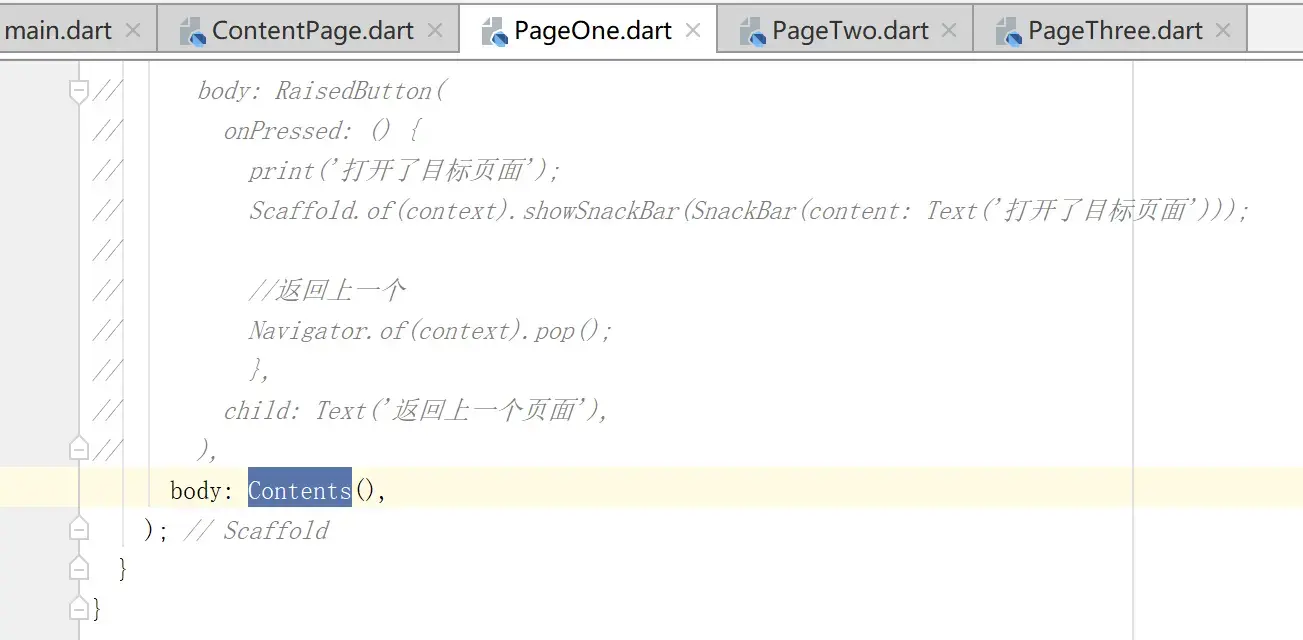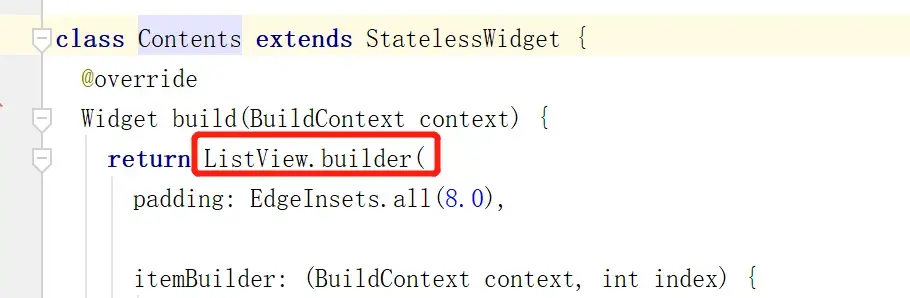**
>**[相关博客的文章链接](https://blog.csdn.net/Swallow_Baby/article/details/88898829)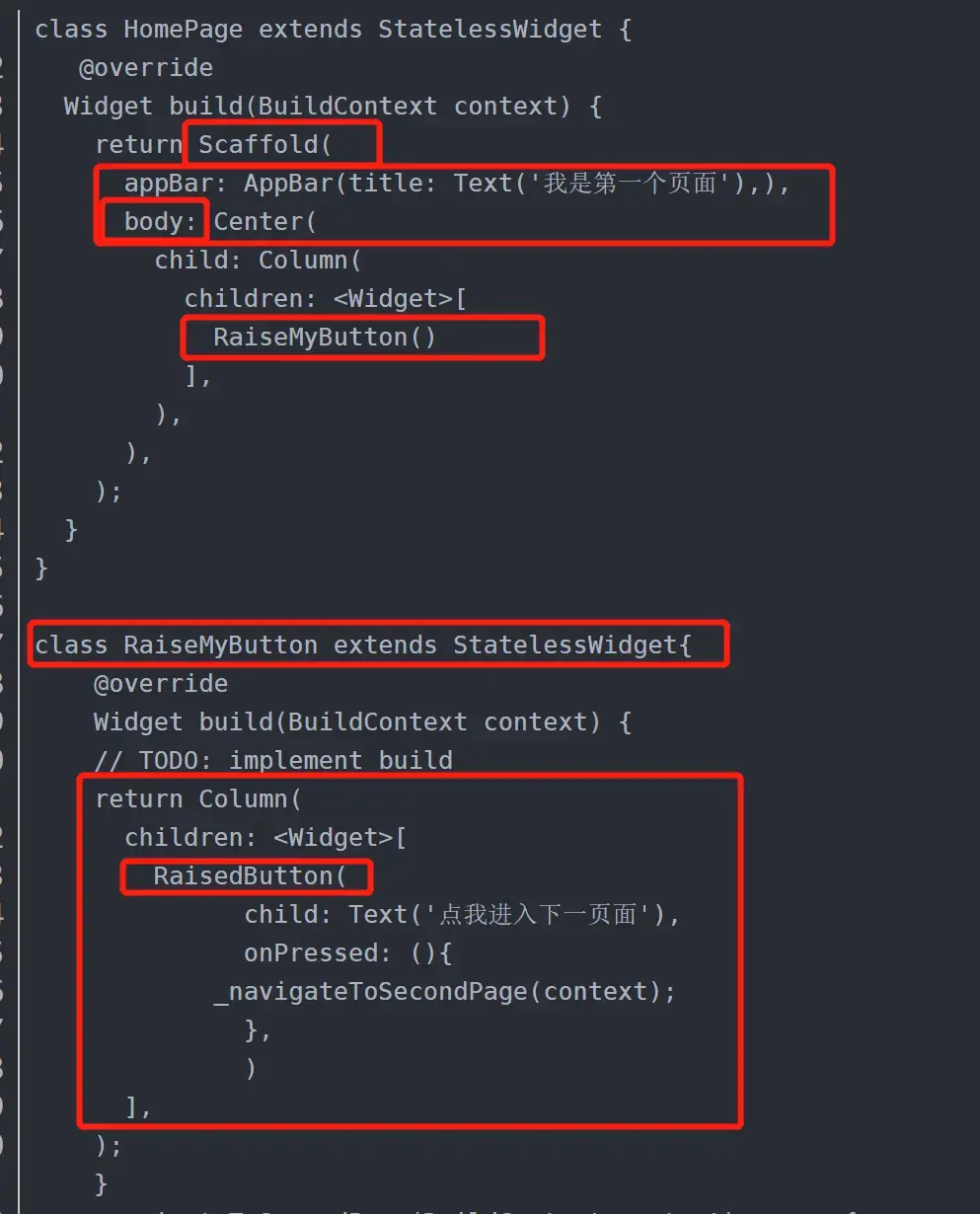**
<br>
<br><br><br><br>
---
参考自[CSDN的Flutter入门课程](https://edu.csdn.net/mycollege)
- main.dart
import 'package:flutter/material.dart'; import 'ContentPage.dart'; import 'PageOne.dart'; import 'PageThree.dart'; import 'PageTwo.dart';
void main() => runApp(MyApp());
//定义路由 Map<String, WidgetBuilder> datas = { '/pageone':(builder){ return PageOne("数据1"); }, '/pagetwo':(builder) => PageTwo("数据2"), '/pagethree':(builder){ return PageThree("数据3"); }, };
class MyApp extends StatelessWidget { // This widget is the root of your application. @override Widget build(BuildContext context) { return MaterialApp( title: 'Flutter Demo', theme: ThemeData( // This is the theme of your application. // // Try running your application with "flutter run". You'll see the // application has a blue toolbar. Then, without quitting the app, try // changing the primarySwatch below to Colors.green and then invoke // "hot reload" (press "r" in the console where you ran "flutter run", // or simply save your changes to "hot reload" in a Flutter IDE). // Notice that the counter didn't reset back to zero; the application // is not restarted. // primarySwatch: Colors.yellow, primaryColor: Colors.cyan, ), home: MyHomePage(title: 'Flutter Demo Home Page'),
  //配置路由
  initialRoute: '/pageone',
  routes: datas,
);
} }
class MyHomePage extends StatefulWidget { MyHomePage({Key key, this.title}) : super(key: key);
// This widget is the home page of your application. It is stateful, meaning // that it has a State object (defined below) that contains fields that affect // how it looks.
// This class is the configuration for the state. It holds the values (in this // case the title) provided by the parent (in this case the App widget) and // used by the build method of the State. Fields in a Widget subclass are // always marked "final".
final String title;
@override _MyHomePageState createState() => _MyHomePageState(); }
class _MyHomePageState extends State { int counter = 0;
void _incrementCounter() { setState(() { // This call to setState tells the Flutter framework that something has // changed in this State, which causes it to rerun the build method below // so that the display can reflect the updated values. If we changed // _counter without calling setState(), then the build method would not be // called again, and so nothing would appear to happen. counter++; }); }
@override Widget build(BuildContext context) { // This method is rerun every time setState is called, for instance as done // by the _incrementCounter method above. // // The Flutter framework has been optimized to make rerunning build methods // fast, so that you can just rebuild anything that needs updating rather // than having to individually change instances of widgets. return Scaffold( appBar: AppBar( // Here we take the value from the MyHomePage object that was created by // the App.build method, and use it to set our appbar title. title: Text( widget.title, style: TextStyle(color: Theme.of(context).primaryColorDark), ), toolbarOpacity: 1.0, bottomOpacity: 1.0,
  ),

  //整个根页面的背景颜色
  backgroundColor: Colors.black12,

  // 封装的 内容页面
  body: ContentPage(counter),
  //悬浮按钮的位置
  floatingActionButtonLocation: FloatingActionButtonLocation.endFloat,
  //悬浮按钮组件
  floatingActionButton: buildFloatingActionButtonExtends(),
); // This trailing comma makes auto-formatting nicer for build methods.
}
FloatingActionButton buildFloatingActionButtonExtends() { return FloatingActionButton.extended( //点击回调 onPressed: _incrementCounter, //长按按钮的提示 tooltip: 'Increment', //悬浮按钮的图标 // icon: Icon(Icons.add), icon: Icon(Icons.done), label: new Text('呵呵哒,呵呵呵哒'), // icon图标和文字的颜色 默认:ThemeData.accentIconTheme.color foregroundColor: Colors.red, // 按钮的颜色 默认:ThemeData.accentColor backgroundColor: Colors.yellow, // 有输入焦点 按钮的颜色 默认:ThemeData.focusColor focusColor: Colors.tealAccent, // 指针悬停时 按钮的颜色 默认:ThemeData.hoverColor hoverColor: Colors.white, // 点击时的水波纹颜色 默认:如果为null,使用FloatingActionButtonThemeData.splashColor // 如果FloatingActionButtonThemeData.splashColor 也为null,使用ThemeData.splashColor splashColor: Colors.blue, // Hero动画 heroTag: null, // Z轴阴影大小 默认:6 elevation: 10.0, // 有输入焦点的阴影大小 focusElevation: 50.0, // 指针悬停时的阴影大小 hoverElevation: 50.0, // 点击时的阴影大小 highlightElevation: 50.0, // 按钮不可用时的阴影大小 disabledElevation: 10.0, //配置圆角弧度、形状 shape: RoundedRectangleBorder(borderRadius: BorderRadius.circular(30.0)), //防锯齿 clipBehavior: Clip.antiAlias, focusNode: FocusNode(debugLabel: 'floating_action_button'), autofocus: true, // 配置组件到目标尺寸大小,默认值:ThemeData.materialTapTargetSize materialTapTargetSize: MaterialTapTargetSize.shrinkWrap, isExtended: true, ); }
// FloatingActionButton buildFloatingActionButton() { // return FloatingActionButton( // //点击回调 // onPressed: _incrementCounter, // //长按按钮的提示 // tooltip: 'Increment', // //悬浮按钮的图标 // child: Icon(Icons.add), // // icon图标和文字的颜色 默认:ThemeData.accentIconTheme.color // foregroundColor: Colors.red, // // 按钮的颜色 默认:ThemeData.accentColor // backgroundColor: Colors.yellow, // // 有输入焦点 按钮的颜色 默认:ThemeData.focusColor // focusColor: Colors.tealAccent, // // 指针悬停时 按钮的颜色 默认:ThemeData.hoverColor // hoverColor: Colors.white, // // 点击时的水波纹颜色 默认:如果为null,使用FloatingActionButtonThemeData.splashColor // // 如果FloatingActionButtonThemeData.splashColor 也为null,使用ThemeData.splashColor // splashColor: Colors.blue, // // Hero动画 // heroTag: null, // // Z轴阴影大小 默认:6 // elevation: 10.0, // // 有输入焦点的阴影大小 // focusElevation: 50.0, // // 指针悬停时的阴影大小 // hoverElevation: 50.0, // // 点击时的阴影大小 // highlightElevation: 50.0, // // 按钮不可用时的阴影大小 // disabledElevation: 10.0, // // 按钮尺寸:默认是56逻辑像素 如果为true就是48逻辑像素 // mini: false, // //配置圆角弧度、形状 // shape: RoundedRectangleBorder(borderRadius: BorderRadius.circular(30.0)), // //防锯齿 // clipBehavior: Clip.antiAlias, // focusNode: FocusNode(debugLabel: 'floating_action_button'), // autofocus: true, // // 配置组件到目标尺寸大小,默认值:ThemeData.materialTapTargetSize // materialTapTargetSize: MaterialTapTargetSize.shrinkWrap, // isExtended: true, // ); // }
// 注意:BoxDecoration返回的是Decoration对象 Decoration buildBoxDecoration() { return new BoxDecoration( color: const Color(0xfffce5cd), //设置Border属性给容器添加边框 border: new Border.all( //为边框添加颜色 color: const Color(0xff6d9eeb), //边框宽度 width: 8.0, ), ); }
Decoration buildBoxDecorations() { return BoxDecoration( color: Colors.blue, border: Border.all( color: Colors.red, width: 10.0, style: BorderStyle.solid, ), ); } }
ContentPage.dart
import 'package:flutter/material.dart';
import 'PageOne.dart';
class ContentPage extends StatefulWidget { ContentPage(this.counter);
int counter = 0;
@override _ContentPageState createState() => _ContentPageState(); }
class _ContentPageState extends State { @override Widget build(BuildContext context) { // 使用Column // return Center( // // Center is a layout widget. It takes a single child and positions it // // in the middle of the parent. // Column组件是不可拓展的 // child: Column( // // Column is also a layout widget. It takes a list of children and // // arranges them vertically. By default, it sizes itself to fit its // // children horizontally, and tries to be as tall as its parent. // // // // Invoke "debug painting" (press "p" in the console, choose the // // "Toggle Debug Paint" action from the Flutter Inspector in Android // // Studio, or the "Toggle Debug Paint" command in Visual Studio Code) // // to see the wireframe for each widget. // // // // Column has various properties to control how it sizes itself and // // how it positions its children. Here we use mainAxisAlignment to // // center the children vertically; the main axis here is the vertical // // axis because Columns are vertical (the cross axis would be // // horizontal). // mainAxisAlignment: MainAxisAlignment.center, // children: [ // Text( // 'You have pushed the button this many times:', // ), // Text( // '${widget.counter}', // style: Theme.of(context).textTheme.display1, // ), // // /// color 颜色 // /// decoration 删除线 // /// decorationColor 删除线颜色 // /// decorationStyle 删除线样式 // /// fontSize 大小 // /// fontStyle 斜体 // /// fontFamily 字体 // /// fontWeight 字体粗细 // /// height 跨度 // /// letterSpacing 字母间隔 // // new Text( // // 'Text组件使用11111111111111111111111111hello-world11111111111111111111111111111end', // // style: TextStyle( // // color: const Color(0xffff0000), // // // none 不显示装饰线条 underline 字体下方 overline 字体上方 lineThrough 穿过文字 // // decoration: TextDecoration.underline, // // // solid 直线 double 双下划线 dotted 虚线 dashed 点下划线 wavy 波浪线 // // decorationStyle: TextDecorationStyle.wavy, // // decorationColor: const Color(0xff00ff00), // // // decorationColor: Colors.red, // // fontSize: 25.0, // // // normal 正常 italic 斜体 // // fontStyle: FontStyle.normal, // // // monospace serif // // fontFamily: 'serif', // // // w100 - w900 normal(w400) bold(w700) // // fontWeight: FontWeight.bold, // // letterSpacing: 5.0, // // height: 2, // // ), // // // 段落的间距样式 // // strutStyle: StrutStyle( // // fontFamily: 'serif', // // fontFamilyFallback: ['monospace', 'serif'], // // fontSize: 25.0, // // height: 2, // // leading: 2.0, // // fontWeight: FontWeight.w200, // // fontStyle: FontStyle.normal, // // forceStrutHeight: true, // // debugLabel: 'text demo', // // ), // // textAlign: TextAlign.left, // // textDirection: TextDirection.ltr, // // locale: Locale('zh_CN'), // // // 软包裹 文字是否应该在软断行处断行 // // softWrap: false, // // //clip 裁剪 fade 淡入 ellipsis 省略号 visible 容器外也会渲染组件 // // overflow: TextOverflow.ellipsis, // // textScaleFactor: 1.0, // // maxLines: 3, // // // 语义标签 // // semanticsLabel: 'text demo', // // textWidthBasis: TextWidthBasis.longestLine, // // ), // // /// Container介绍 // // alignment // // padding // // margin // // constraints // // width // // height // // decoration // // foregroundDecoration // // child // // transform // // new Container( // // alignment: Alignment.center, // // padding: const EdgeInsets.all(8.0), // // margin: const EdgeInsets.all(8.0), // // constraints: new BoxConstraints.expand( // // height: // // Theme.of(context).textTheme.display1.fontSize * 1.1 + 200.0, // // ), // // width: 300.0, // // height: 200.0, // // decoration: buildBoxDecoration(), // //// foregroundDecoration: buildBoxDecorations(), // // child: new Text('容器演示'), // // transform: new Matrix4.rotationZ(0.2), // // ), // // RaisedButton( // onPressed: () { // Scaffold.of(context).showBottomSheet( // (BuildContext context) { // return new Container( // child: Text('hello world1'), // width: 300, // height: 100, // ); // }, // backgroundColor: Theme.of(context).primaryColor, // elevation: 10, // shape: RoundedRectangleBorder( // borderRadius: BorderRadius.circular(5.0)), // clipBehavior: Clip.antiAlias, // ); // Scaffold.of(context) // .showSnackBar(SnackBar(content: Text('hello'))); // }, // child: Text('点击显示BottomSheet'), // color: Theme.of(context).primaryColor, // ), // ], // ), // ); // 使用 ListView return buildListViews(widget.counter); } }
class buildListViews extends StatefulWidget { buildListViews(this.counter);
int counter = 0;
@override buildListViewsState createState() => new buildListViewsState(); }
class buildListViewsState extends State { String data = '联系人';
bool isChecked = false; bool isChecked2 = false;
final List colorDatas = [ 50, 100, 200, 300, 400, 500, 600, 700, 800, 900 ];
// @override // Widget build(BuildContext context) { // return ListView.builder( // padding: EdgeInsets.all(8.0), // //类似于onBindViewHolder,index类比position // // %10 是为了 颜色数据 可以在 colorDatas中循环读取 // itemBuilder: (BuildContext context,int index){ // return Icon( // Icons.image, // color: Colors.blue[colorDatas[index%10]], // size: 100, // ); // }, // itemCount: 20, // ); // }
String results; String results2; String results3; //封装一个函数 处理路由返回的数据 // 接收数据是异步的,需要加 async关键字; // 需要接收数据,需要加 await关键字; // 需要准备一个数据类型变量,来承载; // 指定函数返回类型为String,Alt+enter 改成 Future Future pushData(BuildContext context, String datapush) async{ //Navigator 路由导航类 ********************************************** // of()返回一个NavigatorState,一个状态,包含了相关的一些属性之类的; // 通过这个状态实例,可以去调用里面的一些函数; // push()要求传入一个Route对象,一般用 MaterialPageRoute类 var datas = await Navigator.of(context).push(MaterialPageRoute(builder: (context){ return new PageOne(datapush); })); return datas; }
//多页面路由 Future pushNamedData(BuildContext context, String namedStr) async{ var datas = await Navigator.of(context).pushNamed(namedStr); return datas; }
@override Widget build(BuildContext context) { return ListView( // 列表滑动的方向 scrollDirection: Axis.vertical, // scrollDirection: Axis.horizontal, children: [ // Text( // 'You have pushed the button this many times:', // ), // // new Divider(height: 1.0, color: Colors.grey), // // new VerticalDivider(width: 1.0, color: Colors.grey), // Text( // '{widget.counter}', // style: Theme.of(context).textTheme.display1, // ), // new Divider(height: 1.0, color: Colors.grey), // new VerticalDivider(width: 1.0, color: Colors.grey), ListTile( //预览小图标 leading: new Icon(Icons.account_circle), //标题 title: new Text(results == null ? data : results), //子标题 subtitle: new Text('简介: ' + (results2 == null ? data : results2)), // 右边的图标 trailing: new Icon(Icons.chevron_right), onTap: () { print('点击事件:点击了 ListTile ==== title为:$data');
        //Navigator 路由导航类   **********************************************
        // of()返回一个NavigatorState,一个状态,包含了相关的一些属性之类的;
        // 通过这个状态实例,可以去调用里面的一些函数;
        // push()要求传入一个Route对象,一般用 MaterialPageRoute类
// Navigator.of(context).push(MaterialPageRoute(builder: (context){ // return new PageOne(data); // }));
        //********************************************************************

        //把以上代码 封装一个函数 处理路由返回的数据
        // 利用Future变量类型的 then方法,拿到返回的数据
        // value位置是一个形参,名字可以随便起,这个形参位置就是返回的数据
// pushData(context, "我是来自ContentPage的数据").then((value){ // //注意这里要把results 写进setState() // // 这样results刷新时,相关UI才会跟着刷新!!! // setState(() { // results = value; // }); // print('接收到返回的数据:$results'); // });
        //********************************************************************

        //发送命名路由
        pushNamedData(context, "/pageone").then((value){
          //注意这里要把results 写进setState()
          // 这样results刷新时,相关UI才会跟着刷新!!!
          setState(() {
            results = value;
          });
          print('【pushNamedData()】接收到返回的数据:$results');
        });


      },
      onLongPress: () {
        print('长按事件:长按了 ListTile  ==== title为:$data');

        //发送命名路由
        pushNamedData(context, "/pagetwo").then((value){
          //注意这里要把results 写进setState()
          // 这样results刷新时,相关UI才会跟着刷新!!!
          setState(() {
            results2 = value;
          });
          print('【pushNamedData()】接收到返回的数据:$results2');
        });

      },
      selected: true,
    ),

    new CheckboxListTile(
      value: isChecked,
      //点击后的回调
      onChanged: ((bool value) {
        print('点击了CheckboxListTile , 选中状态为: $value');
        setState(() {
          isChecked = !isChecked;
        });

        //发送命名路由
        pushNamedData(context, "/pagethree").then((value){
          //注意这里要把results 写进setState()
          // 这样results刷新时,相关UI才会跟着刷新!!!
          setState(() {
            results3 = value;
          });
          print('【pushNamedData()】接收到返回的数据:$results3');
        });
      }),
      title: new Text('相册'),
// subtitle: new Text('相册的描述'), subtitle: new Text(results3 == null ? data : results3), //选中 selected: true, //选中的颜色 activeColor: Colors.teal, ),
// new SwitchListTile( // //选中状态值 // value: isChecked2, // //点击后的回调 // onChanged: ((bool value) { // print('点击了SwitchListTile , 选中状态为: $value'); // setState(() { // isChecked2 = !isChecked2; // }); // }), // //主次标题 // title: new Text('相册'), // subtitle: new Text( // '相册的描述。这是相册的描述。这是相册的描述。这是相册的描述。这是相册的描述。这是相册的描述。这是相册的描述。这是相册的描述。'), // //选中 // selected: true, // //选中的颜色 // activeColor: Colors.teal, // //左侧图标 // secondary: new Icon(Icons.account_circle), // //文字过多时,是否三行显示 // isThreeLine: true, // ),
// new AboutListTile( // icon: new Icon(Icons.panorama), // //公司logo // applicationIcon: new FlutterLogo(), // //app名称 // applicationName: '凌川江雪', // //app版本号 // applicationVersion: 'V1.0.0', // //版权信息 // applicationLegalese: '版权归XX科技有限公司所有...', // // child: ,//关于应用名 // // aboutBoxChildren: [],//更多信息 // ),
// Text( // '{widget.counter}', // style: Theme.of(context).textTheme.display1, // ), // Text( //// '{widget.counter}', //// style: Theme.of(context).textTheme.display1, //// ), //// Text( //// '{widget.counter}', // style: Theme.of(context).textTheme.display1, // ), // Text( // '{widget.counter}', // style: Theme.of(context).textTheme.display1, // ), // Text( // '{widget.counter}', // style: Theme.of(context).textTheme.display1, // ), // Text( // '${widget.counter}', // style: Theme.of(context).textTheme.display1, // ), /// color 颜色 /// decoration 删除线 /// decorationColor 删除线颜色 /// decorationStyle 删除线样式 /// fontSize 大小 /// fontStyle 斜体 /// fontFamily 字体 /// fontWeight 字体粗细 /// height 跨度 /// letterSpacing 字母间隔 // new Text( // 'Text组件使用11111111111111111111111111hello-world11111111111111111111111111111end', // style: TextStyle( // color: const Color(0xffff0000), // // none 不显示装饰线条 underline 字体下方 overline 字体上方 lineThrough 穿过文字 // decoration: TextDecoration.underline, // // solid 直线 double 双下划线 dotted 虚线 dashed 点下划线 wavy 波浪线 // decorationStyle: TextDecorationStyle.wavy, // decorationColor: const Color(0xff00ee00), //// decorationColor: Colors.red, // //字体大小 // fontSize: 15.0, // // normal 正常 italic 斜体 // fontStyle: FontStyle.normal, // // monospace serif // fontFamily: 'serif', // // w100 - w900 normal(w400) bold(w700) 字体宽度 //// fontWeight: FontWeight.bold, // fontWeight: FontWeight.w100, // //字体间隙 // letterSpacing: 2.0, // //高度 // height: 2, // ), // // // 段落的间距样式!!!!!!!!可以注释掉这一部分,看看效果!!! // strutStyle: StrutStyle( // fontFamily: 'serif',//字体,如果此属性没设置,则从fontFamilyFallback去找; // fontFamilyFallback: ['monospace', 'serif'],//字体集合,如果这两个都没设置,则使用系统默认 // fontSize: 10.0, // height: 2, // leading: 2.0,//首字母到后面字母的倍数 // fontWeight: FontWeight.w200, // fontStyle: FontStyle.normal, // forceStrutHeight: true,//是否强制设置间距和高度 // debugLabel: 'text demo',//类似于 semanticsLabel!!! // ), // // textAlign: TextAlign.left,//居左 // textDirection: TextDirection.ltr,//文字的方向 // //用于配置国际化语言!!! // locale: Locale('zh_CN'), // // 软包裹 文字是否应该在软断行处断行 // //软断行 指 文本中有英文横杆之类的,会自动软断行!!!!! // softWrap: false, // //文字超出显示区域时候,超出的部分怎么表示 // // clip 裁剪 fade 淡入 ellipsis 省略号 visible 容器外也会渲染组件 // overflow: TextOverflow.ellipsis, // //文字的缩放比例 // textScaleFactor: 1.0, // //文字最多显示几行 // maxLines: 2, // // 语义标签 // semanticsLabel: 'text demo', // //文字的宽度的基准, longestLine 以文字的最长的线为基准 // textWidthBasis: TextWidthBasis.parent, // ),
// / Container介绍 // alignment // padding // margin // constraints // width // height // decoration // foregroundDecoration // child // transform // new Container( // alignment: Alignment.center,//居中 // padding: const EdgeInsets.all(50.0), // margin: const EdgeInsets.all(60.0), // //Container的宽高 的约束!!!!! // constraints: new BoxConstraints.expand( // height: // Theme.of(context).textTheme.display1.fontSize * 1.1 + 100.0, // ), // //容器的宽高,子组件超过则显示不出来 // width: 250.0, // height: 100.0, // //背景的装饰 // decoration: buildBoxDecoration(), // //前景的装饰 //// foregroundDecoration: buildBoxDecorations(), // child: new Text('容器演示'), // //绕Z轴旋转 // transform: new Matrix4.rotationZ(0.1), // ),
// RaisedButton( // onPressed: () { // //注意这里的context是BuildContext // Scaffold.of(context).showBottomSheet( // (BuildContext context) { // //这里可以是一个自定义的View Text组件亦可,Container亦可 // return new Container( // //底部弹出文本框 // child: Text('hello world1'), // width: 150, // height: 50, // ); // }, // //颜色 // backgroundColor: Theme.of(context).primaryColor, // //高度值 // elevation: 10, // //边角 // shape: RoundedRectangleBorder( // borderRadius: BorderRadius.circular(5.0)), // //防锯齿 // clipBehavior: Clip.antiAlias, // ); // // // 生成一个 SnackBar // Scaffold.of(context).showSnackBar(SnackBar(content: Text('hello'))); // }, // child: Text('点击显示BottomSheet'),//按钮文本 // color: Theme.of(context).primaryColor,//颜色 // ), ], ); }
//返回Decoration对象 Decoration buildBoxDecoration() { return new BoxDecoration( color: const Color(0xfffce5cd), //设置Border属性给容器添加边框 border: new Border.all( //为边框添加颜色 color: const Color(0xff6d9eed), //为边框宽度 width: 8.0, ) ); }
Decoration buildBoxDecorations() { return BoxDecoration( color: const Color(0xfffce5cd), //设置Border属性给容器添加边框 border: new Border.all( //为边框添加颜色 color: Colors.red, //为边框宽度 width: 8.0, style: BorderStyle.solid ) ); }
@override void initState() { // TODO: implement initState super.initState(); }
@override void dispose() { // TODO: implement dispose super.dispose(); } }
PageOne.dart
import 'package:flutter/material.dart';
void main() => runApp(PageOne(''));
class PageOne extends StatelessWidget { PageOne(this.data);
String data;
@override Widget build(BuildContext context) { return new Scaffold( appBar: new AppBar( // title: new Text('目标页面'), title: new Text( 'P1.主页传过来的: $data', ),
// backgroundColor: Colors.amberAccent, ),
// body: RaisedButton( // onPressed: () { // print('打开了目标页面'); // Scaffold.of(context).showSnackBar(SnackBar(content: Text('打开了目标页面'))); // // //返回上一个 // Navigator.of(context).pop(); // }, // child: Text('返回上一个页面'), // ), body: Contents(), ); } }
List names = [ 'banana', 'lisi', 'Peter', '老王', '卢老师', 'TomCat', 'HttpServer', '小明', '村口小卖部大叔', '修理空调张师傅', '小花', 'Lilei', 'HanMeimei', ]; List numbers = [ '12345678900', '12345678901', '12345678902', '12345678903', '12345678904', '12345678905', '12366666666', '12345678907', '12345678908', '12345678906', '12345678910', '12345678911', '12345678912', '12345678913', '12345678914', ];
class Contents extends StatelessWidget { @override Widget build(BuildContext context) { return ListView.builder( padding: EdgeInsets.all(8.0),
  itemBuilder: (BuildContext context, int index) {

    //每一个Item 都是一个Row(children中的组件 都是显示在一行中)
    return Row(
      mainAxisAlignment: MainAxisAlignment.spaceBetween,
      children: <Widget>[
        RaisedButton(
          onPressed: () {
            print('返回上个页面');
// Navigator.of(context).pop();
            // 返回上一页
            // 把 名字 传回上一页
            Navigator.of(context).pop('${names[index]}');
          },

          color: Theme.of(context).primaryColor,
          child: Text('${names[index]}'),
        ),

        Divider(
          height: 1,
        ),

        Text('${numbers[index]}'),
      ],
    );
  },

  //动态配置列表长度!!!!!!
  itemCount: names.length,
);
} }
PageTwo.dart
import 'package:flutter/material.dart';
class PageTwo extends StatelessWidget { PageTwo(this.data);
String data;
@override Widget build(BuildContext context) { return new Scaffold( appBar: new AppBar( // title: new Text('目标页面'), title: new Text('P2.主页传过来的: $data'), ), // body: RaisedButton( // onPressed: () { // print('打开了目标页面'); // Navigator.of(context).pop(); // }, // child: Text('返回上一个页面'), // ), body: Contents(), ); } }
List names = [ 'zhangsan', 'hello world', 'banana', 'lisi', 'Peter', '老王', '卢老师', 'TomCat', 'HttpServer', '小明', '村口小卖部大叔', '修理空调张师傅', '小花', 'Lilei', 'HanMeimei', ]; List numbers = [ '12345678900', '12345678901', '12345678902', '12345678903', '12345678904', '12345678905', '12366666666', '12345678907', '12345678908', '12345678906', '12345678910', '12345678911', '12345678912', '12345678913', '12345678914', ];
class Contents extends StatelessWidget { @override Widget build(BuildContext context) { return ListView.builder( padding: EdgeInsets.all(8.0), itemBuilder: (BuildContext context, int index) { return Row( mainAxisAlignment: MainAxisAlignment.spaceBetween, children: [ RaisedButton( onPressed: () { print('返回上个页面'); // Navigator.of(context).pop(); // 把名字传过去 Navigator.of(context).pop('${names[index]}'); },
          color: Colors.greenAccent,
          child: Text('${names[index]}'),
        ),
        Divider(
          height: 1,
        ),
        Text('${numbers[index]}'),
      ],
    );
  },
  itemCount: names.length,
);
} }
PageThree.dart
import 'package:flutter/material.dart';
class PageThree extends StatelessWidget { PageThree(this.data);
String data;
@override Widget build(BuildContext context) { return new Scaffold( appBar: new AppBar( // title: new Text('目标页面'), title: new Text('P3.主页传过来的: $data'), ), // body: RaisedButton( // onPressed: () { // print('打开了目标页面'); // Navigator.of(context).pop(); // }, // child: Text('返回上一个页面'), // ), body: Contents(), ); } }
List names = [ 'zhangsan', 'hello world', 'banana', 'lisi', 'Peter', '老王', '卢老师', 'TomCat', 'HttpServer', '小明', '村口小卖部大叔', '修理空调张师傅', '小花', 'Lilei', 'HanMeimei', ]; List numbers = [ '12345678900', '12345678901', '12345678902', '12345678903', '12345678904', '12345678905', '12366666666', '12345678907', '12345678908', '12345678906', '12345678910', '12345678911', '12345678912', '12345678913', '12345678914', ];
class Contents extends StatelessWidget { @override Widget build(BuildContext context) { return ListView.builder( padding: EdgeInsets.all(8.0), itemBuilder: (BuildContext context, int index) { return Row( mainAxisAlignment: MainAxisAlignment.spaceBetween, children: [ RaisedButton( onPressed: () { print('返回上个页面'); // Navigator.of(context).pop(); // 把名字传过去 Navigator.of(context).pop('${names[index]}'); },
          color: Colors.blueAccent,
          child: Text('${names[index]}'),
        ),
        Divider(
          height: 1,
        ),
        Text('${numbers[index]}'),
      ],
    );
  },
  itemCount: names.length,
);
} }