

有些人声称建立一个待办事项列表应用程序是一个无聊的活动,因为已经有这么多的人存在,但我认为它仍然是一个很好的练习,可以学习有用的概念,广泛适用于许多编程的背景。 如果你还没有完全被建立另一个待办事项列表应用程序的想法所拒绝,而且你对JavaScript和前端开发比较陌生,那么这个教程就是为你准备的。这里有一个你将要建立的实时演示。
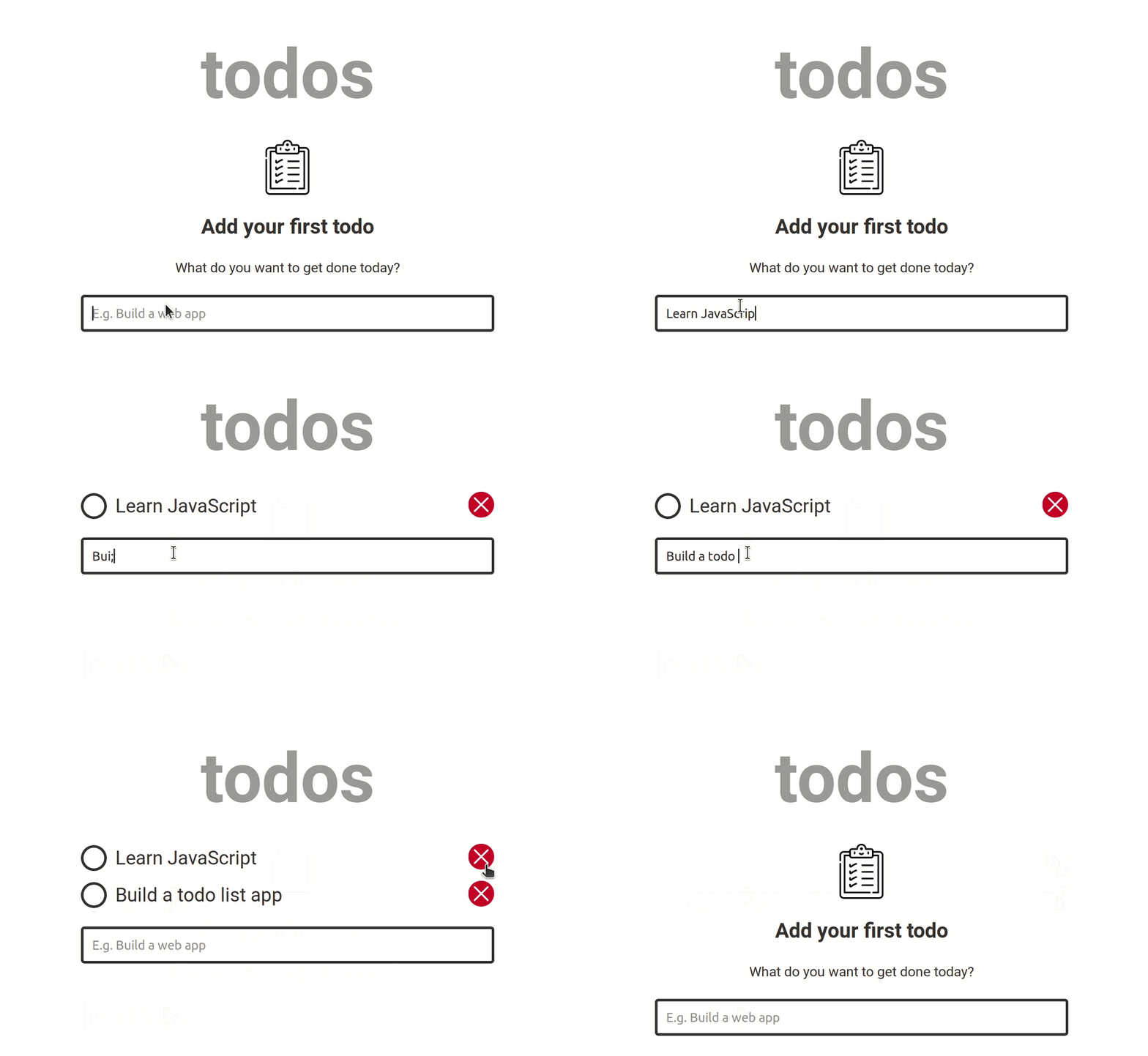
请看现场演示。
前提条件
本教程假定你有JavaScript的基本知识。基本上,你需要知道什么是变量、数组、函数和对象,但你不需要有构建JavaScript应用程序的经验。
开始吧
我们将在本教程中建立的待办事项列表应用将是非常基本的。用户可以添加任务,将任务标记为完成,并删除已经添加的任务。我将解释如何构建每个功能,但你必须通过输入代码并在你的终端上运行来跟随,以获得本教程的最大收获。
我建议在学习本教程时使用JSFiddle,但如果你愿意,也可以自由地使用其他代码游乐场或你的本地文本编辑器。不再多说,在JSFiddle上抓取应用程序的标记和样式。如果你正在使用JSFiddle,你可以点击Fork按钮来创建一个你自己的新fiddle。
添加一个todo
我们需要做的第一件事是设置一个数组,在那里我们将放置待办事项列表项目。每个todo项目将是一个有三个属性的对象。text checked ,一个字符串,用于保存用户在文本输入中输入的任何内容;id ,一个布尔值,用于帮助我们了解一项任务是否被标记为已完成;以及一个项目的唯一标识符。
一旦添加了一个新的任务,我们将创建一个新的todo对象,将其推入数组,并在屏幕上呈现text 属性的值。当一个todo被标记为完成时,我们将把checked 属性切换为true ,当用户删除一个todo时,我们将使用id 在数组中找到该todo项目并将其删除。
让我们先把一个待办事项添加到我们的列表中。要做到这一点,我们需要监听表单元素上的submit 事件,然后在表单提交时调用一个新的addTodo() 函数。
更新JSFiddle的JavaScript窗格,使其看起来像这样。
// This is the array that will hold the todo list items
let todoItems = [];

// This function will create a new todo object based on the
// text that was entered in the text input, and push it into
// the `todoItems` array
function addTodo(text) {
  const todo = {
    text,
    checked: false,
    id: Date.now(),
  };

  todoItems.push(todo);
  console.log(todoItems);
}

// Select the form element
const form = document.querySelector('.js-form');
// Add a submit event listener
form.addEventListener('submit', event => {
  // prevent page refresh on form submission
  event.preventDefault();
  // select the text input
  const input = document.querySelector('.js-todo-input');

  // Get the value of the input and remove whitespace
  const text = input.value.trim();
  if (text !== '') {
    addTodo(text);
    input.value = '';
    input.focus();
  }
});
默认情况下,当一个表单被提交时,浏览器会试图将其提交给服务器,这将导致页面刷新。为了防止这种情况发生,我们可以通过监听表单的submit 事件来停止默认行为,并使用event.preventDefault() 。
接下来,我们选择文本输入并修剪其值,以去除字符串开头和结尾的空格,然后将其保存在一个名为text 的新变量中。如果text 变量不等于空字符串,我们将文本传递给定义在事件监听器上面的addTodo() 函数。
const todo = {
  text,
  checked: false,
  id: Date.now(),
};
在该函数中,我们为该任务创建一个新的对象,并添加我前面提到的属性。text 属性被设置为函数参数,checked 被初始化为false ,而id 被初始化为自1970年1月1日以来的毫秒数。这个id 对于每个todo项目来说都是唯一的,除非你能在一毫秒内添加多个任务,我认为这是不可能的。
todoItems.push(todo);
console.log(todoItems);
最后,任务被推送到todoItems 数组中,并且该数组被记录到控制台。在addTodo(text) 之后的表单事件监听器中,文本输入的值通过设置为空字符串而被清除,同时它也被聚焦,这样用户就可以向列表中添加多个项目,而不必一次次地聚焦输入。
添加几个todo项目,在浏览器控制台中查看todoItems 数组。你会看到每个todo项目都由数组中的一个对象表示。如果你使用JSFiddle,你可能需要查看JSFiddle提供的内置控制台。
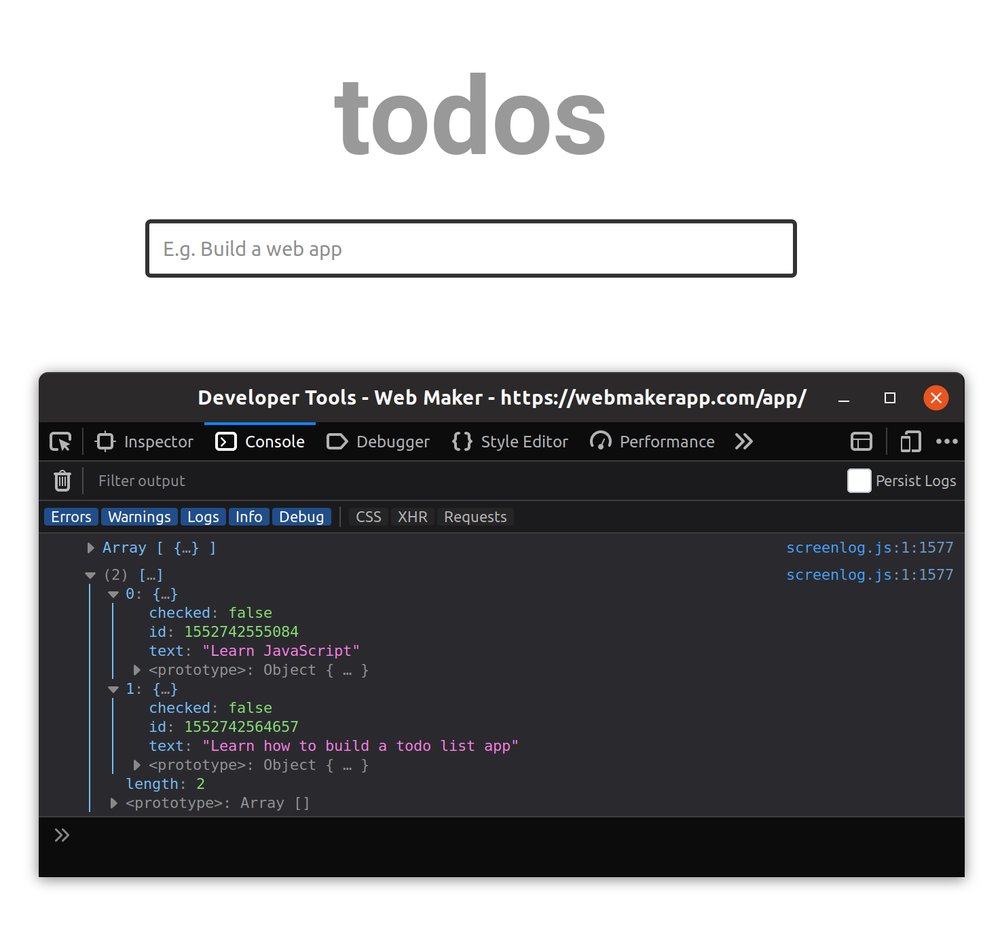
喘口气,看看本步骤末尾的完整代码。
渲染待办事项
一旦一个新的todo项目被添加到todoItems 数组中,我们希望应用程序能在屏幕上渲染该项目。我们可以通过为每个项目添加一个新的li 元素到DOM中的.js-todo-list 元素来很容易地实现这一点。
为了实现这一点,在addTodo() 上方添加一个新的renderTodo() 函数。
function renderTodo(todo) {
  // Select the first element with a class of `js-todo-list`
  const list = document.querySelector('.js-todo-list');

  // Use the ternary operator to check if `todo.checked` is true
  // if so, assign 'done' to `isChecked`. Otherwise, assign an empty string
  const isChecked = todo.checked ? 'done': '';
  // Create an `li` element and assign it to `node`
  const node = document.createElement("li");
  // Set the class attribute
  node.setAttribute('class', `todo-item ${isChecked}`);
  // Set the data-key attribute to the id of the todo
  node.setAttribute('data-key', todo.id);
  // Set the contents of the `li` element created above
  node.innerHTML = `
    <input id="${todo.id}" type="checkbox"/>
    <label for="${todo.id}" class="tick js-tick"></label>
    <span>${todo.text}</span>
    <button class="delete-todo js-delete-todo">
    <svg><use href="#delete-icon"></use></svg>
    </button>
  `;

  // Append the element to the DOM as the last child of
  // the element referenced by the `list` variable
  list.append(node);
}
renderTodo() 函数接受一个todo 对象作为其唯一的参数。它使用document.createElement 方法构造一个li DOM节点。在下一行,class 属性被设置为todo-item ${isChecked} 。如果todo 对象中的checked 属性是false ,则isChecked 的值将是一个空字符串。否则,它将是 "完成"。你将在下一节看到这个'完成'类的效果。
接下来,li 元素上也会设置一个data-key 属性。它被设置为todo 对象的id 属性,并将在以后的教程中用于在DOM中定位一个特定的todo项目。之后,使用innerHTML 方法设置li 元素的内容,最后,li 元素被插入作为.js-todo-list 元素的最后一个孩子。
如下图所示,将addTodo() 中的console.log(todoItems) 行改为renderTodo(todo) ,这样每次添加新的todo项目时就会调用renderTodo() 函数。
function addTodo(text) {
  const todo = {
    text,
    checked: false,
    id: Date.now(),
  };

  todoItems.push(todo);
  renderTodo(todo);
}
试着添加一些待办事项。它们应该全部呈现在页面上。
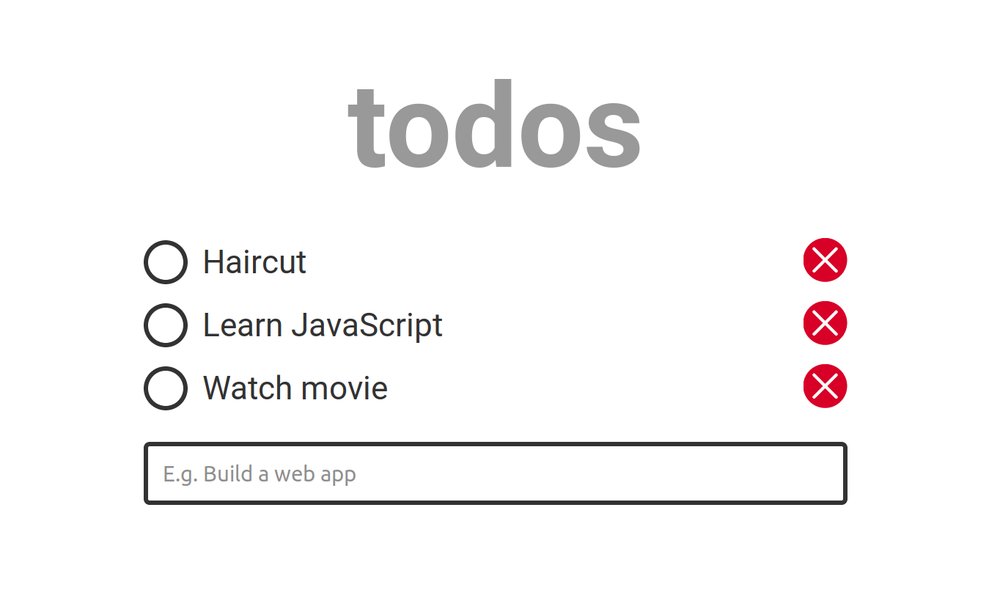
喘口气,看看本步骤末尾的完整代码。
标记一个任务为已完成
让我们添加标记任务完成的功能。要做到这一点,我们需要监听复选框的点击事件,并切换相应的todo项目的checked 属性。
在JavaScript窗格的底部添加以下代码,以检测正在被选中的todo项目。
// Select the entire list
const list = document.querySelector('.js-todo-list');
// Add a click event listener to the list and its children
list.addEventListener('click', event => {
  if (event.target.classList.contains('js-tick')) {
    const itemKey = event.target.parentElement.dataset.key;
    toggleDone(itemKey);
  }
});
我们不是监听单个复选框元素的点击,而是监听整个列表容器上的点击。当列表上发生点击事件时,会进行检查以确保被点击的元素是一个复选框。如果是的话,复选框的父元素上的data-key 的值被提取并传递给一个新的toggleDone() 函数(如下所示),该函数应该放在addTodo() 函数的下面。
function toggleDone(key) {
  // findIndex is an array method that returns the position of an element
  // in the array.
  const index = todoItems.findIndex(item => item.id === Number(key));
  // Locate the todo item in the todoItems array and set its checked
  // property to the opposite. That means, `true` will become `false` and vice
  // versa.
  todoItems[index].checked = !todoItems[index].checked;
  renderTodo(todoItems[index]);
}
这个函数接收被选中或取消选中的列表项的键,并使用findIndex方法找到todoItems 数组中的相应条目。一旦我们有了todo项目的索引,我们需要用括号符号在todoItems 数组中找到它。然后,todo项目上的checked 属性的值被设置为相反的值。
最后,用传入的todo对象调用renderTodo() 函数。如果你现在运行这段代码并尝试检查一个项目,它将会重复该todo项目而不是检查现有的项目。
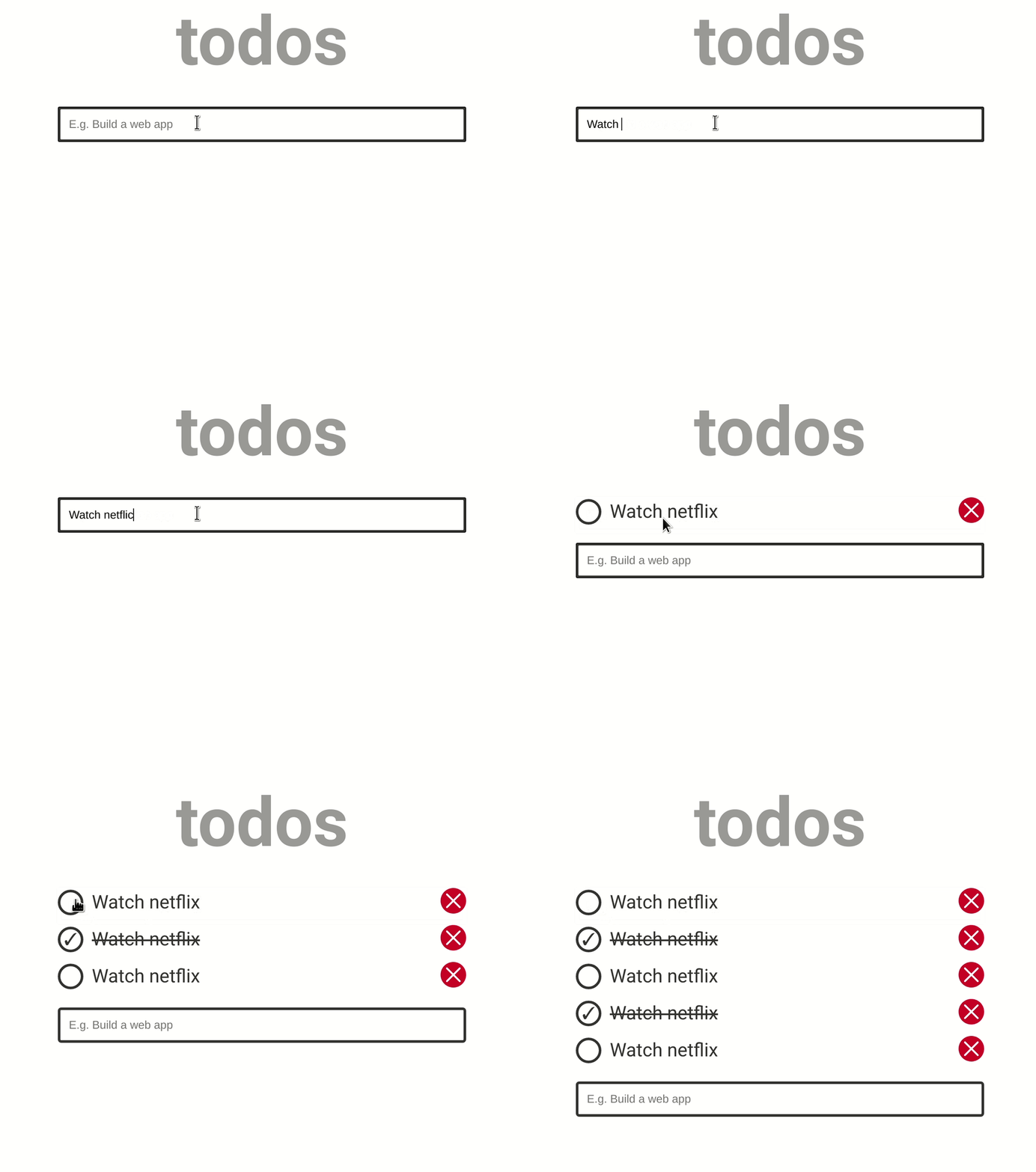
为了解决这个问题,我们需要首先检查当前的todo项目是否存在于DOM中,如果存在,就用更新的节点来替换它。改变你的renderTodo() 函数,如下图所示。
function renderTodo(todo) {
  const list = document.querySelector('.js-todo-list');
  // select the current todo item in the DOM
  const item = document.querySelector(`[data-key='${todo.id}']`);

  const isChecked = todo.checked ? 'done': '';
  const node = document.createElement("li");
  node.setAttribute('class', `todo-item ${isChecked}`);
  node.setAttribute('data-key', todo.id);
  node.innerHTML = `
    <input id="${todo.id}" type="checkbox"/>
    <label for="${todo.id}" class="tick js-tick"></label>
    <span>${todo.text}</span>
    <button class="delete-todo js-delete-todo">
    <svg><use href="#delete-icon"></use></svg>
    </button>
  `;

  // If the item already exists in the DOM
  if (item) {
    // replace it
    list.replaceChild(node, item);
  } else {
    // otherwise append it to the end of the list
    list.append(node);
  }
}
首先,选择当前的todo项目。如果它存在于DOM中,该元素将被返回并随后被替换。如果该项目不存在(如新的待办事项的情况),它将被添加到列表的最后。
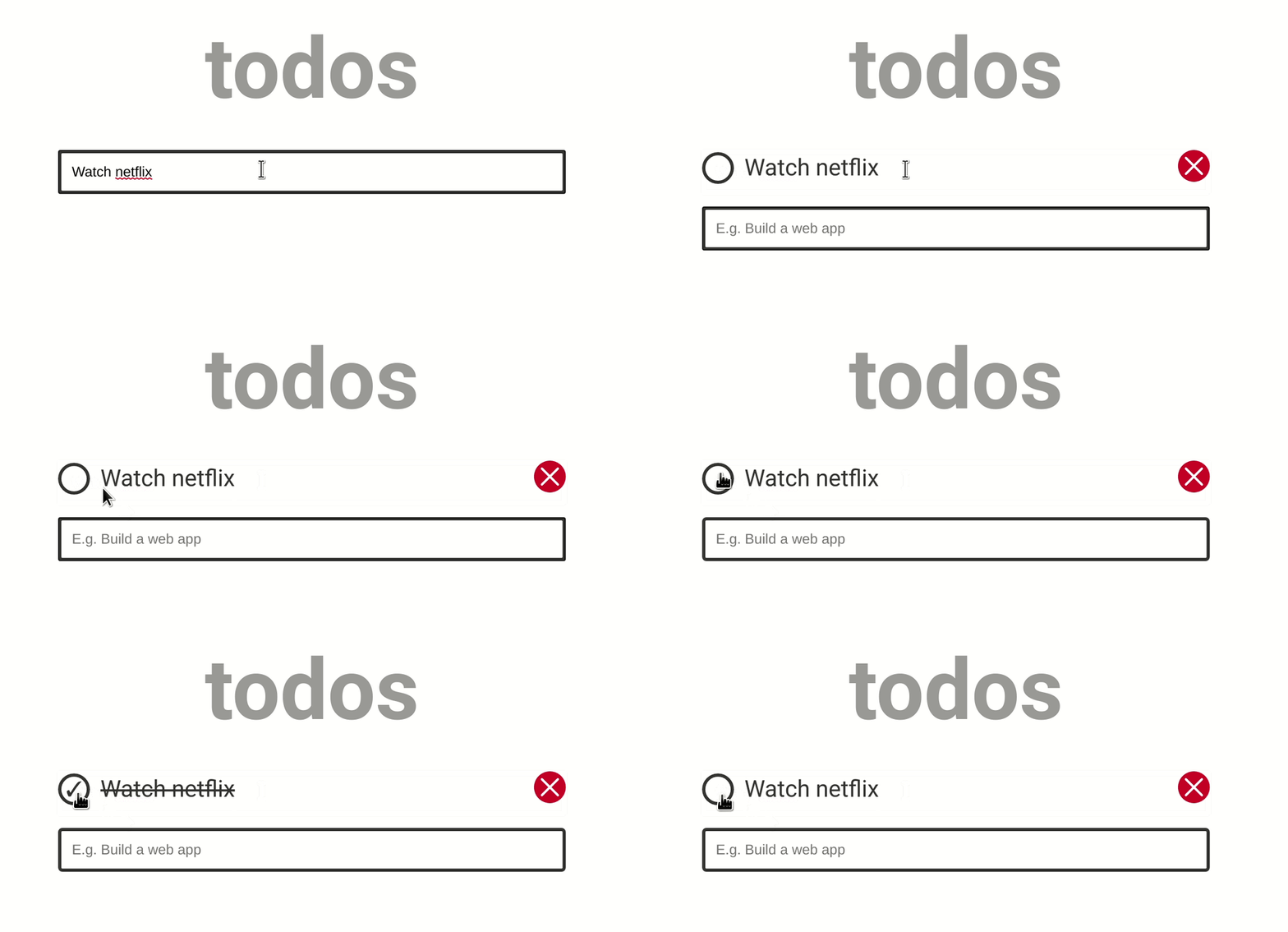
喘口气,看看本步骤末尾的完整代码。
删除待办事项
类似于我们实现上一个功能的方式,我们将监听对.js-delete-todo 元素的点击,然后抓取父元素的键并将其传递给一个新的deleteTodo 函数,该函数将删除todoItems 数组中相应的todo对象,将todo项目发送到renderTodo() ,以便从DOM中删除。
首先,让我们检测一下删除按钮被点击的时间。
const list = document.querySelector('.js-todo-list');
list.addEventListener('click', event => {
  if (event.target.classList.contains('js-tick')) {
    const itemKey = event.target.parentElement.dataset.key;
    toggleDone(itemKey);
  }

  // add this `if` block
  if (event.target.classList.contains('js-delete-todo')) {
    const itemKey = event.target.parentElement.dataset.key;
    deleteTodo(itemKey);
  }
});
接下来,在toggleDone() 下面创建deleteTodo() 函数,如下图所示。
function deleteTodo(key) {
  // find the corresponding todo object in the todoItems array
  const index = todoItems.findIndex(item => item.id === Number(key));
  // Create a new object with properties of the current todo item
  // and a `deleted` property which is set to true
  const todo = {
    deleted: true,
    ...todoItems[index]
  };
  // remove the todo item from the array by filtering it out
  todoItems = todoItems.filter(item => item.id !== Number(key));
  renderTodo(todo);
}
renderTodo() 函数也需要更新,如下所示。
function renderTodo(todo) {
  const list = document.querySelector('.js-todo-list');
  const item = document.querySelector(`[data-key='${todo.id}']`);

  // add this if block
  if (todo.deleted) {
    // remove the item from the DOM
    item.remove();
    return
  }

  const isChecked = todo.checked ? 'done': '';
  const node = document.createElement("li");
  node.setAttribute('class', `todo-item ${isChecked}`);
  node.setAttribute('data-key', todo.id);
  node.innerHTML = `
    <input id="${todo.id}" type="checkbox"/>
    <label for="${todo.id}" class="tick js-tick"></label>
    <span>${todo.text}</span>
    <button class="delete-todo js-delete-todo">
    <svg><use href="#delete-icon"></use></svg>
    </button>
  `;

  if (item) {
    list.replaceChild(node, item);
  } else {
    list.append(node);
  }
}
现在,你应该能够通过点击删除按钮来删除任务。
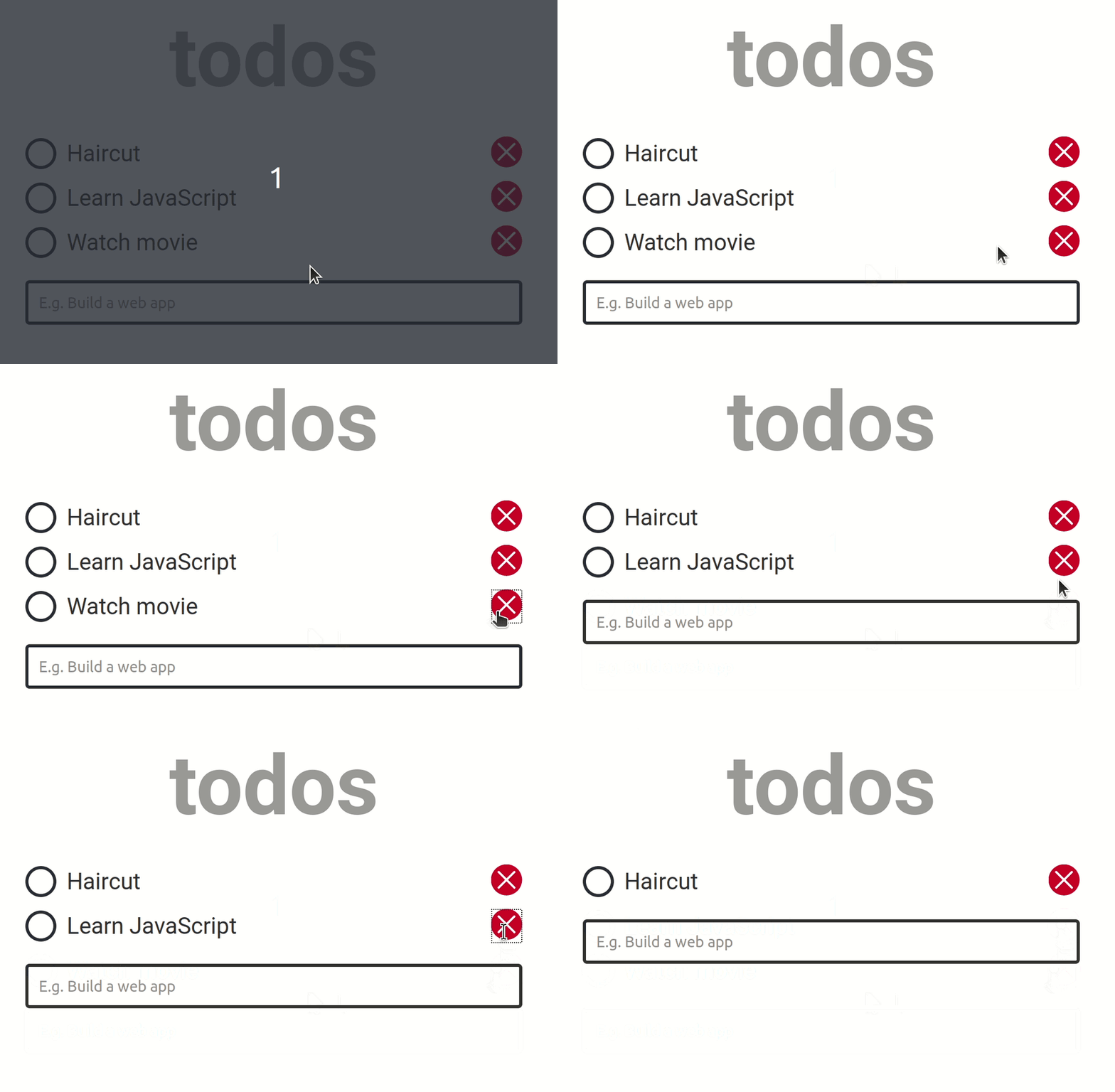
喘口气,看看这一步结束时的完整代码。
添加一个空状态提示
当应用程序中没有数据可以显示时,就会出现空状态。例如,当用户还没有添加一个todo(第一次使用)或用户已经清除了列表时。在设计应用程序时,考虑到这种状态是很重要的。
许多应用程序使用空状态来显示一个提示,告诉用户该怎么做。下面是一个现实世界的例子,说明一个好的空状态提示是什么样子的。
一旦没有任务显示,我们就会添加一个提示,鼓励用户添加一个新的任务。这个功能只需用HTML和CSS就可以实现。
我们将利用:empty CSS选择器,只有在列表中没有项目存在时才有条件地显示提示。
在HTML窗格中为空状态提示添加以下代码,如下所示。
<main>
  <div class="container">
    <h1 class="app-title">todos</h1>
    <ul class="todo-list js-todo-list"></ul>
    <!-- add the empty state here -->
    <div class="empty-state">
      <svg class="checklist-icon"><use href="#checklist-icon"></use></svg>
      <h2 class="empty-state__title">Add your first todo</h2>
      <p class="empty-state__description">What do you want to get done today?</p>
    </div>
    <!-- end -->
    <form class="todo-form js-form">
      <input autofocus type="text" aria-label="Enter a new todo item" placeholder="E.g. Build a web app" class="js-todo-input">
    </form>
  </div>
</main>
<!-- rest of the code -->
然后在你的CSS中为空状态添加一些样式。
/* Add this below all the other styles */

.empty-state {
  flex-direction: column;
  align-items: center;
  justify-content: center;
  display: flex;
}

.checklist-icon {
  margin-bottom: 20px;
}

.empty-state__title, .empty-state__description {
  margin-bottom: 20px;
}
虽然这看起来很好,但问题是,即使有任务被添加到列表中,该信息仍然存在。预期的行为是,一旦有任务被添加,提示就会消失,只有在没有更多任务需要显示时才会重新出现。
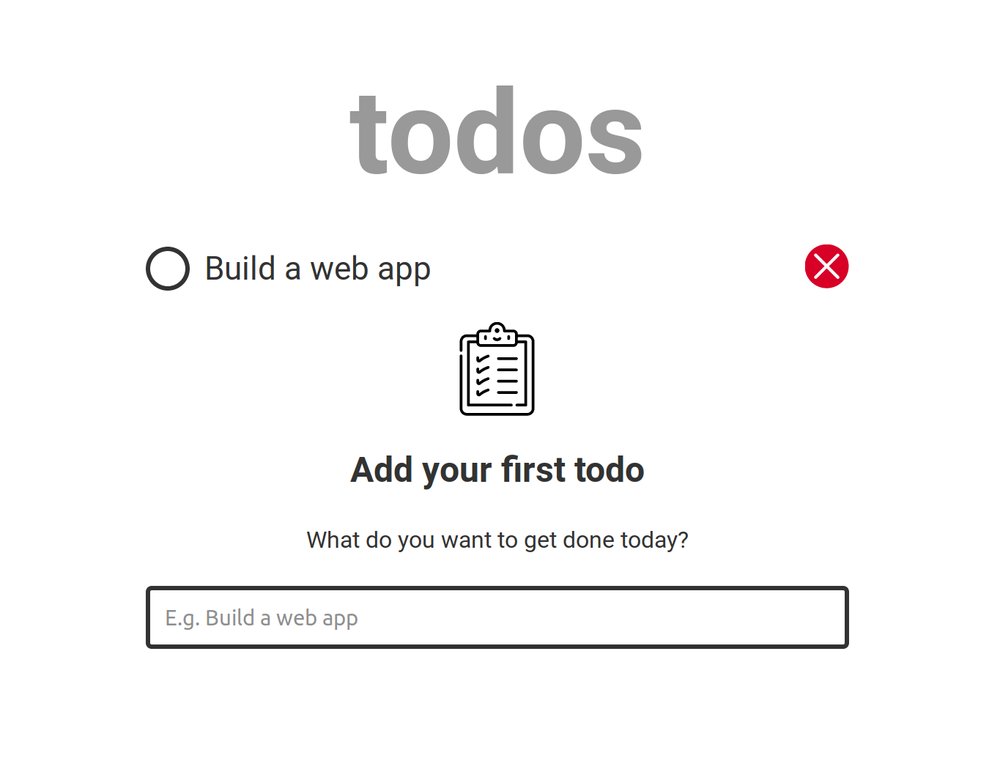
这一点的CSS会给我们带来我们想要的东西。
/* Change `display: flex` to `display: none` */
.empty-state {
  flex-direction: column;
  align-items: center;
  justify-content: center;
  display: none;
}

/* Add this below the other styles */
.todo-list:empty {
  display: none;
}

.todo-list:empty + .empty-state {
  display: flex;
}
.empty-state 元素在默认情况下与display: none 一起被隐藏起来,只有在.todo-list 为空时才会出现在视图中。我们使用:empty选择器来检测.todo-list 何时为空,而同级选择器(+)则针对.empty-state ,只有当.todo-list 为空时,才将display: flex 应用于它。
喘口气,看看本步骤末尾的完整代码。
一个微妙的错误
我在编写本教程时遇到的一个问题是,当所有现有任务被删除时,空状态不会返回到视图中。
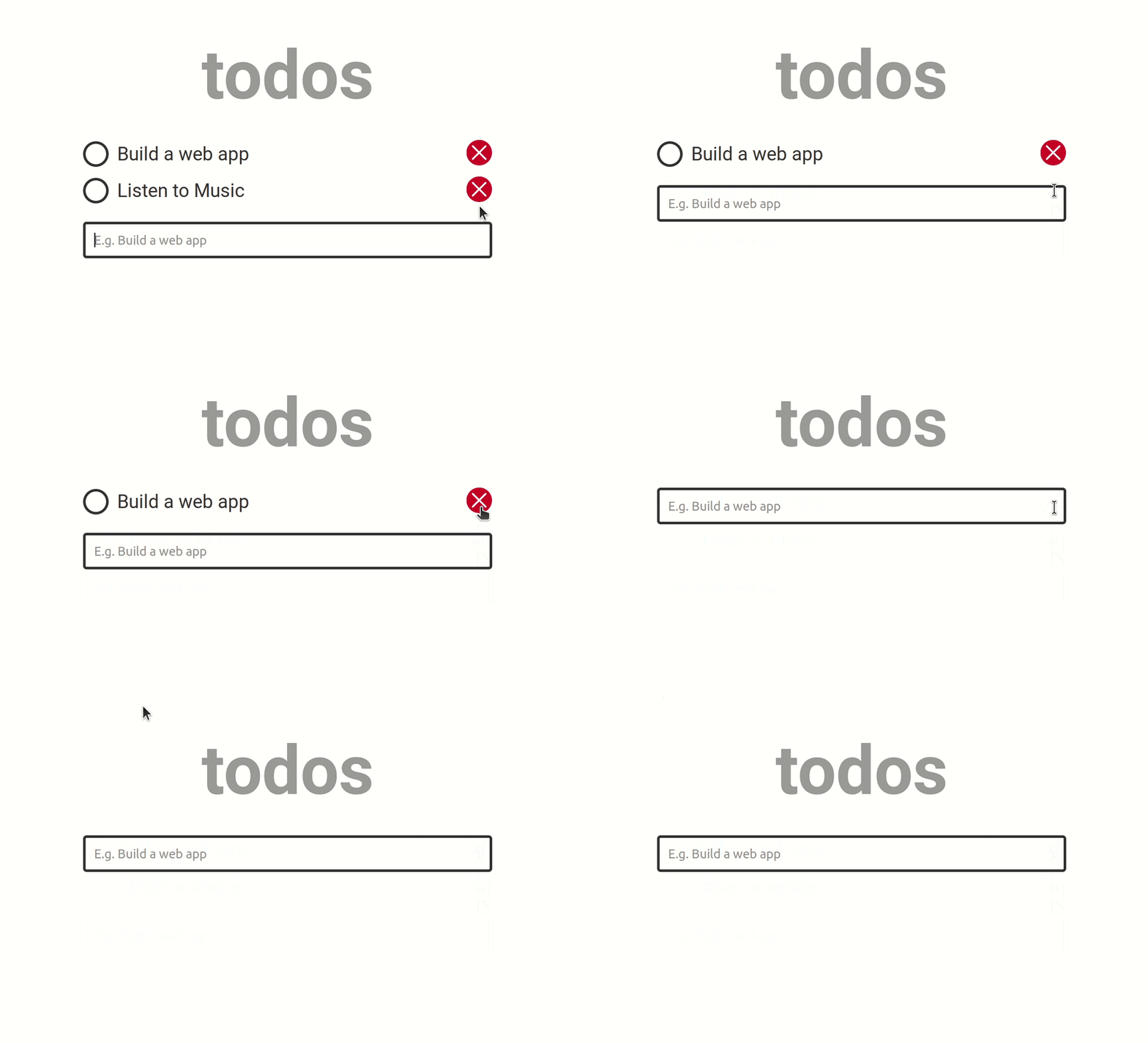
显然,即使在所有的子元素li 被删除后,一些空白仍然存在于.todo-list 元素中,所以它不被认为是空的,用:empty 选择器定义的样式也不会生效。为了解决这个问题,我们需要在我们的JavaScript代码中清除该元素的任何空白。修改renderTodo() 函数如下。
if (todo.deleted) {
  item.remove();
  // add this line to clear whitespace from the list container
  // when `todoItems` is empty
  if (todoItems.length === 0) list.innerHTML = '';
  return
}
上述代码解决了这个问题,应用程序现在可以按预期工作。
喘口气,看看本步骤末尾的完整代码。
保持应用程序的状态
我们的待办事项列表应用程序在这一点上已经基本完成,但让我们再增加一个功能,使事情变得更有趣和现实。目前,一旦页面被刷新,所有的待办事项就会被清除掉。让我们通过将应用程序的状态持久化到浏览器的本地存储来防止这种情况。
在你的renderTodo() 函数的顶部添加这一行。
localStorage.setItem('todoItemsRef', JSON.stringify(todoItems));
JSFiddle拒绝访问窗口的localStorage,所以你必须在本地运行代码来测试本教程的这一部分。
只有字符串可以存储在localStorage中,所以我们需要先将我们的todoItems 数组转换为JSON字符串,然后再传递给setItem 方法,在指定的键下添加一个新的数据项。
每次调用renderTodo() 函数时,localStorage中的todoItemsRef 的值将被替换成todoItems 数组的当前值。这样一来,数组和相应的localStorage引用就保持同步。
你可以通过打开你的浏览器开发工具来测试这一点,导航到应用程序标签,并监控本地存储部分。如果你没有使用Chrome浏览器,开发工具的组织方式可能有所不同。
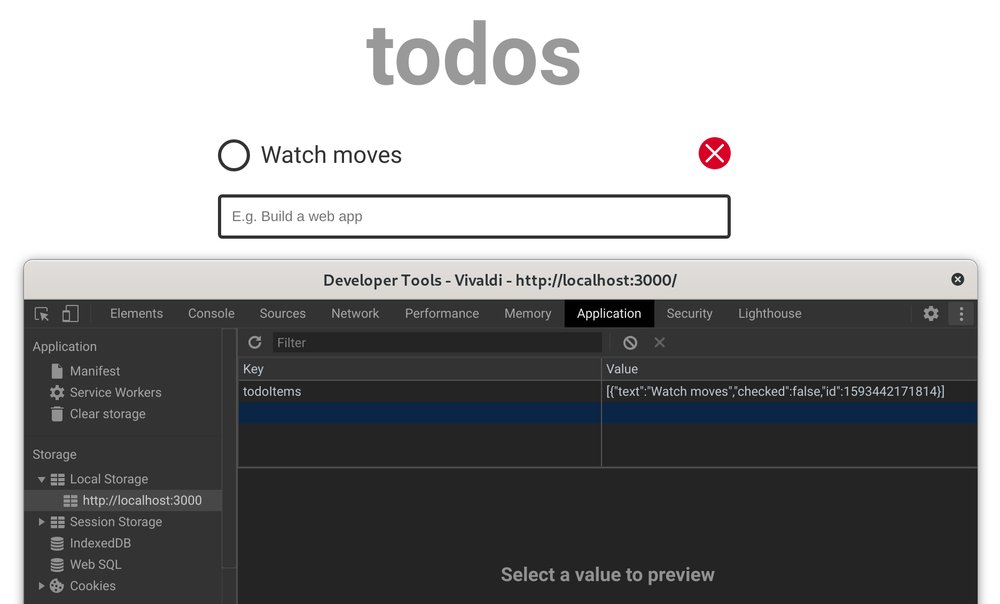
最后一步是在页面加载时呈现任何现有的todo列表项目。在JavaScript窗格的底部添加以下代码段。
document.addEventListener('DOMContentLoaded', () => {
  const ref = localStorage.getItem('todoItemsRef');
  if (ref) {
    todoItems = JSON.parse(ref);
    todoItems.forEach(t => {
      renderTodo(t);
    });
  }
});
当DOMContentLoaded 事件被触发时,我们继续从localStorage中检索todoItemsRef 的值。如果它存在,JSON.parse 方法被用来将JSON字符串转换回其原始数组形式,并将其保存在todoItems 。
之后,renderTodo() ,对数组中存在的每个todo对象进行调用。这使得任何保存的todo项目在页面加载时就被呈现出来。
喘口气,看看这一步结束时的完整代码。
总结
在本教程中,我们成功地建立了一个待办事项列表应用程序,允许用户添加新的任务,将任务标记为已完成,并删除旧的任务。我们还讨论了在设计应用程序时考虑空状态的重要性,然后继续讨论了使用:empty 选择器时的一个潜在问题以及如何解决它。
最后,我们讨论了将应用程序的状态持久化到浏览器的localStorage,以及如何使用JSON.stringify 和JSON.parse 绕过它的限制。 如果你对某个部分或一段代码不清楚,请在下面留言,我会尽快回复你。
谢谢你的阅读,并祝你编码愉快
