

如果你使用Selenium WebDriver,你可能知道有许多常见的方法来循环浏览网页上的元素并与之互动。其中包括isDisplayed()、isEnabled()和isSelected()方法。当测试人员需要确定一个网页元素的可见范围时,他们可以使用这些方法。
本文将首先解释Selenium中的isDisplayed()是如何工作的,以及为什么它在测试中被使用。然后我们将探讨另外两个循环和条件命令,isSelected()和isEnabled()。
让我们开始吧!
什么是Selenium?
Selenium一直是自动化框架的主要选择,当它涉及到自动化网页上的交互时。它是一个开源框架,具有各种功能,如多浏览器和平台兼容性、多语言支持、简单设置以及与流行的单元测试框架(如JUnit和TestNG)的集成。
当涉及到自动化时,测试人员总是寻找一种完美的有洞察力的方式来捕捉所有的需求,以构建测试案例。但每当测试被执行时,会有一些案例报告为错误的失败。我们都可能在工作中遇到过这样的情况。有时问题会因为环境而出现,有时是代码问题。克服或处理虚假失败被认为是设计自动化框架的最佳实践之一。
在自动化套件中处理网页上的网页元素可能不像它看起来那么容易。定位网页元素已经被简化,因为我们有多种工具来检查它们。在某些情况下,我们需要在进一步进行之前检查网页上是否存在网页元素,因为当网页上没有找到这些元素时,Selenium可能会出现异常。这并不是说我们要找的元素在网页上不存在。
可能有的时候,元素在页面上的显示需要一些时间。即使增加一定的等待时间会使我们免于这种异常,但验证元素的存在总是好的。但是在自动化中处理这些元素可能会抛出一些意外的异常。那么我们如何克服这种情况呢?我想出了一些克服这种情况的建议。让我们通过这篇博客来了解一些方法来克服我们自动化套件中的一些错误的失败。
为了定位一个网页上的元素,我们可以在Selenium中使用八种不同类型的定位器。
- ID
- 名称
- 类名
- X路径
- CSS
- 链接文本
- 部分链接文本
- 标签名称
在这些定位器的帮助下,我们可以找到网页上的元素并与之互动。
但有时,即使我们在自动化脚本中使用了正确的网页元素,我们的测试可能会失败,说页面上没有找到该元素。有没有想过为什么会这样呢?得到这种异常的原因有很多,但其中我们没有检查该元素是否真的存在于页面上。有的时候,网页可能已经完全加载了,在这之前,我们的测试可能正在寻找这个元素。在这种情况下,我们可能会面临这个异常。
如何确保网络元素在Selenium中的存在?
有三种不同的方法来确保网页上的网页元素的存在。
- isDisplayed()
- isSelected()
- IsEnabled()

在这篇关于如何在Selenium WebDriver中使用isDisplayed()的文章中,我使用了Selenium与Java。所以这里使用的语法和代码是基于Java语言的。下面提到的语法将根据你选择的编程语言而有所不同。
isDisplayed()的语法。
driver.findElement(By.<LocatorStrategy>("Locator_Value")).isDisplayed();
isDisplayed()方法的返回类型是布尔值。因此,通过获取这个值,我们可以验证网页元素是否存在于网页上。
isSelected()的语法。
driver.findElement(By.<LocatorStrategy>("Locator_Value")). isSelected();
isSelected()方法的返回类型是布尔值。因此,通过获取该值,我们可以验证该网页元素在网页上是否存在。
isEnabled()的语法。
driver.findElement(By.<LocatorStrategy>("Locator_Value")). isEnabled();
isEnabled()方法的返回类型是布尔值。因此,通过获取这个值,我们可以验证网页元素是否存在于网页上。
顾名思义,每个方法都是不同的,都是为自己的目的而设计的。让我们看看如何在我们的脚本中详细地使用它们。
什么是Selenium中的isDisplayed()方法?
这个方法是用来验证网页上是否有任何网络元素存在。我们可以用它来验证文本框、按钮、下拉框、复选框、单选按钮等的存在。
如何使用isDisplayed()方法来验证文本框?
情景。验证文本框是否存在于登录页面上,以输入凭证
步骤1:导航到accounts.lambdatest.com/login。
第2步:验证电子邮件和密码文本框的存在。
第3步:输入电子邮件和密码。
第4步:点击LOGIN。
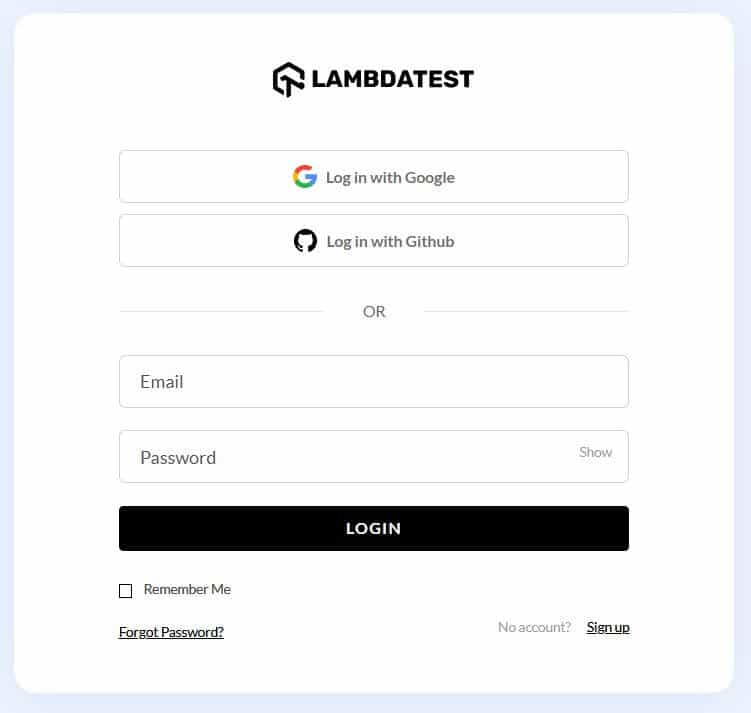
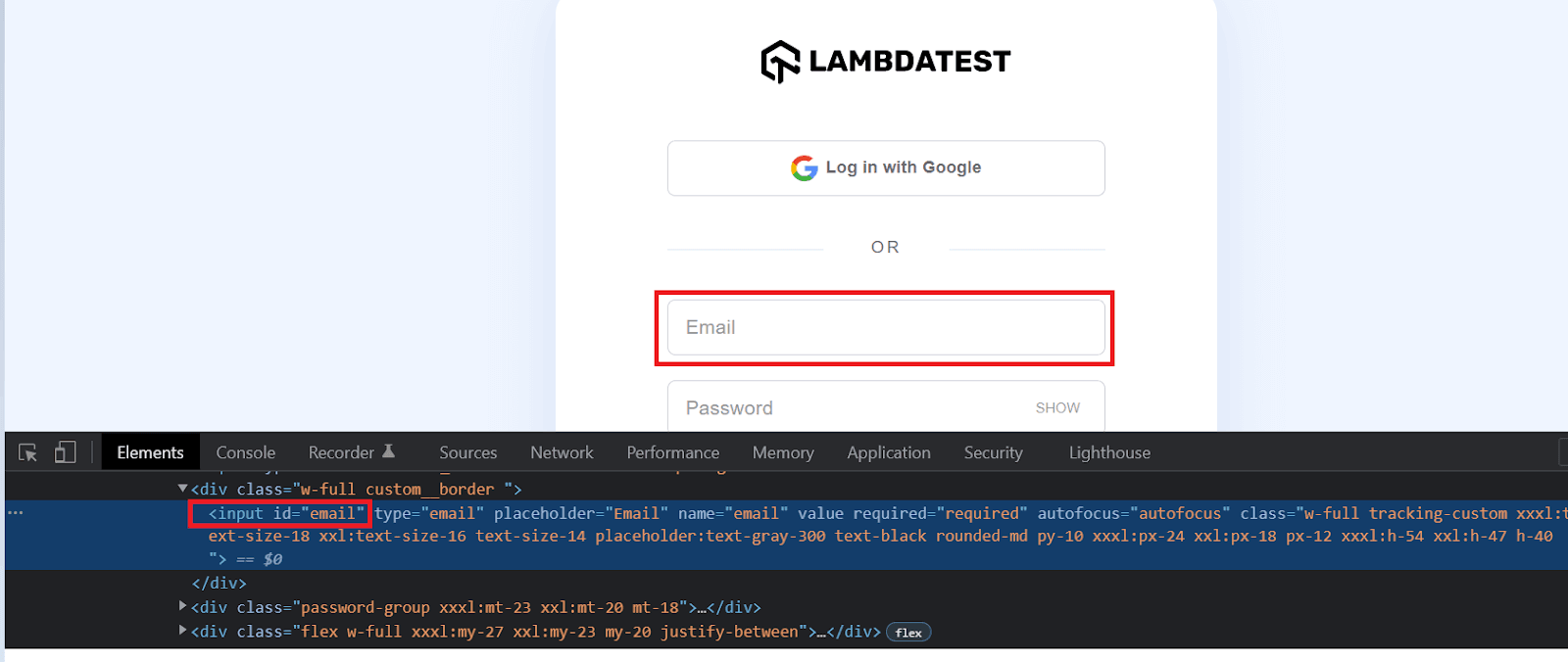
- 让我们检查一下电子邮件元素。
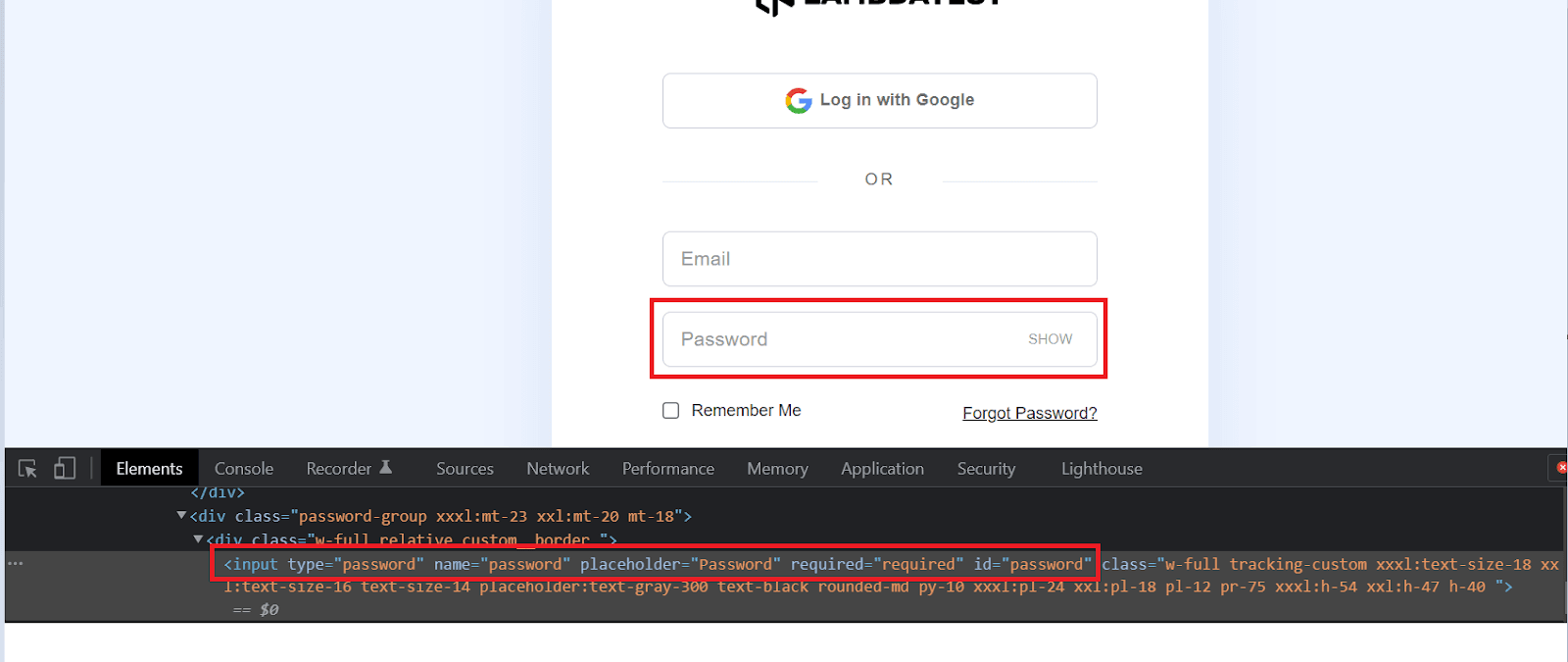
- 现在让我们来确定密码元素
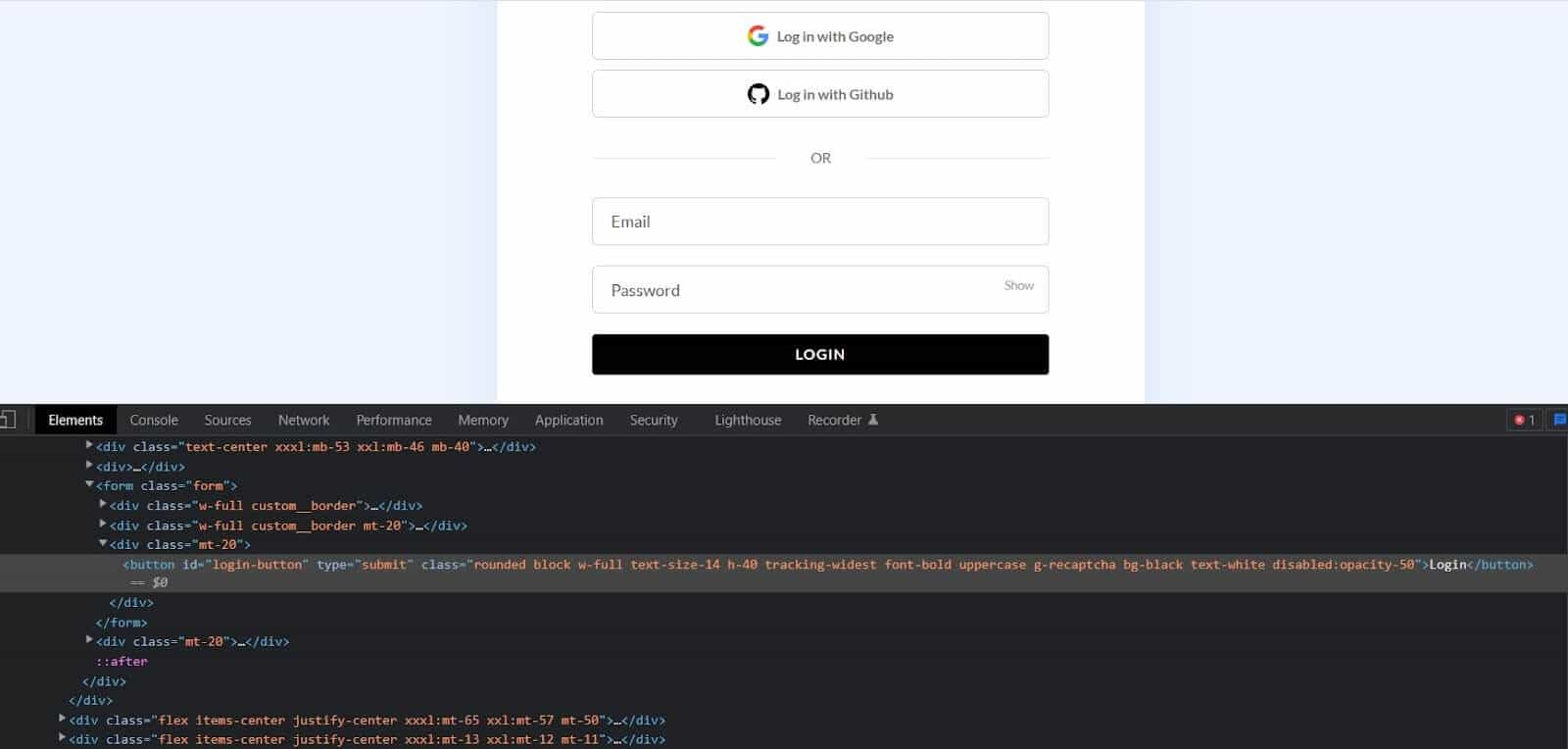
- 最后一步是找到LOGIN按钮。
实施
package myTest;

import org.openqa.selenium.By;
import org.openqa.selenium.WebElement;
import org.openqa.selenium.remote.DesiredCapabilities;
import org.openqa.selenium.remote.RemoteWebDriver;
import org.testng.Assert;
import org.testng.annotations.AfterTest;
import org.testng.annotations.BeforeTest;
import org.testng.annotations.Parameters;
import org.testng.annotations.Test;
import java.net.MalformedURLException;
import java.net.URL;

class test1 {

    public String username = "YOUR_USERNAME";
    public String accesskey = "YOUR_ACCESSKEY";
    public static RemoteWebDriver driver = null;
    public String gridURL = "@hub.lambdatest.com/wd/hub";

    @Parameters(("browser"))
    @BeforeTest
    public void setUp(String browser) throws Exception {
        DesiredCapabilities capabilities = new DesiredCapabilities();
        if(browser.equalsIgnoreCase("chrome")) {
            capabilities.setCapability("browserName", "chrome");
            capabilities.setCapability("version", "96.0");
            capabilities.setCapability("platform", "win10"); // If this cap isn't specified, it will just get the any available one
            capabilities.setCapability("build", "automationTest");
            capabilities.setCapability("name", "automationTest_Demo");
        }
        else if( browser.equalsIgnoreCase("firefox")){
            capabilities.setCapability("platform", "Windows 11");
            capabilities.setCapability("browserName", "Firefox");
            capabilities.setCapability("version","97.0");
            capabilities.setCapability("build", "automationTest");
            capabilities.setCapability("name", "automationTest_Demo");
        }

        try {
            driver = new RemoteWebDriver(new URL("https://" + username + ":" + accesskey + gridURL), capabilities);
        } catch (MalformedURLException e) {
            System.out.println("Invalid grid URL");
        } catch (Exception e) {
            System.out.println(e.getMessage());
        }
    }

    @Test
    public void elementIsDisplayed() {
        try {
            System.out.println("Launching Lambda Test Login Page");
            driver.get("https://accounts.lambdatest.com/login");

            WebElement email= driver.findElement(By.id("email"));
            boolean isEmailBoxPresent = email.isDisplayed();
            if(isEmailBoxPresent) {
                email.sendKeys("abc@gmail.com");
                System.out.println("email text box is present");
            }
            else
                Assert.fail("No email text box is present in the webpage");

            WebElement password=driver.findElement(By.id("password"));
            boolean isPasswordBoxPresent = password.isDisplayed();
            if(isEmailBoxPresent) {
                password.sendKeys("abc@13w32");
                System.out.println("password box is present");
            }
            else
                Assert.fail("Password text box is not present in the webpage");

            WebElement loginBtn = driver.findElement(By.id("login-button"));
            loginBtn.click();
        } catch (Exception e) {
            System.out.println(e);
        }

    }

    @AfterTest
    public void closeBrowser() {
        driver.quit();
        System.out.println("The driver has been closed.");

    }

}
TestNG.xml
<?xml version="1.0" encoding="UTF-8"?>
<!DOCTYPE suite SYSTEM "http://testng.org/testng-1.0.dtd">
<suite name="TestSuite" parallel="tests" thread-count="4">
    <test name="ChromeBrowserTest">
        <parameter name="browser" value="Chrome"/>
        <classes>
            <class name="myTest.test1">
            </class>
        </classes>
    </test>
    </suite>
Pom.xml
<?xml version="1.0" encoding="UTF-8"?>
<project xmlns="http://maven.apache.org/POM/4.0.0"
         xmlns:xsi="http://www.w3.org/2001/XMLSchema-instance"
         xsi:schemaLocation="http://maven.apache.org/POM/4.0.0 http://maven.apache.org/xsd/maven-4.0.0.xsd">
    <modelVersion>4.0.0</modelVersion>

    <groupId>org.example</groupId>
    <artifactId>LambdaTest</artifactId>
    <version>1.0-SNAPSHOT</version>

    <dependencies>
        <dependency>
            <groupId>org.seleniumhq.selenium</groupId>
            <artifactId>selenium-java</artifactId>
            <version>4.0.0</version>
        </dependency>

        <!-- https://mvnrepository.com/artifact/org.testng/testng -->
        <dependency>
            <groupId>org.testng</groupId>
            <artifactId>testng</artifactId>
            <version>7.4.0</version>
            <scope>test</scope>
        </dependency>
        <dependency>
            <groupId>org.testng</groupId>
            <artifactId>testng</artifactId>
            <version>RELEASE</version>
            <scope>test</scope>
        </dependency>
    </dependencies>

</project>
代码演练
现在让我带你看一下代码实现,用Selenium的isDisplayed()方法验证一个元素的存在。
- 在pom.xml中添加所需的依赖性,如Selenium,TestNG,等等。
- 在测试类中,我们已经添加了TestNG注解,如@BeforeTest、@Test和@AfterTest。
- 为了在LambdaTest这样的云Selenium网格中运行我们的测试,我们需要在LambdaTest上创建一个账户。一旦我们创建了账户,我们将获得一个用户名和访问密钥来运行我们的测试。我们可以将用户名、访问密钥和网格URL定义为全局变量。
- 我们已经添加了一些基本的设置,比如在云Selenium云中,在一个注有@BeforeTest的方法下,定义在不同的浏览器和平台上运行我们的测试所需的能力。我们还用参数浏览器对测试进行了参数化。基于TestNG.xml中提供的参数值,测试将在各自的浏览器中执行。
@Parameters(("browser"))
@BeforeTest
public void setUp(String browser) throws Exception {
    DesiredCapabilities capabilities = new DesiredCapabilities();
    if(browser.equalsIgnoreCase("chrome")) {
        capabilities.setCapability("browserName", "chrome");
        capabilities.setCapability("version", "96.0");
        capabilities.setCapability("platform", "win10"); // If this cap isn't specified, it will just get the any available one
        capabilities.setCapability("build", "automationTest");
        capabilities.setCapability("name", "automationTest_Demo");
    }
    else if( browser.equalsIgnoreCase("firefox")){
        capabilities.setCapability("platform", "Windows 11");
        capabilities.setCapability("browserName", "Firefox");
        capabilities.setCapability("version","97.0");
        capabilities.setCapability("build", "automationTest");
        capabilities.setCapability("name", "automationTest_Demo");
    }

    try {
        driver = new RemoteWebDriver(new URL("https://" + username + ":" + accesskey + gridURL), capabilities);
    } catch (MalformedURLException e) {
        System.out.println("Invalid grid URL");
    } catch (Exception e) {
        System.out.println(e.getMessage());
    }
}
- 我们创建了一个用@Test注解的方法,它有测试场景的实际实现。在启动网站的登录页面后,我们找到了元素的电子邮件和密码。
WebElement email= driver.findElement(By.id("email"));
WebElement password=driver.findElement(By.id("password"));
然后,我们必须检查这些元素是否显示在网页上,以确保我们的测试不会抛出异常并导致错误的失败。
我们在Selenium中使用了isDisplayed()来检查网页上是否有网络元素,该方法返回一个布尔值。如果该元素在网页上显示,该方法返回true;如果该元素没有在网页上显示,则返回false。基于这个布尔值,我们可以确保网页上有任何网络元素存在,然后继续进行测试。
boolean isEmailBoxPresent = email.isDisplayed();
if(isEmailBoxPresent) {
    email.sendKeys("abc@gmail.com");
    System.out.println("email text box is present");
}
else
    Assert.fail("No email text box is present in the webpage");
boolean isPasswordBoxPresent = password.isDisplayed();
if(isEmailBoxPresent) {
    password.sendKeys("abc@13w32");
    System.out.println("paswword box is present");
}
else
    Assert.fail("Password text box is not present in the webpage");
在我们的案例中,我们在Selenium中使用isDisplayed()来验证页面上是否存在电子邮件和密码文本框。如果该元素存在,那么我们将继续输入数值。
在输入了电子邮件和密码的值之后,我们添加了一个步骤来点击登录按钮。
WebElement loginBtn = driver.findElement(By.id("login-button"));
loginBtn.click();
- 最后,我们添加了一个用@AfterTest注释的方法来关闭浏览器。
@AfterTest
public void closeBrowser() {
    driver.quit();
    System.out.println("The driver has been closed.");
}
- 我们必须创建一个TestNG.xml文件,它将被用来运行我们的测试。我们必须定义测试类的名称,以及它所创建的包。我们还必须定义浏览器参数和它的值,这将被用来运行我们的测试。
<test name="ChromeBrowserTest">
    <parameter name="browser" value="Chrome"/>
    <classes>
        <class name="myTest.test1">
        </class>
    </classes>
</test>
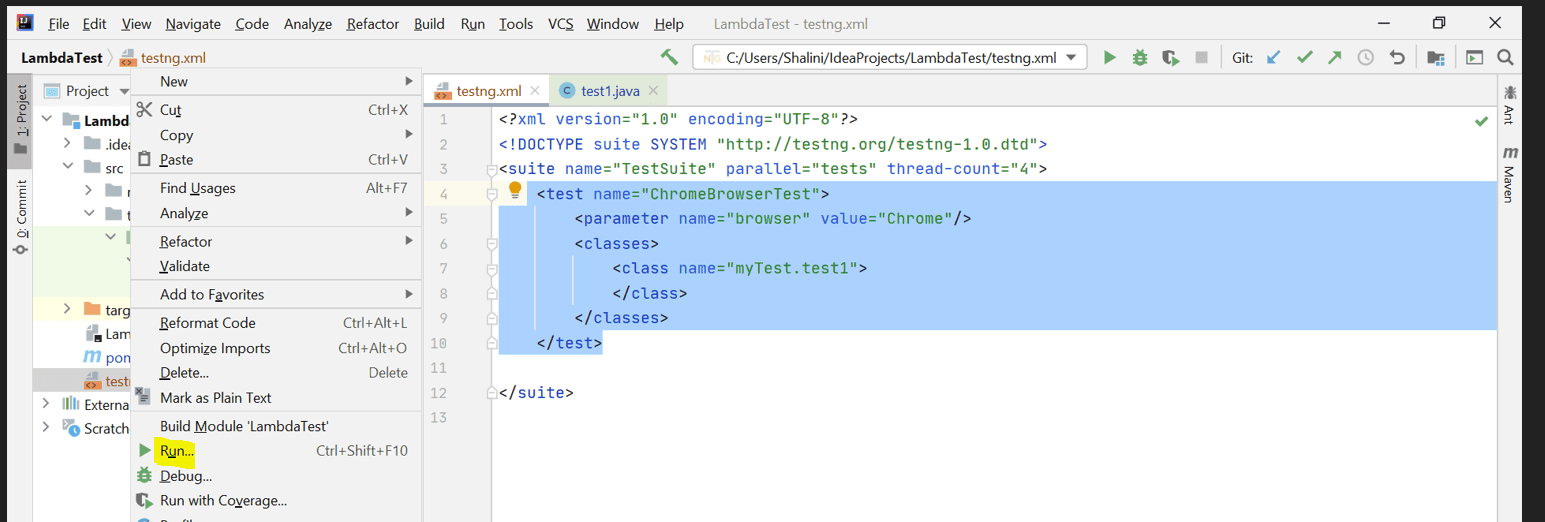
要执行我们的测试,右键单击TestNG.xml文件并单击运行。
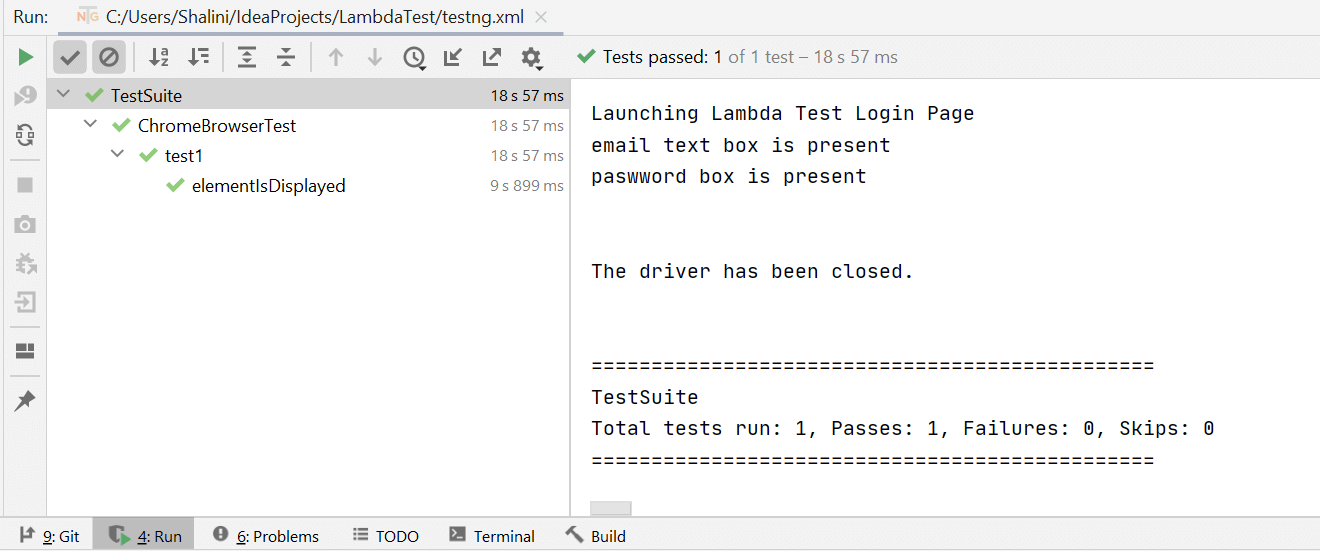
控制台输出
在运行测试时,我们可以看到下面显示的输出
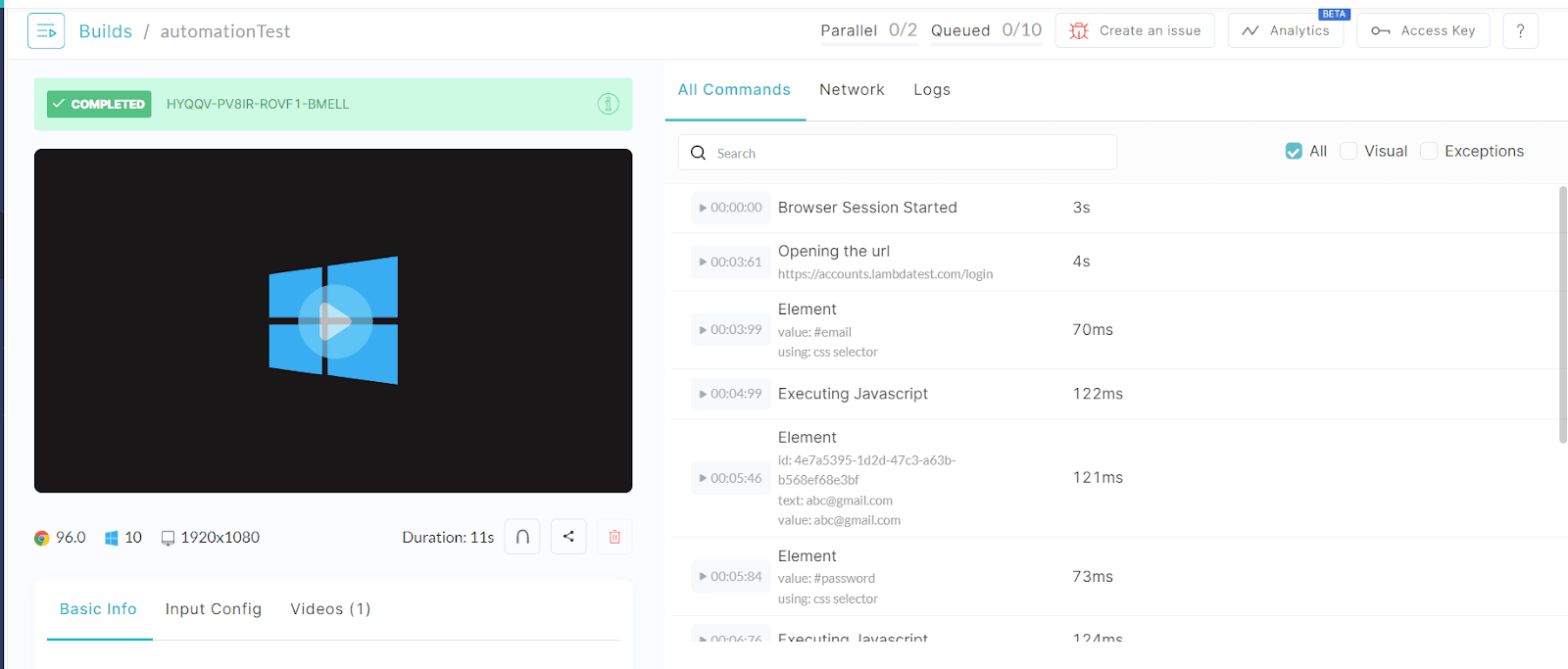
在LambdaTest仪表板上,我们可以通过代码中所提供的所需功能的名称来识别我们的测试。
LambdaTest是一个跨浏览器测试平台,可以在3000多个浏览器和操作系统组合的在线浏览器场上对网站和网络应用进行实时和自动化的浏览器测试。
LambdaTest的测试自动化功能可以帮助你 --
- 以极快的速度交付高质量的构建。
- 通过并行测试,将准备时间缩短数倍。
- 通过将测试套件与最好的CI/CD工具集成,加快你的自动化测试周期。
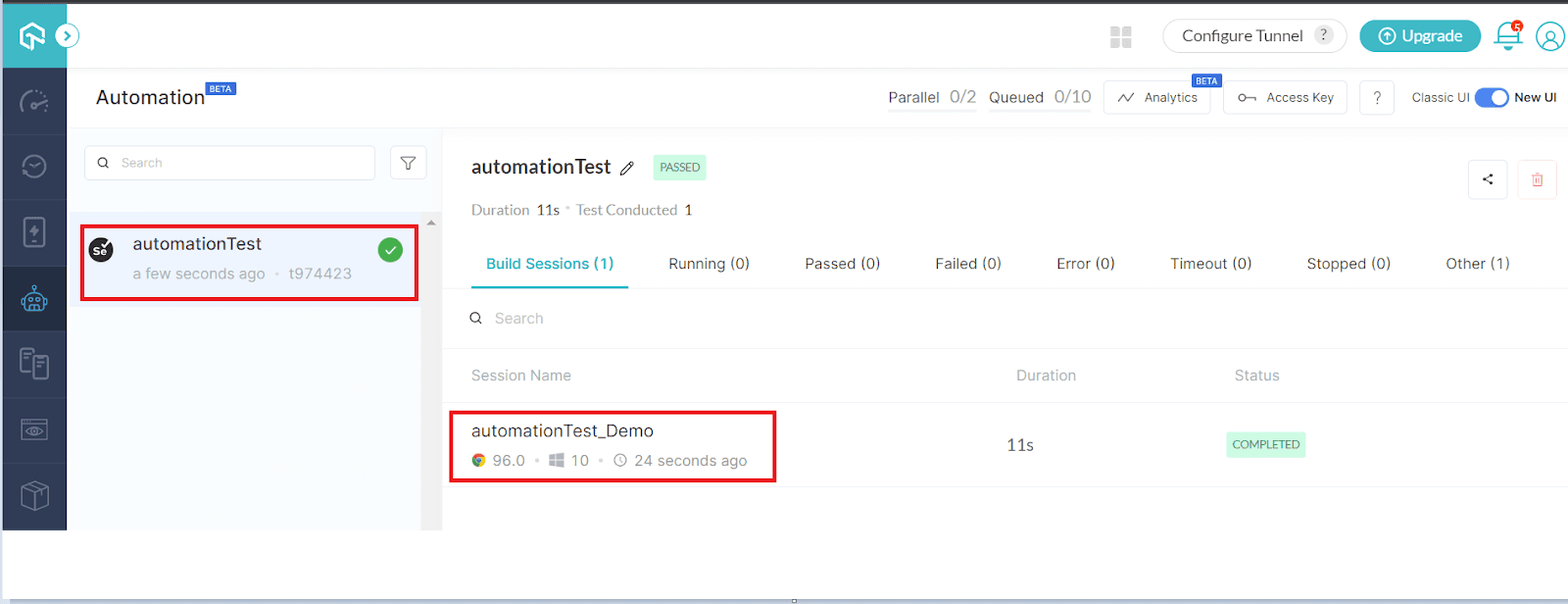
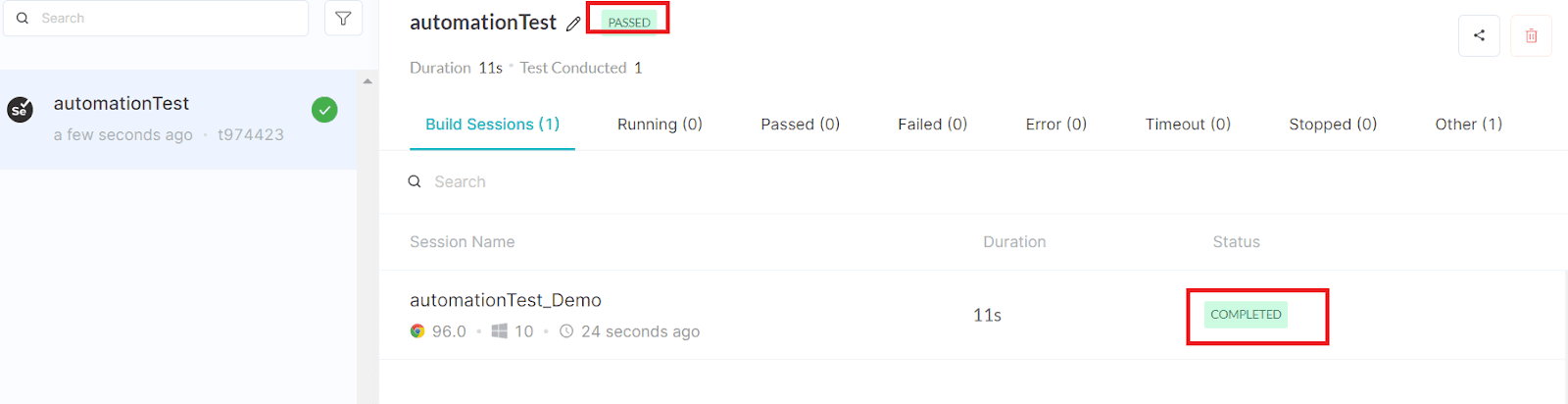
我们可以看到运行测试的浏览器和平台,也可以找到测试的状态。
进一步点击测试,我们可以看到一些细节,如视频记录和测试的日志。
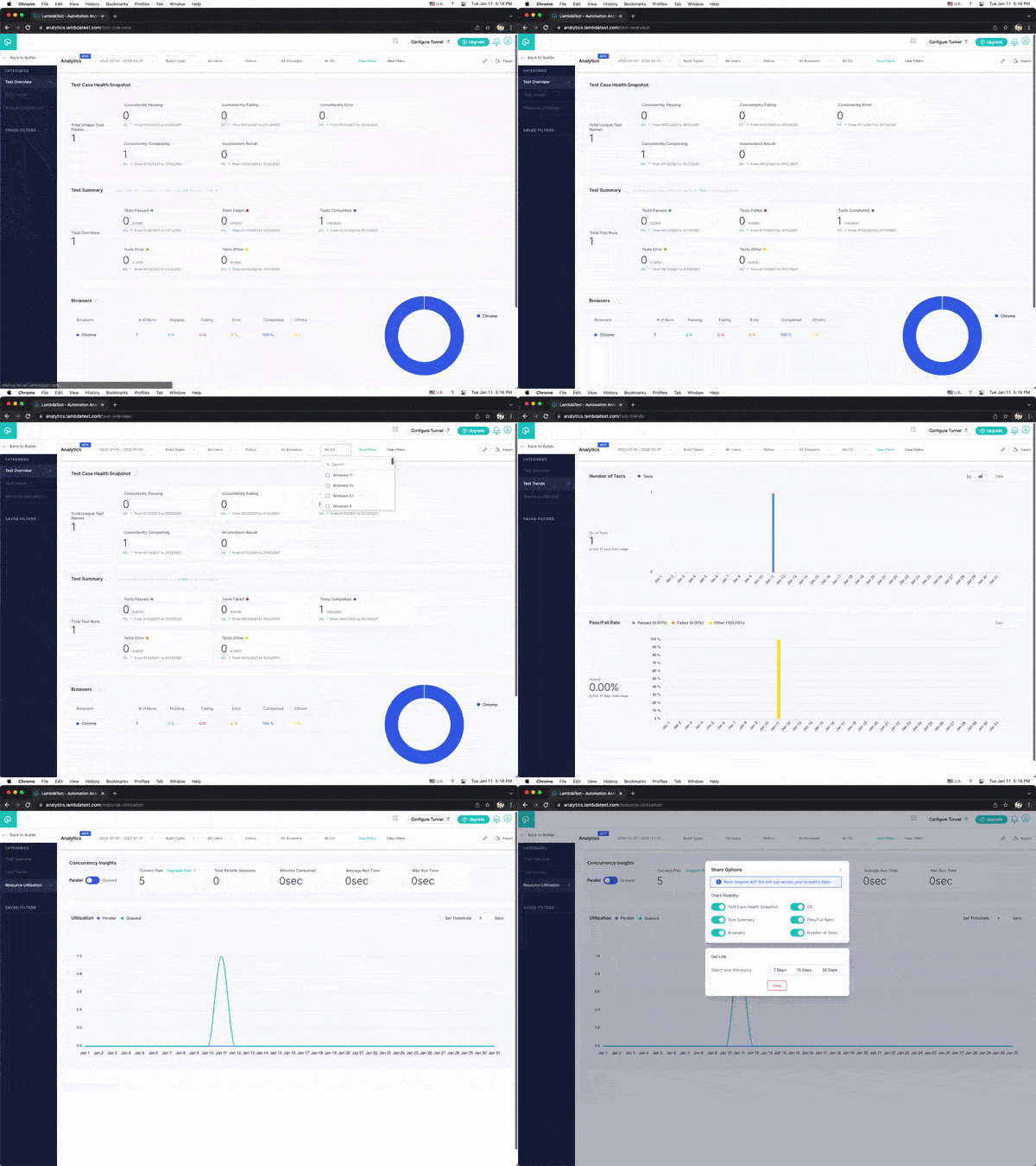
你还可以导航到LambdaTest分析仪表板,查看测试性能指标。测试摘要将显示通过或失败的测试总数,包括已完成和待完成的测试。而测试概览将提供一致测试的快照。
类似于Selenium中的isDisplayed(),我们还有两个方法 - isSelected()和isEnabled(),分别用来检查一个元素是否被选中或一个元素是否在网页上被启用。
什么是Selenium中的isEnabled()方法?
这个方法是用来检查一个元素是否在网页上被启用。该方法返回一个布尔值,如果该值为真,则该元素在网页中被启用;如果该元素在网页中未被启用,则返回假。
isEnabled()方法的语法。
driver.findElement(By.<LocatorStrategy>("Locator_Value")). isEnabled();
在网页上,我们可能会遇到这样的情况:除非满足某些条件,否则一些按钮会被启用。
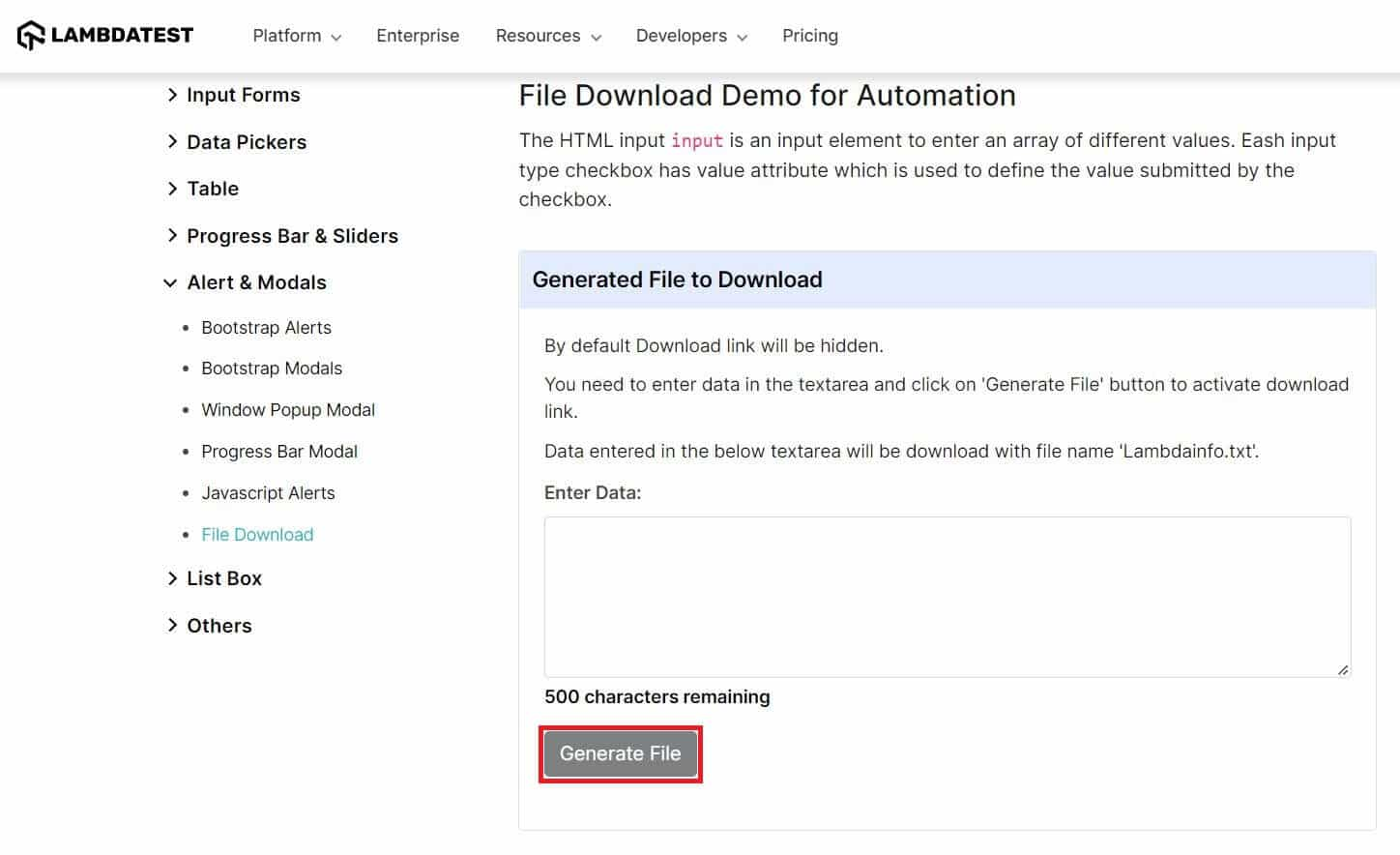
例如,让我们导航到LambdaTest的Selenium Playground网站,它可以用来下载一个文件。在这里,我们可以看到 "生成文件 "按钮被禁用,除非在输入数据部分输入任何数值。我们可以在我们的测试中实现这一点,并验证这个按钮在网页上是否被启用。
场景。
- 启动LambdaTest的Selenium Playground。
- 验证 "生成文件 "按钮是否被启用。
实施
测试设置与我们在上一节中实现的类似。
package myTest;

import org.openqa.selenium.By;
import org.openqa.selenium.WebElement;
import org.openqa.selenium.remote.DesiredCapabilities;
import org.openqa.selenium.remote.RemoteWebDriver;
import org.testng.Assert;
import org.testng.annotations.AfterTest;
import org.testng.annotations.BeforeTest;
import org.testng.annotations.Parameters;
import org.testng.annotations.Test;
import java.net.MalformedURLException;
import java.net.URL;

class test2 {

    public String username = "YOUR_USERNAME";
    public String accesskey = "YOUR_ACCESSKEY";
    public static RemoteWebDriver driver = null;
    public String gridURL = "@hub.lambdatest.com/wd/hub";

    @Parameters(("browser"))
    @BeforeTest
    public void setUp(String browser) throws Exception {
        DesiredCapabilities capabilities = new DesiredCapabilities();
        if(browser.equalsIgnoreCase("chrome")) {
            capabilities.setCapability("browserName", "chrome");
            capabilities.setCapability("version", "96.0");
            capabilities.setCapability("platform", "win10"); // If this cap isn't specified, it will just get the any available one
            capabilities.setCapability("build", "isEnabledTest");
            capabilities.setCapability("name", "isEnabledTest_Demo");
        }
        else if( browser.equalsIgnoreCase("firefox")){
            capabilities.setCapability("platform", "Windows 11");
            capabilities.setCapability("browserName", "Firefox");
            capabilities.setCapability("version","97.0");
            capabilities.setCapability("build", "isEnabledTest");
            capabilities.setCapability("name", "isEnabledTest_Demo");
        }

        try {
            driver = new RemoteWebDriver(new URL("https://" + username + ":" + accesskey + gridURL), capabilities);
        } catch (MalformedURLException e) {
            System.out.println("Invalid grid URL");
        } catch (Exception e) {
            System.out.println(e.getMessage());
        }
    }

    @Test
    public void elementIsEnabled() {
        try {
            System.out.println("Launching Lambda Test Login Page");
            driver.get("https://www.lambdatest.com/selenium-playground/generate-file-to-download-demo");

            WebElement element= driver.findElement(By.id("create"));
            boolean status = element.isEnabled();

            System.out.println(status);
            if(status){
                System.out.println("The element is enabled in the web page");
            }
            else
                Assert.fail("The element is not enabled in the web page");

        } catch (Exception e) {
            System.out.println(e);
        }

    }

    @AfterTest
    public void closeBrowser() {
        driver.quit();
        System.out.println("The driver has been closed.");

    }

}
TestNG.xml
<?xml version="1.0" encoding="UTF-8"?>
<!DOCTYPE suite SYSTEM "http://testng.org/testng-1.0.dtd">
<suite name="TestSuite" parallel="tests" thread-count="4">
    <test name="ChromeBrowserTest">
        <parameter name="browser" value="Firefox"/>
        <classes>
            <class name="myTest.test2">
            </class>
        </classes>
    </test>

</suite>
代码演练
- 这个设置类似于我们在上一节为Selenium的isDisplayed()方法所做的设置。
- 在我们的测试中,我们已经找到了 "生成文件 "按钮的网络元素。
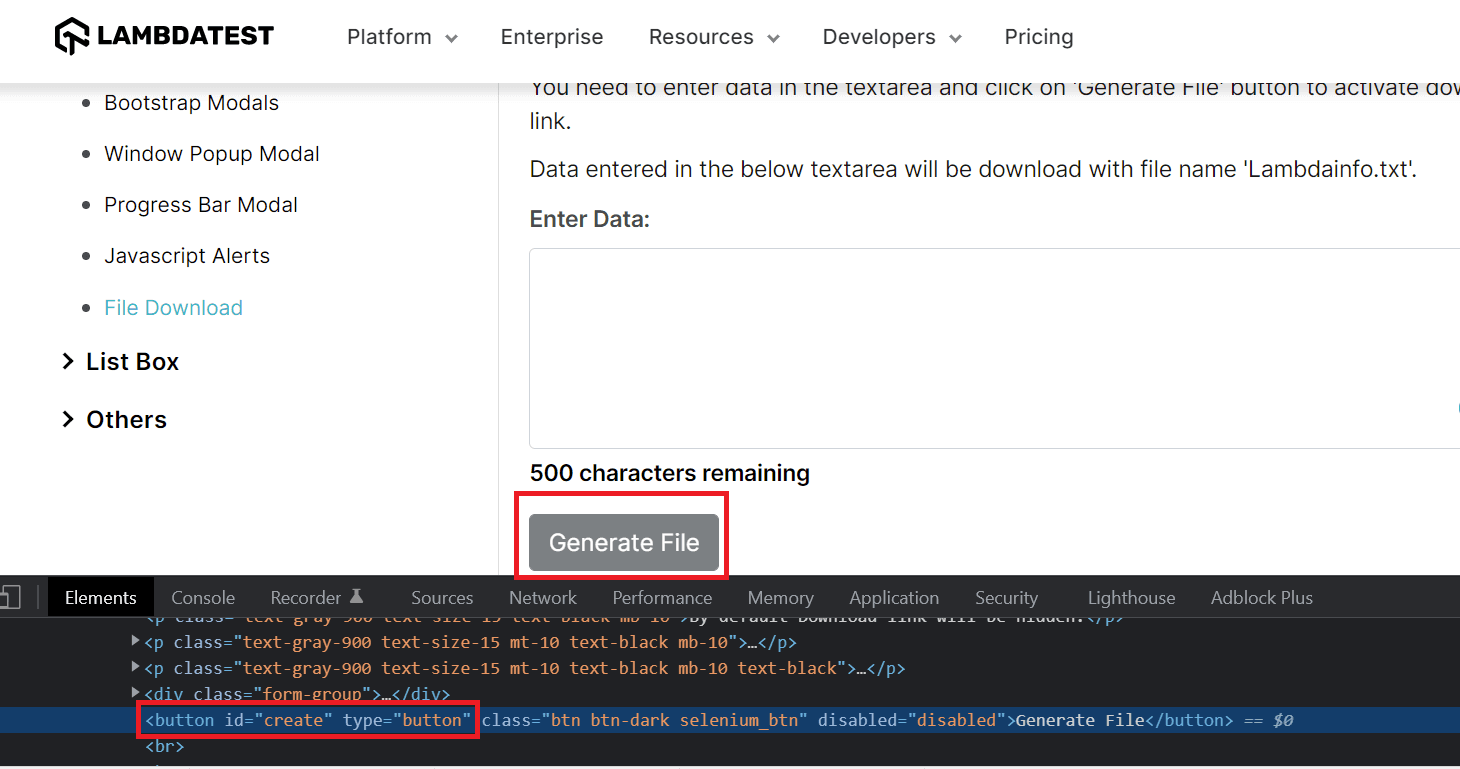
WebElement element= driver.findElement(By.id("create"));
- 我们将验证该元素在网页上是否被启用。
boolean status = element.isEnabled();

System.out.println(status);
if(status){
    System.out.println("The element is enabled in the web page");
}
else
    Assert.fail("The element is not enabled in the web page");
- isEnabled()方法返回错误,因为在输入任何文本之前,该元素在网页上没有被启用。
控制台输出
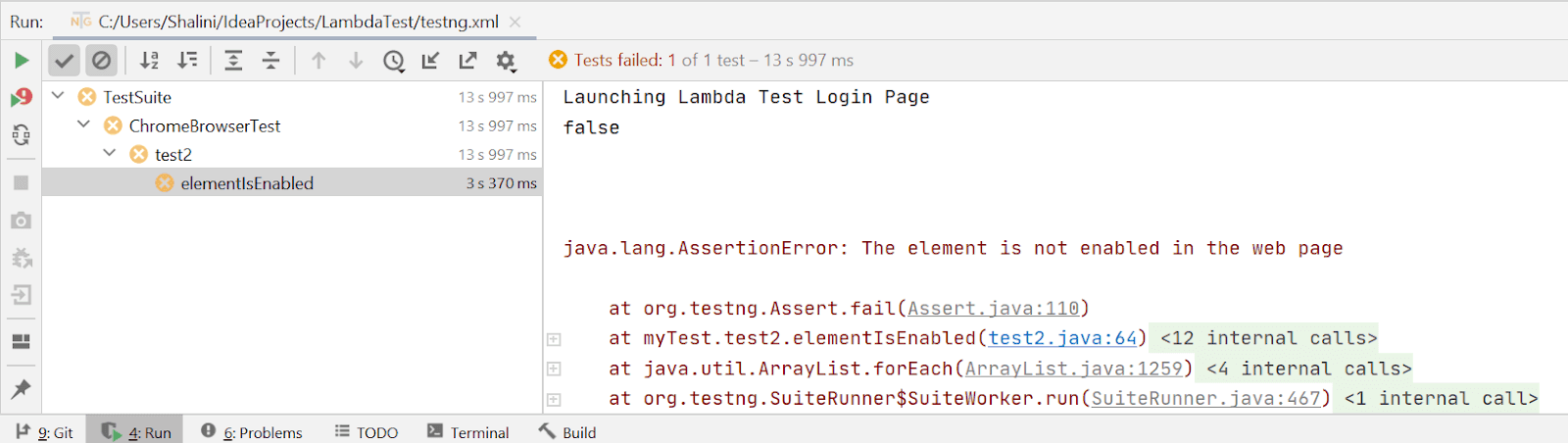
在仪表板上,我们可以看到测试正在Firefox浏览器中执行,正如我们的TestNG.xml文件中提到的那样
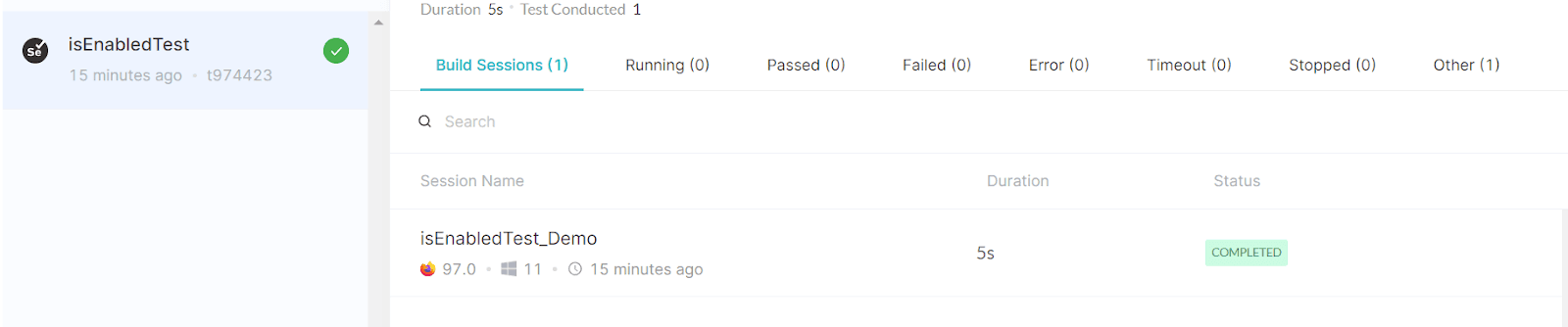
什么是Selenium中的isSelected()方法?
isSelected()方法是用来验证元素在网页中是否被选中。该方法返回一个布尔值。如果该元素被选中,它将返回true,如果没有被选中,它将返回false。该方法用于检查单选按钮和复选框是否被选中。
isSelected()方法的语法。
driver.findElement(By.<LocatorStrategy>("Locator_Value")). isSelected();
情景:
步骤1.启动LambdaTest的Selenium Playground网站。
第2步。点击 "点击这个复选框"
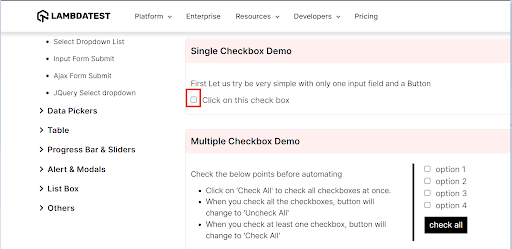
第3步。现在验证该复选框是否被选中。
实施
package myTest;

import org.openqa.selenium.By;
import org.openqa.selenium.WebElement;
import org.openqa.selenium.remote.DesiredCapabilities;
import org.openqa.selenium.remote.RemoteWebDriver;
import org.testng.Assert;
import org.testng.annotations.AfterTest;
import org.testng.annotations.BeforeTest;
import org.testng.annotations.Parameters;
import org.testng.annotations.Test;
import java.net.MalformedURLException;
import java.net.URL;

class test3 {

    public String username = "YOUR_USERNAME";
    public String accesskey = "YOUR_ACCESSKEY";
    public static RemoteWebDriver driver = null;
    public String gridURL = "@hub.lambdatest.com/wd/hub";

    @Parameters(("browser"))
    @BeforeTest
    public void setUp(String browser) throws Exception {
        DesiredCapabilities capabilities = new DesiredCapabilities();
        if(browser.equalsIgnoreCase("chrome")) {
            capabilities.setCapability("browserName", "chrome");
            capabilities.setCapability("version", "96.0");
            capabilities.setCapability("platform", "win10"); // If this cap isn't specified, it will just get the any available one
            capabilities.setCapability("build", "isSelectedTest");
            capabilities.setCapability("name", "isSelectedTest_Demo");
        }
        else if( browser.equalsIgnoreCase("firefox")){
            capabilities.setCapability("platform", "Windows 11");
            capabilities.setCapability("browserName", "Firefox");
            capabilities.setCapability("version","97.0");
            capabilities.setCapability("build", "isSelectedTest");
            capabilities.setCapability("name", "isSelectedTest_Demo");
        }

        try {
            driver = new RemoteWebDriver(new URL("https://" + username + ":" + accesskey + gridURL), capabilities);
        } catch (MalformedURLException e) {
            System.out.println("Invalid grid URL");
        } catch (Exception e) {
            System.out.println(e.getMessage());
        }
    }

    @Test
    public void elementIsSelected() {
        try {
            System.out.println("Launching Lambda Test demo Page");
            driver.get("https://www.lambdatest.com/selenium-playground/checkbox-demo");

            WebElement checkbox= driver.findElement(By.id("isAgeSelected"));
            checkbox.click();
            boolean status = checkbox.isSelected();

            System.out.println(status);
            if(status){
                System.out.println("The element is selected in the web page");
            }
            else
                Assert.fail("The element is not selected in the web page");

        } catch (Exception e) {
            System.out.println(e);
        }

    }

    @AfterTest
    public void closeBrowser() {
        driver.quit();
        System.out.println("The driver has been closed.");

    }

}
代码演练
- 测试设置与上一节中的设置类似。
- 检查必须被选中的元素。
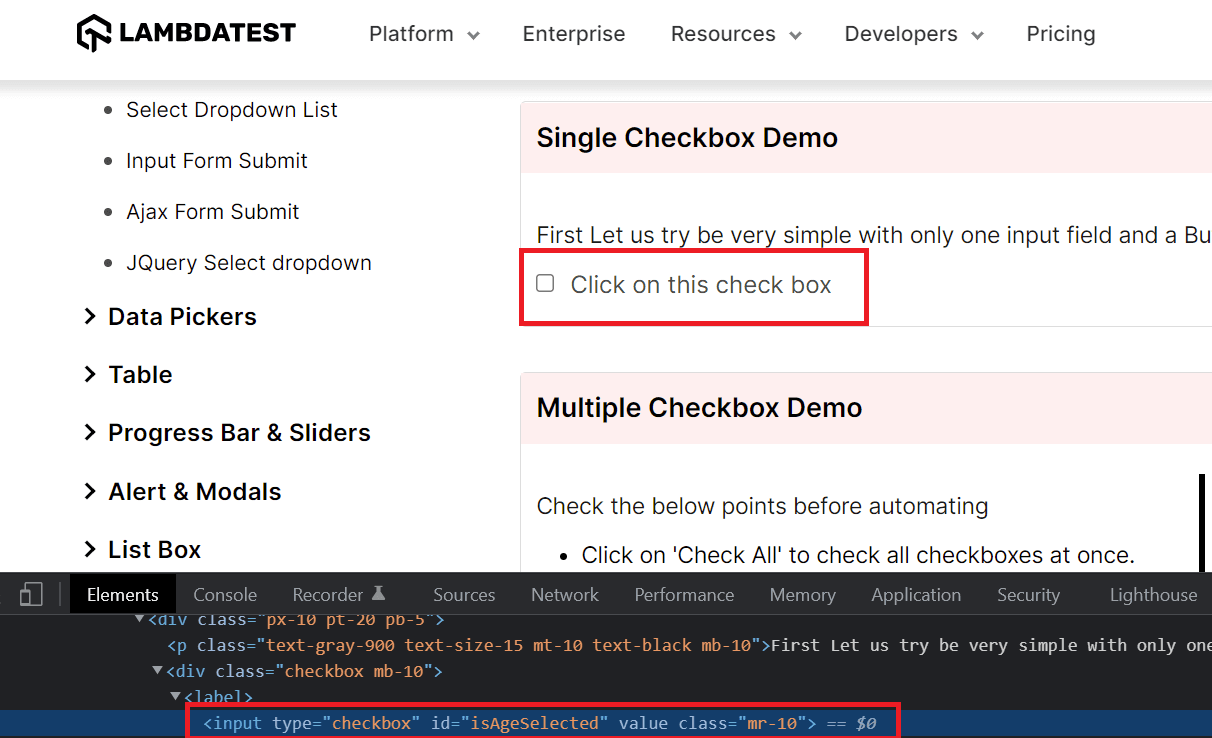
WebElement checkbox= driver.findElement(By.id("isAgeSelected"));
checkbox.click();
- 点击复选框后,让我们检查该元素是否被选中。
boolean status = checkbox.isSelected();

    System.out.println(status);
    if(status){
        System.out.println("The element is selected in the web page");
    }
    else
        Assert.fail("The element is not selected in the web page");

}
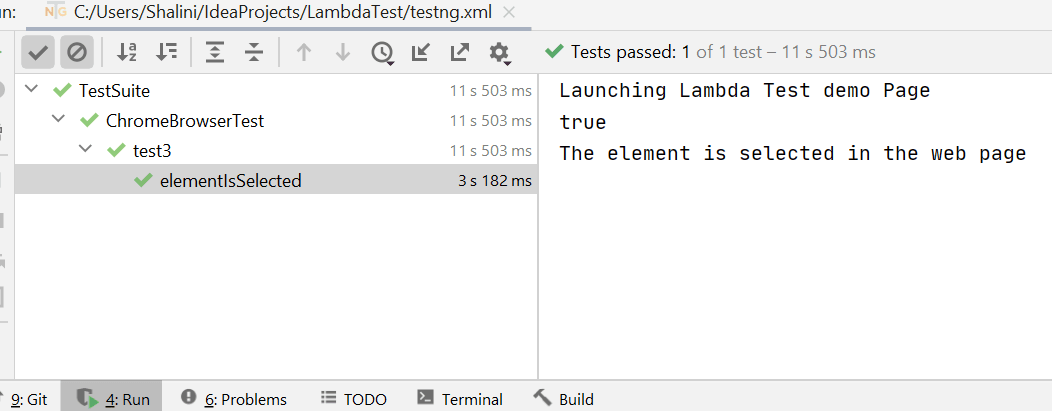
isSelected()方法返回true,因为该元素已经在网页上被选中。
控制台输出
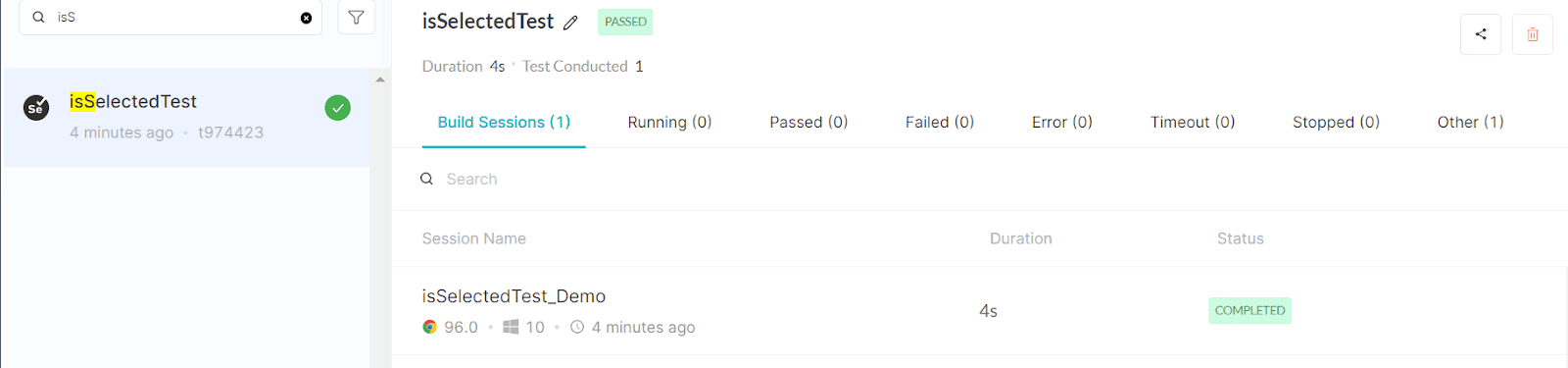
在LambdaTest仪表板中,我们可以找到我们的测试
现在,让我们修改我们的测试,看看如果我们不选择复选框会发生什么!!
@Test
public void elementIsSelected() {
    try {
        System.out.println("Launching Lambda Test demo Page");
        driver.get("https://www.lambdatest.com/selenium-playground/checkbox-demo");

        WebElement checkbox= driver.findElement(By.id("isAgeSelected"));
        boolean status = checkbox.isSelected();
        System.out.println(status);
        if(status){
            System.out.println("The element is selected in the web page");
        }
        else
            Assert.fail("The element is not selected in the web page");

    } catch (Exception e) {
        System.out.println(e);
    }

}
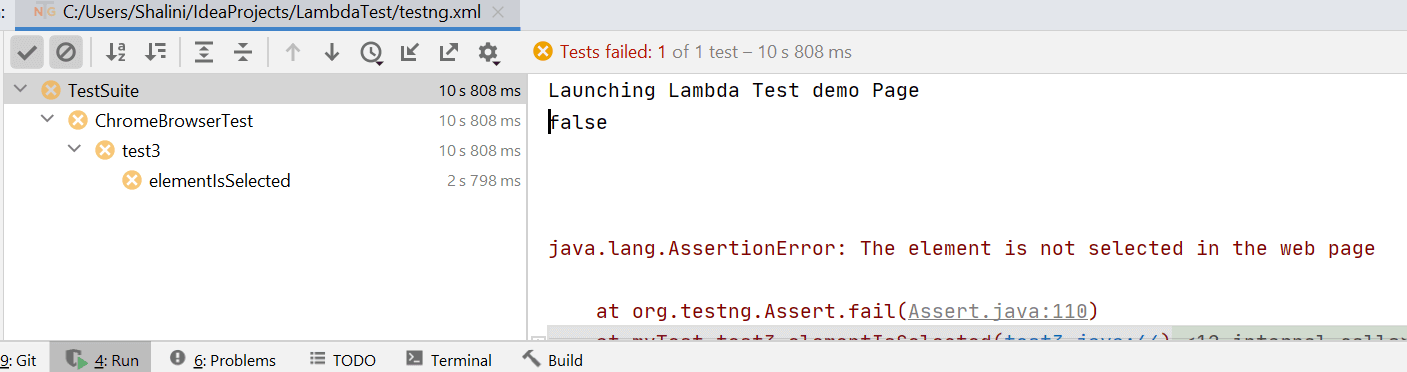
在上面的代码中,我们已经确定了定位器,但我们并没有点击复选框。我们现在要验证复选框是否被选中。
现在我们的isSelected()方法将返回错误,因为复选框没有被选中。控制台的输出将如下所示。
该认证是希望获得Selenium自动化测试高级实践知识的测试专业人士的理想选择。
下面是LambdaTest公司对Selenium高级认证的简短介绍。
总结...!
现在是时候总结一下我们的理解了。到目前为止,我们已经实现了三个不同的方法--isDisplayed()、isEnabled()和isSelected()--为其各自的目的服务。在Selenium中,isDisplayed()用于确保网页上的网页元素的可见性。isEnabled()方法用于确保我们试图与之互动的元素在网页上是否被启用。
如果该元素没有被启用,那么我们就不能继续进行测试,可能会返回错误的异常。isSelected()方法是用来验证网页上的元素是否已经被选中。这可以应用于单选按钮和复选框元素。这三个方法的返回类型都是布尔值,根据它我们可以断定网页元素的状态。
我希望这篇关于如何在Selenium WebDriver中使用isDisplayed()的文章真的很有参考价值,能帮助你有效地实现你的测试。我希望听到你对这篇文章的反馈。试试你的手,合理地建立你的自动化测试。继续探索...!
测试愉快...!
常见问题(FAQ)
什么是Selenium isDisplayed?
isDisplayed()是一个方法,可以用来验证一个元素当前是否可以查看。该方法返回真或假,取决于该元素当前是否对用户可见。
isEnabled和isDisplayed之间的区别是什么?
isDisplayed()检查元素当前是否将其显示属性设置为true(或者它是否有任何显示属性)isEnabled()检查元素是否存在。
如何在Selenium中编写isDisplayed?
isDisplayed方法确认指定的元素是否被显示。如果它没有显示,那么它返回false。如果它是,那么该值返回true。
