一、与物体相关的脚本
1.使用Resources加载Resources中的资源并克隆到场景中
官网 docs.unity.cn/cn/2019.4/S…
using System.Collections;
using System.Collections.Generic;
using UnityEngine;
public class test02 : MonoBehaviour
{
void Start()
{
GameObject hero = Resources.Load<GameObject>("hero/StoneKing");
GameObject.Instantiate(hero);
}
}
2.查找物体
官网 docs.unity.cn/cn/2019.4/S…
1.通过路径查找物体
//这里举例找到Sphere对象后,停用物体,这样加载场景后就看不到该对象了
GameObject sphere= GameObject.Find("Sphere")
sphere.SetActive(false)
2.通过标签查找物体
官网 docs.unity.cn/cn/2019.4/S…
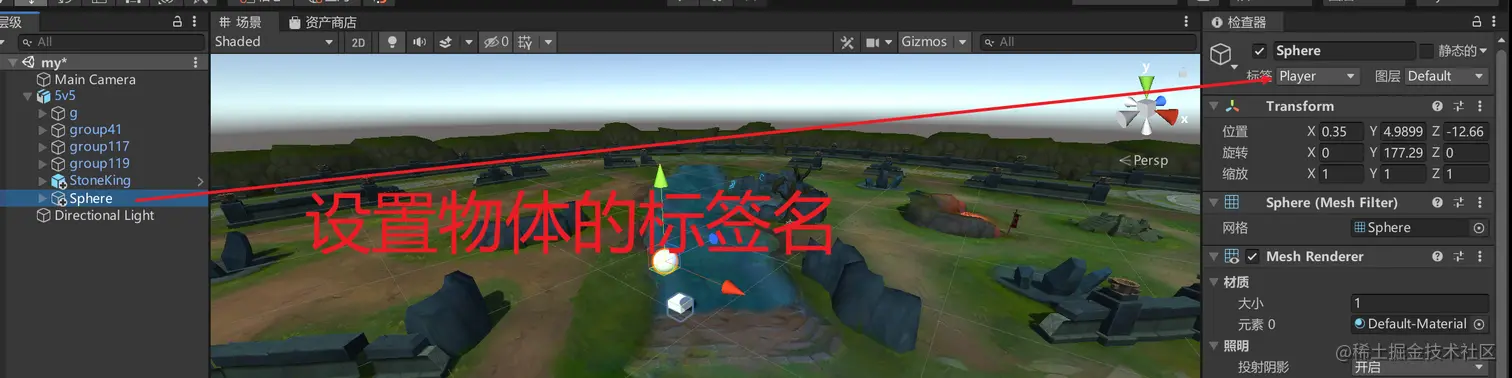
GameObject shpere = GameObject.FindGameObjectWithTag("Player")
shpere.SetActive(false)
3.对物体的参数进行改变
官网 docs.unity.cn/cn/2019.4/S…
GameObject shpere = GameObject.FindGameObjectWithTag("Player")
//shpere.SetActive(false)
shpere.name = "sphere01"
shpere.transform.position = new Vector3(0,10,34)
shpere.transform.localPosition = new Vector3(0, 10, 34)
shpere.transform.eulerAngles = new Vector3(34,32,1)
shpere.transform.localEulerAngles=new Vector3(34, 32, 1)
shpere.transform.localScale = new Vector3(10,10,10)
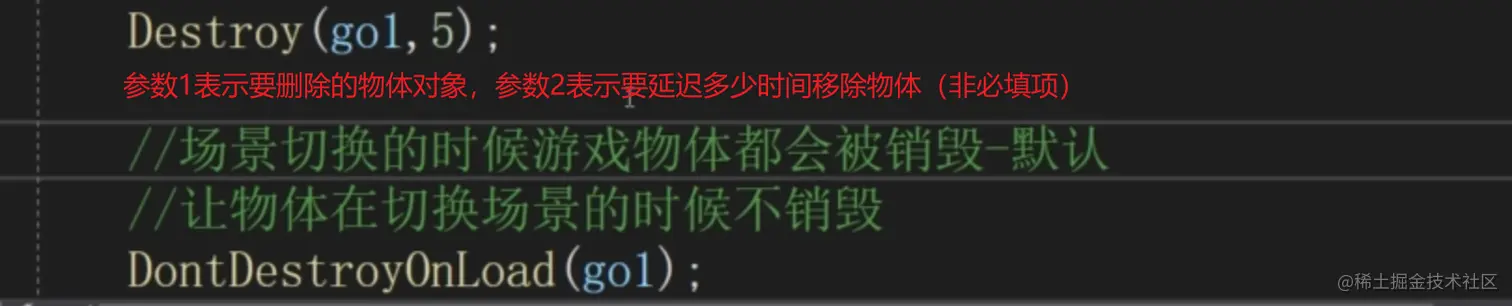
4.通过脚本删除物体
5.操作组件的相关脚本
官网 docs.unity.cn/cn/2019.4/S…
GameObject shpere = GameObject.FindGameObjectWithTag("Player")
shpere.AddComponent<AudioSource>()
GameObject text = GameObject.FindGameObjectWithTag("Text")
//text.GetComponent<Text>().text="欢迎进入游戏"
//text.GetComponentInChildren<Text>().text = "先查找孩子中是否有该组件再查找自身"
//text.GetComponentInParent<Text>().text = "先查找父亲中是否有该组件再查找自身"
//查找多个同类型的组件
AudioSource[] audioArray = text.GetComponentsInChildren<AudioSource>()
Debug.Log(audioArray.Length)
//激活和关闭组件 通过组件中的enabled属性,值为false关闭,ture激活
audioArray[0].enabled = false
//可以使用Destory(传入要移除的组件)来移除组件
Destroy(audioArray[0])
二、像素游戏案例
1.控制虚拟轴移动物体
using System.Collections;
using System.Collections.Generic;
using UnityEngine;
public class script : MonoBehaviour
{
void Start()
{
}
void Update()
{
float x = Input.GetAxis("Horizontal");
float z = Input.GetAxis("Vertical");
Debug.Log($"x:{x},y:{z}");
Vector3 dir = new Vector3(x,0,z);
if (dir != Vector3.zero)
{
transform.rotation = Quaternion.LookRotation(dir);
transform.Translate(Vector3.forward * 2 * Time.deltaTime);
}
}
}
2.控制摄像机跟随
using System.Collections;
using System.Collections.Generic;
using UnityEngine;
public class cameral : MonoBehaviour
{
private Vector3 vector;
private Transform player;
void Start()
{
player = GameObject.FindGameObjectWithTag("Player").transform;
vector = player.position - transform.position;
}
void Update()
{
transform.position = player.position - vector;
}
}