Vue组件开发
1切换组件案例
我们先从一个案例看起
-
比如我们现在想要实现一个功能:
-
点击一个tab-bar,切换不同的组件显示
-
这个案例通过两种不同的实现思路来实现
-
方式一:通过v-if来判断,显示不同的组件;
-
方式二:动态组件的方式
动态组件是使用 component 组件,通过一个特殊的attribute v-bind:is来实现:
-
-
-
App.vue
<template>
<button v-for="(item,index) in tabs" :key="item" @click="switchTab(item)" :class="{active:currentTab === item }">
{{item}}
</button>
<!-- 2.动态组件 -->
<keep-alive include="home,about">
<component :is="currentTab" name="tim" :age="18" @PageClick="pageClick" ></component>
</keep-alive>
<!-- 1.v-if的判断实现 -->
<template v-if="currentTab === 'home'">
<Home />
</template>
<template v-else-if="currentTab === 'About'">
<About />
</template>
<template v-else>
<Category />
</template>
</template>
<script>
import Home from "./pages/Home.vue"
import About from "./pages/About.vue"
import Category from "./pages/Category.vue"
export default {
components: {
Home,
About,
Category
},
data() {
return {
tabs:["home","category","goods"],
currentTab:"home"
}
},
methods: {
switchTab(item) {
this.currentTab = item
}
pageClick() {
console.log("page页面发生修改")
}
}
}
</script>
<style>
.active {
color:red
}
</style>
- Home.vue
  <template>
    Home组件 -- {{name}} -- {{age}}
    <button @click="btnClick">
      点击触发事件
    </button>
  </template>
  <script>
   export default {
      name:"home"
      props: {
      name: {
        type:String,
        default: ""
      },
      age: {
        type:Number,
        default:0
      }
    }
    emits: ["PageClick"],
    methods: {
      btnClick() {
        this.$emit("PageClickClick")
      }
    }
   }
  </script>
- About.vue
  <template>
    About组件
    <!-- 如果增加了counter但是又切换了上面的组件,那么会进行这个组件的销毁和重新挂载,这样会浪费性能,那么我闷可以使用keep-alive进行改造,查看app.vue中的keep-alive -->
    <button @click="counter++">
      {{counter}}
    </button>
  </template>
  <script>
    export default {
      name:"about"
      data() {
        return {
          counter:0
        }
      }
    }
  </script>
- Category.vue
  <template>
    Category组件
  </template>
  <script>
    export default {
      name:"category"
    }
  </script>
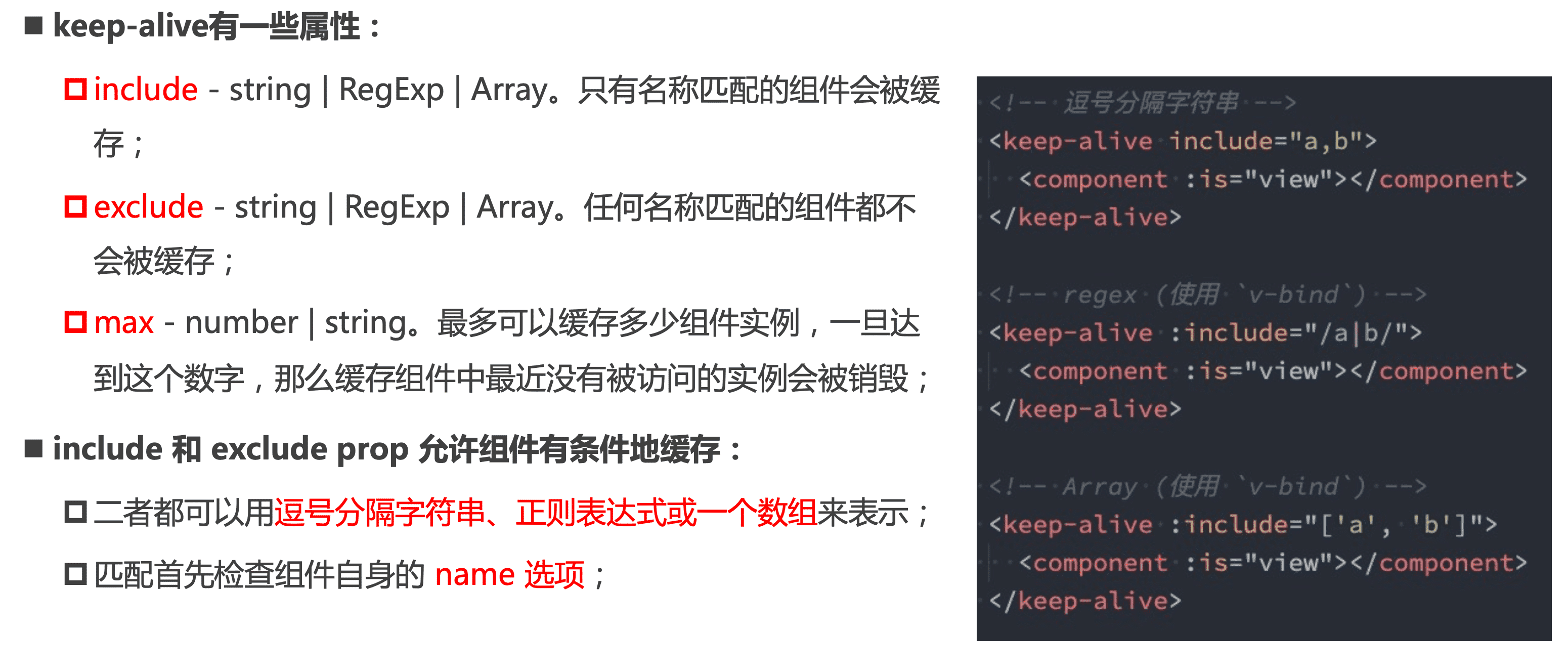
- Keep-alive的一些属性,以下代码中在上面进行示范了
2Webpack分包
-
默认的打包过程:
- 默认情况下,在构建整个组件树的过程中,因为组件和组件之间是通过模块化直接依赖的,那么webpack在打包时就会将组 件模块打包到一起(比如一个app.js文件中);
- 这个时候随着项目的不断庞大,app.js文件的内容过大,会造成首屏的渲染速度变慢;
-
打包时,代码的分包:
- 所以,对于一些不需要立即使用的组件,我们可以单独对它们进行拆分,拆分成一些小的代码块chunk.js;
- 这些chunk.js会在需要时从服务器加载下来,并且运行代码,显示对应的内容;
-
那么webpack中如何可以对代码进行分包呢?
3Vue中实现异步组件
3.1创建AsyncCategory.vue
<template>
  <h2>
    {{message}}
  </h2>
</template>
<script>
  export default {
    return {
      message:"Hello Category"
    }
  }
</script>
3.2AsyncCategory组件在App.vue中使用
<template>
  <AsyncCategory></AsyncCategory>
</template>
<script>
  import AsyncCategory from "./AsyncCategory.vue"
  export default {
    components: {
      AsyncCategory
    }
  }
</script>
3.3使用defineAsyncComponent进行vue分包
-
如果我们的项目过大了,对于某些组件我们希望通过异步的方式来进行加载(目的是可以对其进行分包处理),那么Vue中给我们提供了一个函数:defineAsyncComponent。
-
defineAsyncComponent接受两种类型的参数:
- 类型一:工厂函数,该工厂函数需要返回一个Promise对象;
- 类型二:接受一个对象类型,对异步函数进行配置;
<!-- 方式一 -->
<template>
  <AsyncCategory></AsyncCategory>
</template>
<script>
  import {defineAsyncComponent} from "vue"
  //import AsyncCategory from "./AsyncCategory.vue"
  //该工厂函数需要返回一个Promise对象;
  const AsyncCategory = defineAsyncComponent(()=>import("./AsyncCategory.vue"))
  export default {
    components: {
      AsyncCategory
    }
  }
</script>
<!-- 方式二 -->
<template>
  <AsyncCategory></AsyncCategory>
</template>
<script>
  import {defineAsyncComponent} from "vue"
  import Loading from "./Loading.vue"
  //import AsyncCategory from "./AsyncCategory.vue"
  //该工厂函数需要返回一个Promise对象;
  const AsyncCategory = defineAsyncComponent({
    loader: () => import("./AsyncCategory.vue"),
    //可以写一个组件进行占位以免没有加载完毕
    loadingComponent: Loading

  })
  export default {
    components: {
      AsyncCategory,
      Loading,
      //自己尝试创建error组件试试
      errorComponent: Error
      //在显示loadingComponent组件之前,等待多长时间
      delay:2000,
      /**
      * err: 错误信息,
      * retry: 函数, 调用retry尝试重新加载
      * attempts: 记录尝试的次数
      */
      onError: (error,retry,fail,attempts)=> {

      }
    }
  }
</script>
-
Loading.vue
- 把这个loading组件在方式二中的loadingComponent中使用
<template> <div> Loading </div> </template> <script> export default { } </script> <style scoped> </style>
4异步组件和Suspense
-
Suspense是一个内置的全局组件,该组件有两个插槽:
- default:如果default可以显示,那么显示default的内容;
- fallback:如果default无法显示,那么会显示fallback插槽的内容;
<!-- 方式一 -->
<template>
  <suspense>
    <template #default>
        <AsyncCategory></AsyncCategory>
    </template>
    <template #fallback>
        <Loading></Loading>
    </template>
  </suspense>
</template>
<script>
  import {defineAsyncComponent} from "vue"
  import Loading from "./Loading.vue"
  //import AsyncCategory from "./AsyncCategory.vue"
  //该工厂函数需要返回一个Promise对象;
  const AsyncCategory = defineAsyncComponent(()=>import("./AsyncCategory.vue"))
  export default {
    components: {
      AsyncCategory,
      Loading
    }
  }
</script>
5.引用元素和组件的使用
-
某些情况下,我们在组件中想要直接获取到元素对象或者子组件实例**
- 在Vue开发中我们是不推荐进行DOM操作的;
- 这个时候,我们可以给元素或者组件绑定一个ref的attribute属性;
-
组件实例有一个$refs属性:
- 它一个对象Object,持有注册过 ref attribute 的所有 DOM 元素和组件实例。
-
父元素和根元素怎么获取呢
- this.$parent获取父元素
- this.$root获取根元素
-
创建一个App.vue
  <template>
    <div>
      <!-- 绑定到一个元素上 -->
      <h2 ref="title">哈哈哈</h2>

      <!-- 绑定到一个组件实例上 -->
      <NavBar ref="navBar"></NavBar>

      <button @click="btnClick">获取元素</button>
    </div>
  </template>

  <script>
    import NavBar from './NavBar.vue';

    export default {
      components: {
        NavBar
      },
      data() {
        return {
          names: ["abc", "cba"]
        }
      },
      methods: {
        btnClick() {
          //获取refs dom
          console.log(this.$refs.title);
          //获取子组件的数据
          console.log(this.$refs.navBar.message);
          this.$refs.navBar.sayHello();

          // $el
          console.log(this.$refs.navBar.$el);
        }
      }
    }
  </script>

  <style scoped>

  </style>
- NavBar.vue
<template>
<div>
<h2>NavBar</h2>
<button @click="getParentAndRoot">获取父组件和根组件</button>
</div>
</template>
<script>
export default {
data() {
return {
message: "我是NavBar中的message"
}
},
methods: {
sayHello() {
console.log("Hello NavBar");
},
getParentAndRoot() {
//获取父组件的东西
console.log(this.$parent);
//获取根组件的东西
console.log(this.$root);
}
}
}
</script>
<style scoped>
</style>
[注意] 在Vue3中已经移除了$children的属性,所以不可以使用了。
6认识生命周期
-
什么是生命周期呢?
- 每个组件都可能会经历从创建,挂载,更新,卸载等一系列的过程
- 在这个过程中的某一个阶段,用于可能会想要添加一些属于自己的代码逻辑
- 但是我们如何可以知道目前组件正在哪一个过程呢?Vue给我们提供了组件的生命周期函数
-
生命周期函数:
- 生命周期函数是一些钩子函数,在某个时间会被Vue源码内部进行回调;
- 通过对生命周期函数的回调,我们可以知道目前组件正在经历什么阶段;
- 那么我们就可以在该生命周期中编写属于自己的逻辑代码了;
6.1组件的生命的周期
- App.vue
<template>
<div>
<!-- 根据这个变量,组件就会卸载和挂载 -->
<button @click="isShow = !isShow">切换</button>
<template v-if="isShow">
<home></home>
</template>
</div>
</template>
<script>
import Home from './Home.vue';
export default {
components: {
Home
},
data() {
return {
isShow: true
}
}
}
</script>
<style scoped>
</style>
- Home.vue
<template>
<div>
<h2 ref="title">{{message}}</h2>
<button @click="changeMessage">修改message</button>
</div>
</template>
<script>
export default {
data() {
return {
message: "Hello Home"
}
},
methods: {
changeMessage() {
this.message = "你好啊, 李银河"
}
},
beforeCreate() {
console.log("home beforeCreate");
},
created() {
console.log("home created");
},
beforeMount() {
console.log("home beforeMount");
},
mounted() {
console.log("home mounted");
},
beforeUnmount() {
console.log("home beforeUnmount");
},
unmounted() {
console.log("home unmounted");
},
beforeUpdate() {
console.log(this.$refs.title.innerHTML);
console.log("home beforeUpdate");
},
updated() {
console.log(this.$refs.title.innerHTML);
console.log("home updated");
}
}
</script>
<style scoped>
</style>
如果是动态组件是不会进行销毁和挂载的,除了第一次加载挂载,使用的是activated和deactivated
<script>
  export default {
    activated() {
      console.log("about activated");
    },
    deactivated() {
      console.log("about deactivated");
    }
  }
</script>
7.组件的v-model
-
如果我们现在封装了一个组件,其他地方在使用这个组件时,是否也可以使用v-model来同时完成这两个功能呢?
- 也是可以的,vue也支持在组件上使用v-model;
-
当我们在组件上使用的时候,等价于如下的操作:
- 我们会发现和input元素不同的只是属性的名称和事件触发的名称而已;
- App.vue
<template>
<div>
<!-- 可以写多个v-model -->
<HyInput v-model="message" v-model:title="title"></HyInput>
<!-- 拆解成为这两部分 -->
<HyInput :modelValue="message" @update:modelValue="message = $event"></HyInput>
<!-- 这行代码就是上面这行代码的缩写 -->
<HyInput v-model="message"></HyInput>
<h2>{{message}}</h2>
<h2>{{title}}</h2>
</div>
</template>
<script>
import HyInput from './HyInput.vue';
export default {
components: {
HyInput
},
data() {
return {
message: "Hello World",
title: "哈哈哈"
}
}
}
</script>
<style scoped>
</style>
- Hyinput.vue
<template>
  <div>
    <!--<button @click="btnClick">hyinput</button>-->
    <!--<input :value="modelValue" @input="btnClick">-->
    <!-- 绑定的第一个v-model message -->
    <input v-model="value">
    <!-- 绑定的第二个v-model title -->
    <input v-model="tle">
  </div>
</template>
<script>
  export default {
    props: {
      modelValue: String,
      title:String
    },
    emits:["update:modelValue","update:title"],
    computed: {
      value: {
        set(value) {
          this.$emit("update:modelValue",value)
        },
        get() {
          return this.modelValue
        }
      }
      tle: {
        set(tle) {
          this.$emit("update:title",tle)
        },
        get() {
          return this.title
        }
      }
    },
    methods: {
      btnClick() {
        this.$emit("update:modelValue","123")
      }
    }
  }
</script>