完整代码:
<!DOCTYPE html>
<html lang="en">
<head>
<meta charset="UTF-8">
<meta http-equiv="X-UA-Compatible" content="IE=edge">
<meta name="viewport" content="width=device-width, initial-scale=1.0">
<title>Document</title>
<style>
*{
margin: 0;
padding: 0;
}
button{
padding: 6px 10px;
background: #31f111;
border: none;
}
.view{
width: 300px;
height: 500px;
background: yellow;
text-align: center;
}
.view .title{
padding-top: 30px;
font-size: 25px;
}
.view .content{
padding-top: 30px;
}
</style>
<script src="https://cdn.bootcdn.net/ajax/libs/html2canvas/1.4.1/html2canvas.js"></script>
</head>
<body>
<div class="btn">
<button onclick="saveFile()">保存海报</button>
<button onclick="drawImage()">生成图片</button>
</div>
<div id="capture" class="view">
<div class="title">海报标题:小辉学前端</div>
<div class="content">
<p>海报内容</p>
<p id="xiaohui">小辉学前端</p>
<p>生成海报</p>
<p>生成海报</p>
<p>生成海报</p>
<p>生成海报</p>
<p>生成海报</p>
<p>生成海报</p>
<p>生成海报</p>
<p>生成海报</p>
</div>
</div>
<br>
<hr>
<div id="result" class="result"></div>
<script>
function saveFile(){
let dpi = window.devicePixelRatio || 2;
let options = {
useCORS:true,
ignoreElements:(ele)=>{
if(ele.id === 'xiaohui'){
return true
}
},
scale:dpi
};
html2canvas(document.querySelector("#capture"),options).then(canvas => {
canvas.toBlob(function (blob){
downloadBob(blob)
})
});
}
function drawImage(){
let dpi = window.devicePixelRatio || 2;
let options = {
useCORS:true,
ignoreElements:false,
scale:dpi
};
html2canvas(document.querySelector("#capture"),options).then(canvas => {
let url = canvas.toDataURL('image.png');
document.querySelector('#result').innerHTML = `<img src="${url}" alt="小辉学前端" />`;
});
}
function downloadBob(blob){
var a = document.createElement('a');
var url = window.URL.createObjectURL(blob);
var filename = '小辉学前端.png';
a.href = url;
a.download = filename;
a.click();
window.URL.revokeObjectURL(url);
}
</script>
</body>
</html>
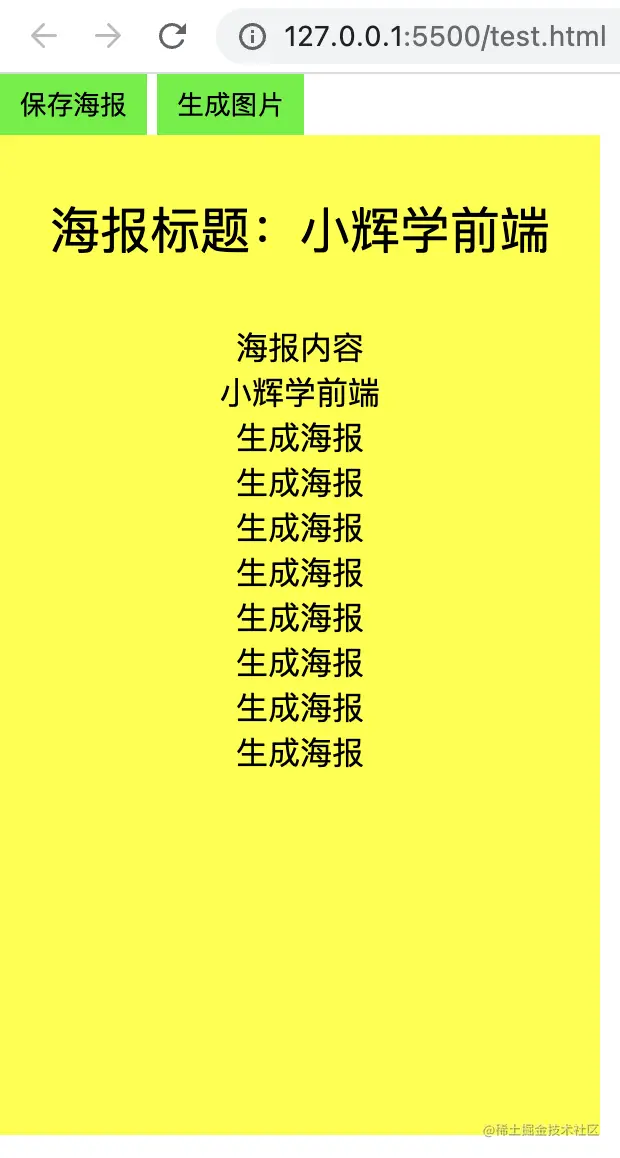
demo效果如下图: