电脑升级w11后,wsl彻底用不了了,因为有热更新的bug,导致我一个前端压根无法使用wsl,只好寻求其他的终端解决方案,在找资料的过程中才发现,原来powershell 的功能以及生态已经做的很好了,后面w11试了一下觉得可以,我的台式机w10也优化了,亲测有效!以下为我优化的步骤
前置工作
- 通过
Micorsoft Store下载window Terminal - 通过
Micorsoft Store下载oh my posh - 下载
oh my posh推荐字体 下载包地址 - 安装刚才的 下载字体到windows fonts里
设置终端为oh my posh 主题
-
在
window Terminal设置字体-
打开
window Terminal,用快捷键ctrl + shift + ,(逗号)来打开 setting.json配置文件W -
修改
default选项如下:defaults: { font: { face: "MesloLGM NF" } } -
保存后 重新打开终端,输入
notepad $profile并回车,询问你没有文件是否新建文件时点是即可- 如果没有询问在你的终端输入
$profile, 终端会输出 profile的路径,然后在该路径下创建Microsoft.PowerShell_profile.ps1文件即可
- 如果没有询问在你的终端输入
-
在文件中写入
oh-my-posh init pwsh | Invoke-Expression,然后保存,重启终端,如下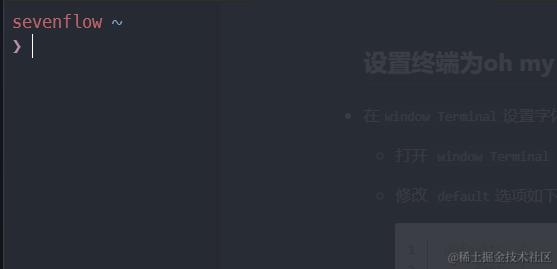
-
如果想设置别的主题,先在终端查看有什么主题,输入命令并且回车
Get-PoshThemes,然后oh my posh会输出自己的主题,并且输出一个例子,你复制例子的命令修改里面的主题文件如下oh-my-posh init pwsh --config C:\Users\你的路径\AppData\Local\Programs\oh-my-posh\themes/主题名.omp.json | Invoke-Expression -
终端输入
notepad $profile写入刚才复制的命令 然后保存 -
这里我用的
pure主题,最终结果如下
-
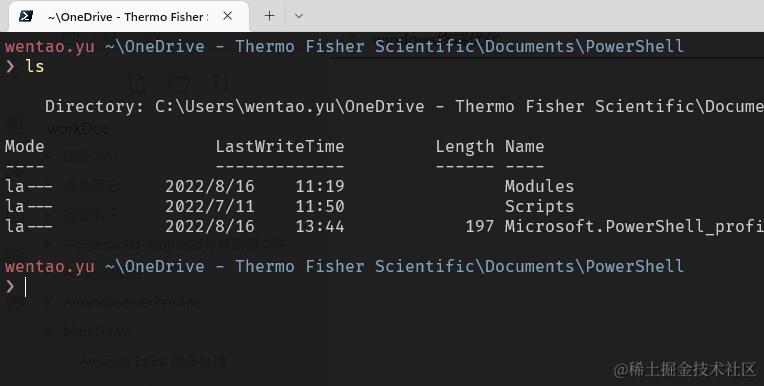
vscode 设置字体
- 在vscode 中打开设置,在设置->功能->终端中修改
Font Family为MesloLGM NF
powershell 功能增强
安装
- 安装 PSReadline 包,该插件可以让命令行很好用,类似 zsh
Install-Module -Name PSReadLine -Scope CurrentUser
- 安装 posh-git 包,让你的 git 更好用,以管理员运行 powershell 然后安装,安装不成功这个命令行加后缀
-Force
Install-Module posh-git -Scope CurrentUser
- 安装 DirColors 包,
ls命令输出更为美观
Install-Module DirColors
设置 $profile
因为刚才安装了module,所以相当于的也需要引入,和设置
# 引入 posh-git
Import-Module posh-git
# 引入 ps-read-line
Import-Module PSReadLine
# 引入
Import-Module DirColors
# 设置 ps-read-line
# 设置预测文本来源为历史记录
Set-PSReadLineOption -PredictionSource History
# 每次回溯输入历史,光标定位于输入内容末尾
Set-PSReadLineOption -HistorySearchCursorMovesToEnd
# 设置 Tab 为菜单补全和 Intellisense
Set-PSReadLineKeyHandler -Key "Tab" -Function MenuComplete
# 设置 Ctrl+d 为退出 PowerShell
Set-PSReadlineKeyHandler -Key "Ctrl+d" -Function ViExit
# 设置 Ctrl+z 为撤销
Set-PSReadLineKeyHandler -Key "Ctrl+z" -Function Undo
# 设置向上键为后向搜索历史记录
Set-PSReadLineKeyHandler -Key UpArrow -Function HistorySearchBackward
# 设置向下键为前向搜索历史纪录
Set-PSReadLineKeyHandler -Key DownArrow -Function HistorySearchForward
- 写一个
open快捷功能打开当前工作目录,编辑$profile
# 1. 打开当前工作目录
function OpenCurrentFolder {
    param
    (
        # 输入要打开的路径
        # 用法示例:open C:\
        # 默认路径:当前工作文件夹
        $Path = '.'
    )
    Invoke-Item $Path
}
Set-Alias -Name open -Value OpenCurrentFolder
- 写一个
ls与ll功能
# 2. 查看目录 ls & ll
function ListDirectory {
    (Get-ChildItem).Name
    Write-Host("")
}
Remove-Item alias:\ls
Set-Alias -Name ls -Value ListDirectory
Set-Alias -Name ll -Value Get-ChildItem
保存文件,重启终端
安装powershell 自己的包管理
-
安装
scoop网络报错可能就是需要梯子
Invoke-Expression (New-Object System.Net.WebClient).DownloadString('https://get.scoop.sh')
-
使用
scoop- 比如下载 前端常用
node管理nvm
scoop search nvm- 输出
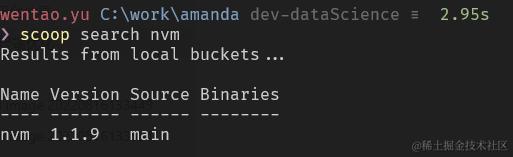
- 安装
scoop install nvm比之前方便了很多
- 比如下载 前端常用
总结
最终的$profile文件内容为
# 使用主题
oh-my-posh init pwsh | Invoke-Expression
# 设置主题
oh-my-posh init pwsh --config C:\Users\wentao.yu\AppData\Local\Programs\oh-my-posh\themes/pure.omp.json | Invoke-Expression
# 引入 posh-git
Import-Module posh-git
# 引入 ps-read-line
Import-Module PSReadLine
# 引入
Import-Module DirColors
#------------------------------- Import Modules END -------------------------------
#------------------------------- Set Hot-keys BEGIN -------------------------------
# 设置预测文本来源为历史记录
Set-PSReadLineOption -PredictionSource History
# 每次回溯输入历史,光标定位于输入内容末尾
Set-PSReadLineOption -HistorySearchCursorMovesToEnd
# 设置 Tab 为菜单补全和 Intellisense
Set-PSReadLineKeyHandler -Key "Tab" -Function MenuComplete
# 设置 Ctrl+d 为退出 PowerShell
Set-PSReadlineKeyHandler -Key "Ctrl+d" -Function ViExit
# 设置 Ctrl+z 为撤销
Set-PSReadLineKeyHandler -Key "Ctrl+z" -Function Undo
# 设置向上键为后向搜索历史记录
Set-PSReadLineKeyHandler -Key UpArrow -Function HistorySearchBackward
# 设置向下键为前向搜索历史纪录
Set-PSReadLineKeyHandler -Key DownArrow -Function HistorySearchForward
#------------------------------- Set Hot-keys END -------------------------------
#------------------------------- Set Alias BEGIN -------------------------------
# 1. 打开当前工作目录
function OpenCurrentFolder {
param
(
# 输入要打开的路径
# 用法示例:open C:\
# 默认路径:当前工作文件夹
$Path = '.'
)
Invoke-Item $Path
}
Set-Alias -Name open -Value OpenCurrentFolder
# 2. 查看目录 ls & ll
function ListDirectory {
(Get-ChildItem).Name
Write-Host("")
}
Remove-Item alias:\ls
Set-Alias -Name ls -Value ListDirectory
Set-Alias -Name ll -Value Get-ChildItem
#------------------------------- Set Alias END -------------------------------
最终终端效果为
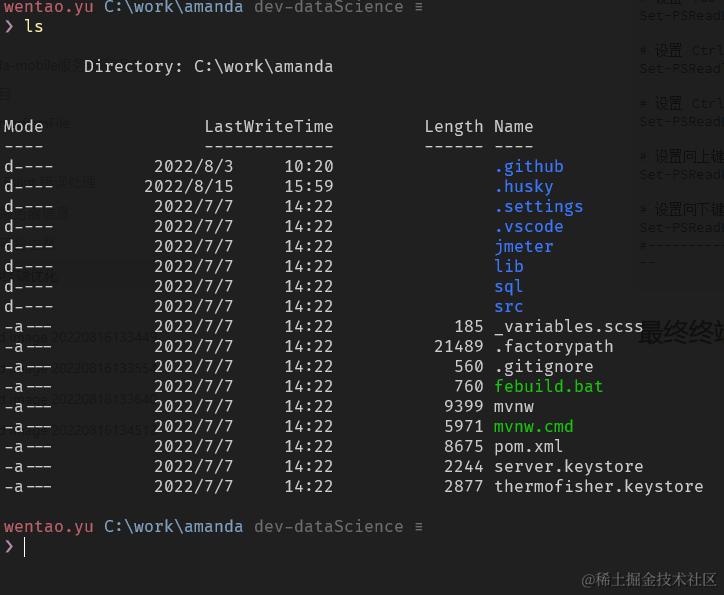 带命令补全 以及 历史记录已经很方便了
{
    "$help": "https://aka.ms/terminal-documentation",
    "$schema": "https://aka.ms/terminal-profiles-schema",
    "actions":
    [
        {
            "command":
            {
                "action": "copy",
                "singleLine": false
            },
            "id": "User.copy.644BA8F2",
            "keys": "ctrl+c"
        },
        {
            "command": "paste",
            "id": "User.paste",
            "keys": "ctrl+v"
        },
        {
            "command":
            {
                "action": "splitPane",
                "split": "auto",
                "splitMode": "duplicate"
            },
            "id": "User.splitPane.A6751878",
            "keys": "alt+shift+d"
        },
        {
            "command": "find",
            "id": "User.find",
            "keys": "ctrl+shift+f"
        }
    ],
    "copyFormatting": "none",
    "copyOnSelect": false,
    "defaultProfile": "{61c54bbd-c2c6-5271-96e7-009a87ff44bf}",
    "newTabMenu":
    [
        {
            "type": "remainingProfiles"
        }
    ],
    "profiles":
    {
        "defaults":
        {
            "font":
            {
                "face": "MesloLGM Nerd Font"
            }
        },
        "list":
        [
            {
                "colorScheme": "One Half Dark",
                "commandline": "gsudo %SystemRoot%\\System32\\WindowsPowerShell\\v1.0\\powershell.exe",
                "guid": "{61c54bbd-c2c6-5271-96e7-009a87ff44bf}",
                "hidden": false,
                "name": "Windows PowerShell",
                "opacity": 90
            },
            {
                "commandline": "%SystemRoot%\\System32\\cmd.exe",
                "guid": "{0caa0dad-35be-5f56-a8ff-afceeeaa6101}",
                "hidden": false,
                "name": "\u547d\u4ee4\u63d0\u793a\u7b26"
            },
            {
                "guid": "{b453ae62-4e3d-5e58-b989-0a998ec441b8}",
                "hidden": false,
                "name": "Azure Cloud Shell",
                "source": "Windows.Terminal.Azure"
            },
            {
                "guid": "{17bf3de4-5353-5709-bcf9-835bd952a95e}",
                "hidden": true,
                "name": "Ubuntu-22.04",
                "source": "Windows.Terminal.Wsl"
            },
            {
                "guid": "{4ff56d04-d9cf-57ea-bae2-ad396374e7e3}",
                "hidden": false,
                "name": "Ubuntu 22.04.5 LTS",
                "source": "CanonicalGroupLimited.Ubuntu22.04LTS_79rhkp1fndgsc"
            }
        ]
    },
    "schemes": [],
    "theme": "dark",
    "themes": []
}