

如何为你的Windows Phone应用程序建立一个自定义的应用栏(简单的方法)
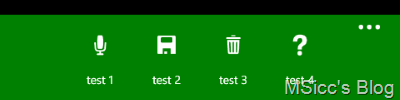
没有什么比建立一个完美的定制应用栏更让你觉得你为你的用户做了一些真正特别的东西。事实上,许多用户报告说,他们很欣赏公司为在他们已经使用的产品中创建有用的工具所做的努力。
定制的应用栏是一个很好的工具,因为它可以用来创建用户绝对需要的东西,也是他们在相当长的一段时间内一直要求从他们工作的公司获得的东西。
应用栏使用户更容易找到他们正在寻找的 信息和资源,而不需要所有的纠结,这是充分利用任何工具的关键部分。
在我最近的一个项目中,我被迫为应用栏按钮使用 图标,这些图标不适合标准windows手机应用栏的圆圈模板。
这些图标 本身有 特殊的圆圈,而且我不允许在这些图标上做任何改变(你说的对,这是为我正在做的企业应用程序)。这就是为什么我需要找到另一个解决方案--我开始写我自己的 "应用栏"。
由于我使用的是Telerik的windows phone控件,我知道rad图像按钮的行为与标准应用栏中的按钮完全一样。这一点已经被保存下来了,我唯一需要改变的是将弧形图像按钮的形状从矩形改为椭圆--完成。
这是我为 实现我的目标而创建的用户控件。
<border x:name="customappbarborder"  height="72" verticalalignment="bottom">
    <grid >
        <grid.columndefinitions>
            <columndefinition width="80"/>
            <columndefinition width="80"/>
            <columndefinition width="80"/>
            <columndefinition width="80"/>
            <columndefinition width="80"/>
            <columndefinition width="*"/>
        </grid.columndefinitions>
        <grid.rowdefinitions>
            <rowdefinition height="auto"></rowdefinition>
            <rowdefinition height="auto"></rowdefinition>
        </grid.rowdefinitions>

        <telerikprimitives:radimagebutton x:name="customappbarradimagebutton1" grid.row="0" grid.column="1" horizontalalignment="center" buttonshape="ellipse" reststateimagesource="null" ></telerikprimitives:radimagebutton>
        <telerikprimitives:radimagebutton x:name="customappbarradimagebutton2" grid.row="0" grid.column="2" horizontalalignment="center" reststateimagesource="null" buttonshape="ellipse" ></telerikprimitives:radimagebutton>
        <telerikprimitives:radimagebutton x:name="customappbarradimagebutton3" grid.row="0" grid.column="3" horizontalalignment="center" buttonshape="ellipse" reststateimagesource="null"></telerikprimitives:radimagebutton>
        <telerikprimitives:radimagebutton x:name="customappbarradimagebutton4" grid.row="0" grid.column="4" horizontalalignment="center" buttonshape="ellipse" reststateimagesource="null"></telerikprimitives:radimagebutton>

        <image x:name="overflowdots" grid.row="0" grid.column="5" width="72" source="/assets/appbar/overflowdots.png" verticalalignment="top" horizontalalignment="right" tap="overflowdots_tap"></image>

        <textblock x:name="customappbarbuttonitem1text" grid.row="1" grid.column="1" width="72" fontsize="14" verticalalignment="center" horizontalalignment="center" textalignment="center" margin="0,-4,0,0" />
        <textblock x:name="customappbarbuttonitem2text" grid.row="1" grid.column="2" width="72" fontsize="14" verticalalignment="center" horizontalalignment="center" textalignment="center" margin="0,-4,0,0" />
        <textblock x:name="customappbarbuttonitem3text" grid.row="1" grid.column="3" width="72" fontsize="14" verticalalignment="center" horizontalalignment="center" textalignment="center" margin="0,-4,0,0" />
        <textblock x:name="customappbarbuttonitem4text" grid.row="1" grid.column="4" width="72" fontsize="14" verticalalignment="center" horizontalalignment="center" textalignment="center" margin="0,-4,0,0" />
    </grid>
</border>
要让所有的尺寸都得到 类似的外观是有点棘手的,但它确实看起来像原来的那个。
radimagebutton控件也有一个我们可以输入的文本,但是无论我怎么做,文本都太小或者太靠近按钮。这就是为什么在我的网格中还有一行相应的文字。
你可能已经认出了上面那张来源为 "overflowdots.png "的图片。这些图片位于windows phone图标文件夹中(在Microsoft SDKs的程序文件下)。我们需要这个图标来产生标准应用栏的过渡。它是通过两个简单的故事板完成的:
<usercontrol.resources>
    <storyboard x:name="fadecustomappbarbuttontextin">
        <doubleanimation storyboard.targetname="customappbarborder"
                         storyboard.targetproperty="height"
                         from="72" to="102" duration="0:0:0.2"/>
    </storyboard>

    <storyboard x:name="fadecustomappbarbuttontextout">
        <doubleanimation storyboard.targetname="customappbarborder"
                         storyboard.targetproperty="height"
                         from="102" to="72" duration="0:0:0.2"/>
    </storyboard>
</usercontrol.resources>
我们现在需要的是一个适当的事件处理程序--控件内的图像的轻击事件就很适合:
private void overflowdots_tap(object sender, system.windows.input.gestureeventargs e)
{
    if (customappbarborder.actualheight == 72)
    {
        fadecustomappbarbuttontextin.begin();
    }
    else if (customappbarborder.actualheight == 102)
    {
        fadecustomappbarbuttontextout.begin();
    }
}
我使用边框来制作动画,因为使用网格的话,就没有我想要的那么流畅了。这就是我创建的控件的全部代码。让我们看一下实现。
第一件事是在我们的布局根网格中增加一行,在那里我们可以添加我们的自定义应用栏控件(设置高度为 "auto")。添加这段代码来添加应用栏:
//declare the control:

public customappbarwp8 customappbar;

//add your data to the app bar:

customappbar = new customappbarwp8();

            customappbar.customappbarbackground = new solidcolorbrush(colors.green);

            customappbar.customappbarbuttonitem1text.text = "test 1";
            customappbar.customappbarbuttonitem2text.text = "test 2";
            customappbar.customappbarbuttonitem3text.text = "test 3";
            customappbar.customappbarbuttonitem4text.text = "test 4";

            customappbar.customappbarradimagebutton1.reststateimagesource = new bitmapimage(new uri("assets/appbar/microphone.png", urikind.relativeorabsolute));
            customappbar.customappbarradimagebutton2.reststateimagesource = new bitmapimage(new uri("assets/appbar/save.png", urikind.relativeorabsolute));
            customappbar.customappbarradimagebutton3.reststateimagesource = new bitmapimage(new uri("assets/appbar/delete.png", urikind.relativeorabsolute));
            customappbar.customappbarradimagebutton4.reststateimagesource = new bitmapimage(new uri("assets/appbar/questionmark.png", urikind.relativeorabsolute));

//registering the tap events:

            customappbar.customappbarradimagebutton1.tap += customappbarradimagebutton1_tap;
            customappbar.customappbarradimagebutton2.tap += customappbarradimagebutton2_tap;
            customappbar.customappbarradimagebutton3.tap += customappbarradimagebutton3_tap;
            customappbar.customappbarradimagebutton4.tap += customappbarradimagebutton4_tap;

//adding the app bar to the dedicated grid:
            appbargrid.children.add(customappbar);
标准的应用栏在点击按钮时确实会淡出文本,所以我们需要在每个点击事件中添加这一行。否则,它将一直保持开放:
if (customappbar.actualheight == 102)
{
    customappbar.fadecustomappbarbuttontextout.begin();
}
为了在点击我们的自定义应用栏之外得到同样的结果,在你的主网格的鼠标左键向下事件中添加同样的代码。这样一来,你就有了和原始控件一样的行为。
补充说明:我需要找到一个快速的方法来实现这一点,这就是为什么我可能没有使用最佳实践。我还使用了rad图像按钮控件来加速事情的进展。当我有更多的时间时,我将完善这个控件,以及添加一个没有Telerik控件的版本,并添加菜单项。
如果你有任何关于如何改进的想法,欢迎在下面留下评论。
总之,你可以在这里下载上面的代码源:https://github.com/msiccdev/customappbar_wp8
一如既往,我希望这对你们中的一些人有帮助。
