1.安装nginx依赖
yum -y install gcc zlib zlib-devel pcre pcre-devel openssl openssl-devel
(安装失败可下载百度找对应包上传到服务器,configure make makeinstall安装)
1)gcc
安装nginx需要先将官网下载的源码进行编译,编译依赖gcc环境,如果没有gcc环境,需要安装gcc
需要执行的命令: yum install gcc-c++
2)PCRE
PCRE(Perl Compatible Regular Expressions)是一个Perl库,包括 perl 兼容的正则表达式库。nginx的http模块使用pcre来解析正则表达式,所以需要在linux上安装pcre库。
需要执行的命令: yum install -y pcre pcre-devel
3)zlib
zlib库提供了很多种压缩和解压缩的方式,nginx使用zlib对http包的内容进行gzip,所以需要在linux上安装zlib库。
需要运行的命令: yum install -y zlib zlib-devel
4)openssl
OpenSSL 是一个强大的安全套接字层密码库,囊括主要的密码算法、常用的密钥和证书封装管理功能及SSL协议,并提供丰富的应用程序供测试或其它目的使用。
nginx不仅支持http协议,还支持https(即在ssl协议上传输http),所以需要在linux安装openssl库。 直接 : www.baidu.com
2.下载并解压安装包
//创建一个文件夹
cd /usr/local
mkdir nginx
cd nginx
1.//下载tar包
1.wget nginx.org/download/ng…
1.tar -xvf nginx-1.22.0.tar.gz
- z:通过gzip支持压缩或解压缩
- x:解压缩。c是压缩
- v:在压缩或解压缩过程中显示正在处理的文件名
- f:f后面必须跟上要处理的文件名。
2.//下载zip包(window)
2.nginx.org/download/ng…
2.unzip -o nginx-1.22.0.zip -d nginx-1.22.0/
3.安装nginx
#进入目录
cd nginx-1.22.0
//执行命令 考虑到后续安装ssl证书 添加两个模块
./configure --with-http_stub_status_module --with-http_ssl_module
#执行make命令 编译
make
#执行make install命令
make install
4.启动nginx服务
1.whereis nginx

2.cd /usr/local/nginx
3.cd sbin
4.执行./nginx
后续 - 配置nginx.conf
- cd /usr/local/nginx/conf
- vi nginx.conf
【INSERT】进行数据编辑
【ESC】切换执行功能
:wq 表示保存结束,退出vi编辑器。
wq!表示强制保存结束,退出vi编辑器。
:q! 不保存文件,强制退出 vi编辑器。
5.重启nginx
/usr/local/nginx/sbin/nginx -s reload
查看nginx进程是否启动
ps -ef | grep nginx
安装完成一般常用命令
进入安装目录中
命令: cd /usr/local/nginx/sbin
启动,关闭,重启,命令:
./nginx 启动
./nginx -s stop 关闭
./nginx -s reload 重启
特殊说明
centOS6及以前版本使用命令: systemctl stop iptables.service
centOS7关闭防火墙命令: systemctl stop firewalld.service
关闭防火墙会导致服务器有一定风险,所以建议是单独开放服务端口 :
开放80端口:
firewall-cmd --zone=public --add-port=80/tcp --permanent
查询端口号80 是否开启:
firewall-cmd --query-port=80/tcp
重启防火墙:
firewall-cmd --reload
问题:(防火墙未开启)

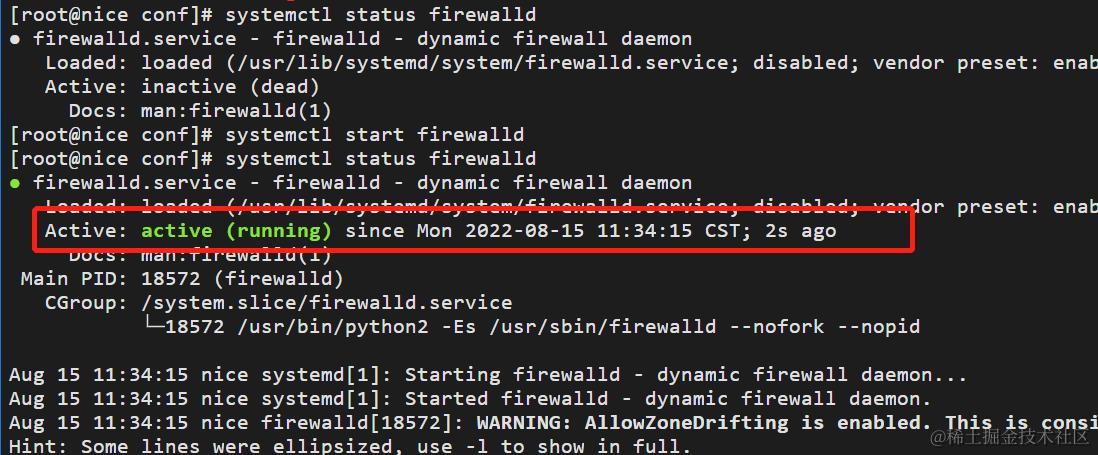
通过[systemctl status firewalld]查看firewalld状态,发现当前是dead状态,即防火墙未开启。

通过[systemctl start firewalld]开启防火墙,没有任何提示即开启成功。
在查询状态:
nginx指定配置文件启动
./sbin/nginx -c /usr/local/nginx/conf/nginx.conf
nginx -t #检测配置文件是否有语法错误,然后退出
nginx -c filename #设置配置文件(默认是:/etc/nginx/nginx.conf)
其他说明
Nginx 挂载到服务器的目录:
/work/nginx/conf.d用于存放配置文件/work/nginx/html用于存放网页文件/work/nginx/logs用于存放日志/work/nginx/cert用于存放 HTTPS 证书
创建 /work/nginx 目录,并在该目录下新建 nginx.conf 文件
blog.csdn.net/liuchang199…
user  nginx;
worker_processes  1;

events {
    use epoll;
    worker_connections  1024;
}

error_log  /var/log/nginx/error.log warn;
pid        /var/run/nginx.pid;

http {
    include       /etc/nginx/mime.types;
    default_type  application/octet-stream;
    sendfile        on;
    keepalive_timeout  65;

    log_format  main  '$remote_addr - $remote_user [$time_local] "$request" '
                      '$status $body_bytes_sent "$http_referer" '
                      '"$http_user_agent" "$http_x_forwarded_for"';
#    access_log  /var/log/nginx/access.log  main;

    gzip on;
    gzip_min_length 1k;     # 设置允许压缩的页面最小字节数
    gzip_buffers 4 16k;     # 用来存储 gzip 的压缩结果
    gzip_http_version 1.1;  # 识别 HTTP 协议版本
    gzip_comp_level 2;      # 设置 gzip 的压缩比 1-9。1 压缩比最小但最快,而 9 相反
    gzip_types text/plain application/x-javascript text/css application/xml application/javascript; # 指定压缩类型
    gzip_proxied any;       # 无论后端服务器的 headers 头返回什么信息,都无条件启用压缩

    include /etc/nginx/conf.d/*.conf; ## 加载该目录下的其它 Nginx 配置文件
}
使用 Docker 启动 Nginx 容器
docker run -d \
--name nginx --restart always \
-p 80:80 -p 443:443 \
-e "TZ=Asia/Shanghai" \
-v /work/nginx/nginx.conf:/etc/nginx/nginx.conf \
-v /work/nginx/conf.d:/etc/nginx/conf.d \
-v /work/nginx/logs:/var/log/nginx \
-v /work/nginx/cert:/etc/nginx/cert \
-v /work/nginx/html:/usr/share/nginx/html \
nginx:alpine
域名访问
server { ## 前端项目
    listen       80;
    server_name  admin.iocoder.cn; ## 重要!!!修改成你的前端域名

    location / { ## 前端项目
        root   /usr/share/nginx/html/yudao-admin-ui;
        index  index.html index.htm;
        try_files $uri $uri/ /index.html;
    }

}

server { ## 后端项目
    listen       80;
    server_name  api.iocoder.cn; ## 重要!!!修改成你的外网 IP/域名

    ## 不要使用 location / 转发到后端项目,因为 druid、admin 等监控,不需要外网可访问。或者增加 Nginx IP 白名单限制也可以。

    location /admin-api/ { ## 后端项目 - 管理后台
        proxy_pass http://192.168.0.213:48080/admin-api/; ## 重要!!!proxy_pass 需要设置为后端项目所在服务器的 IP
        proxy_set_header Host $http_host;
        proxy_set_header X-Real-IP $remote_addr;
        proxy_set_header REMOTE-HOST $remote_addr;
        proxy_set_header X-Forwarded-For $proxy_add_x_forwarded_for;
    }

    location /app-api/ { ## 后端项目 - 用户 App
        proxy_pass http://192.168.0.213:48080/app-api/; ## 重要!!!proxy_pass 需要设置为后端项目所在服务器的 IP
        proxy_set_header Host $http_host;
        proxy_set_header X-Real-IP $remote_addr;
        proxy_set_header REMOTE-HOST $remote_addr;
        proxy_set_header X-Forwarded-For $proxy_add_x_forwarded_for;
    }

}
重新加载 Nginx 配置
docker exec nginx nginx -s reload
速装实用:
1.官网下载 在Nginx的官网的下载页面nginx.org/en/download… 2.安装依赖包 由于nginx是基于c语言开发的,所以需要安装c语言的编译环境,及正则表达式库等第三方依赖库。
yum -y install gcc pcre-devel zlib-devel openssl openssl-devel
3.解压nginx压缩包
tar -zxvf nginx-1.16.1.tar.gz
4.配置Nginx编译环境
cd nginx-1.16.1
#普通安装。一半我们都需要ssl所以这边直接安装 ssl 模块+普通
./configure --prefix=/usr/local/nginx
./configure --prefix=/root/nice/nginx/ --with-http_stub_status_module --with-http_ssl_module
说明: --prefix 指定的目录,就是我们安装Nginx的目录。
编译&安装
make & make install
测试: Nginx中,我们的二进制可执行文件(nginx)存放在sbin目录下,虽然只有一个可执行文件,但是我们可以通过该指令配合不同的参数达到更加强大的功能。 接下来,我们就演示一下Nginx常见指令, 在执行下面的指令时,都需要在/usr/local/nginx/sbin/目录下执行。
cd /usr/local/nginx/sbin/
查看版本
./nginx -v
检查配置文件
./nginx -t
启动
./nginx
查询是否启动
ps -ef | grep nginx
停止
./nginx -s stop
重新加载 当修改了Nginx配置文件后,需要重新加载才能生效,可以使用下面命令重新加载配置文件:
./nginx -s reload
环境变量: 在上述我们在使用nginx命令在进行服务的启动、停止、重新加载时,都需要用到一个指令nginx,而这个指令是在nginx/sbin目录下的,我们每一次使用这个指令都需要切换到sbin目录才可以,使用相对繁琐。那么我们能不能在任意目录下都可以执行该指令来操作nginx呢?答案是可以的,配置nginx的环境变量即可。 通过vim编辑器,打开/etc/profile文件, 在PATH环境变量中增加nginx的sbin目录,如下: 在文件末尾添加如下两行
   export NGINX_HOME=/root/nice/nginx/
   export PATH=$PATH:$NGINX_HOME/bin:$NGINX_HOME/sbin:.
参数:/root/nice/nginx/
修改完配置文件之后,需要执行 【source /etc/profile】 使文件生效。 接下来,我们就可以在任意目录下执行 nginx 的指令了,如:
   nginx -v
   nginx -s reload
修改用户 【failed (13: Permission denied) while reading upstream】
打开 nginx.conf 文件 (一般在 etc/nginx 目录下)第一行:
user root;
Nginx部署前端Vue项目
server {
    listen 80;
    server_name your_domain_or_ip;  # 替换成你的域名或服务器IP

    location / {
        root html/dist;  #
        index index.html;
        try_files $uri $uri/ /index.html;  # SPA路由重定向
    }

    # 可选:代理API请求到后端 【如果你80转443可以使用下面】
    # location /api/ {
    #     proxy_pass http://backend_server:port;
    # }
}
配置解读:
listen 80:Nginx监听80端口,HTTP的默认入口。
server_name:你的域名(比如example.com)或服务器IP。
root:Vue项目的dist/目录,Nginx从这里找静态文件。
index:默认加载index.html,Vue的入口文件。
try_files:Vue是单页应用,所有未匹配的路由(如/about)都指向index.html,让Vue Router接管。