

你是一个喜欢坐在早餐桌前,一边喝茶或咖啡一边读早报的人吗?好吧,我是那些喜欢在早上第一时间阅读新闻以保持更新的人之一。
为什么不建立一个应用程序,为我们自己保持最新的策划新闻呢?让我们运用Flutter的知识来创建我们自己的新闻应用程序。
继续阅读,看看我们的最终产品会是什么样子。
演示应用程序的介绍
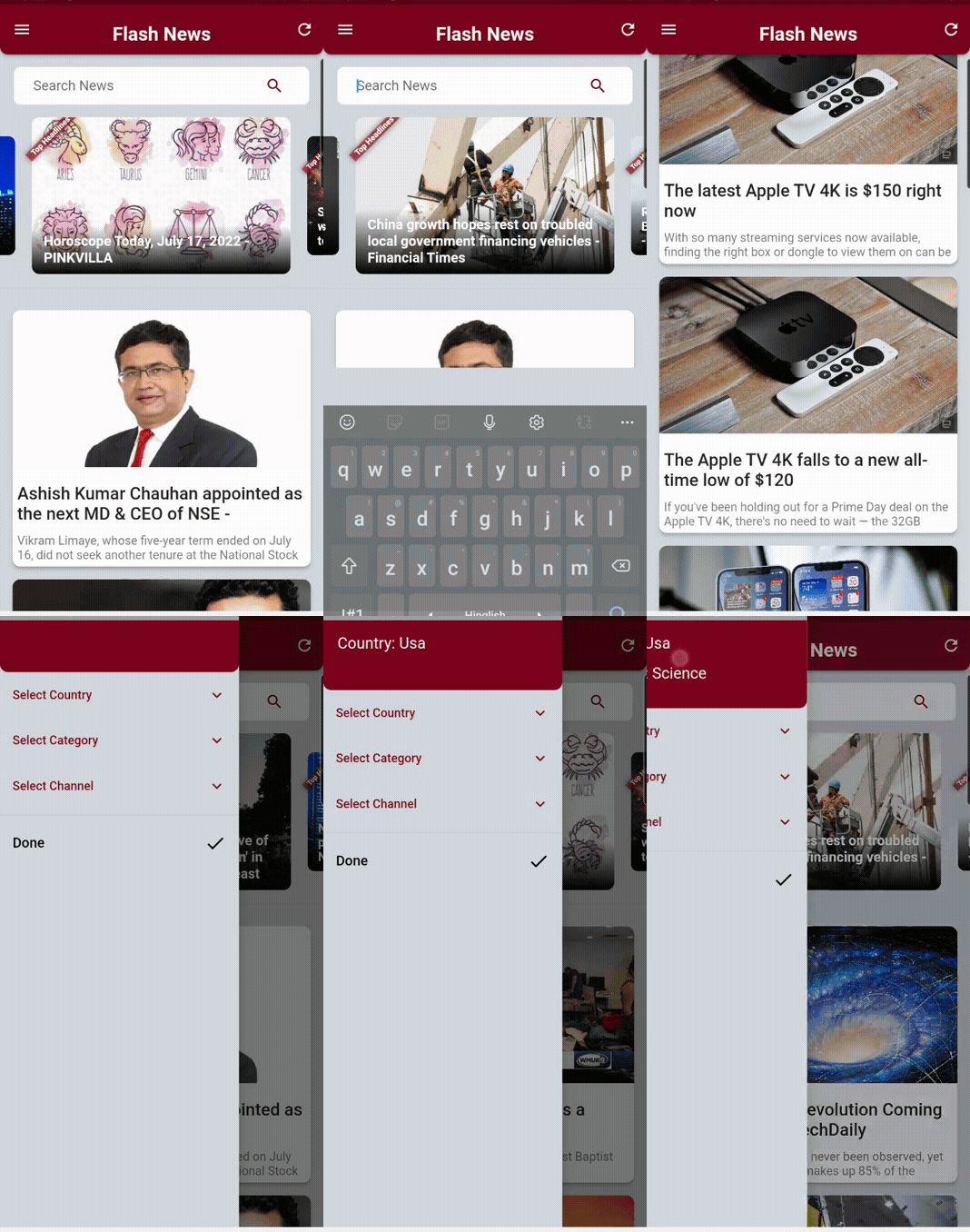
我们正在构建一个单屏幕应用程序,在屏幕顶部有一个搜索栏;一个旋转木马小部件显示世界各地的头条新闻;当用户从侧边抽屉中选择时,根据国家、类别或频道列出新闻。
当你运行该应用程序时,顶级头条新闻的默认国家被设置为印度,默认类别被设置为商业。
我们将使用来自NewsAPI.org的API密钥。你也可以使用MediaStack和NewsData的API,因为我们可以在开发者模式下查询有限数量的新闻文章。新闻API每天允许约100次查询。相反,MediaStack允许一个月内有500次查询,NewsData允许一天有200次查询。你可以随时用不同的账户注册来测试你的应用程序。除了独特的API密钥,一切都将保持不变。
考虑到这一点,让我们开始构建。
设置依赖性
在你的pubspec.yaml 文件中,请添加以下依赖项。
- http: ^0.13.4- 一个可组合的、基于Future的库,用于进行HTTP请求。使用这个包,我们将从NewsApi.org查询新闻文章。
- webview_flutter。^3.0.4- 一个Flutter插件,在Android和iOS上提供一个WebView小部件。通过这个包,用户可以阅读整个新闻文章。
- carousel_slider:^4.1.1- 一个旋转木马滑块小部件,支持无限滚动和一个自定义的子小部件。我们使用这个包来显示最新的头条新闻,它将自动水平滚动
- 获取。^4.6.5- 我们的状态管理解决方案。我已经说过使用GetX作为Flutter的状态管理解决方案的优势;它快速且易于实现,特别是当开发者正在制作原型时
为Android和iOS配置WebView
由于我们使用WebView包来显示整个新闻文章,我们必须对Android应用/build.gradle 文件和iOSRunner 文件夹内的info.plist 文件做一些修改。
对于安卓
你必须把minSdkVersion 至少改为19 。另外,在安卓的依赖性中添加multiDex 支持。请看下面的图片作为参考。
对于iOS
在Runner 文件夹中,您必须添加这一行,以便在 iOS 设备上运行时支持 Flutter 的嵌入式视图。
<key>io.flutter.embedded_views_preview</key>
   <string>YES</string>
请看下面的图片作为参考。
我们对新闻应用的依赖性已经设置好了。现在,让我们在NewsApi.org上注册并获得我们独特的API密钥。
获取新闻API密钥
去NewsAPI.org,用你的电子邮件ID和密码注册。一旦你注册,就会为你自己生成一个独特的API密钥,我们将用它来请求新闻文章。将该密钥保存为Flutter项目中的一个常量。
端点
为了使用这个API,我们需要了解什么是端点。端点是一个独特的点,API允许软件或程序相互通信。
需要注意的是,端点和API并不是同一种东西。端点是API的一个组成部分,而API是一组规则,允许两个软件共享资源以相互通信。端点是这些资源的位置,而API使用URL来检索请求的响应。
新闻API的主要端点
- newsapi.org/v2/everythi…(这个搜索超过80,000个不同来源发布的每一篇文章)
- newsapi.org/v2/top-head…(这根据国家和类别返回突发新闻头条)
- 还有一个次要的端点,主要返回特定出版商的新闻(例如:BBC、ABC)newsapi.org/v2/top-head…
对于上述端点,我们必须提供API密钥,通过它来处理认证。如果API密钥没有附加在URL的末尾,我们必然会收到一个401 - Unauthorized HTTP error 。
因此,URL将看起来像这样:
上述URL将返回一个JSON响应,看起来像这样:
{
"status": "ok",
"totalResults": 9364,
-
"articles": [
-
{
-
"source": {
"id": "the-verge",
"name": "The Verge"
},
"author": "Justine Calma",
"title": "Texas heatwave and energy crunch curtails Bitcoin mining",
"description": "Bitcoin miners in Texas powered down to respond to an energy crunch triggered by a punishing heatwave. Energy demand from cryptomining is growing in the state.",
"url": "https://www.theverge.com/2022/7/12/23205066/texas-heat-curtails-bitcoin-mining-energy-demand-electricity-grid",
"urlToImage": "https://cdn.vox-cdn.com/thumbor/sP9sPjh-2PfK76HRsOfHNYNQWAo=/0x285:4048x2404/fit-in/1200x630/cdn.vox-cdn.com/uploads/chorus_asset/file/23761862/1235927096.jpg",
"publishedAt": "2022-07-12T15:50:17Z",
"content": "Miners voluntarily powered down as energy demand and prices spiked \r\nAn aerial view of the Whinstone US Bitcoin mining facility in Rockdale, Texas, on October 9th, 2021. The long sheds at North Ameri... [+3770 chars]"
},
在理解了上述内容后,我们现在将开始对我们的应用程序进行编程,首先是模型类,然后是我们的GetXController 类。
编写模型类
我们有3个模型类。
-
ArticleModelclass ArticleModel { ArticleModel(this.source, this.author, this.title, this.description, this.url, this.urlToImage, this.publishedAt, this.content); String? author, description, urlToImage, content; String title, url, publishedAt; SourceModel source; Map<String, dynamic> toJson() { return { 'author': author, 'description': description, 'urlToImage': urlToImage, 'content': content, 'title': title, 'url': url, 'publishedAt': publishedAt, 'source': source, }; } factory ArticleModel.fromJson(Map<String, dynamic> json) => ArticleModel( SourceModel.fromJson(json['source'] as Map<String, dynamic>), json['author'], json['title'], json['description'], json['url'], json['urlToImage'], json['publishedAt'], json['content'], ); } -
NewsModelclass NewsModel { NewsModel(this.status, this.totalResults, this.articles); String status; int totalResults; List<ArticleModel> articles; Map<String, dynamic> toJson() { return { 'status': status, 'totalResults': totalResults, 'articles': articles, }; } factory NewsModel.fromJson(Map<String, dynamic> json) => NewsModel( json['status'], json['totalResults'], (json['articles'] as List<dynamic>) .map((e) => ArticleModel.fromJson(e as Map<String, dynamic>)) .toList(), ); } -
SourceModelclass SourceModel { SourceModel({this.id = '', required this.name}); String? id, name; Map<String, dynamic> toJson() { return { 'id': id, 'name': name, }; } factory SourceModel.fromJson(Map<String, dynamic> json) { return SourceModel( id: json['id'], name: json['name'], ); } }
如果你看一下上面的JSON响应的例子,模型类是基于它的。模型类中的变量名应该与JSON响应中的字段相匹配。
用GetXController 类来获取数据
在这里,我们将定义所有的变量、方法和函数,以检索三种类型的新闻文章,它们是。
- 头条新闻
- 根据国家、类别和频道的新闻
- 搜索过的新闻
从定义和初始化变量开始。
// for list view
List<ArticleModel> allNews = <ArticleModel>[];
// for carousel
List<ArticleModel> breakingNews = <ArticleModel>[];
ScrollController scrollController = ScrollController();
RxBool articleNotFound = false.obs;
RxBool isLoading = false.obs;
RxString cName = ''.obs;
RxString country = ''.obs;
RxString category = ''.obs;
RxString channel = ''.obs;
RxString searchNews = ''.obs;
RxInt pageNum = 1.obs;
RxInt pageSize = 10.obs;
String baseUrl = "https://newsapi.org/v2/top-headlines?"; // ENDPOINT
下一步是一个API函数,从新闻API中为所有新闻文章检索一个JSON对象。使用HTTP响应方法,我们从URL获取数据,并将JSON对象解码为可读格式。然后我们要检查响应状态。
如果响应代码是200 ,这意味着状态是好的。如果响应有一些数据,它将被加载到列表中,最终将显示在用户界面中。这是检索所有新闻的函数。
// function to retrieve a JSON response for all news from newsApi.org
getAllNewsFromApi(url) async {
 //Creates a new Uri object by parsing a URI string.
 http.Response res = await http.get(Uri.parse(url));

 if (res.statusCode == 200) {
   //Parses the string and returns the resulting Json object.
   NewsModel newsData = NewsModel.fromJson(jsonDecode(res.body));

   if (newsData.articles.isEmpty && newsData.totalResults == 0) {
     articleNotFound.value = isLoading.value == true ? false : true;
     isLoading.value = false;
     update();
   } else {
     if (isLoading.value == true) {
       // combining two list instances with spread operator
       allNews = [...allNews, ...newsData.articles];
       update();
     } else {
       if (newsData.articles.isNotEmpty) {
         allNews = newsData.articles;
         // list scrolls back to the start of the screen
         if (scrollController.hasClients) scrollController.jumpTo(0.0);
         update();
       }
     }
     articleNotFound.value = false;
     isLoading.value = false;
     update();
   }
 } else {
   articleNotFound.value = true;
   update();
 }
}
而这里是一个检索突发新闻的函数。
// function to retrieve a JSON response for breaking news from newsApi.org
getBreakingNewsFromApi(url) async {
 http.Response res = await http.get(Uri.parse(url));

 if (res.statusCode == 200) {
   NewsModel newsData = NewsModel.fromJson(jsonDecode(res.body));

   if (newsData.articles.isEmpty && newsData.totalResults == 0) {
     articleNotFound.value = isLoading.value == true ? false : true;
     isLoading.value = false;
     update();
   } else {
     if (isLoading.value == true) {
       // combining two list instances with spread operator
       breakingNews = [...breakingNews, ...newsData.articles];
       update();
     } else {
       if (newsData.articles.isNotEmpty) {
         breakingNews = newsData.articles;
         if (scrollController.hasClients) scrollController.jumpTo(0.0);
         update();
       }
     }
     articleNotFound.value = false;
     isLoading.value = false;
     update();
   }
 } else {
   articleNotFound.value = true;
   update();
 }
}
接下来,我们添加函数来与我们之前讨论过的端点进行通信,并从API接收自定义的响应。我们需要向上述函数传递一个URL字符串,当我们在下面的函数中调用它时,我们将这样做。
获得所有的新闻和根据搜索关键词的新闻。
// function to load and display all news and searched news on to UI
getAllNews({channel = '', searchKey = '', reload = false}) async {
 articleNotFound.value = false;

 if (!reload && isLoading.value == false) {
 } else {
   country.value = '';
   category.value = '';
 }
 if (isLoading.value == true) {
   pageNum++;
 } else {
   allNews = [];

   pageNum.value = 2;
 }
 // ENDPOINT
 baseUrl = "https://newsapi.org/v2/top-headlines?pageSize=10&page=$pageNum&";
 // default country is set to India
 baseUrl += country.isEmpty ? 'country=in&' : 'country=$country&';
 // default category is set to Business
 baseUrl += category.isEmpty ? 'category=business&' : 'category=$category&';
 baseUrl += 'apiKey=${NewsApiConstants.newsApiKey}';
 // when a user selects a channel the country and category will become null
 if (channel != '') {
   country.value = '';
   category.value = '';
   baseUrl =
       "https://newsapi.org/v2/top-headlines?sources=$channel&apiKey=${NewsApiConstants.newsApiKey}";
 }
 // when a enters any keyword the country and category will become null
 if (searchKey != '') {
   country.value = '';
   category.value = '';
   baseUrl =
       "https://newsapi.org/v2/everything?q=$searchKey&from=2022-07-01&sortBy=popularity&pageSize=10&apiKey=${NewsApiConstants.newsApiKey}";
 }
 print(baseUrl);
 // calling the API function and passing the URL here
 getAllNewsFromApi(baseUrl);
}
根据用户选择的国家来获取突发新闻。
// function to load and display breaking news on to UI
getBreakingNews({reload = false}) async {
 articleNotFound.value = false;

 if (!reload && isLoading.value == false) {
 } else {
   country.value = '';
 }
 if (isLoading.value == true) {
   pageNum++;
 } else {
   breakingNews = [];

   pageNum.value = 2;
 }
 // default language is set to English
 /// ENDPOINT
 baseUrl =
     "https://newsapi.org/v2/top-headlines?pageSize=10&page=$pageNum&languages=en&";
 // default country is set to US
 baseUrl += country.isEmpty ? 'country=us&' : 'country=$country&';
 //baseApi += category.isEmpty ? '' : 'category=$category&';
 baseUrl += 'apiKey=${NewsApiConstants.newsApiKey}';
 print([baseUrl]);
 // calling the API function and passing the URL here
 getBreakingNewsFromApi(baseUrl);
}
最后,覆盖onInit 方法并调用上述两个函数。
@override
void onInit() {
 scrollController = ScrollController()..addListener(_scrollListener);
 getAllNews();
 getBreakingNews();
 super.onInit();
}
创建一个自定义的NewsCard widget
接下来,我们将创建一个自定义的小部件,用来显示我们将从API获得的新闻文章的图片、标题、描述和URL。这个部件将在主屏幕上的ListView builder中被调用。
class NewsCard extends StatelessWidget {
final String imgUrl, title, desc, content, postUrl;

 const NewsCard(
     {Key? key,
     required this.imgUrl,
     required this.desc,
     required this.title,
     required this.content,
     required this.postUrl});

 @override
 Widget build(BuildContext context) {
   return Card(
     elevation: Sizes.dimen_4,
     shape: const RoundedRectangleBorder(
         borderRadius: BorderRadius.all(Radius.circular(Sizes.dimen_10))),
     margin: const EdgeInsets.fromLTRB(
         Sizes.dimen_16, 0, Sizes.dimen_16, Sizes.dimen_16),
     child: Column(
       crossAxisAlignment: CrossAxisAlignment.start,
       mainAxisSize: MainAxisSize.min,
       children: <Widget>[
         ClipRRect(
             borderRadius: const BorderRadius.only(
                 topLeft: Radius.circular(Sizes.dimen_10),
                 topRight: Radius.circular(Sizes.dimen_10)),
             child: Image.network(
               imgUrl,
               height: 200,
               width: MediaQuery.of(context).size.width,
               fit: BoxFit.fill,
              // if the image is null
               errorBuilder: (BuildContext context, Object exception,
                   StackTrace? stackTrace) {
                 return Card(
                   elevation: 0,
                   shape: RoundedRectangleBorder(
                       borderRadius: BorderRadius.circular(Sizes.dimen_10)),
                   child: const SizedBox(
                     height: 200,
                     width: double.infinity,
                     child: Icon(Icons.broken_image_outlined),
                   ),
                 );
               },
             )),
         vertical15,
         Padding(
           padding: const EdgeInsets.all(Sizes.dimen_6),
           child: Text(
             title,
             maxLines: 2,
             style: const TextStyle(
                 color: Colors.black87,
                 fontSize: Sizes.dimen_20,
                 fontWeight: FontWeight.w500),
           ),
         ),
         Padding(
           padding: const EdgeInsets.all(Sizes.dimen_6),
           child: Text(
             desc,
             maxLines: 2,
             style: const TextStyle(color: Colors.black54, fontSize: Sizes.dimen_14),
           ),
         )
       ],
     ),
   );
 }
}
这就是我们的newsCard 的样子。
你可能会注意到代码中的常量值。我有一个习惯,在我所有的Flutter项目中创建常量文件,用于定义颜色、尺寸、文本字段装饰等。我不会在这里把这些文件添加到文章中,但你会在GitHub仓库中找到这些文件。
添加一个搜索栏小部件
现在我们开始建立我们的主屏幕。在屏幕的顶部,我们有我们的搜索文本字段。当用户输入任何关键词时,API将通过不同来源的数千篇文章进行搜索,并在NewsCard小部件的帮助下将其显示在屏幕上。
Flexible(
 child: Container(
   padding: const EdgeInsets.symmetric(horizontal: Sizes.dimen_8),
   margin: const EdgeInsets.symmetric(
       horizontal: Sizes.dimen_18, vertical: Sizes.dimen_16),
   decoration: BoxDecoration(
       color: Colors.white,
       borderRadius: BorderRadius.circular(Sizes.dimen_8)),
   child: Row(
     mainAxisSize: MainAxisSize.max,
     mainAxisAlignment: MainAxisAlignment.spaceBetween,
     children: [
       Flexible(
         fit: FlexFit.tight,
         flex: 4,
         child: Padding(
           padding: const EdgeInsets.only(left: Sizes.dimen_16),
           child: TextField(
             controller: searchController,
             textInputAction: TextInputAction.search,
             decoration: const InputDecoration(
                 border: InputBorder.none,
                 hintText: "Search News"),
             onChanged: (val) {
               newsController.searchNews.value = val;
               newsController.update();
             },
             onSubmitted: (value) async {
               newsController.searchNews.value = value;
               newsController.getAllNews(
                   searchKey: newsController.searchNews.value);
               searchController.clear();
             },
           ),
         ),
       ),
       Flexible(
         flex: 1,
         fit: FlexFit.tight,
         child: IconButton(
             padding: EdgeInsets.zero,
             color: AppColors.burgundy,
             onPressed: () async {
               newsController.getAllNews(
                   searchKey: newsController.searchNews.value);
               searchController.clear();
             },
             icon: const Icon(Icons.search_sharp)),
       ),
     ],
   ),
 ),
),
这就是我们的搜索栏的样子。
添加一个旋转木马小部件
当用户从侧面的抽屉里选择一个国家时,这个旋转木马部件将显示不同国家的头条新闻或突发新闻。这个小组件被包裹在GetBuilder ,所以每次选择新的国家和突发新闻需要更新时,它都会被重新构建。
我已经将旋转木马选项设置为自动播放滑块。它将自动水平滚动,而不需要用户去滚动它。堆栈部件显示新闻的图片,在它上面显示新闻的标题。
我还在右上角添加了一个横幅,上面写着Top Headlines,这与调试横幅类似。堆栈小部件再次用InkWell ,里面有一个onTap 函数。当用户点击任何一个新闻项目时,它将把用户带到WebView屏幕,整个新闻文章将被显示给读者。
GetBuilder<NewsController>(
   init: NewsController(),
   builder: (controller) {
     return CarouselSlider(
       options: CarouselOptions(
           height: 200, autoPlay: true, enlargeCenterPage: true),
       items: controller.breakingNews.map((instance) {
         return controller.articleNotFound.value
             ? const Center(
                 child: Text("Not Found",
                     style: TextStyle(fontSize: 30)))
             : controller.breakingNews.isEmpty
                 ? const Center(child: CircularProgressIndicator())
                 : Builder(builder: (BuildContext context) {
                     try {
                       return Banner(
                         location: BannerLocation.topStart,
                         message: 'Top Headlines',
                         child: InkWell(
                           onTap: () => Get.to(() =>
                               WebViewNews(newsUrl: instance.url)),
                           child: Stack(children: [
                             ClipRRect(
                               borderRadius:
                                   BorderRadius.circular(10),
                               child: Image.network(
                                 instance.urlToImage ?? " ",
                                 fit: BoxFit.fill,
                                 height: double.infinity,
                                 width: double.infinity,
                                // if the image is null
                                 errorBuilder:
                                     (BuildContext context,
                                         Object exception,
                                         StackTrace? stackTrace) {
                                   return Card(
                                     shape: RoundedRectangleBorder(
                                         borderRadius:
                                             BorderRadius.circular(
                                                 10)),
                                     child: const SizedBox(
                                       height: 200,
                                       width: double.infinity,
                                       child: Icon(Icons
                                           .broken_image_outlined),
                                     ),
                                   );
                                 },
                               ),
                             ),
                             Positioned(
                                 left: 0,
                                 right: 0,
                                 bottom: 0,
                                 child: Container(
                                   decoration: BoxDecoration(
                                       borderRadius:
                                           BorderRadius.circular(
                                               10),
                                       gradient: LinearGradient(
                                           colors: [
                                             Colors.black12
                                                 .withOpacity(0),
                                             Colors.black
                                           ],
                                           begin:
                                               Alignment.topCenter,
                                           end: Alignment
                                               .bottomCenter)),
                                   child: Container(
                                       padding: const EdgeInsets
                                               .symmetric(
                                           horizontal: 5,
                                           vertical: 10),
                                       child: Container(
                                           margin: const EdgeInsets
                                                   .symmetric(
                                               horizontal: 10),
                                           child: Text(
                                             instance.title,
                                             style: const TextStyle(
                                                 fontSize: Sizes
                                                     .dimen_16,
                                                 color:
                                                     Colors.white,
                                                 fontWeight:
                                                     FontWeight
                                                         .bold),
                                           ))),
                                 )),
                           ]),
                         ),
                       );
                     } catch (e) {
                       if (kDebugMode) {
                         print(e);
                       }
                       return Container();
                     }
                   });
       }).toList(),
     );
   }),
这就是我们的旋转木马的样子:
添加一个侧边的抽屉小部件
抽屉小部件有三个下拉框,用于选择 国家、类别或频道。所有这些主要翻译成我们已经讨论过的来源。它是New API提供的一个次要的端点,用于定制文章的检索。
当你在下拉菜单中选择上述任何一项时,用户的选择将显示在侧面的抽屉里,国家名称将显示在NewsCard 列表项目的上方。这个功能是专门为原型设计而添加的,这样作为开发者我们就知道API是按照代码返回响应的。
Drawer sideDrawer(NewsController newsController) {
 return Drawer(
   backgroundColor: AppColors.lightGrey,
   child: ListView(
     children: <Widget>[
       GetBuilder<NewsController>(
         builder: (controller) {
           return Container(
             decoration: const BoxDecoration(
                 color: AppColors.burgundy,
                 borderRadius: BorderRadius.only(
                   bottomLeft: Radius.circular(Sizes.dimen_10),
                   bottomRight: Radius.circular(Sizes.dimen_10),
                 )),
             padding: const EdgeInsets.symmetric(
                 horizontal: Sizes.dimen_18, vertical: Sizes.dimen_18),
             child: Column(
               crossAxisAlignment: CrossAxisAlignment.start,
               children: [
                 controller.cName.isNotEmpty
                     ? Text(
                         "Country: ${controller.cName.value.capitalizeFirst}",
                         style: const TextStyle(
                             color: AppColors.white, fontSize: Sizes.dimen_18),
                       )
                     : const SizedBox.shrink(),
                 vertical15,
                 controller.category.isNotEmpty
                     ? Text(
                         "Category: ${controller.category.value.capitalizeFirst}",
                         style: const TextStyle(
                             color: AppColors.white, fontSize: Sizes.dimen_18),
                       )
                     : const SizedBox.shrink(),
                 vertical15,
                 controller.channel.isNotEmpty
                     ? Text(
                         "Category: ${controller.channel.value.capitalizeFirst}",
                         style: const TextStyle(
                             color: AppColors.white, fontSize: Sizes.dimen_18),
                       )
                     : const SizedBox.shrink(),
               ],
             ),
           );
         },
         init: NewsController(),
       ),
    /// For Selecting the Country
          ExpansionTile(
         collapsedTextColor: AppColors.burgundy,
         collapsedIconColor: AppColors.burgundy,
         iconColor: AppColors.burgundy,
         textColor: AppColors.burgundy,
         title: const Text("Select Country"),
         children: <Widget>[
           for (int i = 0; i < listOfCountry.length; i++)
             drawerDropDown(
               onCalled: () {
                 newsController.country.value = listOfCountry[i]['code']!;
                 newsController.cName.value =
                     listOfCountry[i]['name']!.toUpperCase();
                 newsController.getAllNews();
                 newsController.getBreakingNews();

               },
               name: listOfCountry[i]['name']!.toUpperCase(),
             ),
         ],
       ),
      /// For Selecting the Category
       ExpansionTile(
         collapsedTextColor: AppColors.burgundy,
         collapsedIconColor: AppColors.burgundy,
         iconColor: AppColors.burgundy,
         textColor: AppColors.burgundy,
         title: const Text("Select Category"),
         children: [
           for (int i = 0; i < listOfCategory.length; i++)
             drawerDropDown(
                 onCalled: () {
                   newsController.category.value = listOfCategory[i]['code']!;
                   newsController.getAllNews();

                 },
                 name: listOfCategory[i]['name']!.toUpperCase())
         ],
       ),
      /// For Selecting the Channel
       ExpansionTile(
         collapsedTextColor: AppColors.burgundy,
         collapsedIconColor: AppColors.burgundy,
         iconColor: AppColors.burgundy,
         textColor: AppColors.burgundy,
         title: const Text("Select Channel"),
         children: [
           for (int i = 0; i < listOfNewsChannel.length; i++)
             drawerDropDown(
               onCalled: () {
                 newsController.channel.value = listOfNewsChannel[i]['code']!;
                 newsController.getAllNews(
                     channel: listOfNewsChannel[i]['code']);

               },
               name: listOfNewsChannel[i]['name']!.toUpperCase(),
             ),
         ],
       ),
       const Divider(),
       ListTile(
           trailing: const Icon(
             Icons.done_sharp,
             size: Sizes.dimen_28,
             color: Colors.black,
           ),
           title: const Text(
             "Done",
             style: TextStyle(fontSize: Sizes.dimen_16, color: Colors.black),
           ),
           onTap: () => Get.back()),
     ],
   ),
 );
}
这就是我们的sideDrawer 的样子。
完成我们的主屏幕
接下来,我们要把之前创建的NewsCard 小组件添加到旋转木马小组件下面,该小组件根据用户从侧面抽屉中的选择显示所有其他新闻。如果用户在搜索文本字段中输入一个搜索关键词,这里将显示新闻文章。
请注意,旋转小部件只显示所选国家的头条新闻和突发新闻;它不根据类别或频道进行过滤。如果用户选择了一个类别或一个频道,旋转小部件将不会被更新;只有NewsCard 小部件会被更新。但是当用户选择了一个新的国家,旋转木马部件将和NewsCard 部件一起被更新。
同样,NewsCard 小组件被GetXBuilder 和InkWell 小组件包裹着。
GetBuilder<NewsController>(
   init: NewsController(),
   builder: (controller) {
     return controller.articleNotFound.value
         ? const Center(
             child: Text('Nothing Found'),
           )
         : controller.allNews.isEmpty
             ? const Center(child: CircularProgressIndicator())
             : ListView.builder(
                 controller: controller.scrollController,
                 physics: const NeverScrollableScrollPhysics(),
                 shrinkWrap: true,
                 itemCount: controller.allNews.length,
                 itemBuilder: (context, index) {
                   index == controller.allNews.length - 1 &&
                           controller.isLoading.isTrue
                       ? const Center(
                           child: CircularProgressIndicator(),
                         )
                       : const SizedBox();
                   return InkWell(
                     onTap: () => Get.to(() => WebViewNews(
                         newsUrl: controller.allNews[index].url)),
                     child: NewsCard(
                         imgUrl: controller
                                 .allNews[index].urlToImage ??
                             '',
                         desc: controller
                                 .allNews[index].description ??
                             '',
                         title: controller.allNews[index].title,
                         content:
                             controller.allNews[index].content ??
                                 '',
                         postUrl: controller.allNews[index].url),
                   );
                 });
   }),
SingleChildScrollView 是主屏幕的父部件,作为Scaffold 的主体。appBar 有一个刷新按钮,它清除了所有的过滤器,并将应用程序默认为原始状态。
添加WebView屏幕
WebView屏幕是一个有状态的部件,当用户点击旋转木马或新闻卡中的任何一个新闻项目时,会显示整篇文章。
在这里,我们必须用一个Completer 类来初始化一个WebViewController 。一个Completer 类是产生Future 对象的一种方式,并在以后用一个值或一个错误来完成它们。Scaffold 主体有直接传递的WebView 类。这个屏幕上没有appBar ,这样就不会妨碍读者阅读整篇文章。
class WebViewNews extends StatefulWidget {
 final String newsUrl;
 WebViewNews({Key? key, required this.newsUrl}) : super(key: key);

 @override
 State<WebViewNews> createState() => _WebViewNewsState();
}

class _WebViewNewsState extends State<WebViewNews> {
 NewsController newsController = NewsController();

 final Completer<WebViewController> controller =
     Completer<WebViewController>();

 @override
 Widget build(BuildContext context) {
   return Scaffold(
       body: WebView(
     initialUrl: widget.newsUrl,
     javascriptMode: JavascriptMode.unrestricted,
     onWebViewCreated: (WebViewController webViewController) {
       setState(() {
         controller.complete(webViewController);
       });
     },
   ));
 }
}
制作一个闪屏
我将我的应用程序命名为FlashNews,并在Canva中设计了我的闪屏图片。闪屏页面弹出三秒,然后用户被转移到主屏幕上。闪屏是非常容易实现的,我建议所有的应用程序都应该有一个简短的介绍。
class SplashScreen extends StatefulWidget {
 const SplashScreen({Key? key}) : super(key: key);

 @override
 State<SplashScreen> createState() => _SplashScreenState();
}

class _SplashScreenState extends State<SplashScreen> {
 @override
 void initState() {
   super.initState();

   Timer(const Duration(seconds: 3), () {
     //navigate to home screen replacing the view
     Get.offAndToNamed('/homePage');
   });
 }

 @override
 Widget build(BuildContext context) {
   return Scaffold(
     backgroundColor: AppColors.burgundy,
     body: Center(child: Image.asset('assets/flashNews.jpg')),
   );
 }
}
这就是全部!我们已经完成了我们的应用程序。正如我之前提到的,还有一些其他的Dart文件,你可以在我下面的GitHub链接中找到。
我试图保持用户界面的整洁。整个重点是让用户容易找到和阅读的新闻文章。API一次返回一百多篇文章;如果你仔细看代码,我们只显示了其中的几页。同样,我们被允许的查询量是有限的,而且每次几篇文章的加载速度更快。
希望这能让你了解如何实现JSON端点之间的交互,从API中获取数据,并在屏幕上显示这些数据。
谢谢你!"。
